Let’s be honest, it can be quite frustrating when Safari unexpectedly closes while you’re browsing a website. You’re simply trying to enjoy reading or watching a video, and then it crashes on you.
It may feel random, but don’t worry! This is a common issue, and it’s something we can resolve together.
So, what might be causing this? There are a few usual culprits. Often, it’s just an outdated version of Safari that needs updating.
At times, cookies or cache can build up and interfere with Safari’s performance.
Other occasions may involve a problematic website or an extension that isn’t working well.
This is important because you want to have a seamless experience online, free from browser crashes.
Whether you’re catching up on the news, shopping, or working, Safari should function smoothly. No interruptions, no stress.
Let’s work on fixing this together. I’ll guide you through each step in a simple way.
You don’t need to be a tech whiz. Just follow along, and we’ll have Safari running perfectly again in no time!
Why Safari might be crashing
#1 Safari isn’t updated
If Safari hasn’t been updated in a while, it might be running into bugs that Apple has already fixed.
Updates often include bug fixes and performance improvements. So, if Safari keeps crashing, this should be the first thing you check.
#2 Cookies and Cache Are Causing Issues
Every time you visit a website, Safari saves little bits of data called cookies and cache.
This helps pages load faster next time. But over time, this stuff builds up and can cause Safari to crash. Clearing them out gives Safari a fresh start.
#3 Extensions Might Be the Problem
Some Safari extensions can be troublemakers. If you’ve got extensions installed that you don’t remember adding or haven’t used in a while.
They could be clashing with certain websites and causing crashes. It’s worth disabling them to see if things improve.
#4 Some Sites Just Overload Safari
Let’s face it, some websites are just too heavy. They’re packed with scripts, ads, and auto-playing videos. You name it.
These things can overwhelm Safari and cause it to shut down without warning.
Unfortunately, you can’t fix those sites, but you can avoid them or use Reader Mode to simplify the page.
#5 You’re Running Low on Storage
If your device is almost full, everything slows down, including Safari. Low storage affects how smoothly your browser runs, and it can even cause crashes.
Freeing up space can make a big difference.
Now that you know what might be going on, let’s go ahead and fix it, step by step.
Safari Crashes When Opening Certain Sites. Try This
Alright, ready to fix this? We’ll go through each solution one by one.
I’ll explain what to do and why it helps. Let’s make Safari behave again!
#1 Keep Safari Updated
Let’s start with the easiest step. If Safari is outdated, it might be full of bugs. Updates usually fix those.
Here’s how to check and update Safari:
- Click the Apple menu in the top-left corner.
- Select System Settings.
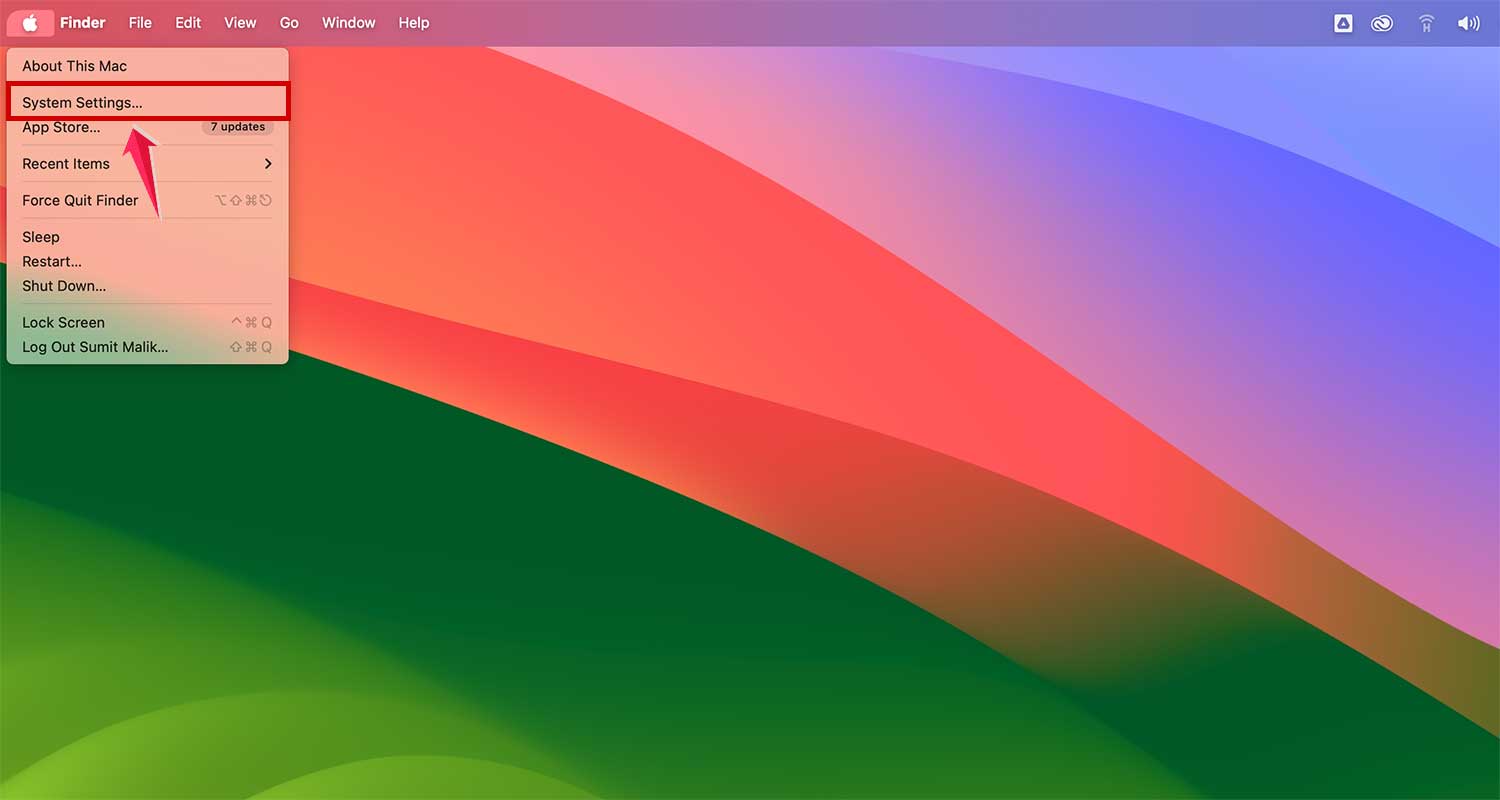
- Go to General > Software Update.

- If an update is available, click Upgrade Now.

After updating, open Safari again and see if the crashing stops.
#2 Clear Cache and Cookies
If Safari is still crashing, let’s clean out the cookies and cache. This gives the browser a fresh start.
Follow these steps:
- Open Safari.
- Click Safari in the top-left menu, then choose Settings.

- Go to the Privacy tab.
- Click Manage Website Data.
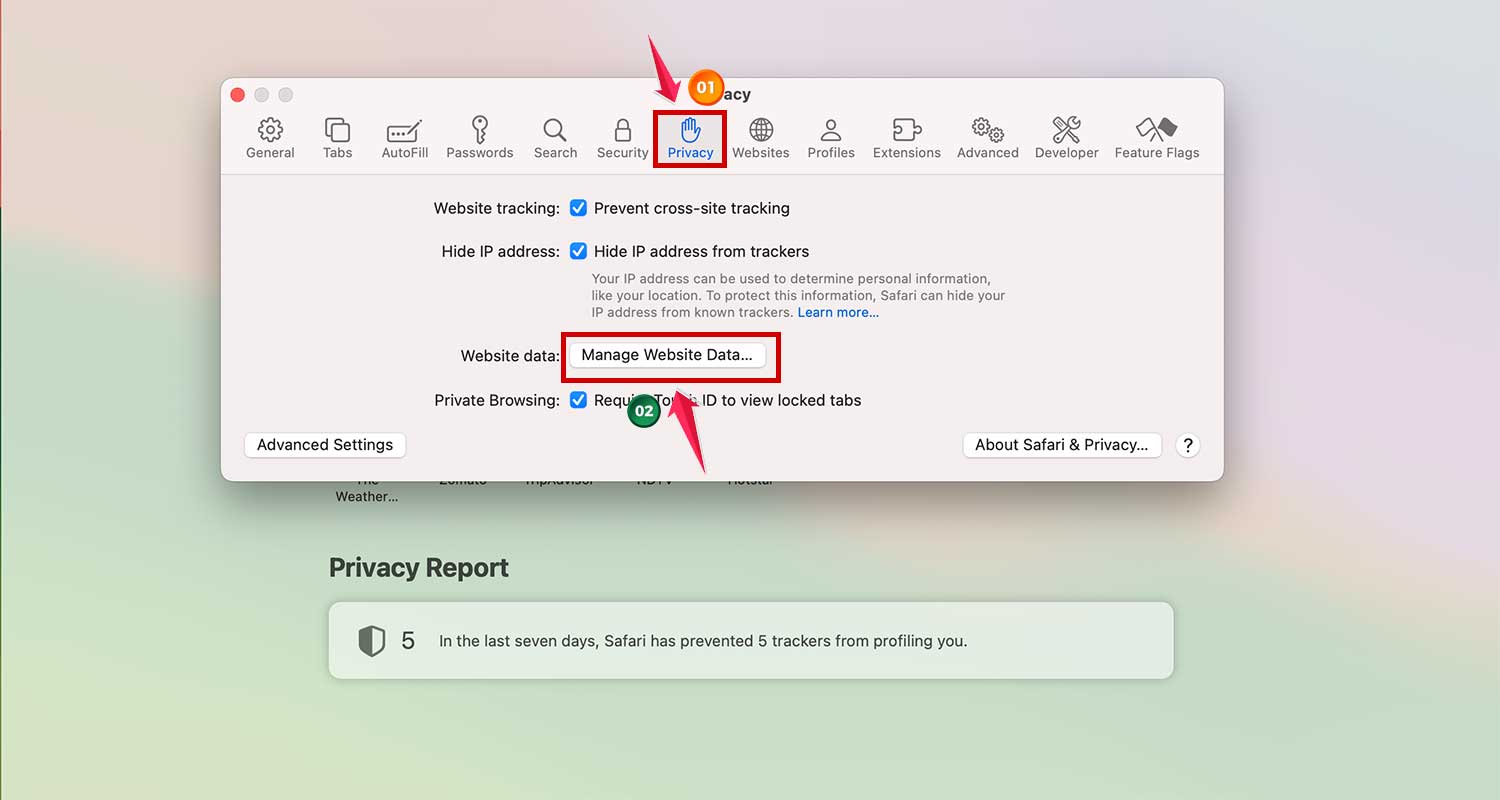
- Then click Remove All to clear everything.

Now, try opening the site again. Feels smoother, right?
#3 Disable Unfamiliar Extensions
Extensions can be helpful. But not all of them. Some might be outdated or just not work well with Safari anymore.
Here’s how to disable them:
- Click Safari in the top menu.
- Select Settings.
- Then go to the Extensions tab.

- Uncheck or remove any extensions you don’t recognize or use.

After that, restart Safari and check if the problem is gone.
#4 Test in Private Mode
This is a quick trick. If Safari works fine in Private Mode, then the issue is likely with your cookies or cache.
Try it like this:
- Open Safari.
- Go to File in the menu bar.
- Select New Private Window.
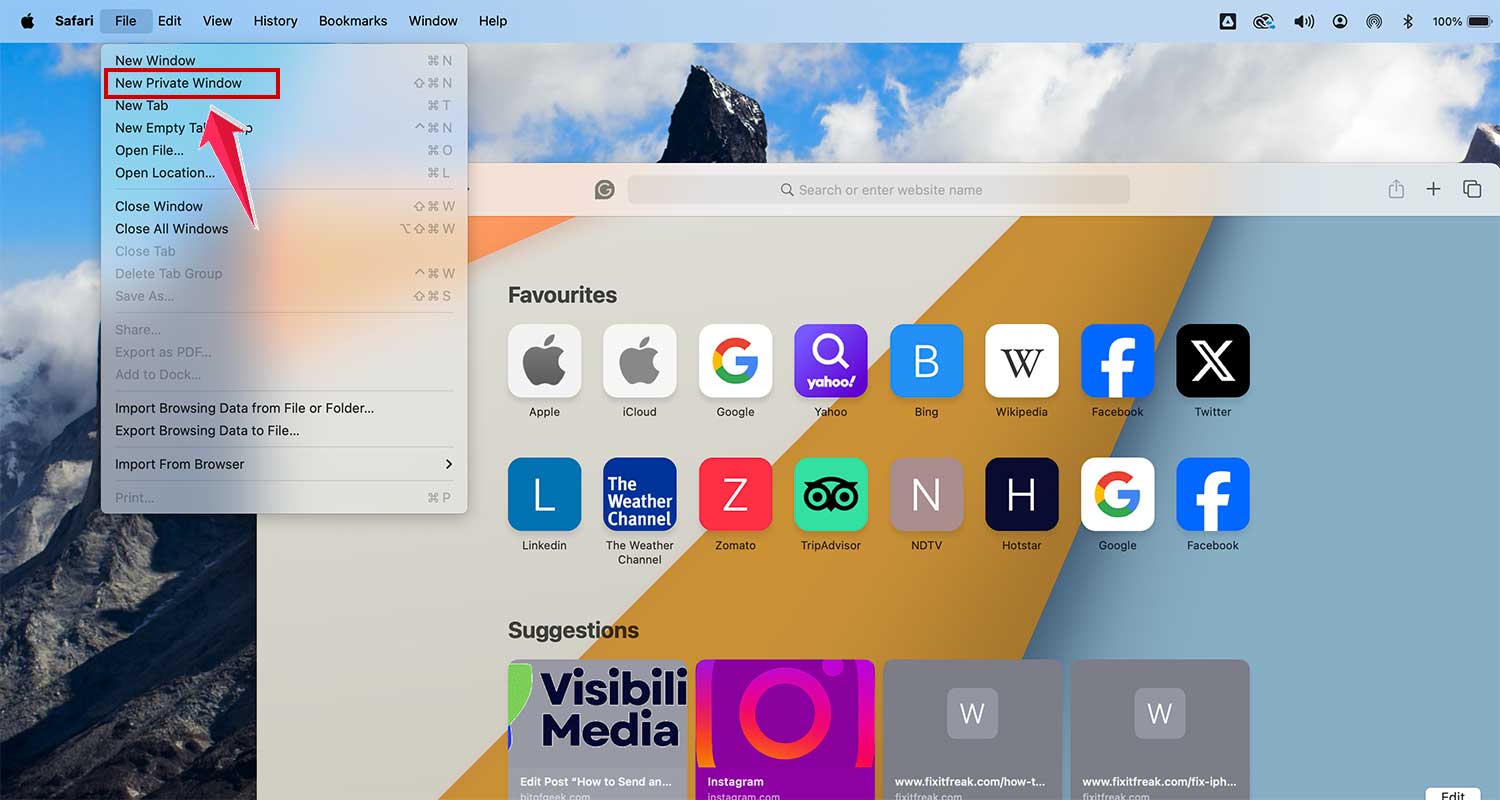
Visit the site that was crashing. If it works here, go back and clear your cookies and cache again.
#5 Free Up Device Storage
Your Mac needs breathing room. If it’s running out of space, Safari can crash more often.
Here’s how to check and free up space:
- Click the Apple menu and choose System Settings.
- Go to the General > Storage tab.
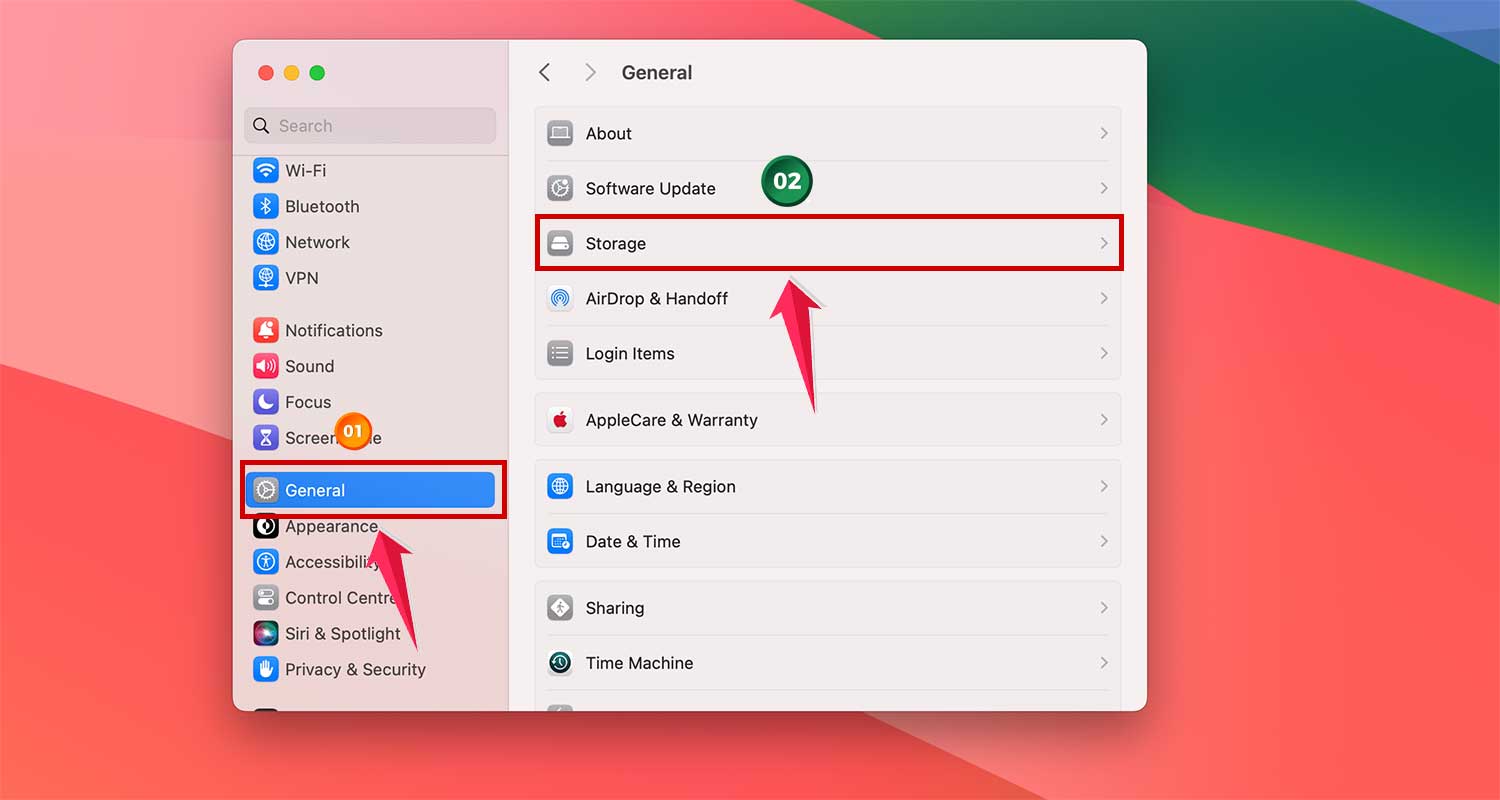
- Delete large or unused files, apps, or downloads you don’t need anymore.

Once you’ve cleared up some space, Safari should start behaving better.
#6 Restart Your Device
Sometimes, all your Mac needs is a quick restart. It clears out temporary system glitches.
Here’s what to do:
- Click the Apple menu.
- Select Restart.

After restarting, open Safari again and check the site that was causing trouble.
#7 Reach Out for Help
If only one specific website is crashing, the issue might be on their end. You can contact them for help.
Here’s how:
- Go to the website’s Contact Us or Support page.
- Let them know what’s happening and ask if they’re aware of any issues with Safari.
They might already be working on a fix.
#8 Reset Safari to Default Settings
If nothing else has worked, it might be time to reset Safari.
This clears out everything and gives you a clean slate. Only do this if you’ve tried everything else.
Here’s how to do it:
- Open Safari and go to Settings.
- Click the Advanced tab.
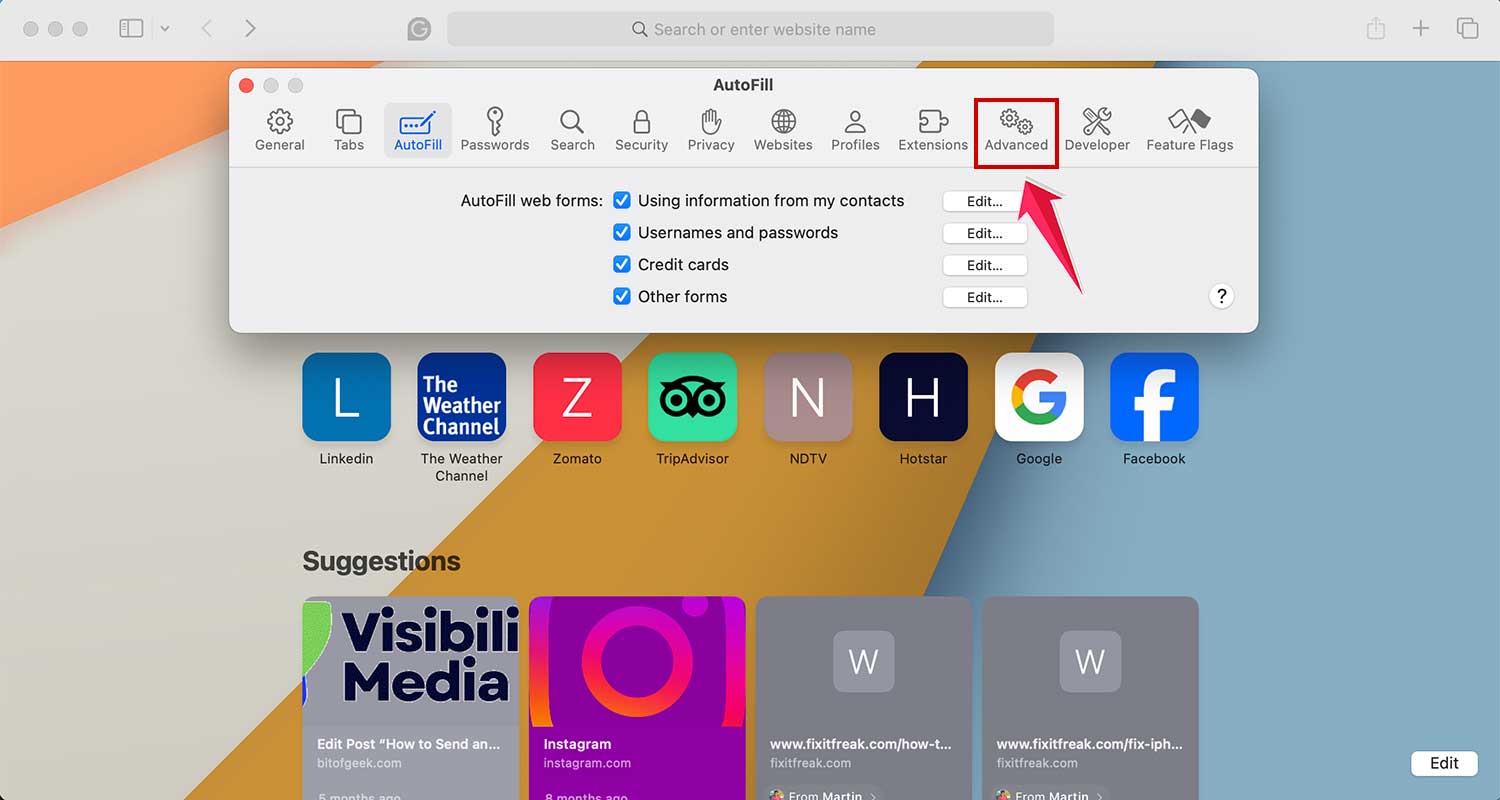
- Check the Show features for web developers.

- Now, click Develop in the menu bar and choose Empty Caches.
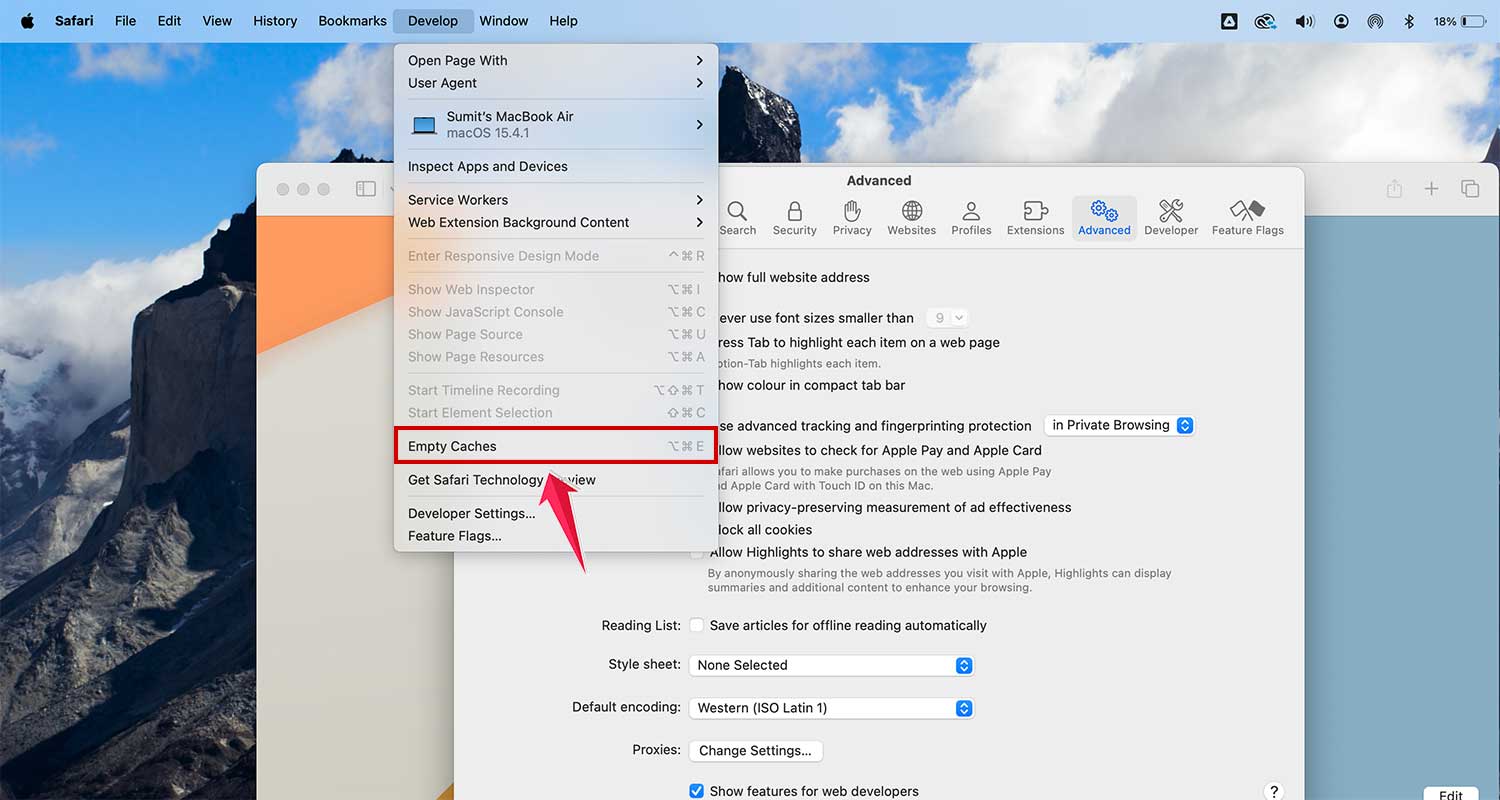
After resetting, restart Safari and test again.
Some Extra Tips
1. Save Your Tabs Before Restarting. If you’re restarting Safari or your Mac, don’t forget to bookmark your open tabs. This way, you won’t lose anything important when things reset.
2. Check for Safari Updates Regularly. Even if everything’s working fine now, it’s smart to check for updates once in a while. New updates come with fixes and improvements that can prevent future crashes.
3. Enable Safari’s Built-in Features. Safari has some features that help prevent crashes. Go to Preferences and turn on Pop-up Blocker and Fraudulent Website Warning. These can keep harmful scripts from messing things up.
4. Use Reader Mode for Simplicity. If a page feels too cluttered, click the Reader Mode icon in the address bar. It strips down the page to just text and images. It’s easier to read and may help avoid crashes.
5. Keep Your MacOS Updated. Sometimes, it’s not Safari. It’s the whole system. Make sure your macOS is up to date. This helps everything run better, including Safari.
The Takeaway
Safari crashing can be very frustrating, especially if it happens often on some websites. But here’s the bright side. You can definitely resolve it.
The problem is often simple, like an old browser or a full cache.
Try the basics. Update Safari, clear cookies and cache, and turn off any strange extensions.
If those steps don’t do the trick, consider trying Private Mode, freeing up some storage, or resetting Safari as a last option.
And remember those extra tips. They can really help keep everything running smoothly.
Now it’s your turn. Give these steps a try and share how it goes. If you’re still having trouble, feel free to leave a comment below. I’m here to support you!