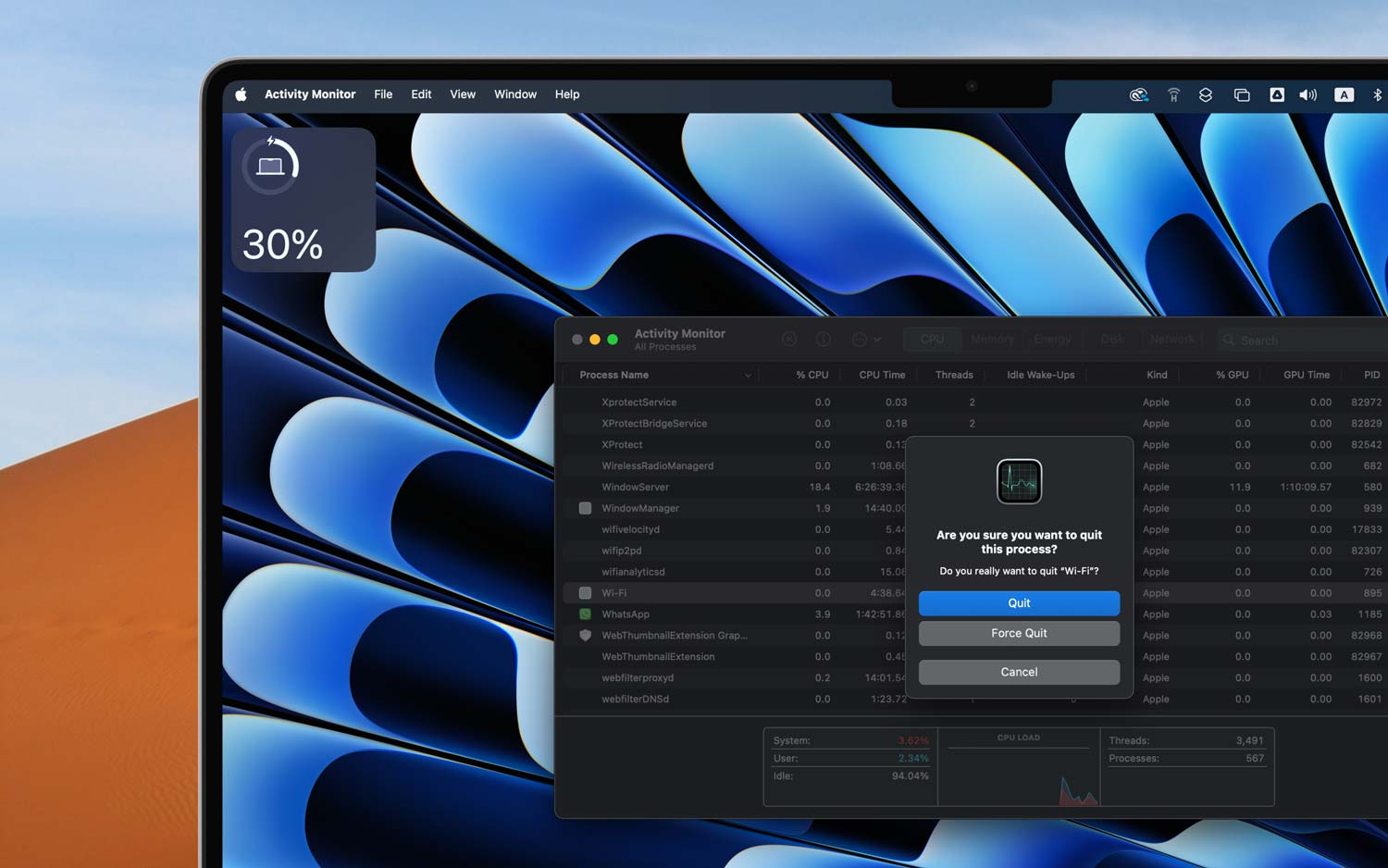
Ever had an app just freeze on your Mac? Yeah, I’ve been there too. You’re working, maybe editing a photo or typing something important, and suddenly—bam! The app just stops. You click, you wait, nothing happens. It’s frustrating, I know.
So, what’s going on? It’s not just you, and it’s not always the app’s fault either. Sometimes your Mac gets a little overwhelmed.
Maybe you’ve got too many things open at once. Or maybe the app you’re using hasn’t been updated in a while. It could even be a corrupted file messing things up behind the scenes.
Now, why should you care? Because when apps freeze, you lose time. You might even lose your work.
Whether you’re doing school stuff, editing videos, or just chatting with friends, a frozen app can really mess up your flow. And honestly, nobody has time for that.
But don’t stress. I’ve got you. In this guide, I’ll walk you through the most common reasons apps freeze on your Mac—and more importantly, how you can fix it.
These are simple, real steps you can take right now. So let’s get into it and get your Mac back to running smooth.
What causes apps to freeze on a Mac?
1. Your Mac might be running low on resources
When your Mac is doing too much at once, it can start to slow down. Maybe you’ve got a bunch of apps open, or you’re running something heavy like video editing software.
If your RAM or CPU is maxed out, apps can freeze or lag. It’s like your Mac is trying to do too many things at once and just needs a break.
2. Apps can have glitches, just like us
Let’s be real—no app is perfect. Sometimes, they have little bugs that cause them to crash or freeze. Maybe the app wasn’t coded well, or maybe it just needs an update.
These kinds of glitches are common, and usually, a quick update can fix them.
3. Outdated software doesn’t play nice
If your app hasn’t been updated in a while, and your Mac has, there might be a conflict. New versions of macOS come with new rules, and old apps might not follow them.
That’s when things start to break down. So if your app is acting weird, check if there’s a new version waiting for you.
4. Corrupted files aren’t helping
Sometimes, files inside the app get damaged. It can happen during a download or update, or just randomly.
These corrupted files can mess with how the app runs, causing it to freeze or crash. If that’s the case, reinstalling the app usually helps.
Now that you’ve got an idea of what’s going wrong, let’s talk about how to fix it. These are things you can do right now to get your Mac back in shape.
App Not Responding on macOS – Force Quit or Fix?
Alright, here’s where we fix the problem. If your app is stuck, don’t panic. Try these steps one at a time. Most of them are quick, and they work more often than you’d think.
#1 Force quit the app
Sometimes, all an app needs is a little push to stop acting up. Force quitting stops the app and lets you open it fresh.
Here’s how to do it:
- Click the Apple Menu at the top left of your screen.
- Select Force Quit.
- Find the app that’s frozen in the list and click Force Quit again.
That should shut it down. Go ahead and try opening it again. Still stuck? No worries—we’ve got more tricks up our sleeve.
#2 Restart your Mac
Yep, the classic restart. It’s simple, but it works. Restarting clears out temporary issues and gives your Mac a fresh start.
To restart:
- Click the Apple Menu.
- Select Restart.
Once it boots back up, check if the app is working. Many times, that’s all it takes.
#3 Update the app
If the app hasn’t been updated in a while, it might not work well with your current macOS. An update can fix bugs and make everything smoother.
Try this:
- Open the App Store.
- Click Updates in the sidebar.
- If you see the app there, hit Update.
If it’s already updated, or not listed, hang tight—we’re not done yet.
#4 Check for macOS updates
Sometimes the issue isn’t the app—it’s your system. If macOS is outdated, it might cause trouble with newer apps. Keeping your Mac updated is important.
Here’s how to check:
- Go to System Settings.
- Click on Software Update.
- If there’s an update, go ahead and install it.
After updating, restart your Mac and try the app again.
#5 Reinstall the app
If the app still isn’t working, it might be best to delete it and start fresh. This can clear out any corrupted files or hidden issues.
Do this:
- Go to the Applications folder.
- Drag the app to the Trash.
- Empty the Trash.
- Download the app again from the App Store or official website.
Install it, open it, and see if it works better now.
Some Extra Tips
Okay, so your app is working again—or maybe you’re still trying. Either way, here are a few more things you can do to keep your Mac running like new.
#1 Clear system junk
Your Mac collects a lot of junk over time—cache files, logs, and other stuff you don’t need. Cleaning that up helps free resources.
You can use tools like CleanMyMac to help with this. Just make sure it’s a trusted app before you use it.
#2 Use Activity Monitor to spot issues
If something’s using too much power, it can slow everything down. Check what’s running in the background.
Here’s how:
- Open Activity Monitor from your Utilities folder.
- Click the CPU and Memory tabs.
- See what’s using the most resources. If it’s something you don’t need, close it.
#3 Manage startup apps
Too many apps starting when your Mac turns on can slow it down. You can pick which ones to keep and which to remove.
Do this:
- Go to System Settings.
- Click Users & Groups.
- Choose your user, then look for Login Items.
- Remove anything you don’t need at startup.
#4 Keep your Mac clutter-free
A clean Mac is a happy Mac. Regularly remove files you don’t use, empty your Trash, and organize your folders. It makes a difference.
#5 Watch your Mac’s temperature
If your Mac feels hot, it might be working too hard. Make sure it has good airflow. Don’t use it on a bed or couch where vents get blocked. If it’s overheating, give it a break.
#6 Use Safe Mode when needed
If nothing else works, boot into Safe Mode. It loads only essential files and can help you figure out what’s wrong.
To use Safe Mode:
- Restart your Mac and hold down the Shift key until you see the login screen.
#7 Back up your data regularly
Don’t wait for a crash to think about backups. Use Time Machine or another tool to keep your files safe. If something goes wrong, you’ll be glad you did.
#8 Keep your software lightweight
Heavy apps slow things down. Stick to what you need. Look for lighter alternatives if possible. Your Mac will run better with less weight on its shoulders.
The Takeaway
So, your app froze. It’s annoying, but it doesn’t have to ruin your day. With a force quit, a quick restart, or a few updates, you can usually fix the problem fast. Most of the time, it’s not a big deal—it just needs a little attention.
Keep your Mac clean, updated, and not too crowded with apps. That alone will prevent most issues. And if it ever acts up again, now you know exactly what to do.
Hope this helped you! Got your own tips or a question about something I didn’t cover? Drop them in the comments! I’d love to hear from you.