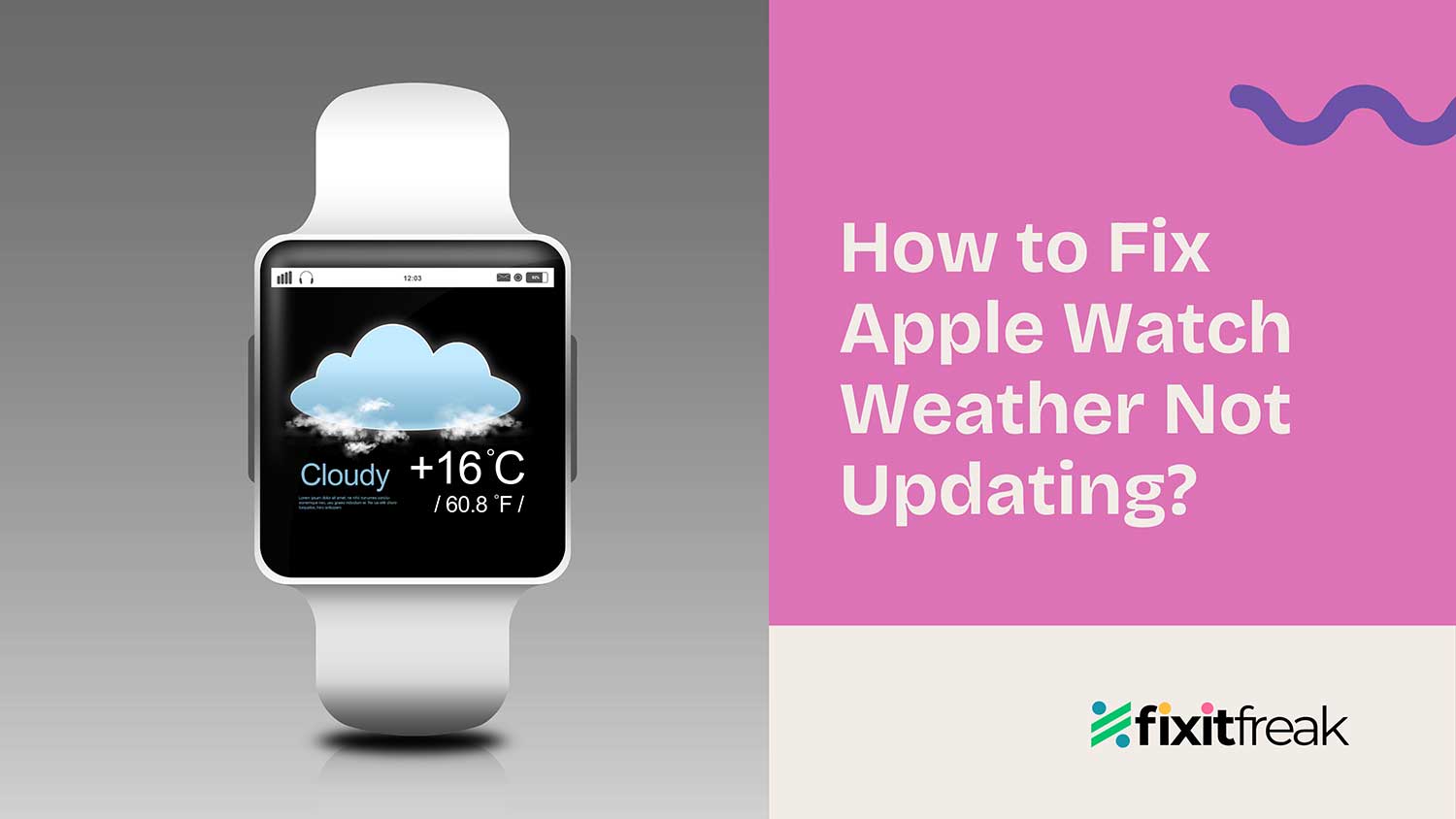
Is your Apple Watch showing yesterday’s weather forecast? Or even worse, is it not showing any weather at all? Don’t worry, you’re not alone!
Many users of the Apple Watch are facing this frustrating issue, especially after the latest watchOS updates.
You rely on your Apple Watch for quick weather updates. Accurate weather info matters for your morning commute, picking an outfit, or deciding if it’s a good time to run.
You might also use it to track your workouts. If that feature isn’t working either, you can fix Apple Watch not tracking activity. When your watch doesn’t give you this information, it can throw off your entire day.
This guide will give you simple steps to fix the weather display on your Apple Watch. Let’s tackle those weather issues together so you can continue your day with confidence!
Why isn’t my Apple Watch weather updating?

Before we jump into fixing your Apple Watch weather, let’s talk about why it might not be working.
Understanding the problem can help you solve it faster. Here are the main reasons your weather might be stuck:
1. Software bugs
Recent watchOS updates have caused some trouble. If you’ve updated your watch lately, this could be why your weather isn’t refreshing. The latest versions, like watchOS 10.5 and 10.6.1, have some bugs that mess with weather data.
2. Connection problems
Your Apple Watch needs to talk to your iPhone to get weather info. If there’s a problem with Bluetooth, Wi-Fi, or cellular connections, your watch might not get the latest weather.
It’s like trying to hear someone through a bad phone line. The message just doesn’t get through. If syncing issues are to blame, here’s how to fix Apple Watch not syncing with iPhone.
3. Location settings issues
Weather apps need to know where you are to give you the right forecast. If your location settings are off or not set up correctly, your watch can’t figure out which weather to show you.
4. Weather app glitches
Sometimes, the problem is with the Weather app itself. Just like any app, it can get a bit confused and need a fresh start. A quick refresh or reset of the app might be all it needs to start working again.
Now, let’s explore the most effective solutions to get your Apple Watch weather back on track.
How to fix your Apple Watch weather when it’s not updating?
1. Check your connections
The first step is to ensure your Apple Watch has a stable connection to your iPhone and the internet.
- Verify Bluetooth: On your iPhone, go to Settings > Bluetooth. Make sure it’s turned on and your watch is connected.

- Check Wi-Fi: Open Settings > Wi-Fi on your iPhone and ensure you’re connected to a stable network.
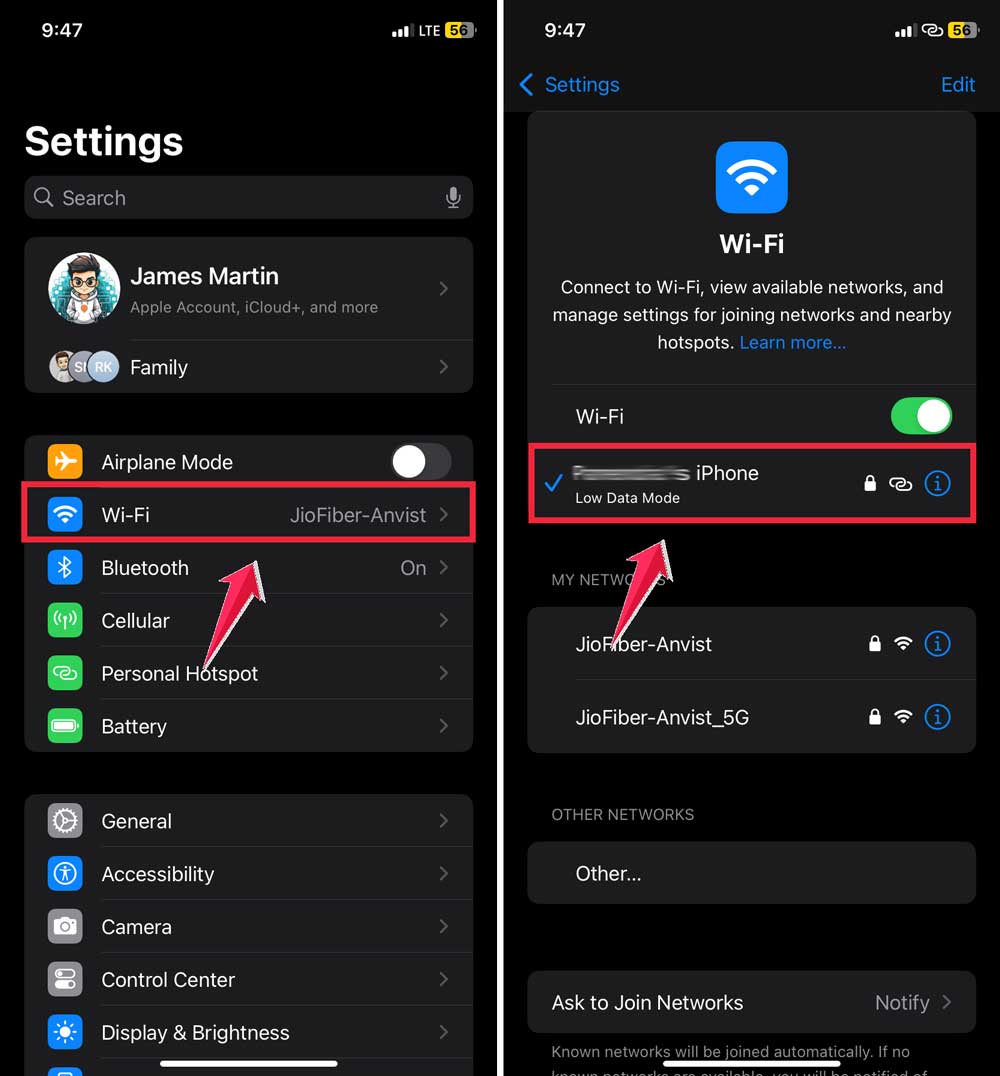
- Cellular data: If you have a cellular-enabled Apple Watch, make sure cellular data is enabled in the Watch app on your iPhone.
Some users have reported that turning off Wi-Fi on their iPhones and relying solely on cellular data temporarily fixes the weather updating issue. While not a permanent solution, it’s worth trying if you’re in a pinch. If your Apple Watch isn’t even finding your iPhone, you might also want to look at how to fix Apple Watch not pinging iPhone.
2. Refresh your watch face
A quick and easy fix that often works is to refresh your watch face:
- Press and hold on your watch face until it zooms out.
- Instead of changing faces, press the Digital Crown to return to the current face.
- This action refreshes all complications, including weather.
3. Reset location and privacy settings
Incorrect location settings are a common culprit for weather issues.
You need to reset these settings on your iPhone.
- Go to Settings > Privacy & Security > Location Services.

- Scroll down and tap Weather.
- Set it to “Always” or “While Using the App“.
- Toggle Precise Location on.

If that doesn’t work, try a more comprehensive reset:
- On your iPhone, go to Settings > General.
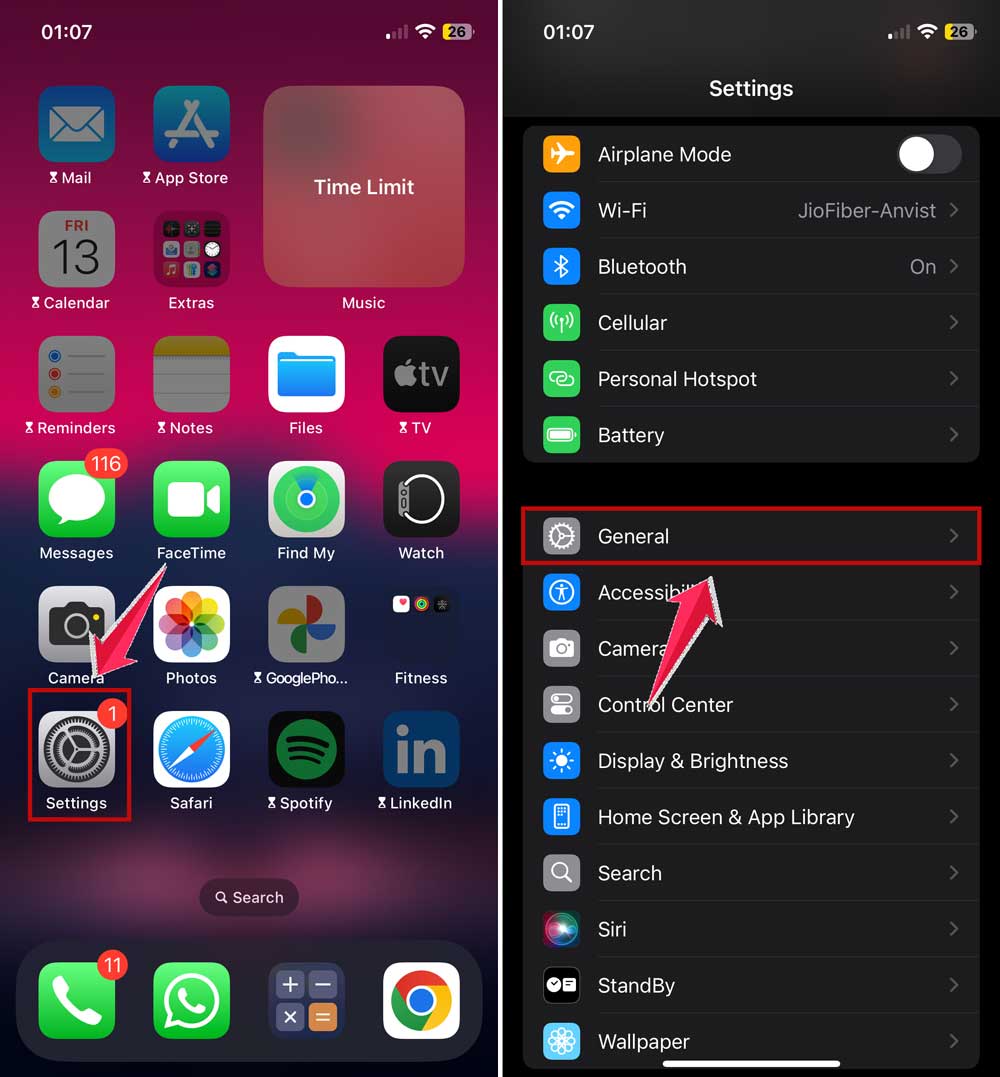
- Click on Transfer or Reset iPhone > Reset.

- Choose Reset Location & Privacy.
- Enter your passcode to confirm.

4. Update your software
Keeping your devices up to date can resolve many issues:
- On your iPhone, go to Settings > General > Software Update.

- On your Apple Watch, open the Watch app on your iPhone and go to General > Software Update.
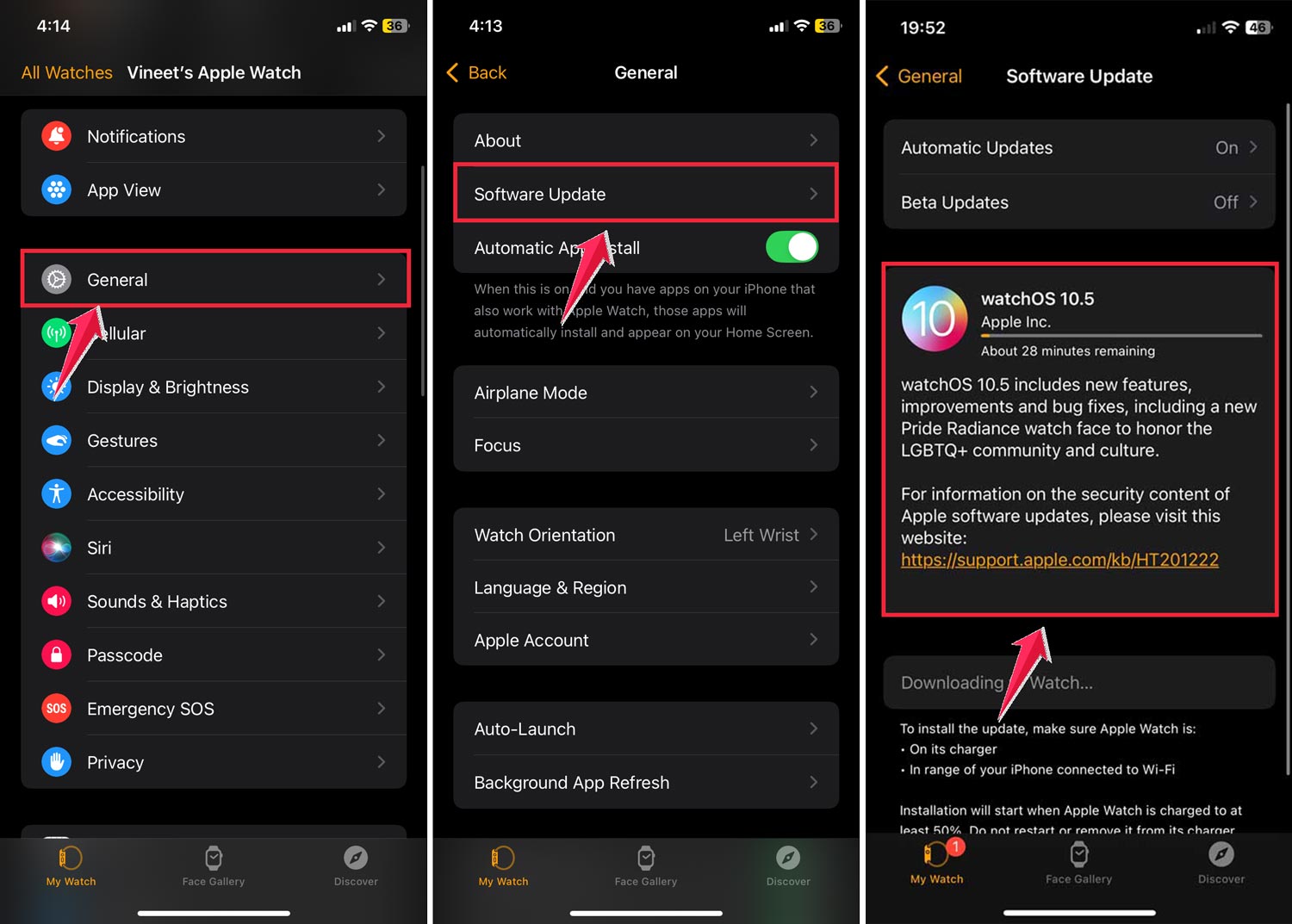
Install any available updates for both devices. Software bugs don’t just affect Weather. See how to fix FaceTime not working after updates.
5. Force close and reopen the Weather app
Sometimes, the Weather app just needs a fresh start:
- Open the Weather app on your Apple Watch.
- Press and hold the side button until you see the power options.
- Press and hold the Digital Crown until the app closes, and you return to the home screen.
- Reopen the Weather app.
6. Change your default weather location
Changing your default location can sometimes kick-start the weather updating process:
- Open the Weather app on your iPhone.
- Search for and add a new city.
- Drag this new city to the top of your list to make it the default.
- Check if the weather updates on your watch.
- You can change it back to your preferred location afterward.
7. Reset sync data
If the above steps haven’t worked, try resetting the sync data between your iPhone and Apple Watch:
- Open the Watch app on your iPhone.
- Go to General.
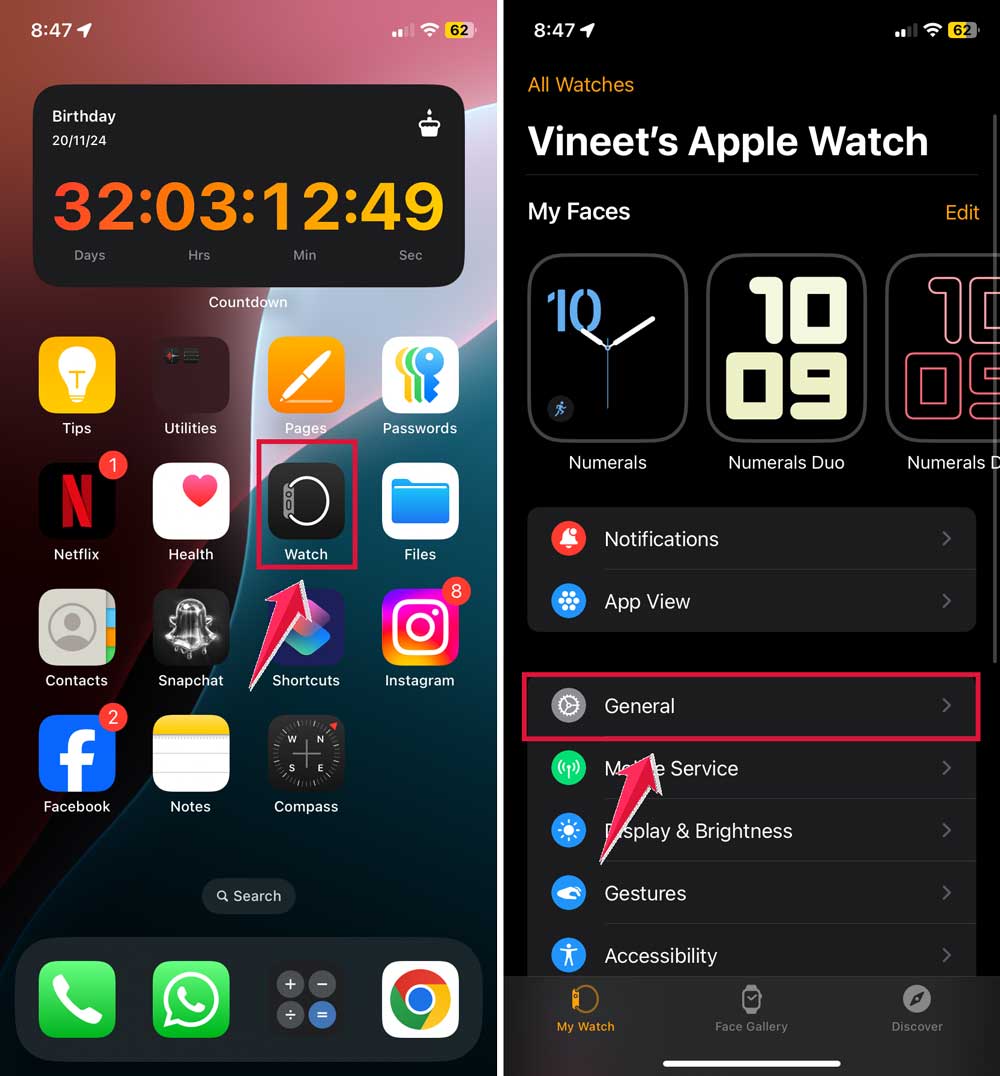
- Click on Reset.
- Tap Reset Sync Data.

This process may take a few minutes, and your watch will restart.
8. Unpair and re-pair your Apple Watch
As a last resort, unpairing and re-pairing your watch can resolve persistent issues:
- Keep your iPhone and Apple Watch close together.
- Open the Watch app on your iPhone.
- Tap All Watches.

- Then the info (i) button next to your watch.
- Select Unpair Apple Watch and follow the prompts.
- Once complete, pair your watch again as if it were new.
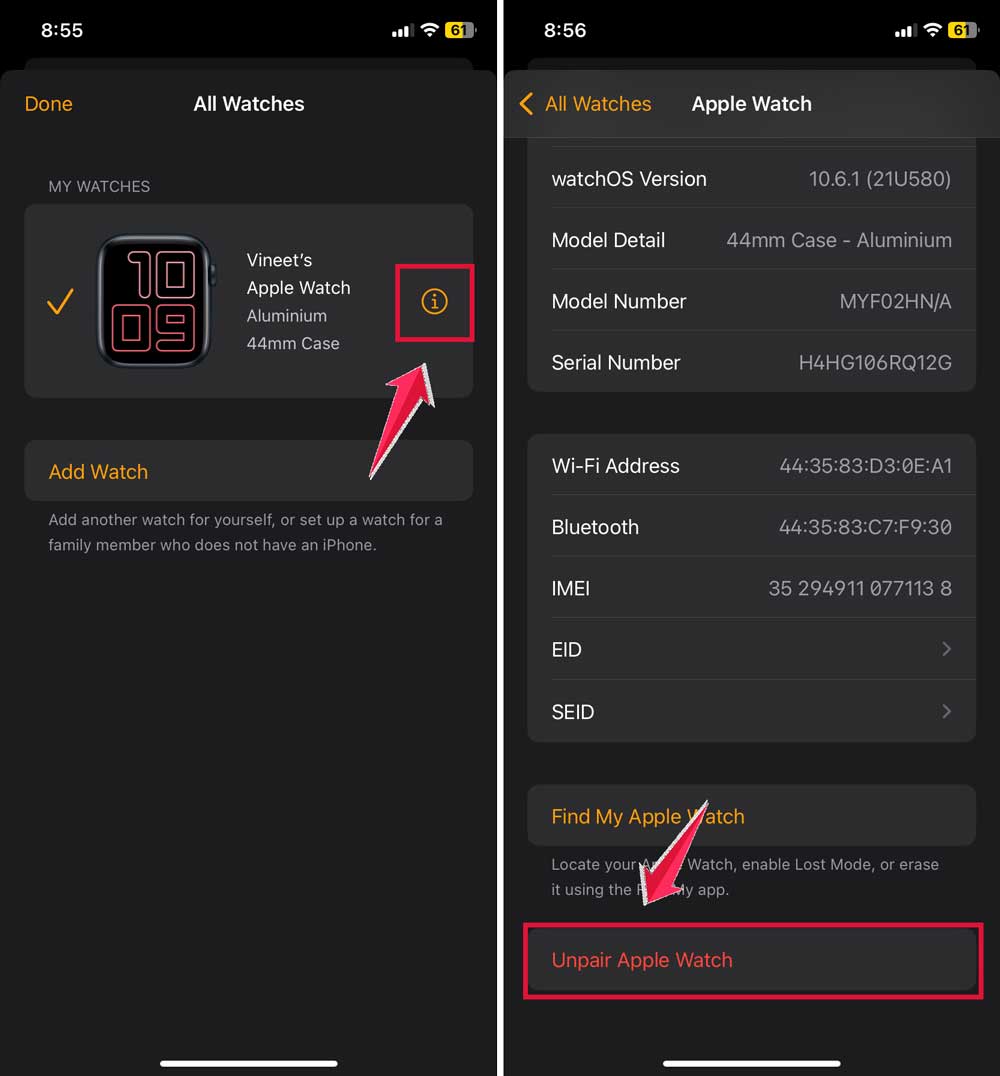
Remember to back up your watch before unpairing to save your data.
9. When to contact Apple Support
If you’ve tried all these solutions and your Apple Watch weather still isn’t updating, it may be time to reach out to Apple Support.
They can run diagnostics and determine if there’s a hardware issue or a more complex software problem that needs addressing.

How to prevent future Apple Watch weather update issues?
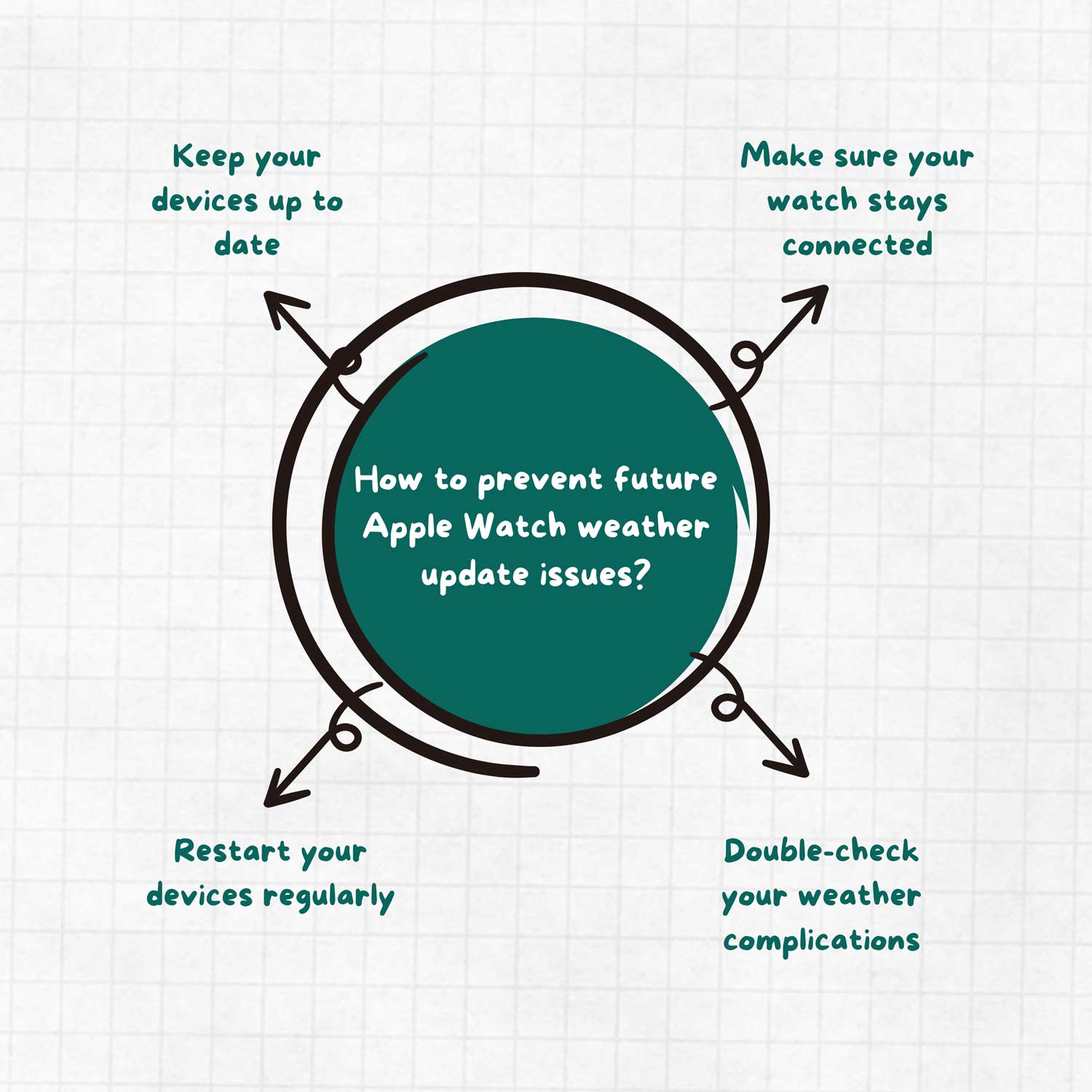
Now that you’ve fixed your weather app, let’s chat about how to keep it running smoothly. Here are some friendly tips to help you avoid future issues:
1. Keep your devices updated
Make it a habit to check for updates regularly. Your Apple Watch and iPhone need the latest software to work their best.
New updates fix bugs and enhance how apps like Weather operate. To update, just go to Settings on your devices and select Software Update.
2. Ensure your watch stays connected
Your Apple Watch needs to talk to your iPhone for weather info. Keep Bluetooth on and keep your devices close together.
If you’re using Wi-Fi, make sure your watch connects to a strong network. This way, your watch can receive weather updates without any hiccups.
3. Check your weather apps
If you use apps other than Apple’s, ensure they’re working correctly.
Check that these apps are updated and have permission to access your location. Sometimes, third-party apps can cause issues if they aren’t set up correctly.
4. Restart your devices regularly
It may sound simple, but restarting your Apple Watch and iPhone can make a big difference. Try to restart both devices every week. This clears up minor glitches and keeps everything running smoothly.
The takeaway
We understand how annoying it is when your Apple Watch weather isn’t updating. This issue can disrupt your routine. But don’t worry, you can fix it.
The solutions we discussed, such as checking connections and resetting sync data, can often solve the problem quickly.
Don’t let tech terms scare you. Many fixes, such as refreshing your watch face or updating your software, are easy to do, even if you’re not tech-savvy.
If you’ve tried everything and still have issues, remember that Apple Support is ready to help.
The key takeaway is that this is a fixable problem. Stay patient, follow the steps, and your weather should start updating soon.
Your Apple Watch is a great tool for tracking the weather, and these tips will help keep it that way.
We hope this guide has helped with your Apple Watch weather issues. If you have other tips or experiences, please share them in the comments. Your insights could really help another user!