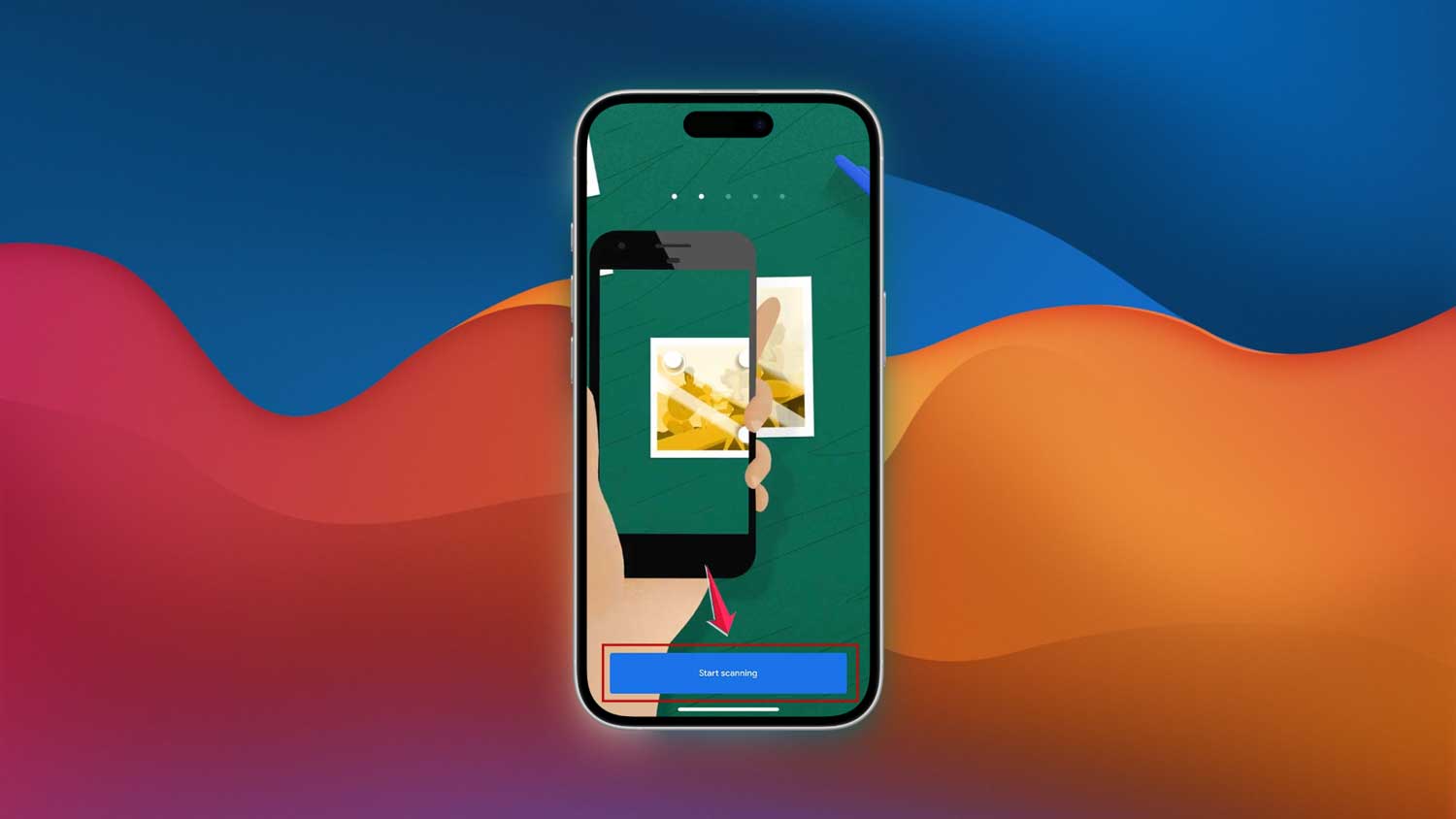
Turn your iPhone into a powerful photo scanner! You don’t need a bulky flatbed scanner to digitize your cherished memories. Your iPhone can do the job quickly and easily.
In this guide, you’ll learn how to scan photos using your iPhone’s built-in Camera and Notes apps.
You’ll also discover some great third-party apps that can enhance your scanning experience.
Ready to bring your old photos into the digital age? Let’s get started!
How to Scan Pictures on an iPhone
You don’t need a fancy app to turn your printed photos into digital files. Your iPhone’s camera can do the job just fine! Here’s how you can scan photos using your iPhone:
- Set up your iPhone: Place your phone on a tripod about two feet above the photo. Make sure the camera is pointing straight down.
- Find good lighting: Look for a spot with plenty of natural light, like near a window. This helps your photo look clear and evenly lit.
- Frame your photo: Open the Camera app and position your photo in the frame.
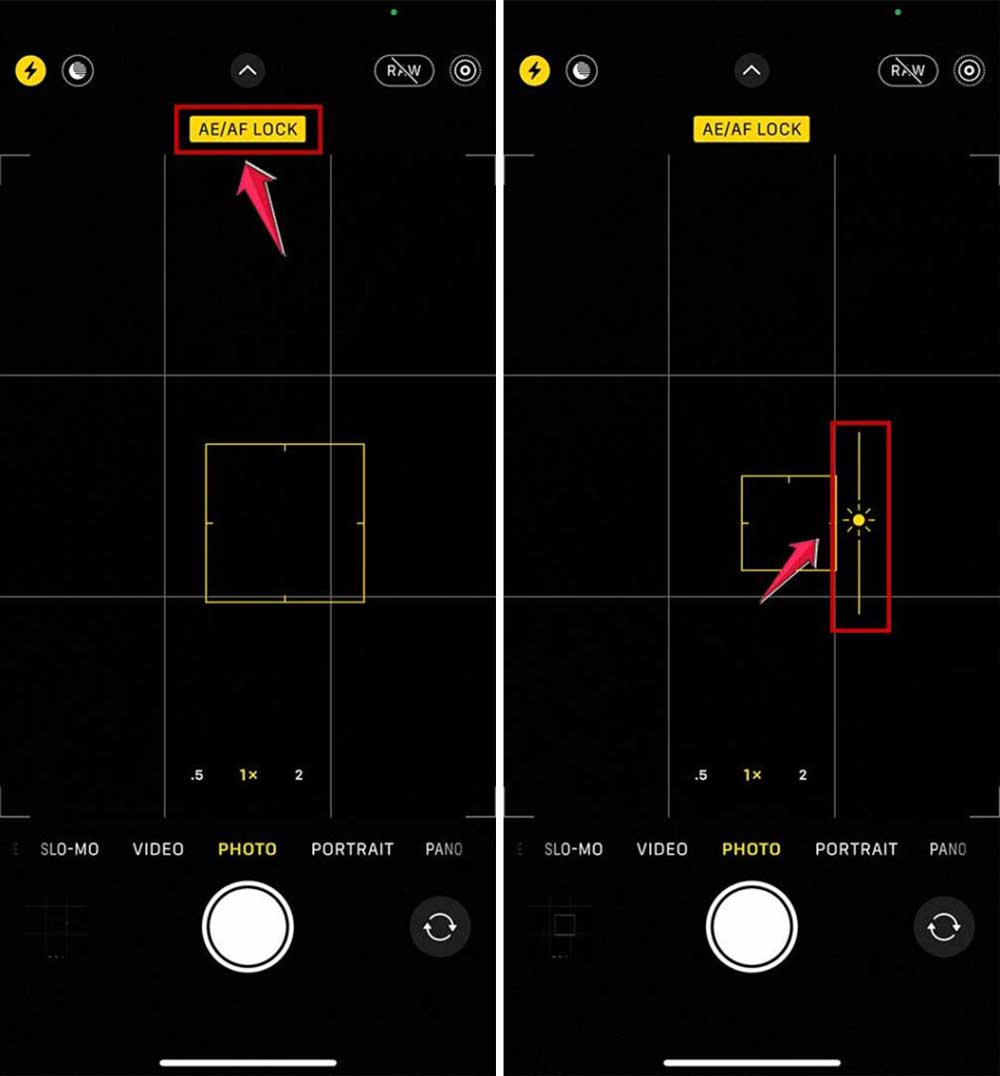
- Lock the focus and exposure: Press and hold on the screen until you see “AE/AF LOCK” appear. This keeps the focus and brightness steady.
- Adjust the brightness: If needed, tap the screen and slide the sun icon up to make the image brighter.
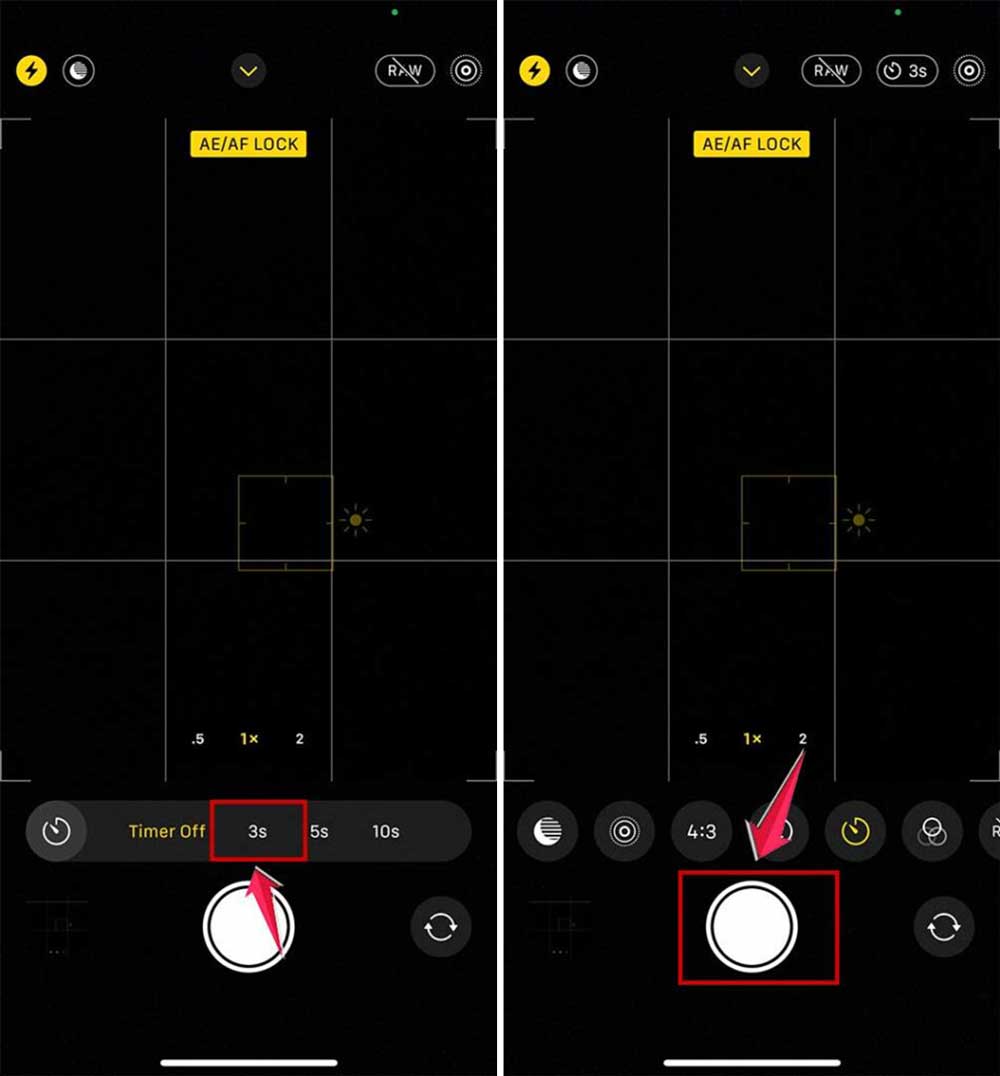
- Set a timer: Tap the arrow at the top of your screen, then tap the timer icon.

- Choose a 3-second timer to avoid shaking the camera when you take the picture.
- Take the picture: Press the shutter button and let the timer do its job. Your newly digitized photo will automatically save to your camera roll.
How to Scan Photos Using the Notes App
Did you know your iPhone’s Notes app isn’t just for jotting down thoughts? It’s also a powerful tool for digitizing your photos!
Here’s how you can easily scan photos using the Notes app, turning your physical pictures into digital treasures:
- Tap to launch it from your home screen.
- Hit the Create New Note icon located in the bottom-right corner.
- Tap the Attached icon.

- Then choose Scan Documents.
- Position your iPhone above the photo and press the Shutter button to capture it.

- Drag the corners of the scan to fit the photo exactly.
- Select Keep Scan if you’re happy with the result, or tap Retake to try again.
- Once satisfied, tap Done in the upper-right corner to save your scan.

And there you go! Scanning photos is a breeze with the Notes app. Give it a try and digitize your favorite moments with ease!
Best iPhone Photo Scanning Tips
To scan photos like a pro with your iPhone, ensure you follow these practical tips. Achieving scanner-quality images is all about mastering a few key techniques:
1. Perfect Your Lighting
Proper lighting is crucial for high-quality scans. Opt for natural light whenever possible, or use a bright, white-light lamp. Position your iPhone so that the light source is either side-lit or backlit to avoid shadows or glare on the photo.
2. Optimize Phone Settings
- Mode Selection: Always use Photo Mode in the Camera app and ensure your zoom is set to standard to avoid image distortion.
- Stability: To minimize shaking, keep your arms close to your body. If necessary, move back slightly to capture a complete image, which you can crop for precision later.
- Focus: Tap on a point of interest in the photo on your screen to maintain sharp focus.
Adjusting Camera Settings:
- Open the Camera app and tap the arrow at the top to reveal more settings.
- Disable the flash and Live Photos, and adjust exposure if needed for better clarity.

3. Reduce Glare Effectively
Glare is a common issue with glossy photo prints. Experiment with different angles and distances to find the perfect spot where light enhances the photo without causing reflections.
Slight tilts can help, but remember, any angle adjustments might require cropping afterward.
Conclusion
Turning your iPhone into a powerful photo scanner is easier than ever. Whether you’re using the built-in Camera app or opting for more specialized tools like the Notes app, your iPhone is your gateway to preserving and enhancing old photographs.
With simple steps and helpful tips, you can capture high-quality digital versions of your prints without the need for bulky equipment.
For those looking to elevate their scanning experience, apps like PhotoScan by Google Photos, Photomyne, and Pic Scanner offer advanced features that streamline the process, enhance image quality, and introduce creative ways to share and organize your memories.
Embrace these technologies to make sure no precious moment slips away. Your journey from a printed photo to a digital masterpiece is just a tap away.