If you’re lying in bed right now, trying to read something on your iPhone or iPad, but the screen keeps flipping around, it can get a little frustrating, don’t you think? You are not alone.
Thousands of iPhone and iPad users face this very exact problem every day.
Whether you want to read comfortably, show a photo to a friend, or just simply use your device without the constant changing of orientation, an auto-rotating screen can really start to bug you.
This happens because of the clever feature of your gadget: auto-rotate. It automatically fits the way you’re holding your device.
Sometimes, it is handy and irritating, sometimes really annoying, when you want to be positioned one way or view something from a certain angle.
Fortunately, this problem can be solved by your device itself. We call it screen rotation lock, and in this tutorial, you will get to know exactly how to operate it.
You might be using the most recent iPhone or an older iPad. You will learn how you can keep the screen from flipping when you don’t want it.
So, let’s get started and say goodbye to that annoying screen flip once and for all!
Why might you want to lock your screen?

Before we get into the how-to, let’s discuss why you might want to stop your screen from rotating:
- Comfort: The way you hold your device can make a difference. This is especially true when you’re relaxing or lying down.
- Consistency: You may prefer to view some apps in a specific orientation all the time.
- Accuracy: Accidental rotation can disrupt tasks like typing or drawing. This is important when you’re trying to type the square root symbol on an iPhone or focus on other tasks.
- Battery Saving: Locking your screen can slightly decrease battery use.
Now that you see why it’s helpful, let’s move on to how to do it.
How to lock screen rotation on iPhone
Here is how to keep your iPhone screen from rotating, step by step:
- Start at your home screen: Make sure you’re not in any app.
- Open Control Center:
- If you have an iPhone with Face ID (iPhone X or later), swipe down from the top-right corner of your screen.
- If you have an iPhone with a Home button, swipe up from the bottom of the screen.
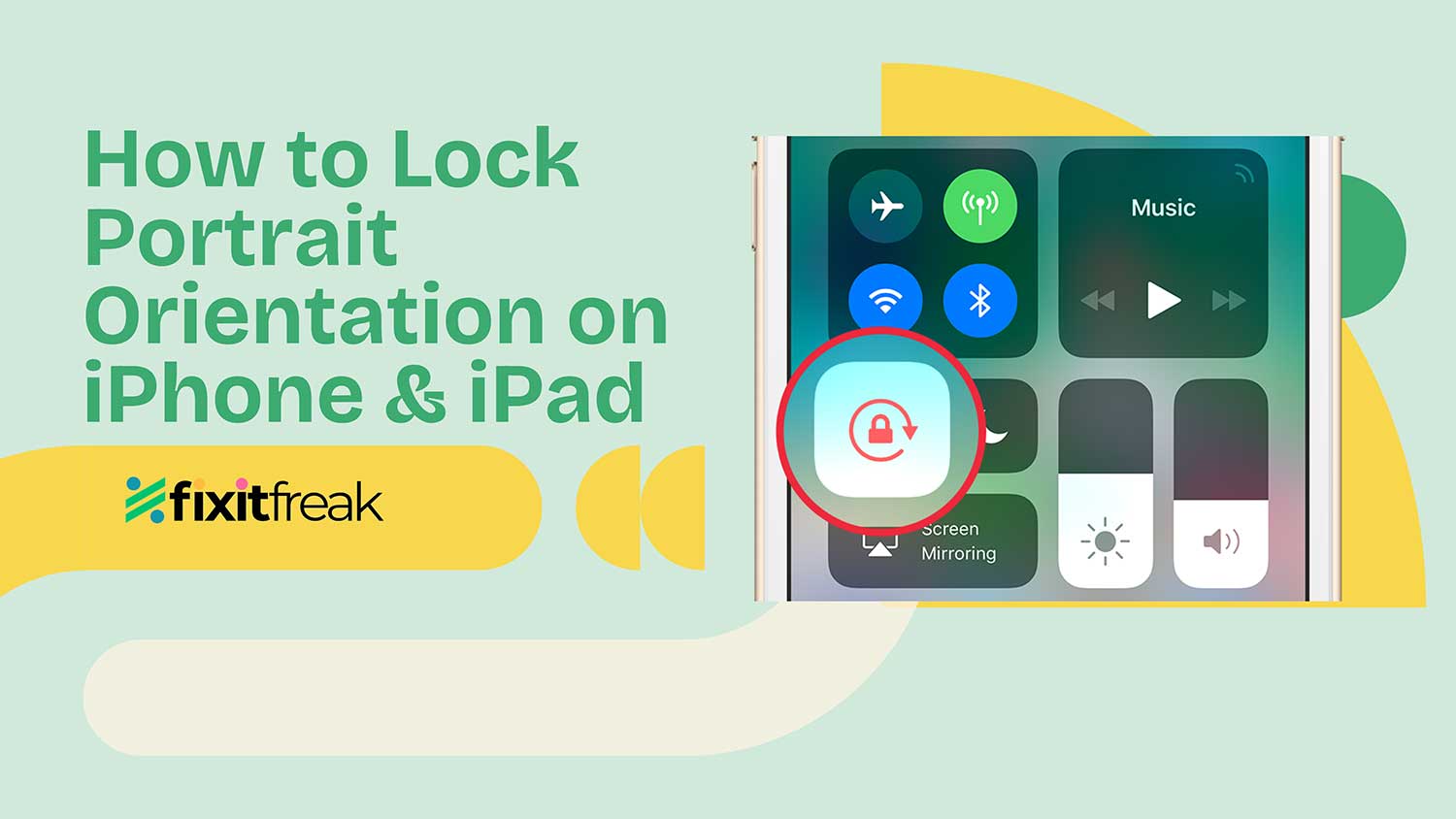
- Find the rotation lock button: Look for the icon that looks like a lock with a circular arrow around it. It’s usually in the top-left group of icons.
- Tap the button: When it’s white with a red lock, your screen rotation is locked. When it’s just gray, your screen can rotate freely.
- Exit Control Center: Swipe up if you have Face ID, or press the Home button if you have one.

Now, your iPhone screen will remain portrait mode (upright) no matter how you hold the thing. Note that this won’t prevent apps from only working in landscape mode: some games and video players are examples.
How to lock screen rotation on your iPad
iPad procedure is quite similar, with a slight twist:
- Go to your home screen: Just like with the iPhone, start from your main screen.
- Open Control Center:
- For iPads with Face ID or newer models, swipe down from the top-right corner.
- For older iPads with a Home button, swipe up from the bottom.
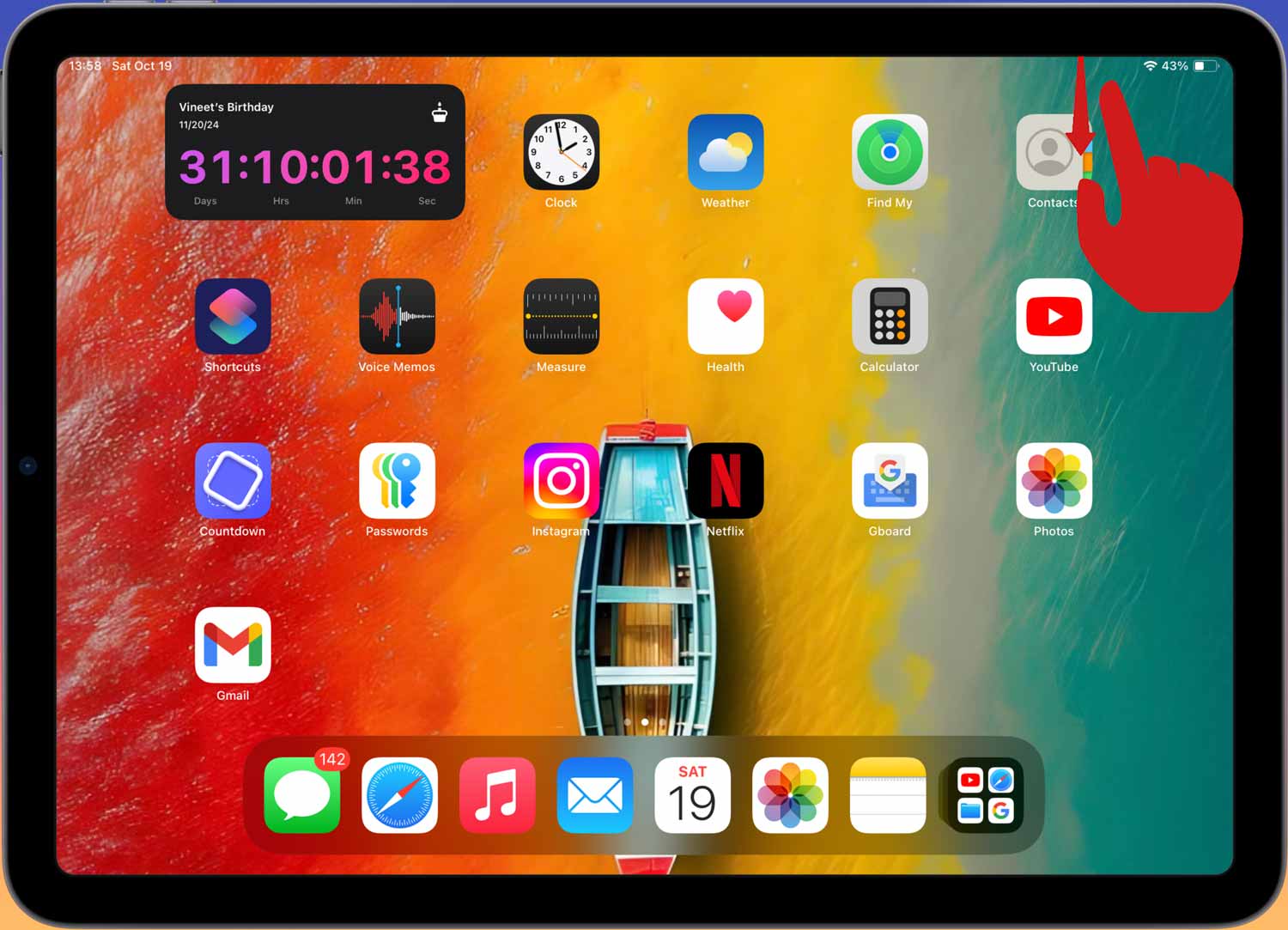
- Find and tap the rotation lock button: It’s the same icon as on the iPhone. It’s a lock with a circular arrow.
- Exit Control Center: Swipe up or press the Home button, depending on your iPad model.
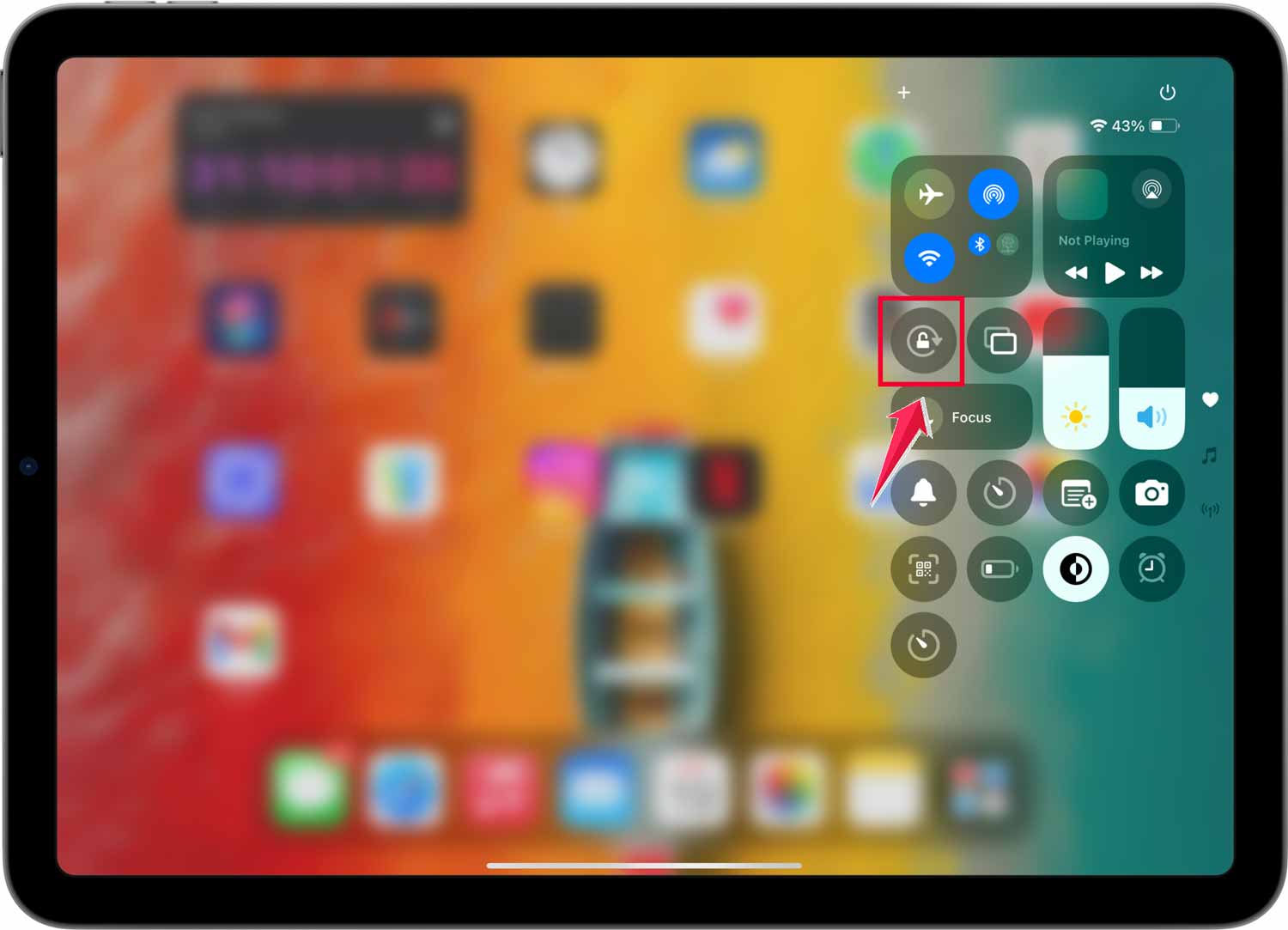
You can lock up the rotation so it remains in any orientation you happen to be holding it by. If your iPad layout still feels odd, you might also want to turn off the floating keyboard on iPad.
Meaning that should you have it locked when it’s in landscape mode, that’s the orientation it will stay till you unlock the rotation.
What if you have an older iPad?
If you have an older iPad, for instance, an iPad Air or earlier, you’ll have a physical switch on your left side. How that works, too:
- Open Settings.
- Tap General.
- Scroll down to “Use Side Switch To” and select Lock Rotation.
Now, you can use that side switch to lock your screen orientation. Flip it one way to lock and the other way to unlock. Easy!
Tips for using rotation lock effectively
Now that you know how to turn it on, here are a couple of tips that you can use this feature effectively:
- Remember to turn it off: It’s easy to forget you’ve turned on the rotation lock. If your screen won’t rotate when you want it to, check if the lock is on.
- Use it for reading: This is a fantastic use of rotation lock, like when you are reading in bed or lying on your side.
- Keep it handy for videos: Some video apps won’t auto-rotate to full screen. You can even screen mirror your iPhone to an iPad without Wi-Fi for a better viewing experience.
- Try both orientations: Sometimes, websites or apps look great in one orientation but bad in the other. Try them out and see which works best.
Troubleshooting common issues
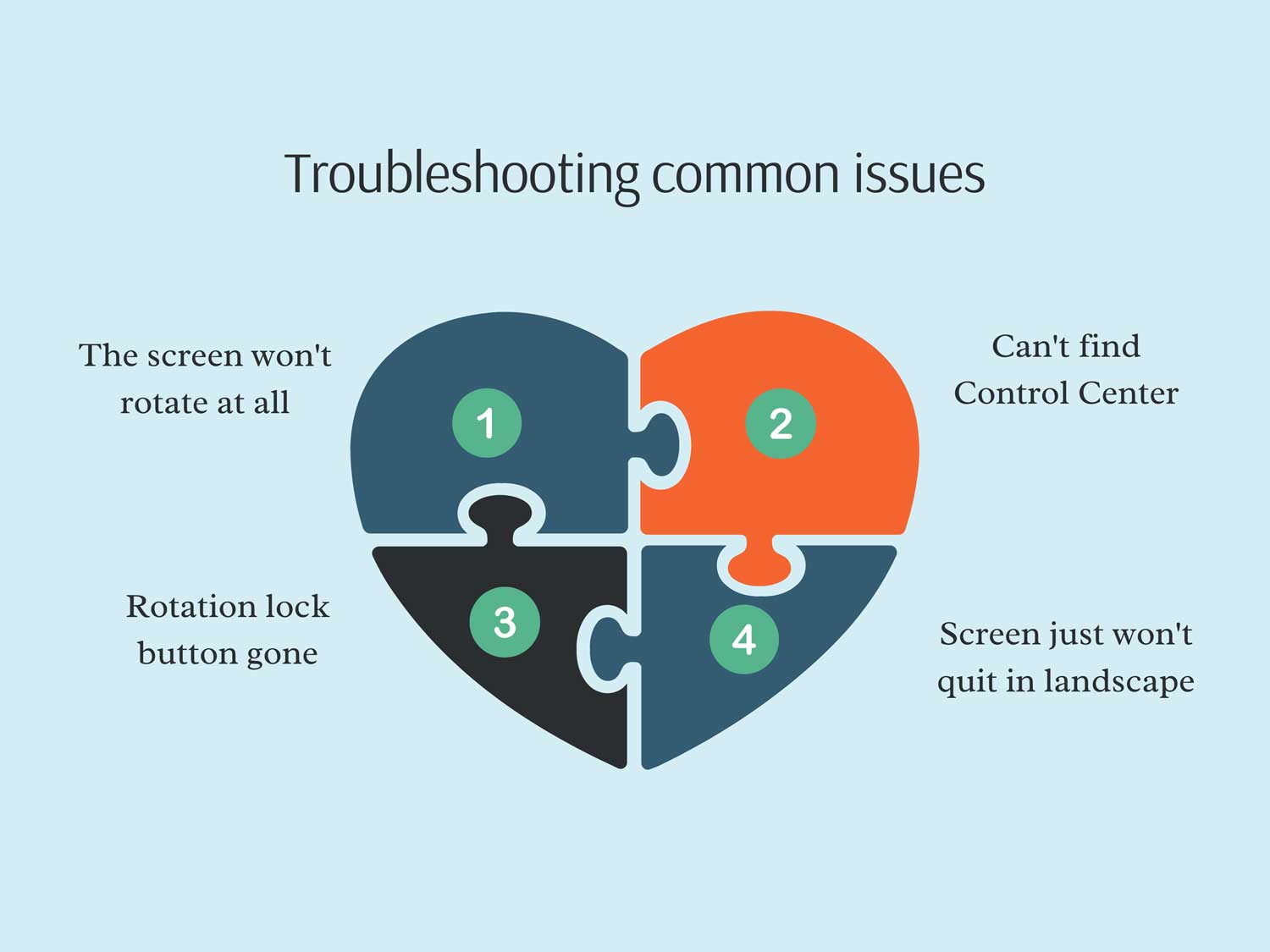
Let’s talk about some hiccups you might run into when trying to lock your screen rotation.
Don’t worry, these things happen to everyone, and I’ve got some easy fixes for you.
1. The screen won’t rotate at all
Ever tried to rotate your screen, and nothing happened? The first thing to check: is your rotation lock turned on? It’s easy to forget sometimes.
If that’s not it, remember that some apps are stubborn and only work in one orientation. Still no luck? A quick restart of your device often does the trick.
2. Can’t find Control Center
Can’t find the Control Center? It’s like playing hide and seek sometimes, isn’t it? Make sure you’re swiping from the right spot. If you’ve got a newer iPhone or iPad, that’s the top-right corner.
For the older models, it’s from the bottom. If you’re sure you’re swiping correctly but still can’t find it, take a peek at your settings. The Control Center might be hiding in there.
3. Rotation lock button gone
Did your rotation lock button go on vacation? It might have accidentally been removed from your Control Center.
No worries, though. Just hop into your Settings, find Control Center, and you can click that button right back.
4. The screen just won’t quit in landscape
Is your screen stuck in landscape mode like it’s enjoying the view? Try toggling the rotation lock on and off a few times. Sometimes it just needs a little nudge. If it’s still stubborn, a device restart usually sets it straight.
Remember, these little quirks happen to all of us. If you’re still having trouble after trying these tips, don’t hesitate to reach out for more help. Your device should work for you, not the other way around!
The takeaway
Screen rotation may be annoying, but it isn’t going to kill you. With your iPhone and iPad, you now have the perfect built-in solution, and you can easily use them by knowing how to lock the screen orientation.
Therefore, learn to regain control over your gadget so that you can enjoy the view in your desired device position.
Remember, the lock rotation feature was there to help you in case the automatic screen orientation got on your nerves. It’s merely an enabling/disabling toggle of yours in your Control Center.
Now, if you’re a reading-before-bed kind of fellow, would you be showing photos around to friends, or if you just love having your screen a certain way, keep it that way, for now, at least.
No more frustration with a spinning screen. Control your device’s screen and enjoy your content exactly the way you’d like to watch it. After all, it is your screen, so enjoy it.
We’d be very happy to hear how this tip has helped you. Feel free to drop a comment down below to share your experience!