Have you ever wanted to see the cool stuff on your iPhone, iPad, or Mac on a bigger screen or hear it on better speakers? That’s where AirPlay comes into play!
It’s like a magic bridge that connects your Apple devices to your Apple TV or even to a smart TV and speakers that work with AirPlay 2.
First things first, to make this magic happen, you need to have your device (like your iPhone) and the TV or speaker you want to use both connected to the same Wi-Fi network. This is super important!
But guess what? You can even share your iPhone’s screen to your iPad without Wi-Fi! This sounds super cool, right? But it’s not as straightforward as the usual way. To do this, you’ll need the help of some third-party apps because it can’t be done directly.
I hope this helps you understand how to start using AirPlay. It’s a great way to enjoy your favorite content on bigger screens and better sound systems. Have fun experimenting with it!
How to Screen Mirror iPhone to iPad Without WIFI using ApowerMirror
Ever thought about mirroring your iPhone’s screen onto your iPad without needing Wi-Fi? Well, there’s a cool way to do it using an app called ApowerMirror.
It’s like having a magic wand to duplicate everything from your phone to your tablet. Photos, videos, and even audio! Let’s dive into how you can do this.
Step-by-Step Guide to Screen Mirroring
- Downloading ApowerMirror: Head over to the App Store on both your iPhone and iPad. Search for ‘ApowerMirror’ and hit that download button to install it on both devices.

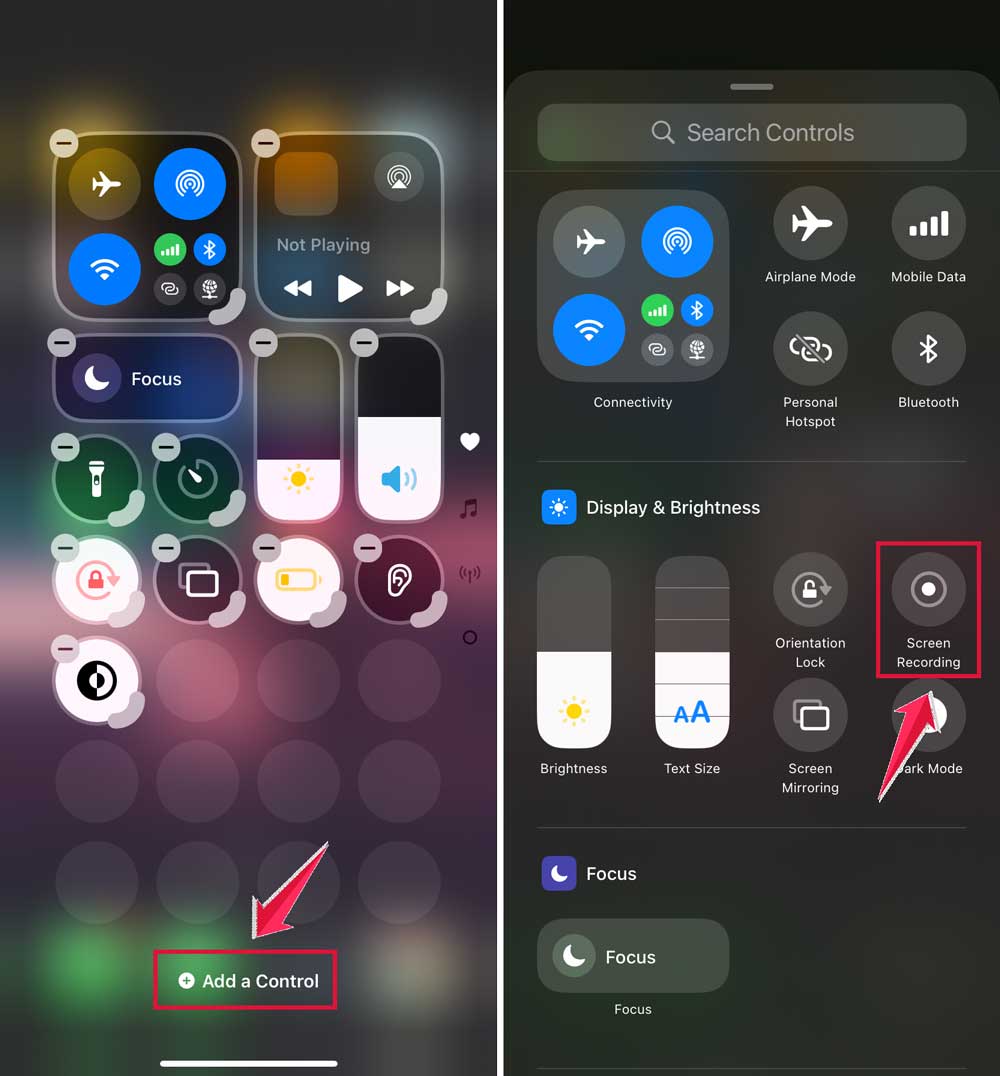
- Adding Screen Recording: Swipe the Home Screen Open the Control Center Long press and screen.

- Click on Add a Control, and tap on ‘Screen Recording’.
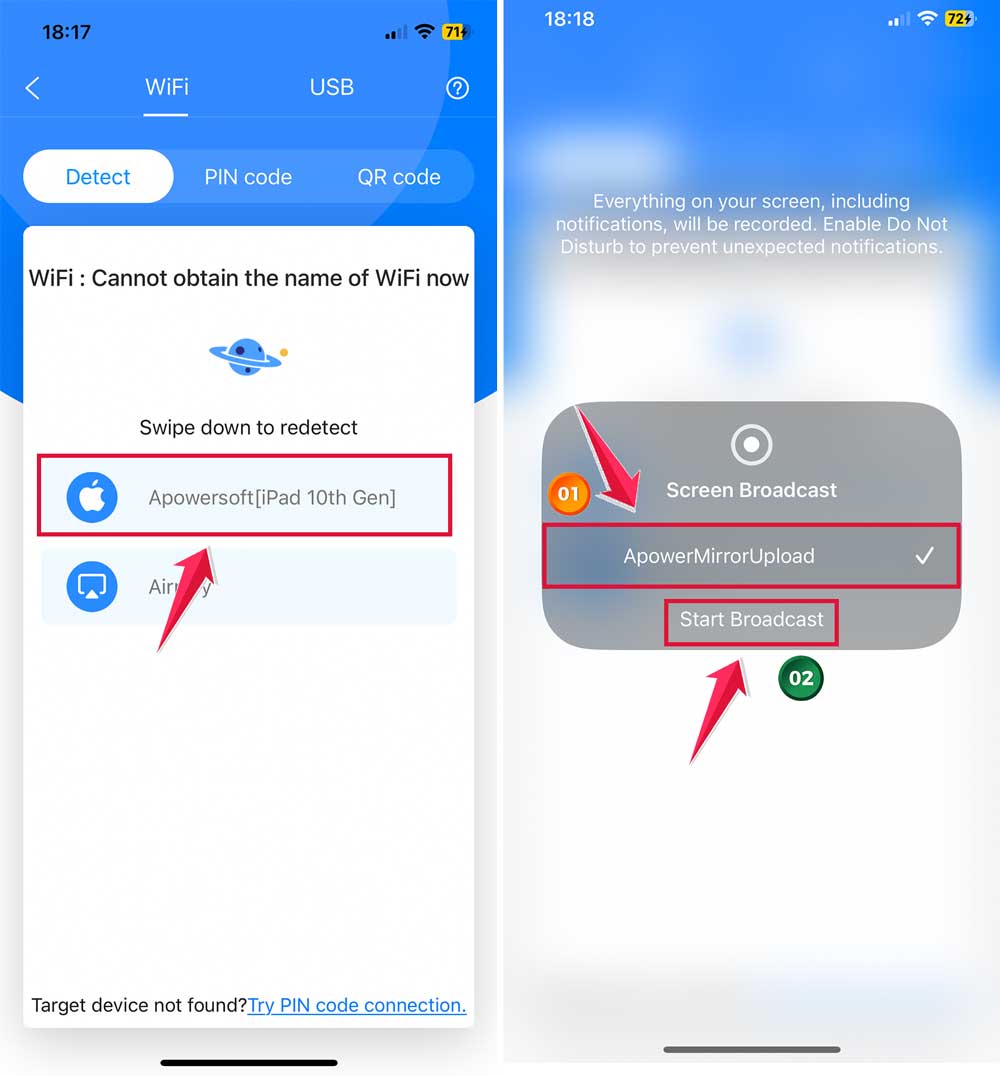
- Starting ApowerMirror: Open the ApowerMirror app on your iPhone. Look for the ‘M’ button and tap on it.

- Connecting to Your iPad: Your iPad’s name should pop up on the screen. Tap on it to start the connection.
- Going Live with Screen Recording: Swipe to access the Control Center on your iPhone again. Tap the ‘Record’ icon.
- Select ApowerMirror: You’ll see a bunch of options. Choose ‘ApowerMirror’ from the list.
- Start Broadcasting: Finally, hit ‘Start Broadcast’. And voilà! You are now mirroring your iPhone to your iPad without any Wi-Fi.
AirPlay iPhone to iPad Without WIFI using Peer-to-Peer Connectivity
Peer-to-Peer AirPlay lets you do just that using Bluetooth. It’s like connecting two best friends without needing the internet!
- Disconnect from Wi-Fi: First, make sure both your iPhone and iPad aren’t connected to any Wi-Fi network.
- Turn On Wi-Fi and Bluetooth: Now, switch on Wi-Fi and Bluetooth on both your iPhone and iPad.
- Bluetooth Settings on iPhone: Head to ‘Settings’ on your iPhone, tap on ‘Bluetooth’, and turn it on.
- Pairing Time: On your iPhone, look for your iPad’s name under Bluetooth devices and tap on it to pair.
- Enter Passcode for Pairing: If your devices ask for a passcode, go ahead and enter it.
- Selecting Screen Mirroring: Now, swipe to open the Control Center on your iPhone and tap on ‘Screen Mirroring’.
- Start Mirroring to iPad: Finally, select your iPad from the list.
How to Mirror iPhone to iPad using TeamViewer
Before you start, make sure your iPhone and iPad are running iOS/iPadOS 11 or later.
Setting Up TeamViewer for Screen Mirroring
- Install TeamViewer QuickSupport on iPhone: Start by downloading the TeamViewer QuickSupport app from the App Store onto your iPhone. Open the app once it’s installed.

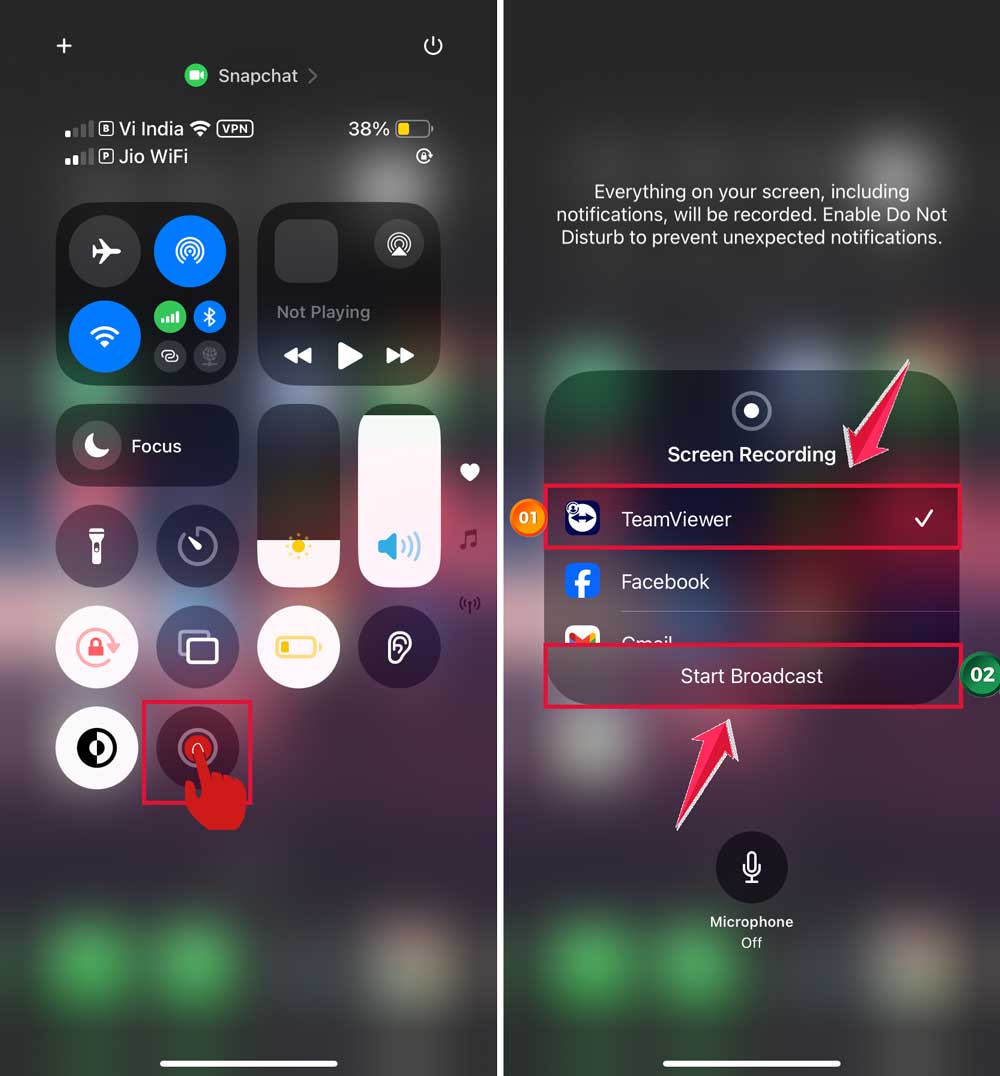
- Adding Screen Recording: Swipe the Home Screen. Open the Control Center. Long-press and screen.
- Add Screen Recording to Control Center: Click on Add a Control, and tap on ‘Screen Recording’.
- Ready to Record: Open the Control Center on your iPhone and tap the ‘Record’ icon.
- Choose TeamViewer: From the options available, select ‘TeamViewer’ and then click on ‘Start Broadcast’.
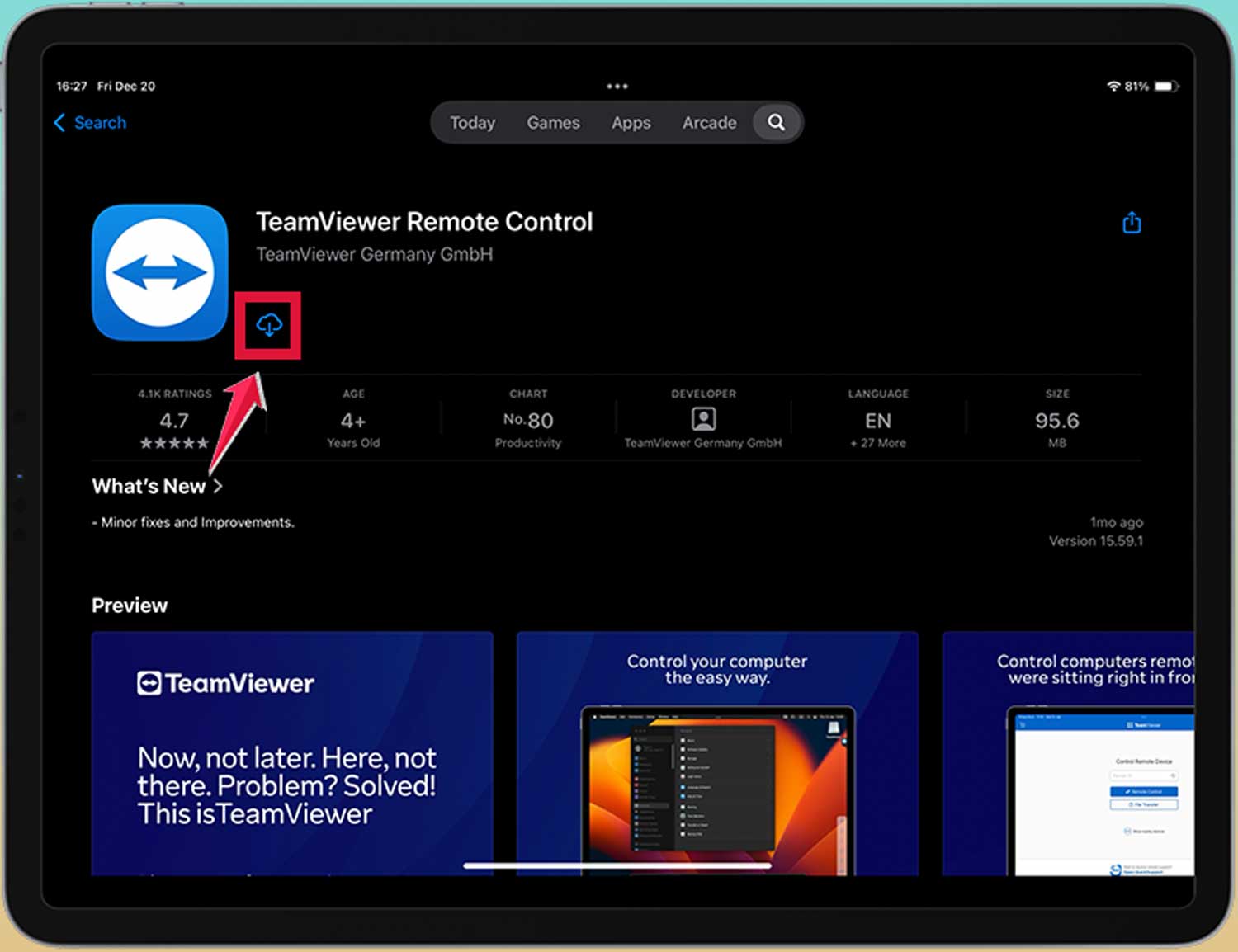
- Install TeamViewer on iPad: Now, it’s time to set up your iPad. Install the TeamViewer Remote Control app from the App Store.
- Enter Partner ID: Open the app on your iPad and enter the ‘partner ID’ shown on your iPhone’s TeamViewer QuickSupport app. This connects your iPad to your iPhone.

- Start Remote Control: Tap the ‘remote control’ button and then ‘Allow’ to continue. This is like giving the green light for the connection.
- Mirroring Activated: And just like that, your iPhone screen should now be visible on your iPad!

Conclusion
In this guide, we’ve explored various ways to mirror your iPhone screen to your iPad, even without a Wi-Fi connection.
Whether you’re using ApowerMirror, Peer-to-Peer AirPlay, or TeamViewer, each method offers a unique approach to enhance your experience with your Apple devices.
Remember, mirroring your screen can be incredibly useful for sharing content, enhancing your viewing experience, or just making the most out of your devices.
Don’t be afraid to experiment with these methods to find out which one works best for you. With a bit of practice, you’ll be a pro at screen mirroring in no time!
So, grab your iPhone and iPad, and start exploring the world of screen mirroring. It’s a simple, fun, and effective way to expand your digital horizon!