You’re sitting there, tapping away on your iPad, when suddenly, your keyboard shrinks and starts floating in the middle of the screen. What just happened?
It’s like your familiar typing tool decided to go for a swim, leaving you confused and maybe a bit frustrated.
Maybe you accidentally triggered this floating keyboard while trying to adjust your iPad’s position.
Or perhaps you were experimenting with iPad features and activated them without realizing it. Whatever the reason, now you’re faced with this miniature keyboard, and all you want is to get back to normal.
Don’t worry. You’re not alone in this. Many iPad users have found themselves in the same boat, wondering how to wrangle their keyboard back to its proper place.
The good news is you’re about to learn exactly how to do that. Whether you want to dock that floating keyboard or prevent it from popping up unexpectedly in the future, we’ve got you covered.
In the next few minutes, you’ll discover how to take control of your iPad’s keyboard.
We’ll walk through the steps together, just as if I were sitting right there with you, guiding you through the process. Ready to get your iPad back to the way you like it?
How to turn on the iPad floating keyboard
First, make sure your iPad is running iPadOS 17 or newer. Keeping your device updated is always a good idea for the best features and performance.
Here’s how to activate the floating keyboard when you actually want it:
- Open any app that uses the keyboard, like Notes.

- Find the keyboard icon in the bottom-right corner.
- Press and hold that icon.

- While holding, slide your finger to the “Floating” option.

Once it’s floating, you can move it around by grabbing the bar at the bottom.
How to fix the iPad keyboard and turn off the floating keyboard on the iPad
Wondering, “How do I get my keyboard back to normal?” Fixing keyboard issues on your iPad is simpler than you might think. Here’s how:
- Find the bar at the bottom of the floating keyboard.
- Drag it straight down to the bottom of your screen.

Alternatively, try this: Put two fingers close together in the middle of the floating keyboard, then spread them apart while keeping them on the screen.
If your Apple Pencil is causing unexpected floating keyboards, here’s how to prevent it:
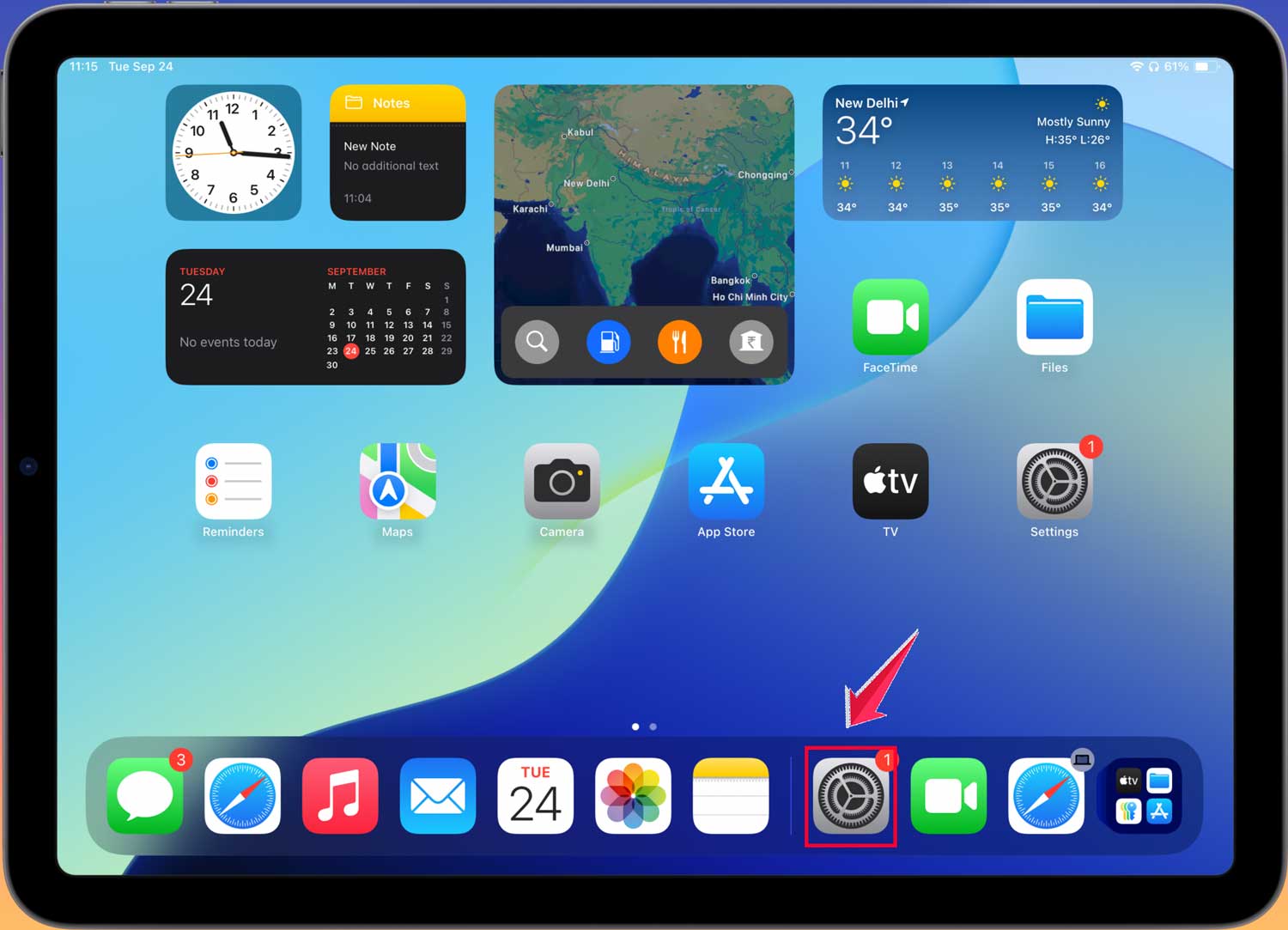
- Open Settings on your iPad.
- Tap “Apple Pencil“.
- Find “Scribble” and turn it off.
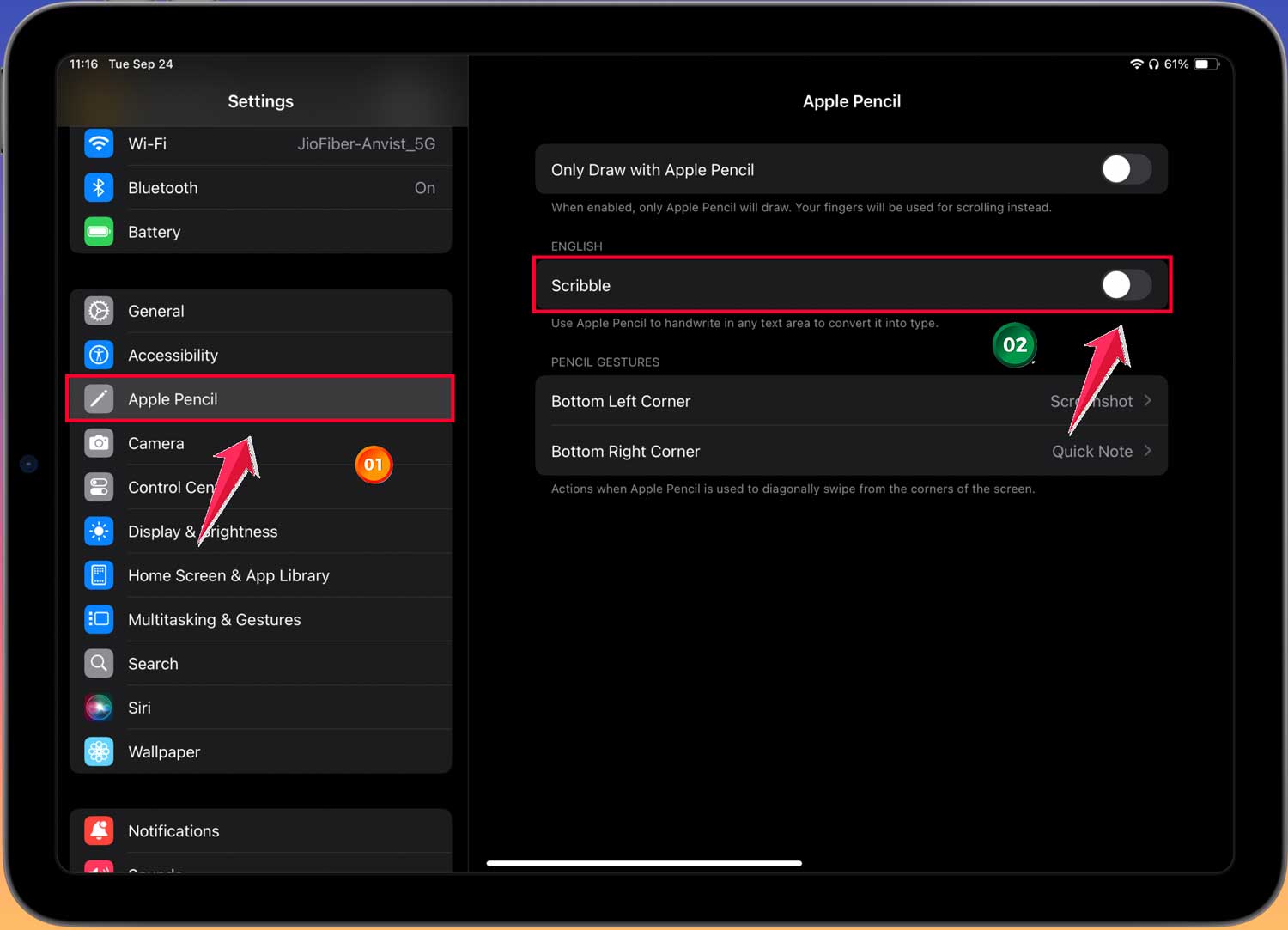
Now, you’re in control of your iPad’s keyboard. You can make it float when you need more screen space and bring it back down for comfortable typing. No more keyboard surprises. Just the setup you want, when you want it.
The takeaway
Floating keyboards on your iPad can be a bit tricky, but you’ve now got the tools to handle them like a pro. Whether you want your keyboard to float or stay put, you’re in control.
Remember, the floating keyboard is great when you need to see more of your screen. But if it shows up uninvited, you can easily send it back to its usual spot at the bottom. Just drag it down or use that two-finger spread motion we talked about.
If you use an Apple Pencil, don’t forget about the Scribble setting. Turning it off can stop your keyboard from floating when you don’t want it to.
The most important thing to remember is that your iPad’s keyboard is there to help, not frustrate you. With these tips, you can make it work just the way you like.
Mastering your device’s features is all about experimenting and finding what works best for you.
So go ahead, try out these tricks, and make your iPad typing experience your own. We’d love to hear how these tips work for you!