Are you staring at your iPhone right now, wondering if it’s locked or unlocked? You’re not alone. Every day, thousands of iPhone users find themselves in the same boat, trying to figure out their device’s status. You can also check your iPhone unlock history to get more clarity.
Whether you’re thinking about switching carriers, selling your phone, or just curious about your options, knowing if your iPhone is unlocked is crucial.
Let’s clear things up. An unlocked iPhone is like a free agent in the world of mobile networks. It can jump from one carrier to another without breaking a sweat.
A locked iPhone, on the other hand, is tied down to a single carrier. It’s in a committed relationship, so to speak.
Why does this matter to you right now? Well, if you’re eyeing that sweet deal from a different carrier, an unlocked iPhone lets you make the switch without buying a new phone.
Planning a trip abroad? An unlocked iPhone means you can pop in a local SIM card and avoid those hefty roaming charges. And if you’re looking to sell, an unlocked iPhone often fetches a higher price.
In this guide, we’ll walk you through simple, straightforward ways to check if your iPhone is unlocked. We’ll also explain what to do if your phone turns out to be locked. So, let’s get started and solve this mystery together!
What does it mean when an iPhone is unlocked?
Before we dive into the methods, let’s clarify what an unlocked iPhone actually means. An unlocked iPhone is a device that isn’t tied to a specific carrier.
This means you can use it with any cellular network that supports the iPhone’s technology.
On the other hand, a locked iPhone is restricted to a particular carrier and won’t work with SIM cards from other networks.
Why does it matter if your iPhone is unlocked?
Knowing whether your iPhone is unlocked is important for several reasons:
- An unlocked iPhone gives you the freedom to switch carriers whenever you want without needing to buy a new phone.
- When traveling internationally, you can use local SIM cards in an unlocked iPhone, potentially saving money on roaming fees.
- Unlocked iPhones generally fetch a higher price when sold, as they’re more versatile for buyers.
- If you want to give your old iPhone to a family member or friend, an unlocked device makes it simpler for them to use with their preferred carrier. And if you’re giving away your Apple gear, you might want to unpair and erase your Apple Watch too.
Now that you understand why it matters let’s explore how you can check if your iPhone is unlocked.
How to check if your iPhone is unlocked?
Method 1: Check iPhone settings
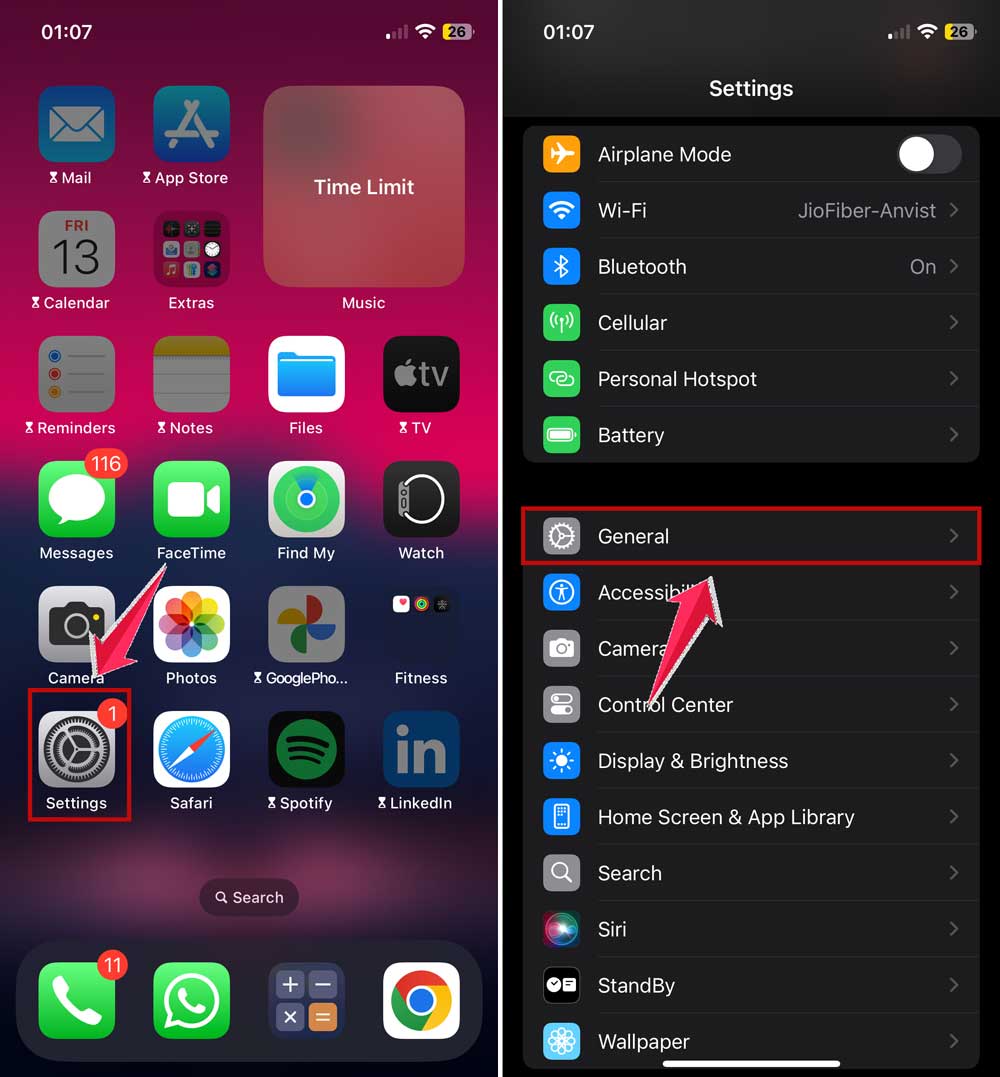
The easiest way to check your iPhone’s unlock status is through the Settings app. Here’s how:
- Open the “Settings” app on your iPhone.
- Tap “General.”
- Tap “About.”
- Scroll down and look for “Carrier Lock.”
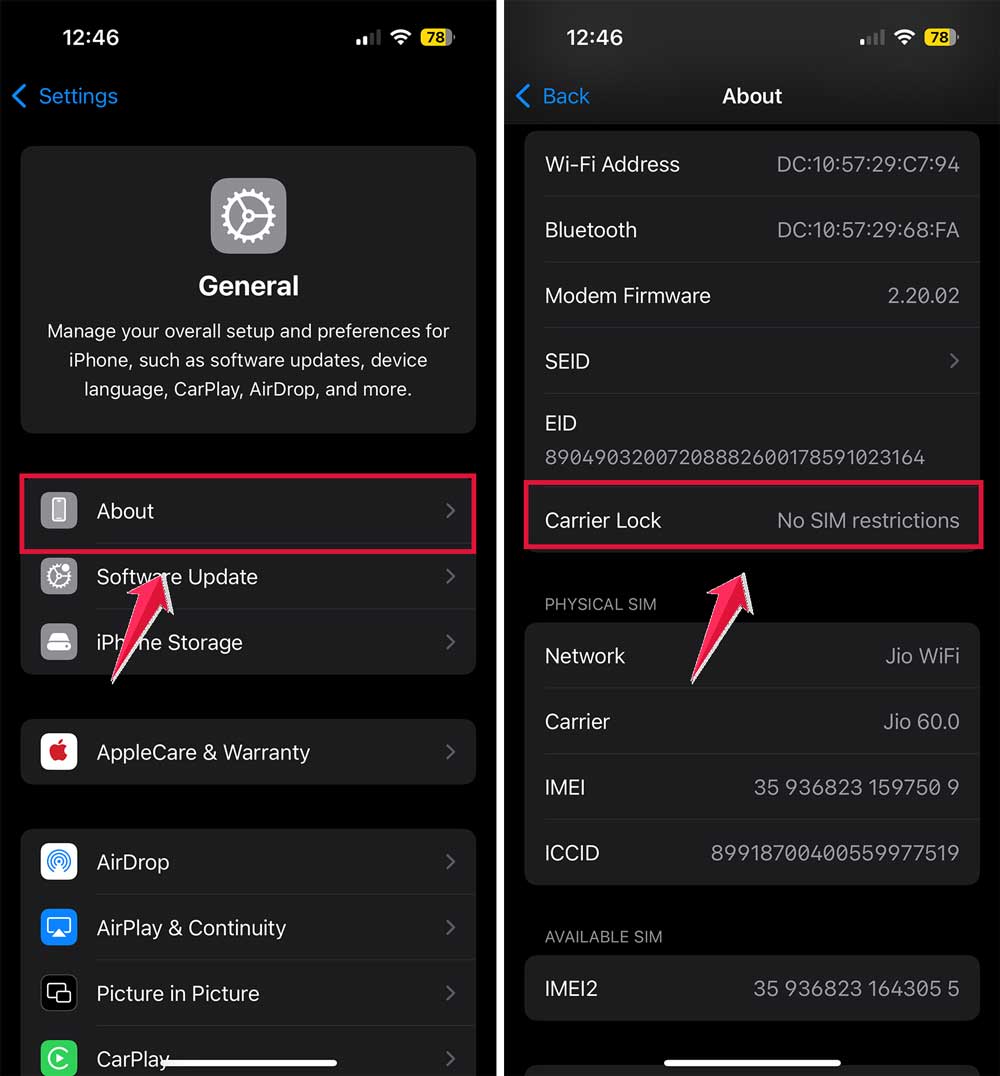
If it says “No SIM restrictions,” your iPhone is unlocked. If you see any other message, it’s likely locked to a specific carrier.
However, this method isn’t always available on all iPhone models or iOS versions. If you don’t see the “Carrier Lock” option, don’t worry. There are other ways to check.
Method 2: Use a different SIM card
Another reliable way to check if your iPhone is unlocked is by testing it with a SIM card from a different carrier. Here’s what you need to do:
- Power off your iPhone.
- Use the SIM ejector tool (or a paperclip) to remove the current SIM card.
- Insert a SIM card from a different carrier.
- Power on your iPhone.
- Try to make a call.
If the call goes through, your iPhone is unlocked. If you see an error message or the call doesn’t connect, your iPhone is likely locked to a specific carrier.
Remember, both SIM cards need to be the same size and compatible with your iPhone model. If you don’t have access to another SIM card, you can try borrowing one from a friend or family member.
Method 3: Contact your carrier
If you’re still unsure about your iPhone’s unlock status, you can always reach out to your current carrier. They’ll have the most up-to-date information about your device. Here’s what to do:
- Call your carrier’s customer service.
- Provide your iPhone’s IMEI number when asked.
- Request information about your iPhone’s unlock status.
To find your IMEI number, go to “Settings” > “General“.
Click on “About” and scroll down until you see “IMEI.”
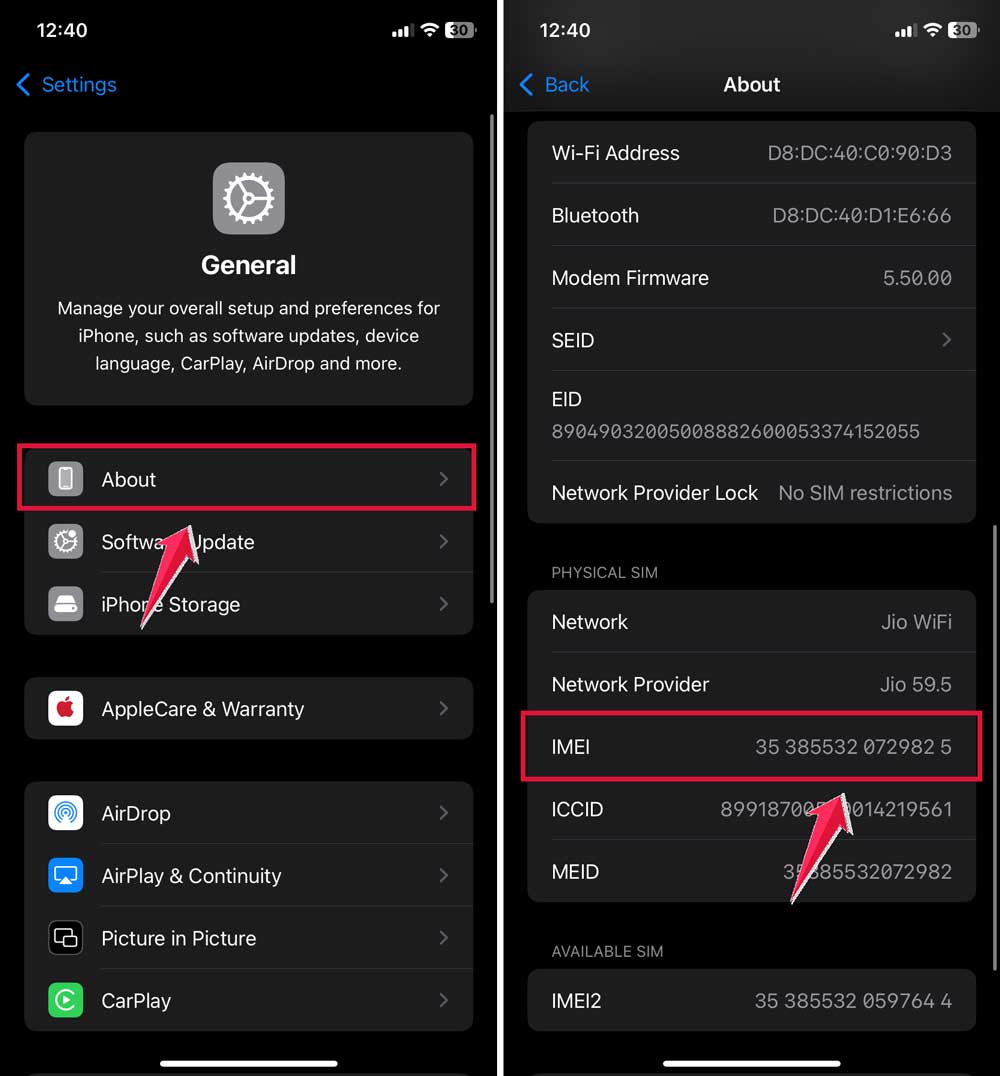
While this method is reliable, it might take some time, especially if you need to wait on hold to speak with a representative.
Method 4: Use an online IMEI checker
There are several online tools that can check your iPhone’s unlock status using its IMEI number.
While many of these services charge a fee, some offer free basic information. Here’s how to use an online IMEI checker:
- Find your iPhone’s IMEI number (Settings > General > About > IMEI).
- Visit a reputable IMEI checking website.
- Enter your IMEI number and follow the instructions.
Be cautious when using these services and avoid sharing any personal information beyond your IMEI number.
Understanding iPhone lock status in different scenarios

Now that you know how to check if your iPhone is unlocked, let’s look at some common scenarios:
1. Buying a new iPhone: iPhones purchased directly from Apple are typically unlocked. However, if you buy from a carrier, the phone may be locked until you fulfill your contract or pay off the device.
2. Buying a used iPhone: Always check the unlock status before purchasing a used iPhone. An unlocked used iPhone is more valuable and versatile.
3. Finishing a carrier contract: Once you’ve completed your contract and paid off your iPhone, you can usually request an unlock from your carrier.
4. Prepaid iPhones: Some prepaid iPhones may be locked to a specific carrier for a certain period. Check with the carrier for their unlocking policy.
How to unlock your iPhone
If you’ve discovered that your iPhone is locked, don’t worry. You may be able to unlock it. Here are some steps to try:
1. Contact your carrier: If you’ve fulfilled your contract or paid off your device, your carrier should be able to unlock it for free.
2. Wait it out: Some carriers automatically unlock devices after a certain period or when the contract is fulfilled.
3. Use a third-party service: There are reputable services that can unlock iPhones (like methods to unlock an iPhone without iTunes using a Chromebook ), but be cautious and research thoroughly before using one.
Remember, it’s illegal to unlock a phone that’s still under contract without the carrier’s permission.
The takeaway
Figuring out if your iPhone is unlocked doesn’t have to be a mystery. We’ve explored several easy methods to check your device’s status, from diving into your settings to swapping SIM cards.
Remember, an unlocked iPhone gives you more freedom and potentially more value.
Don’t fall for the myth that unlocking your iPhone is always complicated or expensive. In many cases, it’s as simple as contacting your carrier, especially if you’ve finished your contract.
Ultimately, knowing your iPhone’s lock status puts you in control. Whether you’re planning to switch carriers, travel abroad, or sell your device, this knowledge empowers you to make the best decision for your needs.
So go ahead, check your iPhone’s status today. You might be surprised by the possibilities it opens up!
We’d love to hear about your experience checking your iPhone’s lock status. Drop a comment below and let us know how it went!