Is your MacBook feeling sluggish lately? If you’re spending more time waiting for apps to open than actually using them, it might be time to take a closer look at your computer’s memory.
The culprit behind your Mac’s slowdown could be high memory usage, and upgrading your RAM might be the solution you’re looking for.
Let’s talk about RAM for a moment. It stands for Random Access Memory, and it’s a crucial part of your MacBook’s performance. You can think of RAM as a super-fast temporary storage space that your computer uses to keep data from active programs.
When your MacBook doesn’t have enough RAM, it struggles to juggle all the tasks you’re asking it to do, and that’s when you start to notice things slowing down.
Let’s walk through how you can check this and what steps you can take to speed up your trusty MacBook.
Does Your Mac Need More RAM?
If you’re thinking about adding more RAM to your MacBook, you’re probably noticing some slowdowns. But how can you be sure that more RAM is what you need?
While 8GB of RAM is usually enough for everyday tasks, you might need more if you’re doing things like video editing that require a lot of processing power.
Let’s check how your RAM is doing:
- Press “Command-Space” to open Spotlight Search.

- Type “Activity Monitor” and open it.
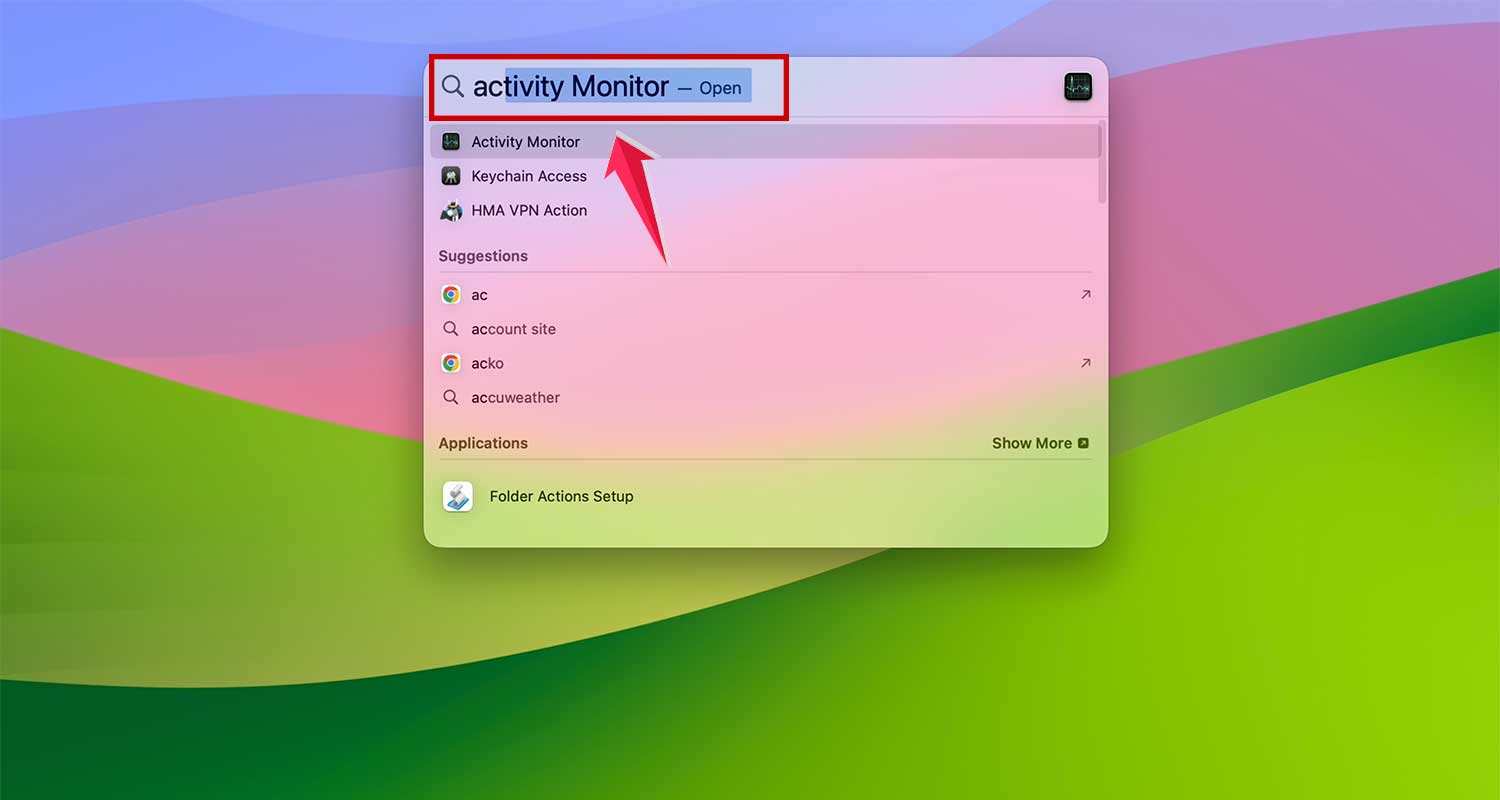
- Click on the “Memory” tab at the top.

Now, look for the “Memory Pressure” graph. This graph uses colors to show how well your RAM is handling your tasks:
- Green means everything is fine.
- Yellow suggests you should keep an eye on things.
- Red indicates your RAM is struggling to keep up.

If you’re seeing a lot of red, it’s a clear sign that your MacBook is having trouble with memory and could benefit from more RAM.
Check If You Have Slots For More RAM
Now that you’ve decided your MacBook needs more RAM, let’s see if you can actually add it. Not all MacBooks allow for RAM upgrades, so this is an important step.
Here’s how to check if your MacBook can be upgraded:
- Click the Apple icon in the top-left corner of your screen.
- Select About This Mac.

- Then click on More Info…
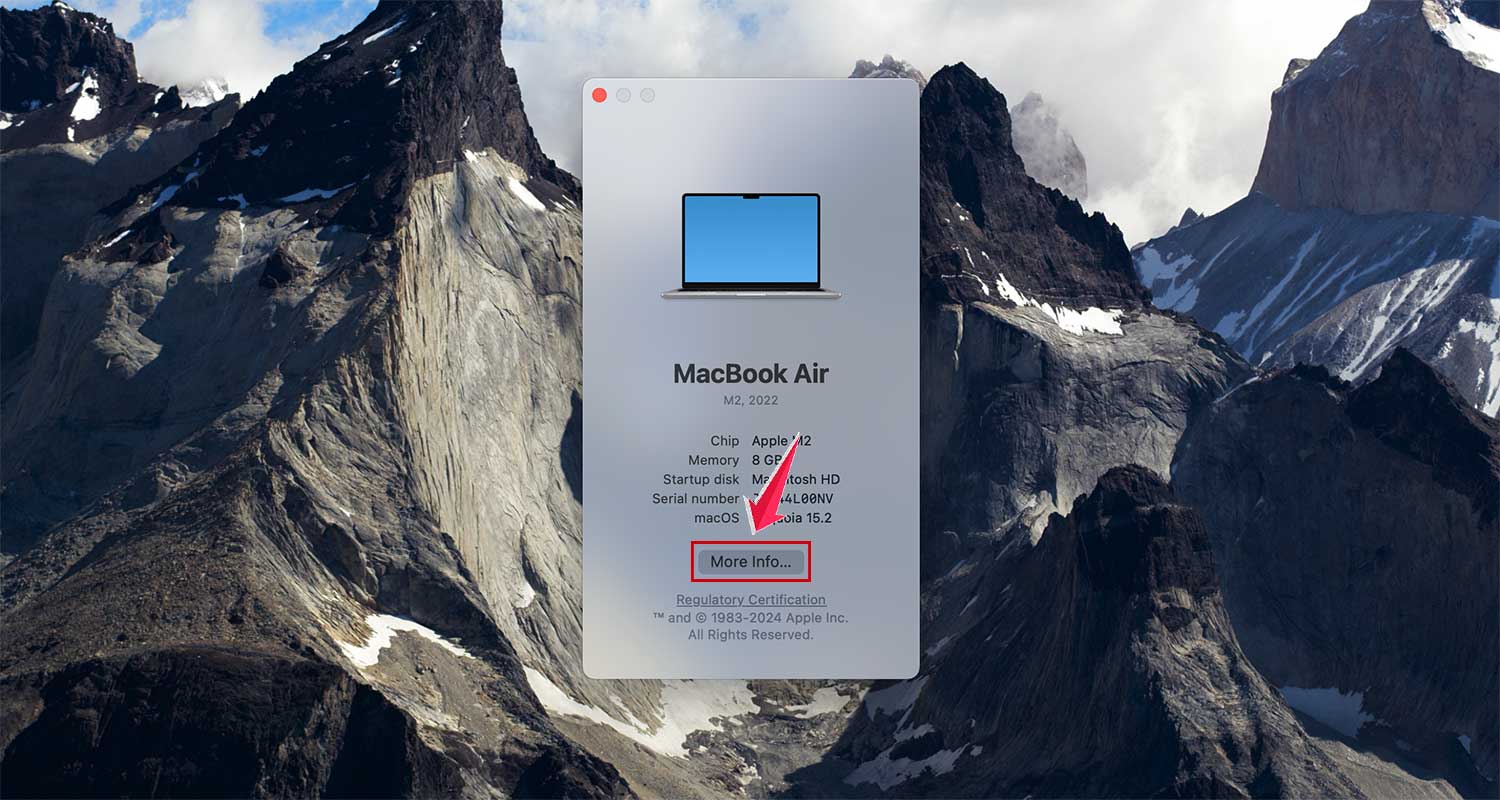
- Click System Report.
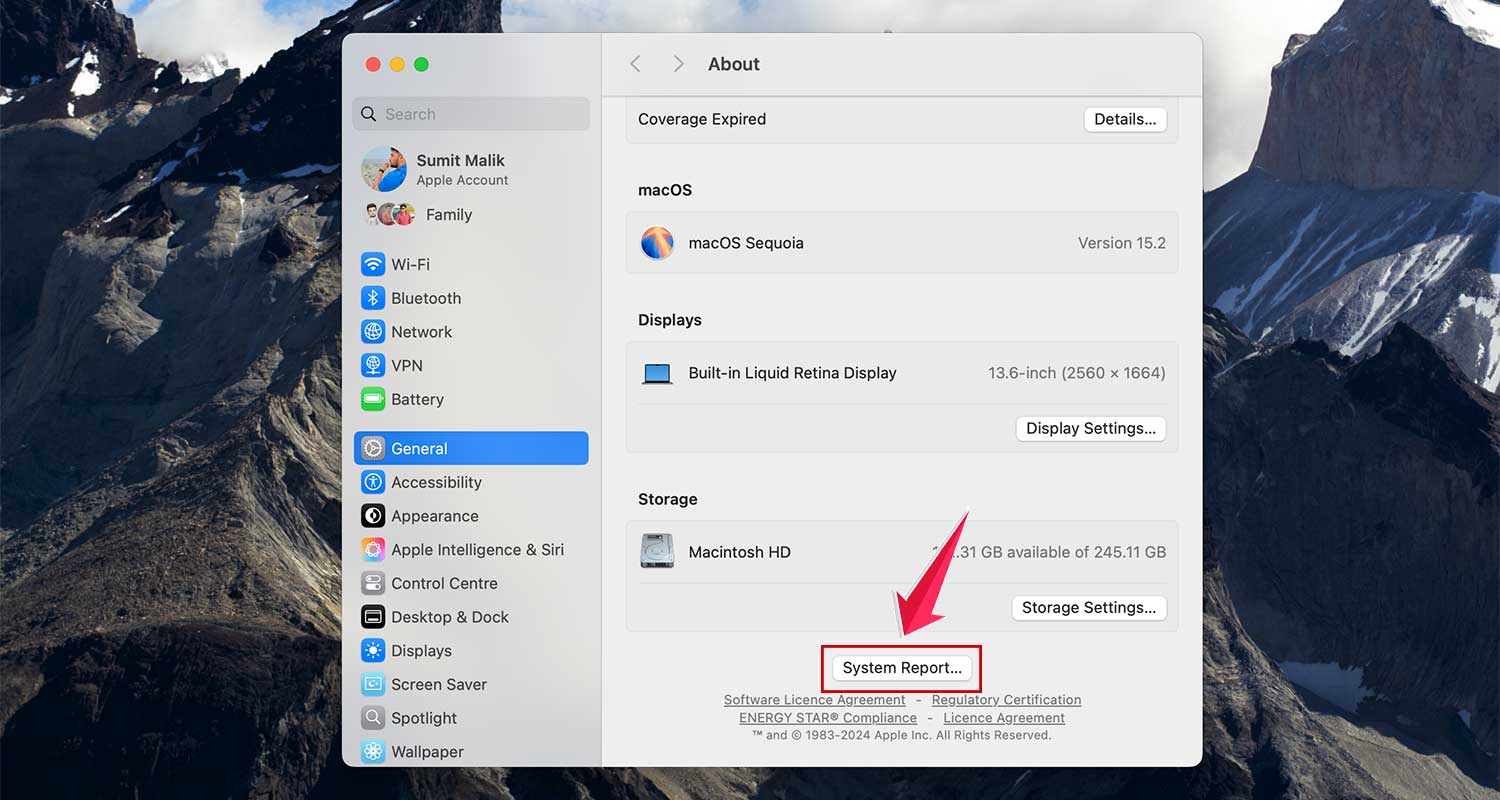
- In the new window, select Memory from the left column.

This section shows you details about your RAM, including the “banks” or slots where RAM sticks are installed.
If you see an empty slot, great news – you can upgrade your RAM easily. But if all slots are full, like in many newer MacBook models, adding more RAM might not be possible.
How To Upgrade RAM On Mac?
Boosting your Mac’s performance with more RAM is often simpler than you might think. Here’s a guide to help you through the process for different Mac models.
#1 MacBook Pro RAM Upgrades
You can upgrade RAM on these MacBook Pro models:
- 13-inch: 2009 to 2012 models
- 15-inch: Models up to 2012
- 17-inch: Models up to 2011
Always use an antistatic wrist strap to protect the components from static electricity.
Steps to Upgrade RAM in MacBook Pro:
- Shut down your MacBook and unplug all cables.
- Flip it over and remove the bottom case screws.
- Touch a metal surface to discharge static electricity.
- Find the RAM slots and gently release the old modules.
- Insert the new RAM, aligning it correctly.
- Press down until you hear a click.
- Replace the case and tighten the screws.
- Power up and check “About This Mac” to confirm the new RAM.
#2 iMac RAM Upgrades
Most iMac models from 2006 to 2020 support RAM upgrades, including 21.5-inch, 27-inch, and some 24-inch models.
Steps to Upgrade RAM in iMac:
- Shut down and unplug your iMac.
- Lay it face down on a soft surface.
- Find the memory door above the power port.
- Open it and locate the RAM slots.
- Remove old RAM modules if necessary.
- Insert new RAM, aligning it properly.
- Close the memory door and stand the iMac up.
- Power on and verify the new RAM in “About This Mac”.
#3 Mac Pro RAM Upgrades
Most Mac Pro models from 2009 to 2019 support user RAM upgrades.
Steps to Upgrade RAM in Mac Pro:
- Turn off and unplug your Mac Pro.
- Open the housing to access internal components.
- Locate and open the RAM cover.
- Remove old RAM if needed.
- Insert new RAM modules, ensuring they click into place.
- Close the RAM cover and reassemble the Mac Pro.
- Power on and check “About This Mac” to confirm the upgrade.
#4 Mac mini RAM Upgrades
Only Mac mini models from 2010 to 2012 support user RAM upgrades.
Steps to Upgrade RAM in Mac mini:
- Shut down and unplug your Mac mini.
- Turn it upside down and rotate the bottom case to open.
- Gently remove old RAM modules.
- Insert new RAM, aligning it correctly.
- Press until it clicks into place.
- Replace the bottom case.
- Power on and verify the new RAM in system information.
Remember, newer Mac models often have RAM integrated into the chip, making upgrades impossible. Always check your specific model’s upgradeability before purchasing new RAM.
Understanding RAM in MacBook Air and Other Macs
If you’re thinking about upgrading the RAM in your MacBook Air, there’s something important you need to know. Unlike some older Mac models, you can’t upgrade the RAM in a MacBook Air after you’ve bought it. Here’s why:
- Built-in Design: Apple has made the RAM a permanent part of the MacBook Air’s main circuit board. This helps make the laptop thinner and more compact.
- Non-removable: Once the MacBook Air is made, there’s no way to add more RAM. It’s fixed in place and can’t be changed.
Most newer Macs, especially those with Apple’s own chips (like M1 or M2), also have memory that can’t be upgraded. The memory is built right into the main chip that runs the computer.
Since you can’t upgrade the RAM later, it’s important to think ahead when you’re buying a new Mac:
- Think About Your Needs: Consider what you’ll use your Mac for. If you do things like video editing or 3D modeling, you’ll need more RAM.
- Buy More RAM If You Can: If possible, choose a Mac with more RAM than you think you need right now. This will help your Mac stay fast and capable as software gets more demanding over time.
By choosing a Mac with enough RAM from the start, you can make sure it will serve you well for years to come, even though you can’t upgrade it later.
In Conclusion To
Upgrading your Mac’s RAM can give it a significant performance boost, making it faster and better at handling demanding tasks. But remember, not all Macs can be upgraded.
Older MacBook Pros, most iMacs from 2006 to 2020, some Mac Pros, and Mac minis from 2010 to 2012 can usually be upgraded. However, newer models, especially MacBook Airs and those with Apple silicon, don’t allow for RAM upgrades.
If you’re buying a new Mac, especially one that can’t be upgraded later, it’s wise to choose a model with more RAM than you think you’ll need. This way, your Mac will stay speedy and capable for years to come.
We’d love to hear about your experiences with upgrading your Mac’s RAM. Have you noticed a big difference in performance? Share your thoughts in the comments below!