Are you staring at your Mac right now, wondering how to keep all your important files safe? Maybe you’ve heard about iCloud backup, but you’re not quite sure how it works or if it’s right for you. Don’t worry, you’re not alone.
Every day, countless Mac users, just like you, are looking for a simple, reliable way to protect their data. Whether it’s your cherished family photos, crucial work documents, or that playlist you spent hours perfecting, you want to make sure it’s all safe and sound.
That’s where iCloud backup comes in. It’s a powerful tool built right into your Mac, but if you’re feeling a bit overwhelmed by the process, take a deep breath. We’re here to help you navigate the world of iCloud backups step by step.
In this guide, we’ll walk you through exactly how to back up your Mac to iCloud. We’ll use plain English. No tech jargon here!
By the time you finish reading, you’ll know how to set up your backup, what to include, and how to make sure it’s working properly. Ready to give your data the protection it deserves?
Why backing up your Mac is crucial
Before we get into the nitty-gritty, let’s talk about why backing up your Mac is so important.
Imagine this: your trusty MacBook suddenly decides to take an unexpected swim in your morning coffee.
Yikes! Without a backup, you could lose years of memories, important work documents, and that novel you’ve been working on for months. A backup is like a safety net for your digital life.
What is iCloud, and why should you use it for backups?

iCloud is Apple’s cloud storage service. Think of it as a virtual storage unit in the sky where you can keep all your important stuff.
Here’s why it’s great for backups:
1. It’s built right into your Mac
First off, iCloud is built right into your Mac. You don’t need to download any extra software. It’s already there, waiting for you to use it.
This means you can start backing up your data right away, without any fuss.
2. Automatic backups
Once you set it up, iCloud works automatically in the background. You don’t have to remember to start a backup or worry about when the last one was done.
It’s constantly working to keep your data safe, giving you one less thing to think about.
3. Access from anywhere
Another big advantage is that you can access your files from anywhere. As long as you have an internet connection, you can get to your backed-up data from any device.
This is super handy if you’re traveling or if you need to access an important document when you’re away from your Mac.
4. It’s secure
Lastly, and perhaps most importantly, iCloud is secure. Apple uses strong encryption to protect your data, so you can feel confident that your personal information and files are safe from prying eyes.
So, in a nutshell, iCloud offers you an easy, automatic, accessible, and secure way to back up your Mac. It’s a powerful tool that’s already at your fingertips. Why not make the most of it?
How to back up your Mac to iCloud?
Alright, let’s get down to business. Here’s how you can back up your Mac to iCloud in just a few simple steps:
First things first, make sure your Mac is running the latest version of macOS. This ensures you have all the latest features and security updates.
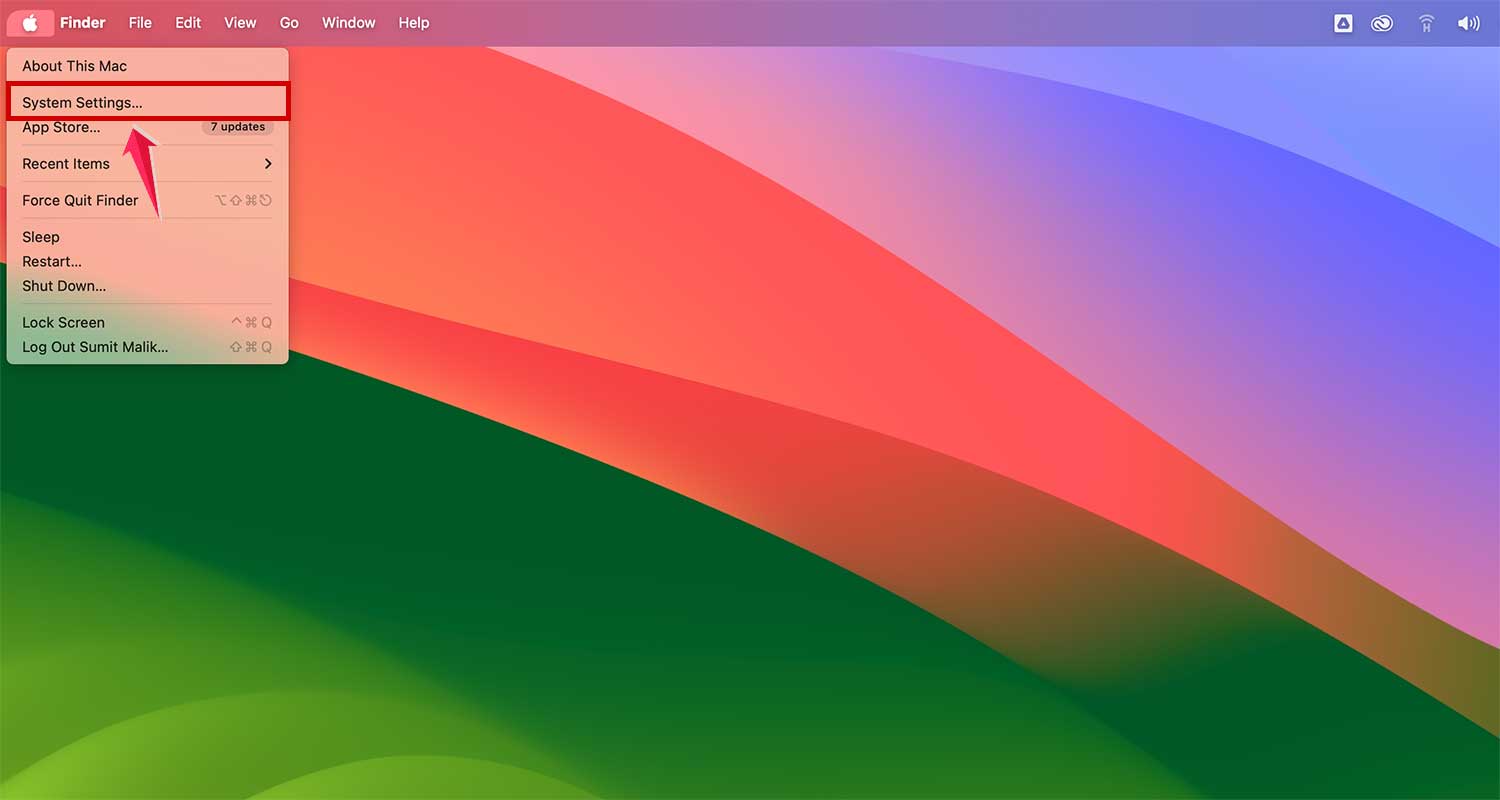
- Open System Settings.
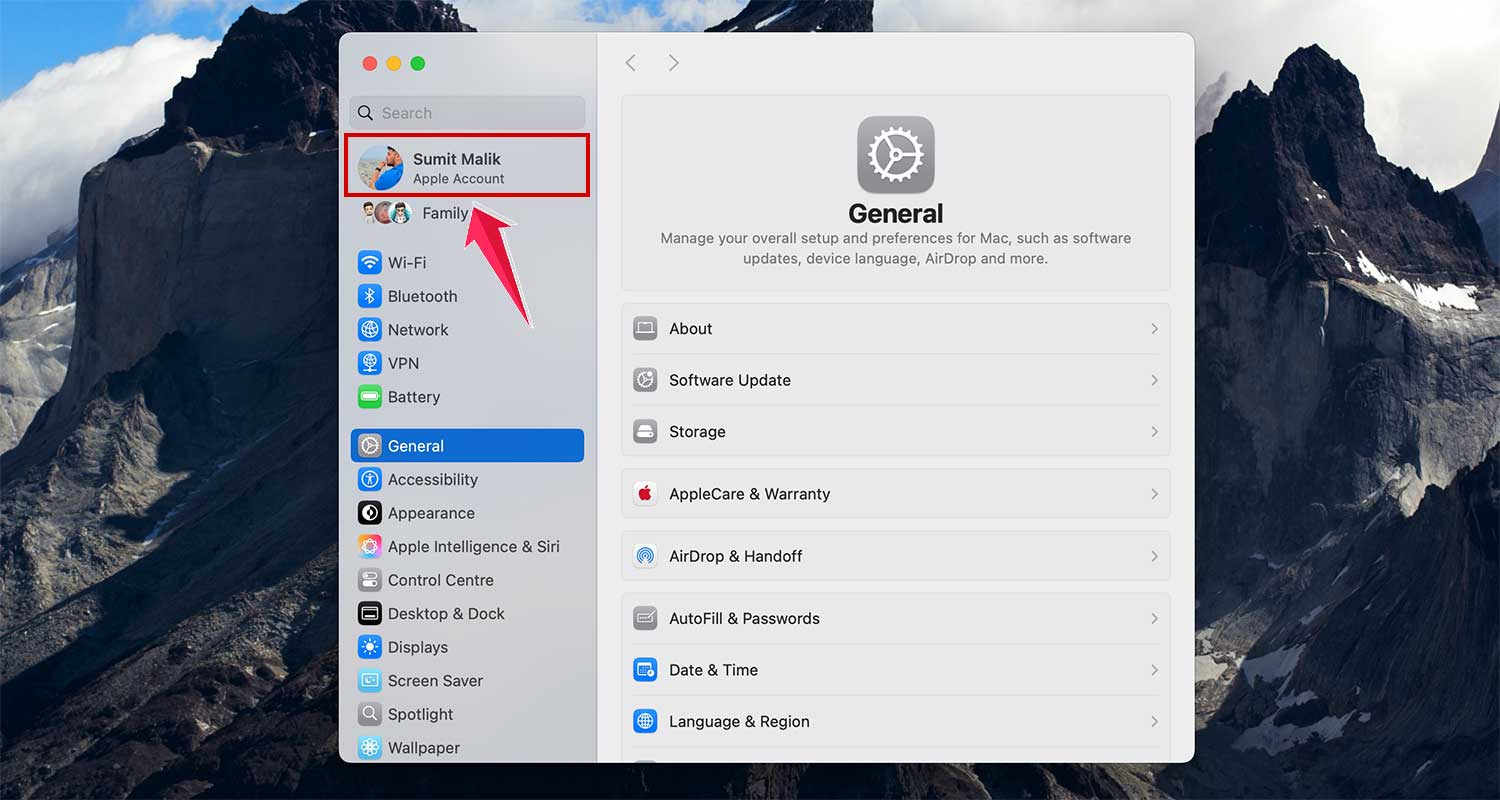
- Sign in to your Apple ID. Click on your name or Apple ID at the top of the sidebar. If you’re not signed in, now’s the time to do so.
- Navigate to iCloud settings. Now click on “iCloud.” You’ll see a list of apps and services that can use iCloud.

- Go to Saved in iCloud: Tap on the See all next to Saved in iCloud.

- Choose what to back up. Now, here’s where you get to decide what goes into your iCloud backup. You’ll see a list of items with toggle switches next to them. Turn on the switches for everything you want to back up.
- Start the backup. Once you’ve selected everything you want to back up, your Mac will start syncing data to iCloud automatically. Easy peasy!

To see your iCloud Drive in action, open a Finder window and look for “iCloud Drive” in the sidebar. You can drag and drop files directly into this folder to store them in iCloud.
How much iCloud storage do you need?
Great question! Apple gives you 5GB of iCloud storage for free, but let’s be honest. That fills up pretty quickly. Here’s a rough guide:
- 50GB plan ($0.99/month): Good for basic backups and some photos.
- 200GB plan ($2.99/month): Great for most users with lots of photos and documents.
- 2TB plan ($9.99/month): Perfect for power users or families sharing an iCloud account.
To upgrade your storage, go back to your Apple ID settings, click on “iCloud,” then “Manage Storage,” and finally “Change Storage Plan.”

While iCloud is fantastic for everyday backups, some folks might need a bit more. Here are a couple of other options to consider:
1. Time Machine: This is Apple’s built-in backup software that saves everything to an external hard drive. It’s great for full-system backups.
2. Third-party backup services: There are lots of other cloud storage options out there, like Dropbox or Google Drive, which can complement your iCloud backup.
The takeaway
Backing up your Mac to iCloud isn’t just a good idea. It’s an essential step in protecting your digital life. We’ve walked through the process, from setting up iCloud to choosing what to back up, and even tackled some common questions.
Remember, the key points are: regularly check your backup settings, ensure you have enough storage, and don’t forget about your larger files and applications that might need a different backup solution. iCloud is great for your day-to-day files, but it’s not a complete system backup.
Many people think backing up is complicated or time-consuming, but as you’ve seen, it’s actually quite straightforward. With just a few clicks, you can set up a system that works automatically to keep your data safe.
The most important takeaway? Start your backup today. Don’t wait for a crash or a spilled coffee to remind you how valuable your data is.
Your photos, documents, and digital memories are worth protecting. So take a few minutes now to set up your iCloud backup. Your future self will thank you for it.
What do you think about this guide? Has it helped you understand how to back up your Mac to iCloud? Leave a comment below and let us know!