Is your iPhone vibrating randomly right now? It can be pretty annoying when your phone starts buzzing for no apparent reason, especially if you’re in a quiet place or trying to focus.
You’re probably wondering what’s causing this and how to make it stop.
Random vibrations on your iPhone can happen for various reasons. Maybe it’s a software glitch, a hardware issue, or just some settings that need tweaking.
Whatever the cause, it’s a common problem that many iPhone users face, and you’re not alone in trying to figure it out.
In this article, we’ll walk you through the possible reasons why your iPhone is vibrating unexpectedly and show you how to fix it. You’ll learn some easy troubleshooting steps that you can try right away.
Why your iPhone vibrates randomly and how to stop it
Is your iPhone buzzing away for no apparent reason? It can be confusing and annoying when this happens. Let’s figure out why it’s happening and how to fix it.
First, let’s do a quick check. Is your phone vibrating mostly when it’s charging? If so, try swapping out your charging cable.
Sometimes a faulty cable can cause unexpected vibrations. If that doesn’t solve it, don’t worry. We have more solutions.
1. Check your notification settings
Your iPhone might be vibrating without showing notifications because of how your settings are configured. Here’s how you can check:
- Open the “Settings” app on your iPhone.
- Tap “Notifications”.
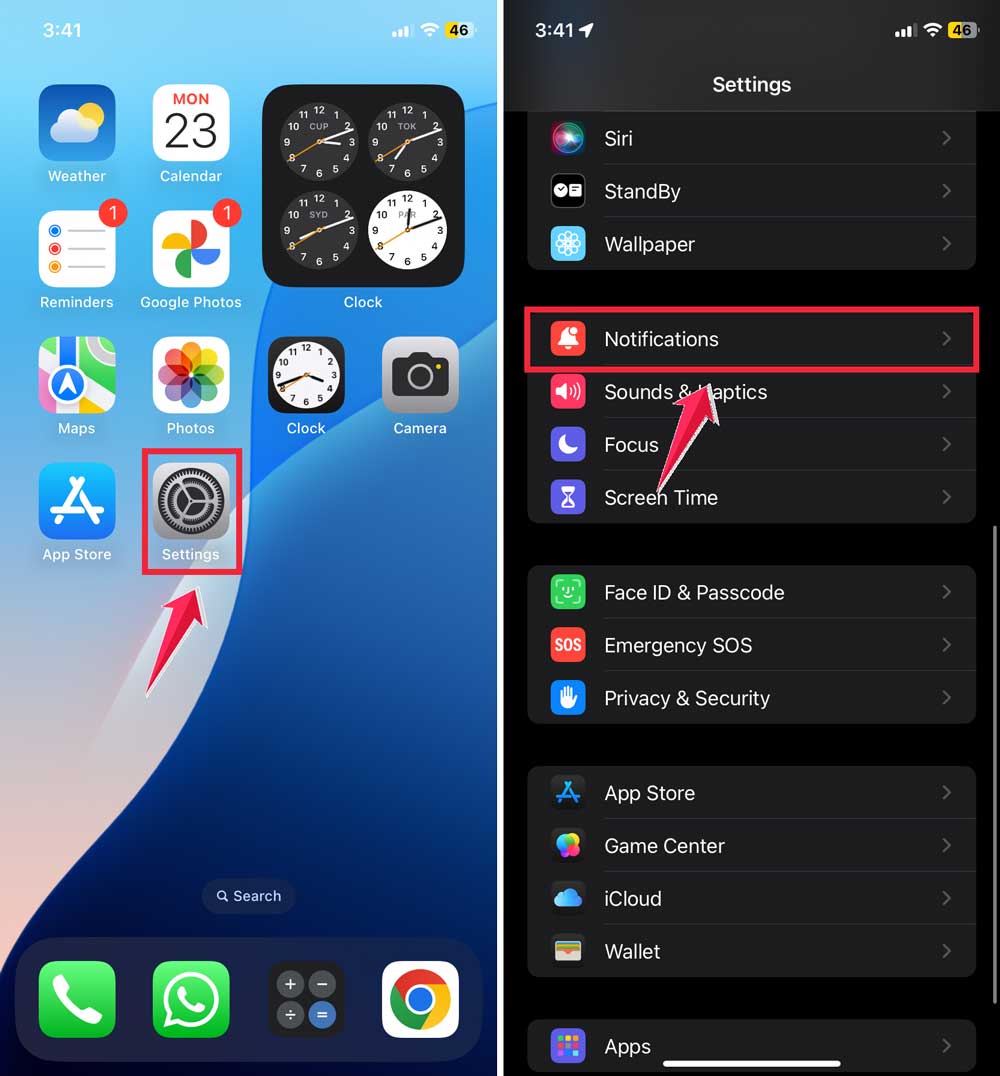
- Look through the list of apps for any that might be causing the issue.
- For each app, make sure the “Allow Notifications” setting is how you want it.

Remember, some apps might be set to vibrate without showing anything on your screen. Pay special attention to messaging apps and your email app. They’re often the culprits.
2. Restart your iPhone
Sometimes, the simplest solution works best. Try turning your iPhone off and then back on again. This can often fix random vibrations and other glitches.
If you’re not sure how to restart your iPhone, don’t worry. It’s easy, and you can find instructions in your phone’s user guide or on Apple’s website.

3. Update your apps
Outdated apps could be causing those mysterious vibrations. Here’s what you need to do:
- Make sure all your apps are up to date.
- If you’re not sure how you can find instructions on updating all your apps at once in your iPhone’s user guide.
- If the vibrations started after you downloaded a new app, try uninstalling it to see if that helps.
- Don’t worry if uninstalling doesn’t work. You can always reinstall the app later.
4. Update your iPhone’s operating system
If you’re still experiencing random vibrations, it might be time to update your iPhone’s software. Here’s why this can help:
- iOS updates often include fixes for bugs that could be causing your phone to vibrate.
- Updating to the latest version of iOS might solve your problem.
- To update your iPhone, go to “Settings”, then “General”, and tap “Software Update”.
- If an update is available, follow the on-screen instructions to install it.

5. Check your iPhone’s vibration settings
Your iPhone might be vibrating unexpectedly due to custom vibration settings. Here’s what you can do:
- Go to “Settings” and then “Sounds & Haptics”.

- Click on “Haptics“.
- Now, choose from the available options.
- Always Play.
- Play in Silent Mode.
- Don’t Play in Silent Mode.
- Never Play.
- Also, check if your phone is in Silent Mode. Sometimes, this can cause unexpected vibrations.

6. Force restart your iPhone
If your iPhone is still vibrating randomly, try a force restart:
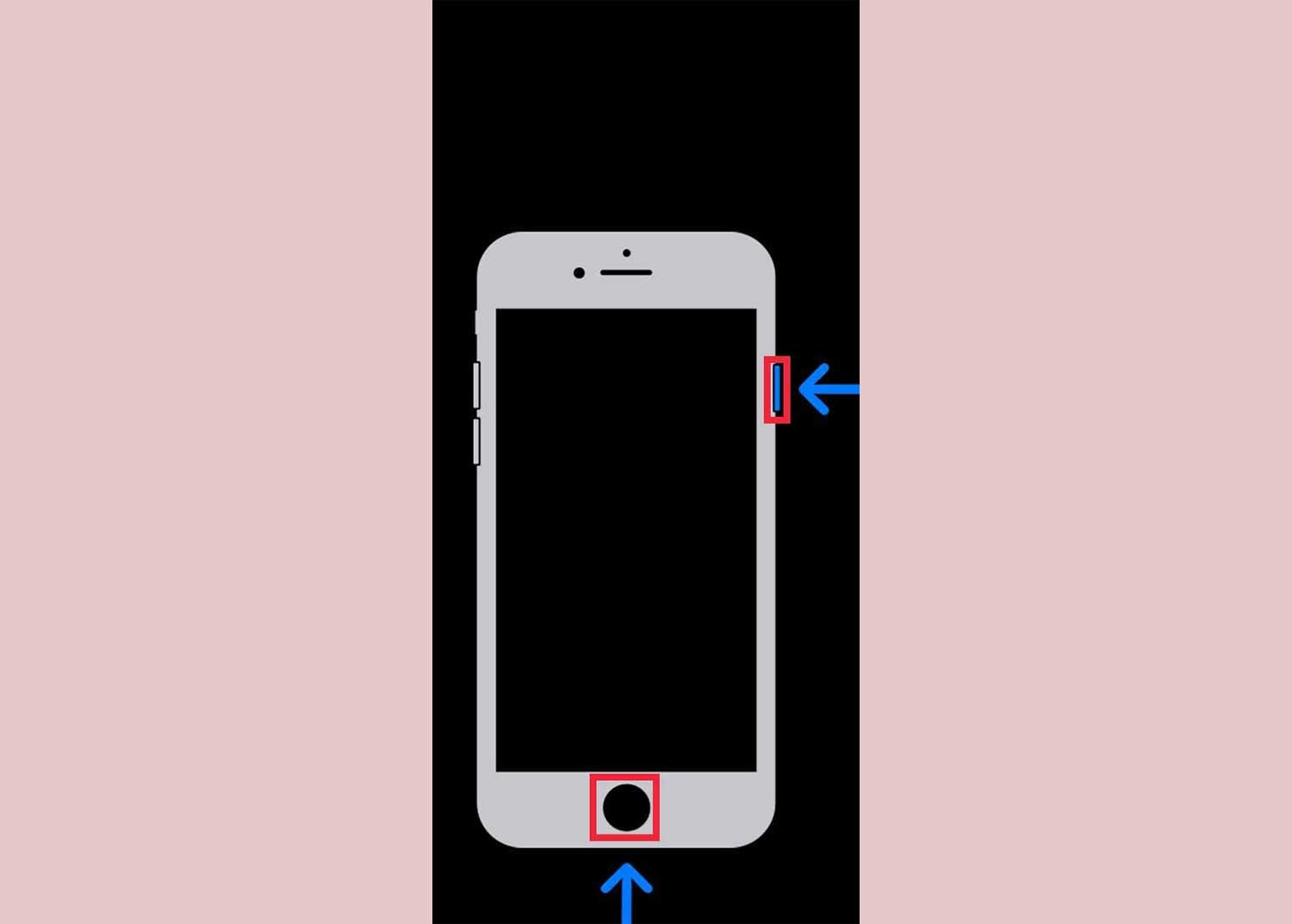
- For iPhone X or later: press and hold the Side button (on the right side of the phone) and either the Volume button (on the left side) until you see the Apple logo.

- For earlier models: Press and hold both the Home and the top (or side) buttons until you see the Apple logo.
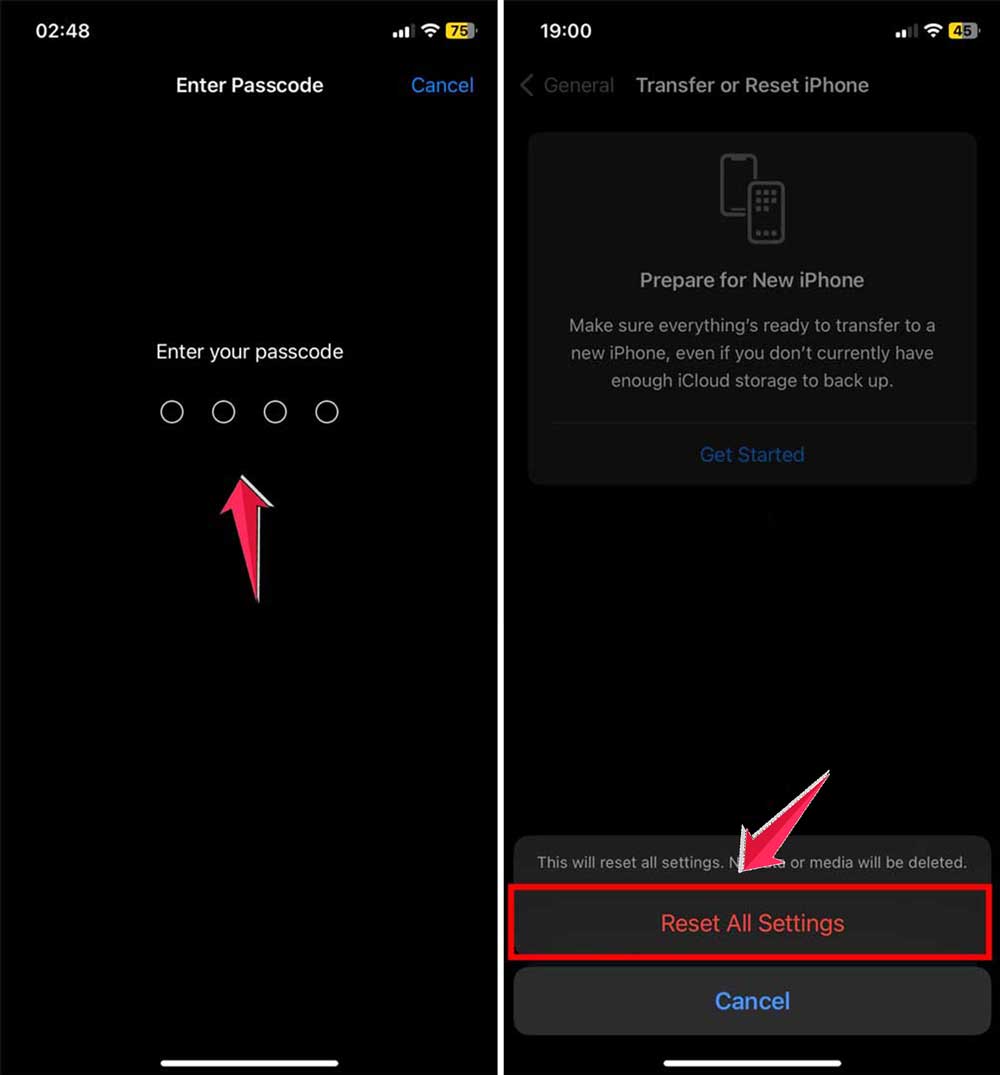
7. Reset all settings
If nothing else works, you can try resetting all settings:
- Go to “Settings”, then “General”, and click on Transfer or Reset iPhone

- Tap “Reset”.
- Choose “Reset All Settings”.

- This won’t delete your data or apps, but it will clear any custom settings you’ve made.
- You’ll need to re-enter your Wi-Fi passwords and other preferences after this.
8. Factory reset your iPhone
If you’re still experiencing random vibrations, a factory reset might be necessary:
- Back up your iPhone first. This is crucial as a factory reset will erase all your data.
- Go to “Settings”, then “General”.
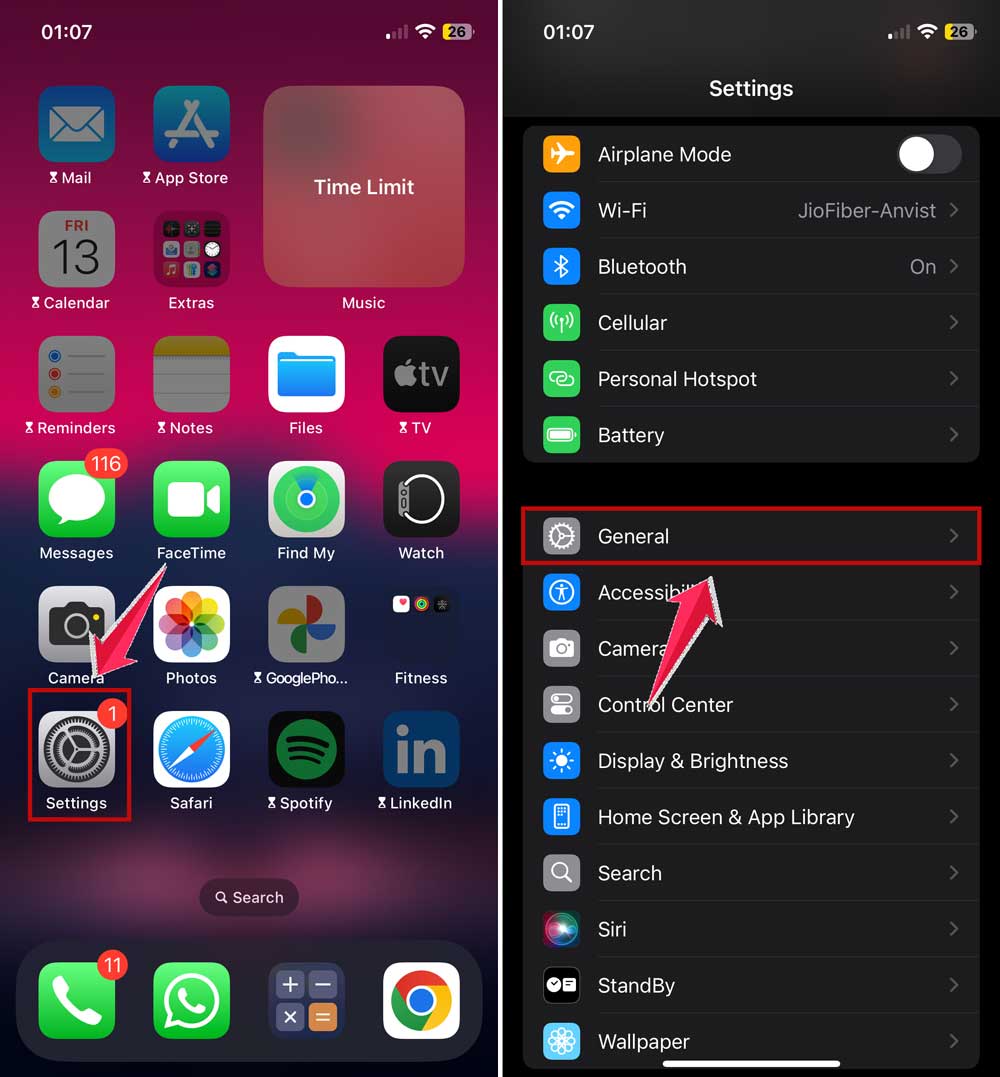
- Click on Transfer or Reset iPhone.
- Choose “Erase All Content and Settings”.

- Follow the prompts to complete the reset.

Remember, this is a drastic step. Only do this if you’ve tried everything else and those mysterious vibrations are still bothering you.
9. Contact Apple Support
If you’ve tried all these steps and your iPhone is still vibrating randomly, it’s time to get professional help:
- Visit the official Apple Support website.
- You can choose to get help by phone, chat, or email.
- An Apple expert will guide you through additional steps to diagnose and fix the issue.

Don’t hesitate to reach out to Apple Support if you need more help. They’re there to assist you and might have additional solutions we haven’t covered here.
Remember, persistent hardware issues might require in-person support at an Apple Store or authorized service provider. If that’s the case, the support team will let you know and help you set up an appointment.
The takeaway
Now that you’ve explored the reasons behind your iPhone’s random vibrations, you’re well-equipped to tackle this annoying issue. Remember, it’s often a simple fix that solves the problem.
Start by checking your notification settings and updating your apps. These quick steps can often stop those mystery buzzes.
If that doesn’t work, don’t worry. Try restarting your iPhone or adjusting your vibration settings. You might be surprised at how effective these basic solutions can be.
Many people think random vibrations mean their iPhone is broken, but that’s rarely the case. It’s usually just a software hiccup that you can fix yourself.
Of course, if you’ve tried everything and you’re still feeling those phantom vibrations, don’t hesitate to reach out to Apple Support. They’re there to help you.
Remember, you’re in charge of your iPhone’s behavior. With a bit of patience and the right know-how, you can put an end to those pesky vibrations and get back to enjoying your device. You’ve got this!