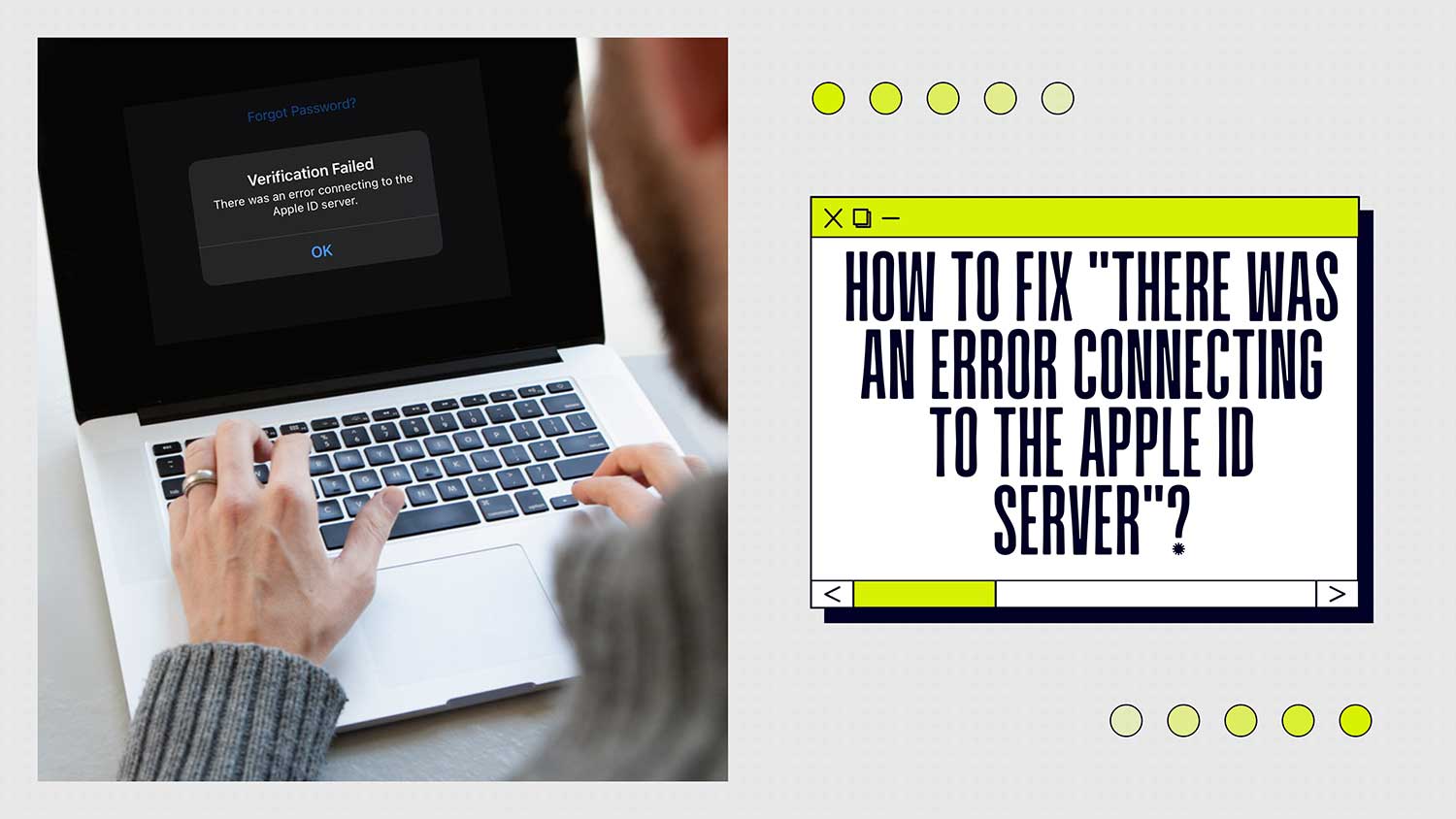
Are you staring at your iPhone or Mac right now, frustrated by that annoying “There was an error connecting to the Apple ID server” message?
Don’t worry, you’re not alone. Millions of Apple users face this exact problem every day, and it can feel like your device has suddenly turned against you.
This error is stopping you from accessing essential services like iCloud, the App Store, or maybe even logging into your device.
Some users may even see an “Apple ID not active” issue, which is closely related. It’s happening because your device can’t verify your identity with Apple’s servers right now.
This could be due to your internet connection, issues with Apple’s servers, outdated software on your device, or just some incorrect settings.
I know you’re probably feeling frustrated and maybe a bit helpless. But take a deep breath.
We’re going to fix this together. In this article, I’ll walk you through some simple, step-by-step solutions that you can try right now.
Why can’t I connect to the Apple ID server?
When you see the message “There was an error connecting to the Apple ID server,” it means your device is having trouble verifying your identity with Apple.
This can be frustrating, especially when you’re trying to use important services like iCloud or the App Store. Let’s break down what’s causing this issue and how you can fix it.
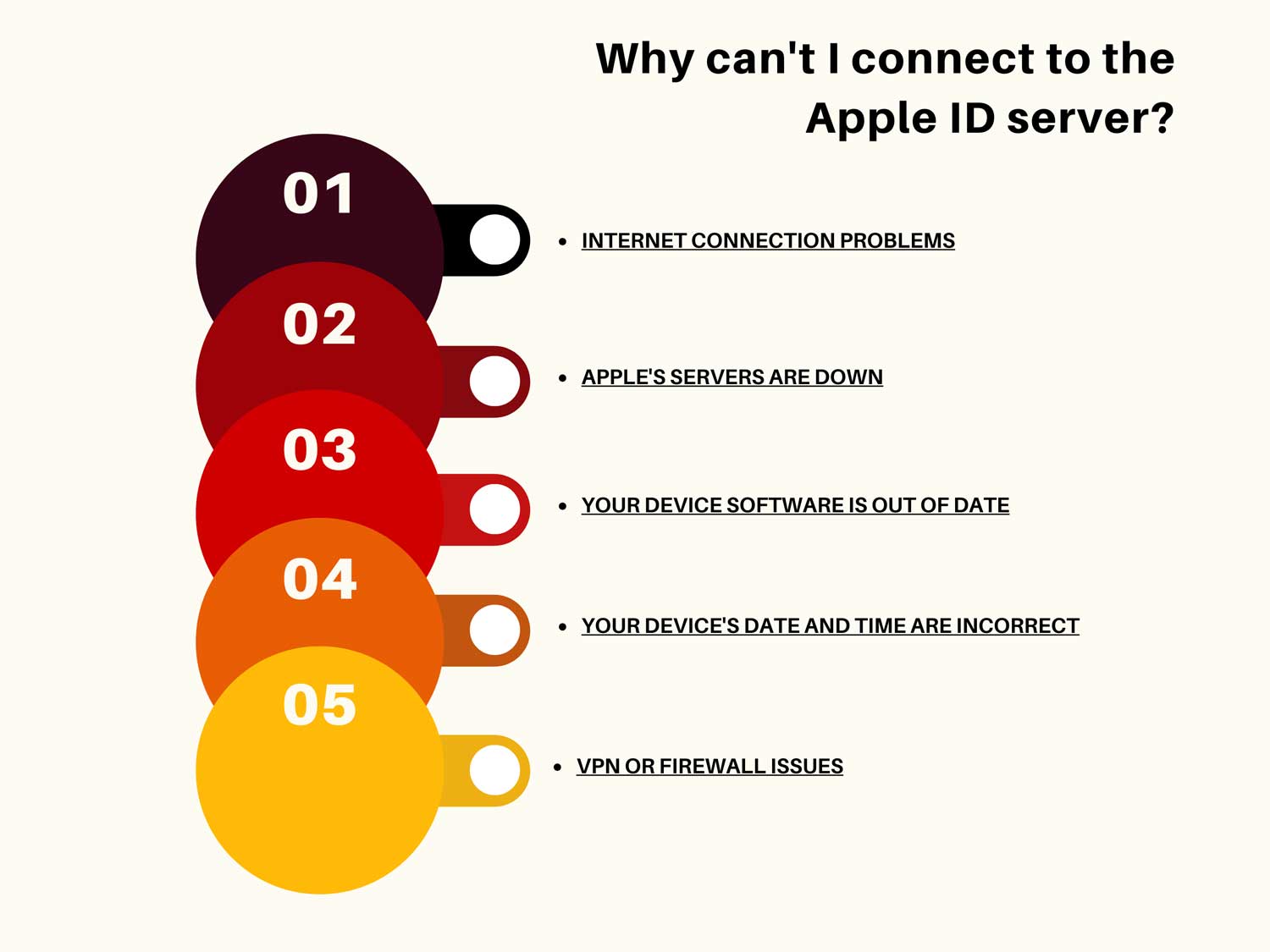
There are several reasons why you might be seeing this error:
1. Internet connection problems. Your device needs a stable internet connection to talk to Apple’s servers. If your Wi-Fi or cellular data is acting up, you’ll likely see this error.
2. Apple’s servers are down. Sometimes, the problem isn’t on your end at all. If Apple’s servers are having issues, you’ll have trouble connecting no matter what you do on your device.
3. Your device software is out of date. Using outdated software can cause all sorts of problems, including trouble connecting to Apple’s servers.
4. Your device’s date and time are incorrect. Believe it or not, having the wrong date and time on your device can mess up your connection to Apple’s servers.
5. VPN or firewall issues. If you’re using a VPN or firewall, it might be blocking your device from connecting to Apple’s servers.
Now that we understand what’s causing the problem, let’s look at how to fix it.
How to fix “There was an error connecting to the Apple ID server”?
1. Check Apple’s system status
First, make sure the problem isn’t on Apple’s end. Here’s how:
- Visit Apple’s System Status page (https://www.apple.com/support/systemstatus/).
- Look for the service you’re trying to use (e.g., Apple ID, iCloud, App Store).
- If you see a green dot next to the service, it’s working fine. If not, wait for Apple to resolve the issue.

2. Verify your internet connection
A stable internet connection is crucial for connecting to Apple’s servers. Try these steps:
- Turn off Wi-Fi on your device, wait a few seconds, then turn it back on.
- Try connecting to a different Wi-Fi network if possible.
- If you’re using cellular data, ensure you have a strong signal. Also, if your phone shows a No SIM card installed error, that can prevent connectivity altogether.
- Restart your router if you suspect it’s causing issues.

3. Update your device’s software
Outdated software can cause connectivity problems. Here’s how to check for updates:
On iPhone or iPad
- Go to Settings > General.
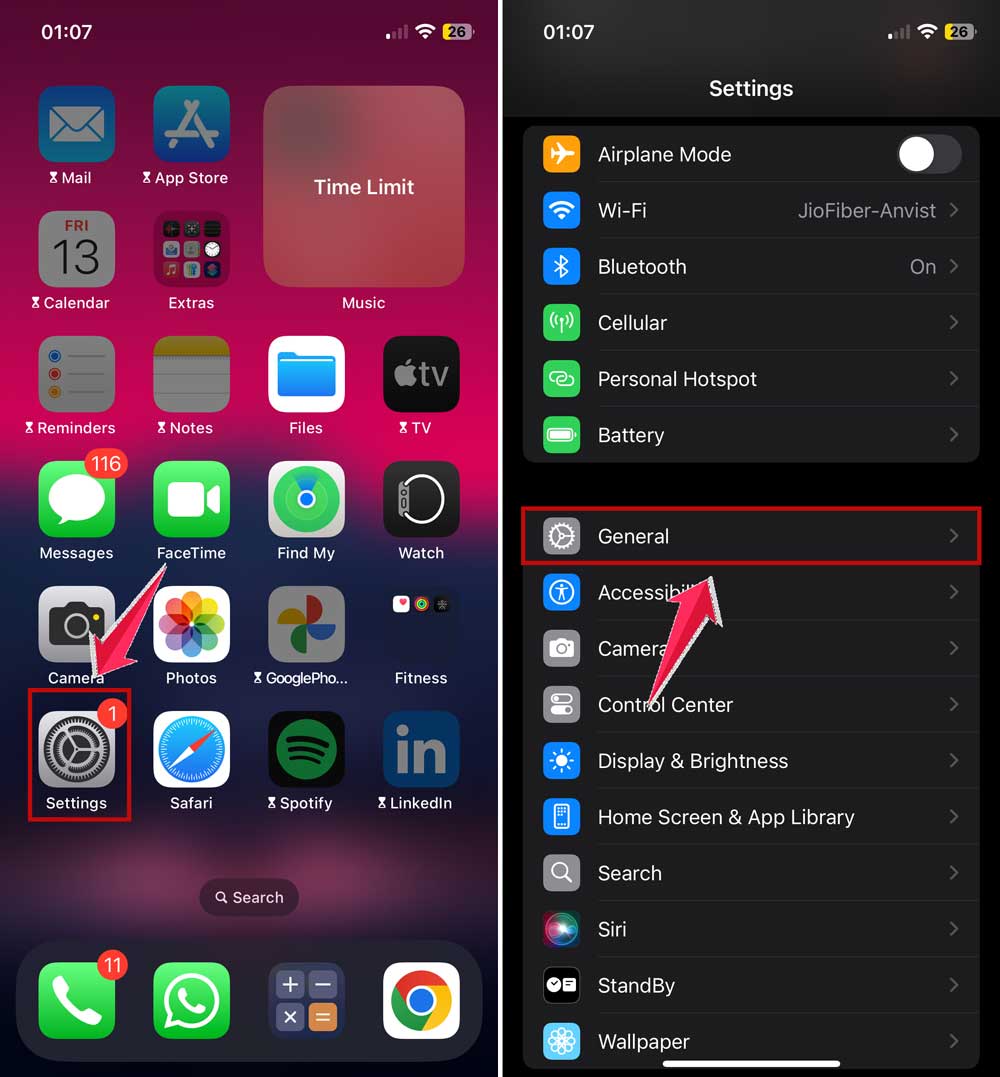
- Click on Software Update.
- If an update is available, tap “Download and Install“.

On Mac
- Click the Apple menu > System Settings.
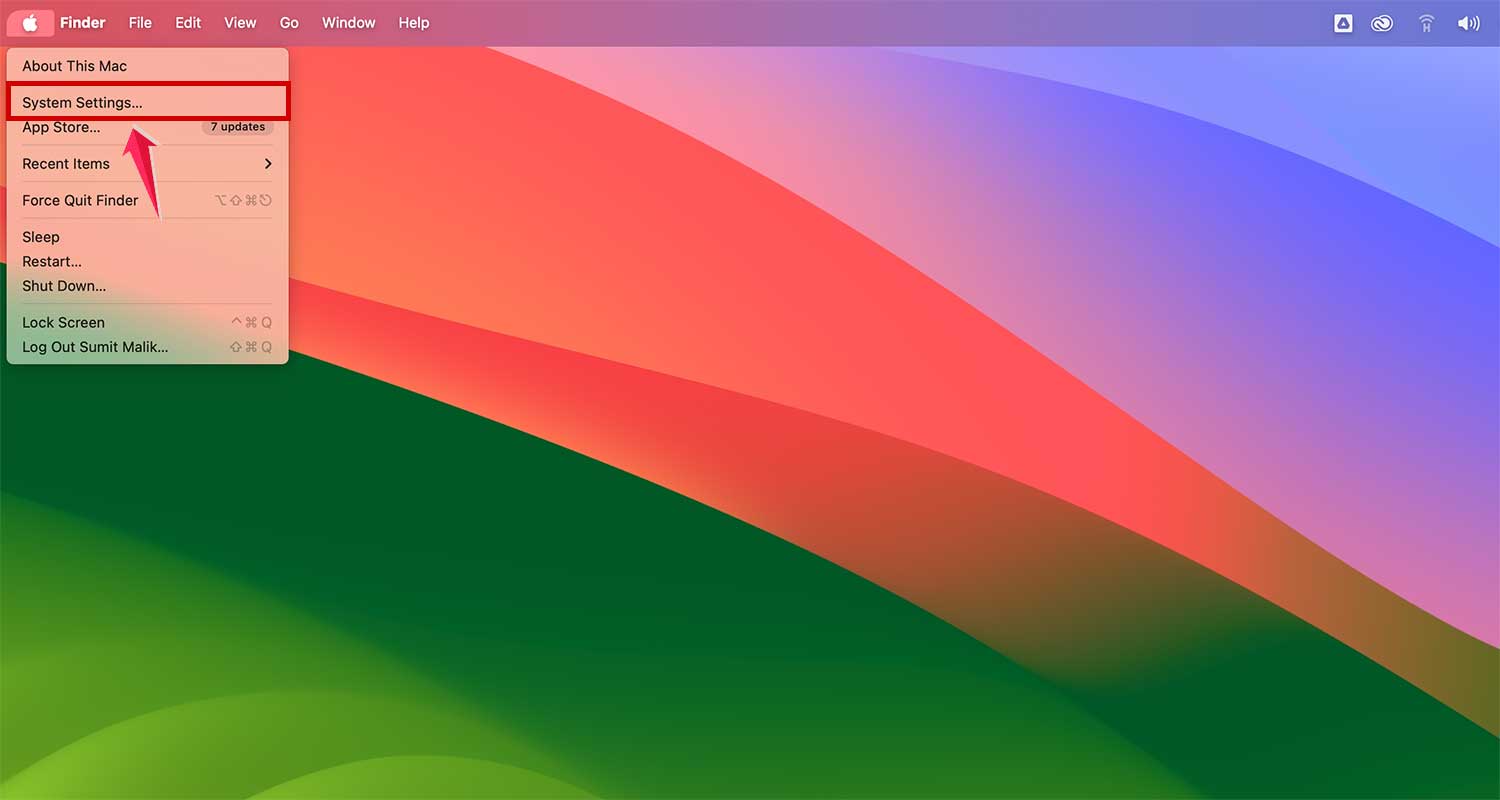
- General > Software Update.
- If an update is available, click “Update Now“.

4. Check your date and time settings
Incorrect date and time settings can interfere with server connections. To fix this:
On iPhone or iPad
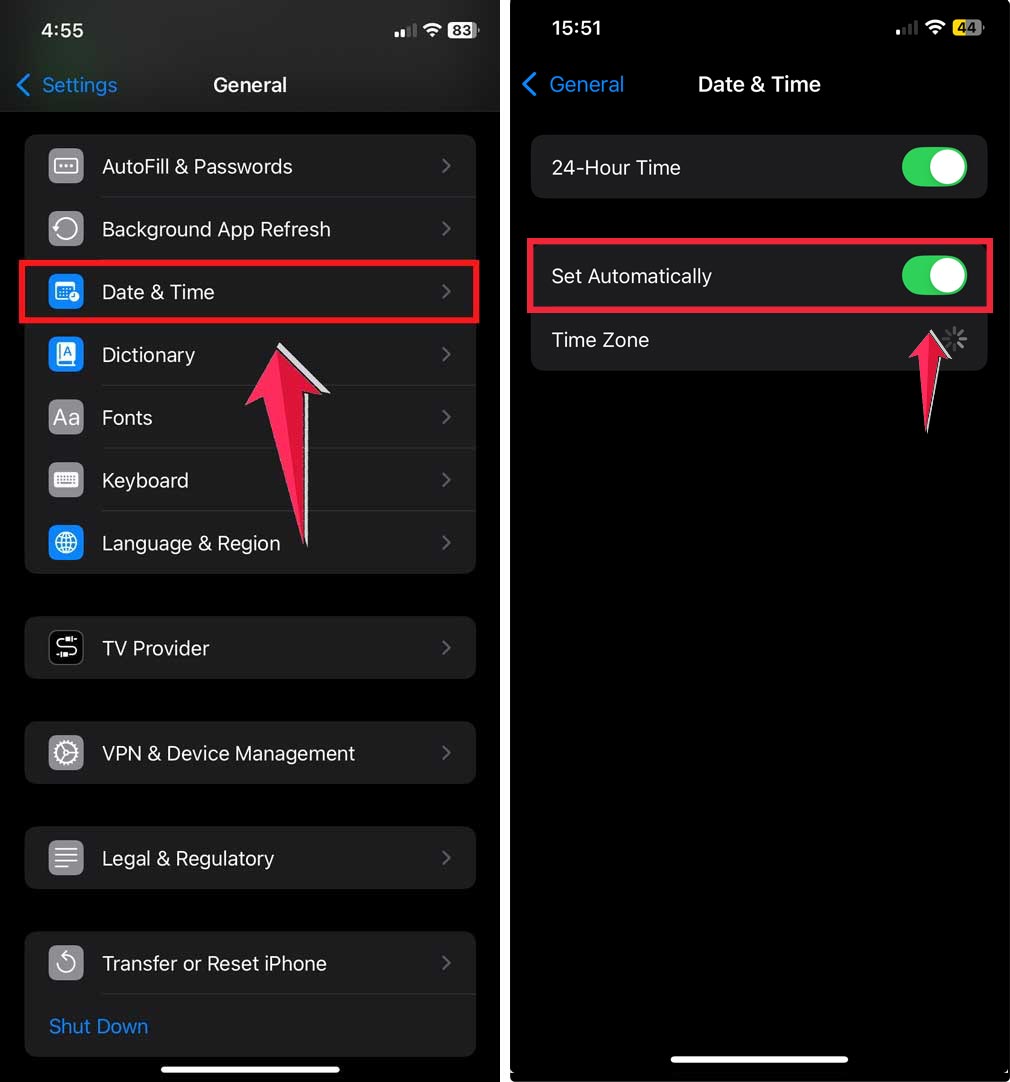
- Go to Settings > General.
- Click on Date & Time.
- Enable “Set Automatically“.
On Mac
- Click the Apple menu > System Settings.
- Click on General, then tap on Date & Time.
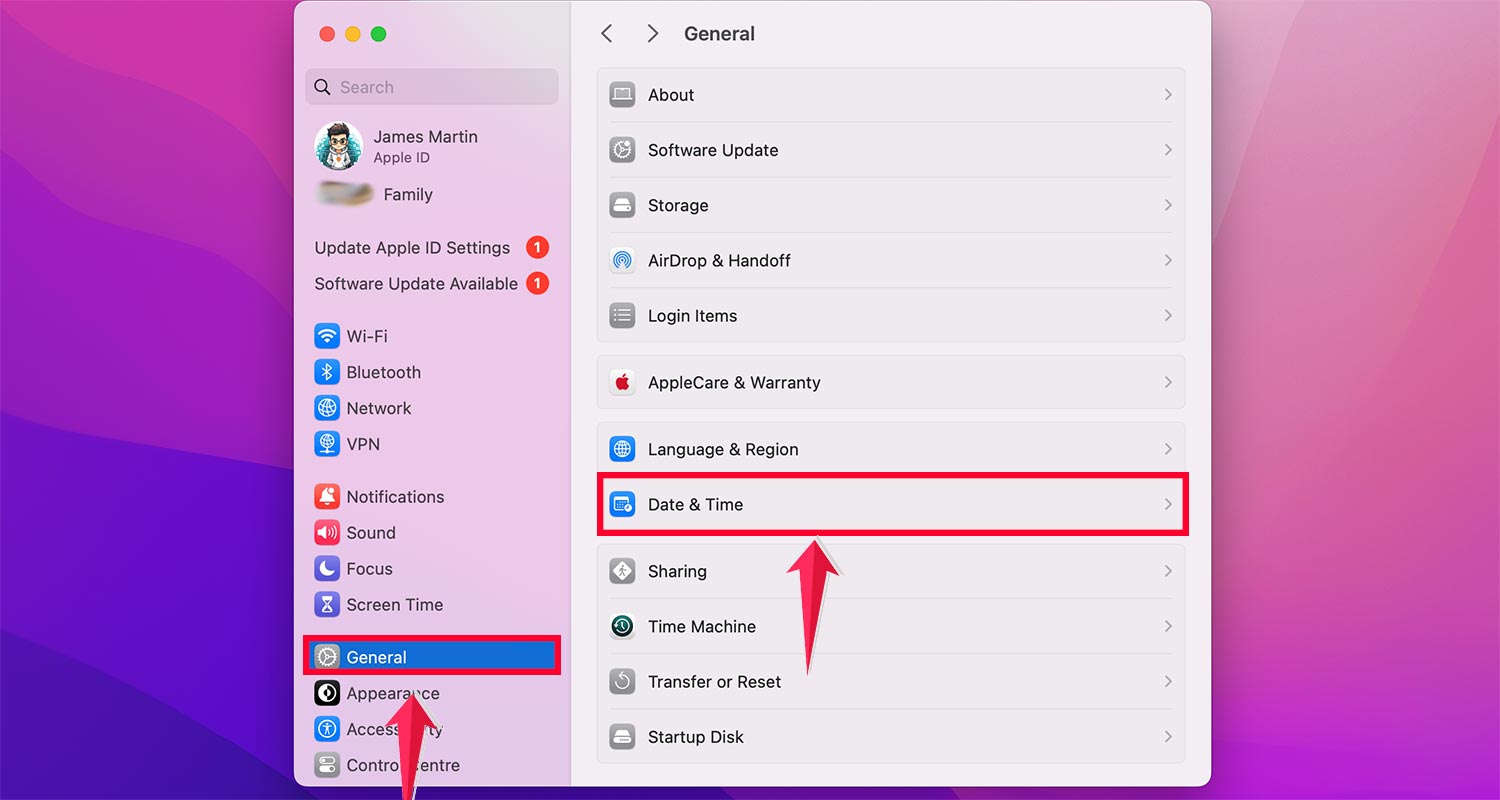
- Check “Set date and time automatically“.

5. Sign out and sign back into your Apple ID
Sometimes, simply signing out and back in can resolve the issue:
On iPhone or iPad
- Go to Settings > [your name].
- Scroll down and tap “Sign Out“.
- After signing out, restart your device.
- Go back to Settings and sign in again.

On Mac
- Go to System Settings > Apple ID.
- Click “Overview” in the sidebar.
- Click “Sign Out“.
- Restart your Mac and sign back in.

This method also helps fix related issues like the iMessage waiting for activation error.
6. Reset network settings
If the problem persists, try resetting your network settings:
- Go to Settings > General.
- Transfer or Reset iPhone.

- Click on Reset.
- Tap “Reset Network Settings“.
- Enter your passcode and confirm.

Note: This will erase saved Wi-Fi passwords and other network settings.
7. Disable VPN or firewall temporarily
If you’re using a VPN or firewall, try disabling it temporarily:
On iPhone or iPad
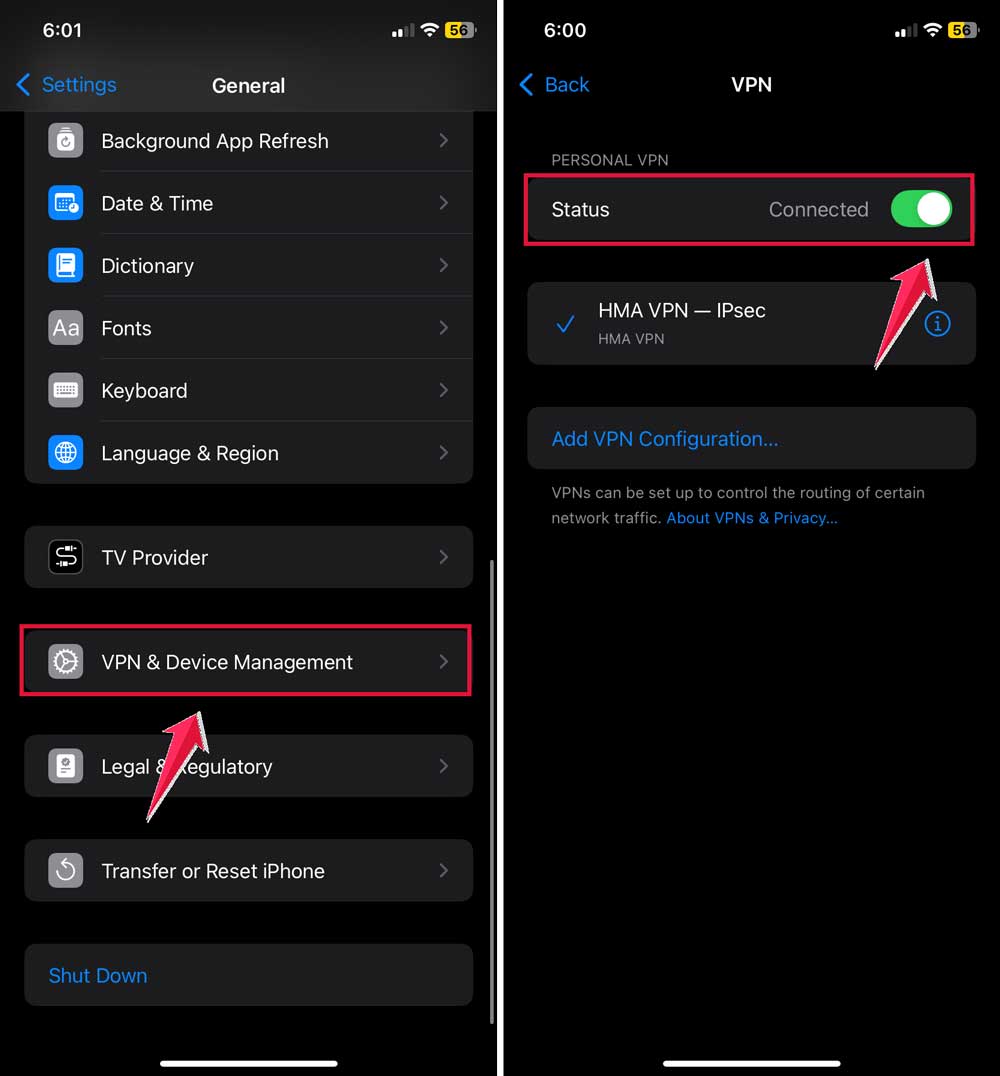
- Go to Settings > General.
- Click on VPN & Device Management.
- Toggle off any active VPN profiles.
On Mac
- Go to System Settings > Network.
- Click on VPN.
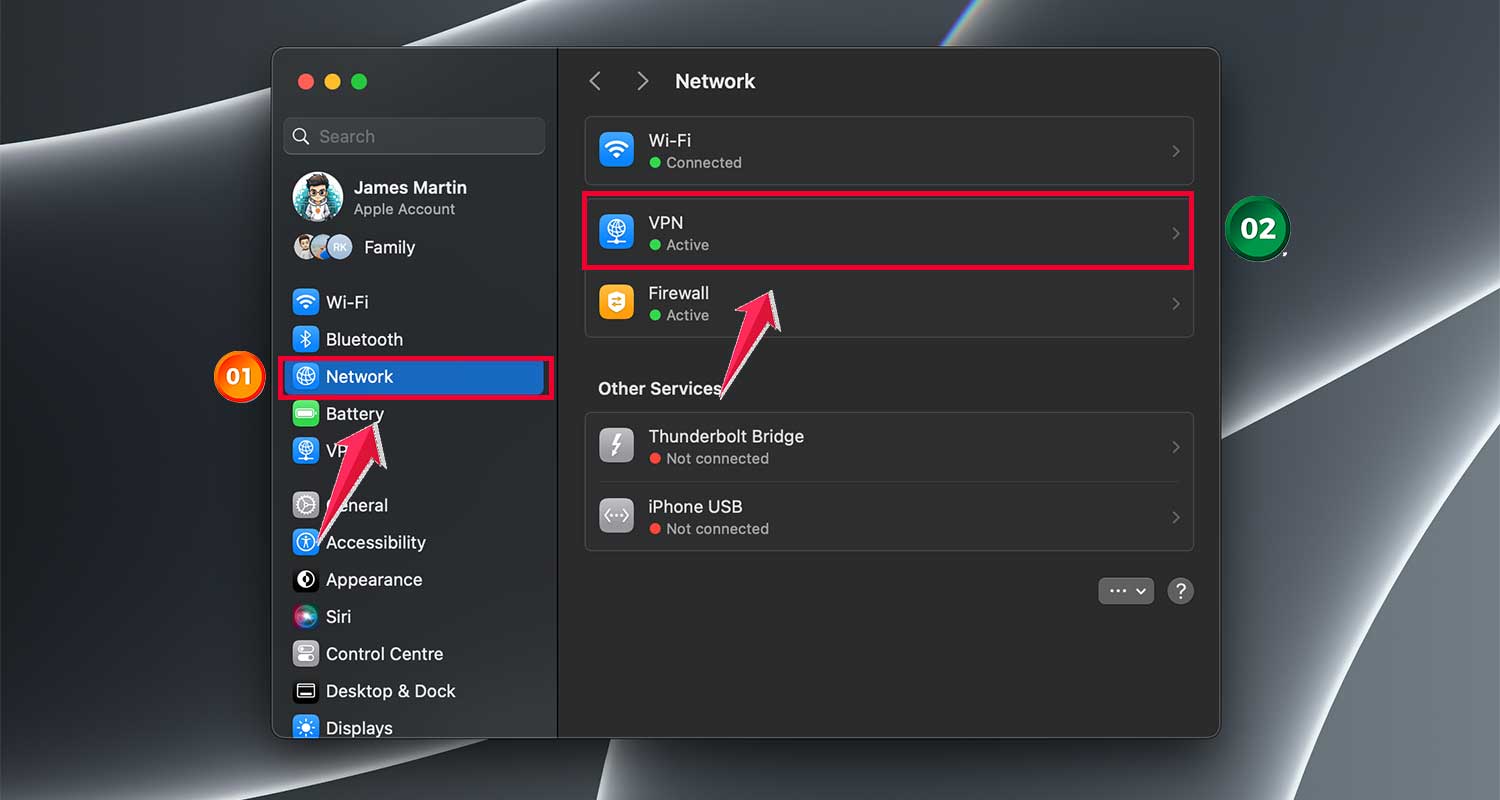
- Select your VPN connection and click “Disconnect“.

- For firewall, go to System Settings > Network > Firewall.

- Click the lock icon to make changes, then click “Turn Off Firewall“.

8. Clear cache and cookies (for browser-based issues)
If you’re experiencing the error in Safari or another browser:
On iPhone or iPad
- Go to Settings > Safari.
- Tap “Clear History and Website Data“.

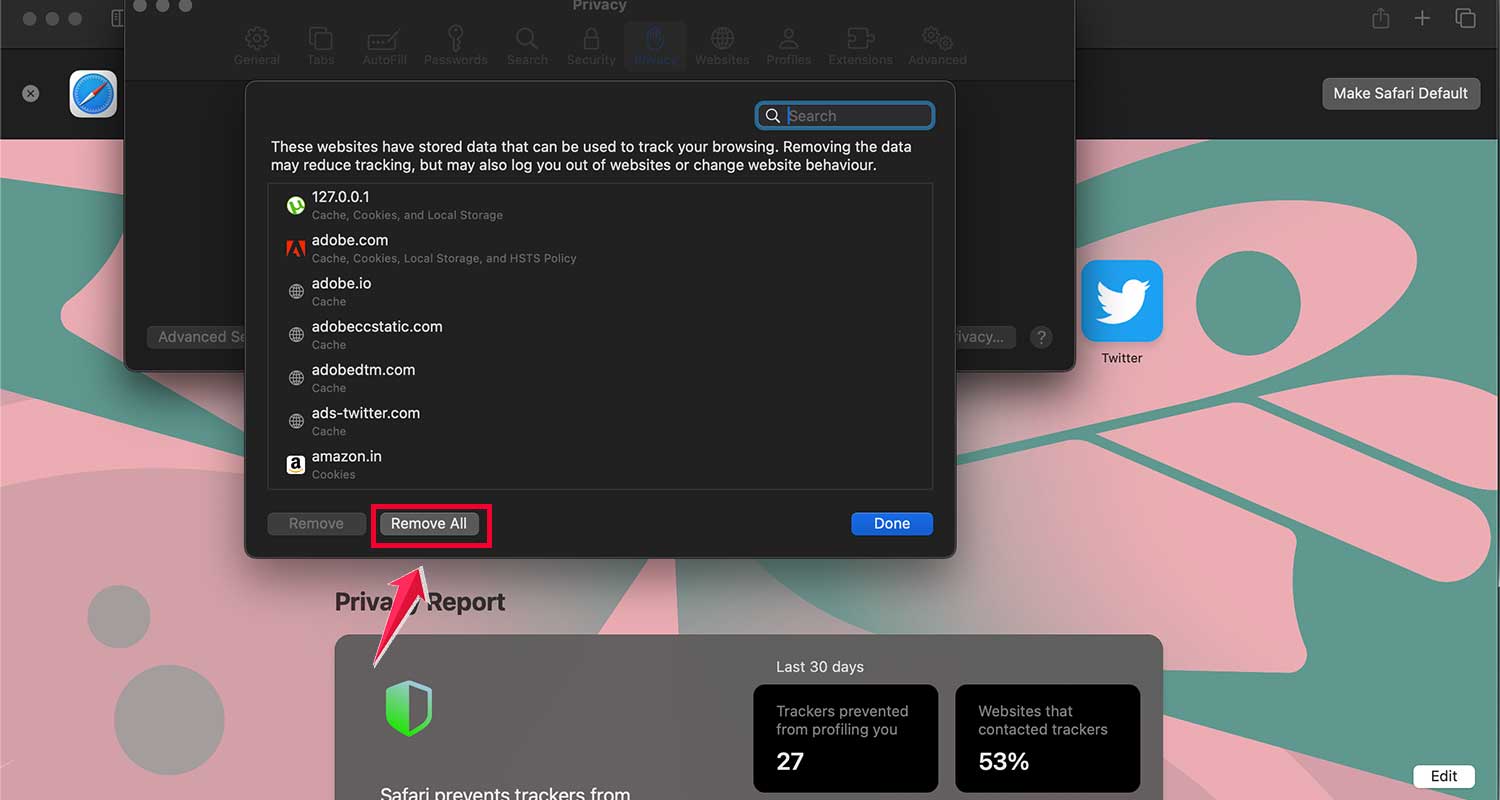
On Mac
- In Safari, click Safari > Preferences.

- Tap on Privacy.
- Click “Manage Website Data“.

- Click “Remove All“.
9. Contact Apple Support
If none of the above solutions work, it’s time to reach out to Apple Support:
- Visit support.apple.com.
- Choose the product you need help with.
- Select the specific issue and follow the prompts to get support via chat, phone, or email.

How to avoid Apple ID server errors in the future?

Nobody wants to deal with Apple ID server errors repeatedly. Here are some simple steps you can take to help prevent these issues from happening again.
1. Keep your device’s software up to date
One of the easiest ways to avoid problems is to keep your device updated. Apple regularly releases new software versions that fix bugs and improve how your device connects to its servers.
When you see that update notification, don’t ignore it. Take a few minutes to install the latest version of iOS, iPadOS, or macOS.
2. Use a strong and unique Apple ID password
Your Apple ID password is your first line of defense. Make sure it’s strong and unique. Don’t use the same password you use for other accounts.
A good password makes it harder for anyone else to access your account, which can prevent connection issues caused by security concerns.
3. Turn on two-factor authentication
Two-factor authentication adds an extra layer of security to your Apple ID. When you turn this on, you’ll need to enter a special code (in addition to your password) when you sign in on a new device.
This extra step helps ensure that you’re the only one who can access your account.
4. Remove suspicious apps and profiles
Sometimes, apps or profiles on your device can interfere with your Apple ID connection. Regularly check your device for any apps or profiles you don’t recognize or no longer use. If you find any, remove them.
This can help prevent software conflicts that might cause server connection errors. This can also cause problems with sharing Notes or collaborating with others.
5. Be careful with public Wi-Fi
While it’s tempting to use free public Wi-Fi, it’s not always safe. When possible, avoid using public Wi-Fi for anything related to your Apple ID.
If you must use public Wi-Fi, consider using a trusted VPN service to protect your connection.
The takeaway
I know how annoying this “There was an error connecting to the Apple ID server” message is, especially when you just want to use your device. But remember, this is a common issue that you can usually fix yourself.
We’ve gone through several solutions, from checking your internet connection and updating your software, to verifying your date and time settings and signing out and back into your Apple ID.
Don’t forget to check Apple’s System Status page first. Sometimes the problem isn’t on your end at all.
You might think this error means there’s a serious problem with your Apple ID or device, but that’s rarely the case. Most of the time, it’s just a temporary glitch you can solve with these steps.
The most important thing to remember is to stay calm and work through these troubleshooting steps one by one.
You’ve got this! And if you’re still stuck after trying everything, don’t hesitate to contact Apple Support. They’re there to help you get back to enjoying your Apple devices and services.