You’ve just set up your iPhone or iPad, ready to send your first iMessage or make a FaceTime call. But instead of everything working smoothly, you see it. “iMessage waiting for activation”.
You wait. Nothing happens. You try again. Still no luck.
Apple says it can take up to 24 hours to activate, but you don’t want to wait that long. And honestly, sometimes it takes longer if something’s not set up right.
The good news? You can usually fix this yourself in minutes.
Why does the activation error happen
When you see “waiting for activation” or similar errors, it means your device is trying to verify your phone number and Apple ID with Apple’s servers.
It can fail for simple reasons. slow internet, wrong settings, outdated software, or a temporary Apple server issue.

Before we fix it, you should know the most common error messages you might get:
- Waiting for activation
- Activation unsuccessful
- An error occurred during activation
- iMessage is signed out
- Please check your network connection
- Unable to connect to the iMessage server
These all mean the same thing: something is blocking the setup.
Check if the problem is on Apple’s side
Before changing anything, make sure Apple’s own servers are working.
Open Safari and search Apple System Status. Tap the first result. Look for iMessage and FaceTime in the list.

If you see a green dot, Apple’s systems are fine. If it’s yellow or red, it’s their issue. You just have to wait.
Update your iPhone or iPad
An outdated iOS version can mess with activation.
Open Settings. Tap General. Tap Software Update. If you see an update, tap Download and Install.

Once it updates, try activating again.
Check your internet connection
iMessage and FaceTime need a stable internet connection to activate.
Make sure you’re connected to Wi-Fi or have a strong mobile data signal. If you’re using mobile data, check if FaceTime and iMessage are allowed in your plan. Some carriers block them on certain packages.
While you’re at it, update your carrier settings:
Open Settings. Tap General. Tap About. If there’s a pop-up asking to update carrier settings, tap Update.

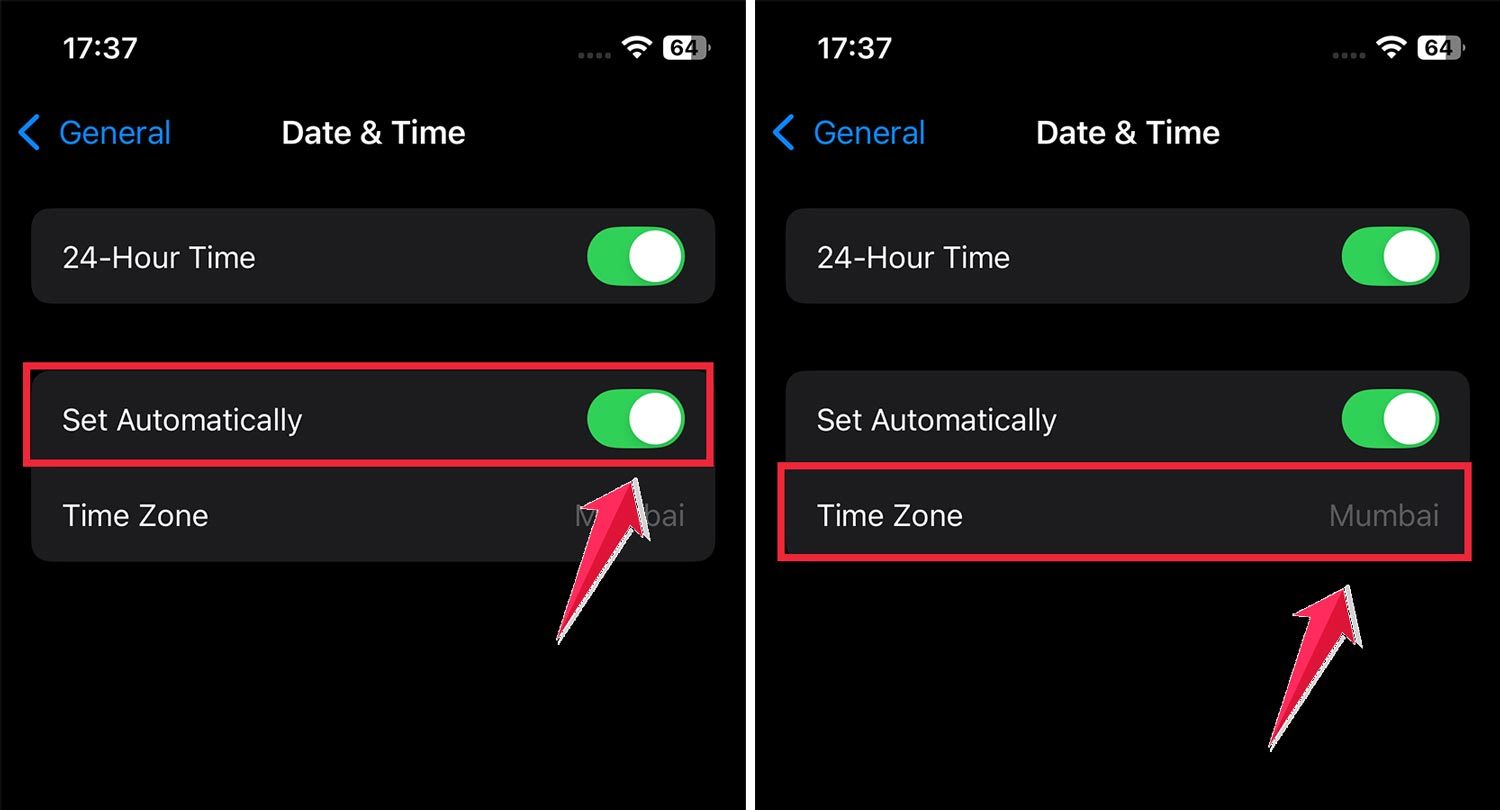
Make sure your time and date are correct
Yes, a wrong time zone can stop activation.
Open Settings. Tap General. Tap Date & Time.
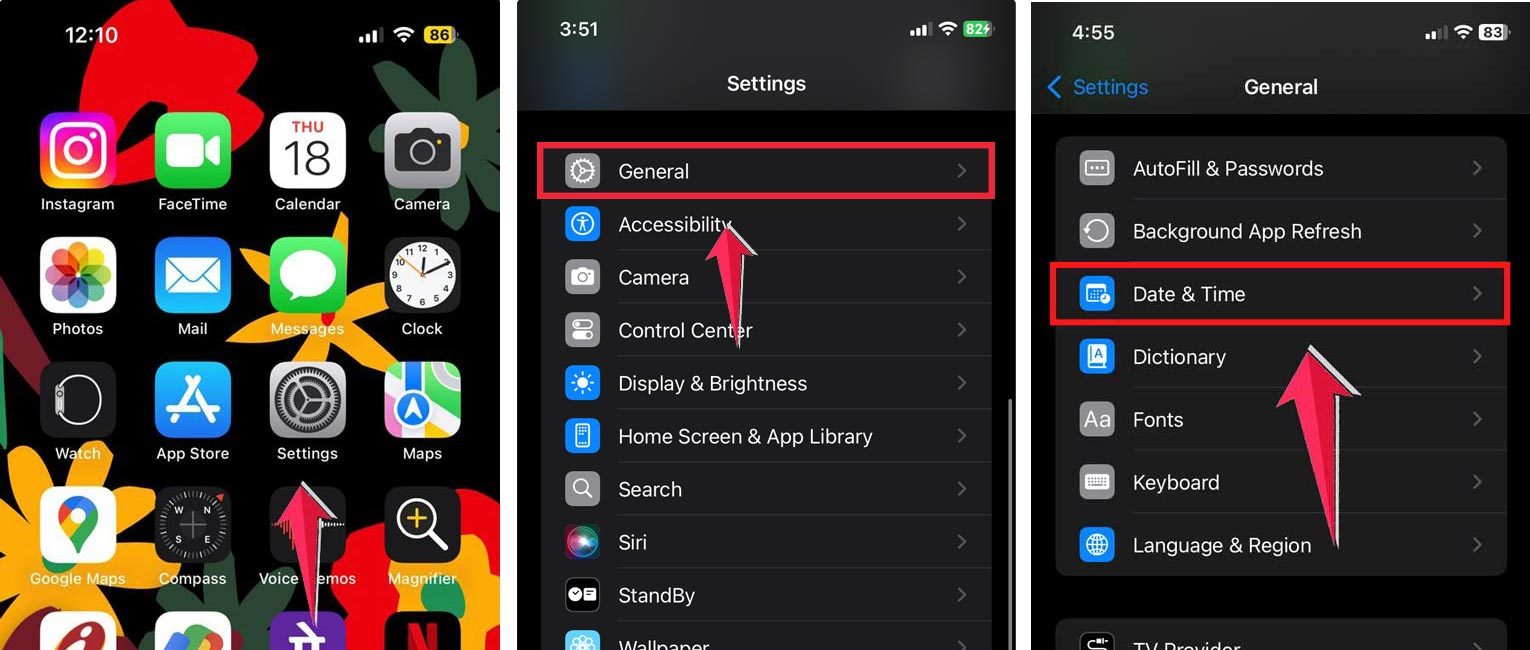
Turn on Set Automatically. Check that the correct time zone is showing.
Turn iMessage and FaceTime off and on
Sometimes a simple reset works.
Open Settings. Tap Messages and turn iMessage off.

Go back, tap FaceTime and turn it off. Turn on Airplane Mode. Turn on Wi-Fi while in Airplane Mode.

Now turn both iMessage and FaceTime back on. Turn off Airplane Mode.
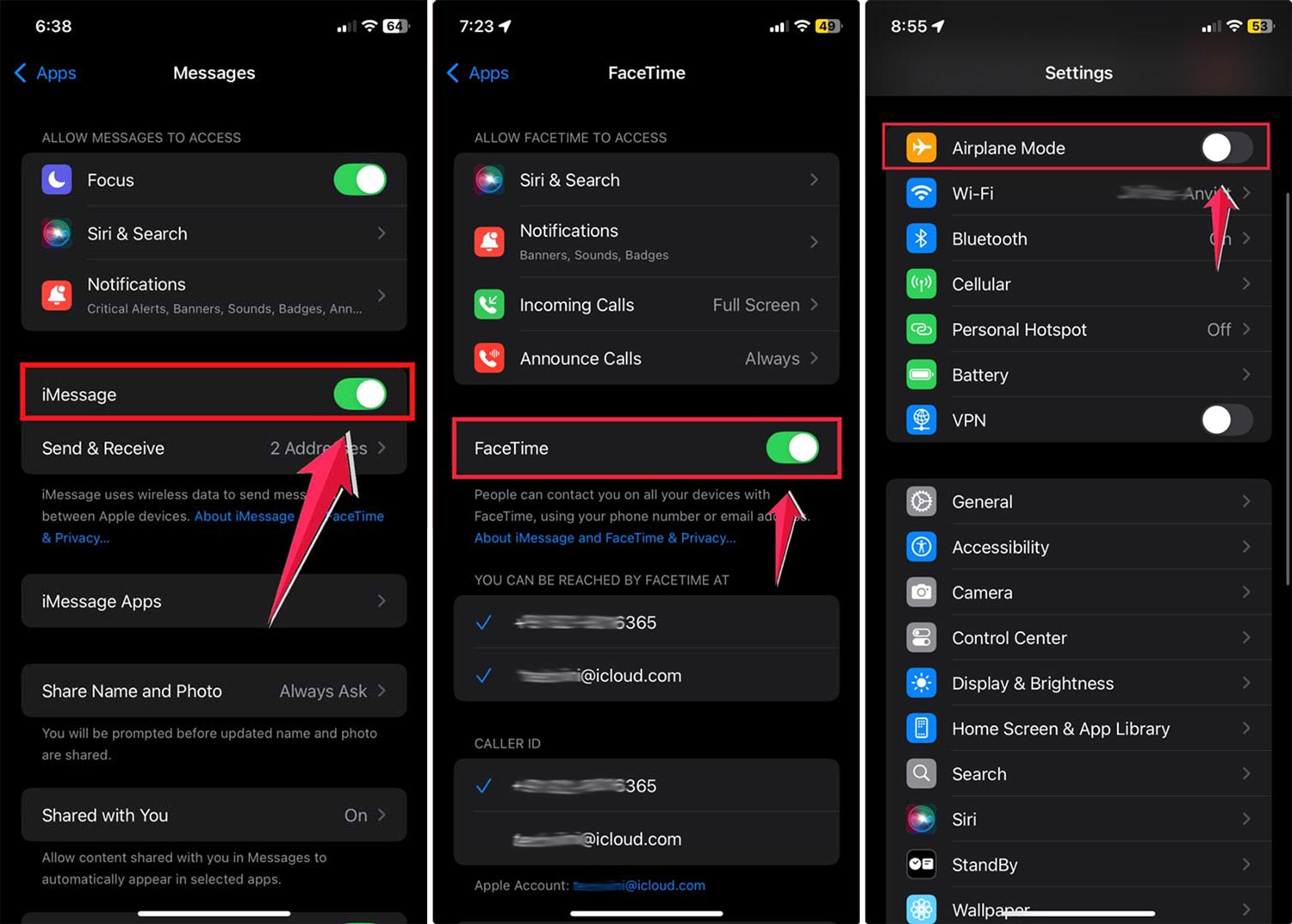
If you see a message about possible SMS charges, tap OK.
Sign out of Apple ID and sign back in
A glitch with your Apple ID session can block activation.
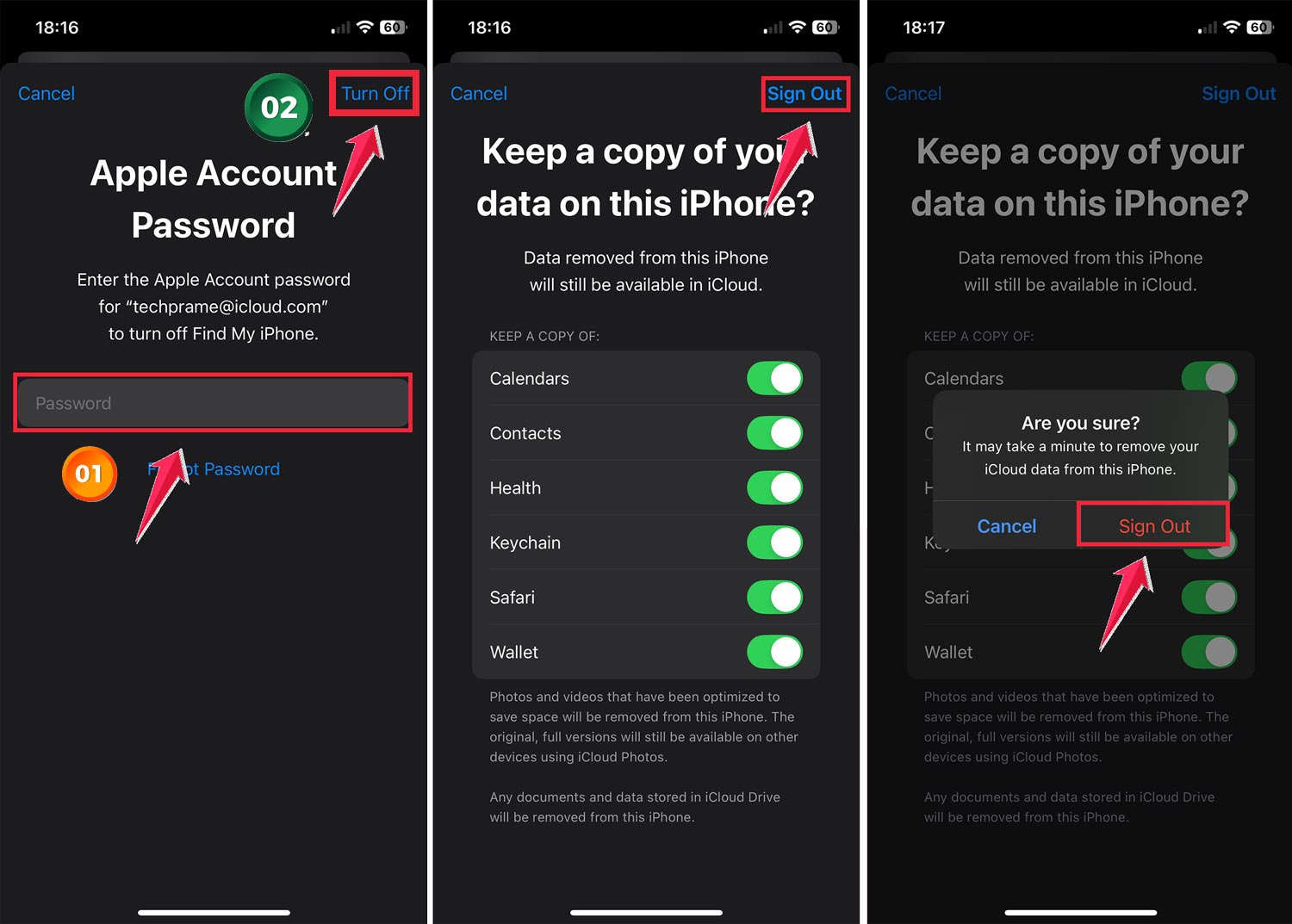
Open Settings. Tap your name at the top. Choose Sign Out.

Enter your Apple ID password and tap Turn Off. Select the data you want to keep on your device. Tap Sign Out twice to confirm.
To sign back in, tap the banner at the top where your name was.
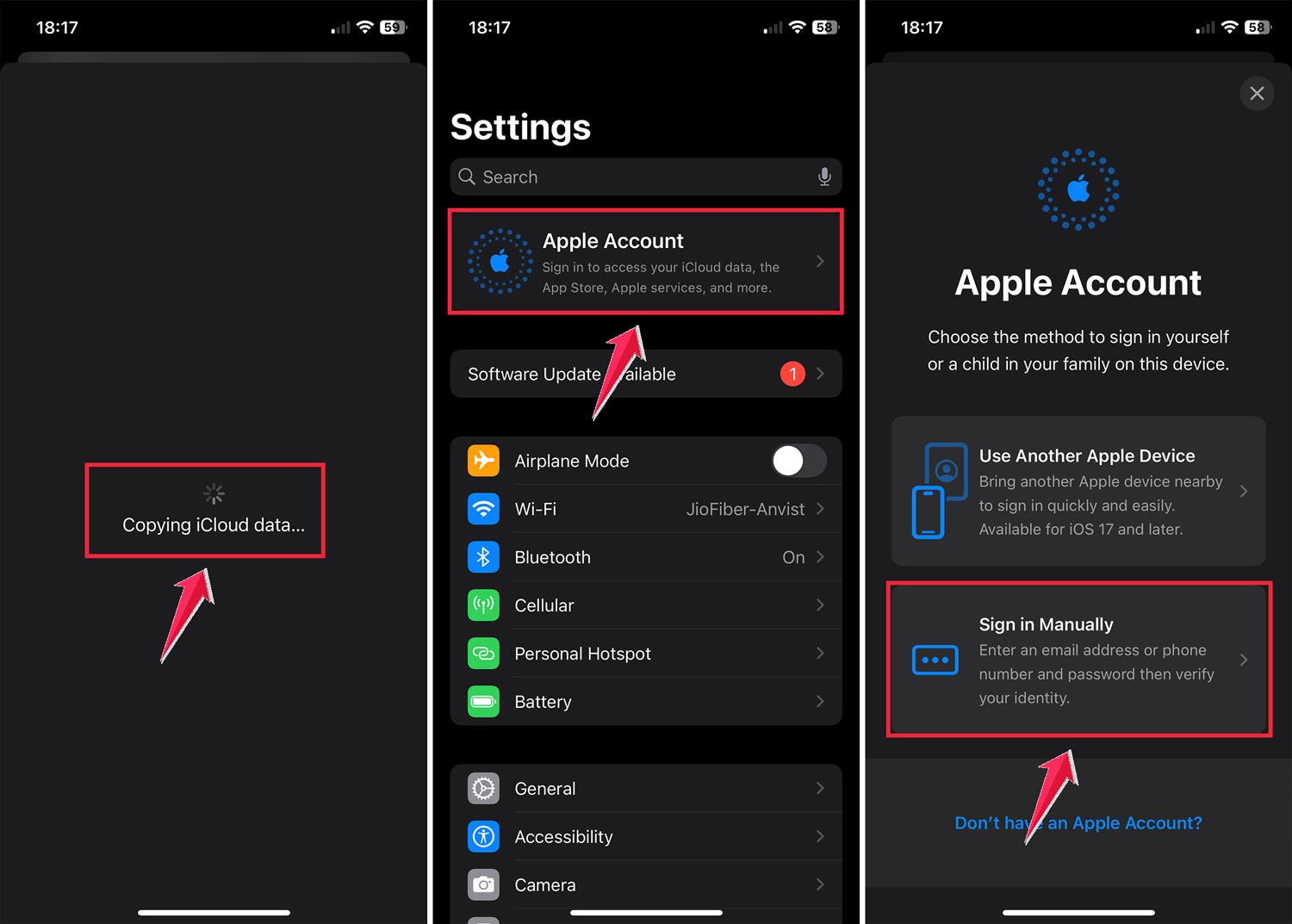
Enter your Apple ID and password.
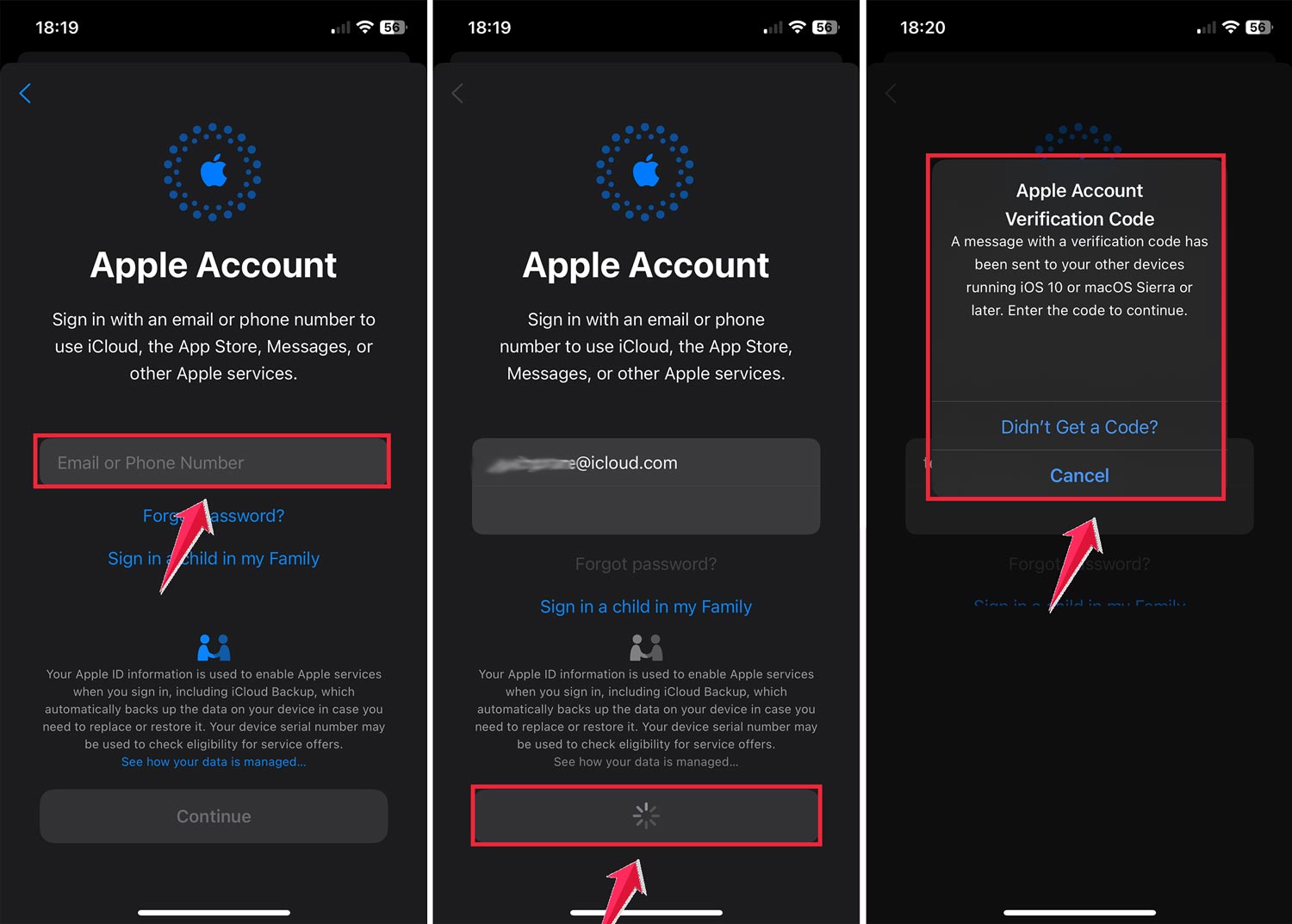
Follow the on-screen instructions to complete the process.

After signing back in, try activating iMessage and FaceTime.
Check your send and receive settings
Open Settings. Tap Messages.
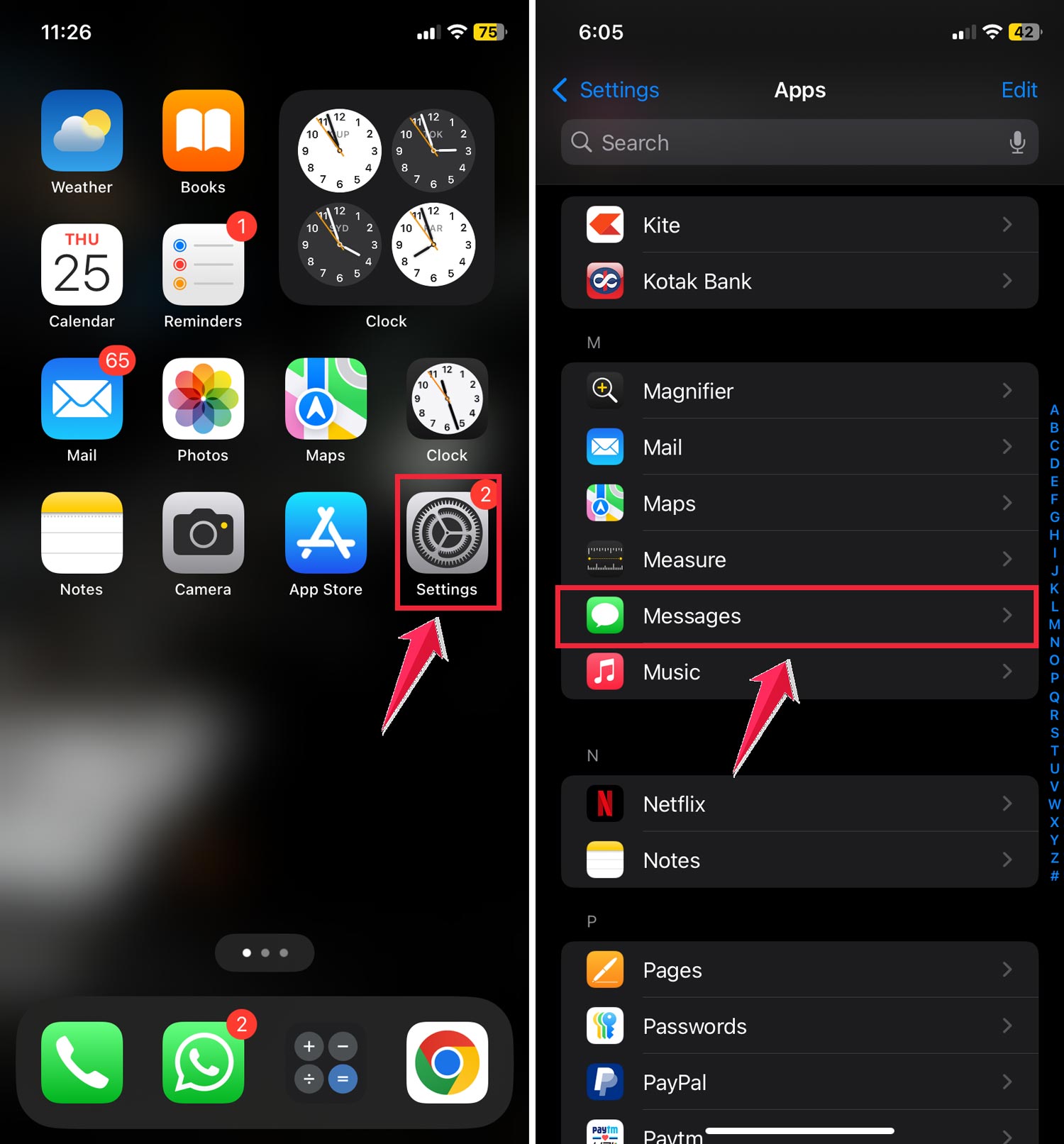
Tap Send & Receive. Make sure your phone number and Apple ID email are both ticked under “You can receive iMessages to and reply from.” Also, make sure your number is ticked under “Start new conversations from.”

Reset network settings
If nothing else works, your network setup might be the problem.
Open Settings. Tap General. Scroll to Transfer or Reset iPhone.

Tap Reset. Tap Reset Network Settings and confirm.

Your iPhone will restart, and you’ll have to reconnect to Wi-Fi. Then try activation again.
When to contact your carrier
If you’ve tried all this and it still won’t activate after 24 hours, your carrier might be blocking the verification SMS Apple uses.
Call them and check if iMessage and FaceTime are supported on your plan. Also, ask if there are any restrictions or unpaid bills causing the block.
The takeaway
Most of the time, iMessage waiting for activation isn’t a big deal. It’s either a slow verification process or a small setting that needs fixing.
Check Apple’s system status first. Then go through the quick fixes: update iOS, check internet, correct your time zone, restart iMessage and FaceTime, sign out and back in, and reset network settings if needed.
If it still doesn’t work after a day, it’s time to get your carrier or Apple Support involved.
Once it’s fixed, you’ll forget it even happened. until the next time you set up a new device.