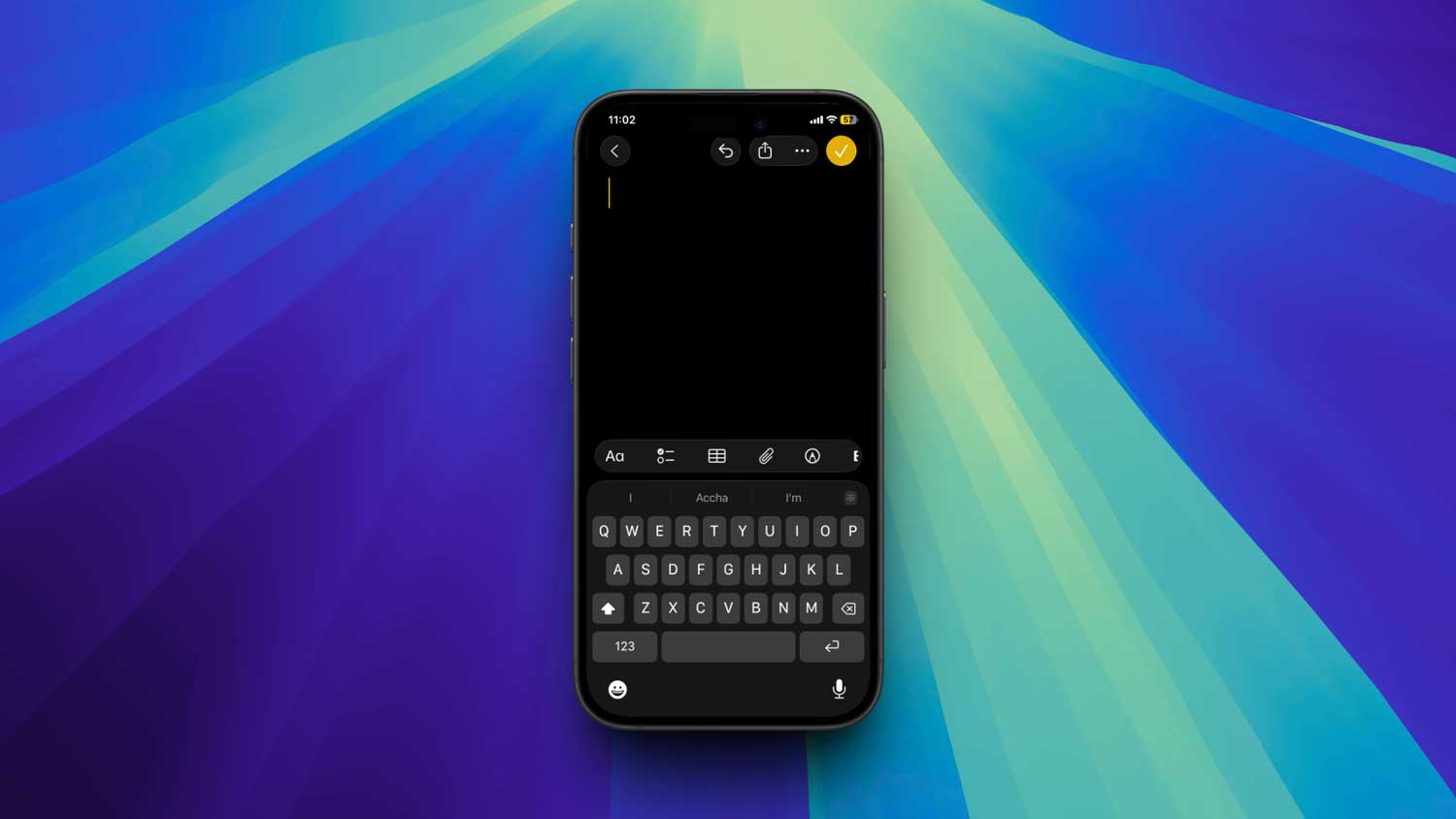
You try to share a note and get that frustrating “Unable to Share or Collaborate” message. It’s annoying. Especially when you’re in the middle of planning something important or working with someone else.
The Notes app is supposed to make teamwork easy. You should be able to create a list, share it, and have everyone add their input. But when sharing doesn’t work, it feels like you’re stuck.
The good news? Most of the time, it’s a small problem you can fix yourself. You don’t need to be a tech expert. You just need to know what to check.
Let’s go through the steps so you can get back to collaborating without the headache.
Switch from mobile data to Wi-Fi
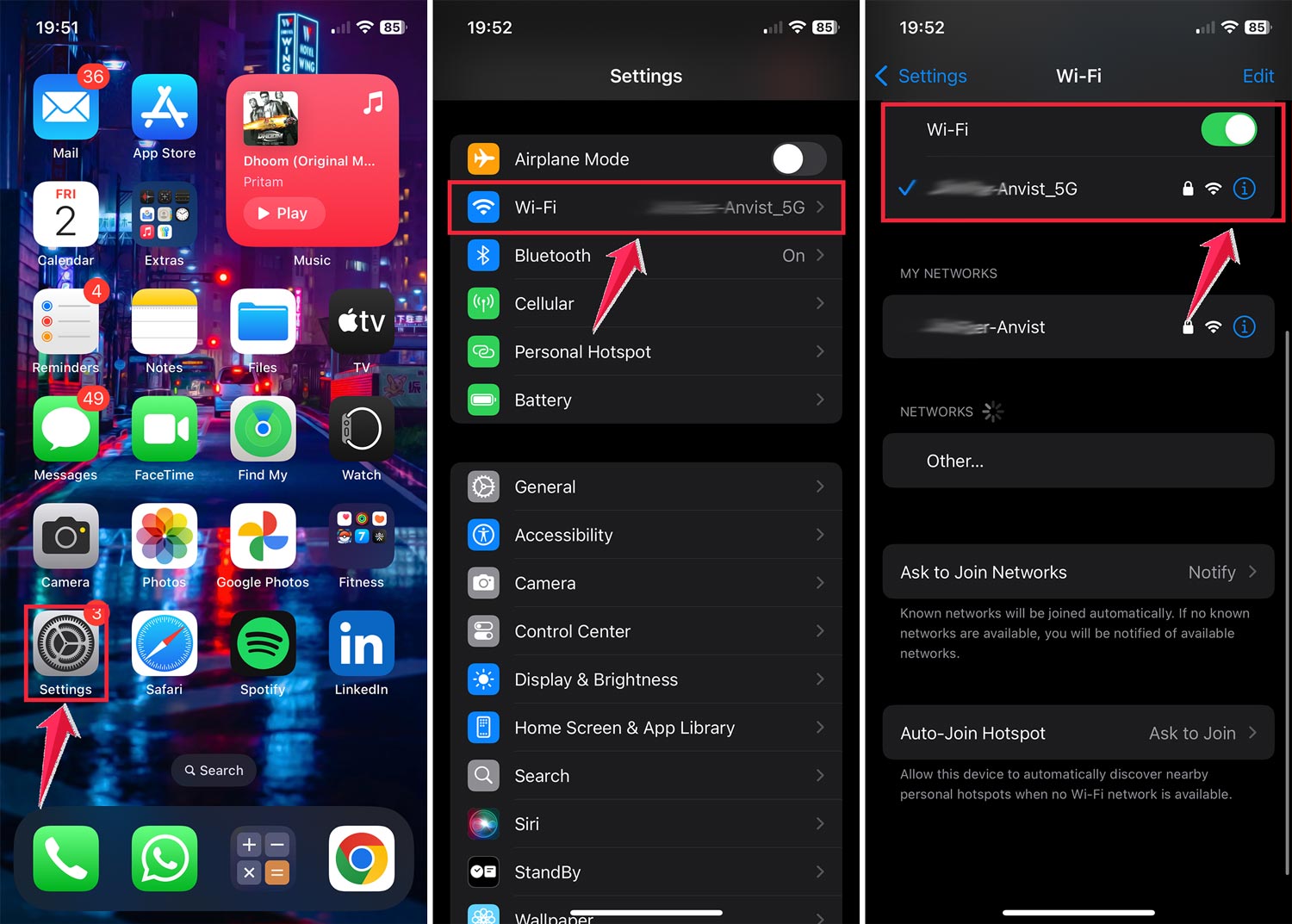
Sharing in Notes works best when your internet connection is stable. Wi-Fi is usually faster and more reliable than mobile data for syncing notes.
- Open Settings, tap Wi-Fi, and connect to a network you trust.
- Once you’re on Wi-Fi, go back to your note and try sharing it again. You might notice it syncs and updates faster.
Make sure you’re using iCloud Notes
If your note is only stored on your device, you can’t share it. Sharing works only for notes saved in iCloud.
- Open the Notes app. Find the note you want to share.
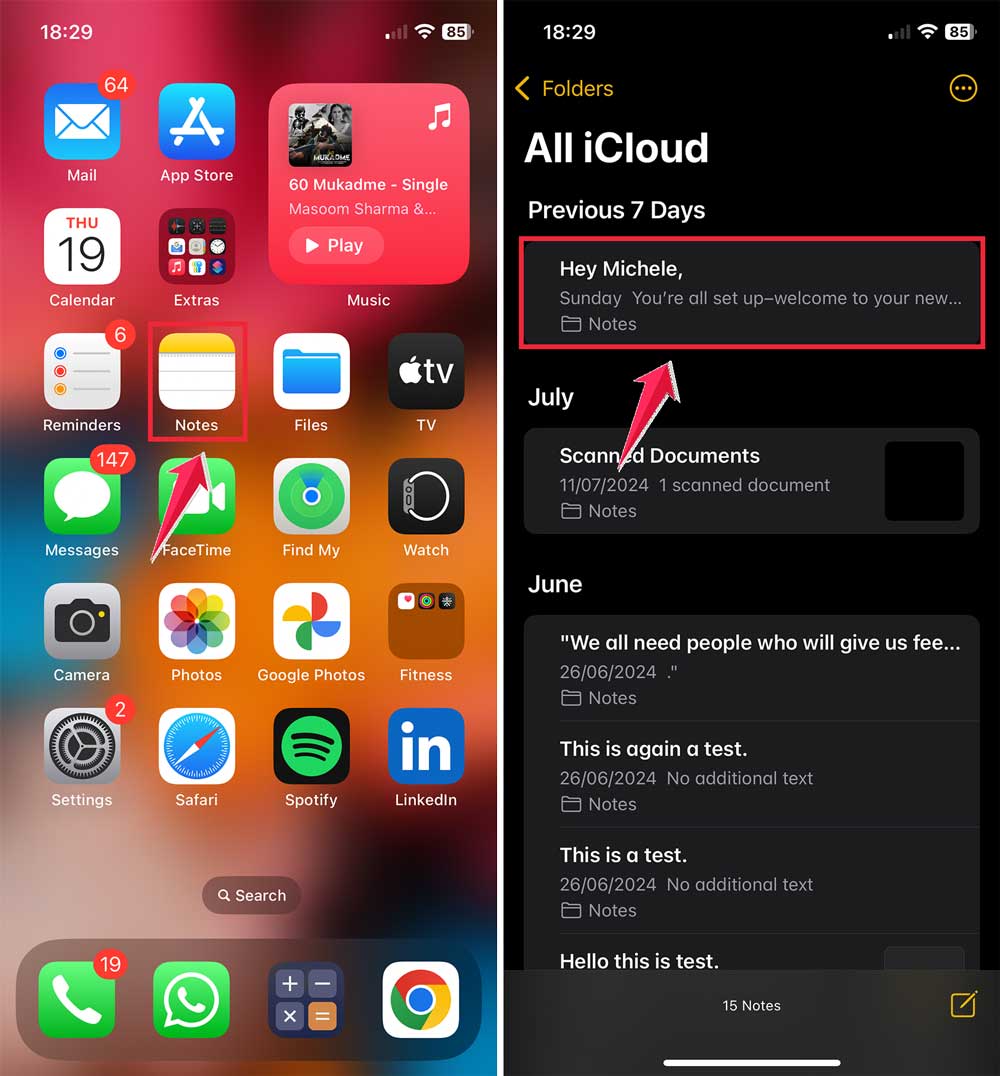
- Tap the three dots in the top right. Tap Move Note.

- Then choose an iCloud folder.
- If you don’t have one, create it. Name it, then move the note there. Go back to All iCloud, open the note, and try sharing again.

- Go back to All iCloud, open the note, and try sharing again.

By moving it to iCloud, you make it available for collaboration. and safe if you ever reset your phone.
Check if the other person is using iCloud Notes
You could be doing everything right, but if the person you’re sharing with isn’t using iCloud Notes, it won’t work.
- Ask them to open Settings, tap their name.

- Now iCloud, then See All.
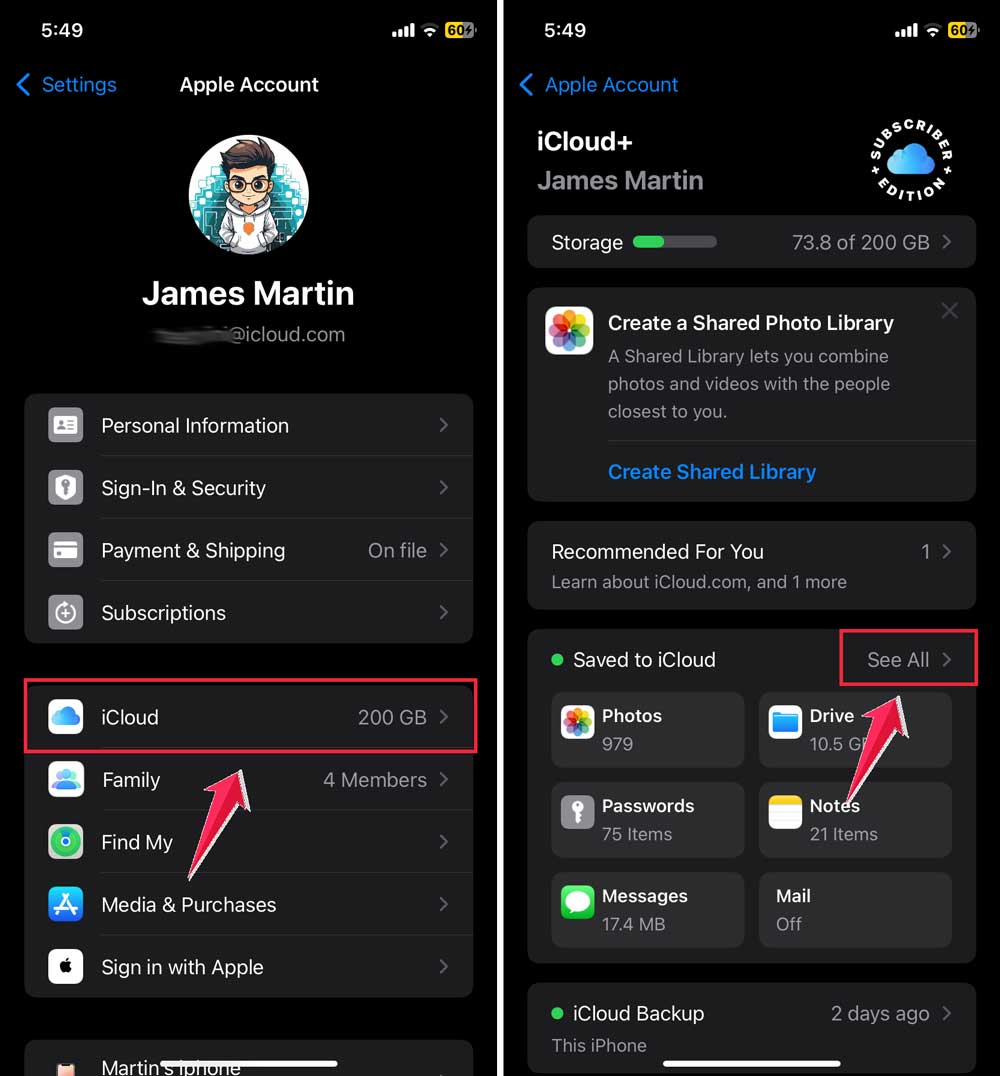
- Find Notes, and turn on Sync This iPhone.

Once they do that, try sending the invite again. If they weren’t using iCloud before, this step usually fixes it.
Check your iCloud storage
If your iCloud is full, Notes can’t sync properly.
- Open Settings, tap your name, then iCloud.

You’ll see how much storage you have left. If it’s nearly full, free up space by deleting unused files, old backups, or moving photos to your computer.
Think of it like a closet. If it’s packed, you can’t fit anything else in.
See if the note is locked
You can’t share a locked note. If there’s a small lock icon next to the note, that’s why it won’t send.
- Open the note. Tap the three dots. Tap Remove Lock. Once unlocked, try sharing it again.
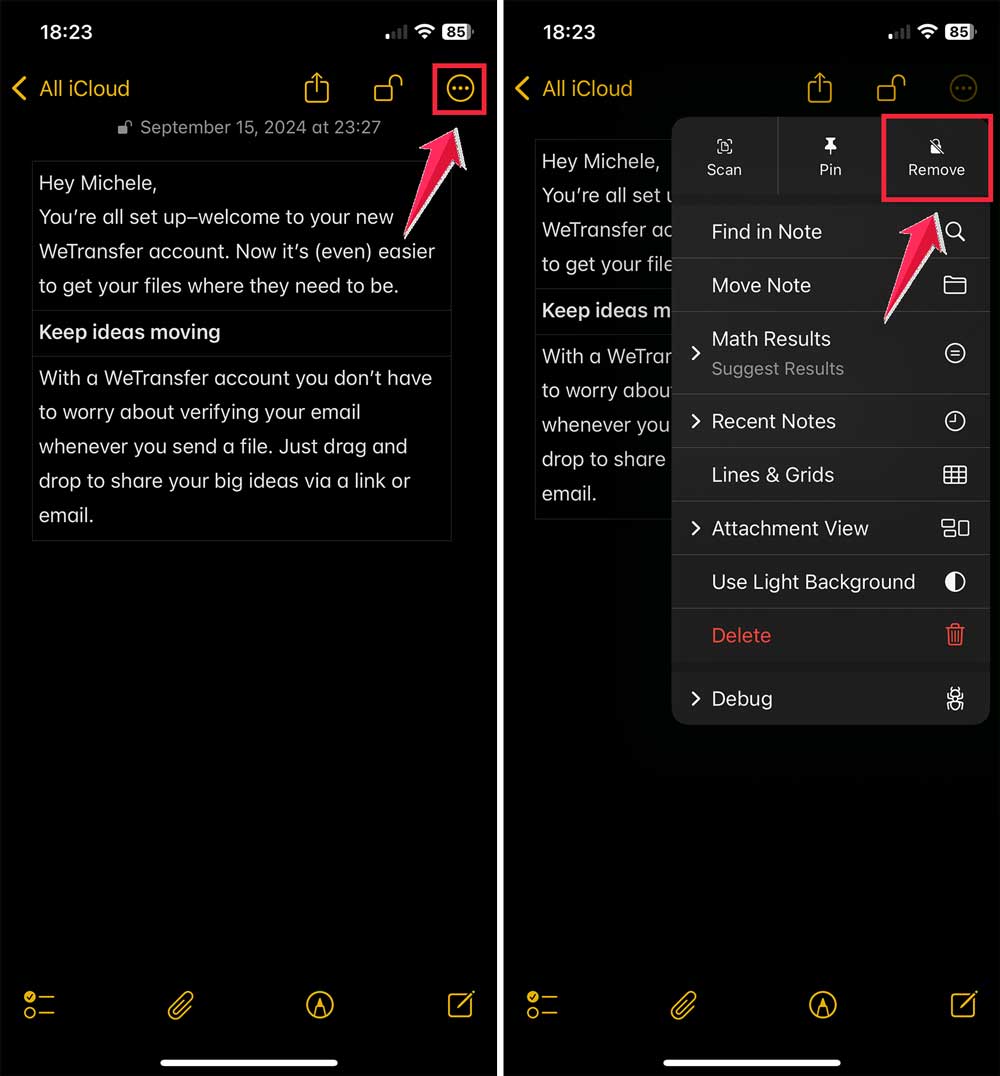
A lot of people miss this, so it’s worth checking first.
Update your software
Sometimes, it’s not you. It’s a bug. And Apple often fixes those bugs in updates.
- Go to Settings, tap General, then Software Update. If there’s an update available, install it. After it restarts, try sharing the note again.

Even if you think your phone is “new enough,” updates often fix little things that cause big problems.
Check your Apple ID sign-in
Sharing in Notes depends on iCloud, and iCloud depends on your Apple ID. If you’re not signed in properly, it won’t work.
Open Settings. If you see Sign in to your iPhone at the top, sign in. If you’re already signed in, try signing out and back in again.
Sometimes, refreshing your login solves the problem instantly.
Restart your iPhone
It sounds simple, but restarting can clear small glitches.
- Hold the side button and either volume button.
- Slide to power off. Wait a minute, then turn it back on. Try sharing the note again.

You’d be surprised how many issues disappear after a reboot.
Test your internet connection
Even if you’re on Wi-Fi, make sure it’s actually working. Open Safari and load a website. If it’s slow or won’t load, that could be the issue.
Restart your router or switch to another network. Once you’re sure your internet is stable, test sharing again.
When nothing works
If you’ve tried all this and Notes still won’t share, it could be a deeper iCloud problem. Sometimes Apple’s servers go down for maintenance or issues.
You can check Apple’s System Status page online to see if Notes or iCloud is having outages. If they are, you’ll just need to wait until they fix it.
The takeaway
When you can’t share a note, it’s usually not a huge technical failure. It’s often something simple. your internet connection, your storage, or the fact that the note isn’t in iCloud.
The fastest fixes are: Switch to Wi-Fi. Move the note to iCloud. Make sure everyone involved has iCloud Notes turned on.
If you’ve done those and it’s still stuck, check for updates, sign back into your Apple ID, or restart your device.
And remember. You don’t need to panic. With a few quick checks, you can usually get Notes sharing again in minutes and get back to working with your team, family, or friends.