You’re out and about, maybe trying to meet up with friends or let your family know you’re safe. So you open your phone to share your location… but it’s just not updating. Frustrating, right?
We rely on location sharing more than we realize. Whether it’s using Find My, sharing your spot on Messages, or coordinating through a map app. It’s part of how we stay connected.
When it stops working, it can feel like you’re cut off. And in some cases, it can even be a safety concern.
Now, before you panic or assume something’s broken, let’s take a deep breath. This issue is more common than you think. And the good news? It’s usually easy to fix.
So, what’s going on? Well, it could be a weak internet signal, a setting that got turned off by mistake, or even a small bug in the app or your phone’s software.
But don’t worry. You’re not alone. I’ll walk you through every possible reason and how to fix it, one step at a time. Let’s get your iPhone’s location sharing working again.
What could be causing location sharing to stop working?
Sometimes, the problem is simple. Other times, it takes a little digging. But either way, we’ll figure it out together. Let’s go over a few common reasons your iPhone might not be updating your location.
1. Your connection might be weak
If your internet is slow or keeps dropping, your iPhone may struggle to send out your real-time location. Location sharing needs a decent Wi-Fi or mobile data connection to work well.
Try switching between Wi-Fi and data to see if anything changes. You can also toggle Airplane Mode on and off to reset your connection quickly.
2. Location Services may be turned off
This one happens more often than you think. If Location Services are turned off. Even by accident. Your iPhone won’t be able to find or share your location.
And even if Location Services are on, the specific app you’re using might not have the right permission.
3. Your iOS software might be outdated
Running an old version of iOS can lead to all sorts of weird bugs. One of them? Location sharing is not working properly. Apple regularly fixes bugs in updates, so it’s always a good idea to keep your phone up-to-date.
4. Privacy settings could be blocking location sharing
Sometimes, we tighten our privacy settings without realizing it’s affecting how apps work. Your iPhone might be blocking location access for apps that need it.
It’s smart to double-check these settings and make sure nothing is being blocked that shouldn’t be.
5. The app you’re using might be glitchy
If the app you’re using to share your location isn’t working right, that could be the issue. Maybe it needs an update, or it’s just acting up.
A quick trip to the App Store might reveal there’s a newer version that fixes the problem.
Alright, now that you’ve got a better idea of what might be causing the issue, let’s dive into the actual fixes.
How to Fix Location Sharing Not Updating on iPhone
Okay, let’s roll up our sleeves and fix this. We’ll start with the easiest solutions and work our way down.
Don’t worry. I’ll keep it simple and guide you through each step.
#1: Make sure your iPhone has a strong connection
Let’s not overthink it. If your internet is flaky, your phone won’t update your location properly. So, first things first. Check that connection.
- Go to Settings > Wi-Fi and make sure you’re connected to a strong network.

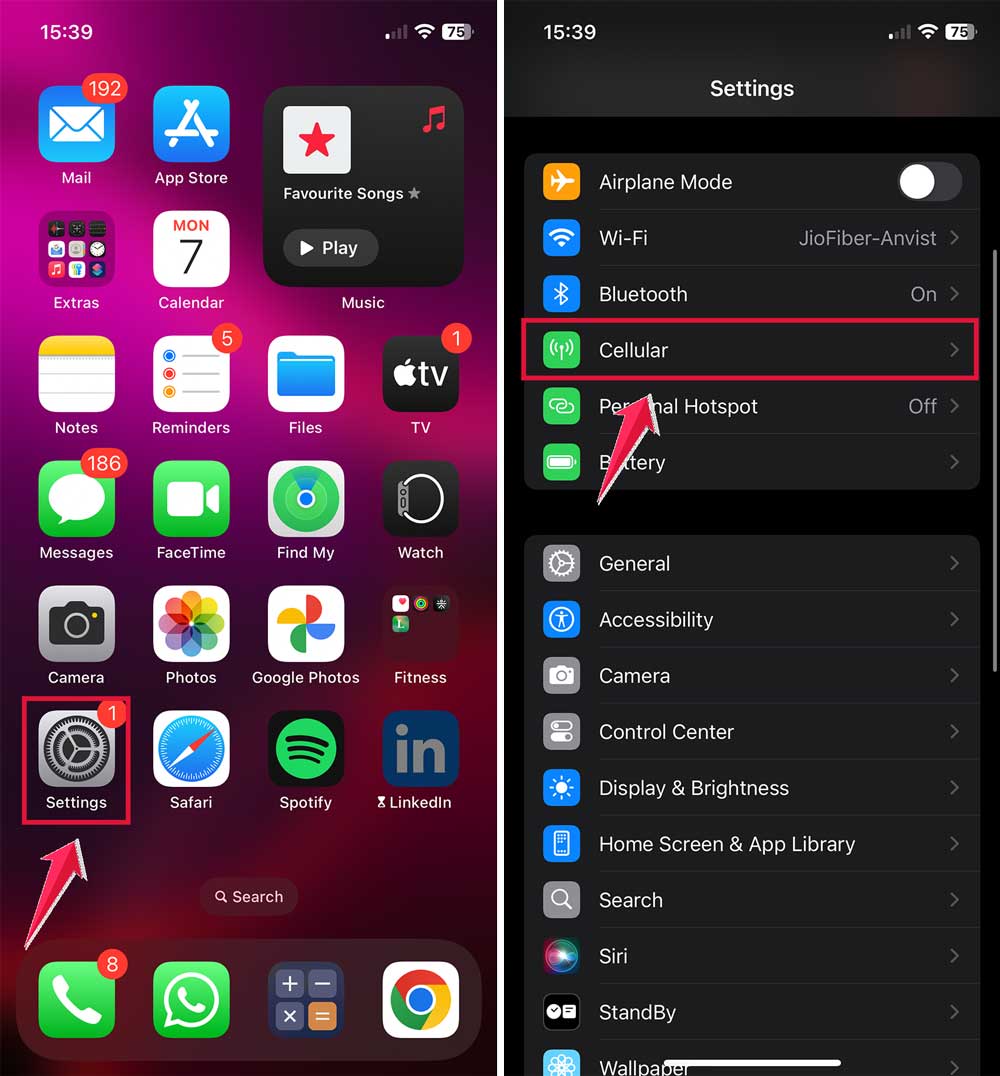
- If you’re using mobile data, go to Settings > Cellular and ensure it’s turned on.
- Restart your router if you’re at home and the Wi-Fi seems slow.
- Swipe down (or up) to open Control Center and toggle Airplane Mode on for a few seconds, then turn it off again.

This quick reset can often solve minor connection problems.
#2: Turn on Location Services
If your phone doesn’t know where you are, it can’t share that info with anyone else. Let’s make sure Location Services are on.
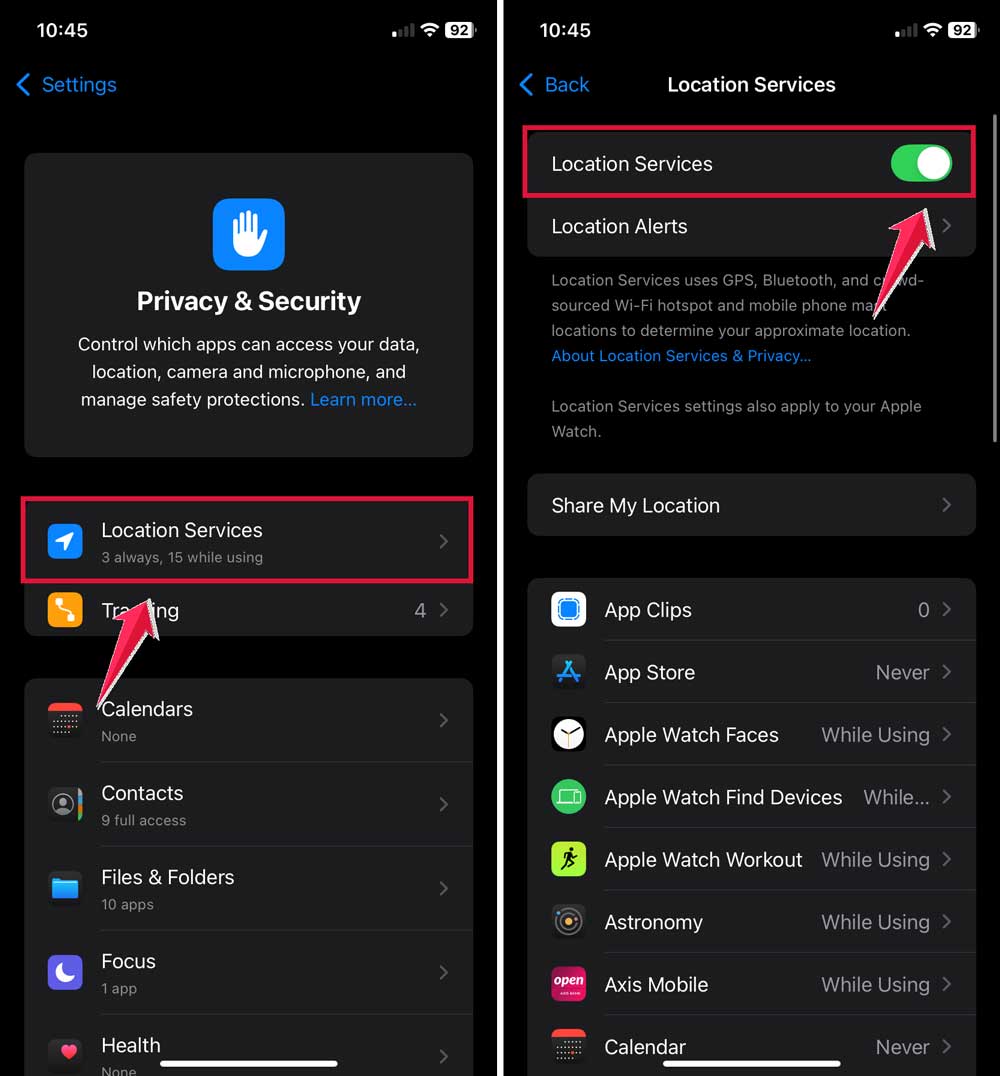
- Go to Settings > Privacy & Security.
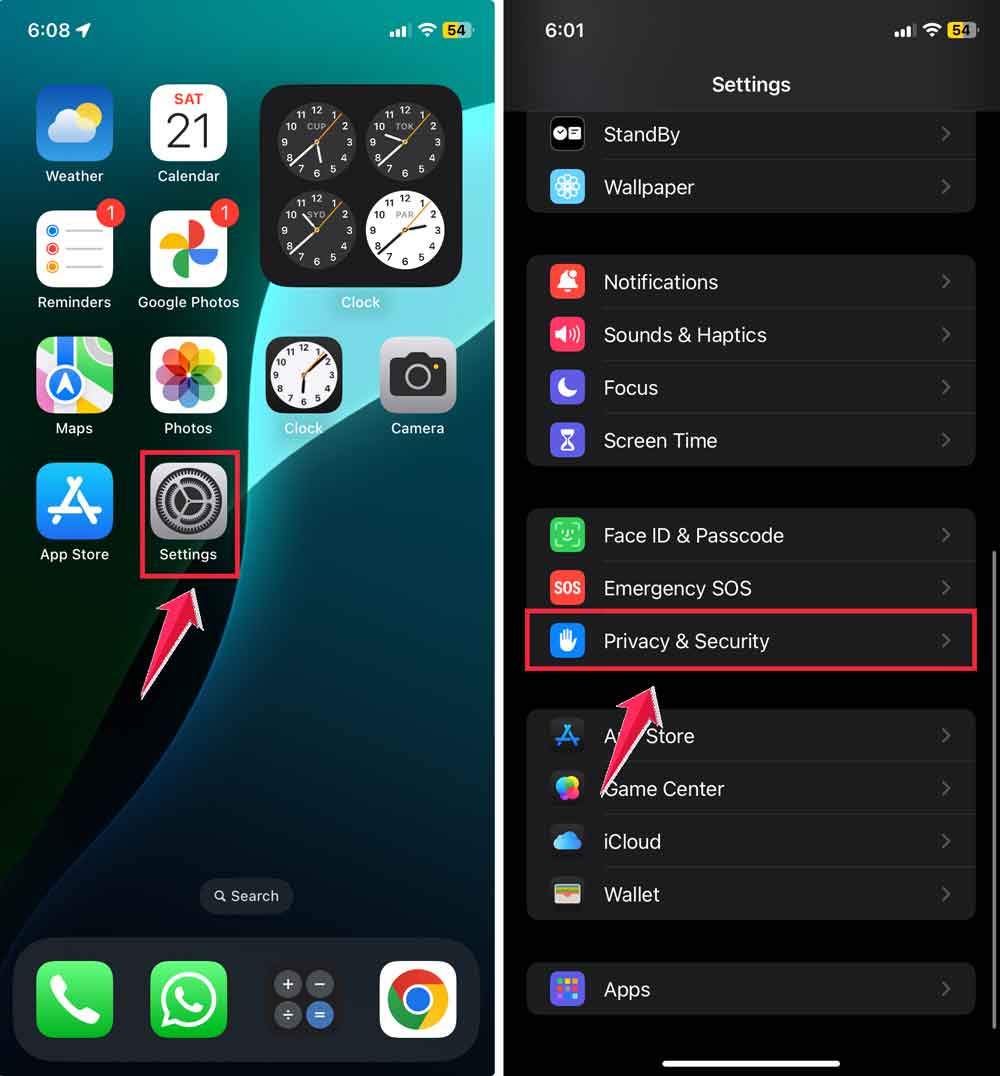
- Tap on Location Services.
- Make sure the main Location Services switch is on.
- Scroll down to find the app you’re using (like Messages or Find My).
- Tap the app and set permission to “While Using the App” or “Always”.
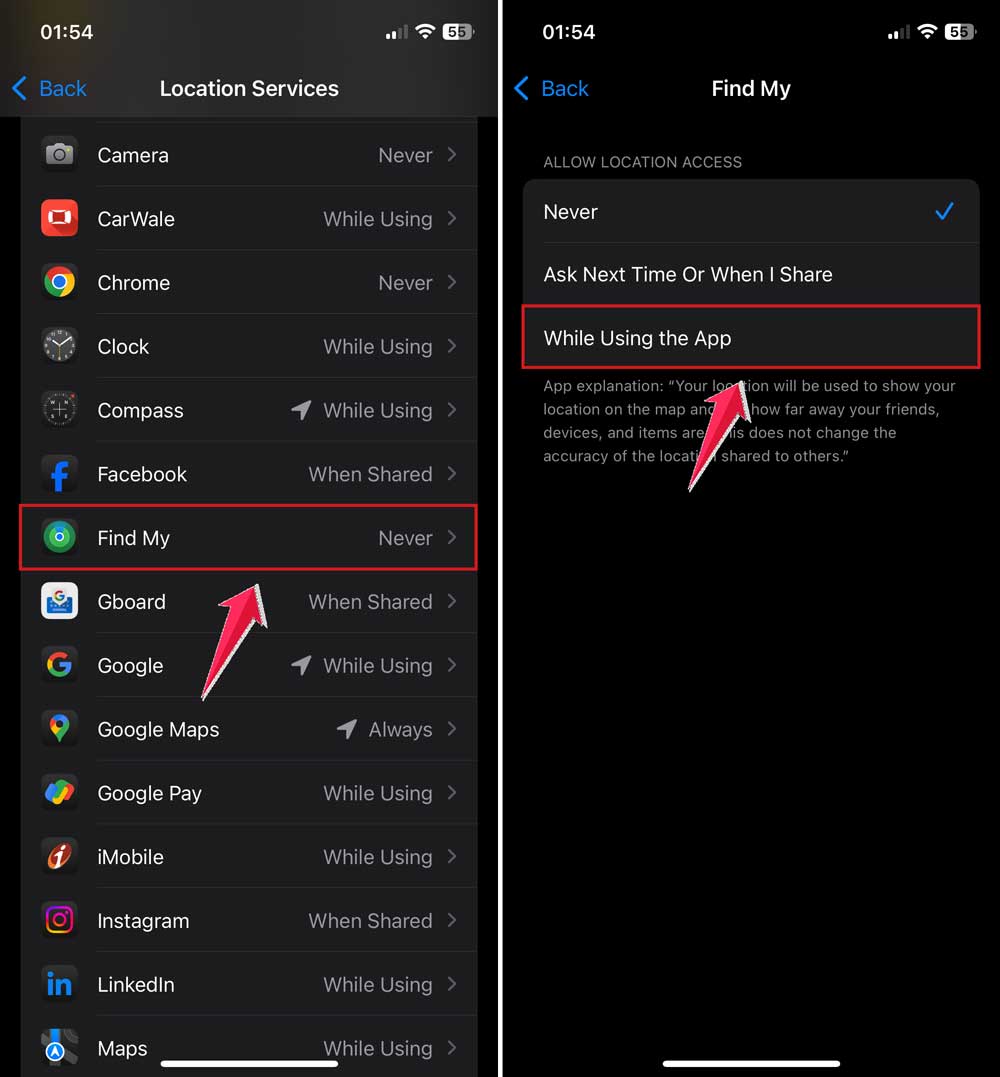
That’s it. Now your phone should be able to access your location.
#3: Update your iPhone’s software
Old software can cause all kinds of hiccups including location issues. Let’s fix that.
- Go to Settings > General.

- Then tap on Software Update.
- If an update is available, tap Download and Install.

Updates often fix bugs that mess with features like location sharing, so this step is a must.
#4: Restart your iPhone
I know. It sounds too easy. But restarting your phone gives it a fresh start. It clears out small bugs and helps things run smoother.
- Hold down the power button and volume up button until you see the slider.
- Swipe to power off, wait a few seconds, then hold the power button again to turn it back on.
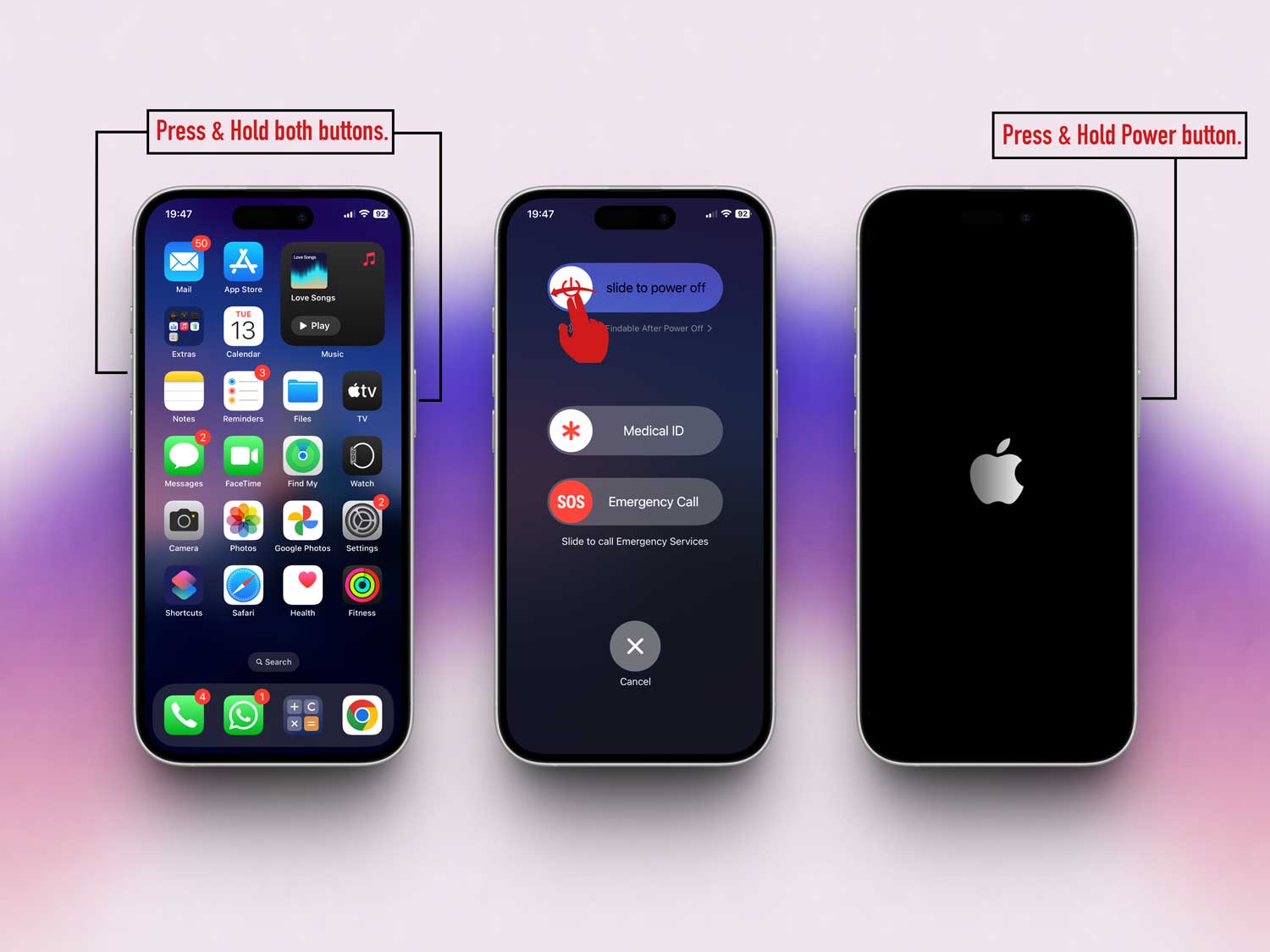
Try sharing your location again after the restart.
#5: Check the app’s settings
Sometimes, the issue isn’t with your iPhone. It’s the app itself. Whether you’re using Messages, Find My, or a third-party app, let’s take a look inside.
- Open the app and check its Settings.
- Make sure any location permissions are turned on.

- Head to the App Store and check if the app has an update. If it does, tap Update.

App updates often fix bugs that mess with features like location sharing.
Still not working? Try these extra tips
If you’ve gone through all the steps above and your location still isn’t updating, don’t worry. These extra tips might just do the trick.
1. Reset your network settings
Sometimes, your phone’s network settings get a little messy. Resetting them can help.
- Go to Settings > General > Transfer or Reset iPhone.

- Tap on Reset.
- Tap Reset Network Settings.

This won’t delete your data, but it will reset your Wi-Fi networks and passwords. So make sure you know them before doing this.
2. Reset location and privacy settings
If your privacy settings are too strict, they might be blocking location sharing.
- Go to Settings > General > Transfer or Reset iPhone.

- Tap Reset.
- Tap Reset Location & Privacy.

After doing this, your apps will ask for permission again the next time they need your location. Just make sure to allow it.
3. Contact Apple Support
Still stuck? It’s okay. Sometimes, the issue is deeper, and you need expert help. You can chat online with Apple Support or make a Genius Bar appointment.
They’ll run diagnostics and help you figure out what’s going wrong.
The Takeaway
When your iPhone’s location sharing stops working, it’s more than just annoying. It can mess up your plans and even cause worry.
But the good news? Most of the time, it’s a small issue with a simple fix.
We talked about checking your Wi-Fi, turning on Location Services, making sure your apps are updated, and even resetting network settings if needed.
These steps usually solve the problem without much effort.
One common myth is that location sharing issues are always serious. But really, it’s often just a switch turned off or a connection problem.
So before you stress out, take a few minutes to go through the steps we talked about.
You’ve got this. And if you’re still stuck, don’t hesitate to ask for help in the comments. I’m here to help. And so is the rest of the community. Let us know what worked for you!