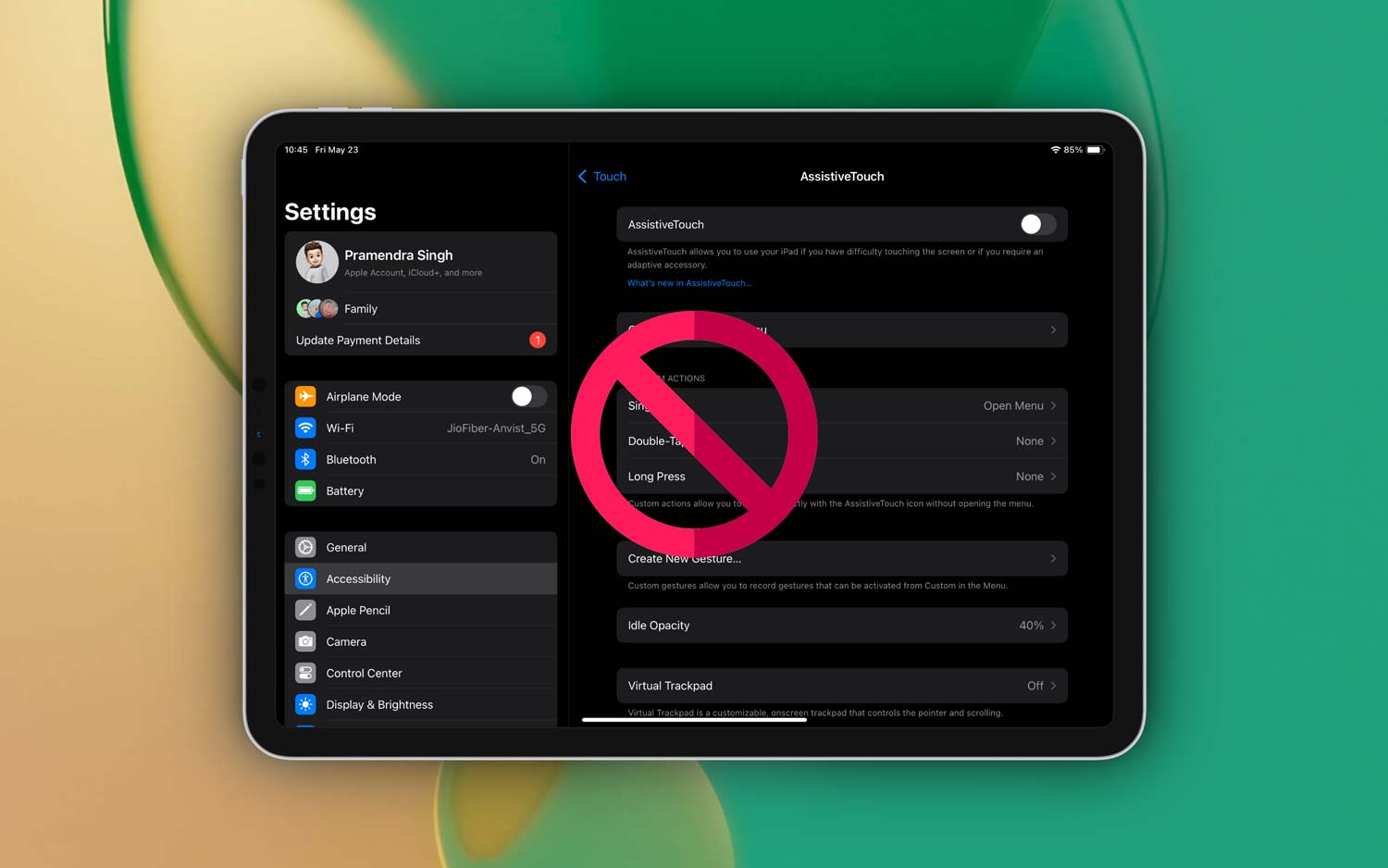
Having trouble with AssistiveTouch on your iPad? It’s super frustrating when tech doesn’t work the way it should, right? But don’t worry, you’re definitely not alone. Let’s get this sorted out together.
So, here’s the deal. When AssistiveTouch stops working, it could be because of a tiny software glitch, an outdated iOS, or maybe something else is going on inside your iPad.
Either way, it’s a real bummer because you count on that feature to make using your iPad so much easier.
Why does this matter so much? Well, AssistiveTouch is like your little helper. It lets you use your iPad without needing to press any physical buttons, which is super handy if they’re hard to use.
When it stops working, it feels like losing a trusty sidekick. But here’s the good news: we’ve got some easy solutions ready for you.
Stick with me, and we’ll dive into simple fixes to get your AssistiveTouch back on track. Sound good? You’re in the right place, and we’ve got your back!
What Could Be Causing AssistiveTouch Not to Work?
Alright, let’s figure this out together. There are a few common reasons why AssistiveTouch might not be working on your iPad.
1. Software glitches can mess things up
Sometimes, software just acts weird. Tiny bugs can sneak in and mess with your AssistiveTouch settings. It’s annoying, but it’s pretty common. A small glitch can cause big headaches.
2. Your iOS might be outdated
If you haven’t updated your iPad in a while, that could be the problem. Apple often sends out updates that fix bugs, including ones that could mess with AssistiveTouch. It’s always a good idea to keep your iPad updated.
3. Settings might have been changed accidentally
We’ve all been there—tapping through settings and accidentally flipping a switch we didn’t mean to. It’s super easy to turn off AssistiveTouch without even realizing it. Double-checking settings might solve it fast.
4. Hardware issues, though rare, can happen
If your iPad’s screen isn’t responding properly, that could mess with how AssistiveTouch works. It’s not super common, but if nothing else works, we’ll need to think about hardware problems too.
Alright, now that we know what might be wrong, let’s jump into fixing it!
How to Fix AssistiveTouch Not Working on iPad
Let’s get right into it. I know you want your AssistiveTouch back as soon as possible. So, let’s roll up our sleeves and fix it step-by-step.
#1: First Thing’s First: Check Your Settings
Sometimes, the easiest fix is the one we miss. Let’s make sure AssistiveTouch is actually turned on.
- Go to Settings on your iPad.

- Tap Accessibility.
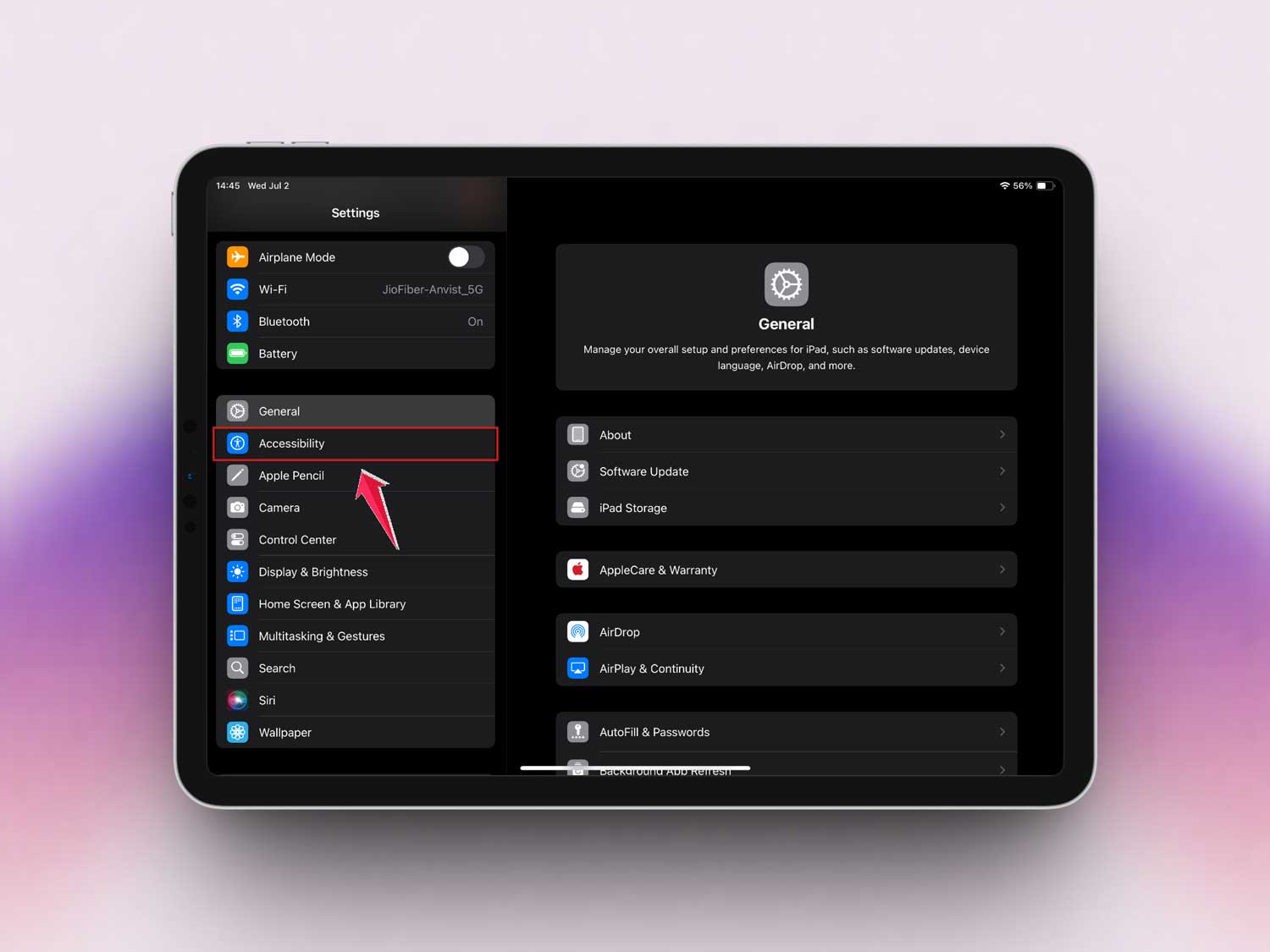
- Select Touch.

- Then tap AssistiveTouch.
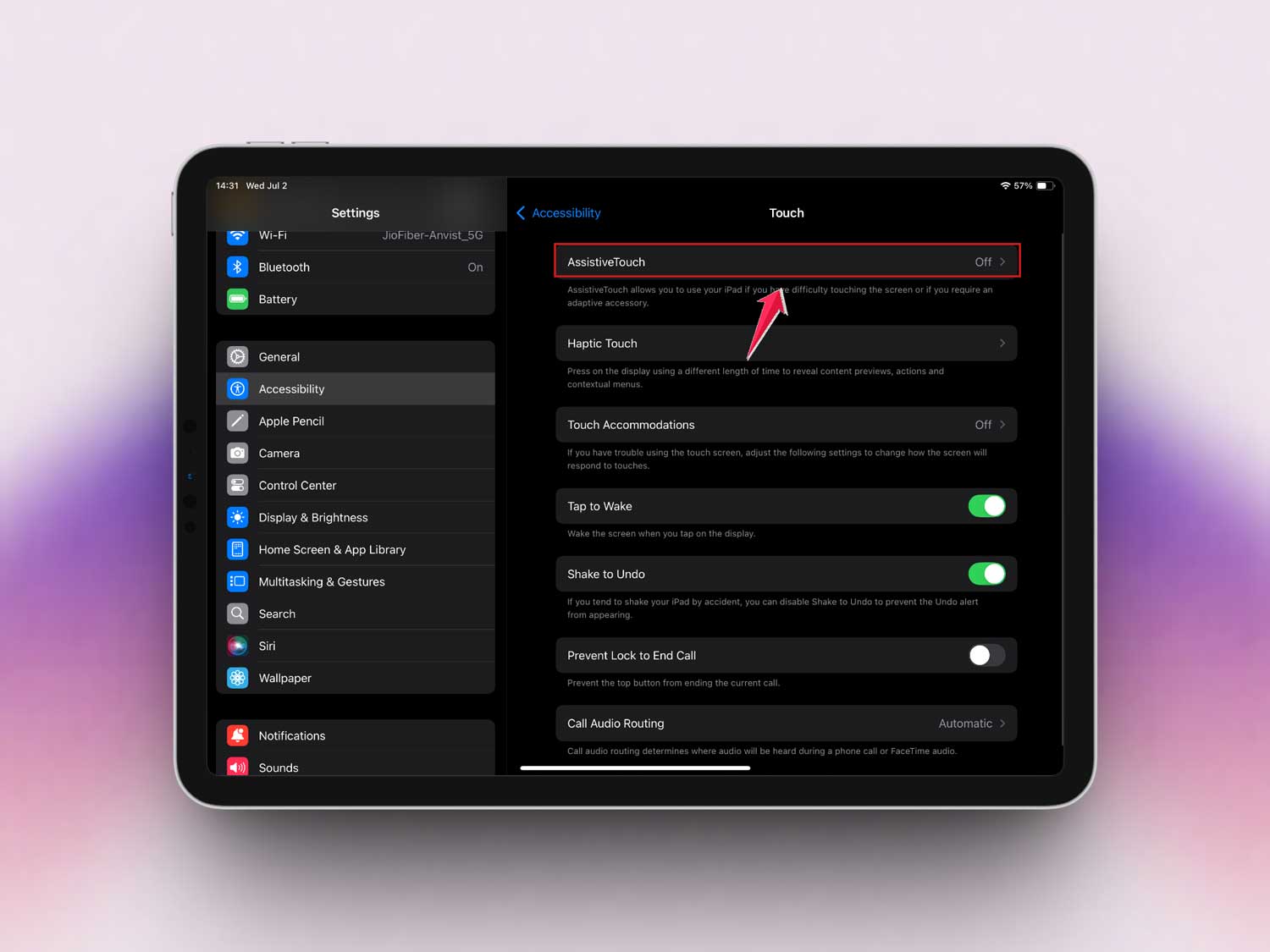
Make sure the toggle is green. If it’s not, give it a tap. Simple, right? If it was already on, no worries — we’ll try the next step.
#2: Time for a Restart — It Really Helps!
I get it, restarting sounds too simple. But you’d be surprised how often it fixes weird little issues like this.
- Hold the top button until you see “slide to power off.”
- Slide it to turn off your iPad.

- Wait a few seconds, then press the top button again to turn it back on.

Give it a try. A fresh restart clears out glitches that might be messing with AssistiveTouch.
#3: Update iOS to the Latest Version
If your iPad isn’t running the latest version of iOS, that could easily be the culprit. Updates fix bugs and keep your device happy.
- Open Settings on your iPad.
- Tap General.
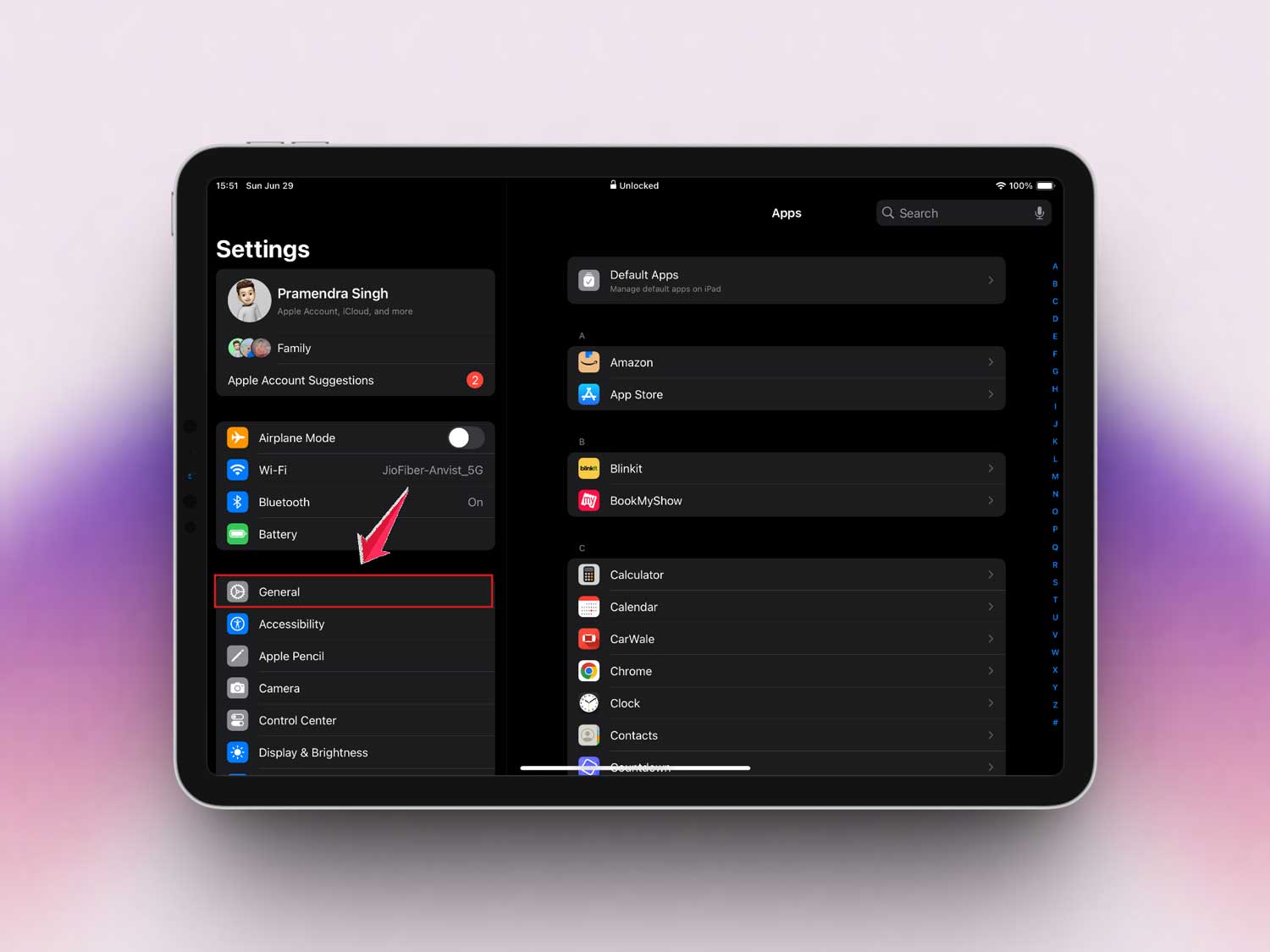
- Tap Software Update.

If there’s an update available, download and install it. Once your iPad is updated, check if AssistiveTouch is working again.
#4: Reset All Settings but Don’t Panic
Sometimes, a settings reset can do wonders without risking your photos, apps, or files. You’re just resetting the settings, not deleting your stuff.
- Go to Settings.
- Tap General.
- Tap Transfer or Reset iPad.

- Choose Reset.

- Then tap Reset All Settings.

It’ll take a few minutes, but once it’s done, check if AssistiveTouch is back in action.
#5: Consider Hardware Issues if All Else Fails
If you’ve tried everything and AssistiveTouch still isn’t working, it could be a hardware issue. Maybe the screen isn’t responding properly, or something inside isn’t working right.
- Visit an Apple Store or contact Apple Support.
They can run a quick diagnostic and figure it out. Don’t worry—you’re not alone, and help is just around the corner.
Alright, now that you’ve tried these tips, there’s a good chance your iPad’s AssistiveTouch is running smoothly again. Great job sticking with it!
Extra Tips to Keep AssistiveTouch Running Smoothly
Hey! Now that we’ve tackled the big problems, let’s look at some bonus tips to make sure AssistiveTouch stays happy on your iPad.
1. Customize Your AssistiveTouch Menu
Make it work better for you! Go to Settings > Accessibility > Touch > AssistiveTouch and tap Customize Top Level Menu. Add shortcuts for the stuff you use most. It’ll save you a bunch of time!
2. Make Siri Your New Best Friend
Don’t want to dig through settings? Just ask Siri to turn on AssistiveTouch. It’s quick, easy, and super handy when you’re in a hurry.
3. Shortcut Magic: Enable Accessibility Shortcut
Here’s a little magic trick: triple-click the Home button (or top button) to bring up AssistiveTouch instantly. To set it up, go to Settings > Accessibility > Accessibility Shortcut. It’s like having a secret button just for you.
4. Check Your iPad’s Memory
If your iPad is running low on storage, it can cause all kinds of weird issues. Go to Settings > General > iPad Storage. Clear out apps or files you don’t need. Your iPad will thank you for it!
5. Use AssistiveTouch Gestures
Want to get even fancier? You can create your own gestures! Go to Settings > Accessibility > Touch > AssistiveTouch > Create New Gesture. It’s super fun and makes multi-touch tasks a breeze.
There you go! Some handy extras to keep your tech adventure smooth. If you’re still stuck, remember Apple Support is just a call away. You’ve got this!
The Takeaway
So, your AssistiveTouch was acting up, huh? We’ve all been there. The good news is that most of the time, a quick restart or simple iOS update can fix the problem.
People often jump to thinking it’s a hardware issue—but honestly, that’s pretty rare. Staying proactive by checking settings, updating your device, and using shortcuts can keep everything running smoothly.
You’ve learned some easy and effective fixes today. Go ahead, give them a try, and see how your iPad feels after. If things still aren’t right, don’t be shy—reach out to Apple for help.
Got thoughts or questions? Drop a comment below! I’d love to hear how it went for you.