Ever opened your iCloud Drive and noticed your files look a bit…stuck in the past? It’s like walking into a time machine, and honestly, it’s frustrating, right?
You’re definitely not alone. Lots of people face this little glitch. But don’t worry, you’re in the right place.
Here’s what’s going on: when iCloud Drive doesn’t show recent changes, there could be a few sneaky reasons behind it.
Maybe your Wi-Fi isn’t strong enough. Maybe your device is having a bad day. Sometimes, it’s just iCloud being slow. And yeah, sometimes there’s a tiny bug in the system messing things up.
But why should you care? Well, if you’re working on a school project, an important work file, or anything else, you need those updates right away.
If they don’t show up, you might waste time, lose your progress, or even lose important data. And nobody wants that.
The good news? You don’t have to stay stuck. I’m going to walk you through some easy, simple fixes. We’ll figure this out together.
Ready to make things right again? Let’s jump in!
Reasons You’re Facing This iCloud Issue
1. iCloud Doesn’t Sync Immediately
Sometimes, iCloud just moves at its own slow pace. It doesn’t always update right away.
So if you don’t see your latest files, it might just be iCloud taking its sweet time. Annoying? Yes. Big problem? Not really. Give it a little time, and sometimes it catches up on its own.
2. Weak Wi-Fi Causes Problems
Weak Wi-Fi can mess up everything. If your connection is weak, iCloud struggles to sync your files. It’s like trying to run a race with one shoe.
Always make sure you’re connected to a strong, stable Wi-Fi network. It really makes a difference.
3. Device Settings Need Tuning
Sometimes, it’s not iCloud’s fault. It’s your device settings. If something’s switched off or not set up right, iCloud gets confused.
Making sure your settings are correct is a simple but important step.
4. Bugs in the Software
Even Apple isn’t perfect. A bug in the system can cause syncing problems. Bugs happen all the time with tech.
The good news? They’re usually easy to fix with a quick update or a simple trick.
Understanding these reasons helps you fix the problem faster. Now that you know what could be going wrong, let’s move on to the real solutions.
iCloud Drive Doesn’t Show Recent Changes – Try This
Alright, your iCloud Drive is stuck in the past. Let’s fix it. Here’s what you can do:
#1. Make Sure Your Internet Connection is Strong
First things first, let’s check your internet connection. Without a good connection, iCloud can’t work properly. Here’s what you need to do:
- Turn on Wi-Fi if it’s off.
- Connect to a strong network—one with full bars.
- Test it by opening a website or streaming a short video.
If everything loads quickly, you’re good to go. If not, try restarting your router or switching to a better network. Trust me, a strong internet connection makes a huge difference.
#2. Refresh iCloud Drive
Sometimes, iCloud just needs a little nudge. Let’s refresh the app and see if that helps:
- On iPhone or iPad, close the Files app completely and then reopen it.
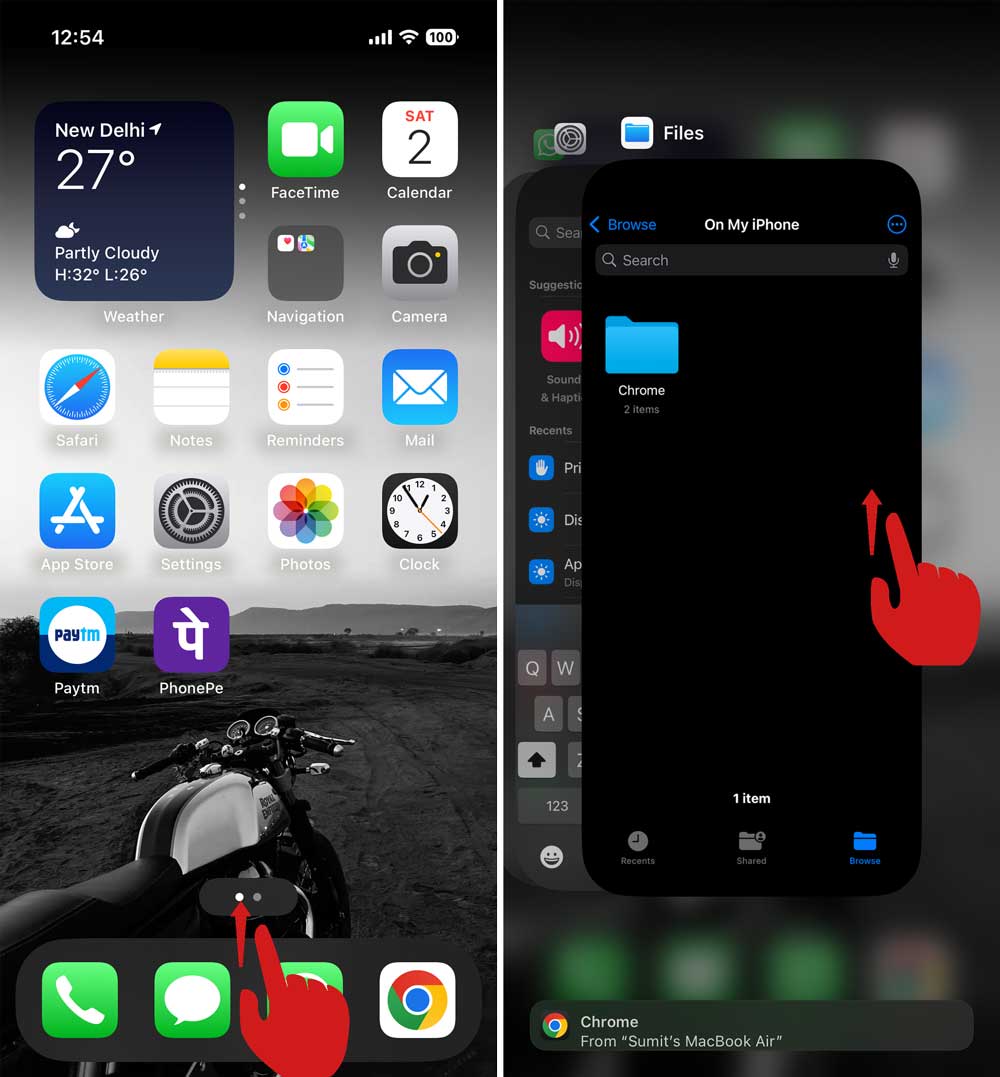
- On a Mac, quit Finder and open it again.

It’s like giving iCloud a little tap on the shoulder. Simple, but it often works.
#3. Restart Your Device
I know it sounds too easy, but restarting fixes a lot of problems. Here’s how you can restart your device:
- Hold the power button until you see the “power off” slider.
- Slide to power off your device.
- Wait a few seconds, then turn it back on.
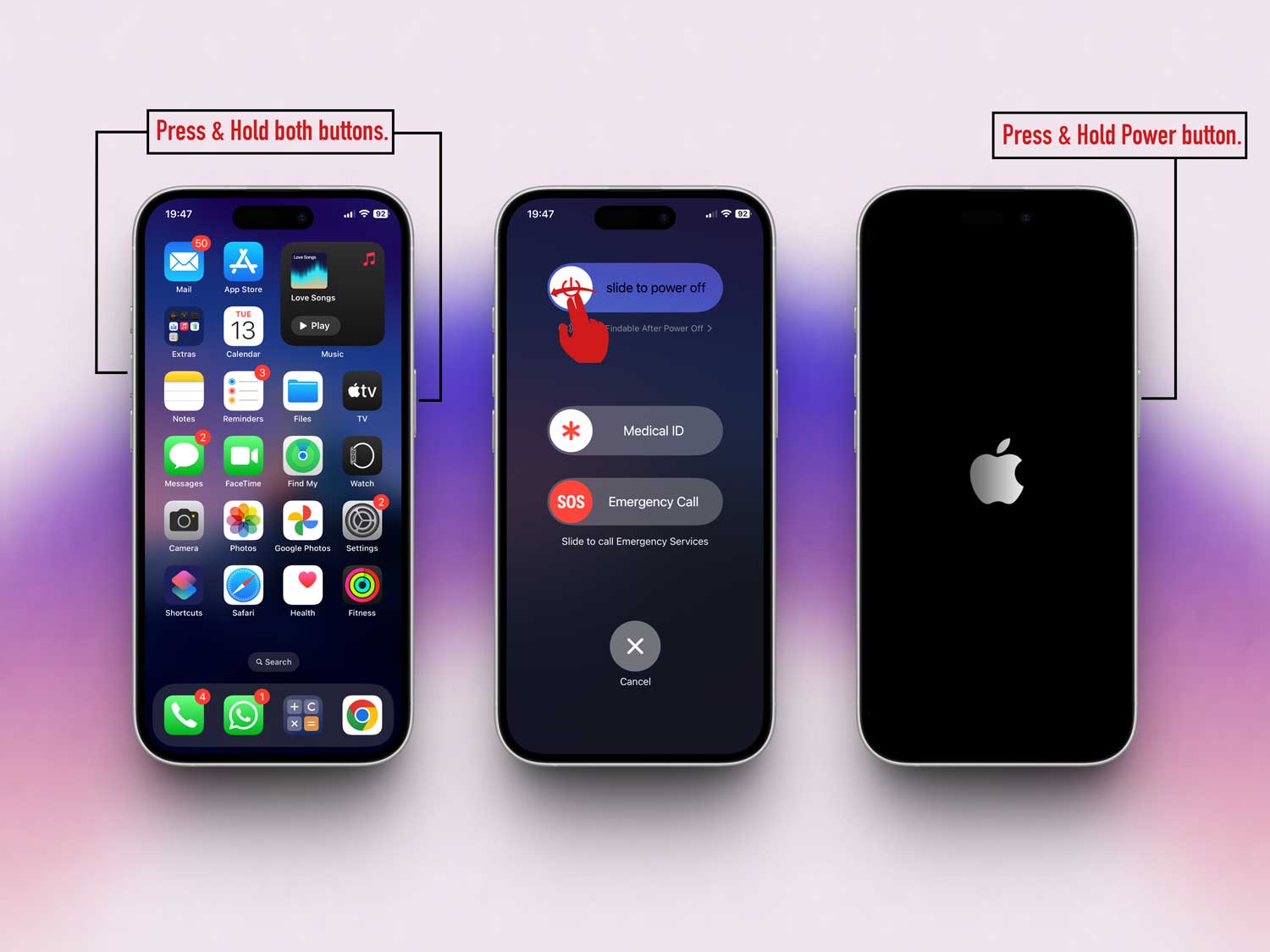
This clears out small glitches and refreshes everything, including iCloud. Give it a try—you might be surprised how well it works.
#4. Make Sure iCloud Drive Is Enabled
Sometimes the simplest things cause the biggest problems. Let’s double-check if iCloud Drive is turned on:
On iPhone or iPad:
- Open Settings.
- Tap iCloud.
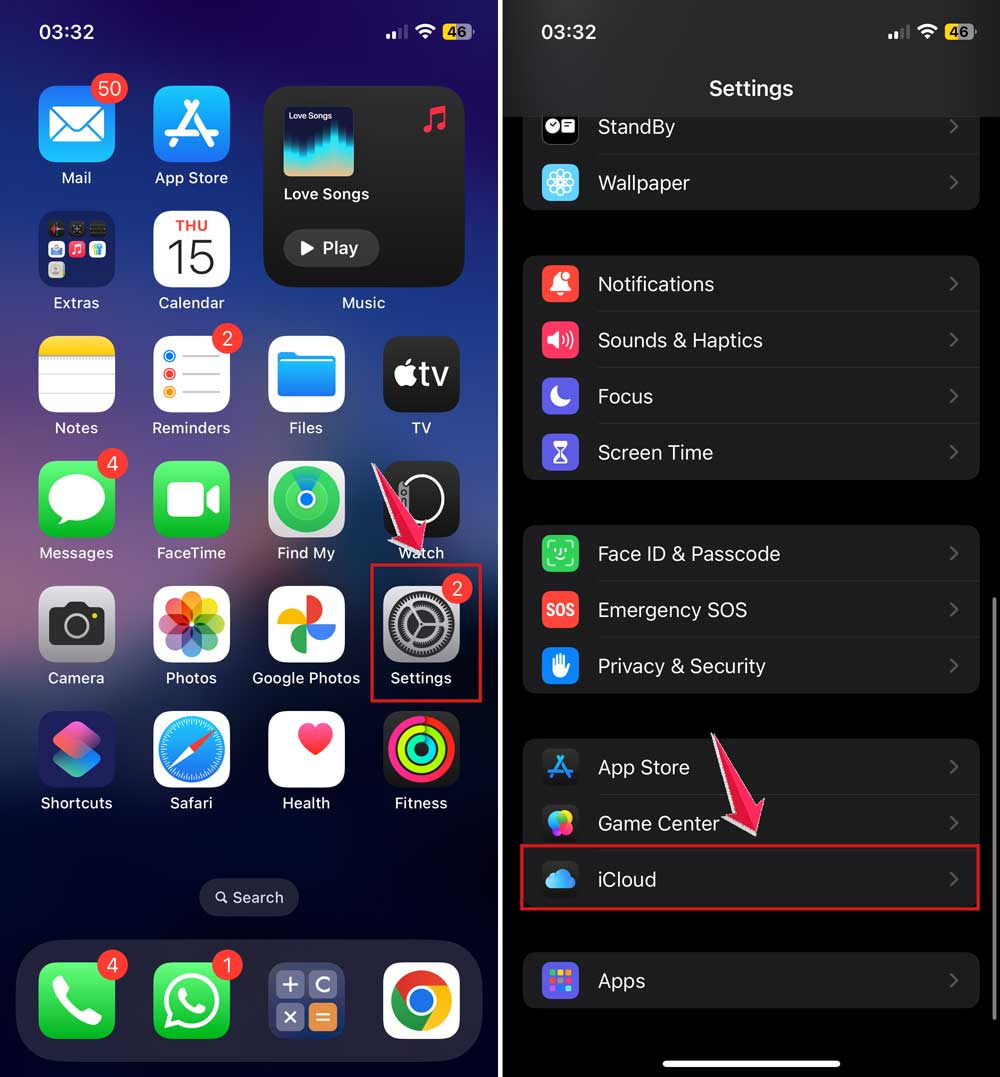
- Make sure iCloud Drive is switched on.

On Mac:
- Open System Settings.

- Click Apple ID.
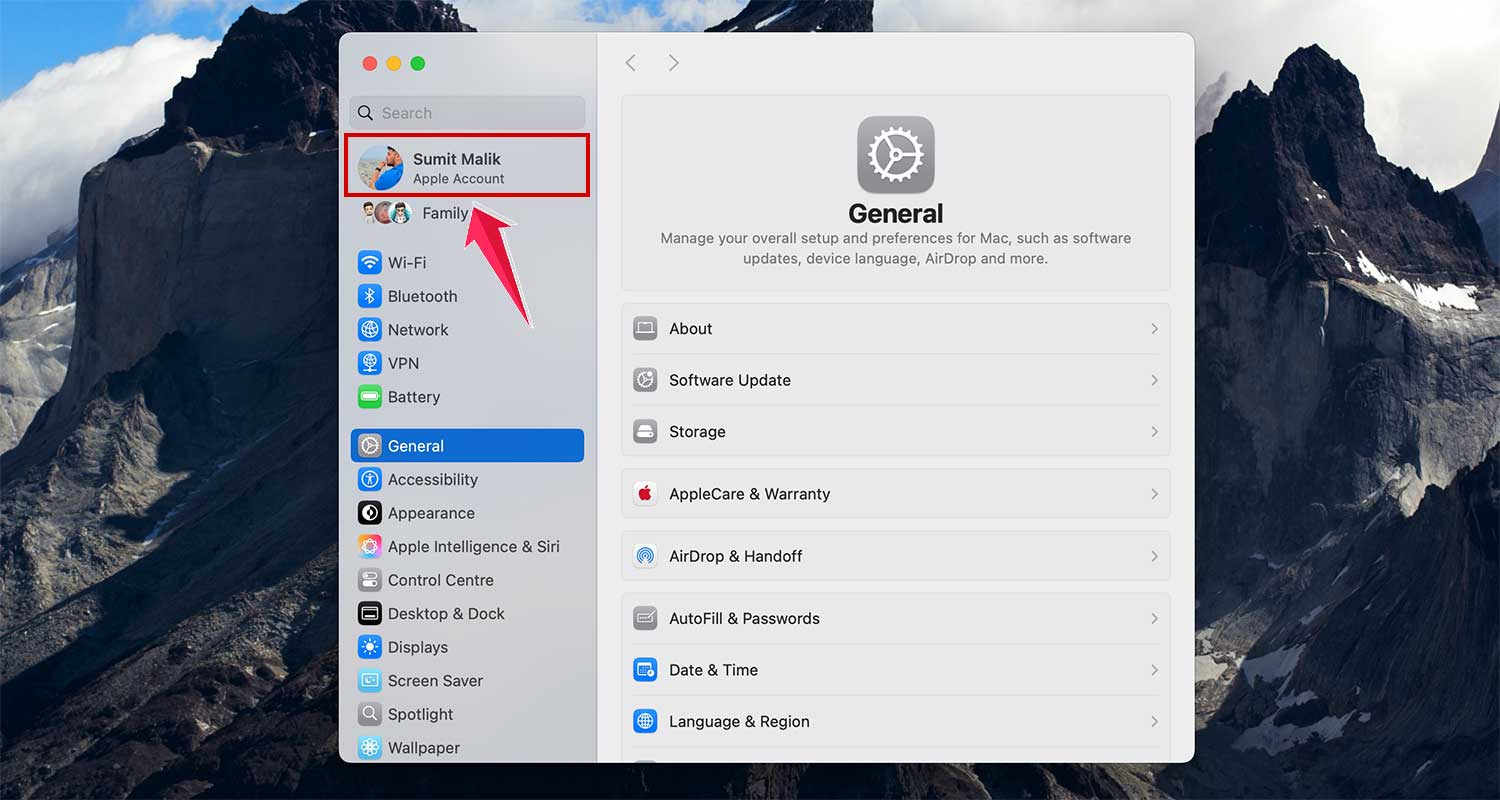
- Go to iCloud.

- Tap on iCloud Drive.

- Then check if iCloud Drive is enabled.

If it was off, that’s probably why your files weren’t updating. Turn it on and you should see your latest changes soon.
#5. Update Your iOS or macOS
Outdated software can cause all sorts of random problems. Let’s make sure your system is up to date:
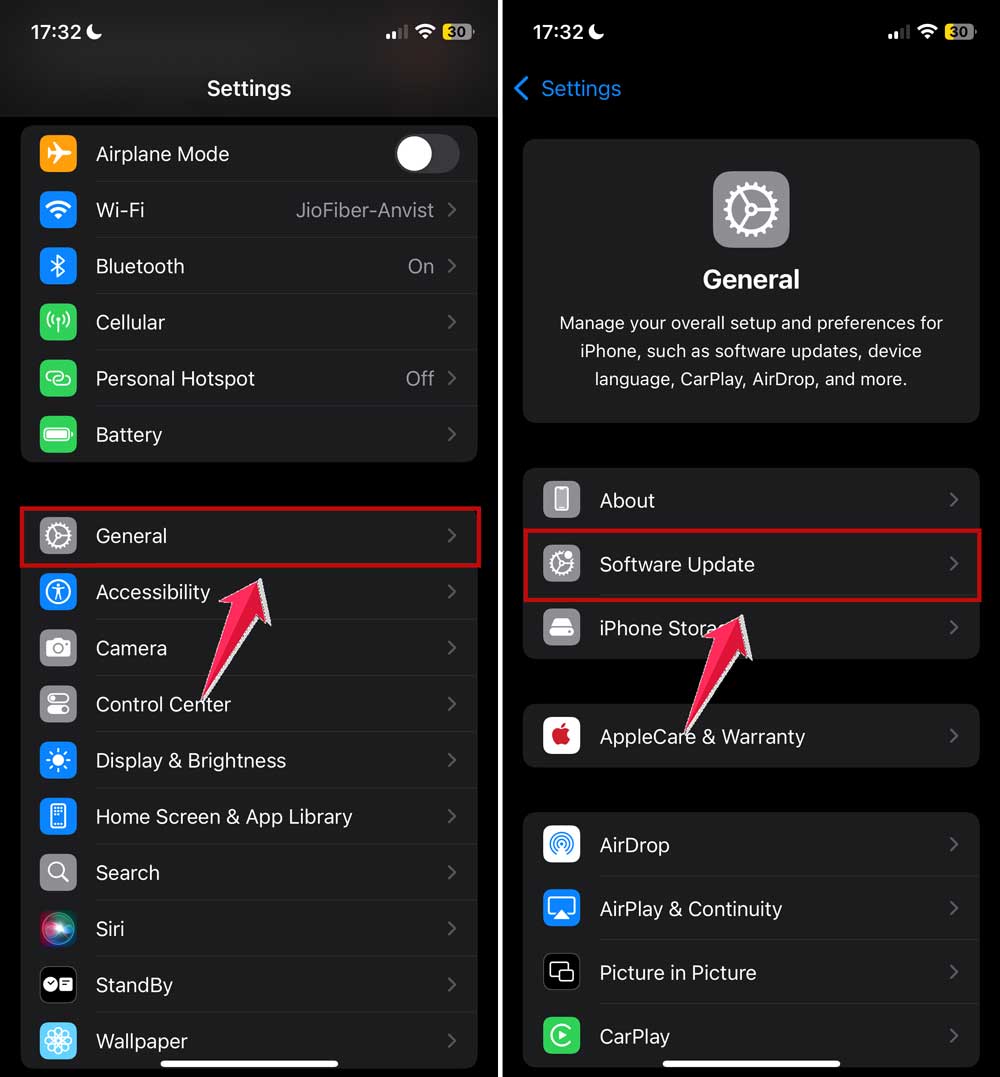
On iPhone or iPad:
- Go to Settings.
- Tap General.
- Tap Software Update.
On Mac:
- Open System Settings.
- Click General.
- Tap Software Update.

If an update is available, download and install it. Updates often fix bugs that mess with iCloud syncing.
#6. Sign Out and Back Into iCloud
If nothing else works, this trick usually does. Let’s sign out and back into iCloud:
On iPhone or iPad:
- Open Settings.
- Tap your name at the top.
- Scroll down and tap Sign Out.

- After signing out, sign back in with your Apple ID.
On Mac:
- Open System Settings.
- Click Apple ID.
- Tap Sign Out.
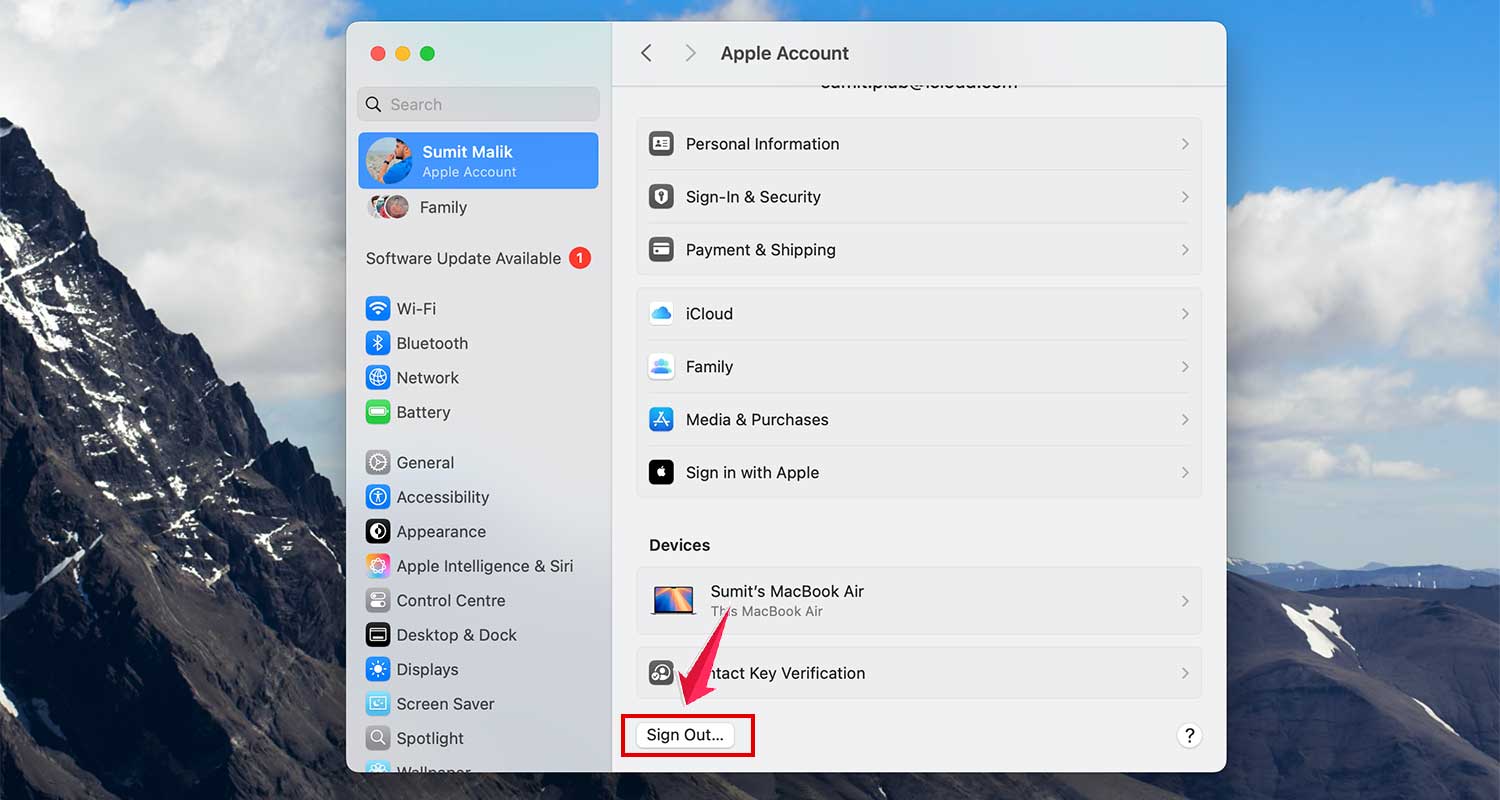
- Then sign back in.
This forces iCloud to reset its connection and usually gets everything back in sync.
Alright, that’s a lot of fixes, but they’re all pretty easy, right? Start with the simple ones and work your way down.
Most of the time, you’ll have your recent files showing up again before you even get to the last step.
Extra Tips to Keep Your iCloud Drive Running Smoothly
Let’s talk about a few more things you can do to keep iCloud Drive working like a charm:
1. Clear Out Old Files Regularly
Old files can slow things down. Make it a habit to delete stuff you don’t need anymore. This keeps your iCloud neat and speedy.
2. Back Up Important Files
Even though iCloud is reliable, it’s smart to back up important files somewhere else too. Think of it as extra protection for your important stuff.
3. Stick to Strong Wi-Fi
Whenever you can, use a strong Wi-Fi network. It makes syncing faster and smoother. Public Wi-Fi? Maybe skip that for important uploads.
4. Monitor Your iCloud Storage
Running out of storage can cause syncing problems. Check your iCloud storage now and then. If it’s almost full, either upgrade your plan or delete some old data.
5. Keep Exploring for Updates
App updates and system updates often include important fixes. Stay updated to avoid small bugs turning into big headaches.
Follow these tips and your iCloud Drive will stay in great shape!
The Takeaway
So, when your iCloud Drive shows old files instead of the latest changes, it’s super annoying. But most of the time, it’s not a big deal.
We talked about checking your Wi-Fi strength, making sure your iCloud settings are right, and keeping your software updated.
A lot of people think their iCloud is broken or that Apple messed up.
But usually, it’s just a small setting or a quick fix away from working perfectly again. Try the steps we talked about, and you’ll probably have your files syncing like normal.
If you have any questions or if one of these fixes worked for you, drop a comment below! I’d love to hear from you. 😊