Ever opened your Health app expecting to see your heart rate, but… nothing’s there? Yeah, it’s frustrating.
You rely on this data to keep track of your health, and when it’s missing, it feels like something important is just gone.
But don’t worry. You’re not the only one dealing with this, and fixing it is usually easier than you think.
So what’s going on here? Your heart rate data isn’t showing up, and that’s a problem.
This could be due to a few different things. Maybe your device isn’t compatible. Maybe the sensor isn’t working properly.
Or maybe the app just doesn’t have permission to access your data. Little things like these can mess things up, but we’ll walk through all the possible fixes together.
Why does it matter? Well, your heart rate tells you a lot about your health. It helps you understand how your body’s doing.
Whether you’re resting, working out, or even sleeping. So yeah, having that data available is really important.
Not having it? That’s like trying to drive with your eyes closed.
Let’s fix this step by step. I’ll walk you through what to check and what to do.
Stick with me, and we’ll get your heart rate showing in the Health app again.
What could be causing the missing heart rate data?
Alright, let’s talk about what might be going wrong. These are the most common reasons your heart rate isn’t showing up in the Health app.
1. Your device might not support heart rate tracking. Not every device has this feature. Some older fitness trackers or smartwatches just don’t have the hardware for it. So if you’re using an older model, check if heart rate tracking is even available.
2. Your heart rate sensor might be dirty or not making good contact. These sensors need to touch your skin properly to work. If your band is too loose, or if there’s dirt or sweat blocking the sensor, it won’t read your heart rate right.
3. Your data might not be syncing properly. Sometimes your device and the Health app don’t communicate well. If they’re not syncing, your data just won’t show up.
4. The Health app might not have permission to access your data. If you didn’t allow it to collect heart rate info, it won’t show anything. This is easy to miss, but also easy to fix.
5. Your app or device software might be outdated. An old version of the app or your device’s system can cause bugs like this. Keeping everything updated helps things run smoothly.
These are the main reasons your heart rate data could be missing. Now, let’s move on to the good part. Fixing it.
How to Fix Heart Rate Not Showing in Health App
Alright, let’s fix this together. I’ll explain each step in simple terms. You don’t need to be a tech expert. Just follow along and give these a try.
#1 Make sure your device supports heart rate tracking
First, check if your device even has the ability to track heart rate. If you’re using an older smartwatch or fitness band, it might not have the needed sensor. Here’s what you can do:
Check your device specs online. Go to the manufacturer’s website or search for your model number.
Look in the user manual if you still have it. It should mention heart rate tracking if it’s available.
If your device doesn’t support it, you’ll need one that does. Otherwise, the Health app simply won’t have any heart rate data to show.
#2 Restart your device
Sometimes your device just needs a quick refresh. A restart can clear out small glitches and help the sensors work again.
Turn your device off. Wait a few seconds. Then turn it back on.
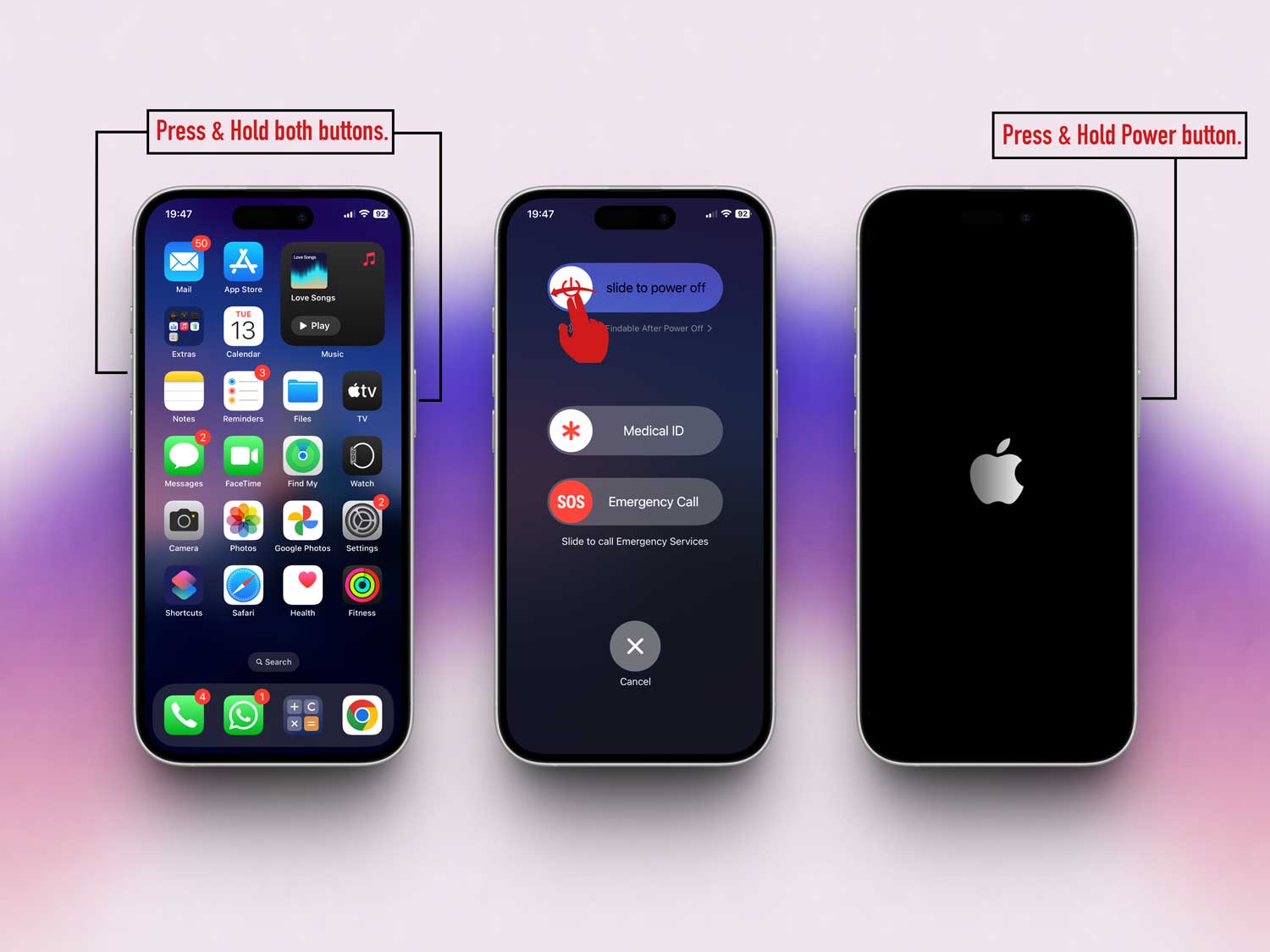
Once it’s back on, give it a minute and check the Health app again. Sometimes, that’s all it takes.
#3 Make sure the sensor touches your skin properly
If the sensor isn’t in contact with your skin, it can’t read your heart rate. That happens more often than you’d think. Especially if your band is loose or worn incorrectly.
Adjust your smartwatch or fitness band so it sits snugly above your wrist bone. Not too tight, but firm enough to stay in place.
Wipe the sensor clean with a dry cloth. Sweat, dust, or lotion can block the sensor.
Once it’s clean and in place, wait a moment and check the Health app again.
#4 Manually sync your device with the Health app
Sometimes your device doesn’t sync on its own. If that happens, you need to do it yourself. Here’s how:
- Open the app that collects your heart rate data (like your smartwatch app).
- Go to its settings and find the sync option.
- Tap “Sync now” or similar. Then check if the data shows up in your Health app.
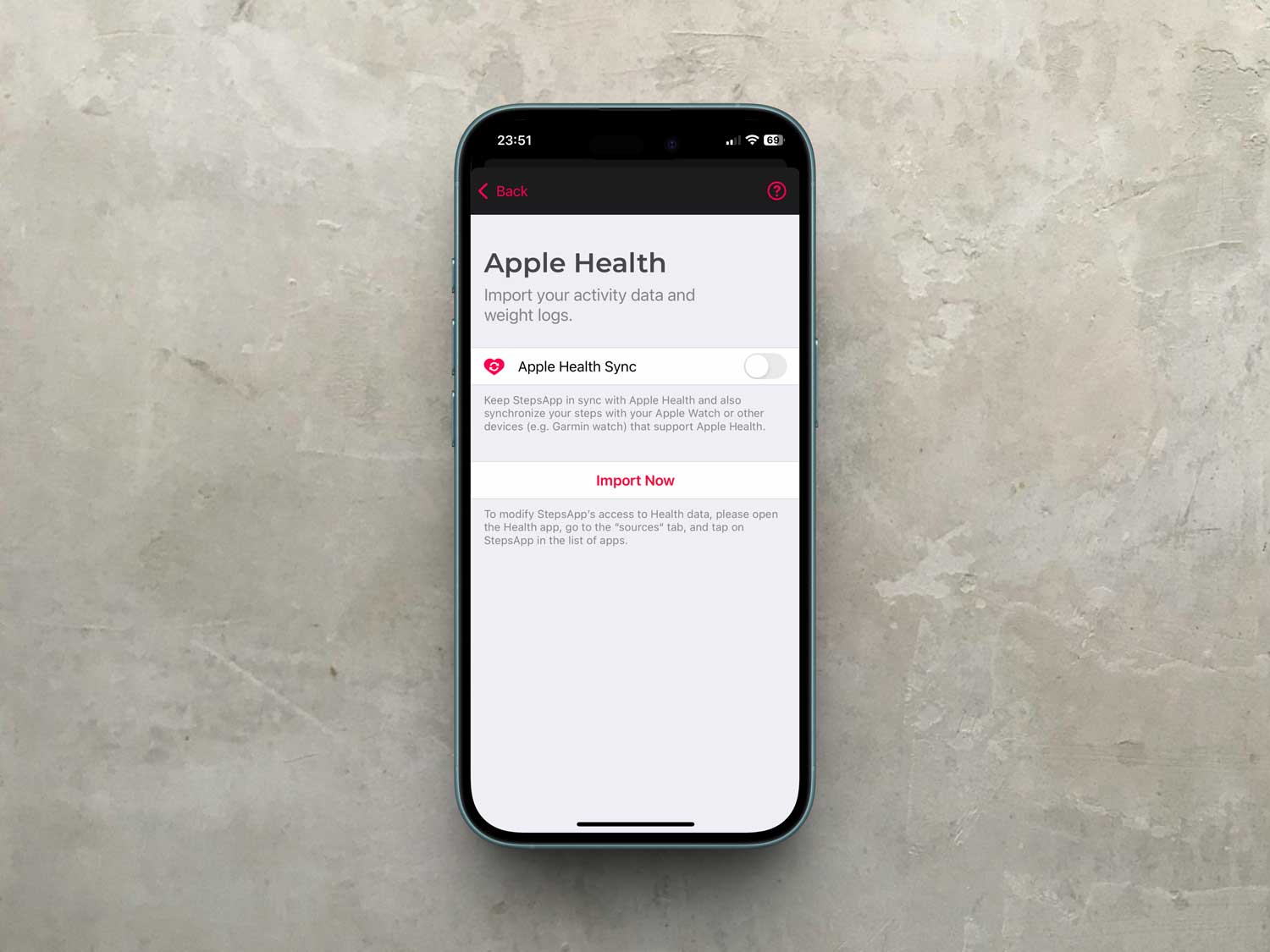
If the data appears after syncing, great! If not, let’s keep going.
#5 Make sure your app and device are up to date
Outdated software can cause all kinds of weird issues.
Updates often fix bugs and improve how apps work together. So it’s worth checking.
- Open the App Store or Google Play. Look for updates to your health or fitness apps and install them.

- Go to your device settings. Open Settings, then Software Update. Install any available updates.
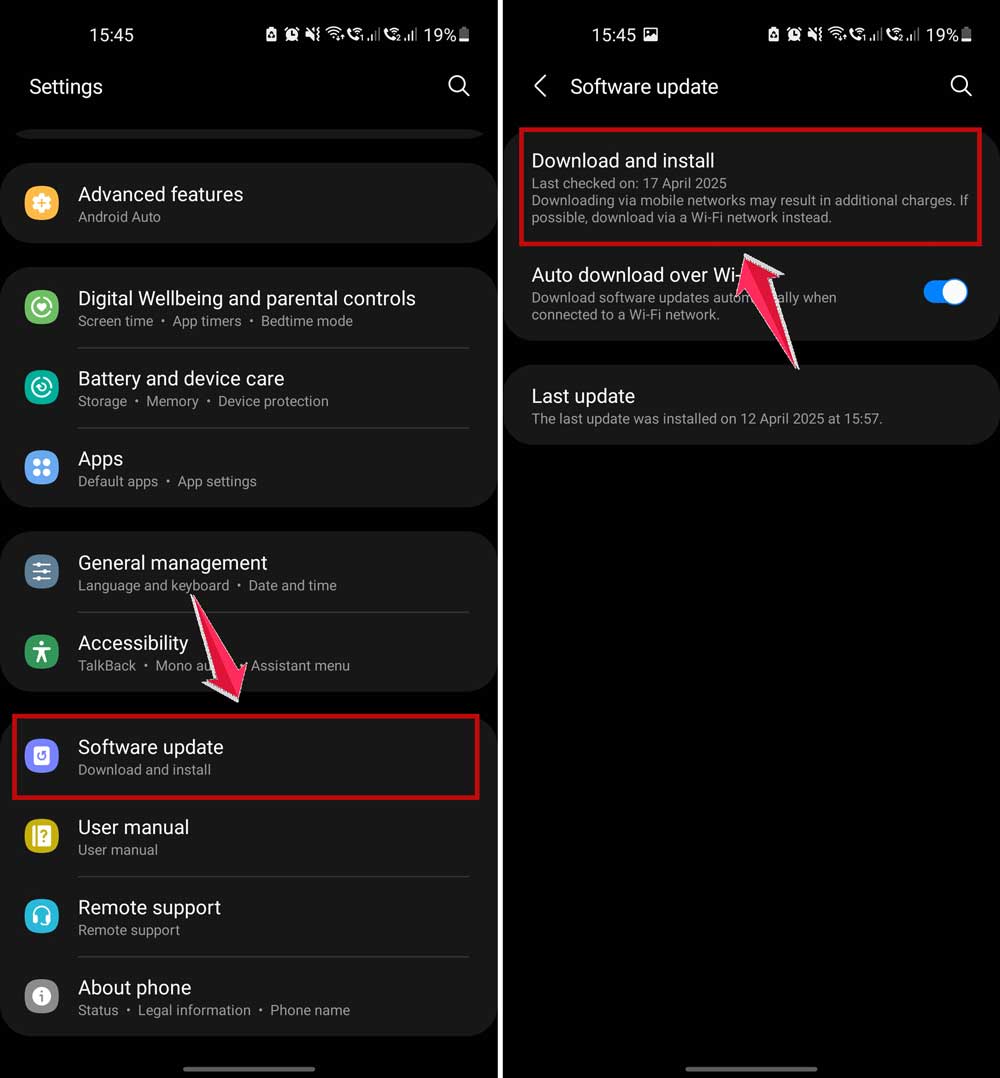
After updating, restart your device and check the Health app again.
#6 Check if the Health app has the right permissions
If the app doesn’t have permission to access your heart rate, it won’t show anything. You need to allow it manually.
- Go to Settings on your phone.
- Tap Apps or Applications.
- Select the Health app.

- Tap Permissions and make sure heart rate or sensor data is allowed.
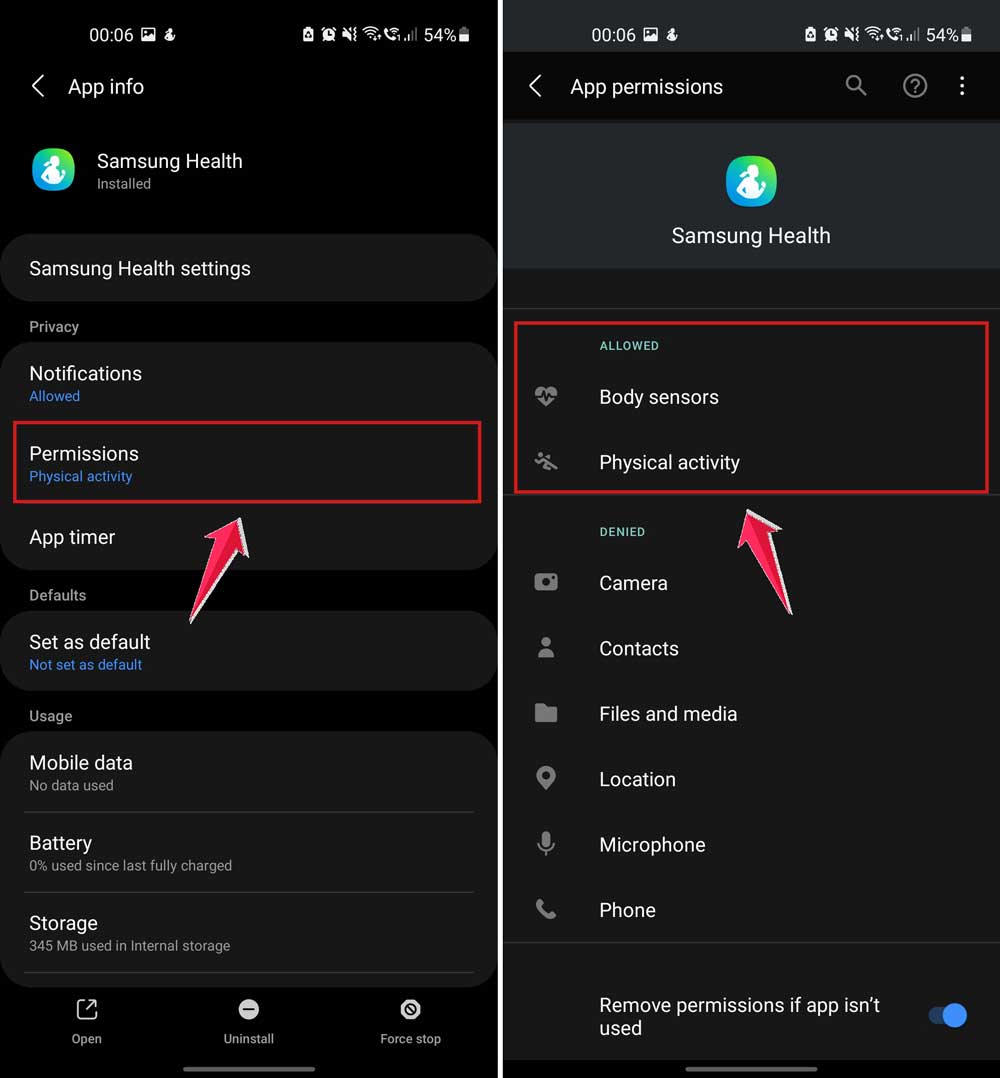
Once permissions are set, open the app again and check if your heart rate data is back.
Extra Tips to Help Track Your Heart Rate Better
Still not seeing your heart rate? Don’t worry, there are a few more things you can try to improve the readings.
1. Stay still while tracking. Movement can confuse the sensor. Try sitting down and resting your arm while the device takes a reading.
2. Keep other devices away. Too many Bluetooth signals can mess with syncing. Try syncing with fewer gadgets nearby.
3. Check where your tracker sits. Make sure it’s not too low or too high on your wrist. Just above the wrist bone works best.
4. Keep it dry. Water on the sensor can cause wrong readings. If your device gets wet, dry it off before using it again.
5. Try a full device reset. If nothing works, a factory reset might help. Just remember to back up your data first before doing it.
These small changes can make a big difference. Try them out and see if your heart rate starts showing up again.
The Takeaway
So, here’s the deal. Getting your heart rate data to show up in the Health app isn’t hard. You just need to check a few things.
Make sure your device supports heart rate tracking, that the sensor is clean and snug, and that the app has permission to access the data.
Also, don’t forget to sync your devices and keep everything updated.
One common mistake? People often think the sensor is broken when it’s just not touching their skin properly.
Or they forget to give the app permission. But now you know better, and you’ve got all the steps to fix it.
Try the tips one by one. And don’t worry. This stuff happens to everyone. The good news? Most of the time, it’s a small fix.
Got questions or something still not working? Drop a comment below. I’m here to help you out!