Ever opened your phone, tapped into your favorite app, and—bam—your keyboard isn’t where it’s supposed to be? It’s just… floating.
Or sliding to the side. Or shrinking. Weird, right? You’re ready to type, but your keyboard seems to have other plans.
This happens more often than you’d think. And honestly, it’s frustrating. One second you’re replying to a message, and the next, your keyboard’s doing a little dance across the screen.
You might wonder, “Did I press something by mistake?” Or maybe your phone’s just acting up again.
When your keyboard floats or moves, it messes with your typing. Your fingers miss the right keys. You make typos. You spend more time fixing mistakes than actually writing your message. It’s a small issue, but it can really slow you down.
The good news? You don’t need to be a tech expert to fix it. With a few easy steps, you can stop your keyboard from floating and get it back where it belongs. Stick with me—I’ll walk you through everything you need to know.
What causes your keyboard to float or shift?
Let’s figure out what’s going on behind the scenes. Once you know what’s causing the problem, it’s easier to fix it. These are the most common reasons your keyboard might be acting up.
1. Don’t tap the wrong spot
Sometimes, it’s just a quick mistake. You might’ve tapped a button without realizing it. Most keyboards have a little handle or icon that lets you move them around. If you accidentally drag it, the keyboard can float or shift. Try to watch where your fingers land.
2. Software glitches happen
Yep, software bugs are real. Your phone or tablet might be having a moment. A small glitch in your keyboard app or system software can make the keyboard behave oddly. It’s not your fault—it just happens sometimes.
3. Keyboard settings might be the reason
Some keyboard apps have a “floating” feature built in. It’s supposed to help with multitasking, but if it’s turned on by accident, your keyboard will start floating. You’ll need to jump into settings and turn that off.
4. Updates sometimes cause problems
Funny thing—updates are meant to fix bugs, but they can also bring new ones. If your keyboard started floating after a recent update, that might be the cause. Don’t worry, though. There are ways to fix it.
Now that you know what might be behind the issue, let’s get to the part where we fix it.
How to stop the keyboard from floating or moving
Alright, ready to get that keyboard back in place? I’ll walk you through the most effective ways to fix it. These steps are easy to follow—even if you’re not super tech-savvy.
#1 Check your keyboard settings
This is the first place you should look. Some keyboard apps have a setting that lets the keyboard float. If that’s turned on, it can move around or shrink on screen.
Let’s fix it:
- Open your device’s Settings.
- Scroll down and tap on Language & Input or System.
- Tap on Virtual Keyboard.
- Select your keyboard app (like Gboard or Samsung Keyboard).

- Look for an option called Floating Keyboard.
- If it’s turned on, switch it off.

That’s it! Your keyboard should now stay in place.
#2 Restart your phone
I know—it sounds too simple. But restarting your phone clears out temporary bugs and resets things. If your keyboard started floating out of nowhere, a quick reboot might fix it.
Just hold down the power button, tap Restart, and wait for your phone to power back on. Then check the keyboard again.
#3 Update your keyboard app
Running an old version of your keyboard app? That could be the problem. New updates often fix bugs like this.
Here’s how to check for updates:
- Open your Google Play Store or App Store.
- Search for your Keyboard App.
- See if there’s an update available for your keyboard app.
- If there is, install it.
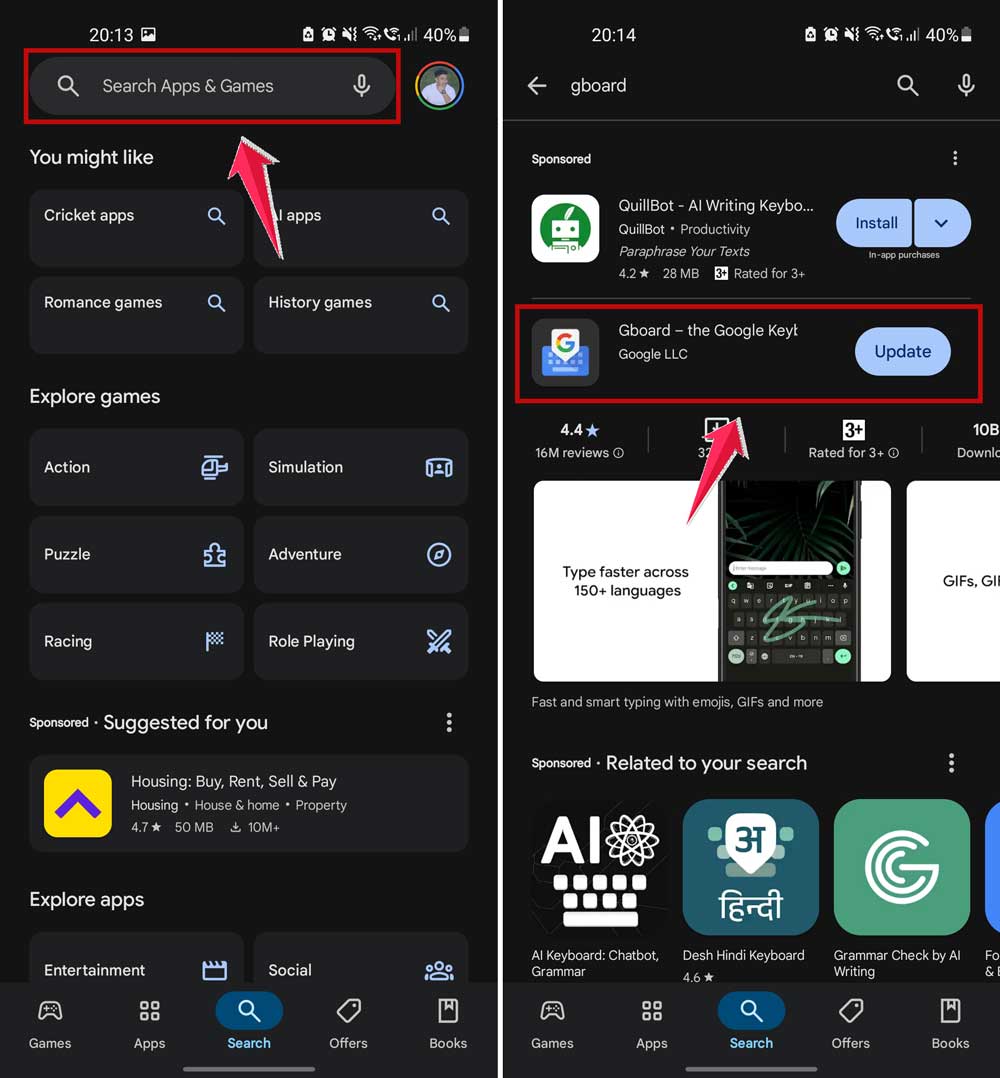
After the update, open your keyboard and see if it still floats.
#4 Reset the keyboard app
If updating didn’t help, resetting the keyboard app can bring it back to its default settings. This clears any tweaks or changes that may be causing issues.
Here’s what to do:
- Open Settings on your phone.
- Go to Apps or Apps & Notifications.
- Find your keyboard app (like Gboard).
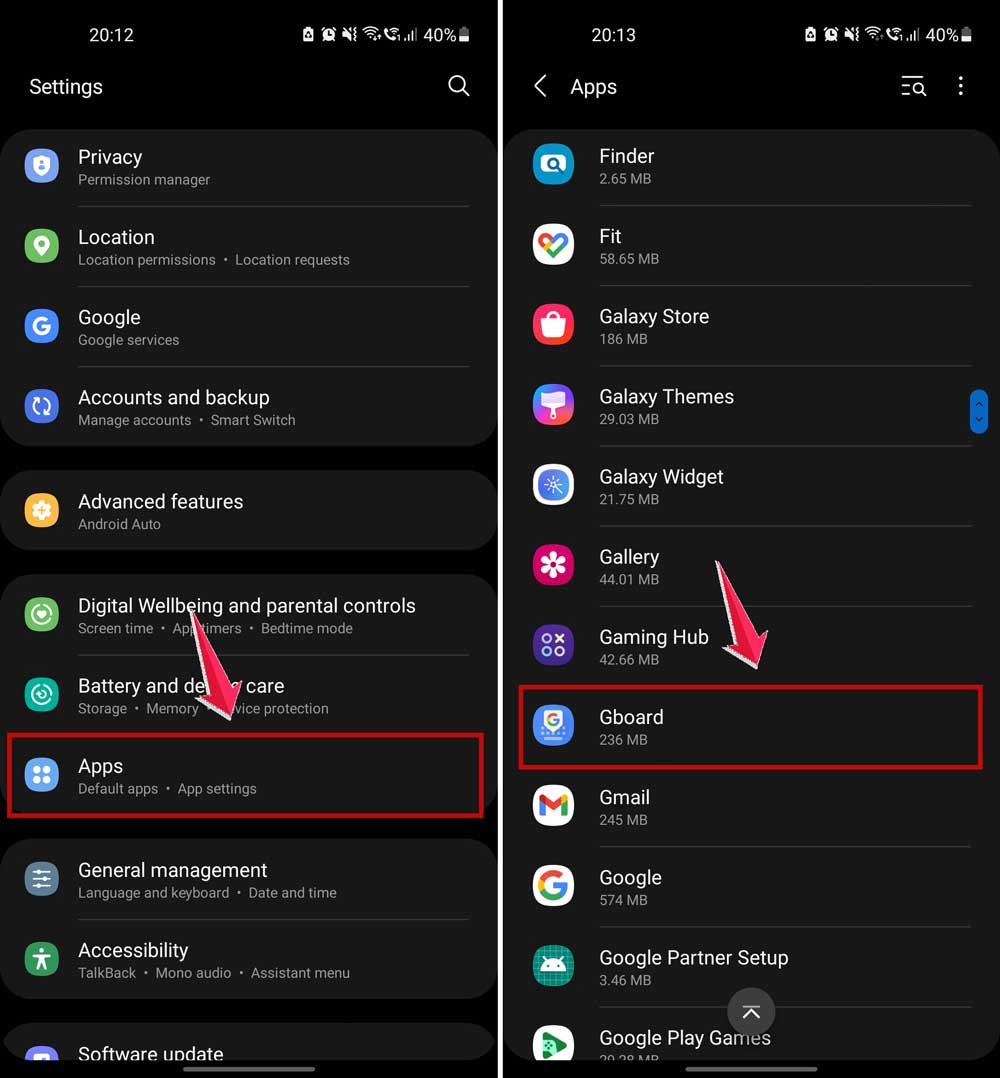
- Tap on Storage.
- Tap Clear Cache.
- Then tap Clear Data or Clear Storage.
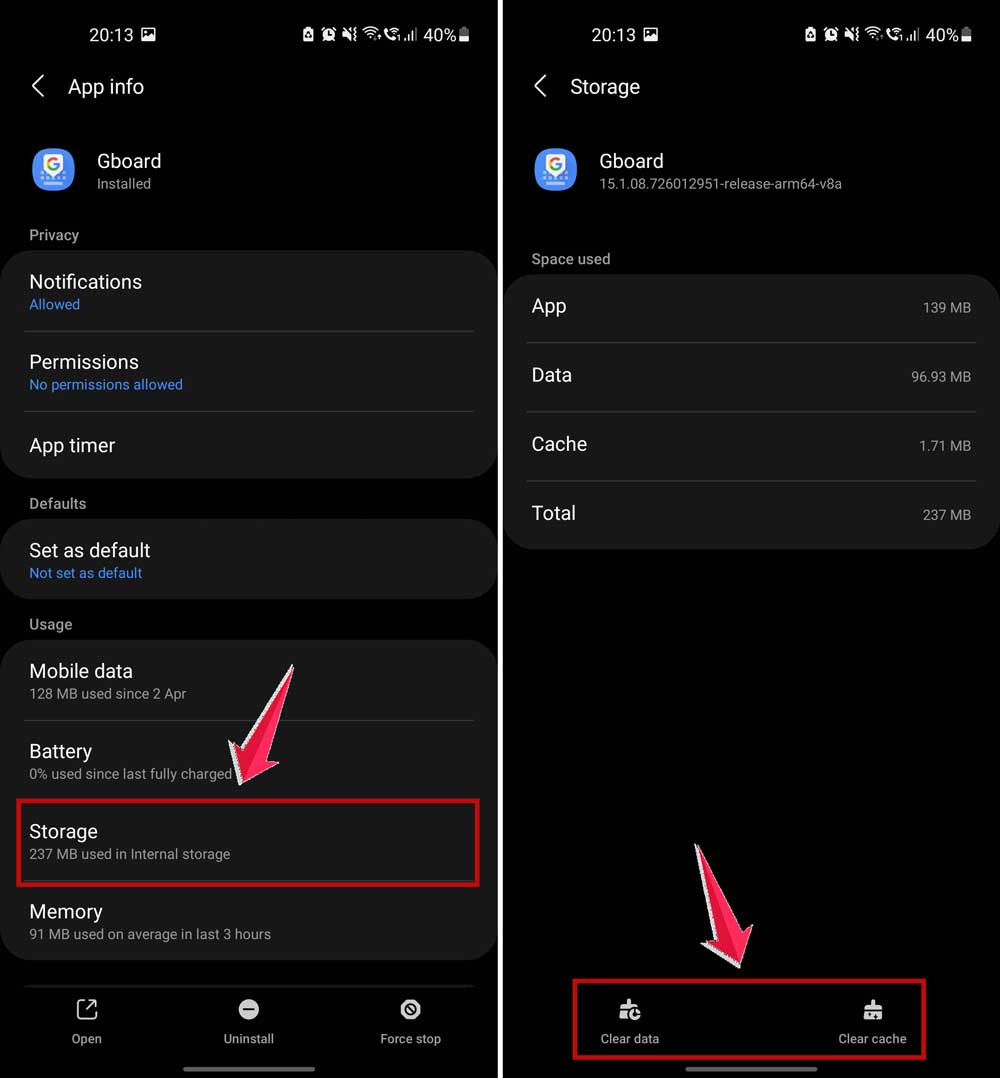
Don’t worry—this won’t delete your messages. It just resets the keyboard settings.
#5 Reinstall the keyboard app
Still seeing a floating keyboard? Time to start fresh. Uninstalling and reinstalling the keyboard app gives you a clean slate.
Here’s how:
- Go to the App Store or Play Store.
- Search for your Keyboard App.
- Tap Uninstall.
- Download and install the app again.

Now open any app and bring up the keyboard. It should be back to normal.
#6 Adjust your display settings
Sometimes your screen settings interfere with how the keyboard appears. If your display size or zoom is set too high, it might push the keyboard into floating mode.
Try this:
- Open Settings.
- Go to Display.

- Tap on Display Size or Font & Display Size.
- Adjust the slider to a more balanced size.

Then check if the keyboard behaves better.
#7 Try switching to another keyboard
If none of the fixes work, maybe it’s time to try a different keyboard app. Some are more stable and better optimized for your device.
Just search for popular keyboard apps in your app store, like Gboard, SwiftKey, or others with good reviews. Download one, set it as your default, and give it a try.
Extra tips to keep your keyboard from floating again
Alright, let’s lock it down for good. These extra steps can help prevent your keyboard from acting up again.
1. Turn off gestures
Some keyboards have gesture controls (like swipe to type). They can sometimes mess with how the keyboard behaves. Head into your keyboard settings and turn off any gestures you don’t use.
2. Use a reliable keyboard app
If your current keyboard keeps floating, try switching to something more stable. Gboard and SwiftKey are both solid choices.
3. Check your screen protector
A badly placed screen protector can mess with touch sensitivity. If it overlaps the keyboard area, you might accidentally move the keyboard. Make sure your screen protector fits well.
4. Customize keyboard height
Some keyboards let you adjust their height. If it’s too high or too low, it might feel unstable or move around. Try changing the height to see what works best for you.
5. Adjust sensitivity settings
If your phone has touch sensitivity settings, tweak them a bit. A lower setting might help reduce accidental touches that move the keyboard.
The takeaway
A floating keyboard might seem like a small issue, but when you’re trying to reply to a text or write an email, it can really get in the way. The good news is—it’s usually easy to fix.
Start by checking your keyboard settings. Is the floating option on? Turn it off. Then try a quick restart. Still having trouble? Go ahead and update or reset the app. And if all else fails, just reinstall it or try a new keyboard altogether.
Remember—this floating keyboard thing happens to a lot of people. You didn’t break anything. Most of the time, it’s just a setting or a small glitch.
Give these tips a try and see what works best for you. I hope your keyboard is now back where it should be—solid, steady, and ready to type. Got a trick of your own? Or still stuck? Drop a comment below and let’s talk!