Did you know that over 100 million people use Macs worldwide? That’s a lot of users who could benefit from knowing how to map a network drive!
Ever found yourself needing files from another computer in your home or office? You’re not alone. Many Mac users struggle with accessing shared files across their network. It’s a common problem, especially as more people work from home or want to share media between devices.
That’s where mapping a network drive comes in. It’s like creating a direct pathway between your Mac and shared folders on other devices. This simple process can make your digital life much easier, allowing you to access files, play media, and work seamlessly across your network.
In this guide, you’ll learn how to map a network drive on your Mac. Don’t worry – it’s easier than you might think! By the end, you’ll be able to access shared files as if they were right on your own computer. Ready to simplify your file sharing? Let’s dive in and make your Mac work smarter for you.
What is a network drive?
Think of a network drive as a big digital storage box that you can access from your Mac, even though it’s not physically inside your computer. Here’s what you need to know:
A network drive is a shared folder that lives on your home or office network. It’s a place where you can store files that everyone on the network can use. Imagine it as a communal filing cabinet that you can access from your Mac.
When you connect to a network drive, you can use the files just like they’re on your own Mac. You can open documents, save new files, or make changes to existing ones. It’s like having an extra hard drive, but it’s not plugged directly into your computer.
At home, many people use something called a NAS (Network Attached Storage) for this purpose. It’s like having your own personal cloud right in your house. A NAS can keep your files safe by making extra copies and can do cool things like share your music or photos with other devices in your home.
At work, these shared folders are usually on a big computer called a server. Connecting to it lets you access all the files your team needs, making it easier to collaborate with your colleagues.
Using network drives can help you work with others more easily and keep your important stuff safe. It’s a great way to make your digital life more organized, whether you’re at home or in the office.
How to set up a network drive:
1. Choose your storage device
You have a few options:
- Use an external hard drive connected to your router.
- Set up a dedicated Network Attached Storage (NAS) device.
- Use another computer on your network as a file server.
2. Connect your storage to the network
- If using an external drive, plug it into your router’s USB port.
- For a NAS, follow the manufacturer’s instructions to connect it to your network.
- If using another computer, make sure it’s connected to the same network as your Mac.
3. Set up file sharing:
- On a NAS, use its setup wizard to create a shared folder.
- On a Mac acting as a server, go to System Preferences > Sharing, and enable File Sharing.
4. Create a shared folder:
- Make a new folder on your storage device.
- Set permissions to allow access from other devices on the network.
5. Note the network address:
- For a NAS, it might look like:
smb://nas-name/shared-folder - For a Mac server:
smb://mac-name/shared-folder
Now that you have a network drive set up, you’re ready to map it on your Mac. This process connects your Mac to the shared folder you’ve created.
Now, for this tutorial, we set up file sharing (network drive) on your Mac
- Click on the Apple menu in the top left corner of your screen and select “System Settings“.
- In the left sidebar of System Settings, scroll down and click on “General” and then click on “Sharing“.
- Enable File Sharing: In the Sharing menu, you’ll see various sharing options. Find “File Sharing” and toggle the switch to turn it on.
- Now, click on “i” button to open settings.
- Create a shared folder:
- Open Finder.
- Navigate to where you want to create the shared folder (e.g., Documents).
- Right-click (or Control-click) and select “New Folder“.
- Name your new folder (e.g., “Shared Folder“).
- Set up sharing permissions:
- Back in the Sharing settings, under “File Sharing“, you’ll see “Shared Folders” and “Users“.
- Click the “+” button under “Shared Folders” to add your new folder.
- Under “Users“, you can set permissions for who can access the folder.
- You can set different levels of access (Read & Write, Read Only) for different users or groups.
- Note the network address:
- The Sharing settings will show you the network address for your shared folder.
- It will look something like “smb://192.168.23.217“.
- Other devices on your network can use this address to connect to your shared folder.
Remember, for security reasons, only share folders with people you trust and on secure networks. Always be cautious about what you put in shared folders.
How to map a network drive on your Mac
Let’s walk through the process of connecting a network drive to your Mac. Don’t worry – it’s simpler than you might think!
- Make sure you’re connected to the same network as the shared folder you want to access.
- Open the Finder on your Mac.
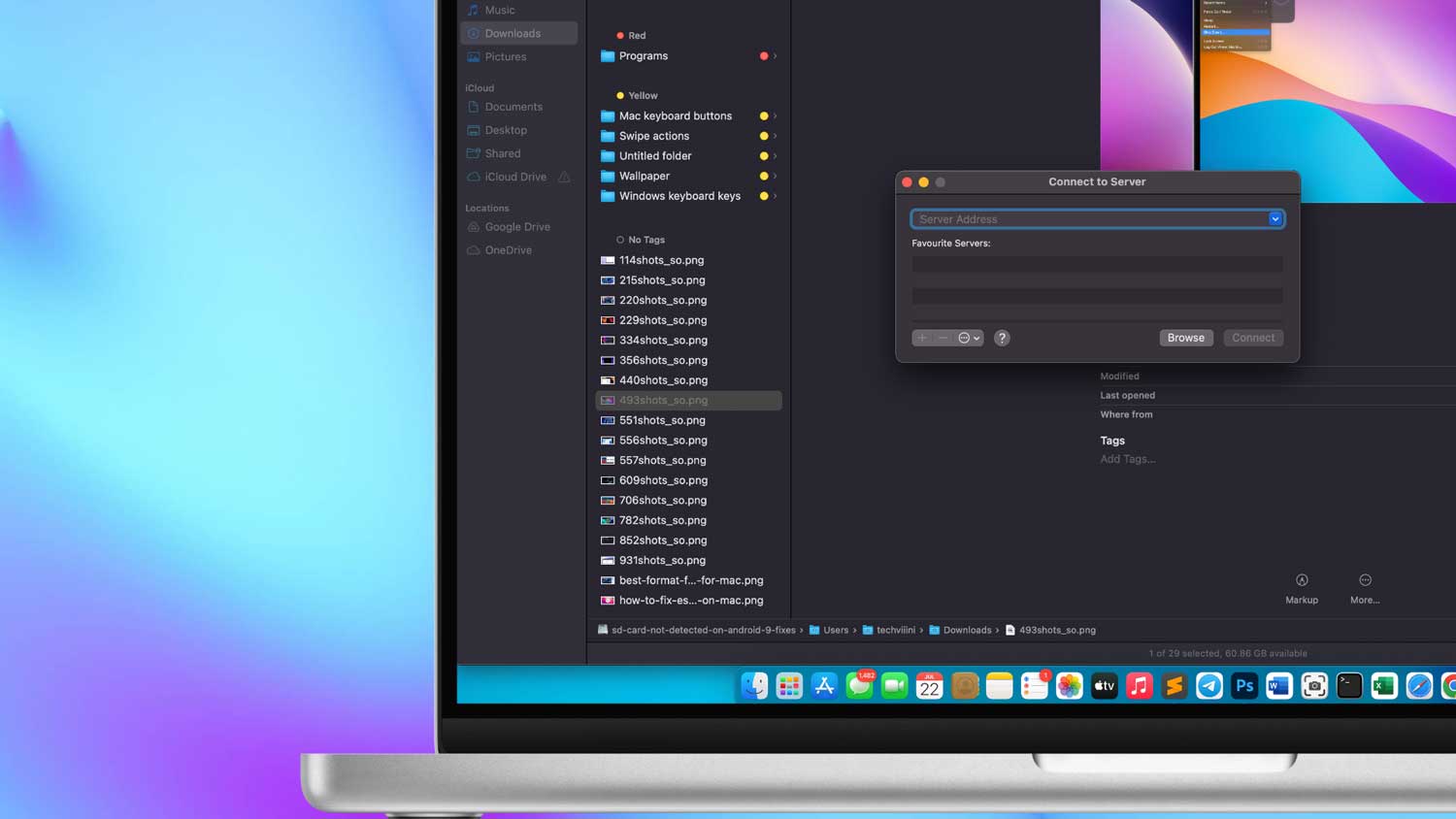
- Look for the “Go” menu at the top of your screen. Click on it, then select “Connect to Server” from the dropdown menu.
- In the new window, enter the server address. It usually looks like this: “smb://servername/foldername“. For example, smb://192.168.22.11/storage.If you’re not sure what to enter, ask the person who set up the network drive for help.
- Click “Connect”.
- If asked, enter the Account Name (not username) and Password for the network drive. Pls note that if you are connecting to another laptop or mac, you need to enter the Account Name and Password of that password. Don’t get confused here.
- If successful, you’ll see the network drive appear in your Finder, just like any other folder on your Mac.
Remember, you’ll need to repeat this process each time you restart your Mac or disconnect from the network. But don’t worry – your Mac will remember the address, making it quicker next time.
That’s it! You’ve now mapped a network drive on your Mac. You can easily access shared files and collaborate with others, all from your own computer. If you have trouble, don’t hesitate to ask for help from someone more tech-savvy or your network administrator.
How to quickly access your mapped drive on your Mac
Once you’ve connected to your shared folder, you’ll want to access it quickly. Here are two simple tricks to make your life easier:
1. Add it to your Finder sidebar
This method puts your shared folder just a click away whenever you open Finder. Here’s how to do it:
- Open Finder (the smiling face icon in your dock).
- Look for your shared folder under the “Network” section.
- Drag the folder to the left side of the Finder window.
- Now it’s always there for easy access!
2. Create a shortcut on your desktop
This trick puts your shared folder right on your desktop for super-fast access:
- Find your shared folder in Finder.
- Click the three dots (…) at the top of the Finder window.
- Choose “Make Alias“.
- Drag this new shortcut to your desktop.
You can use these tricks for the whole shared folder or just specific folders inside it. Choose what works best for you!
With these shortcuts, you won’t have to search for your shared folder every time. It’ll be right there, ready when you need it.
Remember, if you’re not sure about any step, it’s okay to ask for help. The goal is to make your computer work easier for you!
How to automatically connect to a mapped drive on your Mac
Want your shared folder to be ready as soon as you turn on your Mac? Here’s how to set that up:
- Click the Apple logo at the top left of your screen.
- Choose “System Settings”.
- Look for “General” and click it.
- Find “Login Items” and click that too.
- Click the “+” button at the bottom.
- Find your shared folder in the list.
- Click “Open”.
That’s it! Now your Mac will connect to your shared folder every time you start it up. This saves you time and makes sure you always have access to your important files.
Remember, if you ever want to stop this automatic connection, you can come back to this same spot and remove the shared folder from the list.
If you run into any problems or aren’t sure which folder to choose, don’t hesitate to ask for help. Sometimes a quick question can save a lot of frustration!
By setting up automatic connections, you’re making your digital life smoother and more efficient. You’ll always have your shared files at your fingertips, ready when you need them.
How to see mapped drives on your desktop
Want to have easy access to your mapped drives right from your Mac’s desktop? Here’s how you can make them visible:
- Click on the Finder icon in your dock (it’s the smiling face).
- In the top menu bar, click on “Finder”, then select “Preferences”. You can also use the keyboard shortcut Command + , (comma).
- In the Finder Preferences window, click on the “General” tab.
- Look for the section that says “Show these items on the desktop”.
- Check the box next to “Connected servers”.
That’s all there is to it! Now, whenever you connect to a network drive, you’ll see an icon for it appear right on your desktop. This makes it super easy to access your shared files with just a double-click.
Remember, if you ever want to hide these icons from your desktop, you can always come back to this same spot and uncheck the box.
This trick is great if you prefer a visual way of accessing your files. Instead of digging through Finder, you’ll have a clear view of all your connected drives right on your desktop. It’s like having a digital filing cabinet at your fingertips!
If you’re having trouble finding these settings or if the icons aren’t showing up, don’t hesitate to ask for help. Sometimes, a fresh pair of eyes can spot what you might have missed.
What To Do If You Can’t Connect To A Mapped Drive
Here’s a simplified guide for troubleshooting connection issues with your shared folder:
Can’t connect to your shared folder? Try these tips
Sometimes, you might have trouble connecting to your shared folder. Don’t worry! Here are some simple things you can try:
- Check the folder address: Make sure the address you’re using to connect is correct. Even a small typo can cause problems.
- Are you on the right network?: Your Mac and the shared folder need to be on the same network. If you’re at work, make sure you’re connected to the work network, not a guest network.
- Username and password: Double-check that you’re using the right username and password. If you’ve changed them recently, you’ll need to update them on your Mac too.
- Restart the device with the shared folder: If you can, try turning off and on the device that has the shared folder. This often fixes connection problems.
- Restart your Mac: If nothing else works, try restarting your Mac. This can often solve connection issues.
Remember, technology can be tricky sometimes. If you’ve tried these steps and still can’t connect, it’s okay to ask for help. Your IT team at work or a tech-savvy friend will be happy to lend a hand.
In Conclusion To
Alright, let’s sum up what we’ve learned about using shared folders on your Mac:
Shared folders are super helpful, whether you’re working from home or in an office. They let you access files that aren’t on your Mac, making it easier to work with others or use your stuff on different devices.
The great thing is, once you’ve set everything up, using shared folders becomes second nature. Your files will always be just a click or two away, no matter where they’re actually stored.
Remember, if you run into any trouble, don’t stress! The tips we discussed can solve most problems. And if you’re still stuck, there’s no shame in asking for help. Technology is here to make our lives easier, not more complicated.
By mastering these skills, you’re making your digital life smoother and more efficient. Whether you’re sharing work files with your team or just want to watch movies stored on another device, you now know how to make it happen.
Keep exploring and don’t be afraid to try new things with your Mac. You might be surprised at how much easier your computer tasks become!