Picture this: you’ve got a bunch of photos on your iPhone that you also backed up to Google Photos.
Now you want to clear out some space in your Google account, but you’re worried about losing those precious memories from your phone. Don’t worry. It’s a common concern, and we’ve got you covered.
Google Photos is super handy for storing your pictures online, but sometimes you might want to delete some of those cloud copies without touching what’s on your iPhone.
It can be a bit confusing at first, especially if you’re not sure how all the syncing works between your phone and Google.
In this guide, you’ll learn how to safely remove photos from Google Photos while keeping them safe and sound on your iPhone.
We’ll break it down into simple steps so you can clean up your cloud storage without any stress. By the time you’re done reading, you’ll be a pro at managing your digital photo collection.
What happens when you delete photos from Google Photos or your iPhone?
When you’re managing your photos, it’s important to understand how deletions work between Google Photos and your iPhone. Here’s what you need to know:
If you try to delete a photo from the Google Photos app on your iPhone, you might see a message asking if you want to delete it from your iPhone’s Photos app as well. This gives you control over where you keep your photos.
On the flip side, if you delete a photo from your iPhone’s Photos app, Google Photos won’t automatically delete it from the cloud. This means your photo will still be safe in your Google Photos account unless you choose to remove it there, too.
Understanding this difference helps you manage your photos more effectively across both platforms.
How to delete Google Photos without removing them from your iPhone
If you want to free up some space on Google Photos while keeping your cherished memories on your iPhone, it is possible.
It might seem tricky, but don’t worry. We’ve got you covered. Here are two straightforward methods to help you out.
Method 1: Deleting photos using your computer
If you have a computer nearby, this method is perfect for you. Grab your iPhone and computer, and let’s get started!
- Open the Google Photos app on your iPhone and sign in to your Google Account.

- Tap your profile picture in the top right corner then In the menu, tap on “Google Photo Settings.”

- Click on “Backup“. Make sure this feature is “turned off” for all devices with photos you want to keep.

- Now, open your computer’s web browser and go to “photos.google.com“.

- Log in with the same Google Account you use on your iPhone.

- Browse through your photos and select the ones you want to remove. You can choose multiple photos by holding the “Ctrl key” (or “Command” on Mac) while clicking.
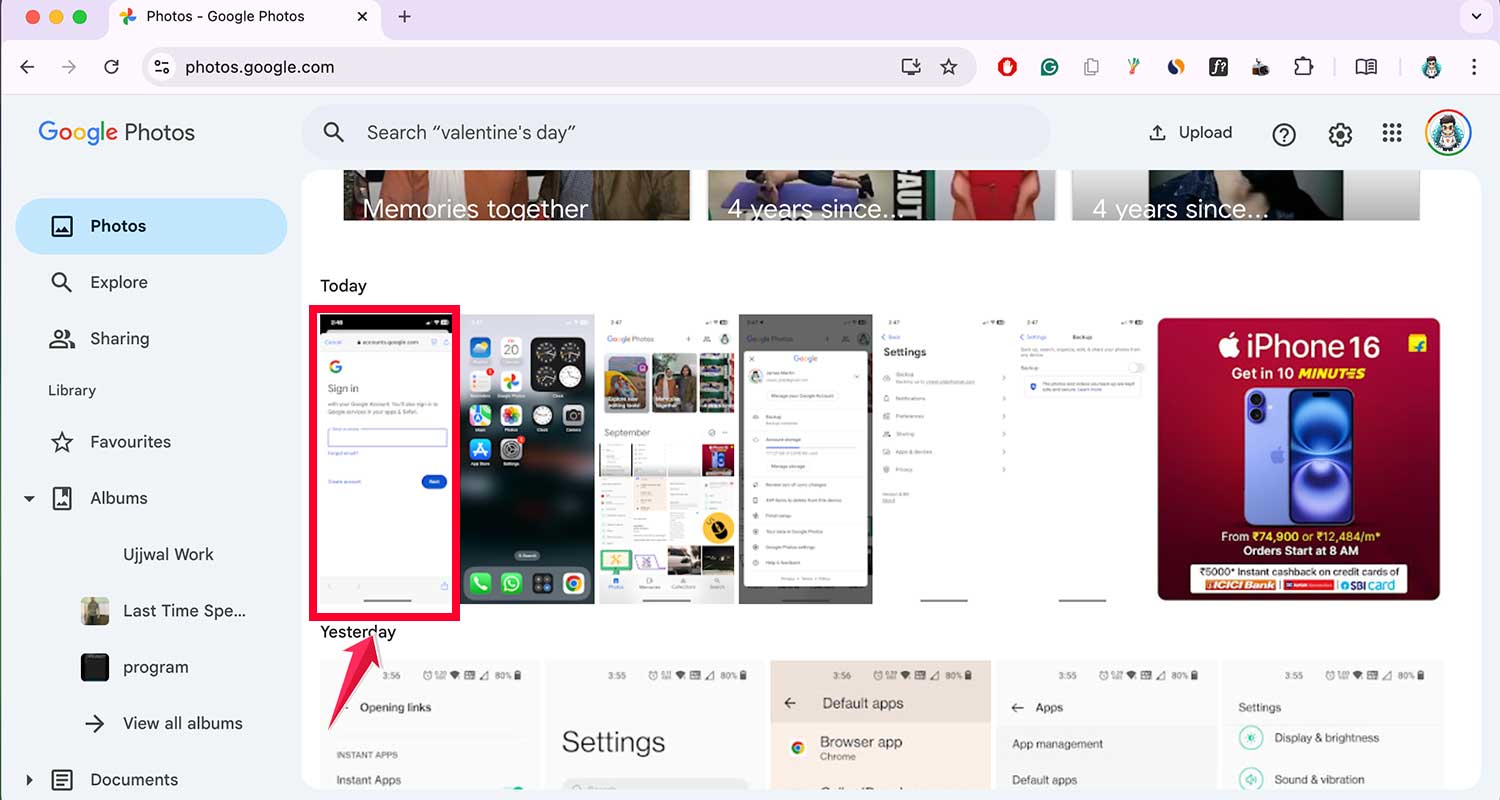
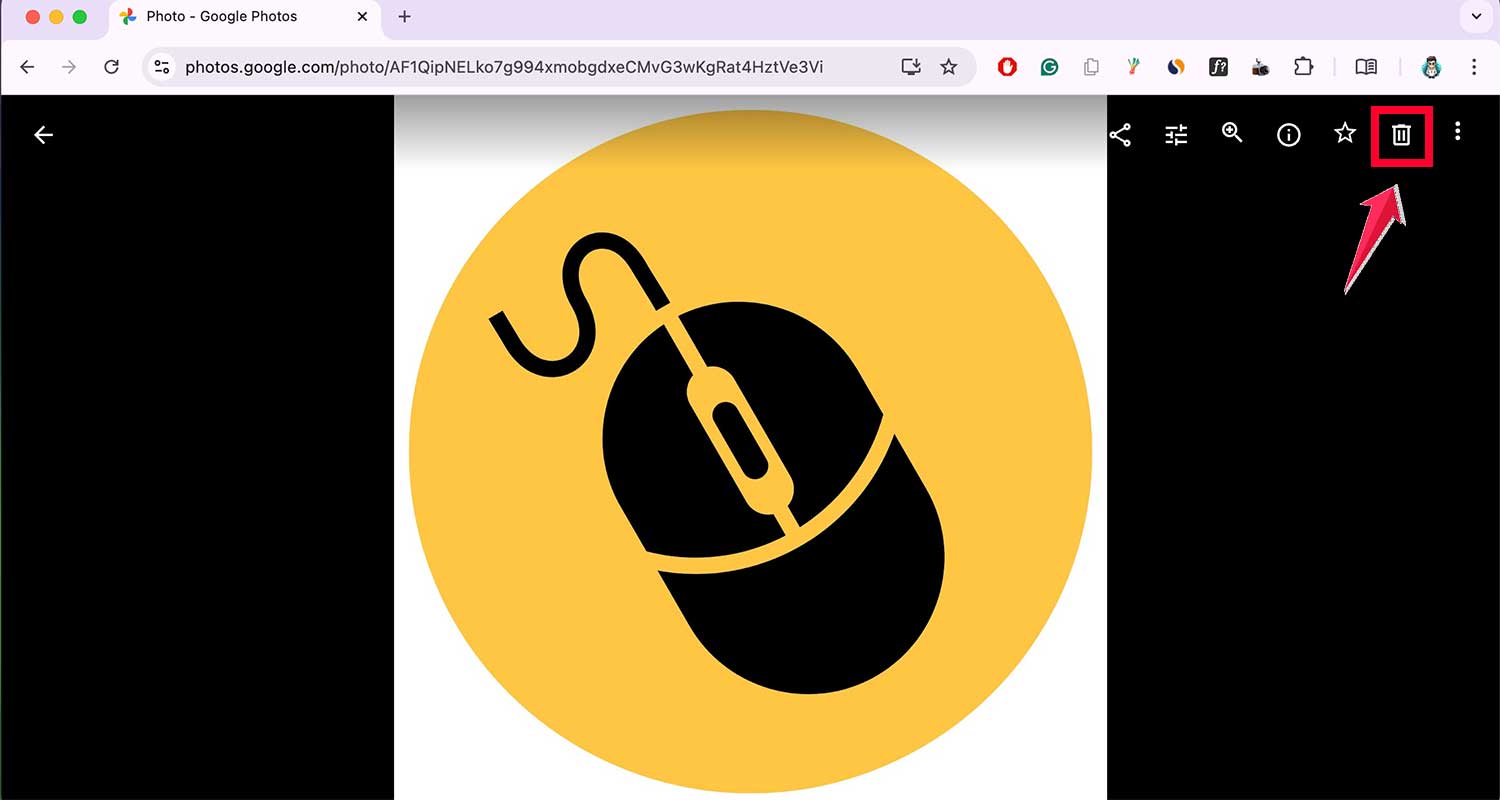
- Click the “trash bin icon” at the top of the screen to delete the selected photos. Remember, photos stay in the trash for “60 days” before being permanently deleted.
Method 2: Deleting photos using only your iPhone
No computer? No problem! You can clean up your Google Photos using just your iPhone. This method works for both Android and iPhone users. If needed, you can also enable WiFi Direct on iPhone to speed up transfers.
- Launch the Google Photos app on your iPhone.
- Find the photos you want to remove. “Tap and hold” a photo to select it. You can select multiple photos if needed.
- Tap the “trash bin icon” at the bottom of the screen to delete the selected photos. They’ll be moved to the trash, where they’ll stay for “60 days” before being permanently deleted.
- If you’re sure you want to delete the photos permanently, tap the menu icon, select “Trash,” then tap “Empty trash” at the top of the screen.
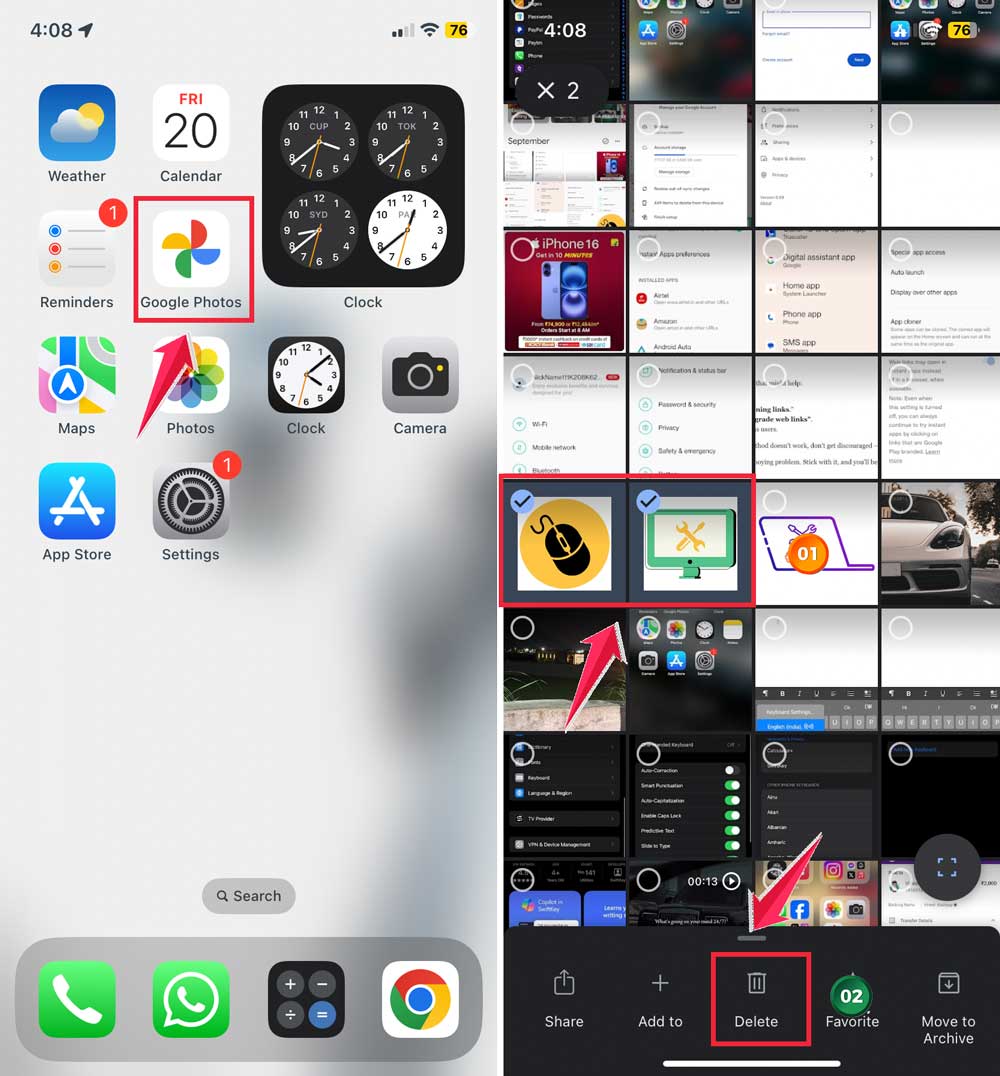
Remember, these steps ensure your photos are removed from Google Photos without affecting the copies on your iPhone.
Always “double-check” your device’s storage to make sure your original photos are safe before deleting them from Google Photos.
How to restore photos between Google Photos and iPhone
Sometimes, you might want to bring back photos you’ve deleted or sync them between Google Photos and your iPhone. Here’s how you can do that:
Restoring Google Photos to your iPhone:
- Open the Google Photos app on your iPhone.
- Tap on the photo you want to restore.

- Tap the three-dot menu in the top right corner.
- Select “Download.”
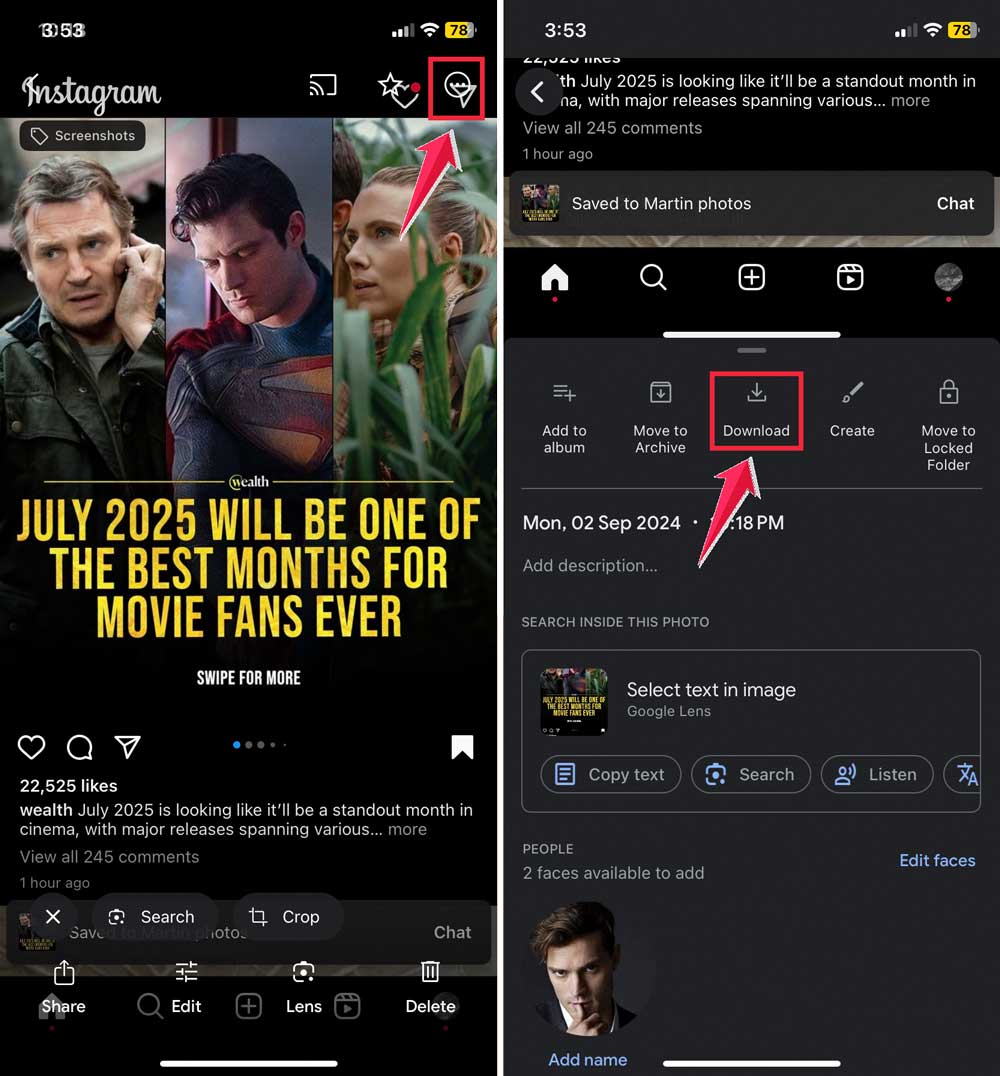
This will download the photo from Google Photos to your iPhone’s camera roll. If you want a different format, you can also save a photo as a PDF.
Restoring iPhone photos to Google Photos:
- Open the Google Photos app on your iPhone.
- Tap your profile picture in the top right corner.
- Go to “Google Photos settings“.
- Click on”Back up.”
- Turn on “Back up.”
This will upload any new photos from your iPhone to Google Photos. If you’ve turned this off before, it might take a while to sync all your photos.
Make sure you regularly back up your data safely.
The takeaway
Cleaning up your Google Photos doesn’t mean you have to lose pictures on your iPhone. It’s actually quite simple to manage both, once you know how.
The trick is to turn off the automatic sync between Google Photos and your iPhone. This way, when you delete photos from Google’s cloud storage, they stay put on your phone.
Whether you use a computer or just your iPhone, you can easily remove photos from Google without touching your device’s gallery.
Some folks think deleting from Google Photos means the pictures disappear everywhere. Not true! If you follow the steps we’ve covered, you can keep your iPhone photos safe while tidying up your cloud storage.
Also, while you’re managing storage, don’t forget you can clear hidden purchases on your iPhone to free up space even more. You can also free up space on your devices without losing important stuff.
Remember, you’re in control of your photos. Don’t let a full Google Photos account stop you from taking more pictures. Use these tips to free up space in the cloud while keeping your memories safe on your iPhone.
We’d love to know how this worked for you. Share your experience in a quick comment below.