Let’s be real. When your Apple Watch won’t turn on, it’s stressful. You rely on it for fitness tracking, notifications, and yes, even checking the time. So when the screen stays dark, it feels like everything’s on hold.
The good news? Most of the time, the fix is simple. It could be something as basic as a dead battery or a setting you didn’t realize was turned on.
And you know what the best part is? You can fix this yourself in just a few minutes.
I’m here to guide you step by step. We’ll start with the easiest fixes and move to more detailed ones if needed.
By the end, you’ll know exactly what to do to get your Apple Watch working again. Let’s get started!
Why Your Apple Watch Won’t Turn On
Here’s the deal – there are several reasons why your Apple Watch display might stay dark.
The most common? A simple battery drain. But sometimes it could be your watch just thinking it’s off when it’s actually on (yes, that happens!).
#1 Your battery is completely drained
The most obvious culprit is a dead battery. If your Apple Watch has run out of charge, it won’t respond until it gets enough power.
Connect your watch to its charger and wait a few minutes. Look for the green lightning bolt on the screen, which shows it’s charging.
If you don’t see it, don’t worry. We’ll troubleshoot further soon.
#2 Power Reserve mode is active
Sometimes, your watch might be stuck in Power Reserve mode. This mode limits all functions except showing the time to save battery life.
To exit Power Reserve mode, press and hold the Side button until the Apple logo appears. This will restart the watch and bring it back to normal functionality.
#3 Your screen is frozen
A software glitch can cause the screen to freeze, making it seem like the watch is off. This can happen after an update or if too many apps are running.
A quick force restart often fixes this. Press and hold both the Digital Crown and the Side button for about 10-15 seconds until you see the Apple logo.

#4 Screen Curtain is turned on
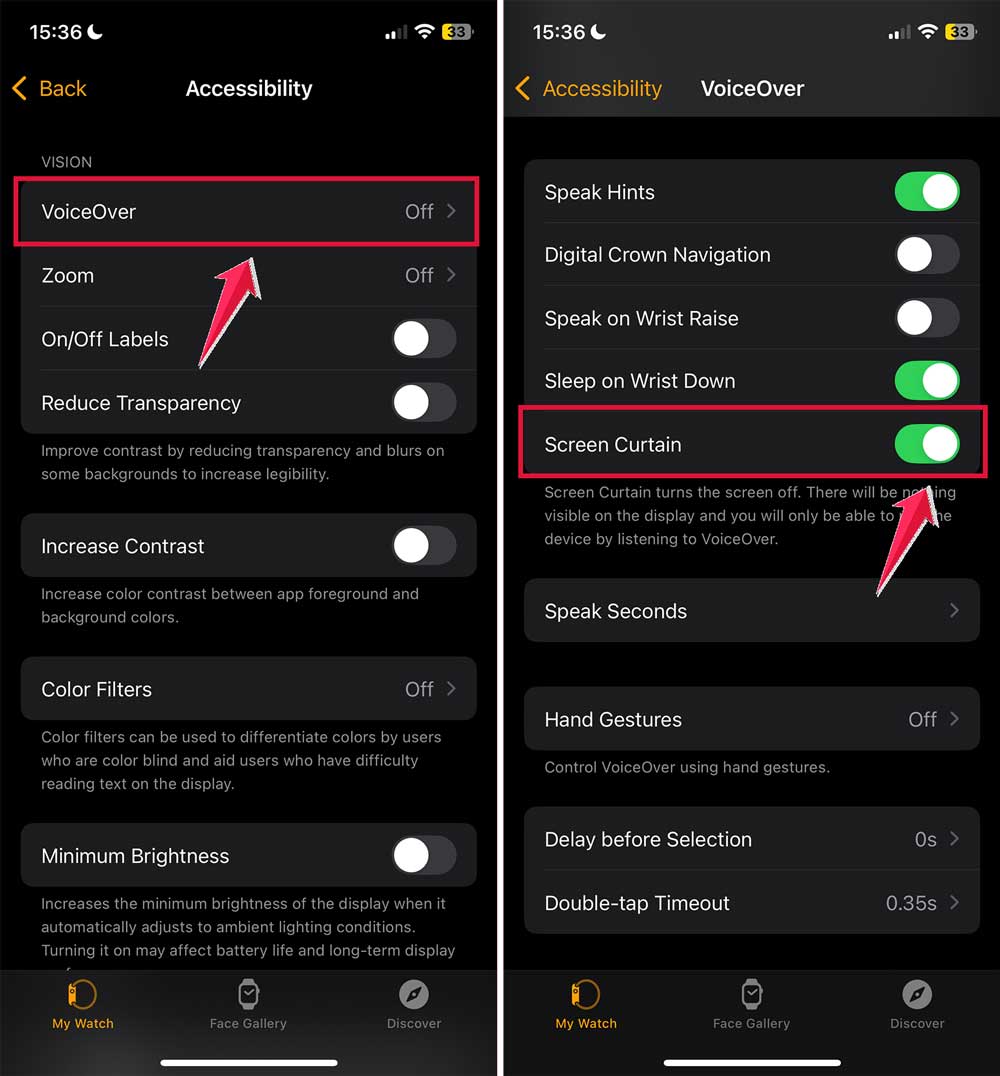
If you use the VoiceOver feature, the Screen Curtain setting might be enabled. This keeps the screen black even when the watch is on. To fix it:
- Open the Apple Watch app on your iPhone.
- Go to Accessibility.
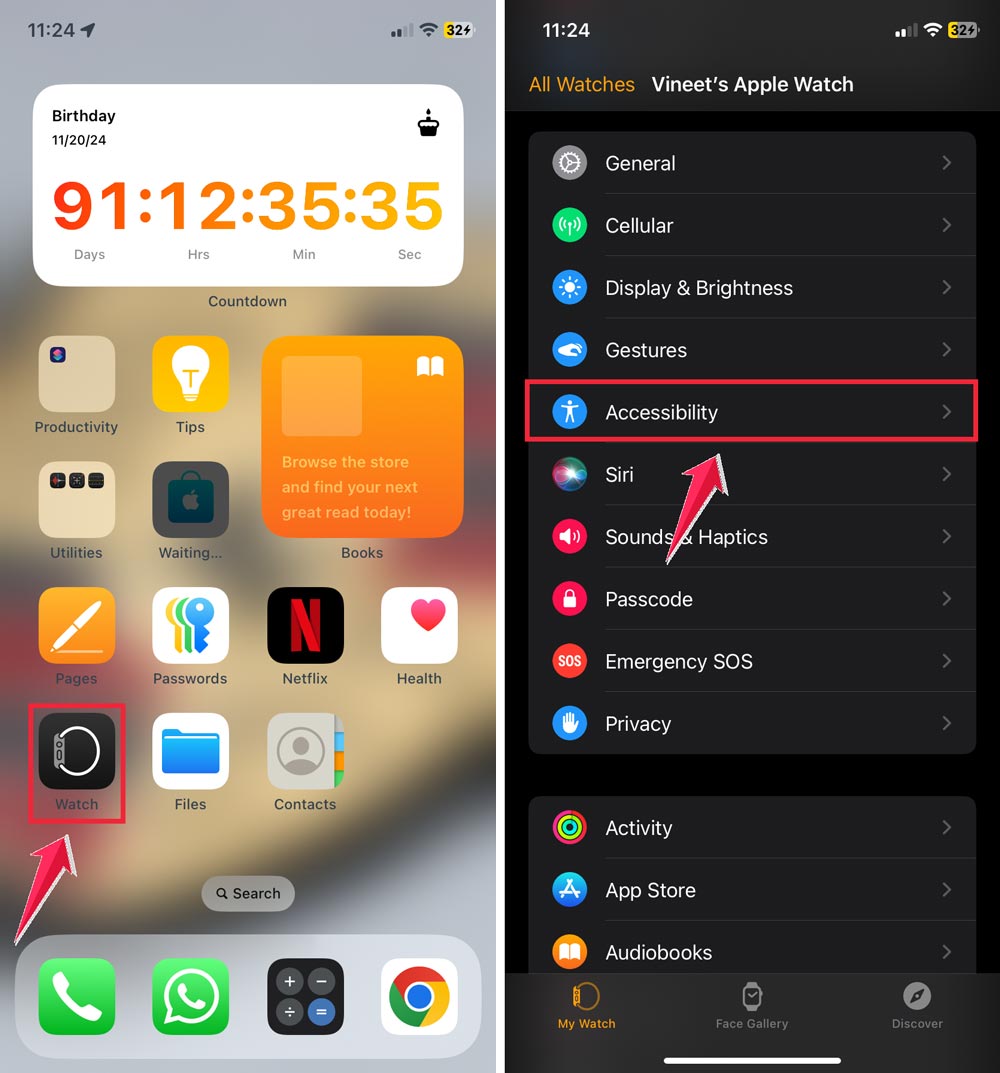
- Click on VoiceOver and turn Screen Curtain off.
#5 Hardware or physical damage
If your watch has been dropped or exposed to water, there could be hardware damage.
Look for visible cracks or signs of water ingress. If none of the fixes above work, it’s best to contact Apple Support or visit an authorized service center for help.
Want to quickly check if it’s a charging issue? Place your watch on its charger and look for the green lightning bolt symbol.
No symbol appearing within a few minutes? Don’t panic – that’s what the next section is for.
How to Fix Apple Watch Not Turning On?
#1 Check Power Reserve Mode
If your Apple Watch only shows the time when you press the Side button, it’s likely stuck in Power Reserve mode. This feature disables all functions except the time display to save battery.
Here’s how to fix it:
- Press and hold the Side button until the Apple logo appears on the screen.
- Wait for the watch to restart normally.

If the watch doesn’t restart, it might need charging first. Move to the next step to ensure your charging setup is working correctly.
#2 Check your charging setup
Sometimes, the issue isn’t the watch. It’s the charger. Take a few moments to inspect everything:
- Ensure the charging cable is fully plugged into the power adapter. Loose connections can prevent charging.
- Check the power adapter. Is it securely connected to a working power outlet? Try another outlet to rule out any issues.
- Remove any plastic wrap from the charger. It might seem trivial, but it happens!
- Align the watch correctly on the magnetic charger. The charger’s magnets need to make full contact with the back of the watch. Look for a green lightning bolt on the screen to confirm it’s charging.
If these checks don’t solve the issue, try using a different charging cable or power adapter to eliminate the possibility of a defective charger.
#3 Try a force restart
When your watch seems completely unresponsive, a force restart can often fix it. Think of this as your watch’s reset button.
Here’s how:
- Press and hold both the Digital Crown and the Side button together for at least 10-15 seconds.
- Keep holding until you see the Apple logo on the screen.
This method is safe and won’t erase any data. It’s a quick fix for many software-related issues that can prevent your watch from turning on.
#4 Check charging cable and power source
Let’s make sure your charging setup isn’t the problem. Try a different power outlet first.
Sometimes, the outlet itself can be faulty. If that doesn’t help, test your Apple Watch with another charging cable if you have one. Cables can wear out even if they look fine.
Also, take a close look at your charging puck. Make sure it’s clean and free from dust or debris.
Even small particles can block the connection. Finally, ensure you’re using an Apple-certified cable. Those cheaper alternatives might seem tempting, but they can cause issues over time.
#5 Deep clean your watch’s charging connection
Over time, dirt and grime can build up in the charging area. Clean it gently with a soft, lint-free cloth.
If needed, you can slightly dampen the cloth with water, but avoid using anything abrasive. Carefully wipe the back of your watch and the charging puck to remove dust or buildup.
Once you’re done, make sure everything is completely dry before trying to charge again. And remember, never use chemicals or cleaning solutions.
They can damage the charging surface and make things worse. A quick clean often fixes the problem. Give it a try and see if your watch powers on!
#6 Check your Apple Watch screen settings
Sometimes your watch is on, but you just can’t see it.
Open the Watch app on your iPhone and:
- Tap the My Watch tab.
- Go to Accessibility.
- Click on VoiceOver.
- Make sure Screen Curtain is turned off.
If your screen is black but time-related settings seem off, you might want to fix the time on your Apple Watch.
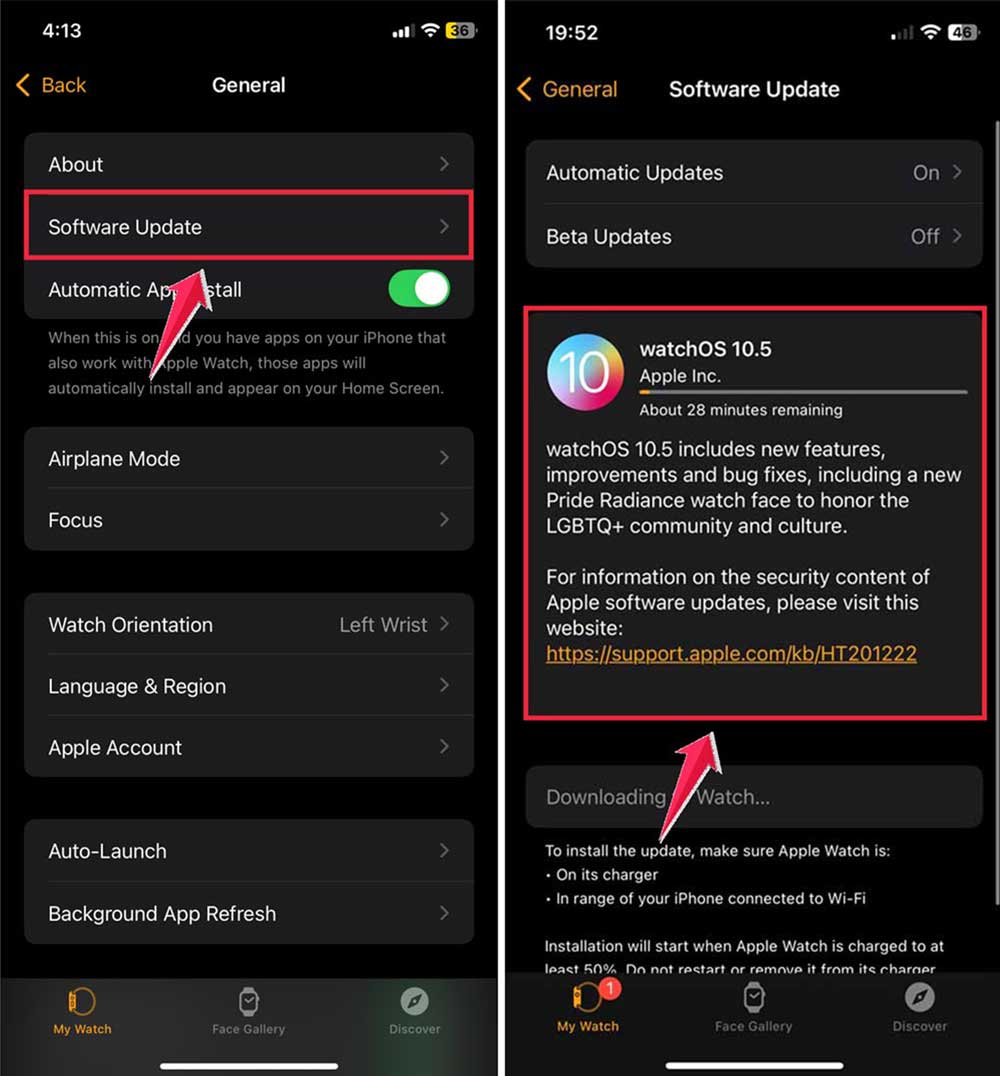
#7 Update Your Software
Outdated software can cause all sorts of issues. Here’s how to check for updates:
- Place your watch on its charger.

- Open the Watch app on your iPhone.
- Tap General > Software Update.
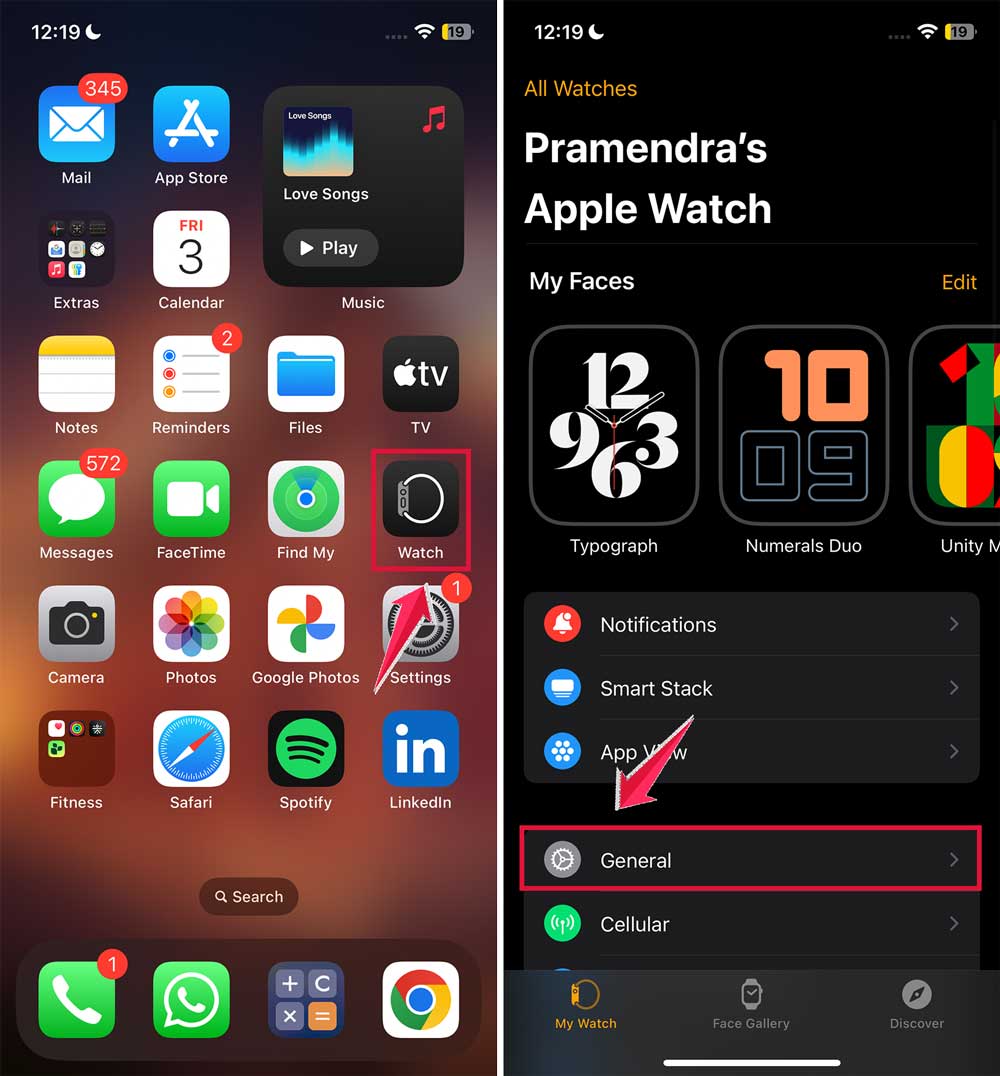
- If an update is available, follow the prompts to install it.
#8 Watch Those Temperatures
Your Apple Watch needs to stay between 32° and 95°F (0° to 35°C) to work properly. If it’s too hot or cold, let it return to room temperature before trying to turn it on.
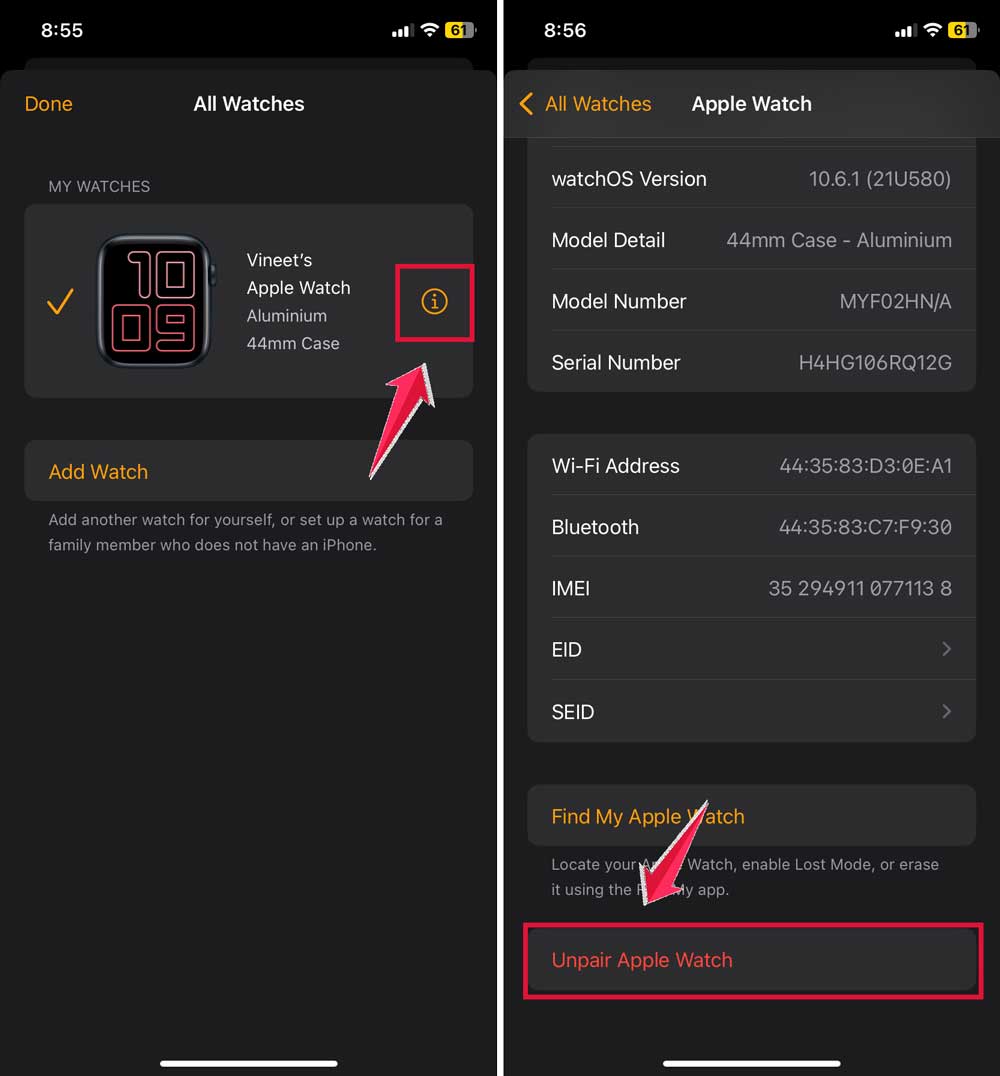
#9 Unpair and Repair
This often fixes stubborn software issues:
- Keep your watch and iPhone close together.
- Open the Watch app on your iPhone.
- Tap All Watches.

- Tap the info button (i) next to your watch.
- Choose Unpair Apple Watch.
- Follow the prompts to pair it again.
#10 Factory Reset Options
If nothing else works, you might need to reset your watch. But don’t worry – you can restore from a backup:
- On your watch (if you can access it), go to Settings.

- Click on General > Reset.

- Choose Erase All Content and Settings.
- Follow the setup process when it restarts.

#11 Check for hardware damage
Sometimes, the issue lies with the hardware itself. Check your Apple Watch for screen damage or cracks. These can interfere with the device’s functionality.
Look for signs of water damage, like discoloration or a sticky residue around the edges.
Pay close attention to the case and battery. If you notice any bulging on the screen, it might be a sign of a swollen battery, which is a serious issue.
Similarly, inspect the case for dents or other physical damage that could prevent your watch from working properly.
If you spot any of these signs, it’s best to move on to the next step and seek professional help.
#12 When to get professional help
Sometimes, even your best efforts won’t resolve the problem. That’s when it’s time to call in the experts. Start by checking if your watch is still under warranty.
Visit checkcoverage.apple.com, enter your watch’s serial number, and see if coverage is available.
If the warranty is valid, this could save you the cost of repairs.
Remember, if these solutions don’t work, don’t try to repair the watch yourself – you might cause more damage. Apple’s technicians have the right tools and expertise to fix your watch safely.
How to keep your Apple Watch running smoothly
You know what, preventing issues is always better than dealing with them later, right? A few simple habits can go a long way in ensuring your watch works perfectly every day.
#1 Smart battery care
Your Apple Watch’s battery needs a little attention to stay healthy. Keep it charged between 20% and 80% whenever possible. This helps maintain its long-term battery life.
Avoid letting the battery drop to 0% for extended periods, as it can degrade performance over time.
Always use original Apple charging equipment. Those cheaper alternatives might seem like a good deal but can cause problems later on.
And here’s a tip: Remove your watch from the charger once it’s fully charged. Leaving it on overnight doesn’t help and could add unnecessary strain on the battery.
#2 Daily maintenance made simple
A little daily care goes a long way. Clean your watch regularly, especially after workouts. Sweat and dirt can build up, so take a moment to wipe it down with a soft, damp cloth.
Don’t forget about the charging port. It’s worth checking and cleaning it every few days to ensure nothing’s blocking the connection. And make sure you’re always running the latest software.
Update your watchOS whenever new versions are available. Finally, restart your watch once a week to keep everything running smoothly.
#3 Common mistakes to avoid
Some habits can lead to unnecessary problems. Don’t wear your watch in very hot water. Like in a hot tub, as it’s not designed for extreme heat. Also, avoid exposing it to extreme temperatures, whether it’s freezing cold or scorching hot.
Be gentle with your watch. Don’t press too hard on the screen or buttons, as this can cause physical damage over time. When cleaning, stick to mild methods. Never use harsh cleaning products, which could harm the materials.
Lastly, don’t ignore software updates. They’re there to improve performance and fix bugs, so install them as soon as you can.
The Takeaway
Here’s what you need to remember about fixing an Apple Watch that won’t turn on. Most problems are simpler than they seem – often it’s just a charging issue or a setting that needs adjusting.
Start with the basics: check your charger, try a force restart, and make sure Power Reserve mode isn’t stuck on. If those don’t work, move on to more detailed solutions like checking for updates or unpairing and repairing your watch.
Still having trouble? Don’t worry – that’s what Apple Support is for. They’ve seen it all and can help get your watch back to normal. Whether it’s through an Apple Store visit or a call to support, you’ve got options.
Remember, your Apple Watch is a sophisticated piece of technology that’s built to last. With proper care and maintenance, you can avoid most common issues and keep it running smoothly for years to come.
Have a question about any of these solutions? Drop a comment below, and I’ll help you figure it out. Sometimes the fix is simpler than you think!