You’ve shared your location with someone before. Maybe it was your partner, a friend, or a family member. But now, something has changed.
You had a fight with your girlfriend/boyfriend, you are angry with your friend, or a family member. You know, reasons can be any.
You don’t want them to see where you are anymore. So you’re thinking of removing them from Find My App.
But here’s the big question… Will they get notified?
Let’s clear it all up. in simple, real-talk language.
What happens when you remove someone from Find My?
First, you need to know exactly what this action does.
When you remove someone from Find My, they stop seeing your location. You stop seeing their location. It completely ends location sharing between both of you.
It’s not just one-way. The connection cuts off from both ends.
Now, the moment you hit that Remove button, they do get a notification. They will be notified that they have been removed. And, you have removed them.
So no, there’s no way to remove someone from Find My quietly.
Apple designed it to protect both people. That way, no one can sneak around behind the other’s back.
And honestly? That’s fair. If someone stopped sharing their location with you, wouldn’t you want to know?
Can you stop sharing your location without removing your friend?
Yes, you can. If you don’t want them to get a notification, just don’t remove them.
Instead, just turn off location sharing for a while. It’s way more discreet.
They won’t get a pop-up saying, “You’ve been removed.” But keep in mind. If they check your profile in Find My, they’ll see that your location is no longer available.
So it’s not 100% invisible. But there’s no direct alert like when you actually remove them.
How to stop sharing location quietly
Sure, I understand now. You don’t want to hurt someone. You just want privacy.
A simple way to stop sharing your location without triggering a notification.
- Open the Find My app on your iPhone.
- Tap the “People” tab at the bottom of the screen.
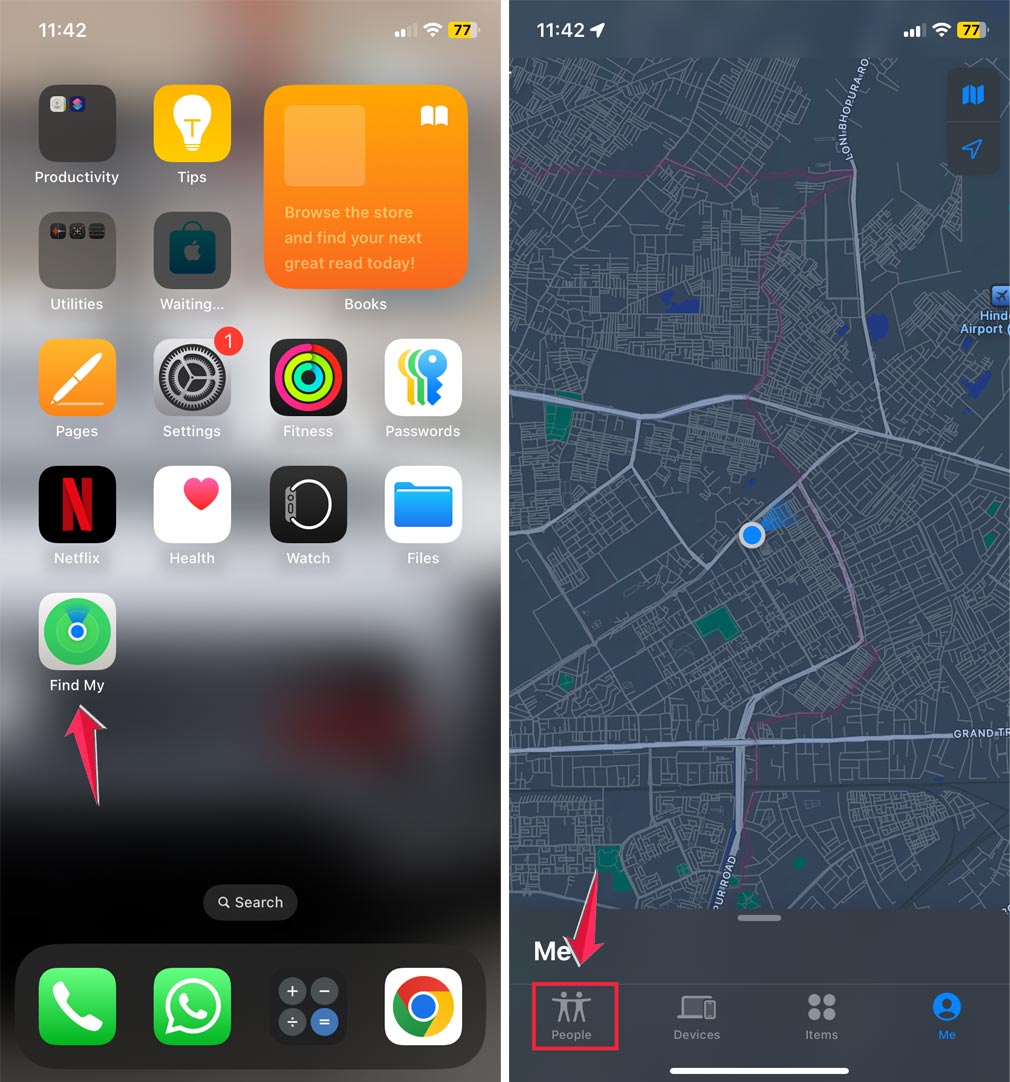
- Find and select the person you want to remove.
- Scroll down to the bottom of their profile page.
- Tap “Remove <Name>“.

Done. You’ve stopped sharing your location across all devices.
And guess what? Nobody gets notified.
But if they open the Find My app and check your name, they’ll just see “Location not available.” That’s it. No message, no ping, nothing.
What if you want to remove just one person?
If your goal is to cut off just one person and not others, then use the Find My app directly. Here’s what to do.
- Open the Find My app on your iPhone or iPad.
- Tap the “People” tab at the bottom of the screen.
- Find and select the person you want to remove.
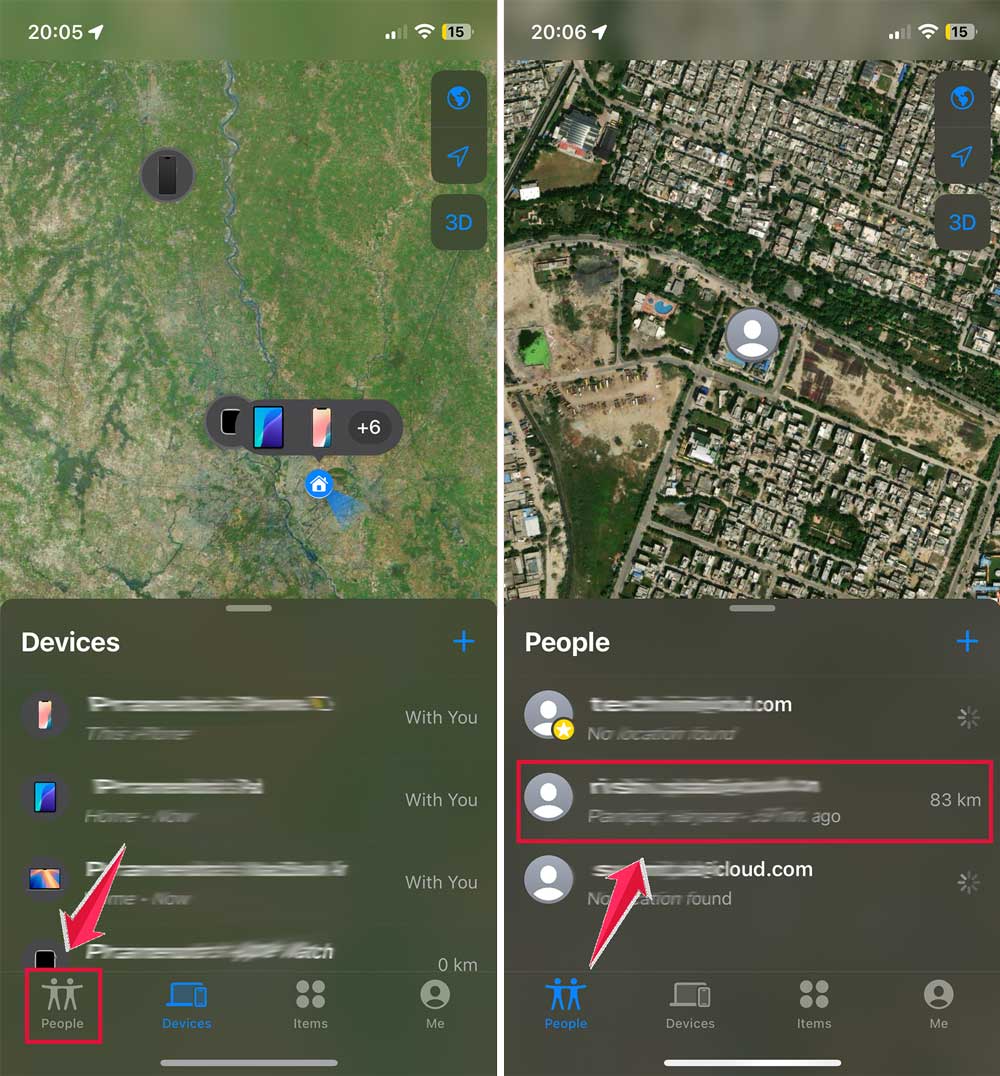
- Tap “Stop Sharing My Location“.
- Tap it again to confirm.
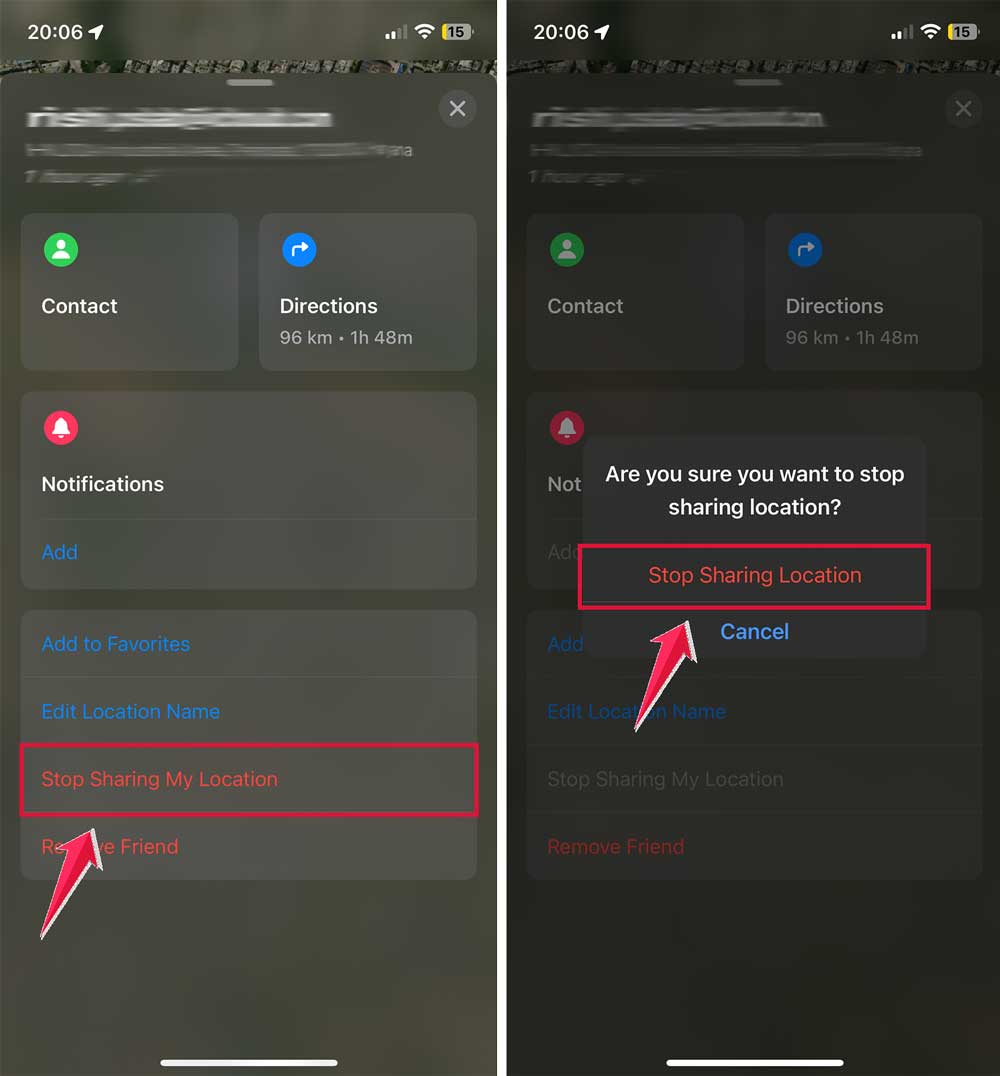
This will remove them. And yes, they’ll get notified.
You can’t dodge that part.
Can you delay the notification somehow?
Nope. The moment you remove them, the notification is sent.
There’s no “timer” or delay option. No setting to make it silent. Apple doesn’t allow it.
It’s built this way to prevent misuse. Think about it. Without this system, someone could cut you off completely, and you’d never know.
So it’s always instant.
What if you try turning off your iPhone?
You might think, “What if I just turn off my phone. Won’t that hide my location?”
Yes, it will. But it also means you can’t use your phone while hiding. Plus, people will eventually notice your location went offline.
So while it’s an option, it’s not practical if you’re just trying to create some distance quietly.
Can you trick the system by using another device?
Actually, yes. If you have another Apple device, like an iPad. You can make that your “main” location.
Go to the other device.
- Open Find My.
- Tap Me at the bottom.

- Choose Use This [Device] as My Location.
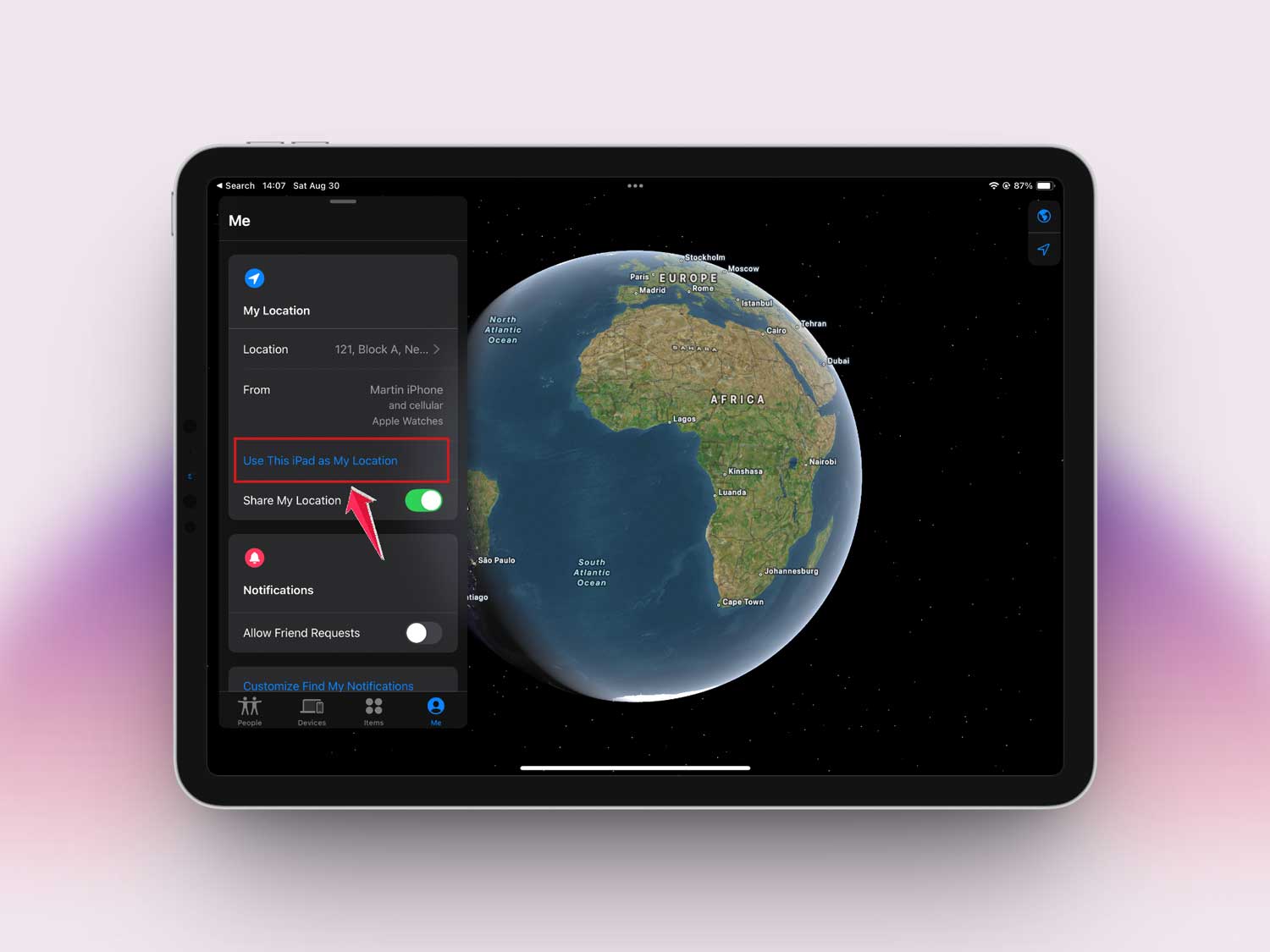
Now that device becomes your shared location. So your iPhone could be anywhere, and they’ll still see the iPad’s location.
It’s a clever workaround if you want to keep sharing, but from a different place.
Can you use Airplane Mode to hide?
Temporarily, yes. If you turn on Airplane Mode, your iPhone stops sending location updates.
Go to Settings. Turn on Airplane Mode.
But just like powering off the phone, this isn’t a long-term fix. Your location will show as “Not Available.” And eventually, they’ll realize something’s up.
Does Find My tell them why you removed them?
No. They’ll only see that you’ve stopped sharing your location.
It won’t say when or why. It won’t show any message like “You’ve been removed.” It’s just a quiet line of text inside the app.
Still, if you were sharing for a long time, they’ll likely notice and may even ask you about it.
What if you remove them and they try to re-add you?
They won’t be able to unless you accept it.
That’s the good part. If you remove someone from location sharing, they can’t just add you back without your consent.
They’d have to send a new location-sharing request. And you’d have to approve it.
So once they’re removed, you stay in full control.
Should you talk to them before removing?
Honestly, that’s your call. If it’s someone close and you care about their current location because you need to track them. Then yes, you should think about it before removing them.
But if it’s someone you need to cut off. for safety, boundaries, or your peace. Then don’t feel guilty. You’re not doing anything wrong.
Will they still see your old location?
No. Once you remove someone from Find My, they can’t see any past or future location data.
It’s wiped clean from their view.
So if you’re worried about them keeping a record, don’t be. Apple doesn’t let anyone access history like that through Find My.
What’s better? Remove or just stop sharing?
It depends.
If you want to quietly take a break without triggering anything, just stop sharing.
But if you want a clean break and don’t mind if they get a small notification, go ahead and remove them.
Both methods work. One is softer, the other more final.
The takeaway
You’re in control of who sees your location. And that’s powerful.
If you remove someone from Find My, they will get notified. There’s no way around it. It’s how Apple keeps things transparent and safe for everyone.
But you can stop sharing your location without triggering alerts. Just turn off “Share My Location” in Settings. Or redirect the location using another Apple device.
Either way, your privacy matters.
Whether you want peace of mind, need space, or are moving on from someone. You’re allowed to take back that control.
Just remember, the other person might notice. So if you want to avoid any drama, think through which method works best for you.
You’ve got this.
And if you’ve been thinking about cutting someone off from tracking your location. That’s your sign to do it.