So, your iPad keeps saying the storage is full, huh? Super frustrating, especially when you’ve already gone on a deleting spree. It’s like fighting a losing battle sometimes, right?
Here’s what’s weird: even after deleting stuff, your storage can still feel jam-packed. The usual troublemakers?
Well, it could be hidden caches from old apps, sneaky files hiding in odd places, or updates eating up more space than you expected. And don’t even get me started on those apps that sneakily download things again without even asking!
This really matters because, let’s be honest, you bought your iPad to use it, not to constantly clean it out. You want it to be fast, strong, and ready when you need it. Not stuck because of some invisible files.
But don’t worry—you’re in the right place. We’re going to dive into some quick, easy fixes. Once we’re done, your iPad will feel brand new again.
Ready to reclaim that space? Let’s jump in and get your iPad running smooth and efficient again!
What’s really eating up your iPad storage?
Alright, let’s tackle why your iPad keeps complaining about storage.
1. Cached Data Eats Space
Even when you think you’ve deleted everything, those sneaky little caches are still hanging around. Apps save bits of data to make things load faster, but over time, they start hogging more and more space.
So even if you’ve cleaned up, the leftovers from apps you barely use could still be sitting there, taking up precious space.
2. Recently Deleted Isn’t Gone Yet
Here’s the kicker: when you delete photos or files, they don’t disappear right away. They go on a little “vacation” in the “Recently Deleted” folder.
Until you clear that out, those files are still holding onto your storage like they own the place.
3. System Storage Might Surprise You
Sometimes, it’s not you—it’s the system itself. Updates and iOS files can quietly eat up a lot of space without you even noticing.
You think you’ve cleared enough, but the system sneaks in and takes a big chunk.
4. Apps That Just Won’t Quit
Some apps are stubborn. They download data in the background without telling you. It feels like they’ve got a mind of their own, right?
Even after you clean up, these apps can fill your storage back up without you doing a thing.
Got it? Good. Now that you know what’s happening, let’s fix it!
How to Fix iPad Says Storage Full But You Deleted Everything
Alright, let’s roll up our sleeves and get your iPad back in shape. It’s like we’re digital detectives, finding out where the space went!
#1 Clear App Caches
First up, let’s clean out those app caches. They love to hide and hog space.
Here’s what you need to do:
- Open your Settings app.

- Tap on General.
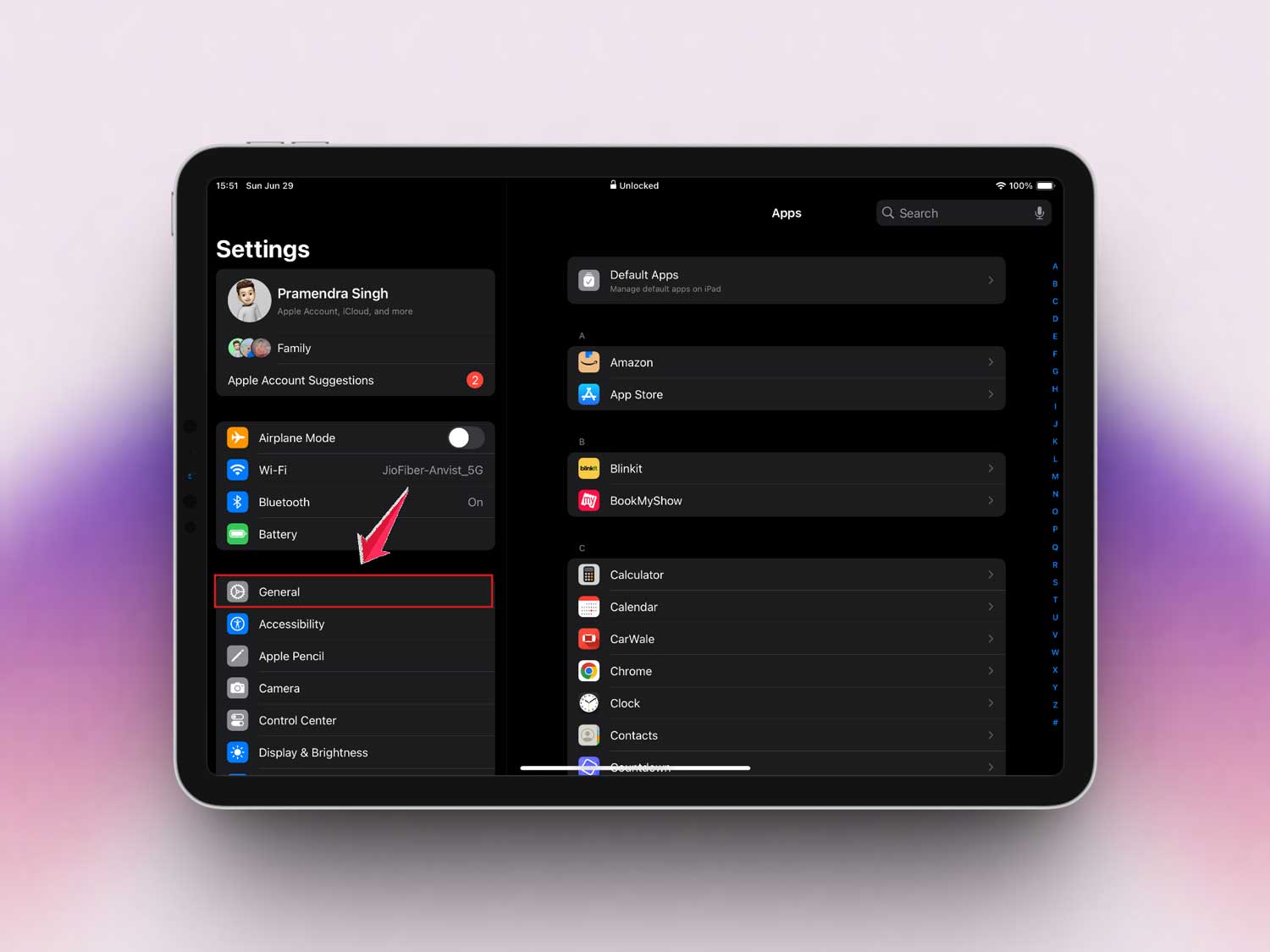
- Then iPad Storage.
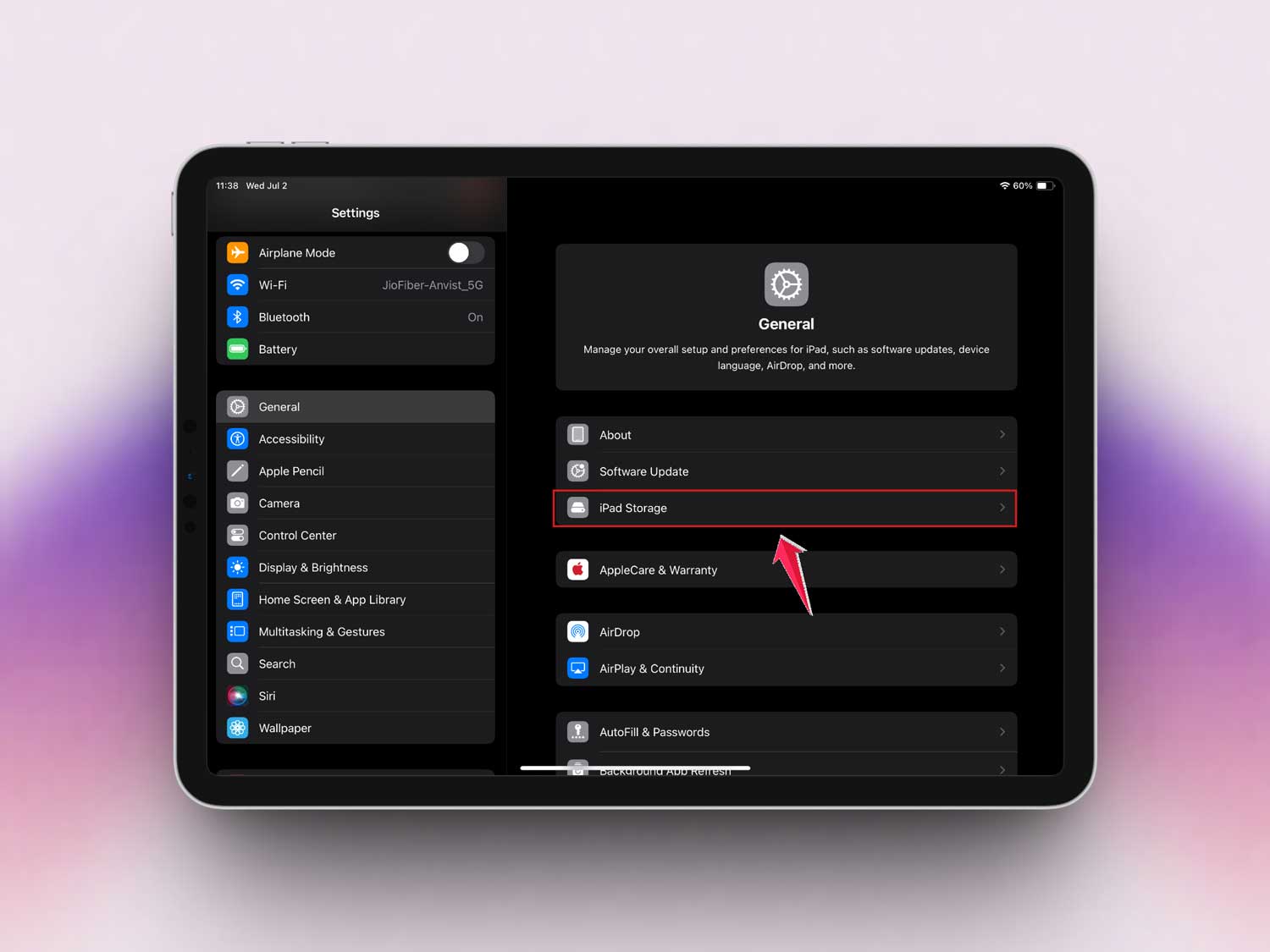
- Scroll through the list and see which apps are using the most space.
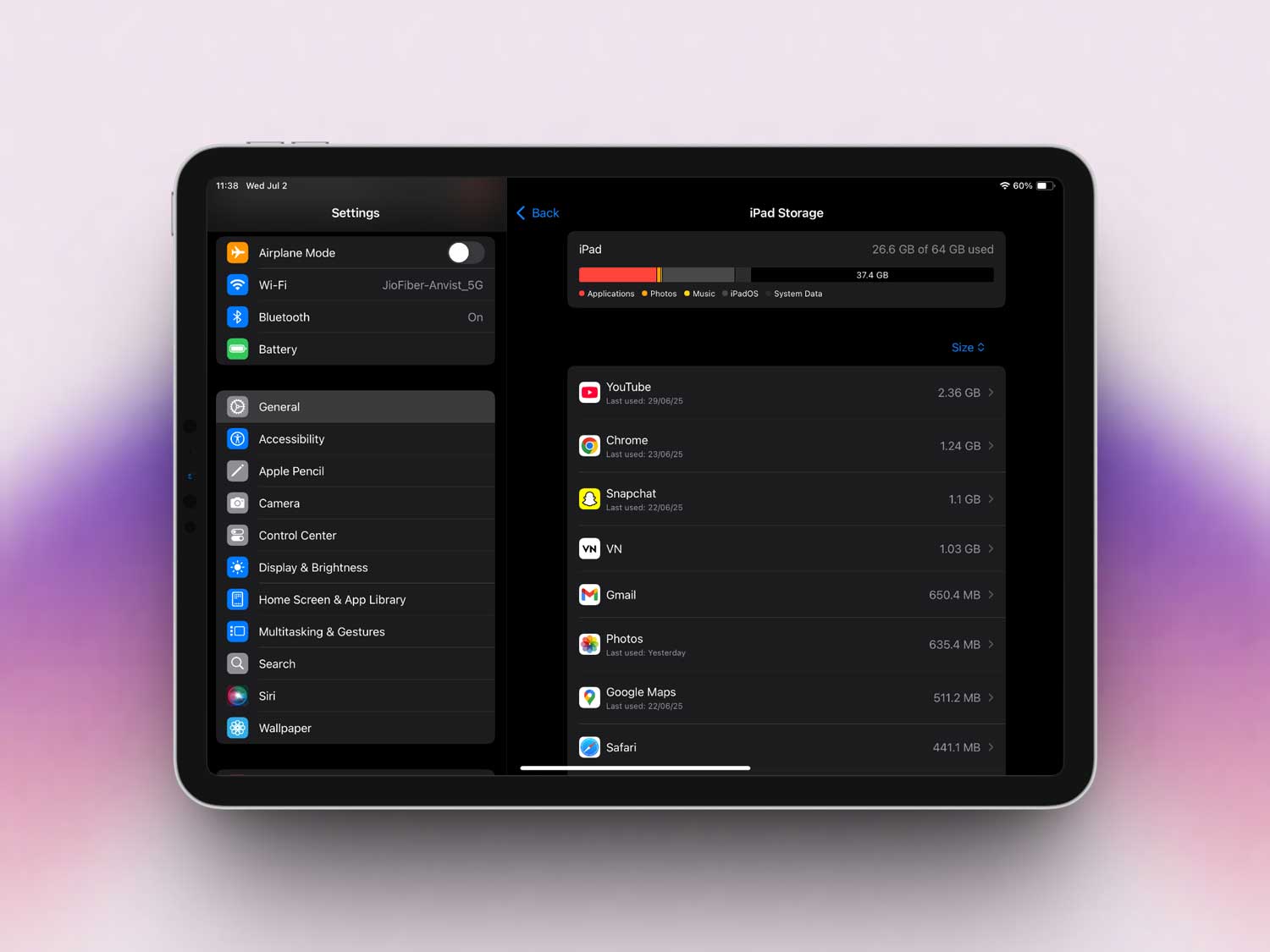
- Tap on an app. If it lets you clear the cache, do it. If not, you might want to delete and reinstall the app to really clear it out.
Sometimes, just reinstalling an app can free up a surprising amount of space!
#2 Empty Recently Deleted Album
Next, let’s clean out that “Recently Deleted” album. Trust me, it’s bigger than you think.
Here’s how:
- Open the Photos app.

- Scroll down and find the Recently Deleted album.

- Tap Select at the top.

- Then tap on the three dots in the bottom right corner.
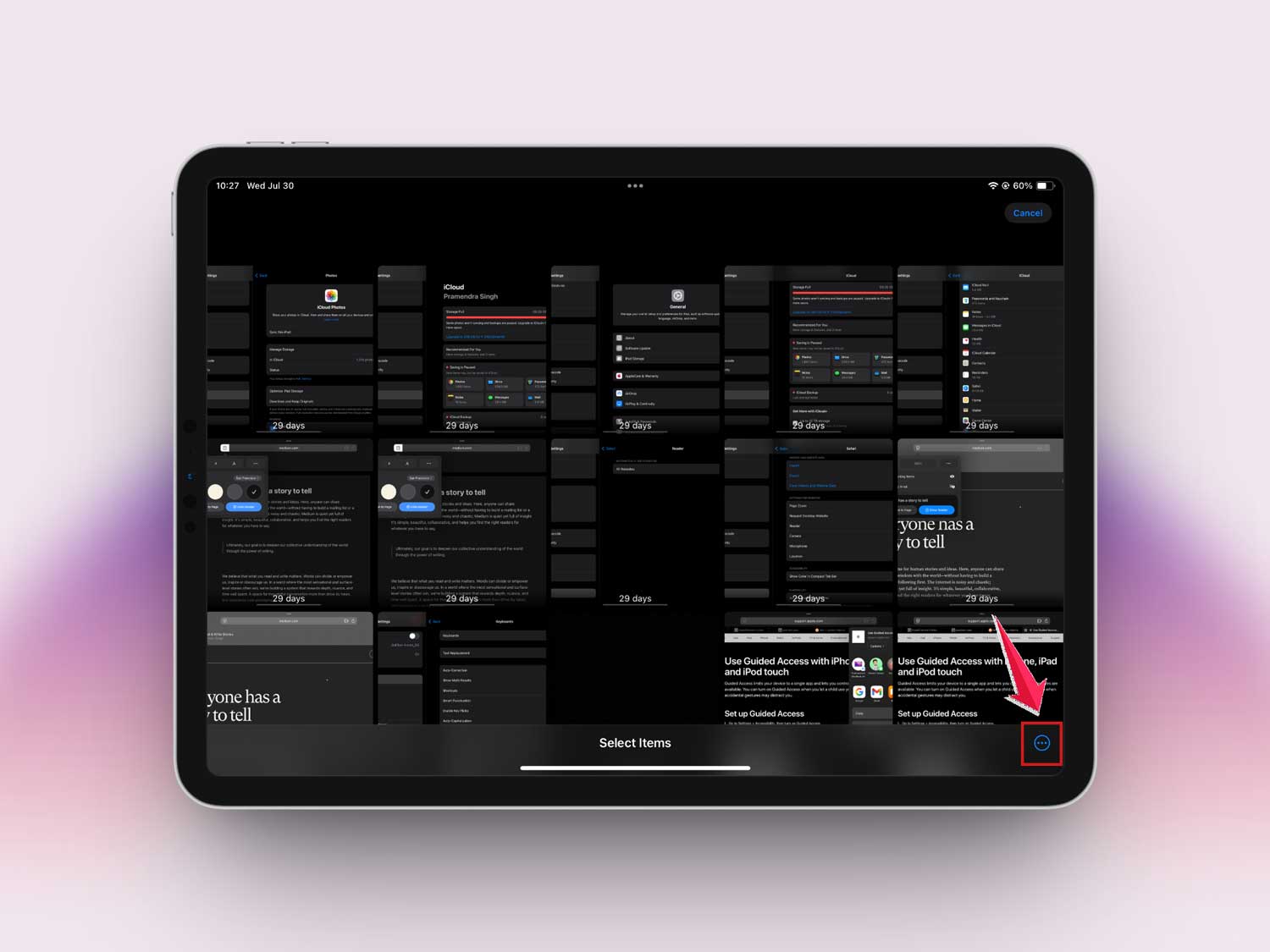
- Then hit Delete All to truly free up that space.

Feels good, right? Like finally cleaning out that junk drawer at home.
#3 Delete Unused Apps
Got apps you forgot even existed? Yeah, me too. Let’s get rid of them.
Here’s the easy way:
- Go back to Settings > General > iPad Storage.
- Look for apps you haven’t used in months tap on them.

- Then hit Delete App.

Remember, you can always reinstall them later if you really need them.
#4 Restart Your iPad
Don’t laugh, but sometimes all your iPad needs is a good old-fashioned restart. Seriously.
Here’s how:
- Hold down the power button until you see the “slide to power off” bar.
- Slide it to turn off your iPad.
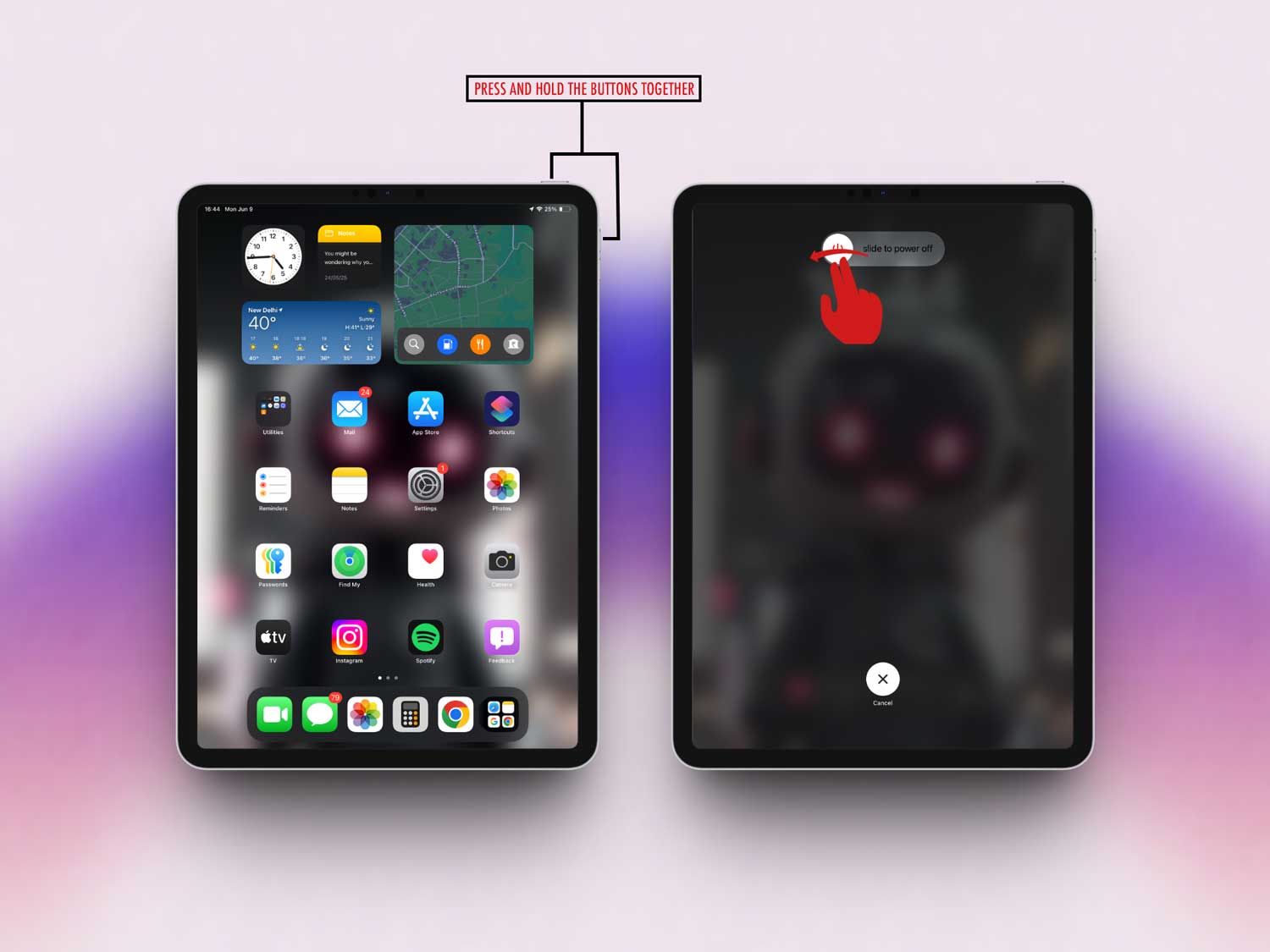
- Wait about 10 seconds, then hold the power button again to turn it back on.

This clears out a lot of temporary junk that’s just sitting there, slowing things down.
#5 Update iOS
Finally, make sure your software is up to date. Sometimes a simple update can fix hidden storage bugs.
Here’s what to do:
- Open Settings.
- Tap General.
- Then Software Update.

- If there’s an update available, go ahead and install it.
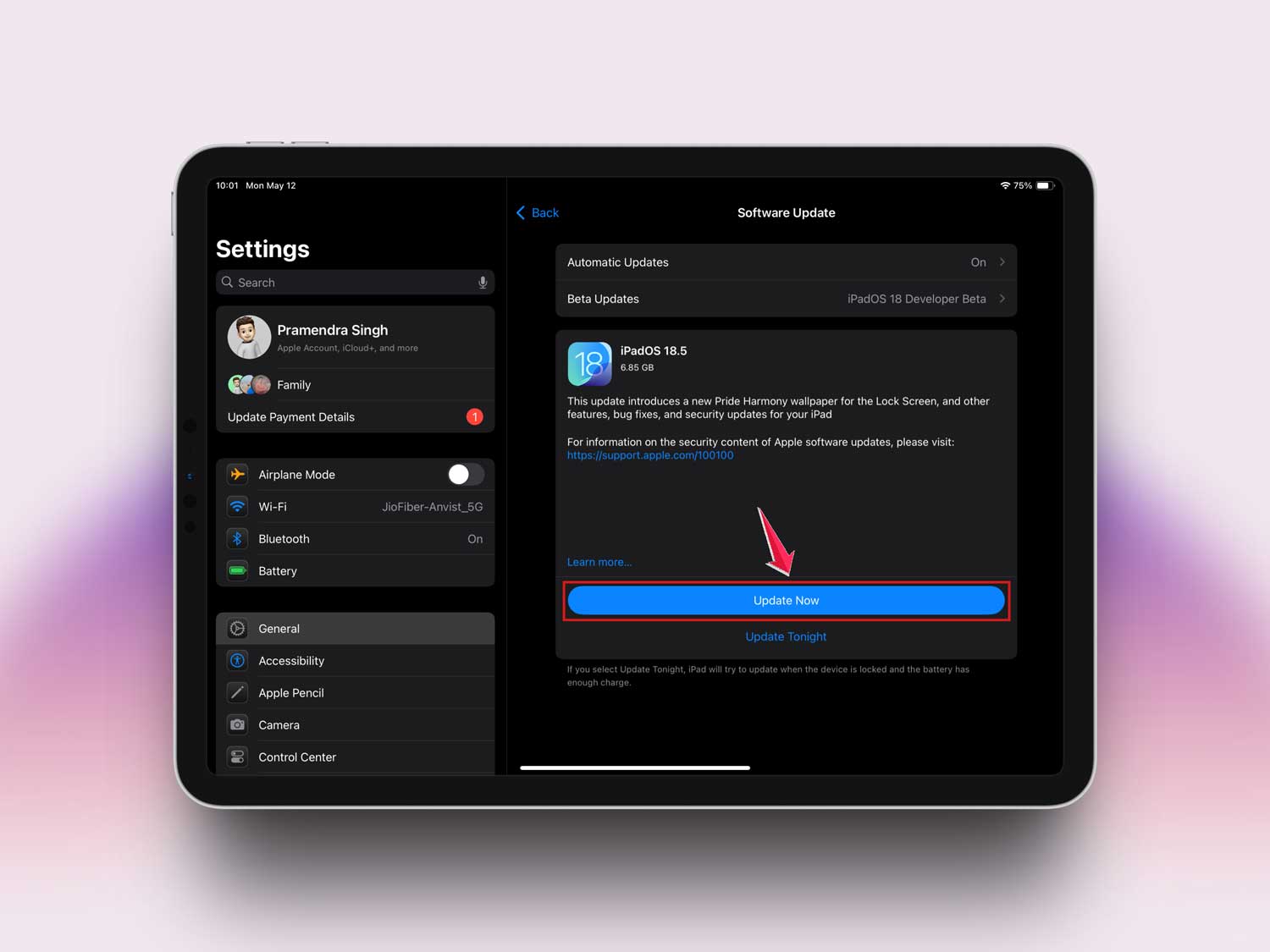
New updates often come with better storage management, so it’s worth it.
By doing these things, you’re giving your iPad a fresh start. It’ll run faster, smoother, and you’ll have way more room for the stuff you actually want.
And hey, if things still feel off? Don’t stress. A quick visit to the Apple Store can get you sorted out fast.
Extra Tips to Keep Your iPad Storage in Check
Alright, you’ve cleaned things up. But how do you keep it that way? Let’s talk about a few smart habits.
1. Use iCloud Wisely
Use iCloud to your advantage.
Move your photos and videos there. It saves tons of space without losing anything important.
- Go to Settings > Apps.

- Scroll down and tap on Photos.

- Toggle on iCloud Photos.
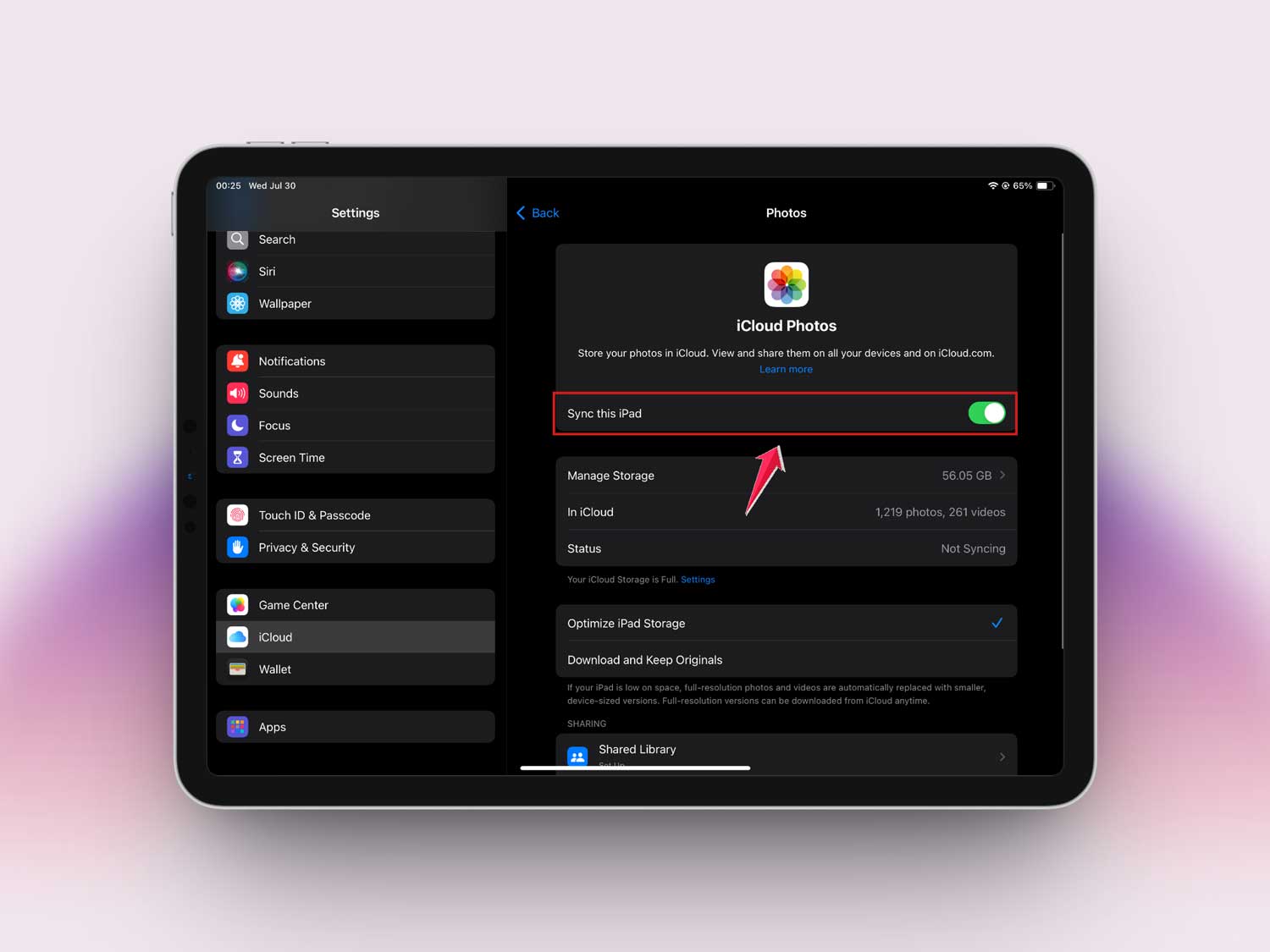
Easy, right?
2. Check Your Messages
Messages can be sneaky space hogs too.
Big videos and photos pile up without you noticing.
- Open the Messages app.
- Tap into a conversation.
- Hit Info and clear out large attachments.
Your iPad will thank you!
3. Avoid Downloading Just in Case
Think before you download.
Streaming is your friend. Apps like Netflix, Spotify, and YouTube let you enjoy everything without filling up your device.
Only download what you really need.
4. Clean Up “Other” Storage
That mysterious “Other” storage? You can tackle it too.
The best way is to back up your iPad and do a full restore. It’s a bit of work, but totally worth it.
You’ll see a big difference afterward.
5. Regularly Review Storage
Make it a habit.
Check your iPad storage once a month.
- Head into Settings > General > iPad Storage.
This way, you’ll catch any sneaky space hogs before they become a problem.
The Takeaway
Your iPad shouting “storage full” is super annoying—but it’s fixable.
Remember to clear those app caches, empty your “Recently Deleted” album, and keep an eye on sneaky apps that fill up space quietly.
Many people think deleting an app is enough, but those hidden files can still hang around until you really clean them out.
Take a little time today, follow these steps, and your iPad will feel brand new.
Got questions or more cool tips to add? Drop a comment below! 📱