Is your iPad taking forever to open apps or respond to your touch? You’re not alone. Many iPad users face this frustrating issue, whether they have an older model or a newer one.
Slow performance can happen for various reasons. Your iPad might be running out of storage space, or too many background processes could bog it down. Sometimes, outdated software or a buildup of unnecessary files can be the culprit.
The good news is that you can often speed up your iPad without needing to buy a new one.
In this guide, you’ll learn simple, effective ways to boost your iPad’s performance. We’ll walk you through step-by-step solutions that anyone can follow, even if you’re not tech-savvy.
By the end of this article, you’ll know how to make your iPad run smoother and faster. Let’s get started on bringing your device back up to speed!
How to speed up your slow iPad: Simple solutions for better performance
Is your iPad feeling sluggish? Don’t worry, you’re not alone. Whether you have an older model or a newer one, slow performance can be frustrating.
Let’s explore some simple ways to speed up your iPad and get it running smoothly again.
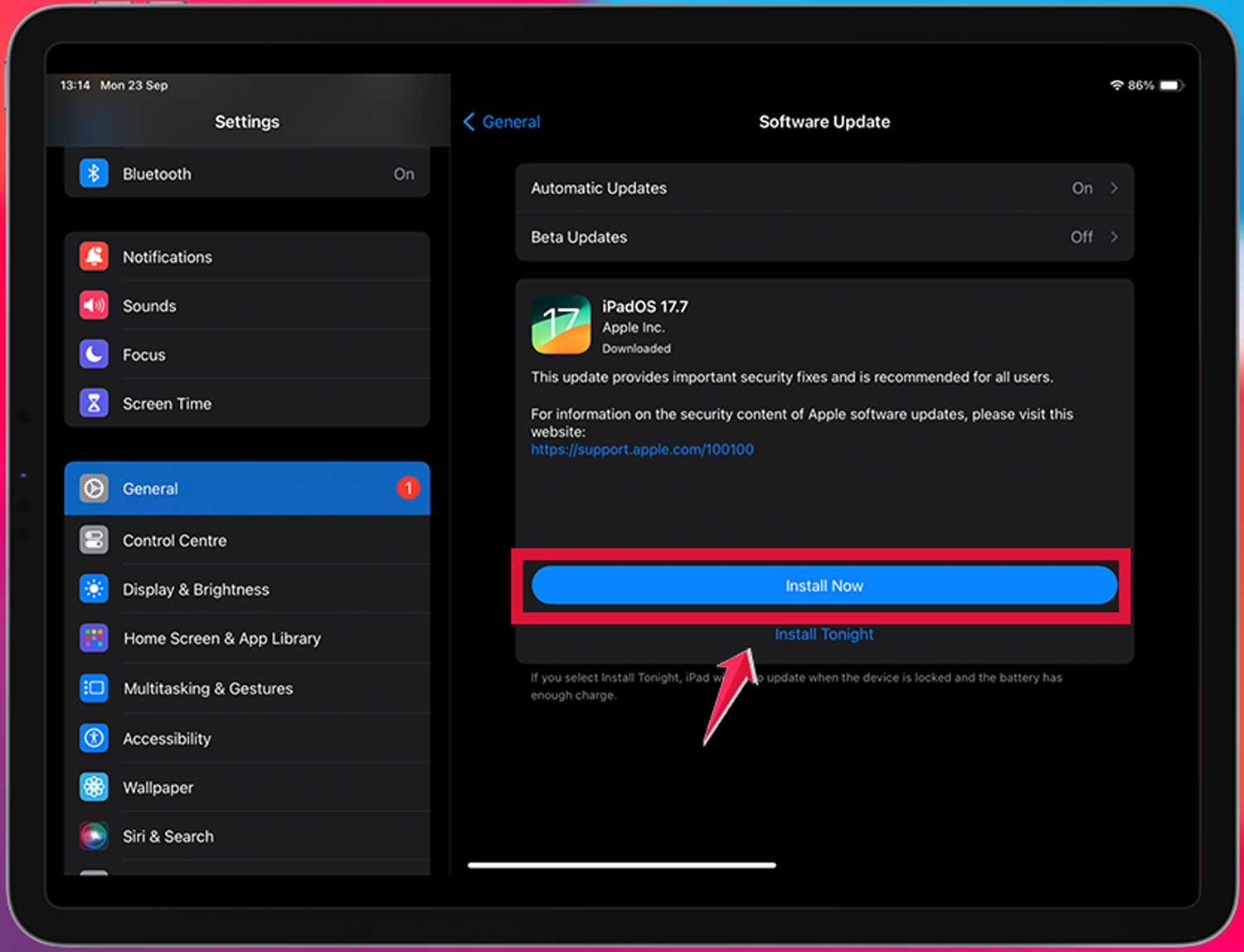
1. First things first: Update and restart
Before diving into more complex solutions, try these basic steps:
- Make sure your iPad is running the latest version of iPadOS.
- If your iPad is too old for the newest update, use the latest version it supports.
- Try a simple restart. This can often solve minor issues.
2. Check your internet connection
Sometimes, a slow internet connection can make your iPad feel sluggish. Here’s what you can do:
- Try a different Wi-Fi network to see if it helps.
- Move your Wi-Fi router closer to your iPad or place it higher up.
- Keep your router away from microwaves and other electronics that might interfere.
- Reset your network equipment by unplugging your modem and router for 30 seconds.
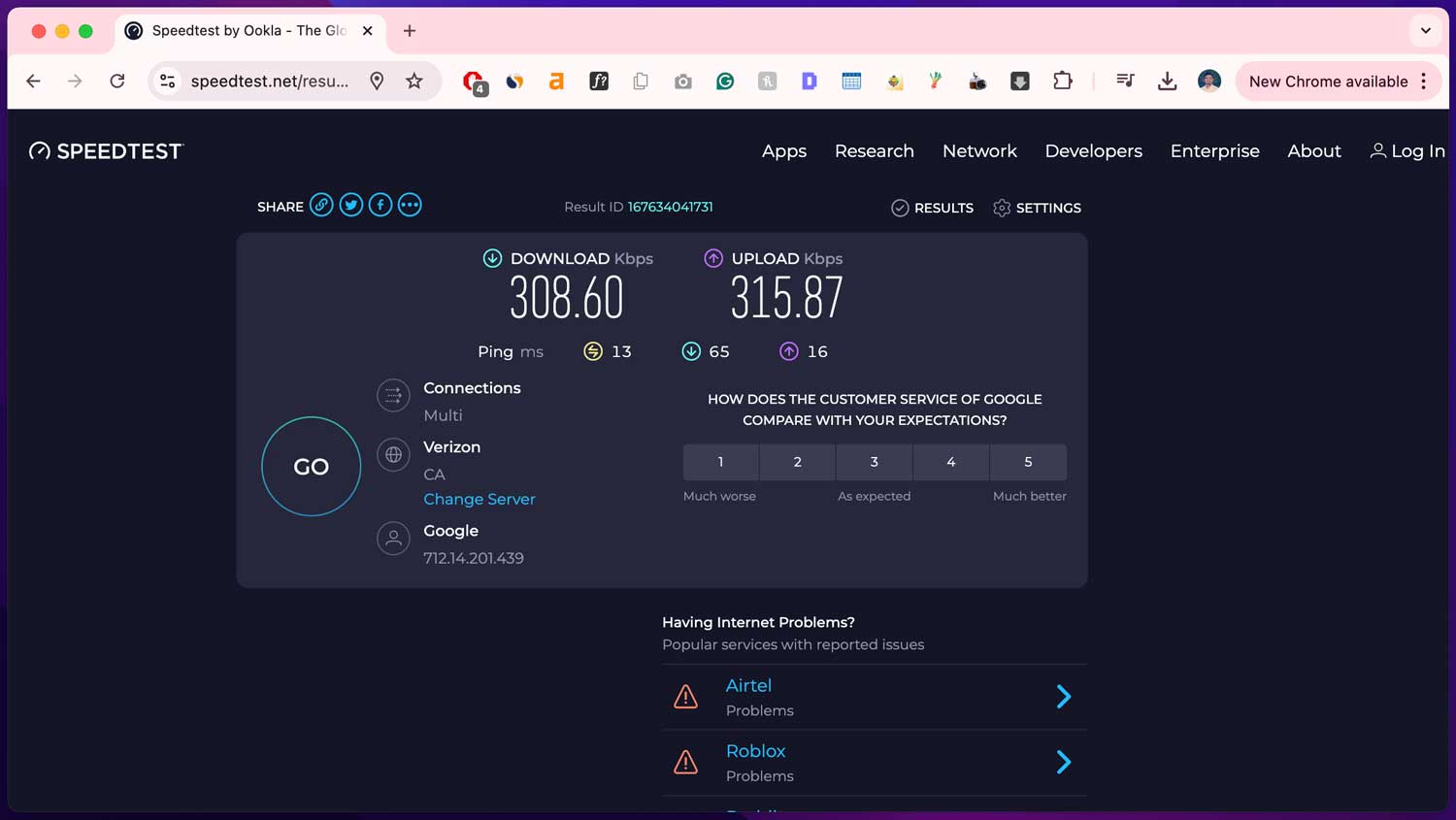
You can also test your internet speed using websites like fast.com or speedtest.net. This can help you determine if your connection is the problem.
3. Free up storage space
Your iPad needs free space to run efficiently. Here’s how to clear some room:
- Delete unused apps and files.
- Enable “Offload Unused Apps” in your settings.
- Move photos and videos to iCloud or delete unnecessary ones.
- Offload music you don’t listen to often.

Remember, there’s a difference between storage (where your files live) and RAM (memory used for active tasks).
Freeing up storage can help your iPad manage active data more efficiently. Just like on a Mac, freeing up memory to boost performance can also help your iPad run better.
4. Manage background processes
Some features can slow down your iPad by running in the background:
- Turn off or limit Background App Refresh in your settings.

- Adjust your graphics settings to reduce visual effects.
- Consider turning off Siri features you don’t use often.

5. Clear your browser cache
Regularly clearing your browser’s cache, cookies, and history can free up space and improve performance. This applies to Safari, Chrome, or any other browser you use.

6. Limit notifications
Too many notifications can slow down your iPad. Here’s what you can do:
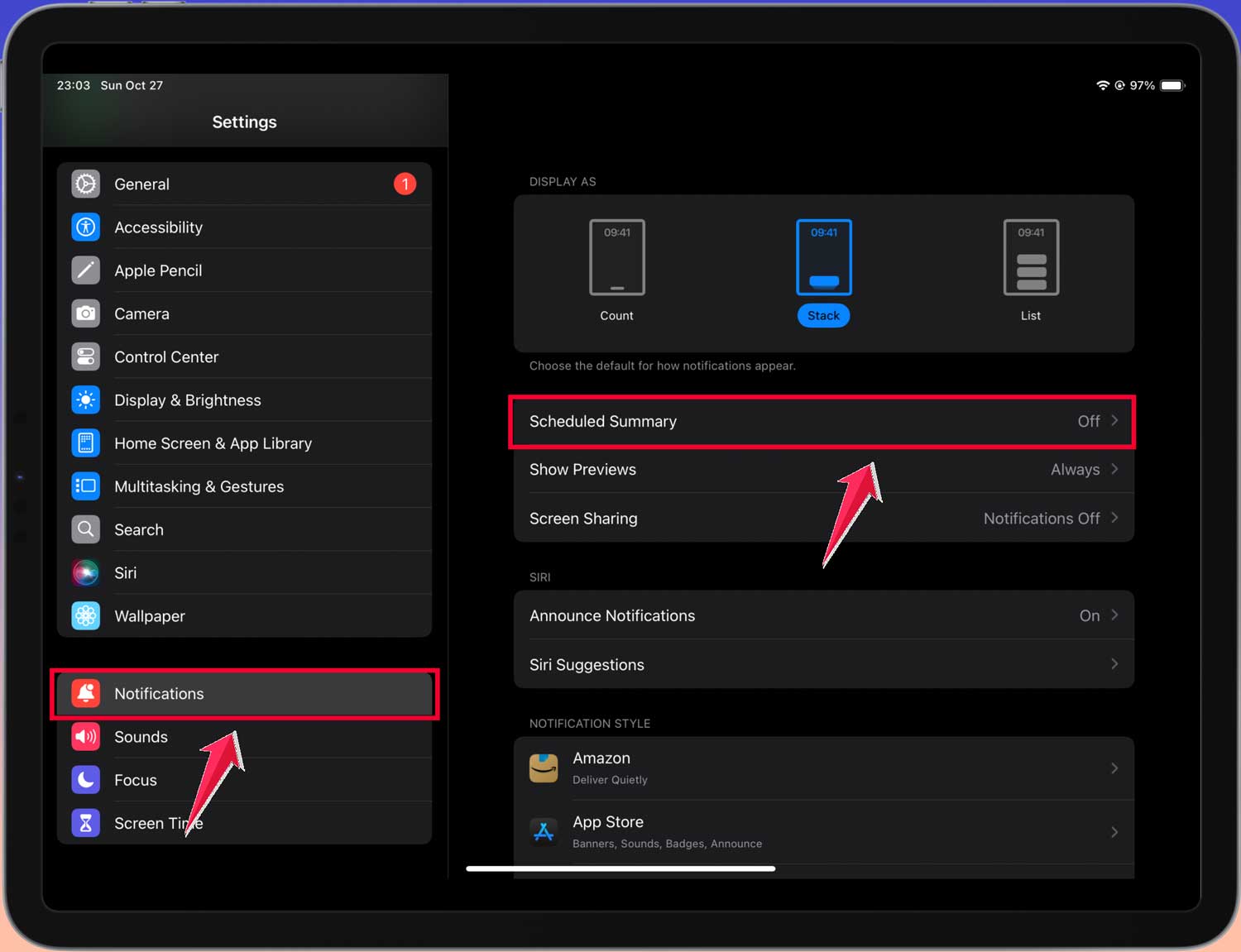
- Go to Settings > Notifications.
- Review your apps and turn off notifications for ones you don’t need.

- Consider using “Scheduled Summary” to group non-urgent notifications.
7. Reduce motion and transparency
These visual effects can tax your iPad’s resources:
- Go to Settings.
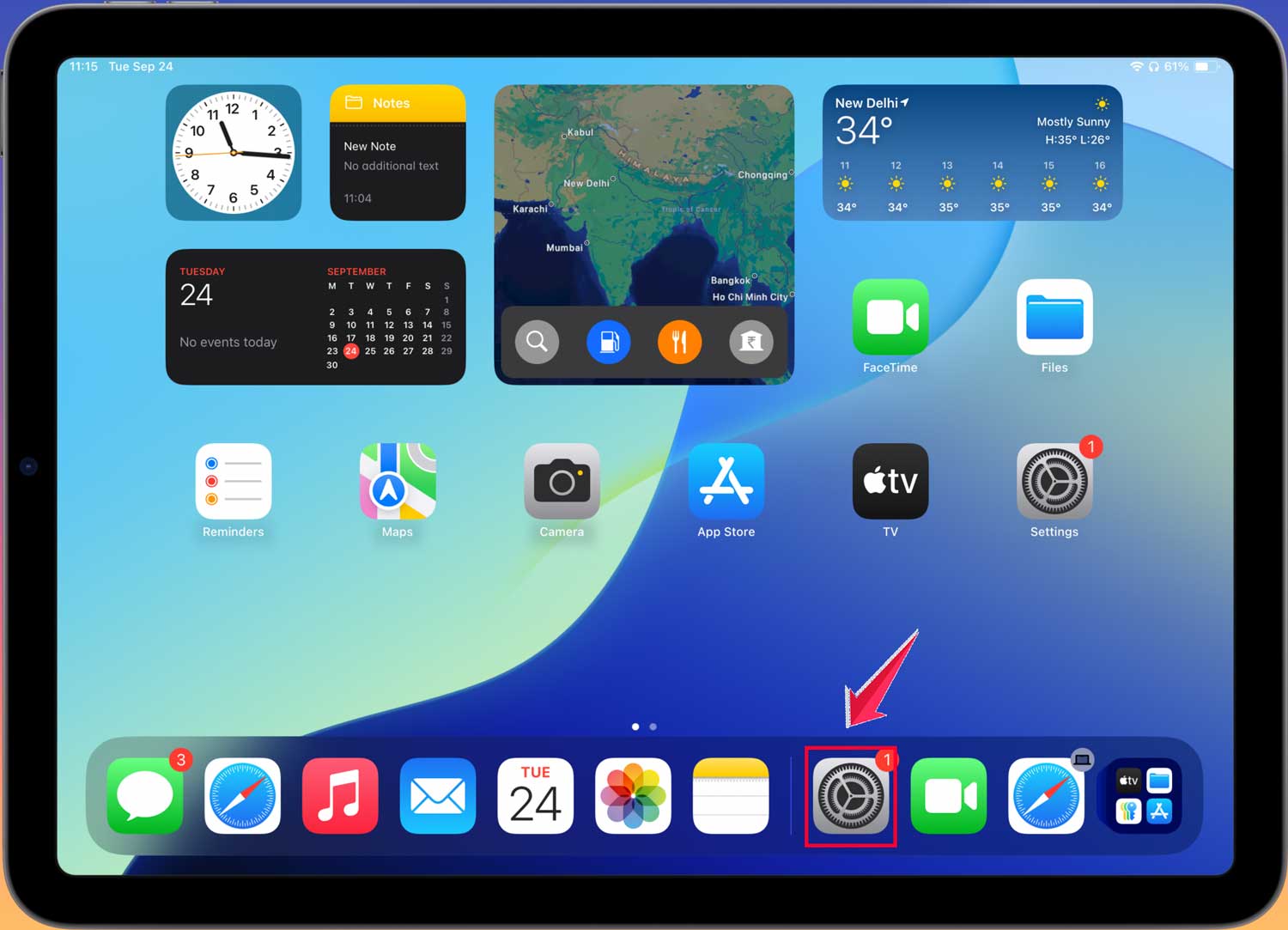
- Click on Accessibility > Motion.

- Turn on “Reduce Motion”.

- Enable “Prefer Cross-Fade Transitions”.

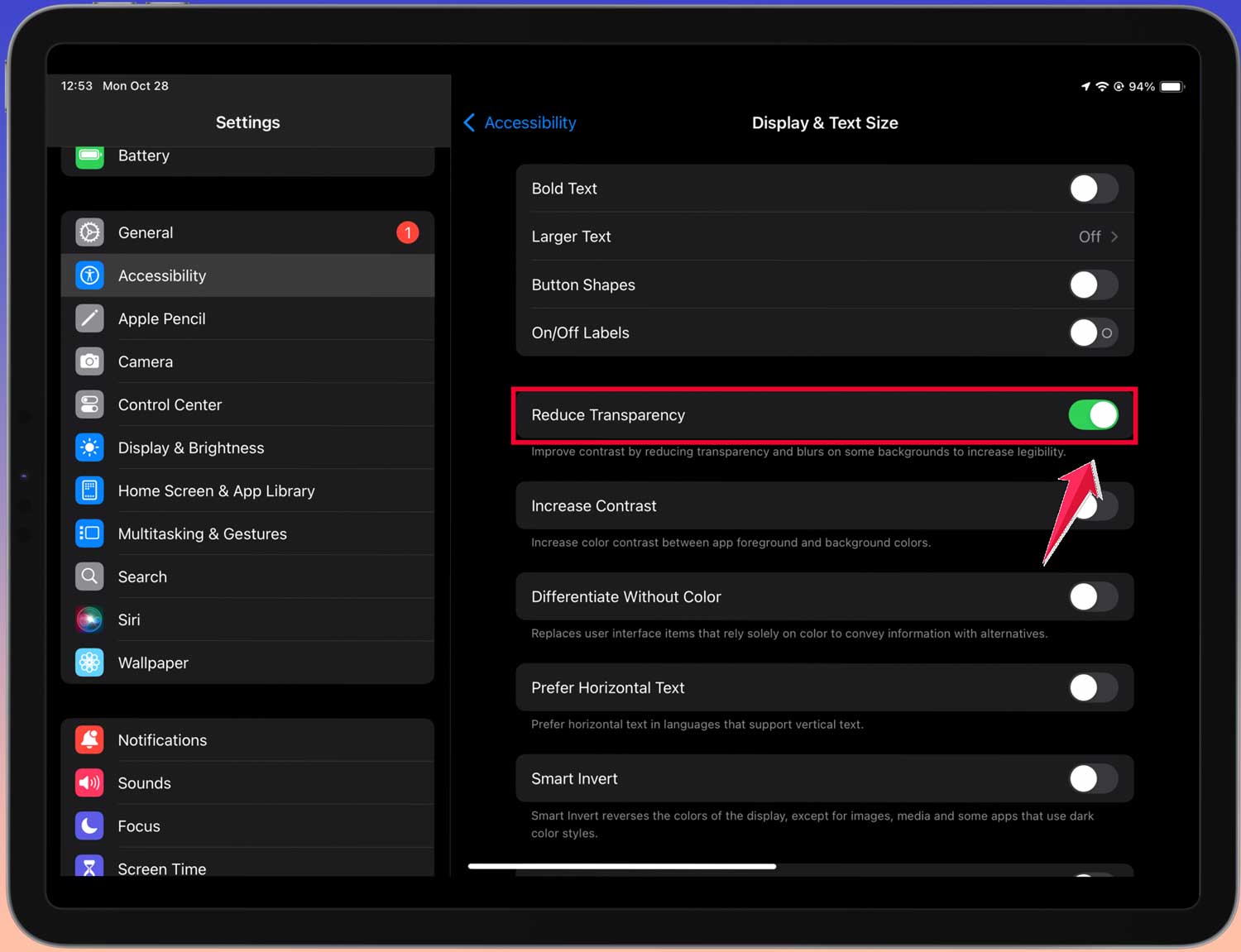
- In Display & Text Size.

- Turn on “Reduce Transparency”.
8. Clean up your home screen
A cluttered home screen can slow down your iPad:
- Remove unused widgets.
- Organize apps into folders.
- Consider using the App Library instead of multiple home screens.

9. Check for battery-draining apps
Some apps might be using excessive power, slowing down your iPad:
- Go to Settings > Battery.
- Look at the battery usage by app.
- Consider deleting or limiting the use of apps that consume a lot of power.

10. Disable automatic downloads
This feature can slow down your iPad in the background:
- Go to Settings.
- Click on App Store.
- Turn off “App Updates” and “Automatic Downloads”.

11. Reset network settings
If you’re having persistent connectivity issues:
- Go to Settings > General.
- Click on Transfer or Reset iPad.

- Tap “Reset” then “Reset Network Settings”.
- Note: This will remove saved Wi-Fi passwords, so have them ready.

12. Use content blockers in Safari
These can speed up browsing by blocking ads and trackers: Roadblocker – Content Blocker
- Download a Content blocker app from the App Store.

- Go to Settings.
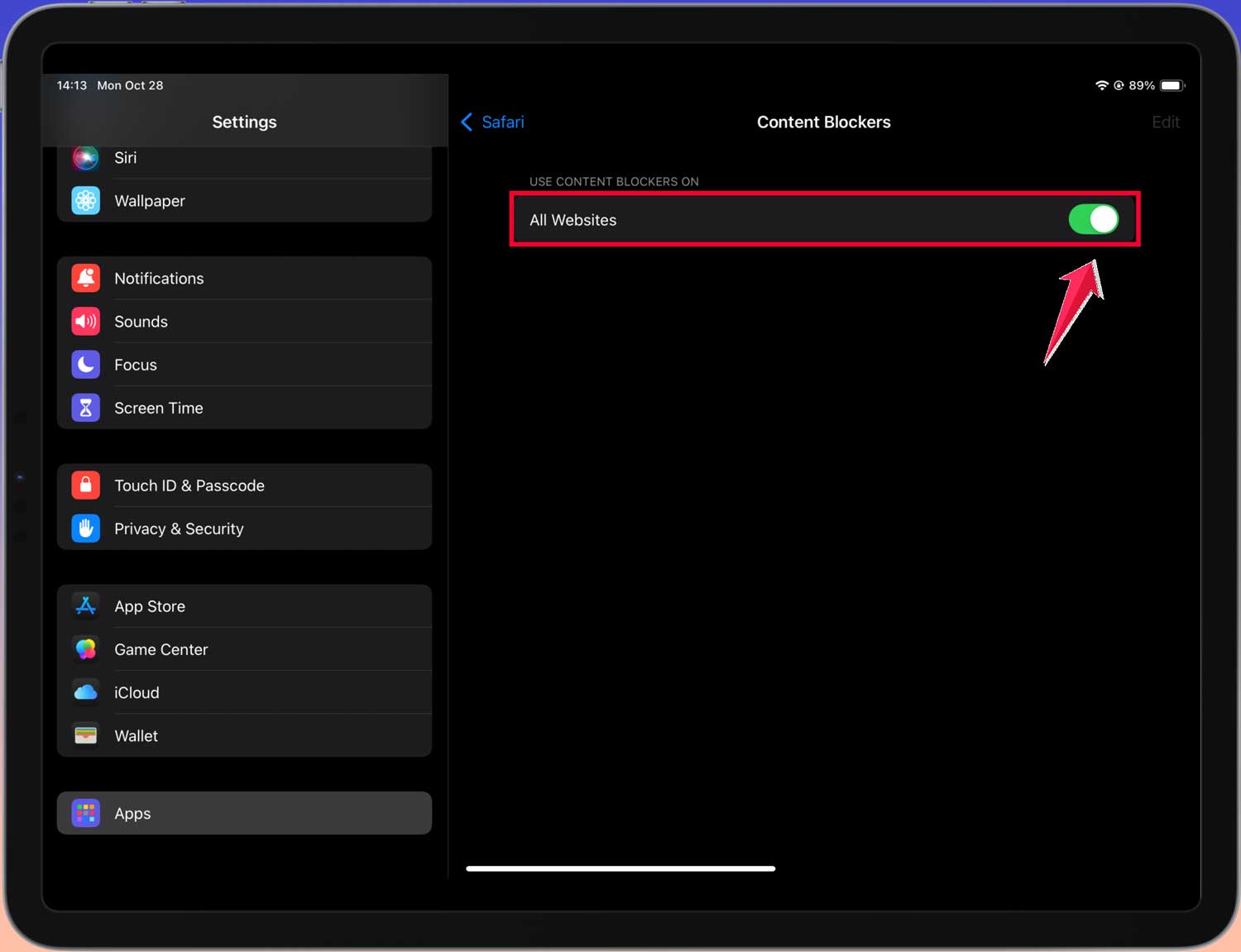
- Click on Apps > Safari.

- Click on Content Blocker.

- Content Blockers to enable it.
13. Reset your iPad settings
If you’ve tried everything else, you might want to reset your iPad’s settings. This keeps your data and apps but resets all your settings to default.
It can be time-consuming to set everything up again, but it might significantly improve your iPad’s performance.
These tips also help if your iPhone is also lagging or freezing.
14. When it’s time for an upgrade
If your iPad is still slow after trying these tips, it might be time for an upgrade. Apple offers trade-in and recycling programs for old devices.
You might be able to get an Apple Store gift card for your old iPad or at least ensure it’s recycled responsibly.
Remember, a slow iPad doesn’t always mean you need a new one. Often, these simple steps can breathe new life into your device. Give them a try and enjoy a faster, more responsive iPad!
The takeaway
A slow iPad can be frustrating, but it’s often a problem you can solve without buying a new device. Throughout this article, we’ve explored various ways to speed up your iPad, from simple updates to more advanced tweaks.
The key solutions we’ve discussed include freeing up storage space, managing background processes, and optimizing your settings.
Remember, sometimes a simple restart or an iOS update can make a big difference. Don’t forget to check your internet connection, too, as it can often be the culprit behind sluggish performance.
A common misconception is that older iPads are always slow. While age can be a factor, many older models can still perform well with proper maintenance and optimization. By applying the tips we’ve covered, you can often breathe new life into your device.
Your iPad is a powerful tool, and with a little care, it can continue to serve you well. Take some time to implement these suggestions, and you’ll likely see a noticeable improvement in your iPad’s speed and responsiveness. Remember, a well-maintained iPad is a fast iPad!
We’d love to hear about your experience speeding up your iPad. Feel free to share your thoughts in a comment below!