Ever tried restoring your iPhone and suddenly realized your iCloud backups just aren’t there?
Frustrating, right? You’re staring at your screen, expecting to see your saved data, but… nothing shows up.
Feels like something important just vanished. But don’t worry. You’re not alone in this.
This kind of issue usually pops up because of a few small things that went wrong.
Maybe you’re logged into the wrong Apple ID. Or your iOS is outdated.
Sometimes, your iCloud storage is full, or the last backup didn’t finish properly.
These things might seem small, but they can stop your backup from showing up completely.
And why does it matter so much? Well, when the backup doesn’t show, restoring your phone means starting from scratch.
That means your photos, messages, and apps. Everything could be gone. It’s like losing all your saved progress in a game. Not fun.
The good news? You don’t need to panic. There are some simple fixes you can try right now.
In this guide, I’ll walk you through everything step by step, in plain words. Let’s bring those backups back where they belong.
Why your iCloud backup might not be showing up
Let’s talk about the most common reasons your iCloud backup isn’t showing up when you try to restore your iPhone.
You don’t need to be a tech expert to figure this out.
1. You’re signed into the wrong Apple ID
This happens more often than you’d think. If you’ve got more than one Apple ID.
Or maybe you helped someone else with their phone. You might be logged into the wrong one.
Backups are tied to specific accounts, so if you’re signed into the wrong one, you won’t see your backup.
2. Your iPhone’s software is outdated
Apple updates iOS to fix bugs, including ones that affect iCloud.
If your phone is running on an old version, that might be the reason your backup isn’t showing up. Keep your software updated to avoid these hiccups.
3. Your iCloud storage is full
iCloud only gives you a limited amount of free space. If you’ve used it all up, the backup might not have been saved properly.
And if it didn’t save, it won’t show up when you try to restore.
4. Your last backup didn’t complete
Sometimes the backup starts but doesn’t finish. Maybe your Wi-Fi dropped, or your phone ran out of battery.
If the process was interrupted, the backup won’t be usable, and it won’t show up at all.
So, yeah, these things can mess with your iCloud restore. But now that you know what might be going on, let’s fix it.
Fixes & Solutions: Getting Your iCloud Backups to Show Up
Alright. Let’s roll up our sleeves and fix this. I’ll guide you through each step.
These are simple things you can do right now to get your backups to appear again.
#1 Make sure you’re signed into the correct Apple ID
This is the first thing you should check. If your backup is tied to a different Apple ID, it won’t show up here.
Let’s check your Apple ID:
- Open the Settings app on your iPhone.
- Tap your name at the top to view your Apple ID.
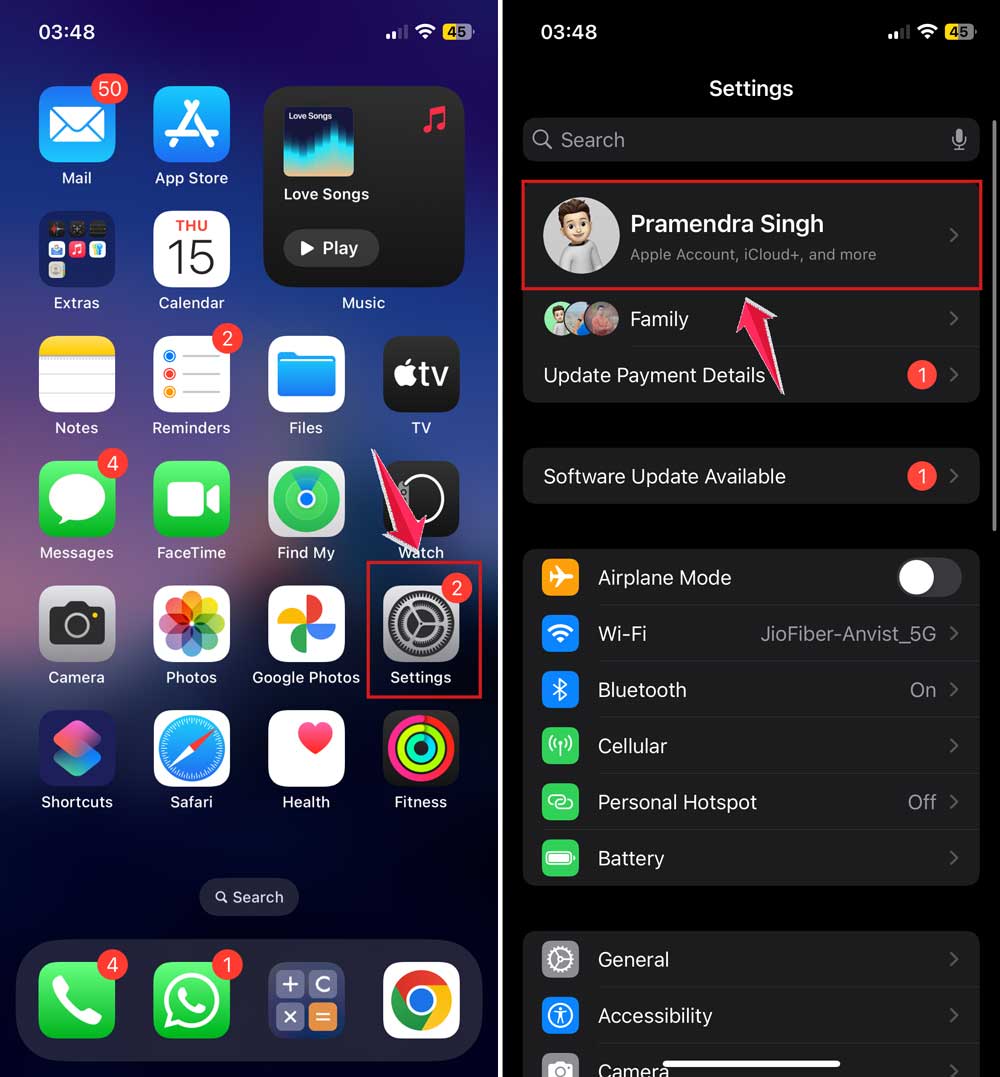
- Look at the email address listed. Does it match the one you used for your backup?
If it’s not the right one, sign out and sign back in with the correct Apple ID. This alone solves the issue for many users.
#2 Update your iPhone to the latest iOS
I know updates can be annoying, but they actually help a lot. Sometimes, a small bug in the system can block your backup from showing up.
Here’s how to update:
- Open Settings.
- Go to General.

- Tap Software Update.
- If there’s an update, tap Update Now.

Once your phone is updated, try the restore again. Updates often fix things silently in the background.
#3 Check if your iCloud storage is full
If your iCloud is out of space, your last backup might not have saved properly. Let’s check your storage.
- Open Settings.
- Tap your name.
- Then tap iCloud.
- Look at how much storage is used.
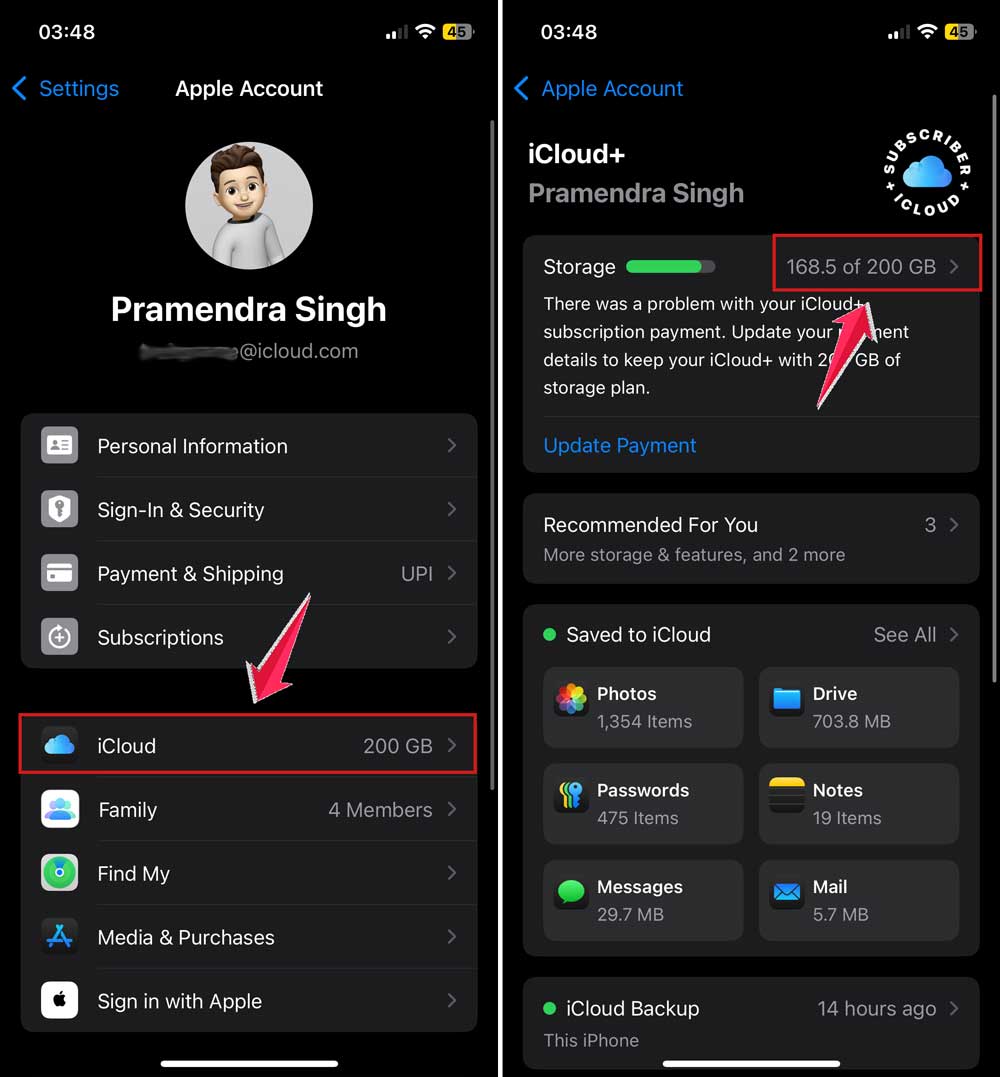
If it’s nearly full, tap Manage Storage. You can delete old backups from other devices or remove large files you don’t need anymore.
Freeing up space allows your iPhone to save new backups. And makes sure they show up when restoring.
#4 Make sure your last backup actually finished
Sometimes, the backup just didn’t complete. Maybe your phone went to sleep, or Wi-Fi dropped. Let’s check if the last one worked.
- Go to Settings.
- Then select iCloud.
- Then go to Backups.
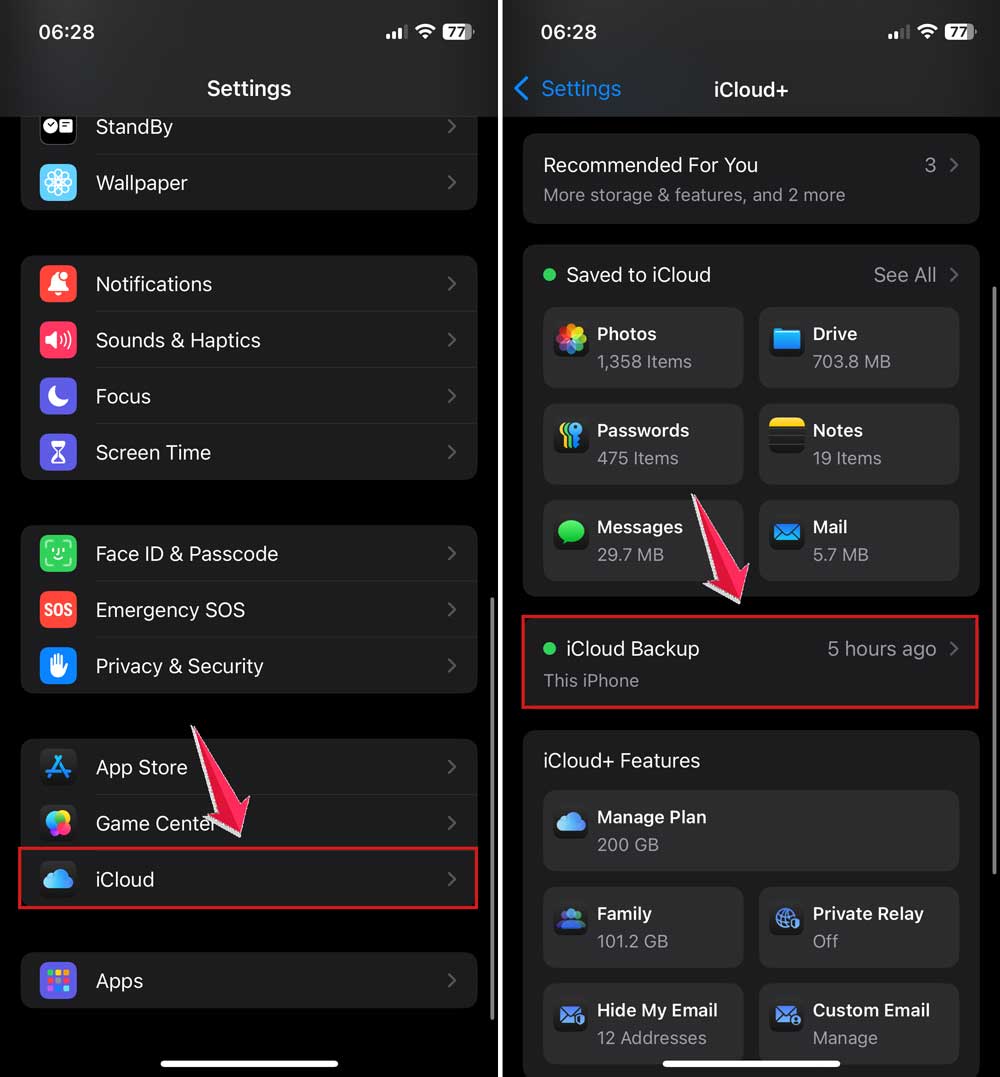
- Tap your device name and check the last backup date and status.

If it doesn’t say “Last Backup: [date]” with a time, or if you see an error, the backup might not have completed.
Try doing a fresh backup now with solid Wi-Fi and enough battery.
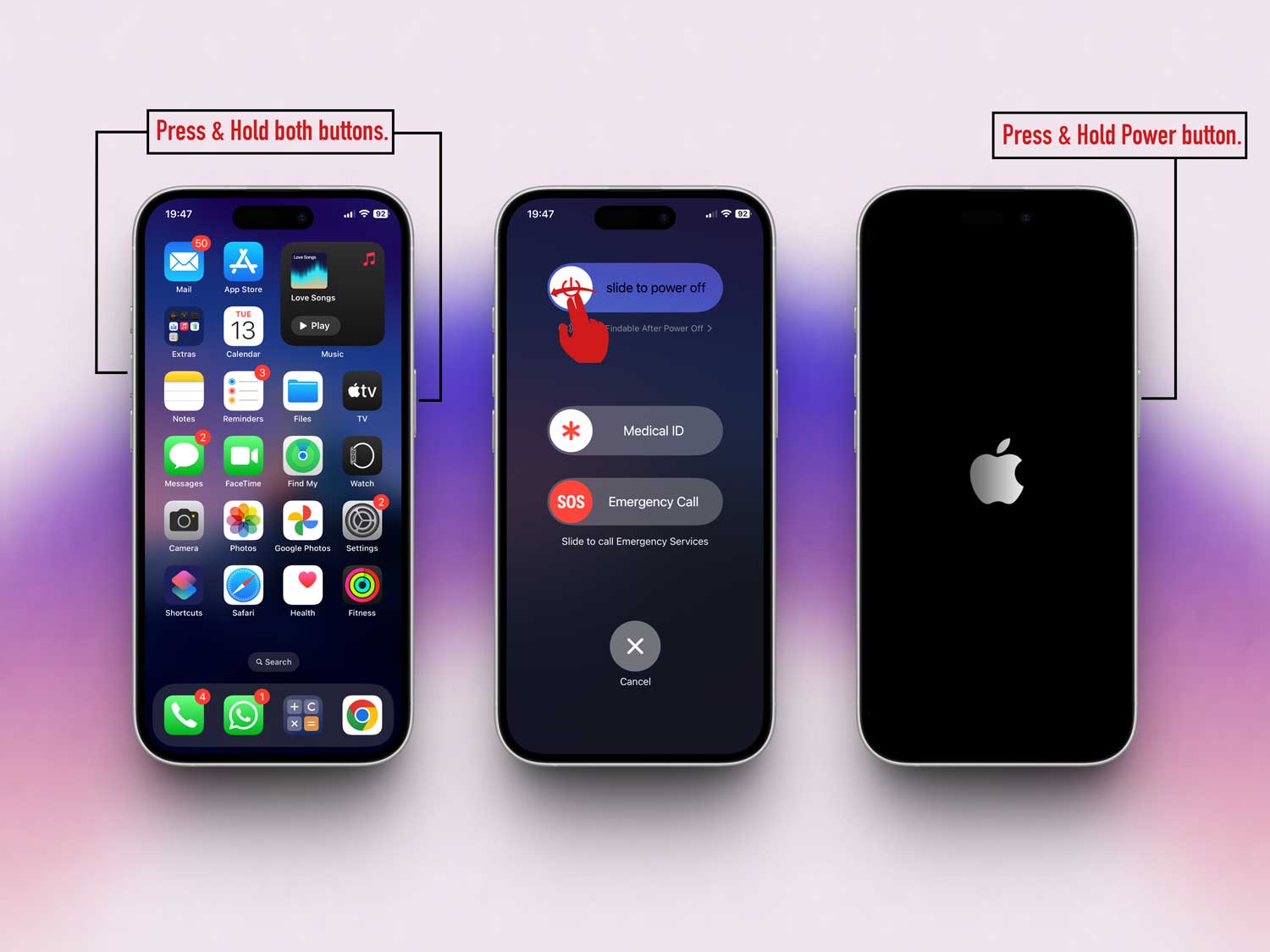
#5 Restart your device after checking everything
I know it sounds too simple, but restarting your iPhone can refresh the connection to iCloud.
It’s like giving your phone a clean slate to work from.
Press and hold the power button and either volume button until you see the slider.
Slide to power off, wait a few seconds, then turn it back on. After restarting, try restoring again.
#6 Try restoring again after checking all the steps
Now that you’ve checked your Apple ID, software, storage, and backup status, go ahead and try the restore again.
This time, your backup should show up. If not, don’t worry. We’ve got more tips coming.
#7 Stick to a stable Wi-Fi connection
Spotty connections can ruin a backup or restore. Always use a strong Wi-Fi signal.
If possible, stay near your router and avoid public Wi-Fi when restoring.
#8 Set up automatic backups
Don’t wait for things to go wrong. Set your iPhone to back up daily or weekly.
That way, you’ll always have a recent backup ready when you need it.
To do this:
- Go to Settings.
- Tap your name, then iCloud.
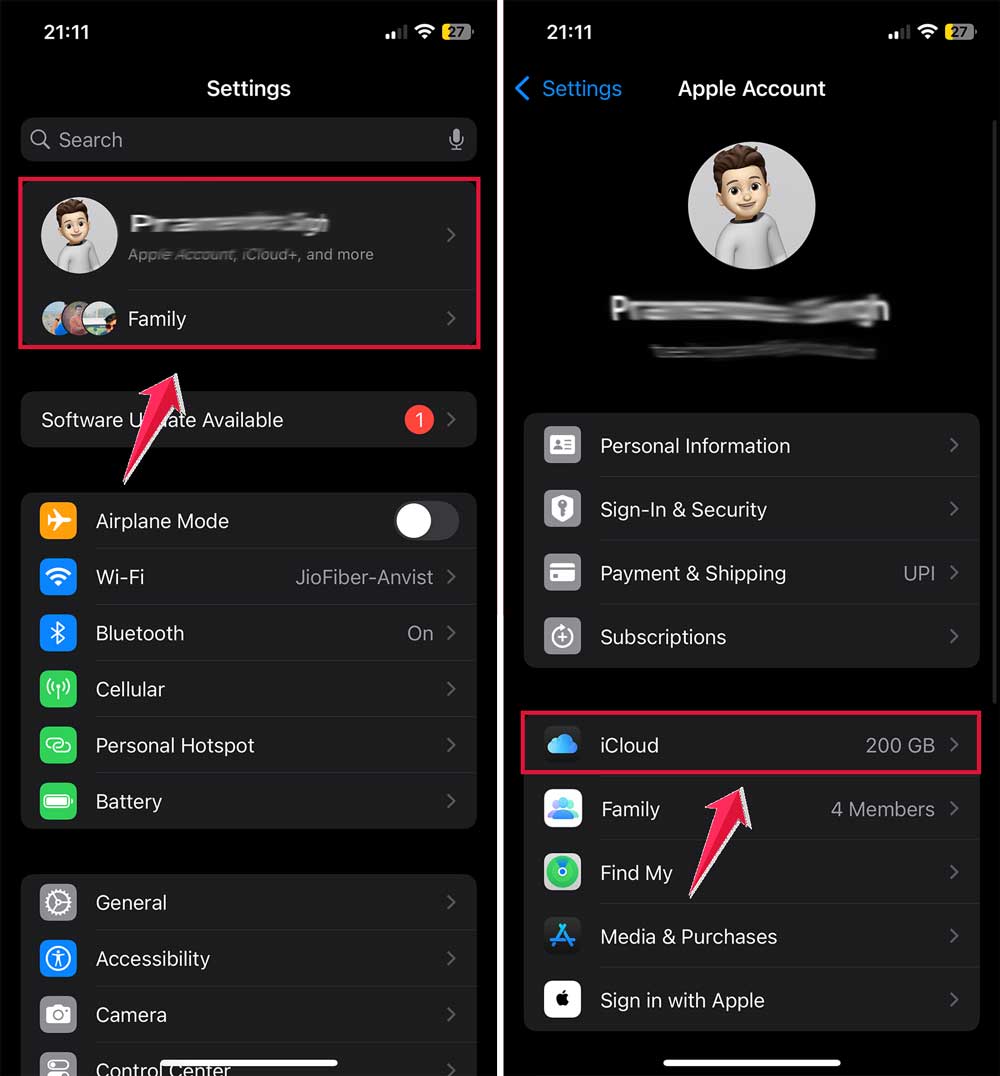
- Tap iCloud Backup and toggle on Back Up This iPhone.

#9 Check Apple’s system status
Sometimes, it’s not your fault. Visit Apple’s System Status page to see if iCloud services are down. If they are, just wait. It’ll be back soon.
#10 Keep your iPhone charged
Backups and restores can take time and power. Always plug your iPhone into a charger during the process so it doesn’t stop halfway.
#11 Clean up extra data
Too many large files or unused apps can slow things down.
Go through your phone and delete what you don’t need. This clears space and makes backups faster and more reliable.
The Takeaway
So yeah, missing iCloud backups can be a real headache. But most of the time, it’s something simple.
Maybe you’re signed into the wrong Apple ID. Maybe your iPhone needs an update.
Or maybe your iCloud is full, and the backup didn’t save.
Whatever it is, now you know how to fix it. Start by checking your account, updating your software, and making sure your last backup actually went through.
These steps are easy, and they work for most people.
And don’t forget those extra tips. Like keeping your Wi-Fi strong and setting up automatic backups.
They help you stay prepared so you’re not caught off guard next time.
Give these fixes a try and let me know. Did your backup show up?
Drop a comment below and share your experience. I’m here to help if you need it.