Let’s be real. You copied something important—maybe a link, a password, or a message—and the next second, it’s gone. Frustrating, right? You expect it to be there, but it’s not. That’s where a clipboard history would usually save the day. But if you’re using an iPhone, things work a bit differently.
Here’s the thing: iOS doesn’t have a built-in clipboard history. Apple decided to keep things simple and focused on privacy. So, every time you copy something new, the old one gets erased. That’s it. No list. No backup. If you’re coming from Android or Windows, this might feel like a step backward.
But don’t worry. You’re not stuck. Even though Apple doesn’t give us clipboard history by default, there are smart ways to get around it. And in this guide, I’ll walk you through those easy tricks and apps that can help you save your copied stuff—even on iOS.
So, if you’ve ever lost something you copied and want to stop that from happening again, keep reading. This is exactly what you need.
Why doesn’t iOS show clipboard history?
Let’s break it down. You might be wondering why iPhones don’t just give us clipboard history like other devices. Well, here’s what’s going on.
1. No built-in clipboard history
iPhones don’t come with a built-in clipboard manager. That means whatever you copy gets replaced as soon as you copy something else. One thing at a time—no list, no history.
It feels a bit limiting, right? Especially if you’re used to having a clipboard history on Android or even on your computer. You might expect your phone to remember more, but Apple chose not to include that feature.
2. Apple really cares about your privacy
Now, this isn’t just missing for no reason. Apple has a big focus on privacy. They don’t want apps to sneak in and read what’s on your clipboard without permission. So, by not storing a clipboard history, they’re keeping your private info safe. That’s a good thing—but yeah, it can be inconvenient too.
3. It’s a big change if you came from Android or Windows
If you just switched to iPhone, this is probably one of those things that feels weird. You’re used to having a full list of what you copied. But now, you have to rethink how you handle text, links, and images. It takes a bit of adjustment.
But here’s the good news: You don’t have to live without it. There are some easy workarounds, and I’m going to show you exactly how to get clipboard history working on your iPhone.
Where is the clipboard history on iOS?
Alright, so now that we know clipboard history isn’t built into iOS, let’s talk about how you can still get it. There are simple ways to make it work—using apps, shortcuts, and some smart tricks.
#1 Use a third-party app like Paste or Copied
This is probably the easiest fix. Since Apple doesn’t give us clipboard history, we can just use an app that does. Apps like Paste and Copied are made exactly for this.
They keep track of everything you copy—text, links, images—and let you go back and reuse anything, anytime. Super useful if you’re doing work, writing notes, or managing content.
Here’s how to set it up:
- Open the App Store on your iPhone.
- Search for “Paste” or “Copied”.
- Download and install the app of your choice.
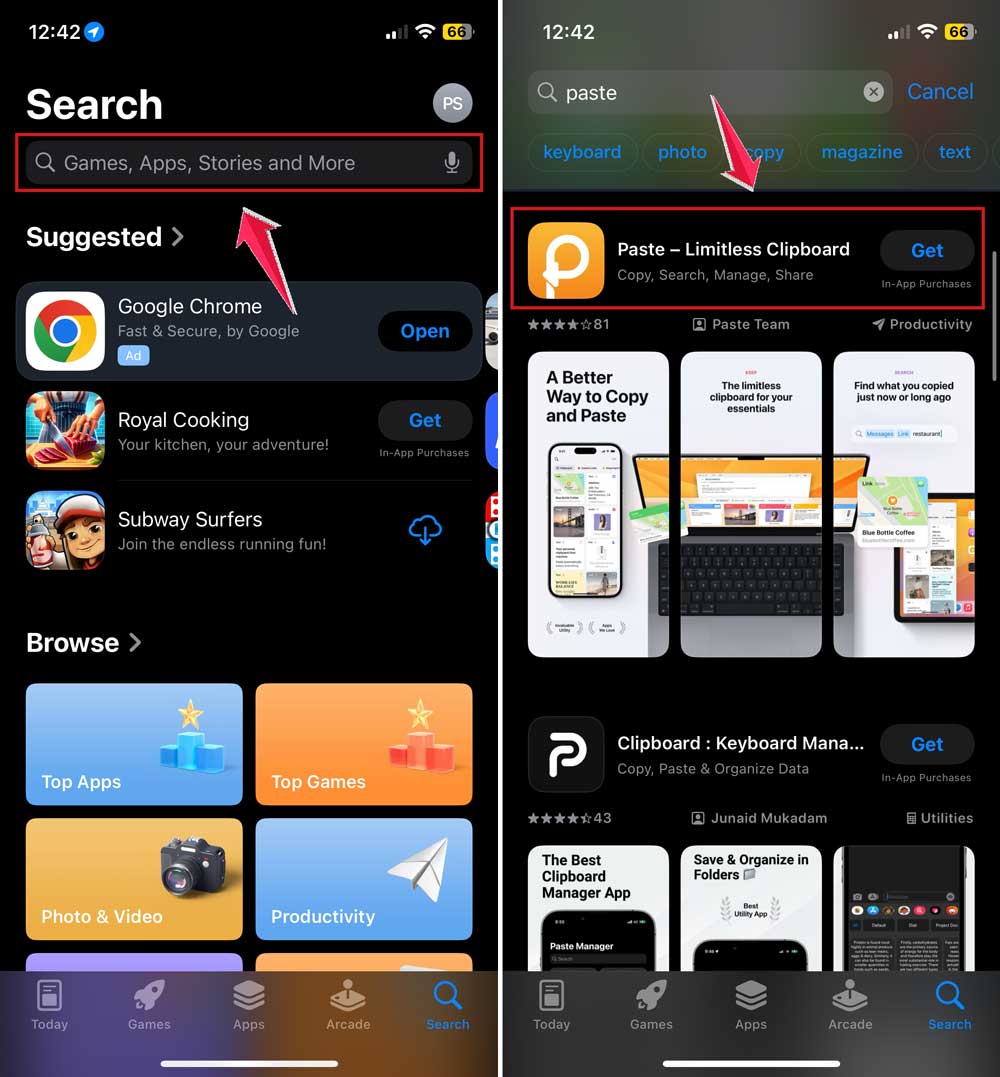
- Open the app and follow the setup instructions.
- Start copying—everything gets saved automatically!
These apps usually run in the background and save whatever you copy. You can even pin important items or search through your copied stuff later. Pretty cool, right?
#2 Set up a shortcut to save clips automatically
Now, this one’s for those who like to customize things. Using the Shortcuts app on your iPhone, you can create a simple automation that saves whatever you copy into Notes or another app.
Here’s how to do it:
- Open the Shortcuts app on your iPhone.
- Tap the “+” icon to create a new shortcut.

- Add the action “Save to Notes” or “Append to Note”.
- Select Clipboard as the content to save.

- Run the shortcut manually, or set it to trigger with a tap or Siri command.
Once it’s set up, just run the shortcut after copying something important. It’ll save it for you, so you don’t lose it later.
#3 Use Universal Clipboard if you have other Apple devices
Got a Mac or iPad? Good news—Apple has something called Universal Clipboard. It lets you copy something on one device and paste it on another. It’s not a full history, but it’s helpful.
To make it work:
- Make sure all your devices use the same Apple ID.
- Connect them to the same Wi-Fi network.
- Enable Bluetooth and Handoff on each device.
- Copy something on one device.
- Paste it on another—it just works!
It’s seamless and works quietly in the background. Great for those who move between iPhone and Mac often.
#4 Use Notes to save important things
Okay, this one’s super simple—but so effective. If you copy something you know you’ll need later, just paste it into the Notes app. That way, it’s saved and easy to find.
You can even organize your notes with folders, titles, or pins.
- Open the Notes app.
- Create a new note.
- Paste your copied content.
- Give it a title so it’s easy to find later.
It’s not fancy, but it works. And sometimes, that’s all you need.
#5 Keep your clipboard clean
Here’s a quick tip for privacy. If you’ve copied something sensitive—like a password or private message—it’s smart to erase it from your clipboard.
Just copy anything else, like a blank space or random word, and it’ll replace the old content.
#6 Always stay updated
Apple’s always updating iOS. Sometimes they add small features that make a big difference. So make sure your phone is running the latest version.
- Go to Settings.
- Tap General.

- Tap Software Update.
- Download and install any available updates.

Who knows—maybe clipboard history will show up in a future update!
Bonus tips to manage your clipboard better
Let’s take it a step further. You and I want to make sure we’ve got all the tools we need, right? Here are a few extra tips to make clipboard life on iOS even smoother.
1. Use built-in features in other apps
Some productivity apps already come with clipboard managers. Check your favorite apps—like note-taking or writing tools—to see if they have clipboard support built in. You might not even need a separate app.
2. Back up your important clips
If something’s really important, don’t rely on the clipboard alone. Save it to iCloud Drive or another cloud storage app. That way, you can access it from anywhere, even if something goes wrong with your phone.
The Takeaway
Clipboard history isn’t built into iOS, and yeah—it’s a bit of a letdown. But that doesn’t mean you’re stuck. You just need the right tools and a few smart habits.
Apps like Paste and Copied give you that clipboard history you’re missing. Shortcuts let you build your own saving system. And tricks like using Notes or Universal Clipboard keep things flowing across devices.
A lot of people think there’s no way to manage clipboard history on iPhone. But now, you know better. You’ve got options. You’ve got control.
So go ahead—try one of these methods today. You’ll be surprised how much smoother things feel when you stop losing what you copied.
Got a question or another tip to share? Drop a comment below—I’d love to hear what’s working for you!