Oh no, Safari not syncing iCloud tabs? Yeah, that’s frustrating. You’ve got all your tabs open on your iPhone, and you expect them to show up on your Mac, right?
But nothing happens. It just sits there, like it didn’t get the memo.
Let’s talk about what’s going on. iCloud Tabs is a feature that lets all your Apple devices share the tabs you have open in Safari.
It’s super useful when you’re switching between your iPhone, iPad, and Mac. But when does it stop working? That smooth experience becomes a headache.
This really matters, especially if you use Safari for work, research, or just keeping track of what you were doing.
You want your devices to stay in sync. You expect things to be seamless. So, when Safari tabs don’t sync across your devices, it can throw your whole routine off.
But hey, don’t worry. You’re not alone in this. And the good news? Most of the time, it’s a simple fix.
I’ll walk you through it step by step, just like a friend would. We’ll get Safari syncing again in no time.
What Might Be Causing the Problem?
Before we jump into the fixes, it helps to understand what could be going wrong. That way, we know exactly what to focus on.
1. Running Old Software? Time to Update
Let’s start with something simple. If your iPhone, iPad, or Mac is running outdated software, iCloud Tabs might not work properly. Apple often fixes bugs in new updates, and this could be one of them.
You should always keep your devices updated. It’s not just about new features. It’s about keeping things running smoothly.
2. Is iCloud Syncing Turned On?
You’d be surprised how often this is the culprit. Maybe you turned iCloud off by mistake.
Or maybe it was never on to begin with. Either way, if Safari isn’t allowed to sync through iCloud, then your tabs won’t show up on your other devices.
Let’s go into the settings and double-check that iCloud for Safari is turned on.
3. Is Your Internet Connection Stable?
iCloud Tabs need a strong, steady internet connection to sync properly. If your Wi-Fi is weak or cutting out, that could be the reason Safari isn’t syncing. Restarting your router or switching to a better connection might help.
Alright, now that we’ve looked at the possible causes, let’s fix this together.
How to fix Safari not syncing with iCloud tabs?
Okay, now we’re getting into the good stuff. Let’s go over each fix one by one. I’ll explain everything in plain language, and I’ll show you exactly what to do.
#1. Update All Your Devices
First things first. Make sure all your Apple devices are running the latest software.
Why? Because Apple often fixes bugs in updates. If Safari iCloud Tabs isn’t working, a software update could be the solution.
Here’s how to check and update:
On iPhone or iPad:
- Open Settings.
- Tap General.

- Tap Software Update.
- If there’s an update, tap Update Now.

On Mac:
- Click the Apple menu in the top-left corner.
- Go to System Settings.

- Go to General > Software Update.

- If an update is available, click Update Now.

Once your devices are updated, give the sync another shot.
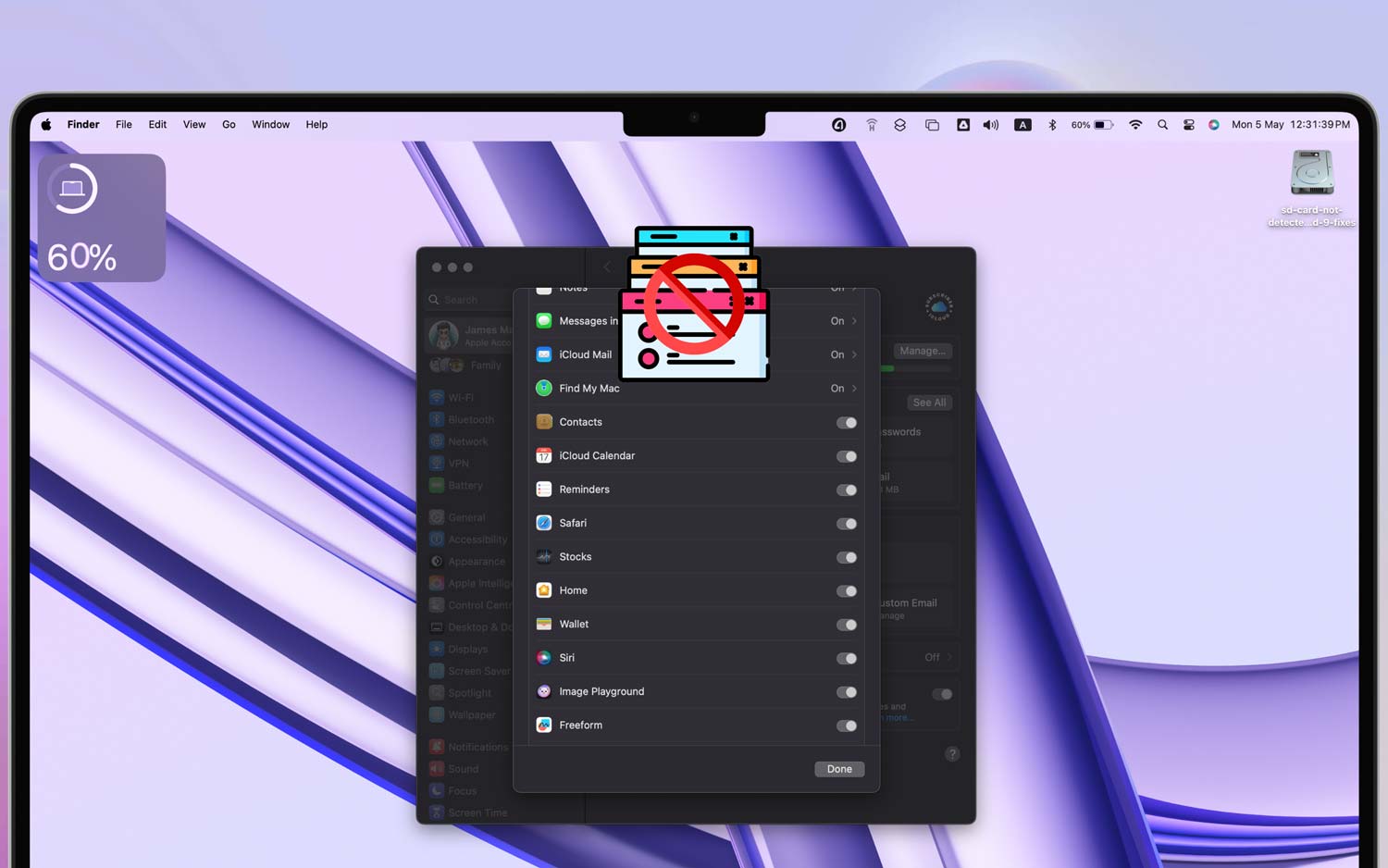
#2. Check iCloud Settings
Now let’s make sure iCloud is actually syncing Safari.
Sometimes we assume settings are on, but they’re not. Let’s open iCloud settings and double-check.
On iPhone or iPad:
- Go to Settings.
- Tap your name at the top.
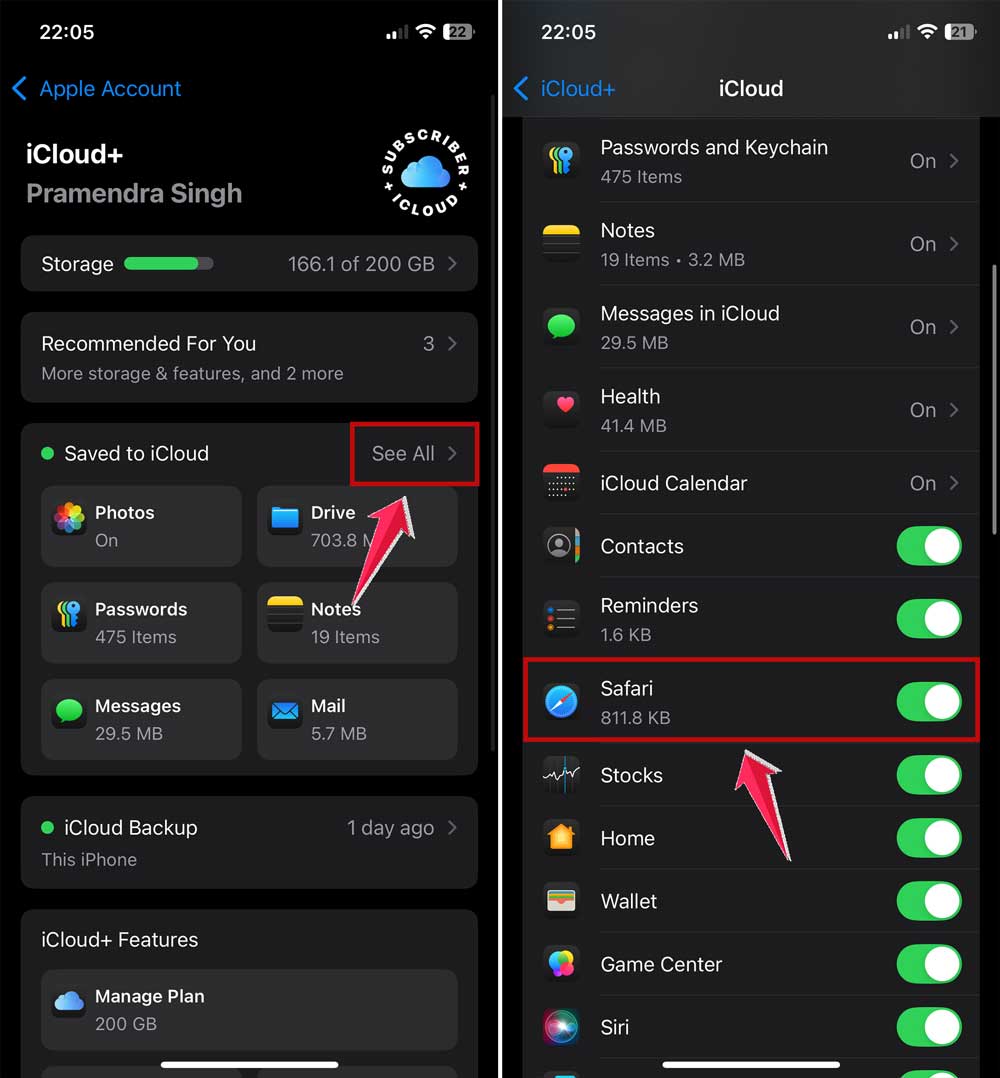
- Tap iCloud.
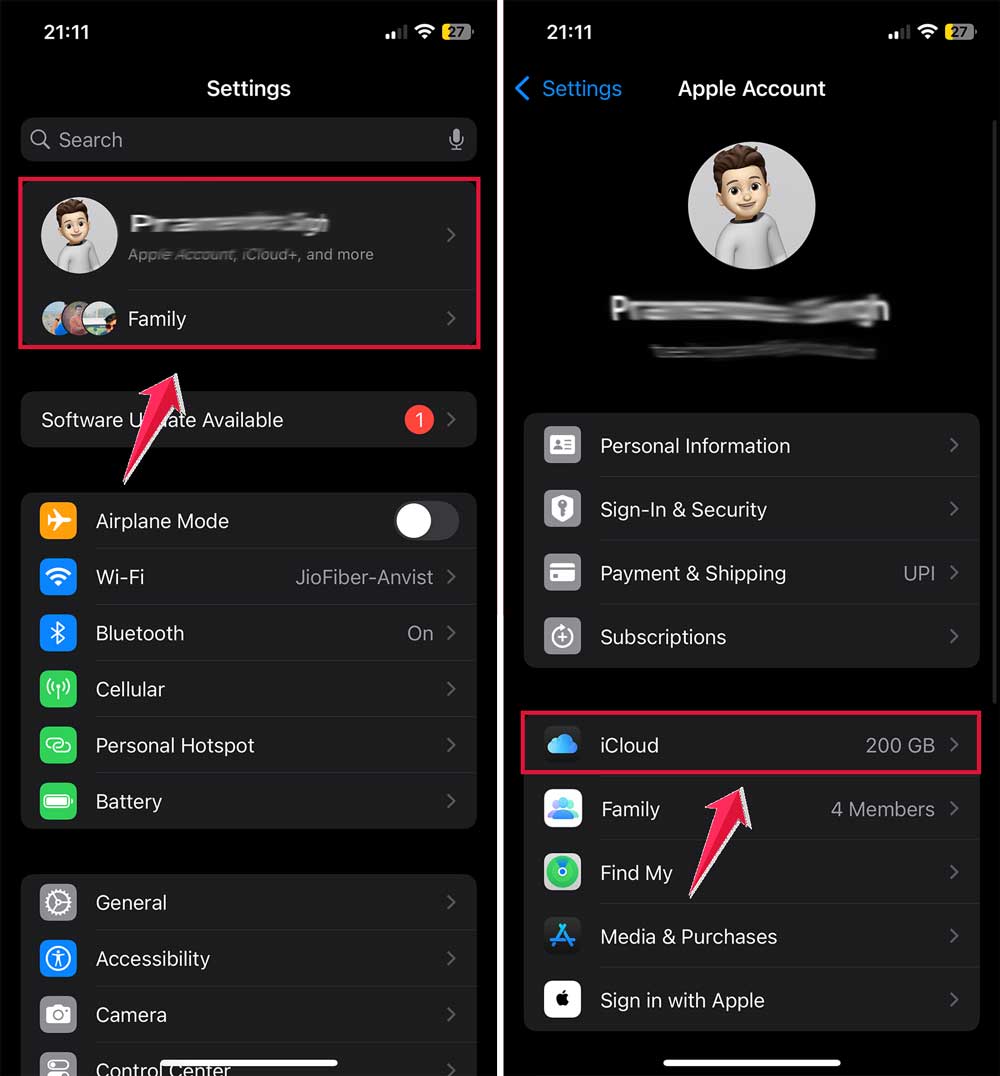
- Scroll down and make sure Safari is turned on.
On Mac:
- Click the Apple menu.
- Go to System Settings.
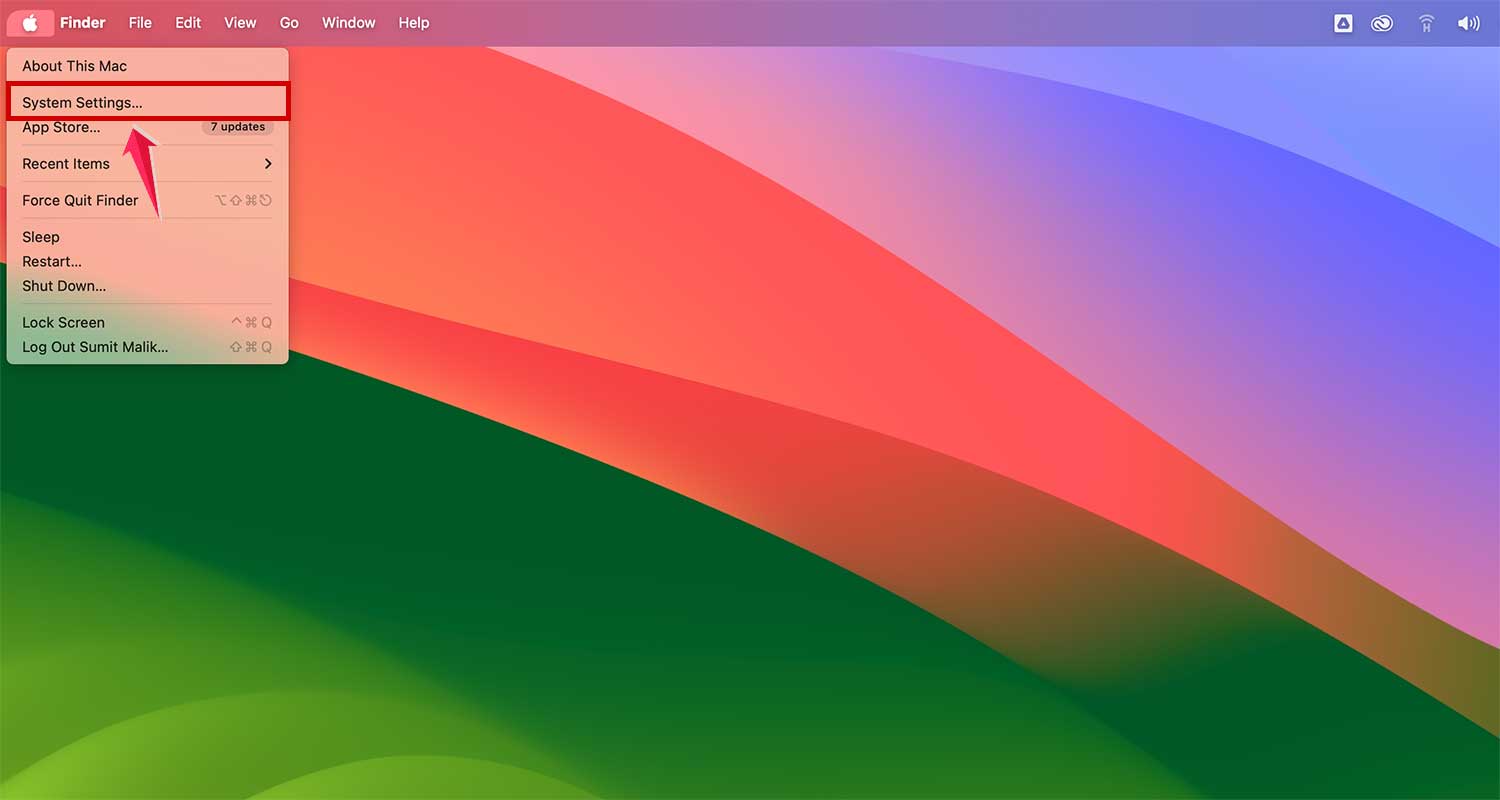
- Click Apple ID.

- Click on iCloud.

- Tap on See all next to Saved in iCloud and make sure Safari is checked.
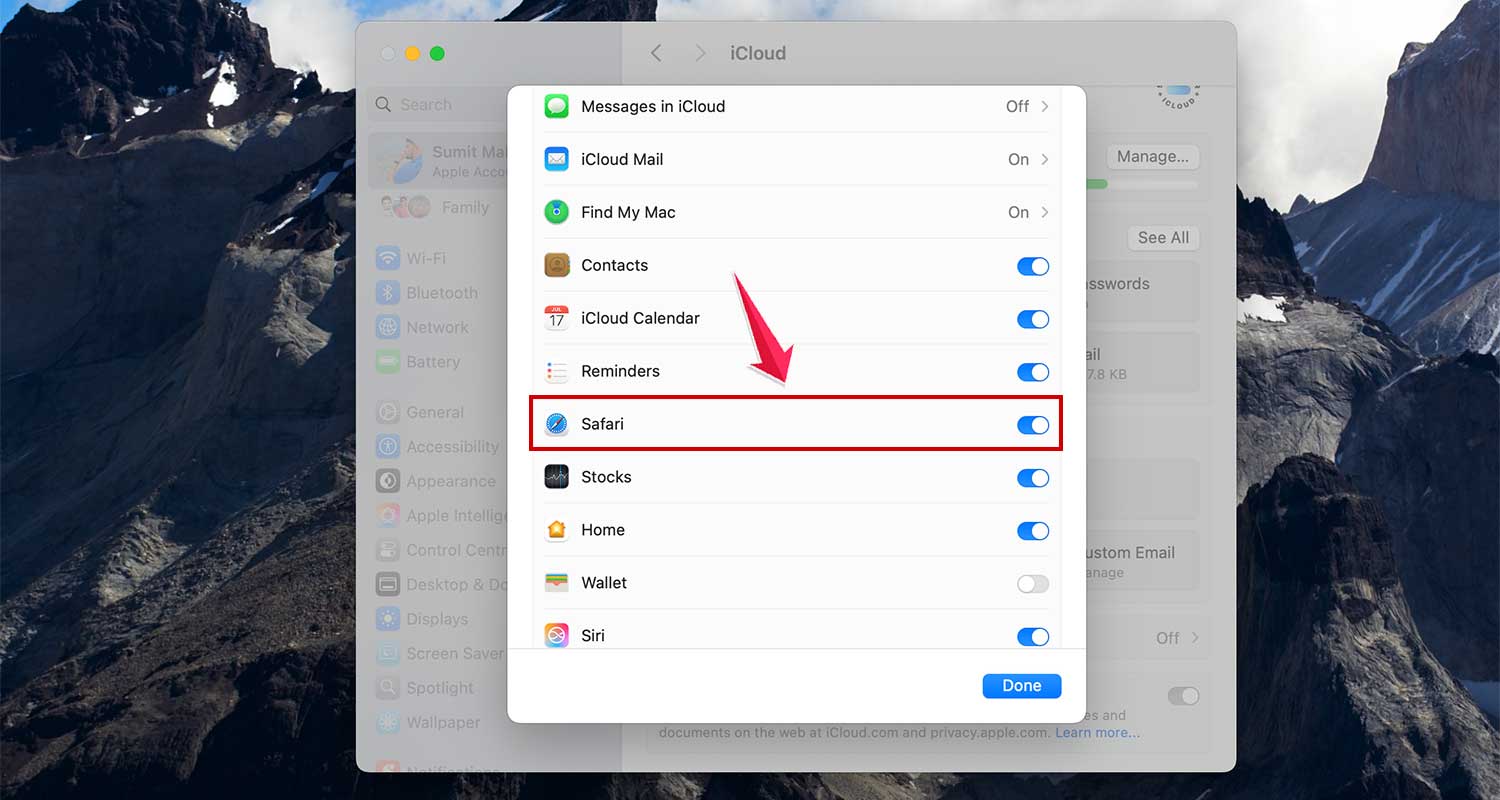
If Safari was off, turning it on should fix the problem.
#3. Restart Your Devices
I know it sounds too simple, but restarting your device can solve a lot of problems.
Think of it as giving your phone or computer a fresh start.
To restart your iPhone or iPad:
- Press and hold the power button and volume down button together.
- Slide to power off.
- Wait a few seconds, then turn it back on.

To restart your Mac:
- Click the Apple menu.
- Select Restart.

After restarting, check if the tabs start syncing.
#4. Sign Out and Back In to iCloud
Sometimes, signing out of iCloud and signing back in can refresh the connection. It’s like giving iCloud a little reset.
On iPhone or iPad:
- Go to Settings.
- Tap your name.
- Scroll down and tap Sign Out.

- Enter your Apple ID password and confirm.
- Then sign back in with your Apple ID.
On Mac:
- Go to System Settings.
- Click Apple ID.
- Click Sign Out at the bottom.

- Restart your Mac, then sign back in.
Give iCloud a moment to sync, and check Safari again.
#5. Reset Network Settings
If your Wi-Fi is the issue, resetting your network settings can help.
On iPhone or iPad:
- Go to Settings.
- Tap General.
- Scroll down and tap Transfer or Reset iPhone.

- Tap Reset, then Reset Network Settings.

On Mac:
- Try restarting your router.
- Or connect to a different Wi-Fi network.
Once your devices are back online, check if Safari tabs are syncing again.
More Tips to Try
Still no luck? Don’t worry. Here are a few more things you can try.
1. Test Your Internet Connection
Make sure your internet is solid. Try opening a few websites or running a speed test. If it’s slow or keeps cutting out, that could be the problem.
You can restart your router or contact your internet provider if needed.
2. Check If You’re Using the Same Apple ID
This one’s easy to miss. Make sure all your devices are signed in to the same Apple ID. If one device is using a different ID, Safari tabs won’t sync.
Go to Settings and look at the name at the top. Make sure it matches on every device.
3. Clear Safari’s Cache
Sometimes Safari just needs a fresh start. Try clearing its cache and history.
On iPhone or iPad:
- Go to Settings.
- Scroll down and tap Apps.
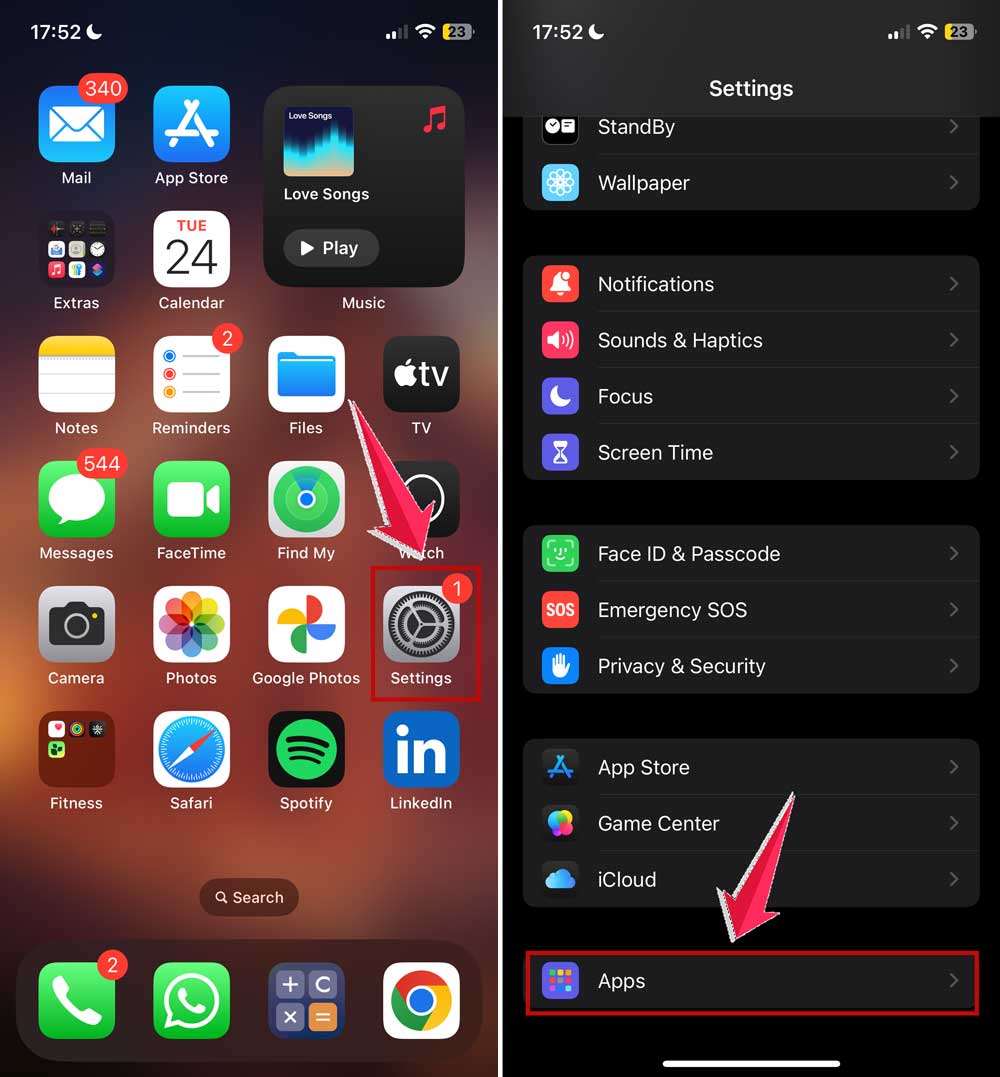
- Then tap on Safari.
- Tap Clear History and Website Data.

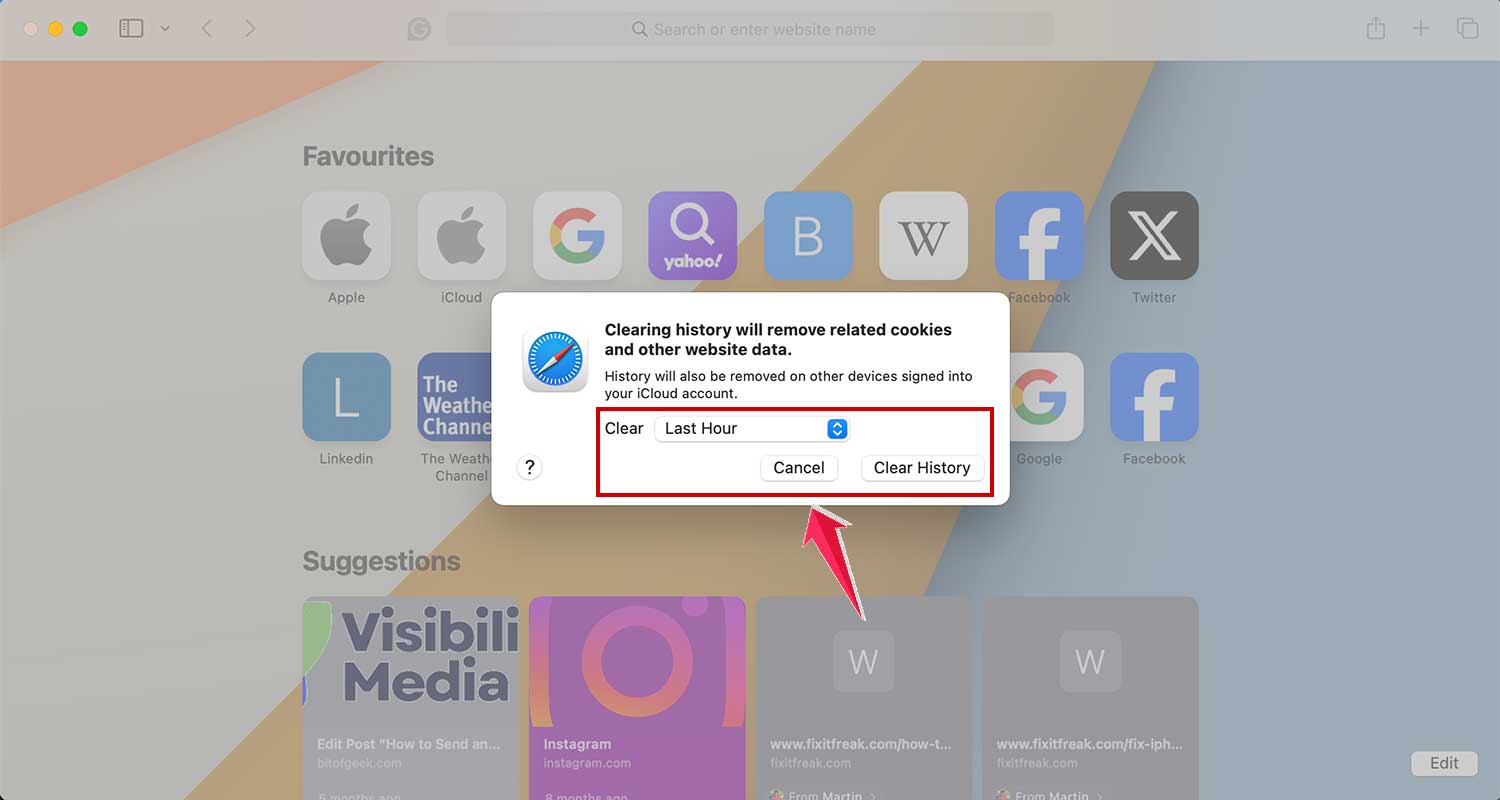
On Mac:
- Open Safari.
- Click History in the top menu.
- Select Clear History.

- Choose a time range and confirm.
4. Try a Different Wi-Fi Network
Sometimes your home network is the problem. If you can, connect your devices to another Wi-Fi network, like at a friend’s house or a coffee shop. Then check if the tabs sync.
5. Contact Apple Support
If you’ve tried everything and it’s still not working, it might be time to get help from Apple Support. They deal with these problems all the time and can guide you further.
The Takeaway
So there you have it. Safari not syncing with iCloud Tabs can definitely be annoying, but it’s usually an easy fix. Most of the time, it’s just a setting that needs to be turned on, a software update, or a quick restart.
A lot of people think it’s a big issue, maybe even a hardware problem. But really, it’s often just a small glitch. Fixing it is totally doable.
Now that you’ve got all these steps, go ahead and try them out. I’m rooting for you. And if you find a fix that worked for you, or if you still need help, drop a comment below. Let’s solve this together.