So, your iPad pops up with that annoying “Not Enough Storage” message just when you’re trying to save a video, right? Frustrating, I know. You’re not alone—this happens to a lot of people. But the good news? It’s usually an easy fix.
Let’s talk about why this is happening in the first place. Your iPad has limited space, just like your closet. And when it’s packed with stuff—photos, videos, apps—it can’t take in anything new. That’s when it throws that warning at you.
Photos and videos are usually the biggest space hogs. Every time you take a selfie or record a clip, it eats up some of your storage. Then, there are big apps—especially games or editing tools—that quietly take up a lot of room. And don’t forget about system data and app cache. These are hidden files that build up over time and eat away at your free space.
Also, if your iPad’s software is outdated, it might not manage storage well. An update can fix bugs and clear out unnecessary files that are just sitting there.
So, don’t worry. We’re going to walk through everything you can do to fix this. You’ll have space again soon to save your videos and keep making memories.
What’s really taking up all that space on your iPad?
Let’s break it down so you can see what’s filling up your iPad. Once you understand this, fixing the issue gets way easier.
1. Photos and videos are filling up your storage
If you’re like most people, you love taking pictures and recording videos. But all those memories? They add up fast. Even short clips and a bunch of selfies can take a big chunk of your storage. And you might not even realize how much space they’re using until your iPad says it’s full.
2. Big apps are using more space than you think
Some apps—especially games, editing tools, and creative apps—can take up loads of space. The worst part? We often forget they’re even there. They sit quietly in the background, storing data and updates that grow over time.
3. Hidden system data and caches build up quietly
System files, app data, and caches are like the dust under your bed. You don’t see them, but they’re there—growing slowly. These files help your apps run faster, but they also take up space. Over time, they become storage hogs.
4. Your iPad might be running on outdated software
When your software is old, your iPad might not manage storage as efficiently. Updates often come with bug fixes and improvements that clean up background files. If you haven’t updated in a while, it could be part of the problem.
Alright, now that you know what’s causing the issue, let’s fix it together.
How to Fix iPad Shows “Not Enough Storage” While Saving Video
Okay, now let’s roll up our sleeves and free up space on your iPad. I’ll guide you through each step. It’s easier than you think.
#1. Delete Unnecessary Files
Let’s start with the basics. Old photos, videos, or files you forgot about? They’re just sitting there, taking up space.
Go ahead and open your photo gallery. Be honest—do you really need every single screenshot or blurry photo?
- Open the Photos app.

- Tap Select in the top right corner.
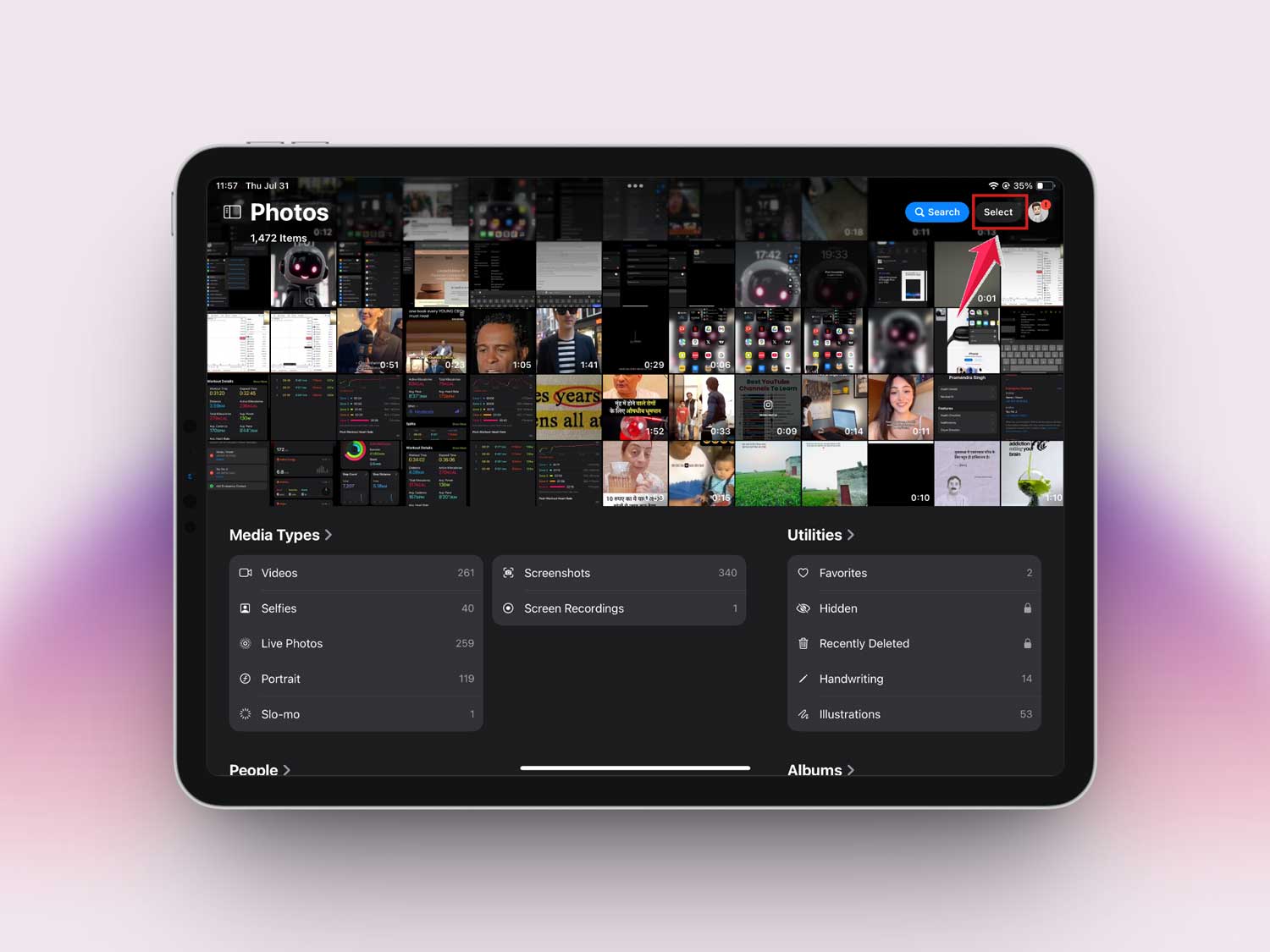
- Choose the photos and videos you no longer need.
- Tap the trash icon to delete them.

- Now go to Albums > Recently Deleted and clear that too.
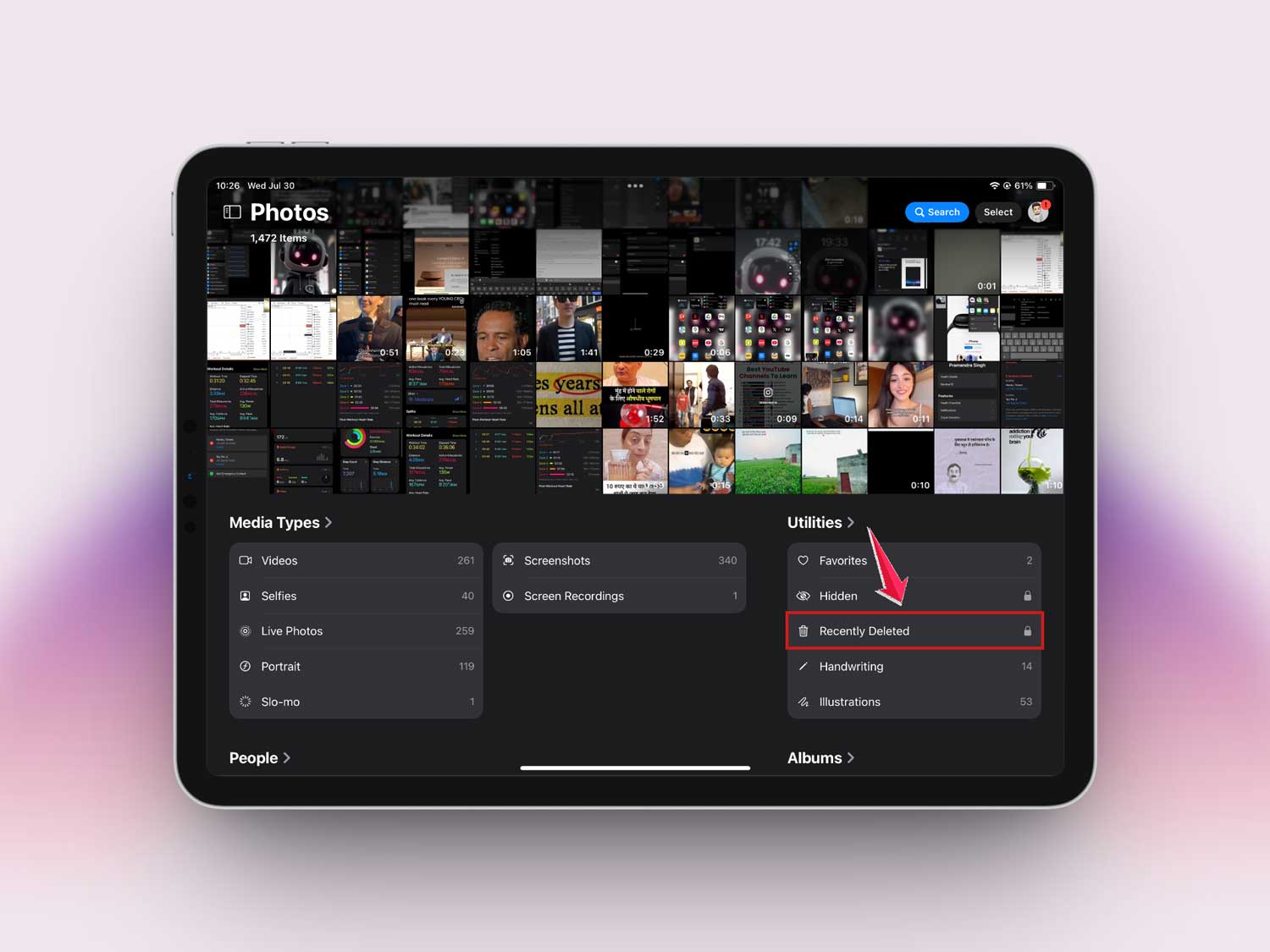
This step alone can free up a lot of space. Let’s keep going.
#2. Uninstall Unused Apps
We all have apps we downloaded for “just one time” and then never opened again. Time to say goodbye.
- Go to Settings > General > iPad Storage.
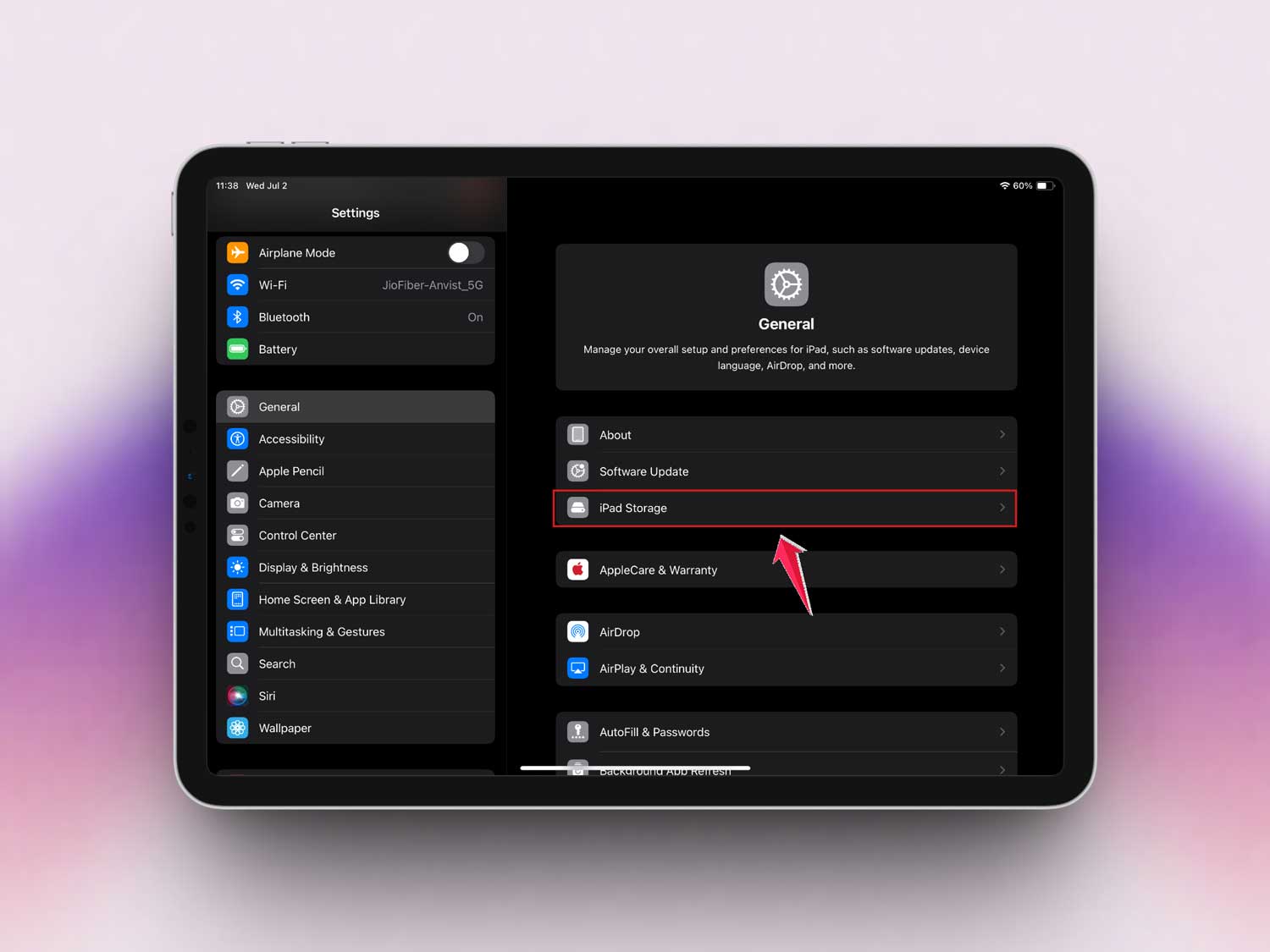
- Wait a few seconds for the list to load.
- Look for apps you don’t use anymore.
- Tap the app and then tap Delete App.

You’ll be surprised how much space you can recover just by deleting a few apps.
#3. Clear Safari Cache
Your browser stores website data to load things faster. But over time, it builds up.
- Open Settings.

- Tap on Apps.

- Scroll down and tap Safari.

- Tap Clear History and Website Data.

This won’t delete your passwords or bookmarks. It just clears the junk you don’t need.
#4. Update Your iPad’s Software
Updating your iPad doesn’t just give you new features—it also helps manage storage better.
- Go to Settings > General > Software Update.

- If there’s an update available, tap Update Now.
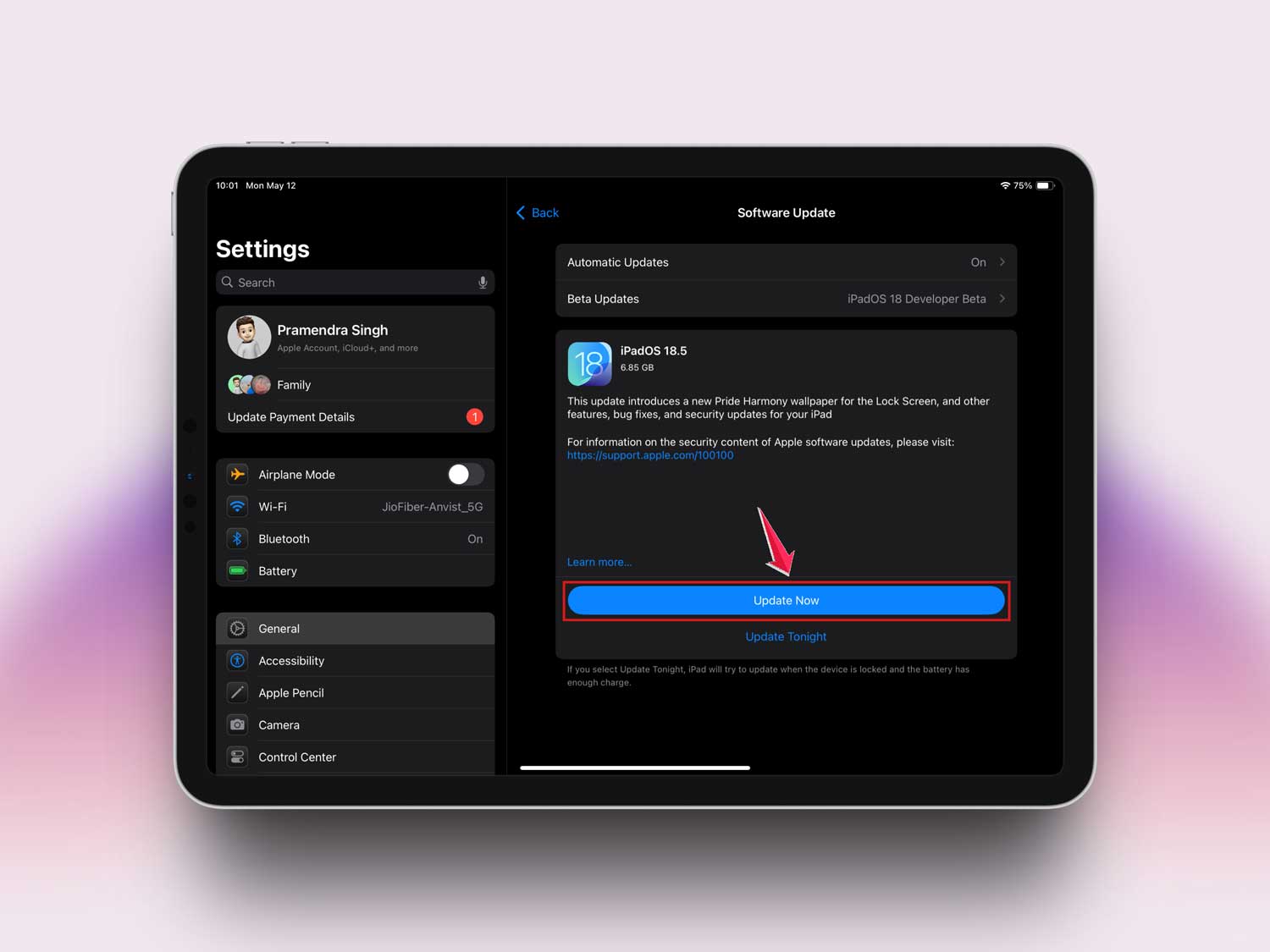
This can clear system junk and make your iPad work more efficiently.
#5. Use Cloud Storage
If your iPad is full, move your stuff to the cloud. It’s like moving boxes to a storage unit.
- Go to Settings.
- Tap on iCloud.

- Turn on iCloud Photos and iCloud Drive.
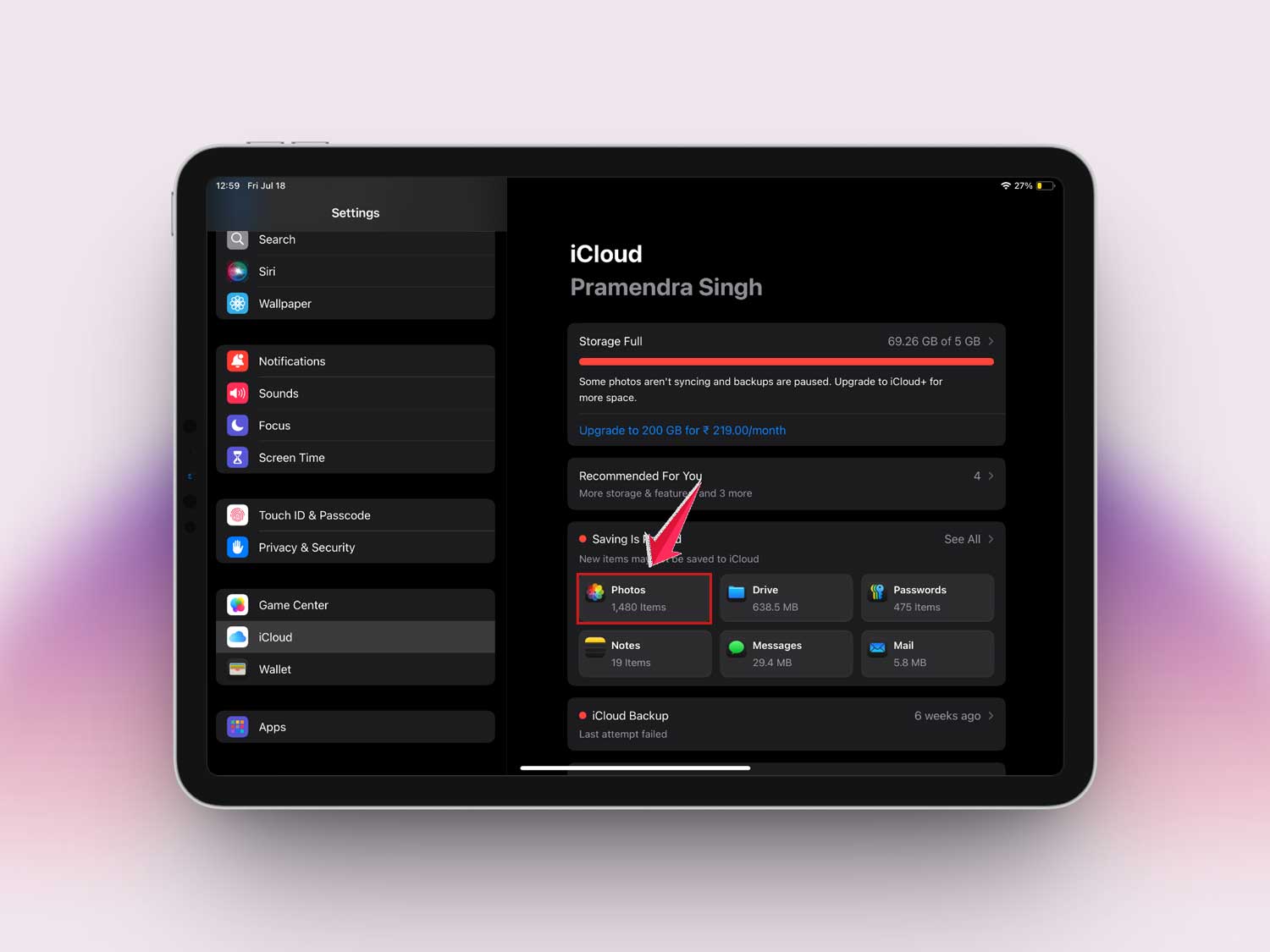
You can also use apps like Google Drive or Dropbox if you prefer. This helps you store files without keeping them on your device.
#6. Check and Reduce “Other” Storage
That “Other” storage section can be confusing. It includes system files, caches, and more.
- Go to Settings > General > iPad Storage.
- Scroll down and check how much space “Other” is using.
To reduce it, try deleting and reinstalling apps with large data. Or, as a last resort:
- Go to Settings > General > Transfer or Reset iPad.

- Then tap on Reset.

- Tap Reset All Settings.

This won’t delete your data, but you’ll need to re-enter Wi-Fi passwords and tweak settings again.
Whew! That was a lot—but you did it. These steps should give your iPad enough breathing room to save videos without a problem.
More Tips to Keep Your iPad Storage Clean
Now that you’ve cleaned things up, let’s keep it that way. Here are a few extra tips that’ll help long-term.
1. Turn on “Offload Unused Apps”
This feature removes apps you don’t use but keeps their data safe. That way, you can reinstall later without losing anything.
- Go to Settings.
- Tap on Apps.
- Tap App Store.

- Turn on Offload Unused Apps.

2. Manage Your Messages
Messages with photos and videos take up a lot of space. You don’t need to keep them forever.
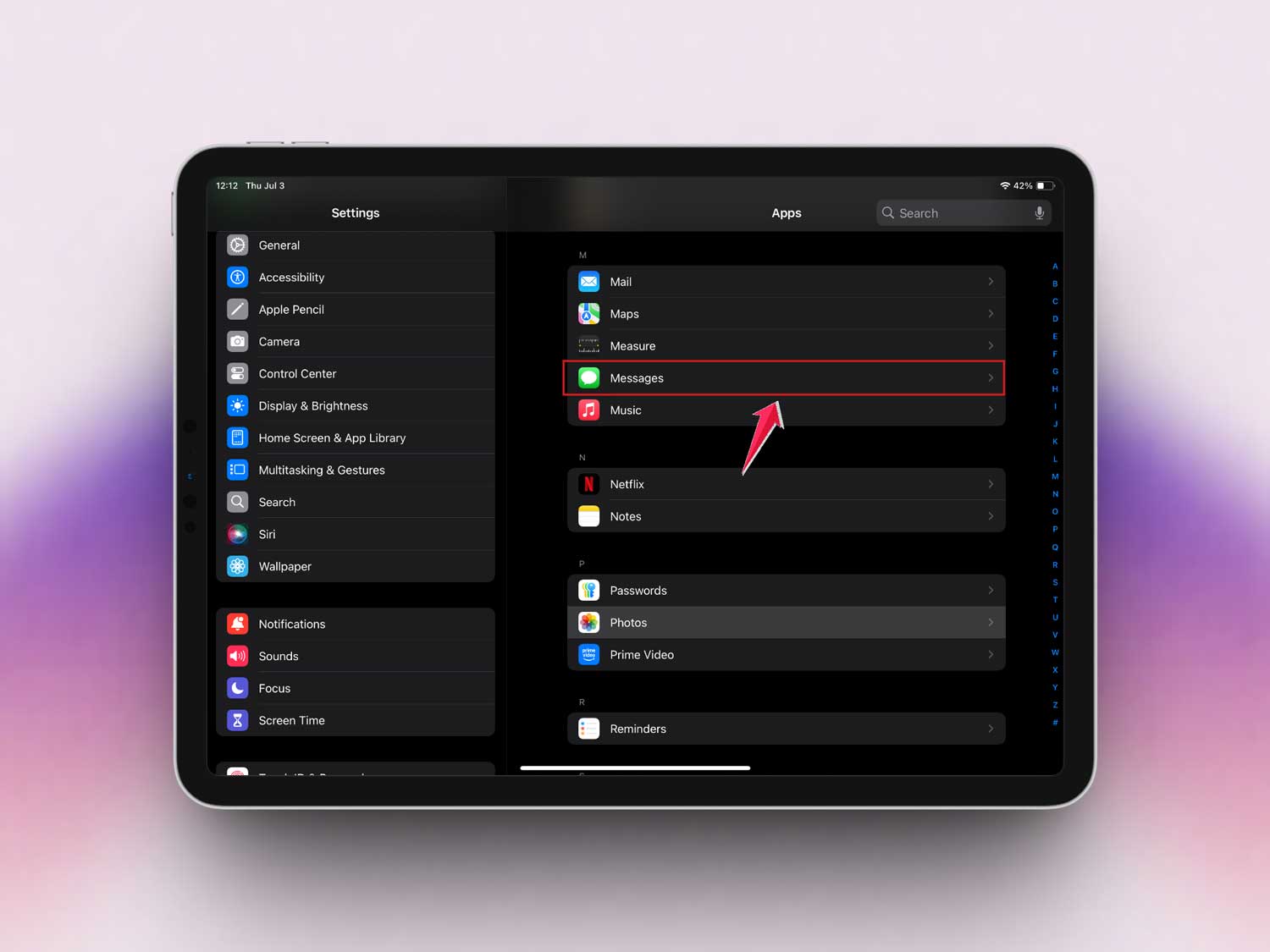
- Go to Settings > Apps.
- Then tap on Messages.
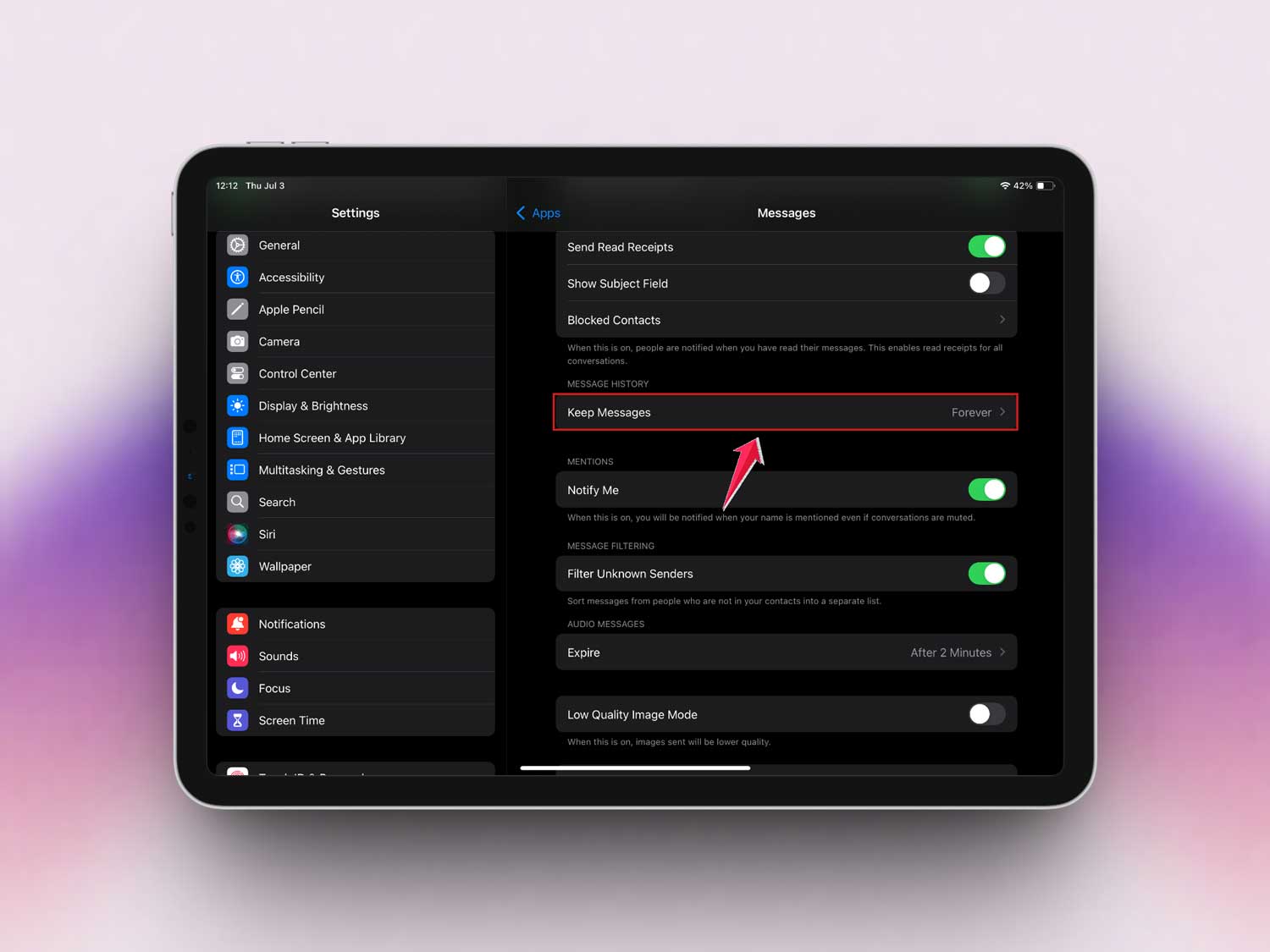
- Under Message History, tap on Keep Messages
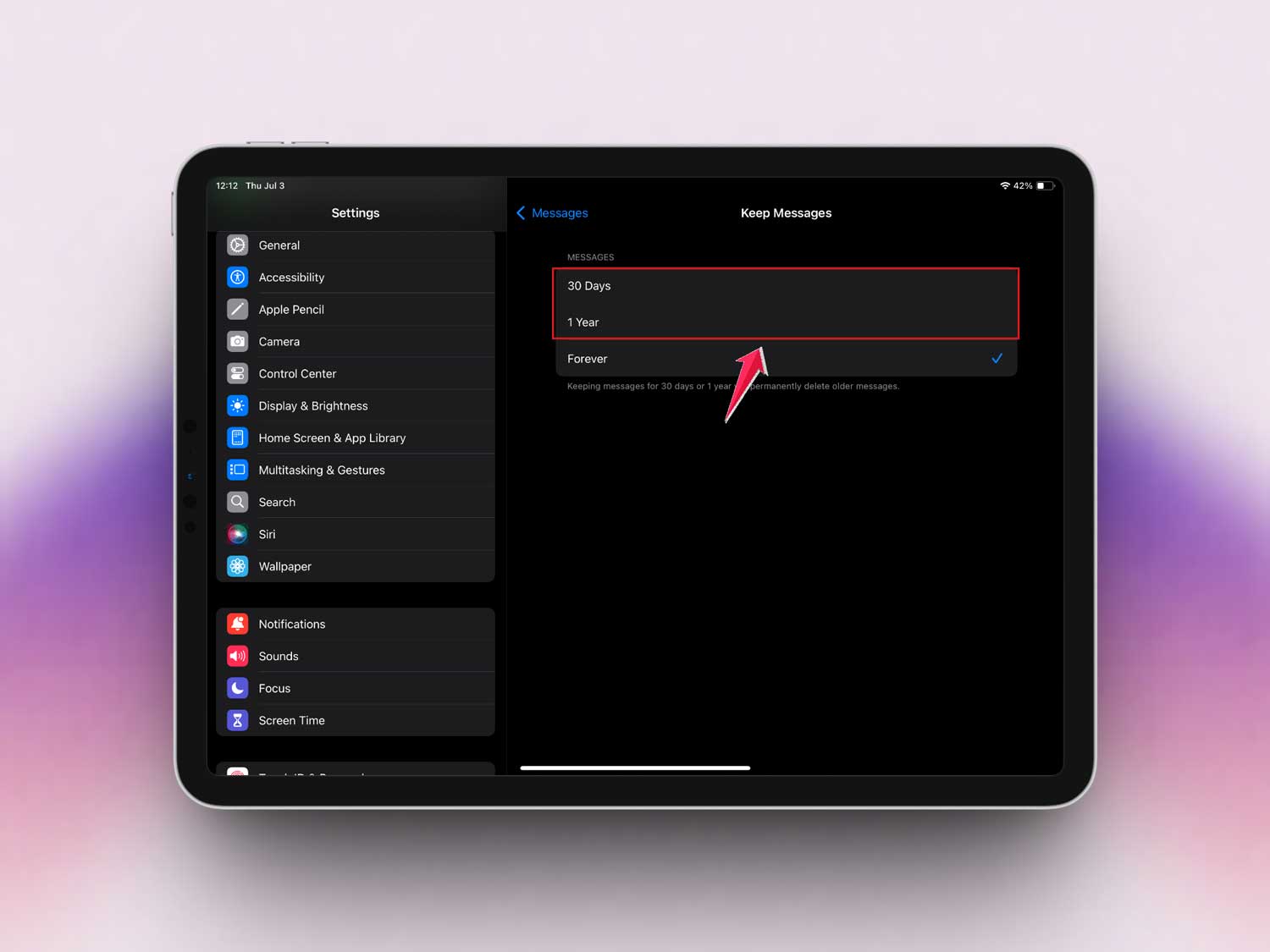
- Then choose for 30 days or 1 year.
3. Give Your iPad Monthly Check-Ups
Once a month, take 5 minutes to check your storage. It’ll save you from future headaches.
- Go to Settings > General > iPad Storage.
4. Delete Downloaded Media
Apps like Netflix or Spotify may have offline content. If you’re not using it, delete it from within the app.
5. Backup and Sync Often
Regular backups mean you can delete older stuff without fear. Use iCloud or your computer to back things up.
The Takeaway
So, your iPad says “Not Enough Storage”—and now, you know why. It’s usually because of too many photos, videos, or apps. But it’s not the end of the world. With a few simple steps, you can clear space and get things running smoothly again.
You don’t need a new iPad. You just need to tidy up the one you have. Delete what you don’t need, move things to the cloud, and keep an eye on your storage once in a while.
These fixes are simple, quick, and super effective. Try them today and see the difference. Got your own storage-saving trick? Drop it in the comments—I’d love to hear it!