Ever feel like you’re juggling way too much on your iPad? Flipping between apps over and over can get pretty annoying, right?
If only there was a way to have two apps open side-by-side. Well, there is — it’s called Split Screen, and it’s seriously a game-changer.
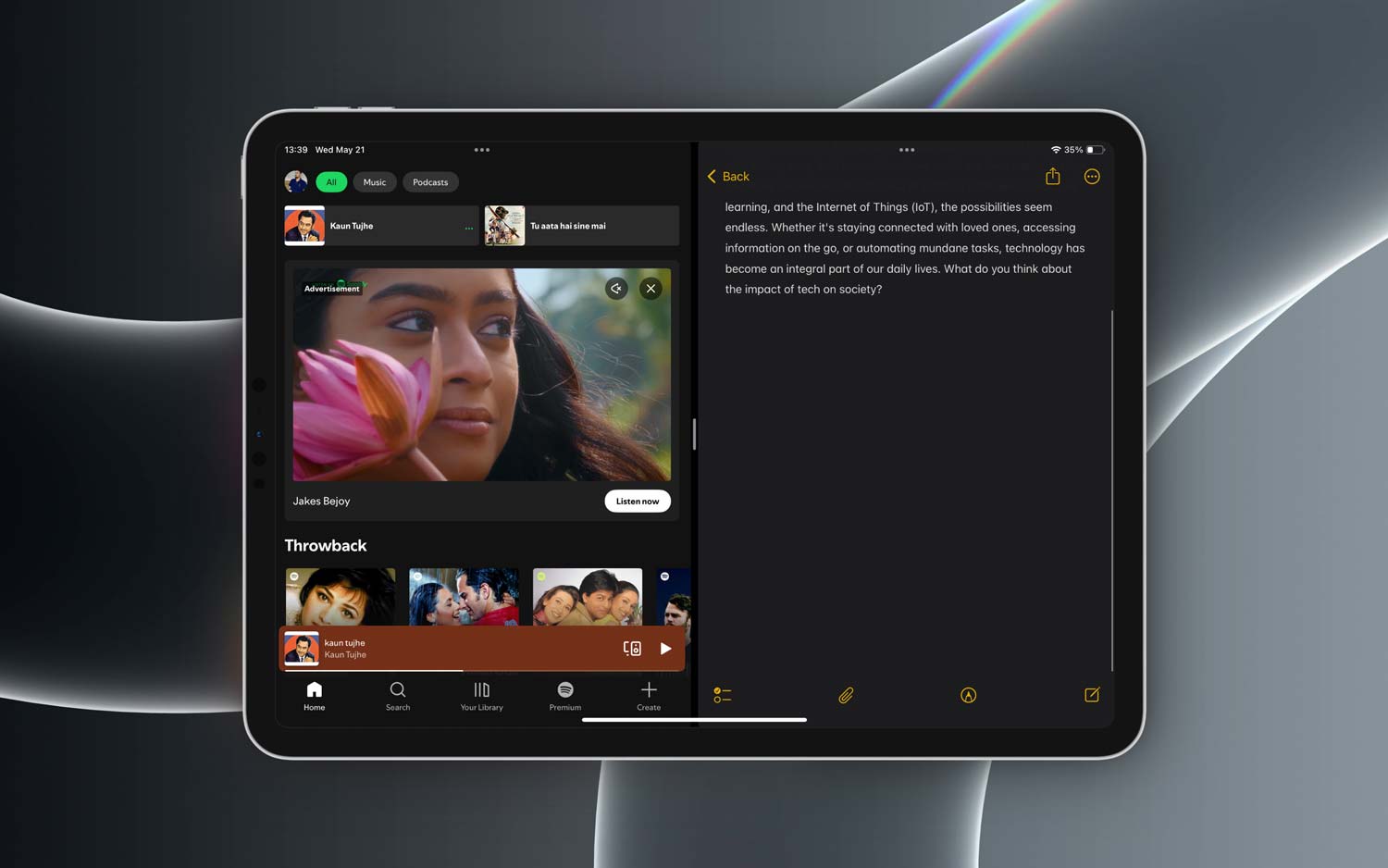
So, what’s the deal with Split Screen? Imagine this: you’re checking your emails and browsing for dinner recipes at the same time. No switching apps. No losing your place.
Just smooth multitasking. Sounds awesome, doesn’t it? But sometimes, getting Split Screen to actually work feels like trying to crack some mysterious code.
Why does it even get complicated? Well, maybe your iPad isn’t running the latest iOS. Or maybe some settings are blocking it without you even realizing. Also, not every app out there plays nicely with Split Screen.
And that matters because once you know how to fix it, your iPad becomes so much more powerful. You’ll save time, get more done, and honestly, enjoy using your iPad a lot more.
That’s why you’re here—and I’m glad you are! Stick with me, and I’ll walk you through everything you need to know. We’ll get your Split Screen working in no time. Ready? Let’s go!
Wondering why your iPad’s Split Screen isn’t working? Let’s figure it out!
Alright, first things first. If your iPad’s Split Screen isn’t working, don’t stress. It’s usually something small that’s easy to fix once you know where to look.
1. Your iPad might not have the latest iOS
First thing to check: your iOS version. Apple loves updates, and a lot of those updates fix bugs and improve multitasking features like Split Screen.
Here’s how you can check:
- Open Settings.

- Tap General.
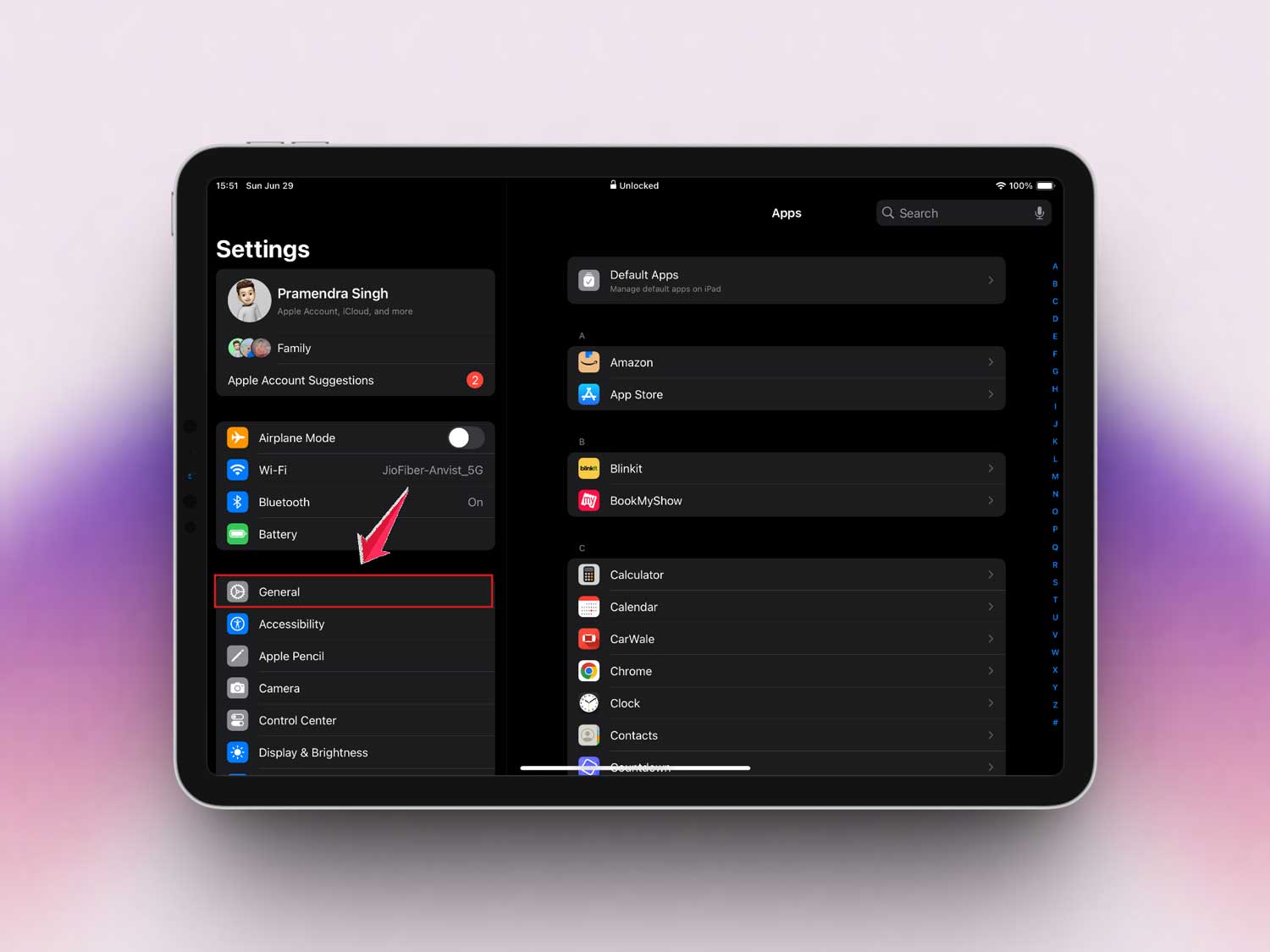
- Tap Software Update.

If there’s an update available, go ahead and install it. It’s quick, and it might be all you need to get Split Screen working again.
2. Check your Accessibility settings
Sometimes, settings made to help you can accidentally block Split View. Weird, I know. But it happens.
Here’s what you should do:
- Open Settings.
- Tap Accessibility.
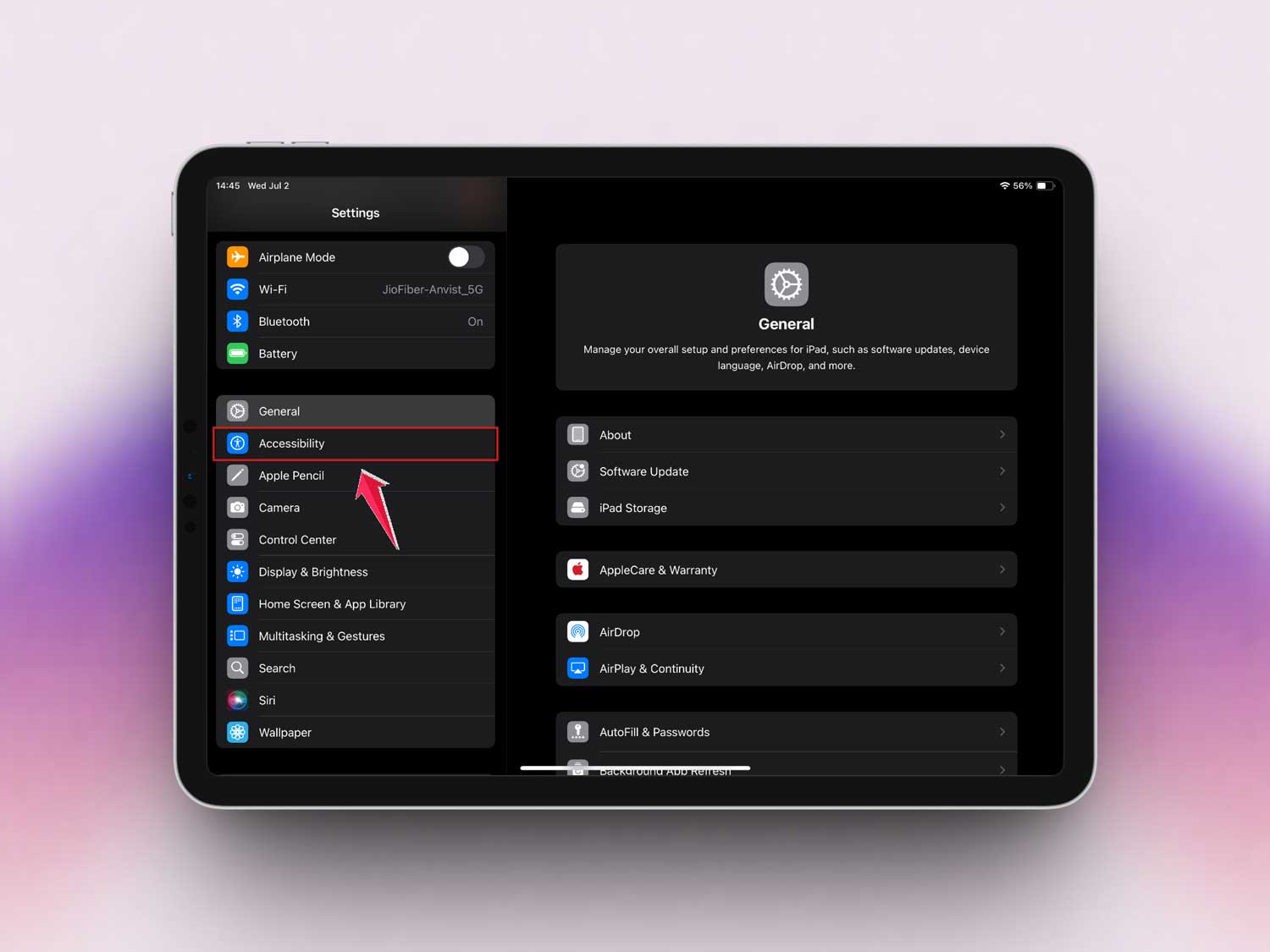
- Look through the settings and see if anything seems out of place for multitasking.
- If something looks odd, toggle it off and try Split Screen again.
3. Not all apps like to share
Here’s the thing: not every app supports Split View. It’s not your fault. Some apps just aren’t built for it.
Before you get frustrated, try it with apps you know support Split Screen, like Safari, Mail and Notes.
If it works with these apps but not others, then it’s the app’s limitation, not yours.
4. Getting a handle on gestures
Honestly, gestures can be the trickiest part. If you don’t know the right moves, Split Screen feels impossible. But once you get it, it’s super easy.
You need to:
- Open your first app.
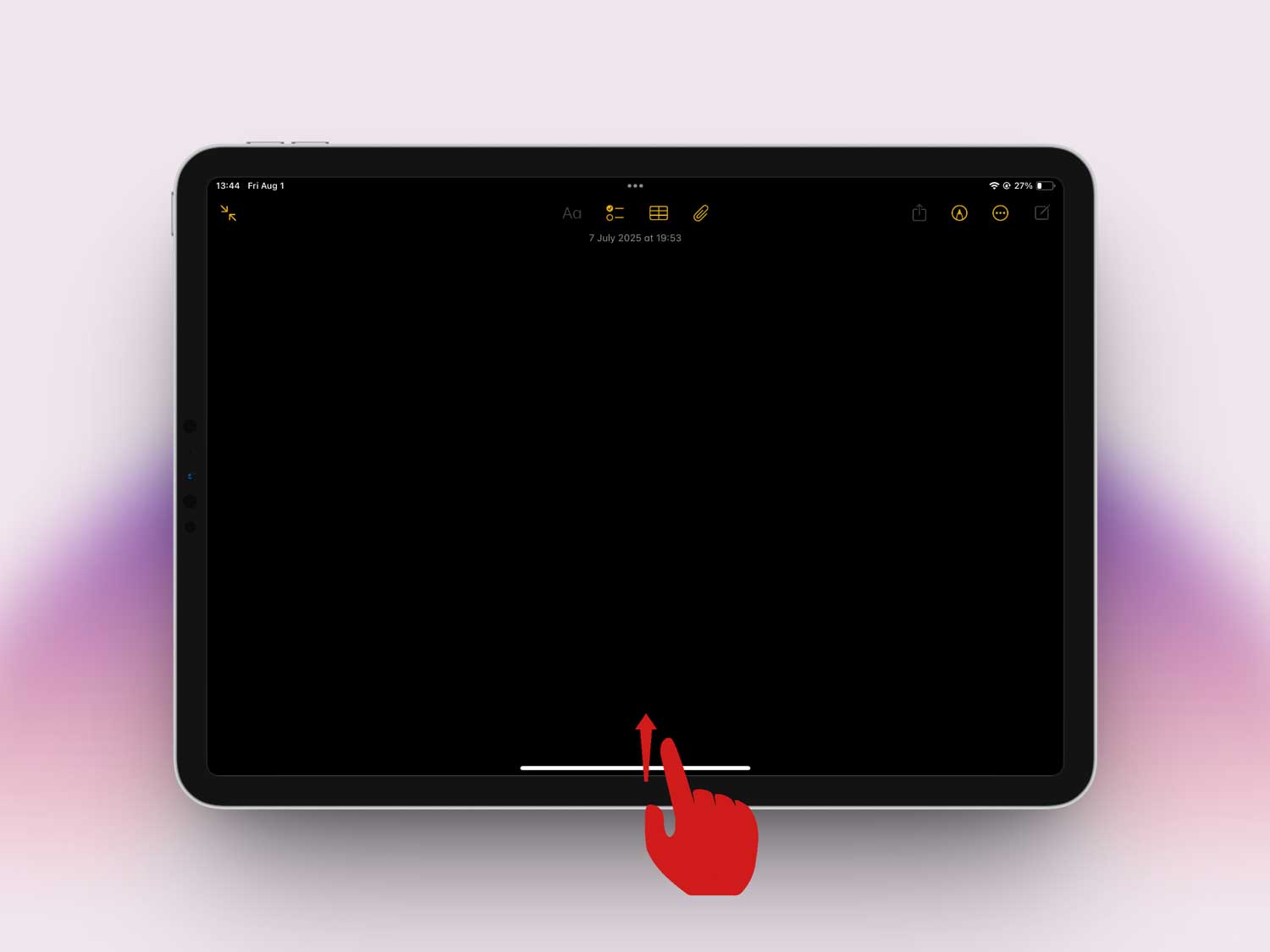
- Swipe up slightly from the bottom to show the Dock.
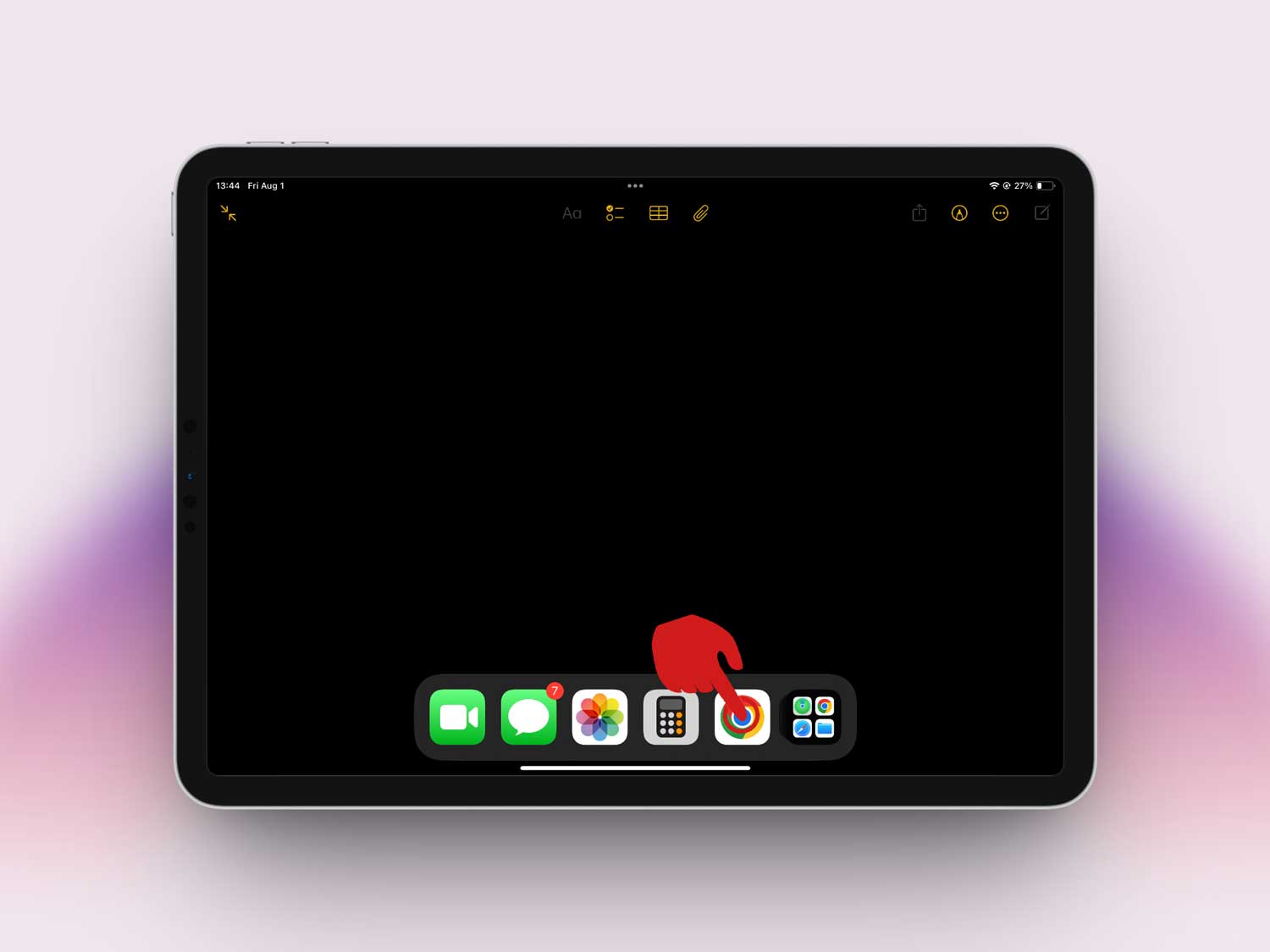
- Drag a second app from the Dock to the left or right side of the screen.
Practice a few times. It’ll become second nature—I promise.
Alright, now that you know what might be wrong, let’s jump into exactly how to fix it step-by-step.
Let’s fix your iPad’s Split Screen problems
Ready to roll up your sleeves? Let’s go through everything you can do to make Split Screen work perfectly.
#1: Keep your iOS updated
Checking for updates is the first thing you should do. Apple’s updates often fix bugs that mess with multitasking.
Here’s how:
- Open Settings on your iPad.
- Tap General.
- Tap Software Update.
- If you see an update available, tap Update Now.
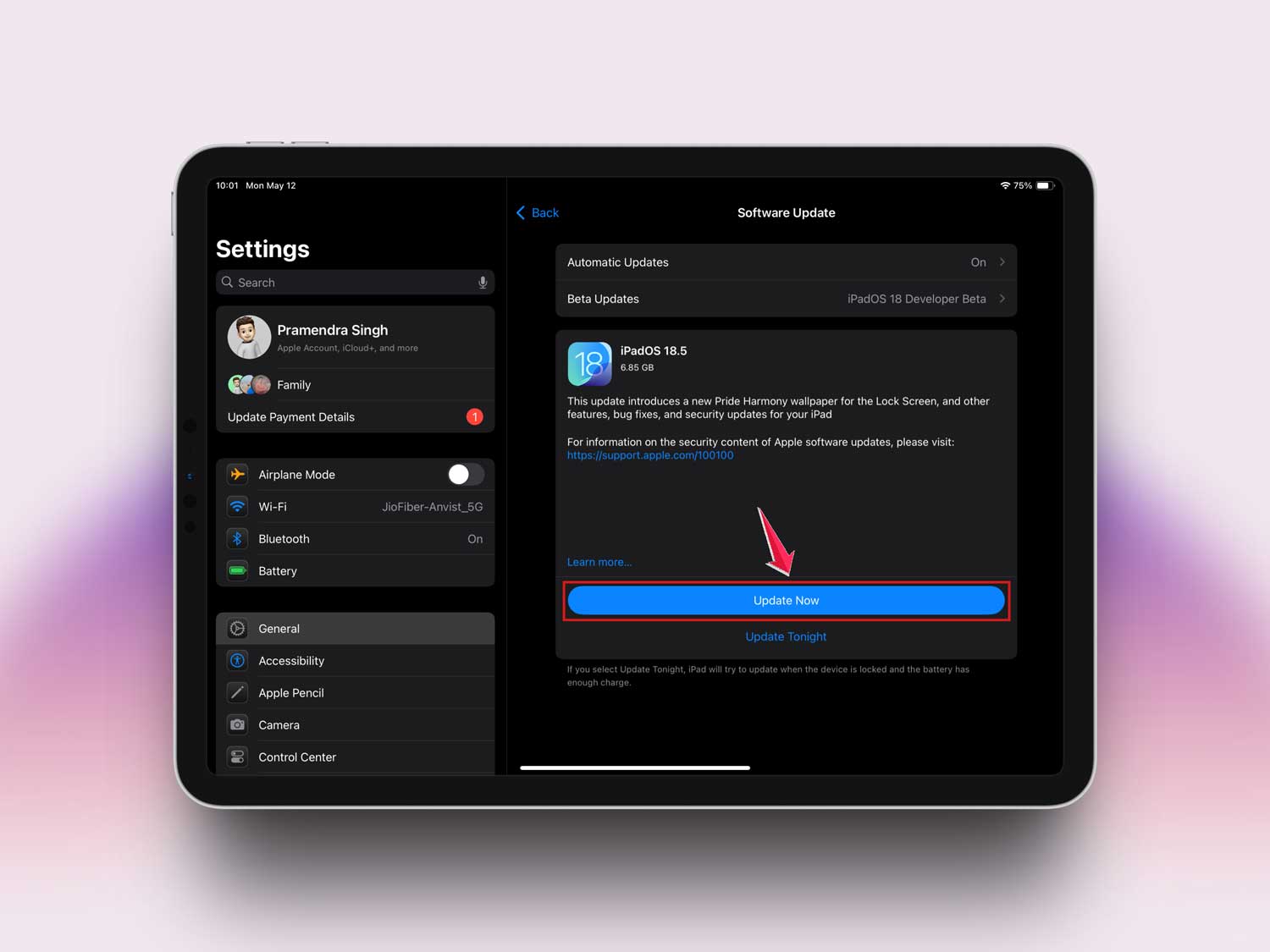
Updating your iOS can feel like a small step, but it can solve a lot of problems. And hey, you’ll get new features too!
#2: Confirm app compatibility
Not every app can run in Split Screen—and that’s totally normal.
Here’s how you can check:
- Open Notes or Mail (apps that support Split Screen).
- Swipe up from the bottom to reveal the Dock.
- Drag another app (like Chrome) from the Dock to the side.
If it works with these apps but not with others, then you know it’s the app’s fault—not yours. Just switch to apps that do support it.
#3: Use the right gestures
Mastering gestures makes all the difference. It might feel weird at first, but it gets easier fast.
Here’s the basic move:
- Open your first app.
- Swipe up just a little to show the Dock (don’t swipe too far or you’ll close the app).
- Touch and hold the second app in the Dock.
- Drag it to the left or right side of the screen.
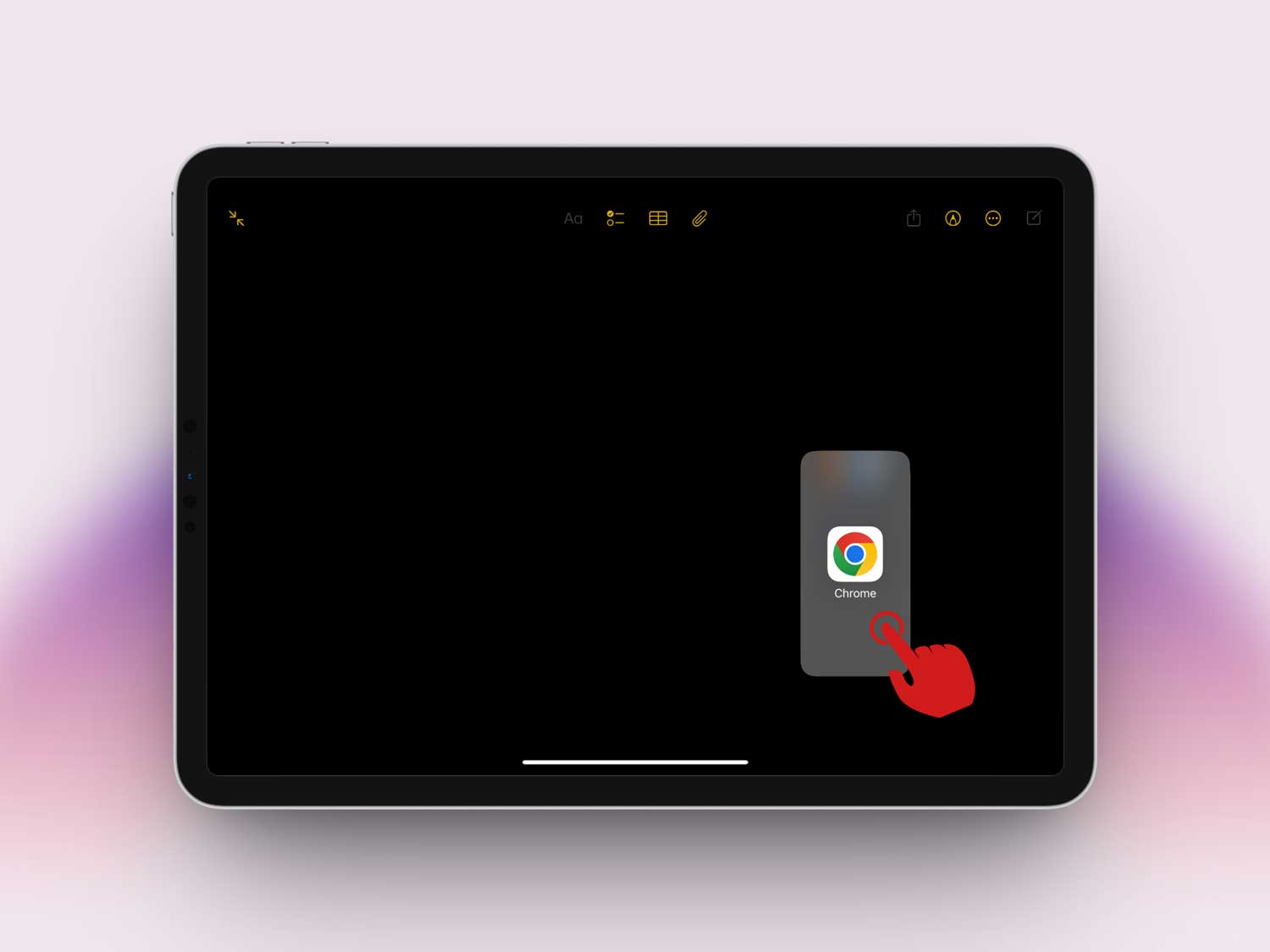
- Let go when the app snaps into place.
That’s it! Practice a few times and you’ll be flipping between apps like a pro.
#4: Master Split Screen size
Once you have two apps open, you can adjust how much space each one gets.
Here’s how:
- Find the black divider line between the two apps.
- Drag it left or right to give one app more space.
Sometimes you want your browser bigger. Sometimes you want Notes bigger. You get to choose. Super handy!
#5: Getting out of Split Screen
Done multitasking? Here’s how to go back to one app:
- Grab the black divider line again.
- Drag it all the way to the edge of the screen (left or right).
Boom. You’re back to just one app. Easy, right?
Extra tips to multitask like a pro
Alright, you’re almost a Split Screen master. Let’s add a few more tricks to your toolkit!
1. Slide Over is your friend for quick peeks
Sometimes you don’t want full Split Screen. You just want to quickly check a message or a note. That’s where Slide Over comes in.
- Swipe in from the right edge of the screen.
- A small app window will pop up.
- When you’re done, swipe it away.
It’s super fast and doesn’t mess up your current apps.
2. Organize your apps for faster access
Want to move even faster? Organize your Dock!
- Drag your most-used apps into the Dock.
- Create folders by dragging apps on top of each other.
This way, you can grab them quickly when you need to multitask.
3. Embrace the App Library
Finding apps can be a pain if your Home Screen is messy. That’s why the App Library is awesome.
- Swipe left past your last Home Screen.
- You’ll see all your apps neatly sorted.
No more wasting time searching for apps!
4. Use the Multitasking Menu (if you have it)
Some newer iPads have a Multitasking Menu at the top of the screen. It’s a little three-dot button.
- Tap the three dots at the top of any app.
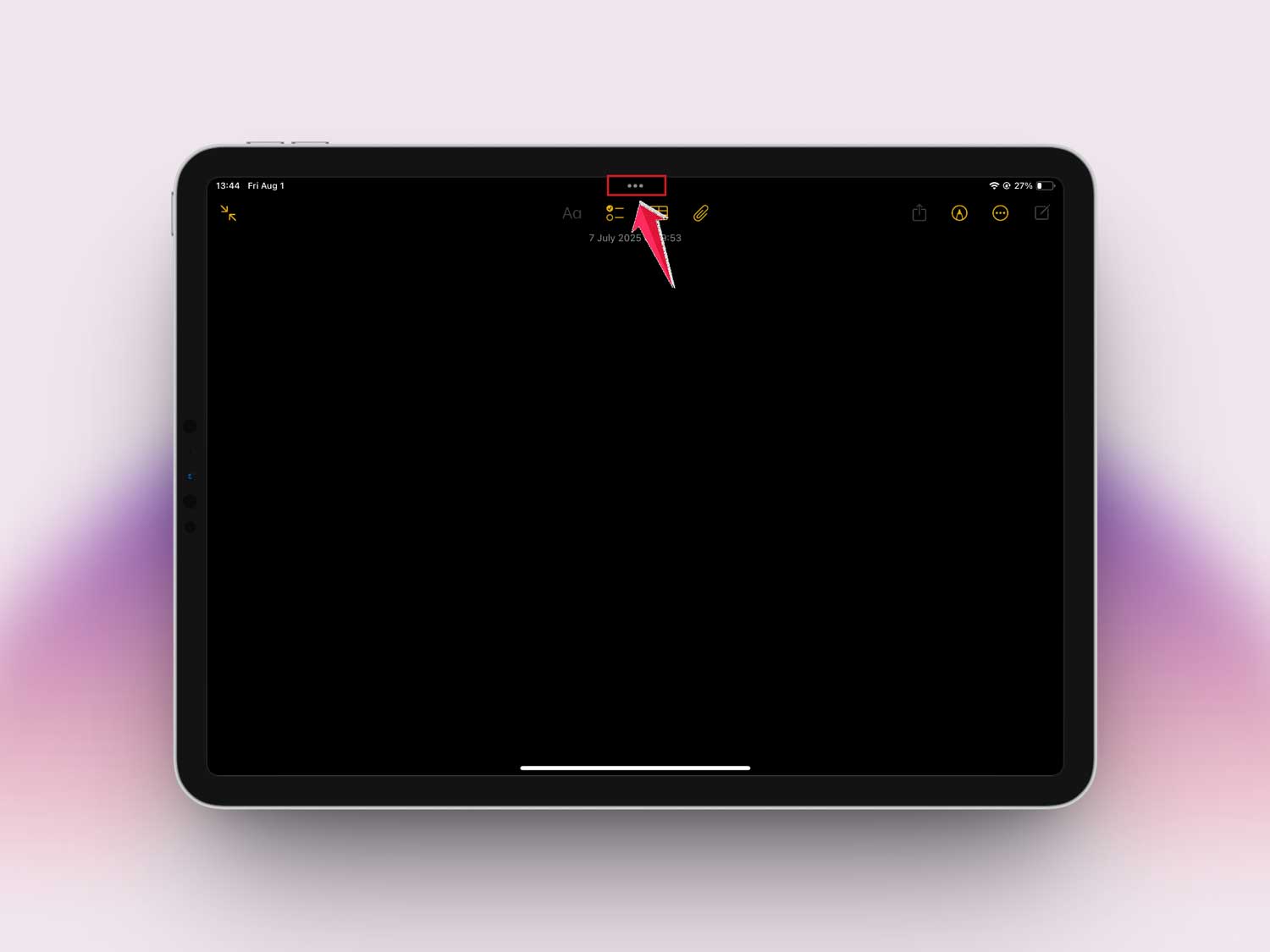
- Choose Split View or Slide Over.

It makes multitasking even easier.
5. Restart your iPad regularly
Sometimes your iPad just needs a quick break.
- Press and hold the top button and either volume button.
- Slide to power off.
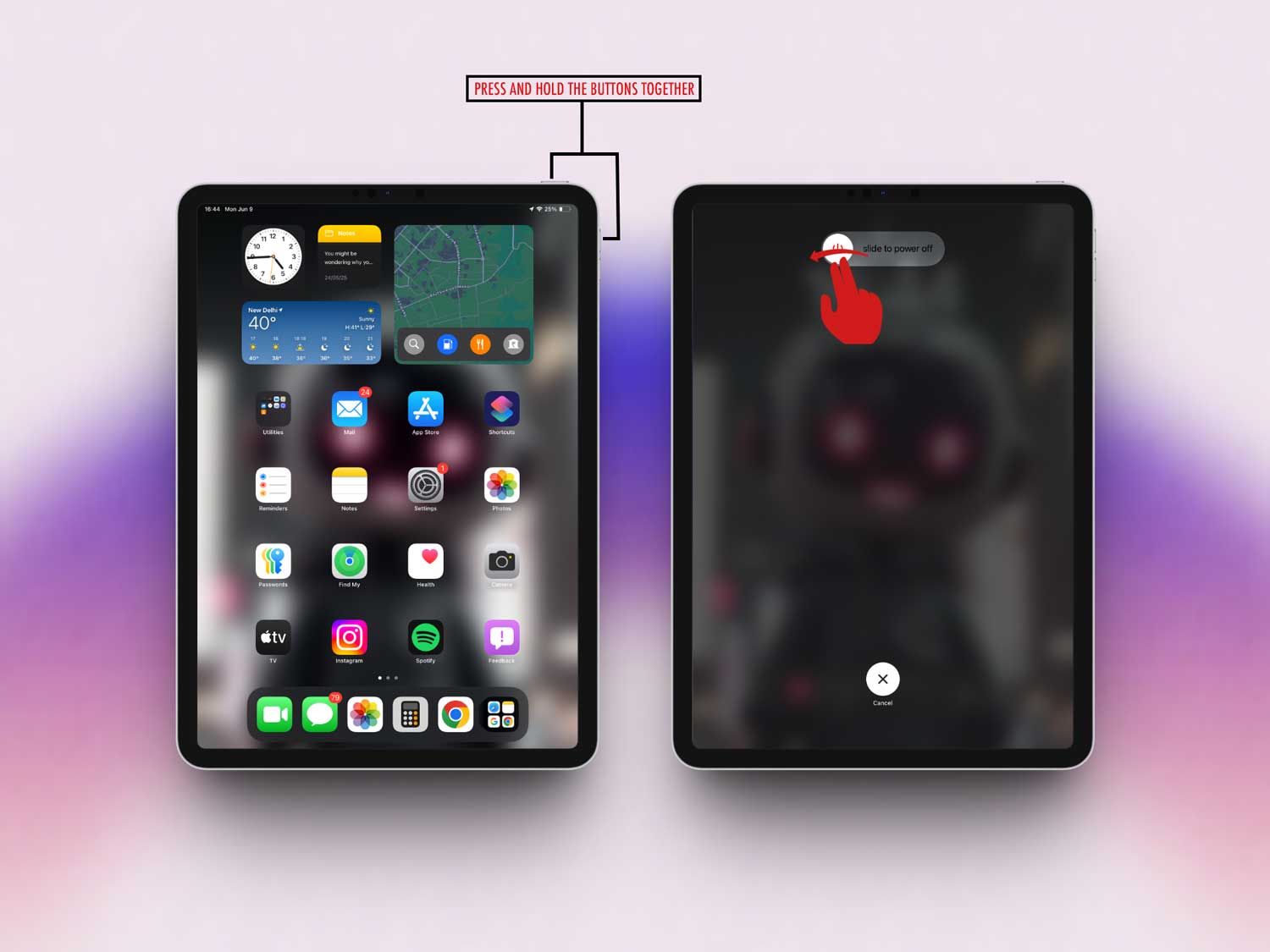
- Turn it back on after a minute.

This clears out small bugs that can mess with multitasking.
The Takeaway
Getting Split Screen to work on your iPad can feel frustrating at first. But don’t worry—you’re not alone!
Most of the time, it’s just a simple fix like updating your iOS, checking app compatibility, or practicing the right gestures.
If you follow these steps, you’ll be multitasking like a pro in no time. And hey, even if an app doesn’t support Split View, there’s always Slide Over or just switching quickly between apps.
Give it a go! Try out these tips and see how much smoother your iPad experience becomes.
And if you have any questions or just want to share your success, drop a comment below. I’d love to hear how it worked out for you!