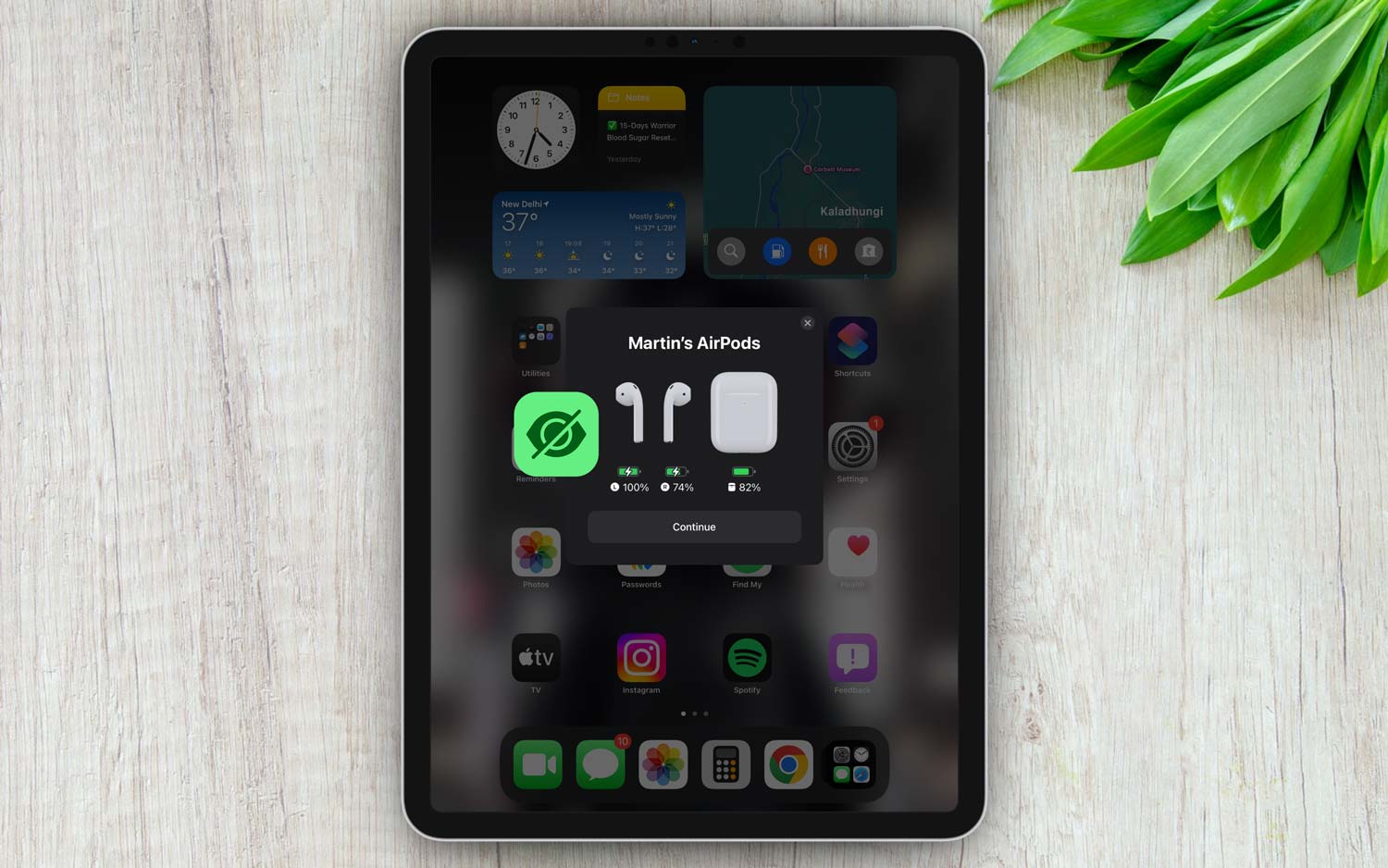
Ever had your iPad connect to your AirPods, but the battery info just refuses to show up? Yeah, it’s super annoying.
You’re all set to listen to your favorite tunes or take a call, but you have no clue if your AirPods are about to die.
So, what’s really going on here? Well, your iPad does connect to your AirPods, but for some reason, it just doesn’t display the battery status.
And guess what? You’re not alone. This happens to a lot of people, and it can definitely mess up your day.
Why is this important? Knowing your battery life means you can avoid getting cut off halfway through a playlist or during an important meeting. Trust me, no one wants that.
The good news? You can fix it! Stick with me. I’ll walk you through some simple steps you can try.
In just a few minutes, you’ll be back to using your AirPods without any battery surprises. Let’s get started!
What could be causing the battery not to show?
Alright, before we jump into the fixes, let’s quickly talk about what could be causing this headache. It’s usually something simple, and once you know, it’s easier to fix.
1. Bluetooth connection issues
Sometimes Bluetooth just acts weird. Even though your iPad says it’s connected, the connection might not be perfect.
A small glitch can stop the battery info from showing up. If that’s the case, a quick Bluetooth reset might do the trick.
2. Software glitches
We’ve all seen it — your device freezes, apps crash, or things just don’t work right.
It could be a small software bug making your iPad and AirPods not talk properly. Restarting your device can often fix these small hiccups.
3. Outdated iOS software
Running an old iOS version? That can sometimes mess things up. Newer AirPods might not work perfectly with an outdated iPad system.
Keeping your iPad updated helps it work better with all your accessories, including your AirPods.
4. Wrong settings
Sometimes, it’s just a setting that’s off. Maybe something in Bluetooth settings or device permissions isn’t right.
Double-checking your settings can sometimes reveal the problem hiding in plain sight.
By understanding these common problems, you and I are already one step closer to fixing it. Now, let’s dive into the real solutions!
How to Fix iPad Connects to AirPods but Won’t Show Battery.
Alright, now that we know what’s possibly going wrong, let’s jump into how you can fix it. Follow these steps one by one and see if your battery info pops back up.
#1 Restart Your iPad and AirPods
Sometimes, all your devices need is a fresh start. Trust me, it works more often than you might think.
Here’s how you do it:
- Press and hold the power button on your iPad until you see the slider appear.
- Slide it to turn off the iPad. Wait about 10 seconds.

- Press and hold the power button again until you see the Apple logo.

- For your AirPods, put them back into their case. Close the lid and wait for about 10 seconds.
- Open the case and take the AirPods out again.
Give both devices a moment to reconnect. Then check if the battery info shows up. Simple, right?
#2 Check Bluetooth Settings
Bluetooth can be a little moody sometimes. Let’s make sure it’s playing nice.
Here’s what you should do:
- Open Settings on your iPad.
- Tap Bluetooth and make sure it’s turned ON.

- Find your AirPods in the list of devices. Tap the little “i” next to them.
- Tap Forget This Device.
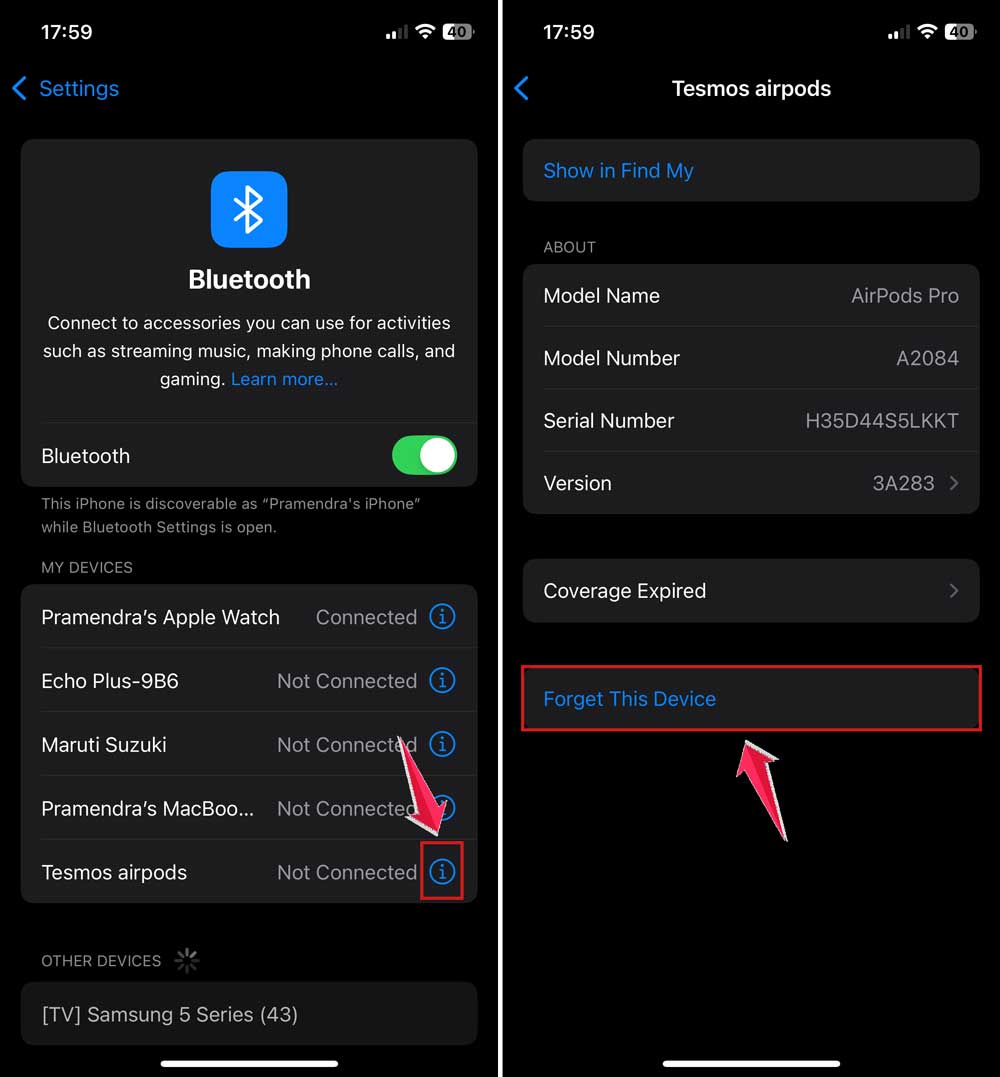
- Now, reconnect your AirPods just like you did the first time.
This little reset can clear out any small bugs in the connection.
#3 Update iOS Software
If your iPad is running old software, it might not work perfectly with your AirPods. Let’s get you updated.
Follow these steps:
- Go to Settings on your iPad.
- Tap General.

- Tap Software Update.
- If an update is available, tap Update Now.

Updates often fix bugs like this, so it’s really worth doing.
#4 Reset Network Settings
Sometimes, resetting network settings can clear up weird connection issues.
Here’s how:
- Open Settings on your iPad.
- Tap General.
- Scroll down and tap Transfer or Reset iPad.

- Tap Reset.
- Choose Reset Network Settings.
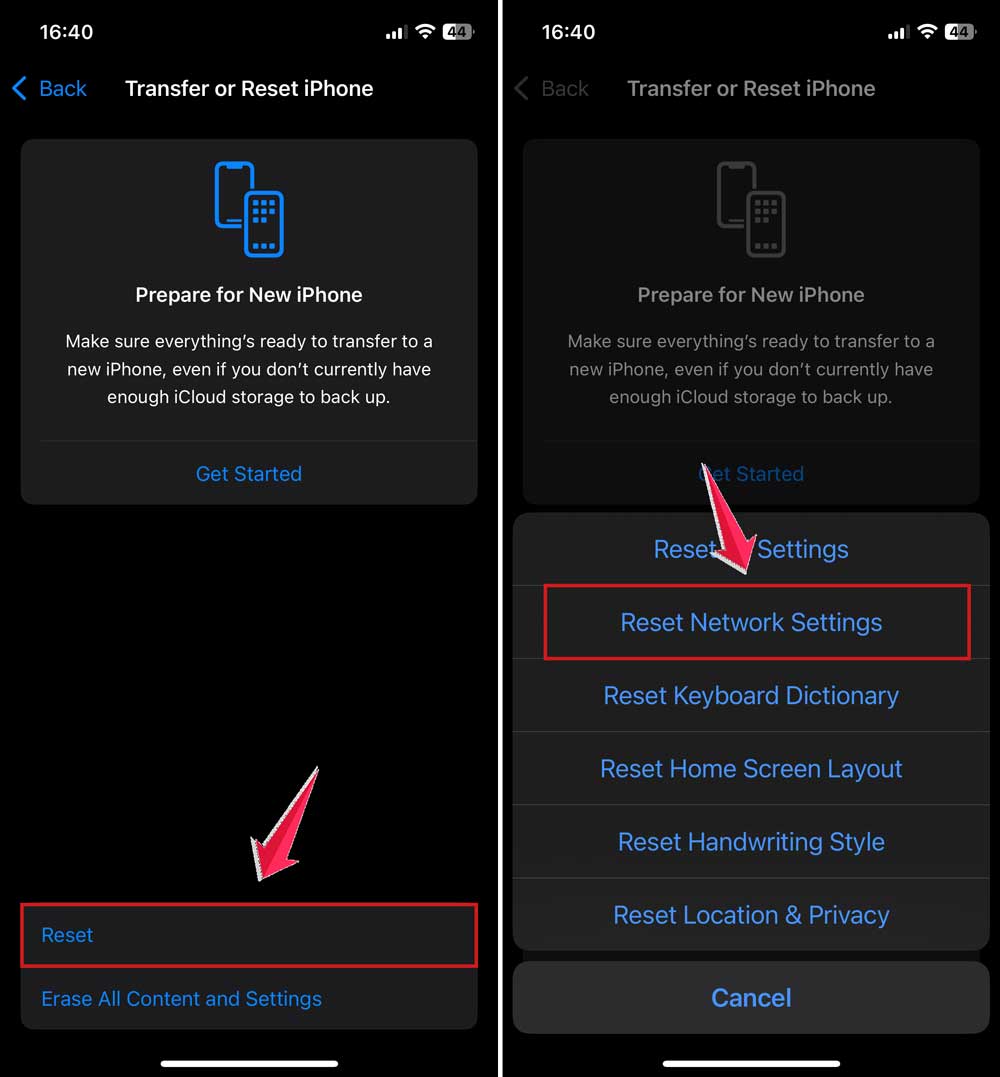
Don’t worry, this won’t delete your apps or photos. It just clears out old connection info.
#5 Use Another Device to Check Battery
Still no luck? Let’s do a little test.
- Pair your AirPods with another device, like an iPhone or a Mac.
- See if the battery info shows up there.
If it does, then your AirPods are fine—it’s your iPad that’s being stubborn. If not, your AirPods might need a little extra help.
By now, you should have a good idea of what’s wrong. Hopefully, the battery info is popping up again like it should. If not, don’t worry. We’ve got a few more tricks up our sleeve.
Extra Tips to Help You Out
Hey, sometimes the main fixes aren’t enough. Here are some bonus tips that might just save the day.
1. Keep AirPods and Case Clean
You’d be surprised how much a little dirt can mess things up. Keep your AirPods and the case clean. Use a dry, soft cloth to gently wipe them down. No liquids, please!
2. Try Using AirPods with Another Device
Pair your AirPods with a friend’s iPhone or another iPad. If they work there, we know the problem is with your iPad, not the AirPods. That’s half the battle won!
3. Contact Apple Support
If you’re still stuck, don’t be shy about reaching out to Apple Support. They’ve seen every kind of tech issue you can imagine. Tell them what you’ve already tried—they’ll appreciate it and might get you a quicker fix.
4. Check for Interference
Bluetooth can be sensitive. If you’re near a lot of wireless routers, microwaves, or even other Bluetooth devices, it can cause interference. Try moving to a different room and see if that helps.
Hang in there! These extra steps could be just what you need to finally get everything working perfectly.
The Takeaway
So there you have it. If your iPad connects to your AirPods but doesn’t show the battery percentage, it’s usually not a huge deal.
It’s often something simple like a Bluetooth hiccup, a software bug, or a setting that needs a quick tweak.
You don’t need to panic or run to the Apple Store just yet. Try restarting your devices, updating your iPad, or resetting network settings. Most of the time, one of these easy fixes will get you back on track.
And if not? Well, that’s what Apple Support is there for. Don’t be afraid to ask for help—they’re pretty good at fixing these things.
Now it’s your turn! Give these fixes a shot and let me know how it goes. Drop a comment below—I’d love to hear if this helped you out!