Let me guess—you’re just vibing with your favorite playlist, and then suddenly, your AirPods get loud out of nowhere. Or worse, the sound drops so low you can barely hear it. Frustrating, right? You’re definitely not the only one dealing with this.
This weird issue where your AirPods volume keeps changing on its own is more common than you’d think.
One second it’s fine, the next it’s jumping all over the place. And when you rely on your AirPods for music, podcasts, calls, or just zoning out, that kind of behavior can ruin the whole experience.
We all use our AirPods a lot—during workouts, while walking around town, or just chilling at home.
So when the volume starts acting up, it’s something you want to fix fast. The good news? Most of the time, it’s not a big issue. A few small changes can bring things back to normal.
Let’s walk through what might be causing the problem and how you can fix it. I’ll keep things simple, talk you through each step, and help you get your sound back to smooth and steady.
Let’s talk about what’s causing your AirPods volume to change
1. Bluetooth interference could be the problem
Your AirPods connect to your device through Bluetooth. But if you’ve got other wireless devices around—like smartwatches, speakers, or even other phones—they can mess with that connection.
When that happens, your AirPods might start acting weird, like changing volume randomly.
2. Automatic ear detection isn’t always perfect
This feature is meant to pause or play audio when you take your AirPods in or out. But sometimes, it gets confused and starts messing with the volume instead.
If you’re moving around a lot or adjusting your AirPods, this might be what’s causing the issue.
3. Low battery can mess things up
If your AirPods are below 50% battery, they might not work as smoothly. Just like us when we’re tired, they don’t perform their best. Keeping them charged can help avoid weird problems like sudden volume drops.
4. Software glitches happen
Sometimes, it’s just a bug. A small software glitch can make your AirPods act funny. If your phone or AirPods haven’t been updated in a while, this could be the reason why things aren’t working right.
5. Volume limits might be holding you back
Some phones have volume limit settings to protect your ears. That’s helpful, but sometimes it can cause the volume to suddenly lower when you’re not expecting it. It’s worth checking to make sure this isn’t the case.
Alright, now that you’ve got an idea of what might be going wrong, let’s talk about how to fix it. These fixes are easy, quick, and most people find that one of them solves the problem.
Simple fixes to keep your AirPods volume steady
#1 Fix Bluetooth interference by staying clear
If there are too many devices around using Bluetooth, it can mess with your AirPods. Here’s what you can do:
- Turn off Bluetooth on other nearby devices, like smartwatches or old phones.
- Move away from crowded wireless areas, like public transit or busy offices.
- Reset Bluetooth on your phone. Just turn it off, wait a few seconds, and turn it back on.
This alone can fix the issue for a lot of people. Give it a try first.
#2 Turn off Automatic Ear Detection
This feature is cool, but it’s not always reliable. If your AirPods keep pausing or changing volume, try turning this off. Here’s how:
- Go to Settings on your iPhone.
- Tap Bluetooth and find your AirPods in the list.

- Tap the “i” icon next to your AirPods name.
- Turn off Automatic Ear Detection.

Test your AirPods again after this. If the volume stays steady, you’ve found your fix.
#3 Keep those batteries charged
Low battery can cause weird behavior. Try to keep your AirPods charged above 50% when you can. Here’s a tip:
- Put them back in the case when not in use, even for a few minutes.
- Check battery levels by opening the case near your iPhone or using the battery widget.
This keeps them in top shape and helps avoid random volume changes.
#4 Update to the latest software
Outdated software could be the reason your AirPods are acting up. To check for updates:
- Open Settings on your iPhone.
- Tap General.

- Then tap on Software Update.
- Install any available updates.

Your AirPods update automatically when connected to your phone and charging nearby, so just keep them close and plugged in.
#5 Check and adjust volume limits
If your phone has volume limits turned on, it could be lowering the sound without you realizing it. To fix this:
- Go to Settings on your iPhone.
- Tap Sounds & Haptics.
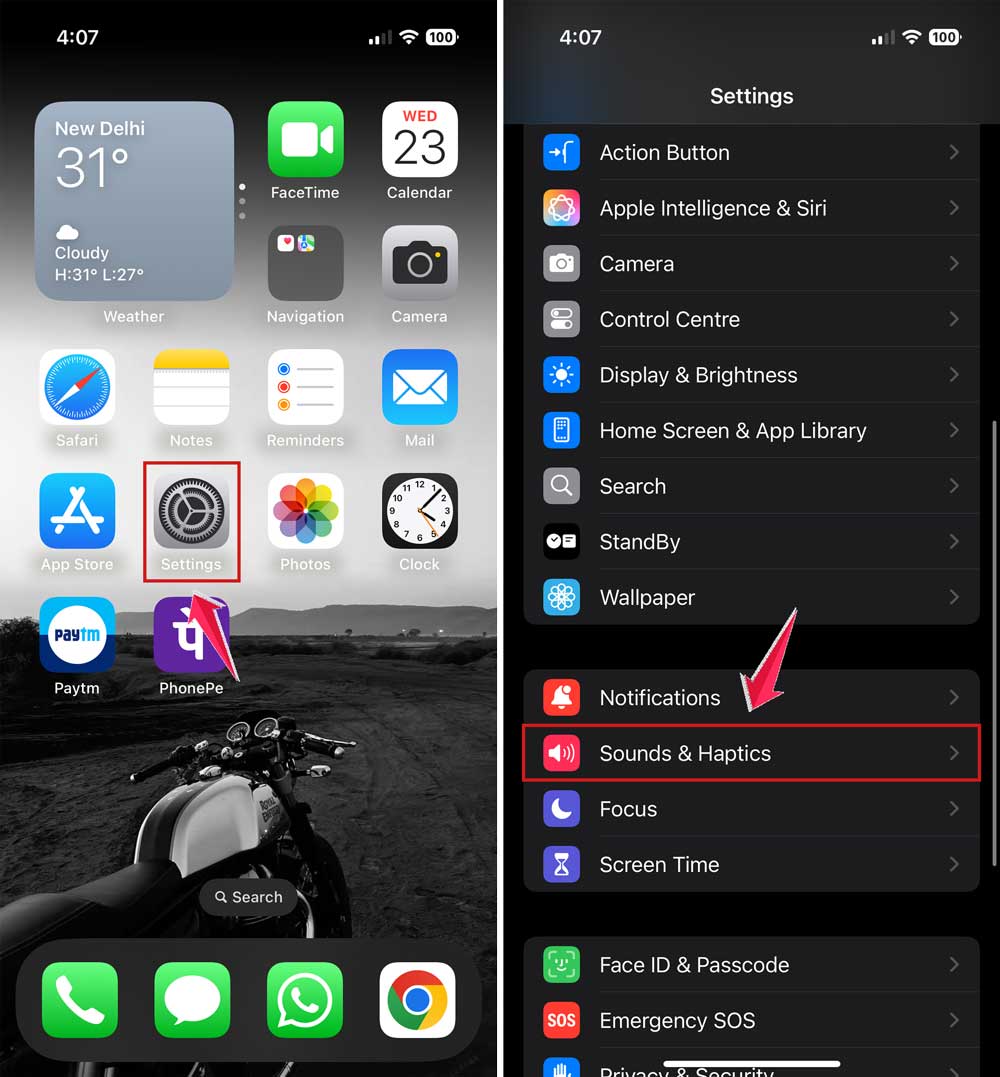
- Then tap on Headphone Safety.
- Turn off Reduce Loud Audio or slide the volume limit up.

Now your AirPods should be free to play at full volume without interruptions.
#6 Give your AirPods a fresh start
Sometimes, a reset can fix all kinds of weird issues. Here’s how to reset your AirPods:
- Put them in the charging case and close the lid.
- Wait 30 seconds, then open the lid.
- Press and hold the setup button on the back of the case until the light flashes amber, then white.
- Reconnect them to your iPhone via Bluetooth.
This gives your AirPods a clean slate to work from.
#7 Keep them clean
Dirty AirPods can block sound and cause volume to seem uneven. Use a soft, dry cloth or a soft-bristled brush to gently clean the speaker mesh and sensors. Just be careful—don’t use liquids or sharp objects.
#8 Test on another device
Still not sure what’s wrong? Try connecting your AirPods to a different phone or tablet. If they work fine there, your original device might be the problem.
#9 Manage app permissions
Some apps control volume or sound settings. Go into your phone’s settings and check which apps have access to media or sound settings. If something looks off, turn off those permissions and test again.
Extra tips for perfect AirPods performance
1. Give your AirPods a rest
If you’ve been using them for hours, give them a short break. Letting them cool down can help reset things naturally.
2. Switch audio balance
Go into your phone’s settings and check the audio balance slider. Make sure it’s centered so the sound isn’t favoring one side over another.
3. Keep away from extreme temperatures
Don’t leave your AirPods in a hot car or outside in the cold. Protecting them from extreme temperatures can help them last longer and work better.
4. Check for malware on your device
If your phone has been acting weird too, it could be malware. Run a quick virus scan or use a trusted security app to rule this out.
5. Update your AirPods firmware
AirPods get firmware updates automatically. Just make sure they’re connected to your iPhone and charging while your phone is connected to Wi-Fi. That’s all it takes.
The takeaway
When your AirPods volume starts going up and down on its own, it’s frustrating—but don’t worry. Most of the time, the fix is simple.
Whether it’s Bluetooth interference, a low battery, or a software glitch, you’ve now got the tools to fix it.
Start with the basics. Reset Bluetooth. Turn off automatic ear detection. Keep those batteries charged.
And don’t forget to check for updates. These small steps can make a big difference.
And if none of these work? That’s okay too. Apple Support is always there to help. But chances are, one of these tips will get your AirPods back on track.
Got questions or want to share what worked for you? Drop a comment below—I’d love to hear from you!