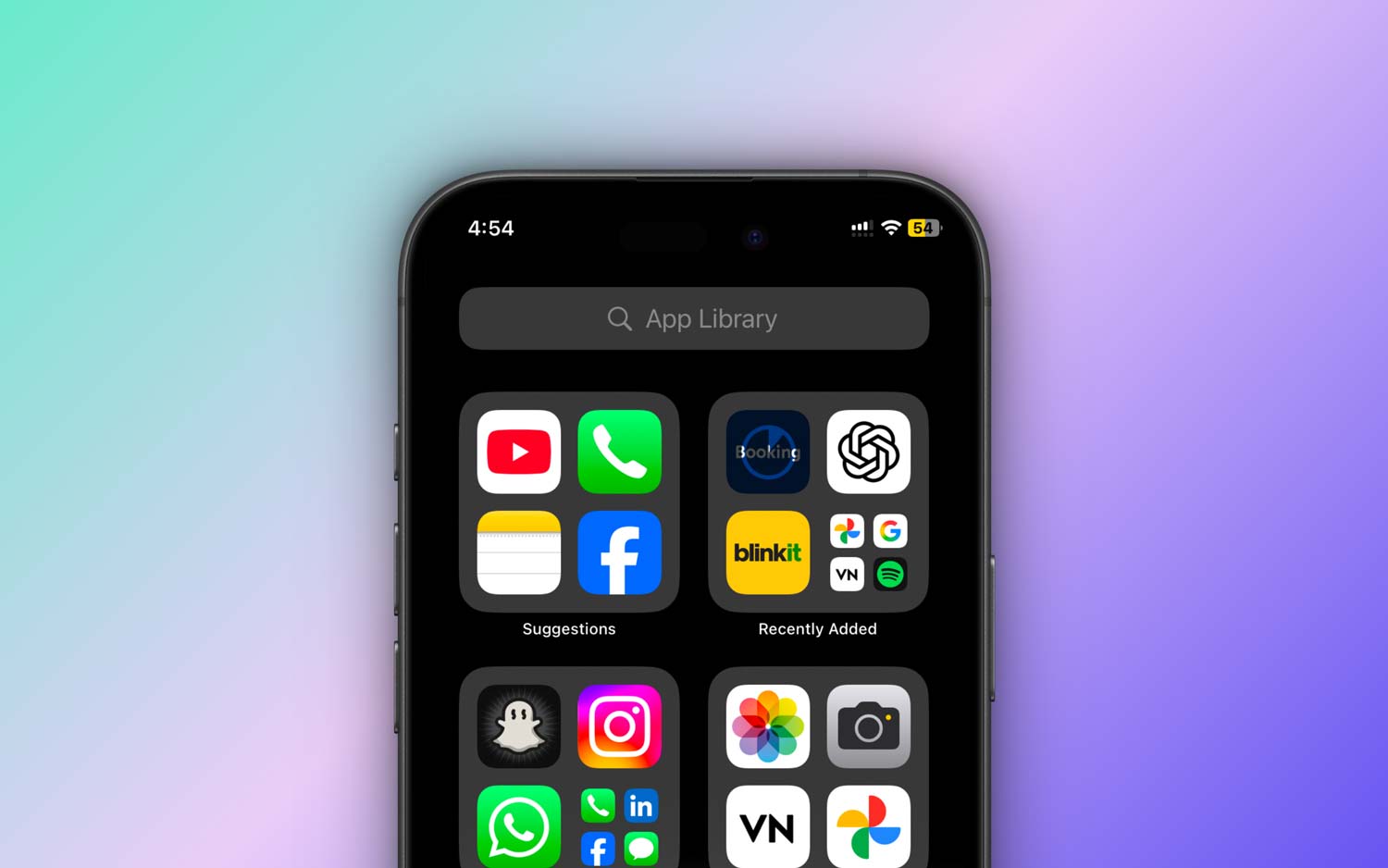
Let’s face it — nothing’s more frustrating than opening your phone, tapping on an app, and seeing it stuck on “Installing” or “Waiting.” You wait. You tap again. Still nothing.
It’s enough to make anyone sigh out loud. But don’t panic — you’re definitely not the only one dealing with this, and the good news is, it’s usually a simple fix.
When an app won’t install or just stays frozen, it’s often because of a few common issues. Maybe your internet connection is slow. Or maybe you’re running low on storage space.
Sometimes, your phone just needs a quick restart, or the App Store is having a temporary glitch. Whatever the cause, we’re going to walk through it together and fix it.
We all rely on apps. From chatting with friends to checking emails or playing games, they’re part of our daily routines. So when they don’t work, it can really throw things off.
That’s why it’s important to get them up and running again — and quickly.
In this guide, I’ll show you some super simple steps you can try right now to fix the issue. Most of these take just a minute or two. Ready? Let’s get started!
Why your app might be stuck like that
1. The internet might be slow or not working
Apps need a strong internet connection to download. If your Wi-Fi or mobile data is acting up, the app might just be stuck waiting for a better signal.
Try switching networks or restarting your router. A quick refresh can do wonders.
2. Your phone might be out of space
Yep, if your phone is running low on storage, apps won’t install. Your device needs space to download and set up the app.
Check your storage settings and clear out things you don’t need — like old apps, videos, or photos you’ve already backed up.
3. Your phone’s software might be glitching
Sometimes, your phone just needs a break. A quick restart can fix small bugs and get things moving again.
It’s like giving your phone a little nap before it gets back to work.
4. The App Store might be having issues
Believe it or not, sometimes the problem isn’t even on your end. The App Store itself could be down or experiencing some issues. It’s rare, but it happens.
You can check online to see if others are having the same problem.
Alright, now that you know what could be causing the issue, let’s move on to the fixes. These are easy, and you can try them one by one.
How to Fix Apps Stuck on “Installing” or “Waiting”
Let’s fix this together. I’ll walk you through each step. You don’t need to be tech-savvy — just follow along and try these out.
#1: Boost your internet connection
First, let’s make sure your internet is working properly. A slow or unstable connection can stop apps from downloading.
Here’s what you can do:
- Check if your phone is connected to Wi-Fi.
- If yes, try switching to a different Wi-Fi network, if available.
- Still no luck? Restart your router — unplug it for 30 seconds, then plug it back in.
- If Wi-Fi is slow, switch to mobile data, but keep an eye on your data usage.
#2: Restart your device
Sometimes all your phone needs is a quick restart to get things back on track. This clears out temporary glitches and refreshes the system.
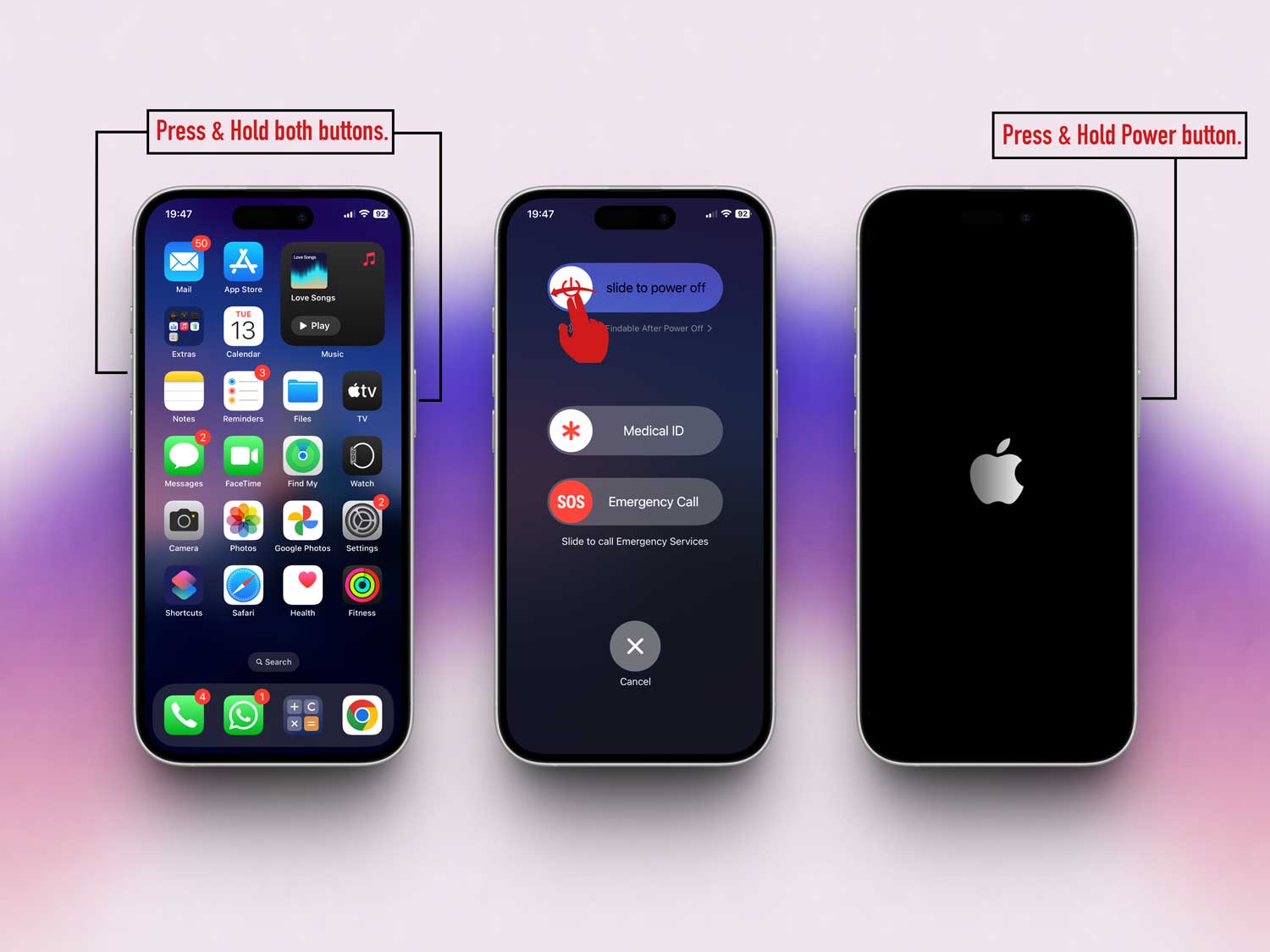
- Hold the power button until you see the option to turn off.
- Slide to power off and wait for about 30 seconds.
- Turn it back on and check if the app starts installing.
#3: Free up some storage space
If your phone’s full, new apps won’t install. Let’s clean up a bit.
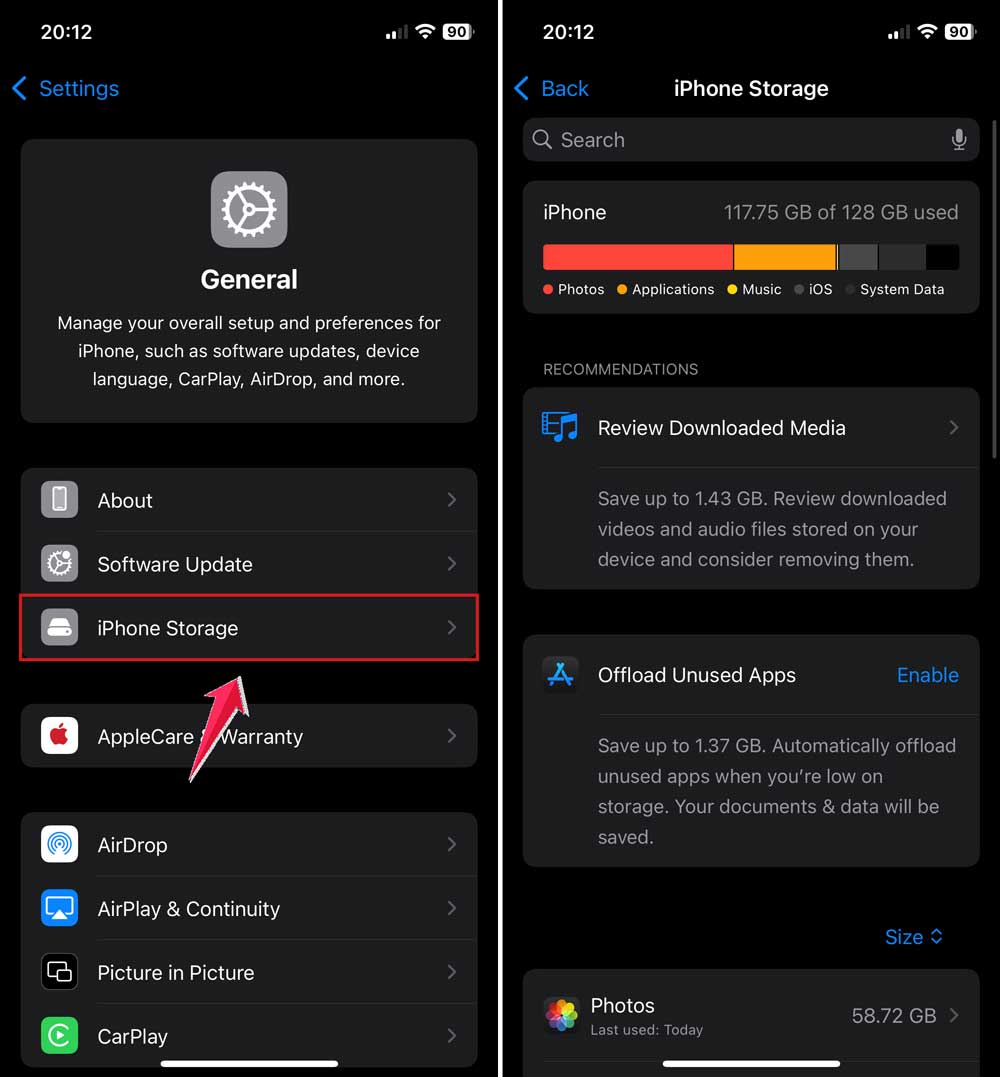
- Open Settings and go to General.

- Then tap on iPhone Storage.
- See what’s using space — photos, videos, or unused apps?
- Delete what you don’t need. Even clearing a little space can help.
#4: Pause and resume the app download
Sometimes, the app just needs a little push. You can pause and resume the download to get it moving again.
- Find the app icon on your home screen.
- Tap once to pause it, then tap again to resume.
#5: Update your device’s software
Older versions of iOS or Android can sometimes cause problems. Let’s make sure your phone is up to date.
- Go to Settings and tap General.
- Tap Software Update.
- If there’s an update, download and install it.

#6: Sign out and back into the App Store
Sometimes, your App Store account might be the problem. Signing out and back in gives it a reset.
- Go to Settings and tap your name at the top.
- Scroll down and tap Sign Out.

- Wait a few seconds, then sign back in.
Still stuck? Try these extra tips
#7: Reset your network settings
If your internet is still acting up, reset your network settings. Just keep in mind — you’ll need to re-enter Wi-Fi passwords.
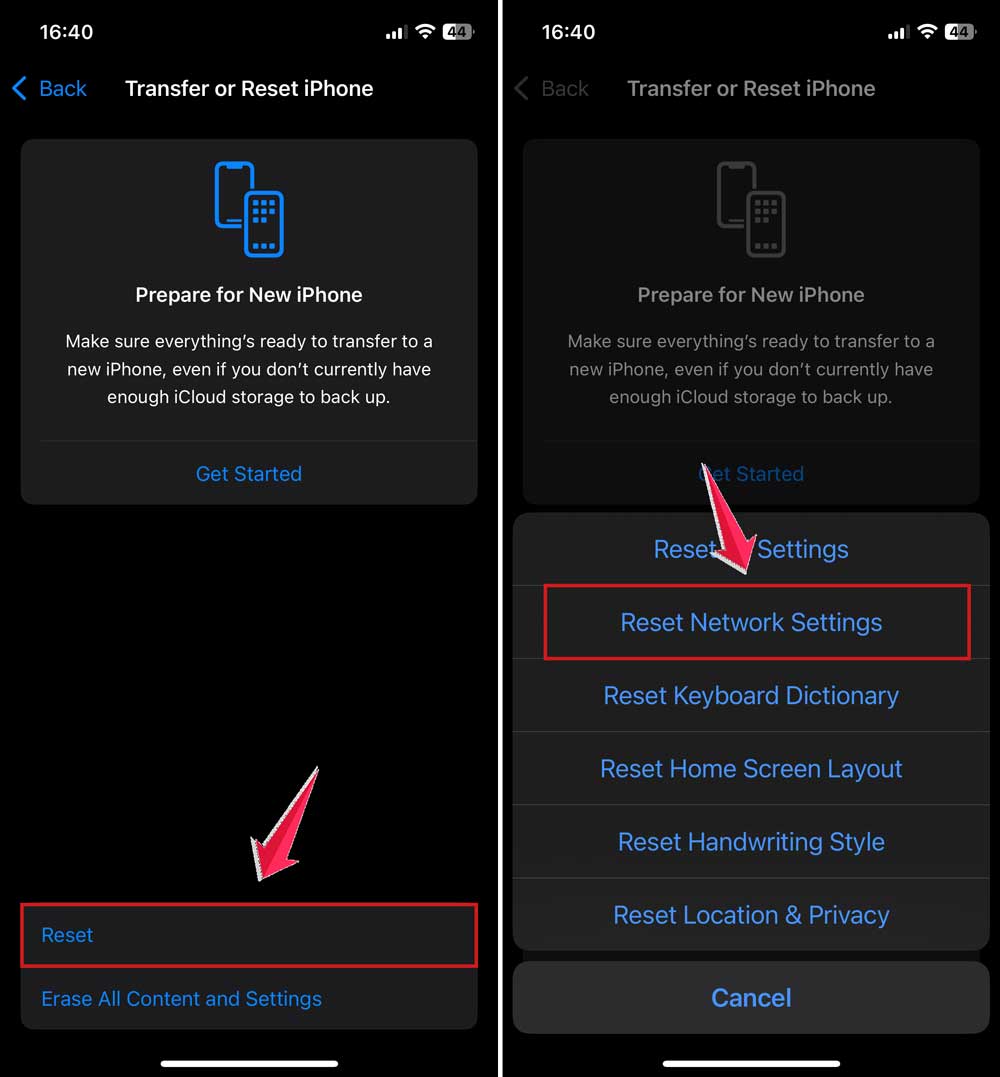
- Go to Settings > General > Transfer or Reset iPhone.

- Then tap on Reset.
- Tap Reset Network Settings.
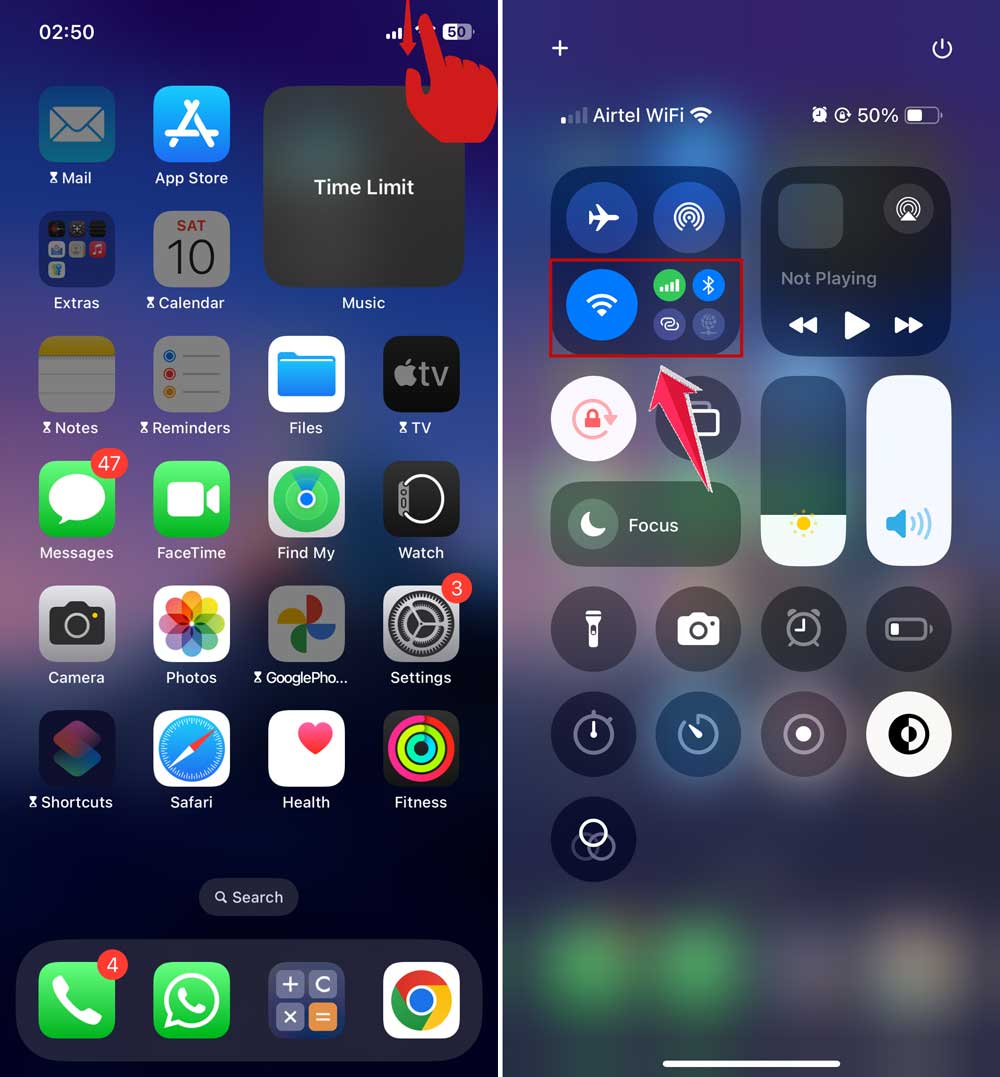
#8: Switch to cellular data
If Wi-Fi isn’t working, try using your phone’s data connection.
- Turn off Wi-Fi in quick settings.
- Make sure mobile data is turned on.
#9: Check App Store status online
Sometimes the problem isn’t you — it’s the App Store. Check online to see if others are having the same issue. If the store is down, you’ll just need to wait it out.
Extra tips to speed things up
Still having trouble? Here are a few more things you can try to get your app unstuck and keep your device running smoothly.
1. Close apps running in the background
Too many apps open at once can slow things down. Swipe up and close the ones you’re not using. It frees up memory and might help your app download faster.
2. Restart your router
Even if your Wi-Fi is working, a quick router restart can help. Unplug it, wait a minute, and plug it back in. This can refresh your connection and boost speed.
3. Try downloading at a different time
Sometimes, App Store servers are just busy. Try again during off-peak hours — like early morning or late at night — when fewer people are online.
4. Backup and restore your phone
This is a bigger step, but if nothing else works, backing up your phone and doing a full restore might help. Just make sure you save everything important first.
5. Contact customer support
Still stuck? It’s okay to ask for help. Reach out to Apple or your phone’s support team. They might have a fix that’s specific to your device.
The takeaway
Alright, we’ve covered a lot — but hopefully, you’ve found the fix that works for you.
Apps getting stuck on “Installing” or “Waiting” is annoying, but most of the time, it’s something simple like a slow connection or not enough space on your phone.
A quick restart, clearing out some storage, or switching networks can usually solve it.
And remember, you’re not alone in this. It happens to all of us. The key is to stay calm and try one thing at a time. You’ve got this — and your apps will be back to normal in no time.
Got a trick that worked for you? Or still have a question? Drop a comment below — I’d love to hear what helped or helped you figure it out!