Is your Apple ID giving you trouble? Don’t worry, you’re not alone. Your Apple ID is crucial for accessing Apple’s online services and many features on your Mac.
It’s the key that connects everything from syncing your iPhone to use as a webcam on your Mac to scanning documents directly to your computer. But what should you do if you forget your Apple ID or password?
Don’t panic! This guide will walk you through the process of unlocking your Apple ID. You’ll be back in control of your devices in no time. Let’s get started and solve this problem together.
Why Has Apple Locked My Apple ID?
Have you ever seen a message saying “This Apple ID has been locked for security reasons” or “This Apple ID has been disabled for security reasons”? If so, you’re probably wondering what’s going on.
Apple takes your privacy and security very seriously. If someone enters your password incorrectly multiple times, it sets off an automatic security response.
Apple’s system might think someone is trying to break into your account. To protect you from unauthorized access, they temporarily disable your Apple ID.
This security measure is in place to keep your personal information safe. While it can be frustrating, it’s actually a good thing – it means Apple is working hard to protect your data.
How to Unlock Your Apple ID
Don’t worry if you’re locked out of your Apple ID. Getting back into your account is easier than you might think. Here are three ways you can create a new password and regain access:
- Use a trusted device
- Use the Apple Support app
- Use a web browser
Let’s go through each method step by step.
Method 1: Unlock from a Trusted Device
If you have a device that’s still logged into your Apple ID, you can reset your password directly from the device settings. Here’s how:
On iPhone, iPad, or iPod touch:
- Open the “Settings” app
- Tap on your name at the top
- Select “Password & Security”
- Choose “Change Password”
- Follow the on-screen instructions to create a new password
On a Mac:
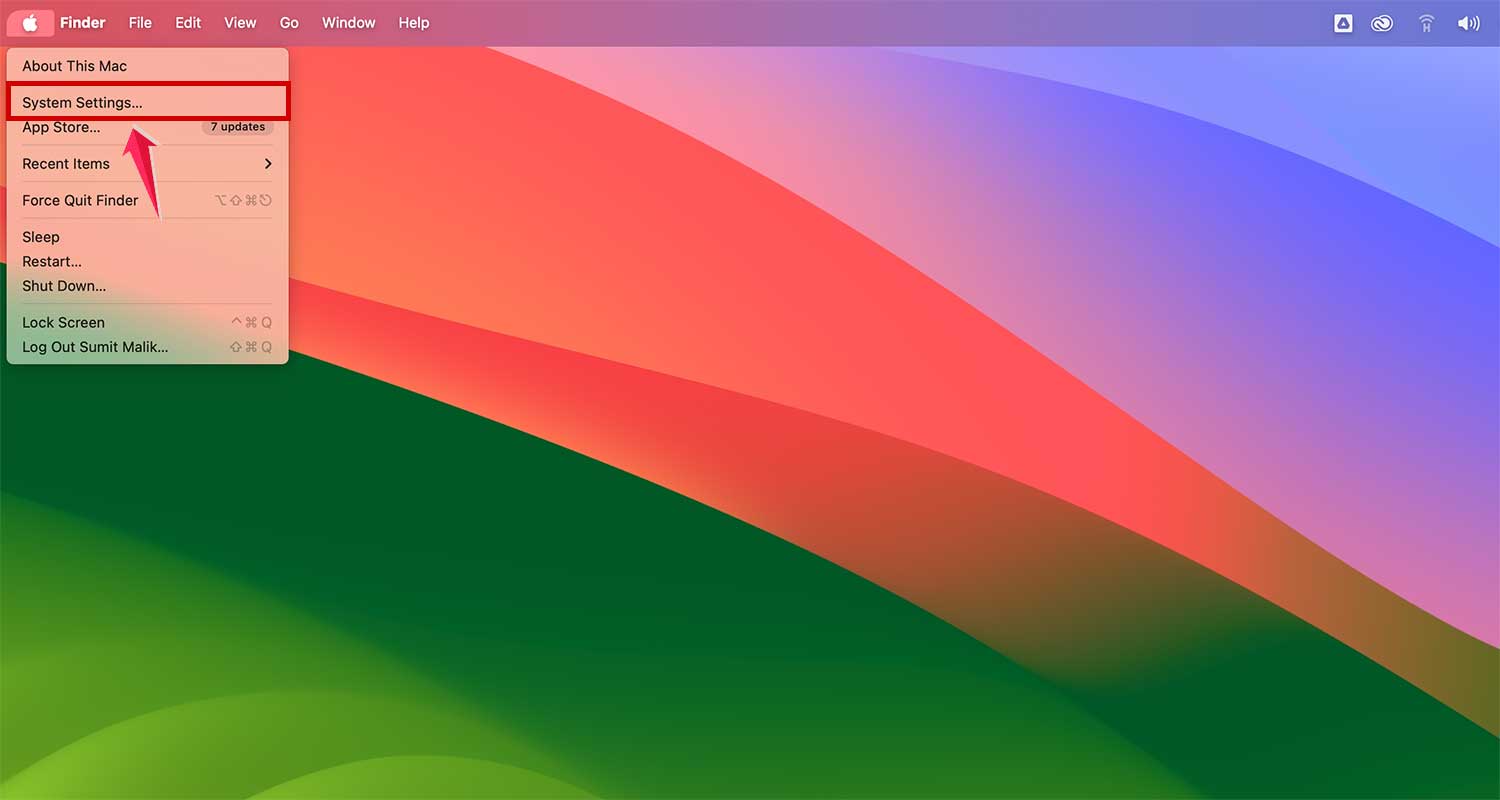
- Click the Apple menu
- Select “System Settings” (or “System Preferences” on older versions)
- Click on your name
- Select “Sign-In & Security”

- Tap on“Change Password” next to the password section
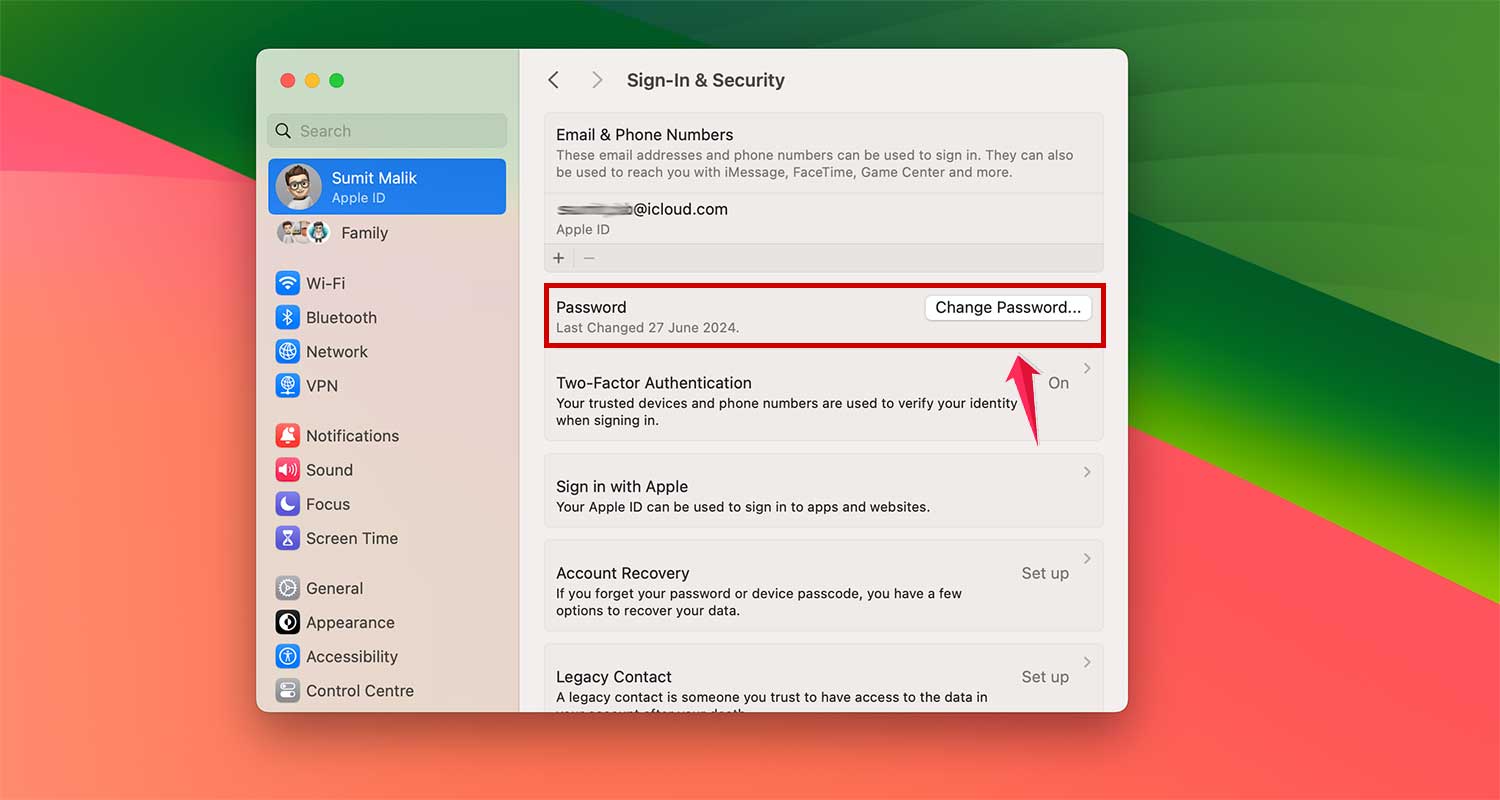
- Follow the prompts to create a new password
Method 2: Use the Apple Support App
If you don’t have access to your own Apple device, you can use a friend’s device or one provided by an Apple Store:
- Download and open the “Apple Support” app
- Scroll to “Support Tools” and tap “Reset Password”
- Select “A different Apple ID”
- Enter your Apple ID and tap “Next”
- Follow the on-screen instructions to reset your password
Make sure you have access to your trusted phone number for this method.
Method 3: Use a Web Browser
If the other methods aren’t available to you, try resetting your password through a web browser:
- Go to iforgot.apple.com in any web browser
- Tap on “Reset Password”

- Enter your “Email or Phone Number” and click on “Continue”
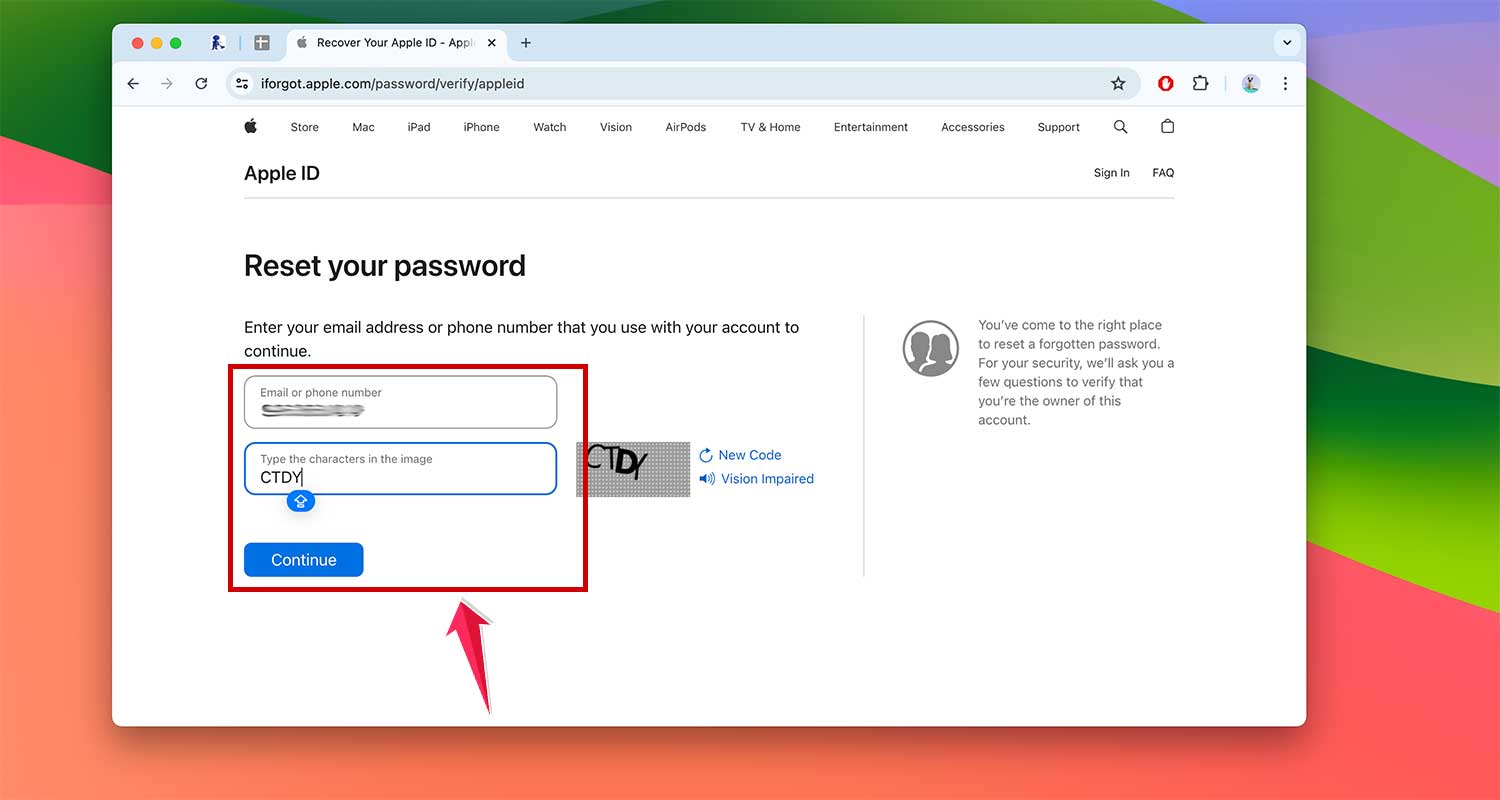
- If asked, enter the phone number associated with your Apple ID

- You’ll get a reset notification on your trusted devices

- On your Mac, hover your cursor on notification and click “Show” on the notification

- Follow the on-screen instructions to create a new password
How To Find Out If Your Apple ID Has Been Hacked?
Worried someone might be accessing your Apple ID without your permission? Here are some signs to look out for and steps you can take to protect your account:
Signs of a Hacked Apple ID
- Unexpected alerts: If you have two-factor authentication turned on, you’ll get notifications when your account is accessed from a new device or location. If you see an alert you don’t recognize, someone else might be using your account.
- Strange password reset emails: Keep an eye on emails from Apple about password reset attempts. If you didn’t ask to reset your password, someone else might be trying to get into your account.
How to Protect Your Apple ID
- Turn on two-factor authentication: This adds an extra layer of security. When you sign in, you’ll need to enter a special code sent to your device, not just your password.
- Use strong passwords: Create passwords that are hard for others to guess. Mix up letters, numbers, and symbols.
- Watch out for fake emails: Be careful about clicking links in emails that say they’re from Apple. Always double-check to make sure they’re real.
What to Do if Your Account is Hacked
If you think someone has gotten into your Apple ID, here’s what you should do right away:
- Change your password: Use one of the methods we talked about earlier – through a device you trust, the Apple Support app, or the website iforgot.apple.com.
- Check your account: Look for any changes you didn’t make.
- Update your security questions: If you use security questions, change them to new ones only you would know.
Wrapping Up
Keeping your Apple ID safe is key to protecting your information and enjoying Apple’s services without worry. By staying alert to unusual activity and using strong security measures, you can keep your account secure.
If you ever get locked out or think someone else might be using your account, don’t panic. You now know how to regain access quickly and safely.
Remember, a secure Apple ID means peace of mind and full access to all the great features Apple offers. Stay safe and enjoy your Apple experience!
We’d love to hear from you. Have you ever had to unlock your Apple ID? What was your experience like? Share your thoughts in the comments below.