Email is still a key part of our daily lives. Whether you’re managing a full inbox or just keeping in touch, it’s an essential tool for most of us. You probably use it for quick messages, sharing important files, and signing up for newsletters. It’s not going anywhere soon.
While many people use email services from Google or Microsoft, if you’re an Apple user, you might have an iCloud email account.
When you create an Apple ID, you get a free email and 5GB of storage. Usually, it works fine – but sometimes things can go wrong.
Let’s talk about what to do when your iCloud email isn’t working right.
Fixing iCloud Email Problems
Your iCloud email can stop working for many reasons. It could be an issue on Apple’s side, or it might be something with your Wi-Fi or device settings.
We’ll focus mainly on using Apple’s Mail app, which many Mac users prefer. But don’t worry – most of these fixes work for other email apps too.
If you’re using a different app, the steps will be similar, but you might need to adjust some settings yourself.
Let’s look at some common problems and how to solve them, so you can keep your emails flowing smoothly. And if you’re dealing with other Mac issues, you might also want to know how to fix a slow-running Mac.
How To Fix It When iCloud Email Is Not Working?
The most efficient way to tackle any technical hiccup is by starting with the basics.
Firstly, ensure your Wi-Fi is active and your internet connection is stable.
After confirming your network is up and running, follow these straightforward steps:
1. Check Apple’s servers
To check if iCloud services are operational, visit Apple’s system status page. Look for ‘iCloud Mail’.

A green dot indicates that the servers are functional.
2. Check iCloud Mail is enabled
It’s crucial to make sure that iCloud Mail is enabled on your device. Here’s how you can check:
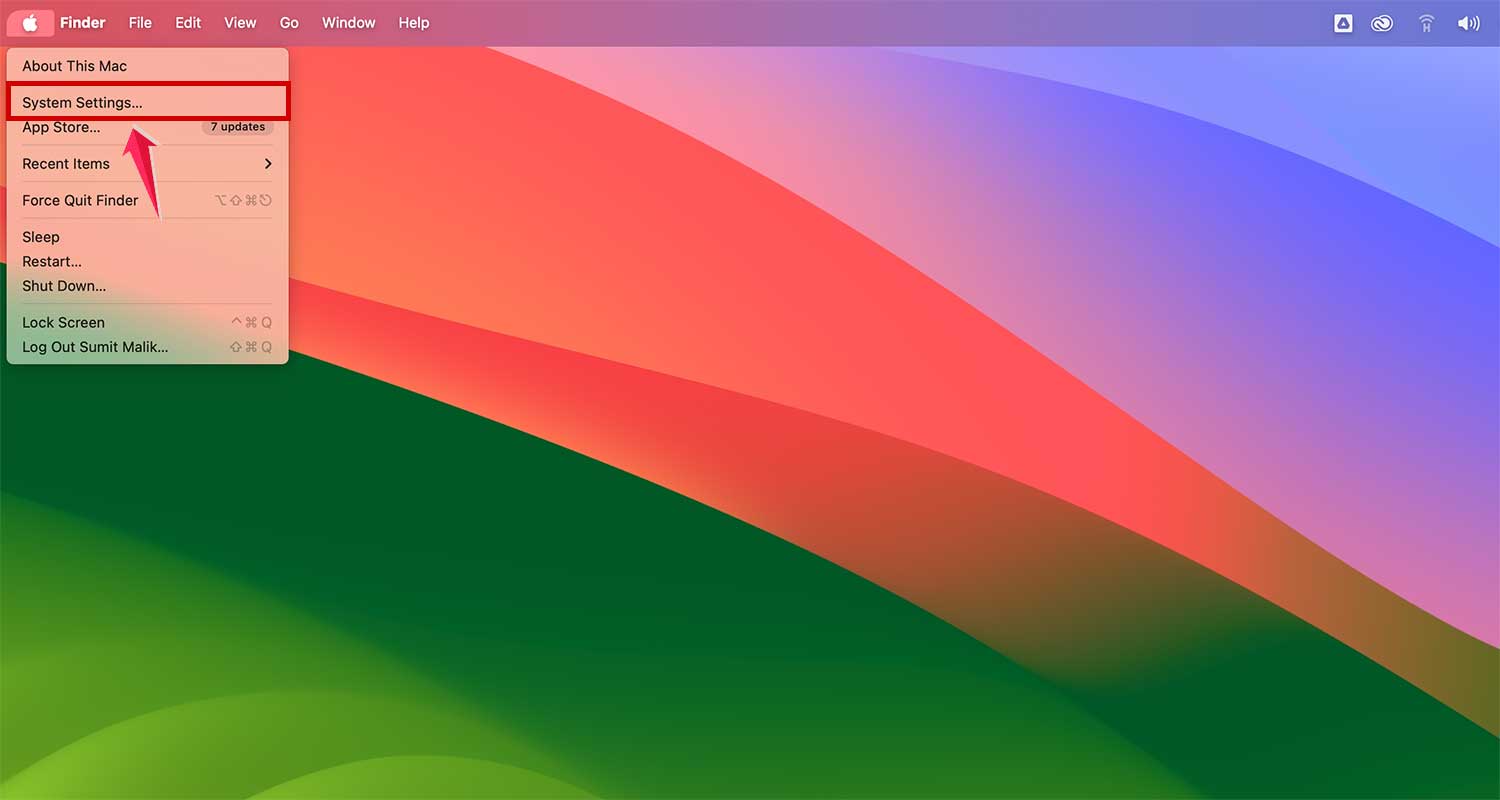
- Open the Apple menu and select System Settings.
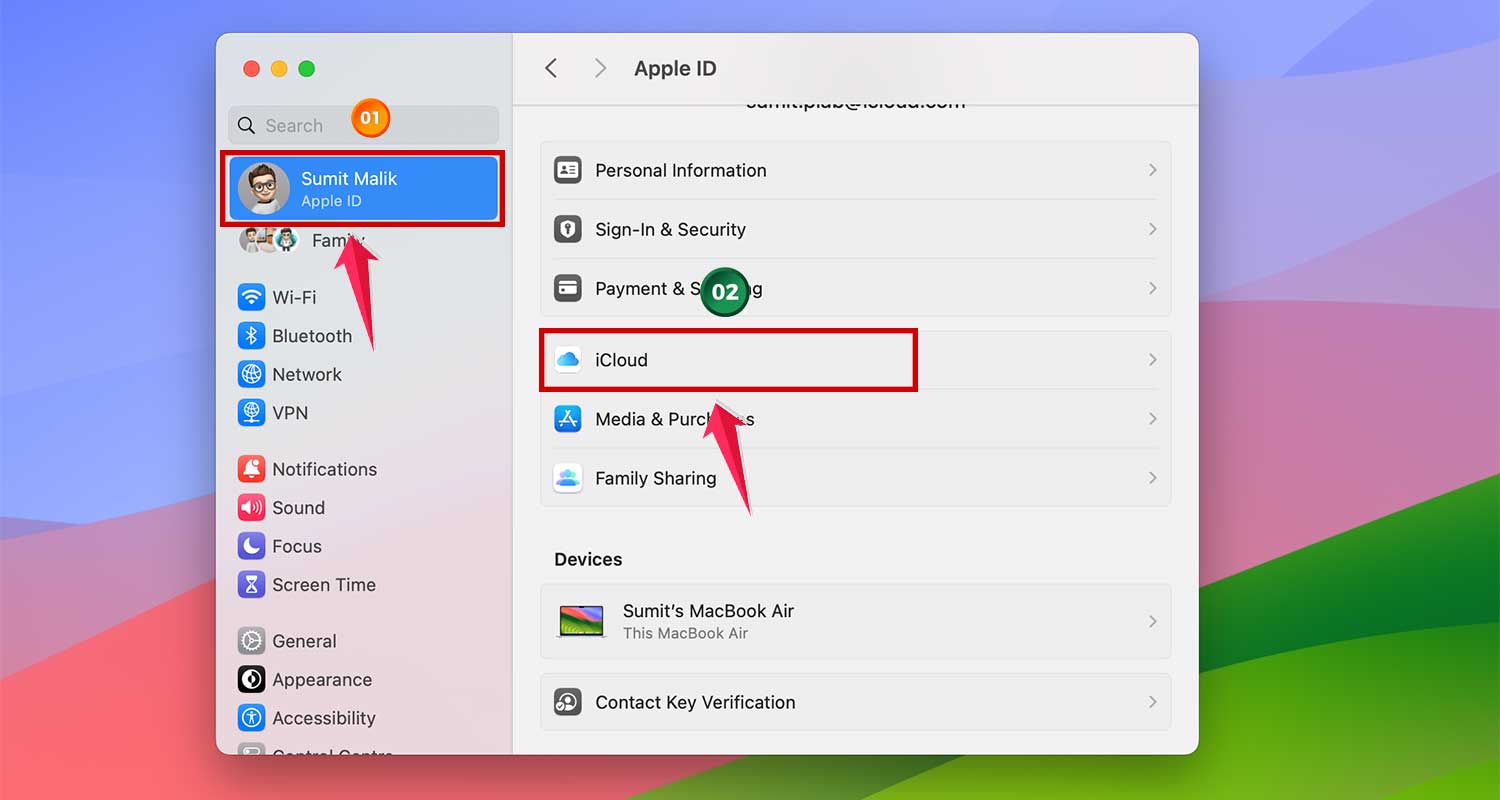
- Navigate to your Apple ID, then click on iCloud.
- Under ‘Apps Using iCloud’, find iCloud Mail. It should display ‘On’. If not, click on it and toggle the Sync this Mac switch to ‘On’.
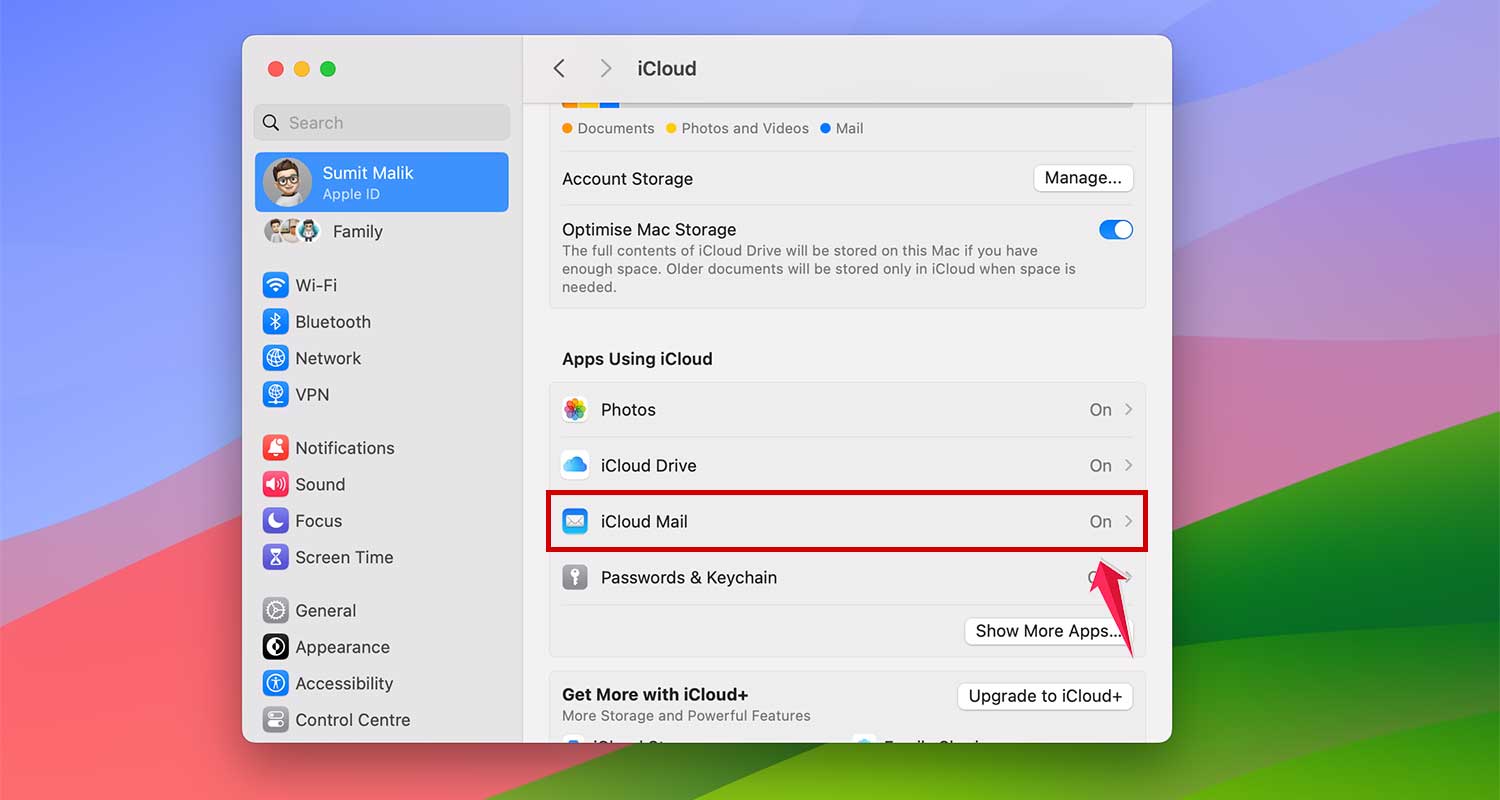
By following these steps, you can quickly determine if the issue is with your settings or something on Apple’s end.
3. Restart your Mac
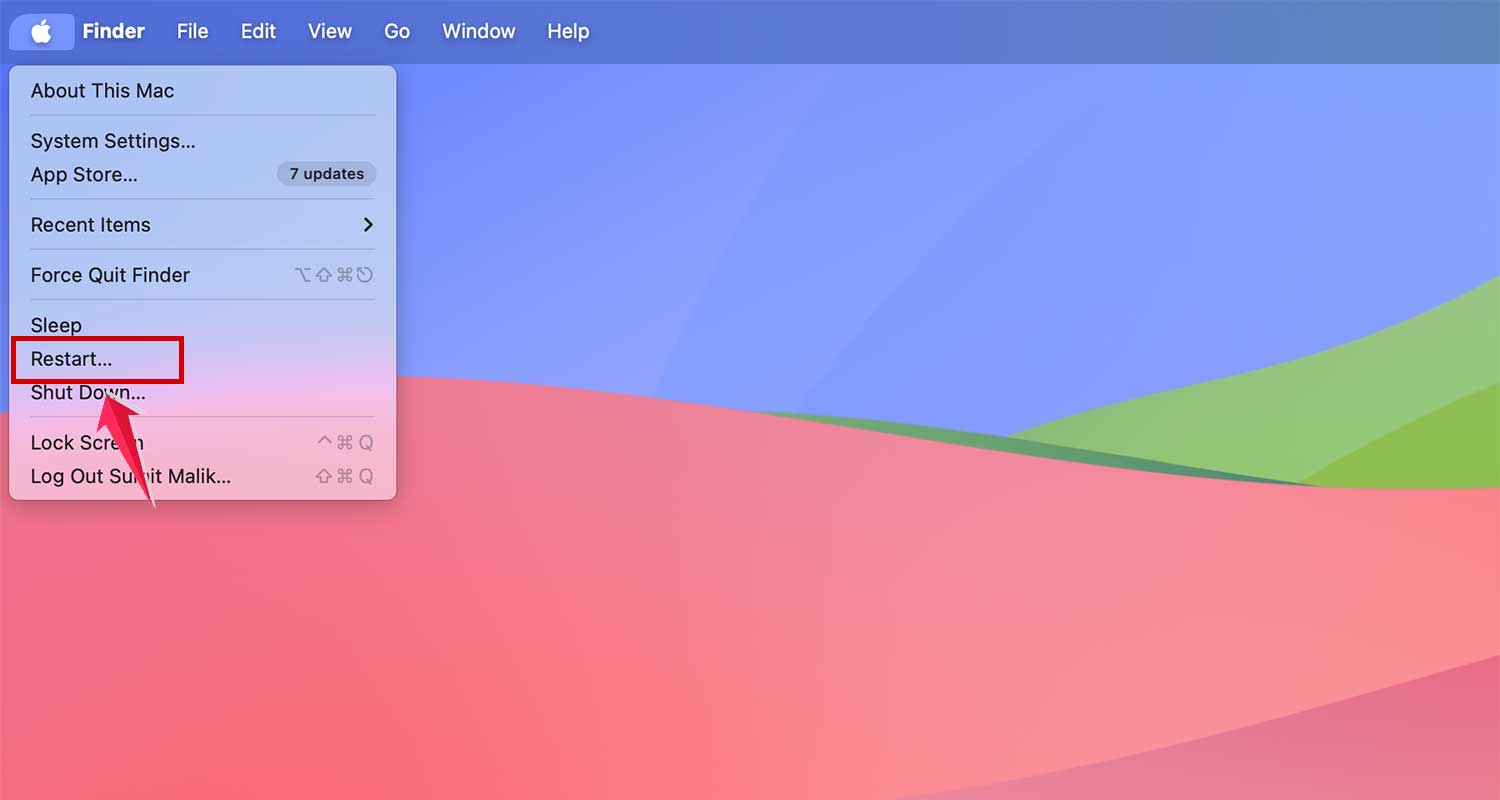
If the issue seems isolated to your Mac, a good old-fashioned restart might do the trick. Restarting clears temporary files, frees up RAM, and for some models, can resolve issues with the boot disk. To restart your Mac:
- Open the Apple menu in the top left corner of your screen and select Restart. You can check this guide if your Mac doesn’t restart.
4. Check for updates
Since updates for the Mail app are tied to the overall system updates for macOS, it’s important to keep your system updated:
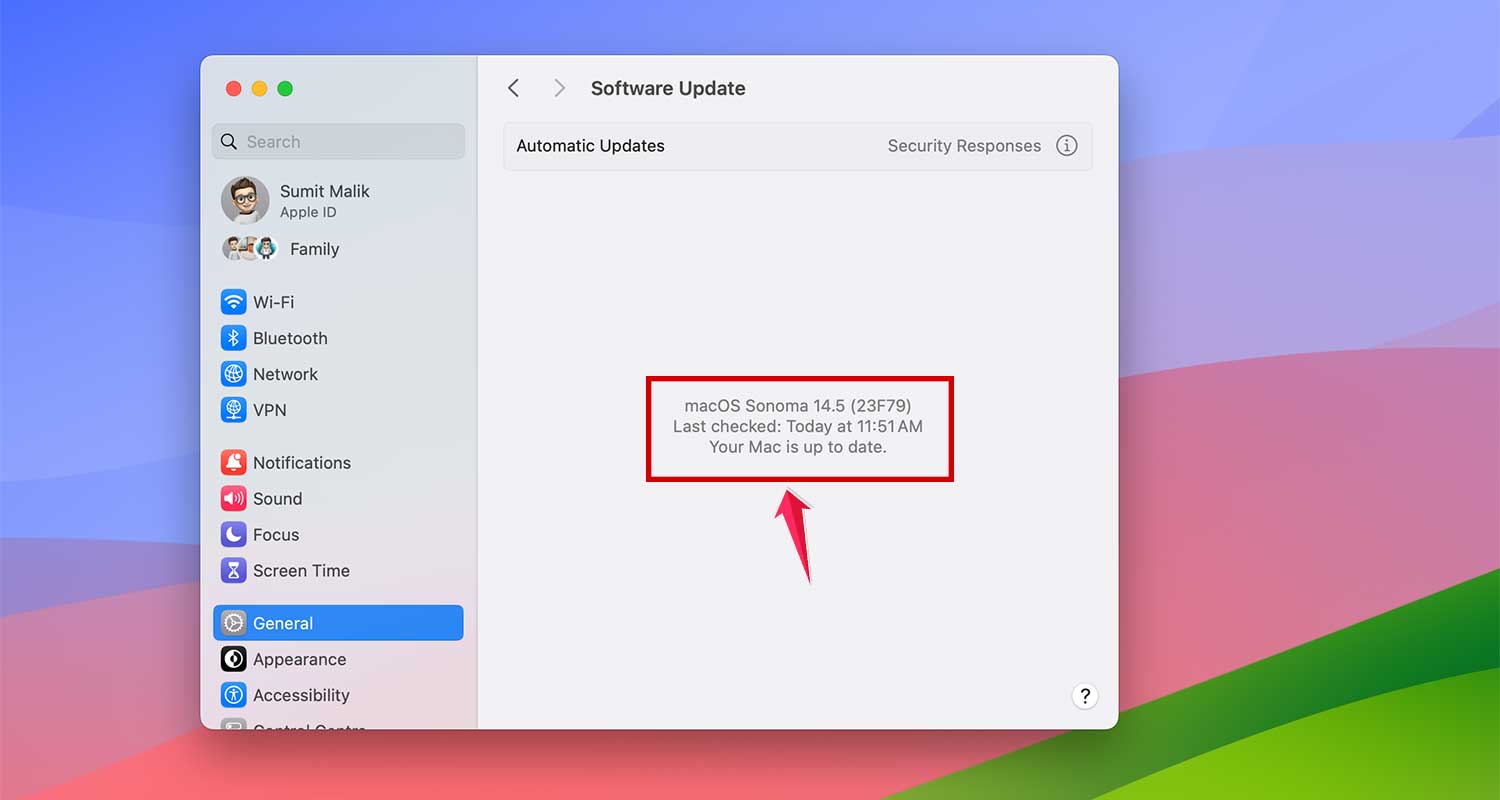
- Navigate to System Settings > General > Software Update.

- If an update is available, click Update Now and follow the prompts to install it. If not, it will show “Your Mac is up to date.”
5. Reset Mail
Resetting the Mail app can return it to its original state, similar to when it was first installed. This action clears all settings and cache files, which can often resolve persistent issues:
- To reset Mail, first ensure that you back up any important emails or settings, as this process might remove them.
6. Take all accounts offline
Sometimes, simply refreshing your connection to the mail server can resolve lingering issues:
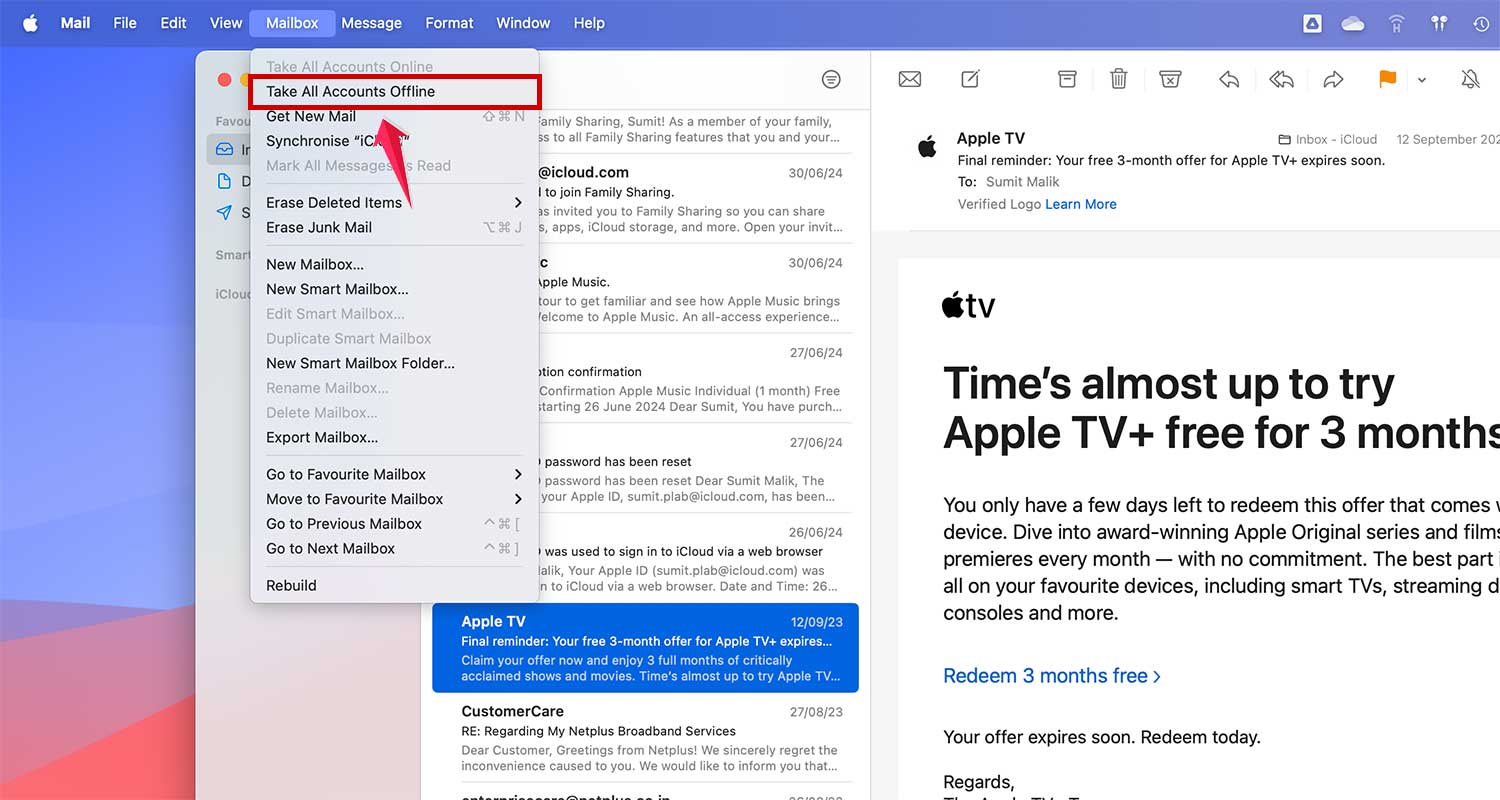
- Open the Mail app, click on the Mailbox menu, and select Take All Accounts Offline.
- Quit the Mail app, then reopen it.
- Go back to the Mailbox menu and choose Take All Accounts Online. This process helps in resetting the connection to your mail servers.

7. Check Mail settings
If you’re experiencing issues specifically with sending emails, ensuring iCloud is set as your default outgoing mail account is crucial, along with clearing your Mail storage to ensure everything is running smoothly.
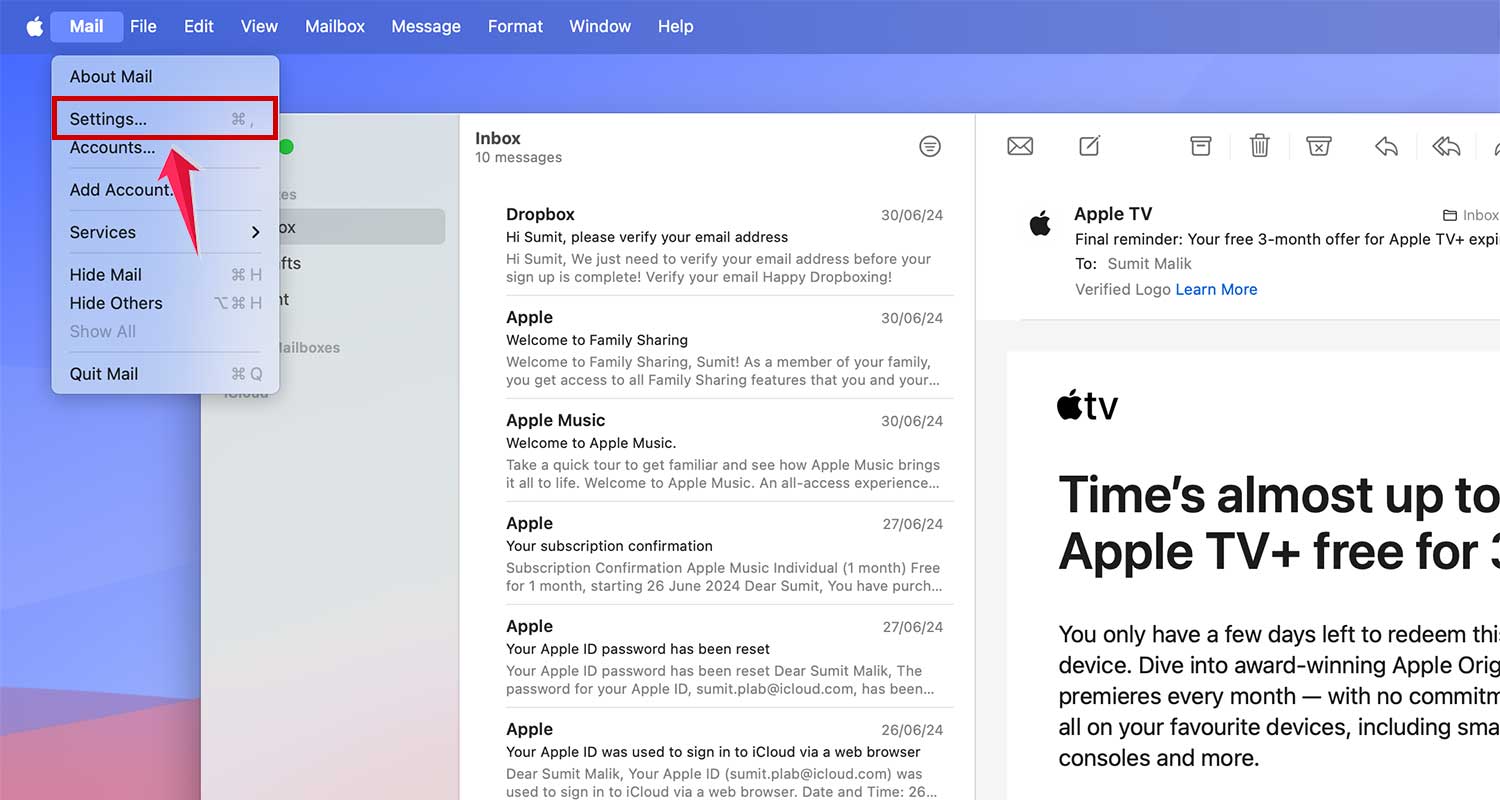
- In the Mail app, click on the Mail menu and select Settings.
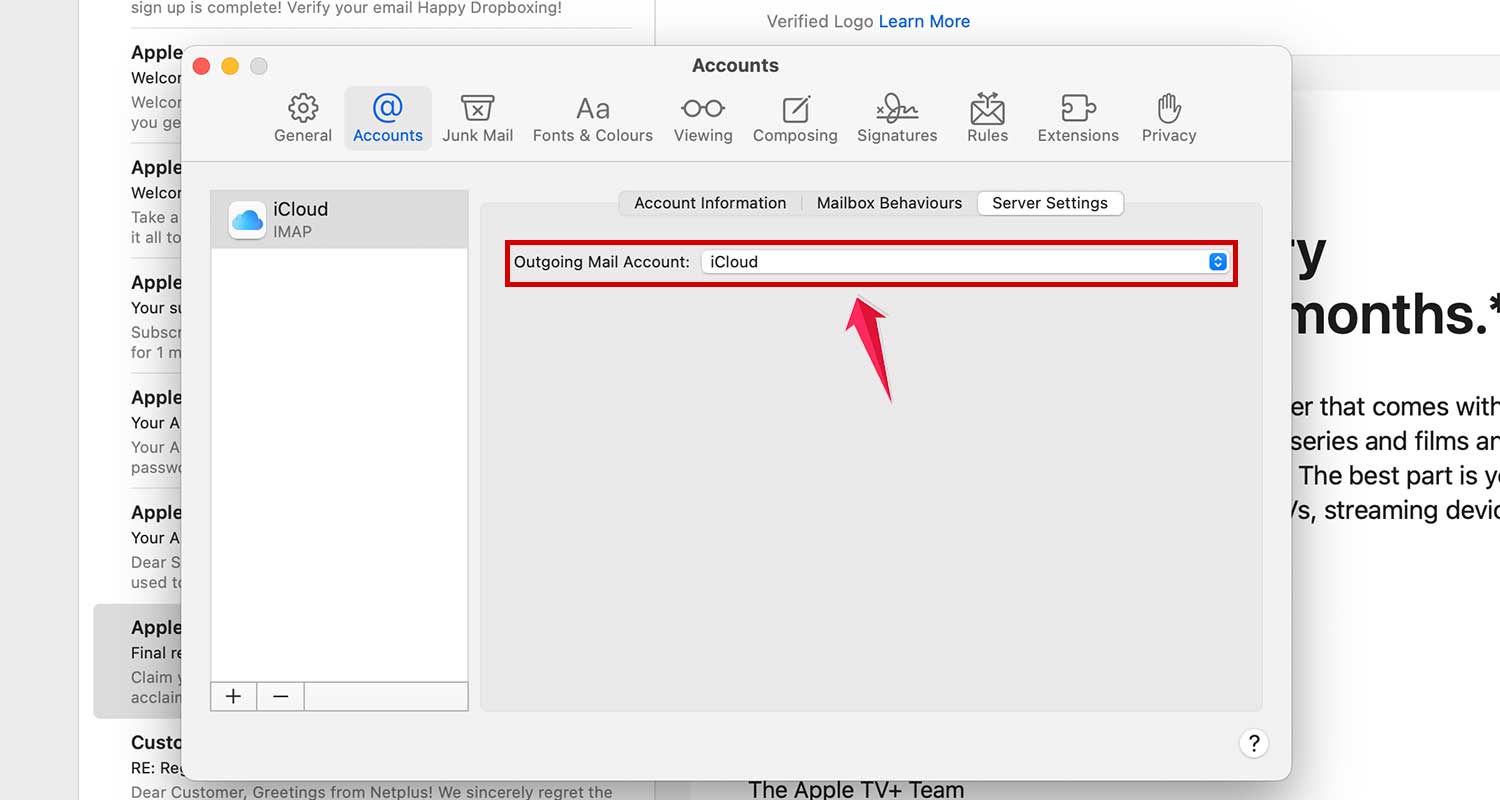
- Navigate to the Accounts tab, then click on Server Settings.

- Check that iCloud is selected under the Outgoing Mail Account menu.
8. Sign out of your Apple ID and back in again
If the above steps haven’t resolved the issue, signing out of your Apple ID and then signing back in can sometimes reset underlying problems:
- Navigate to System Settings and click on your name at the top.
- Scroll to the bottom and select Sign Out. It’s okay not to save a local copy of your data since you’ll be signing back in immediately.
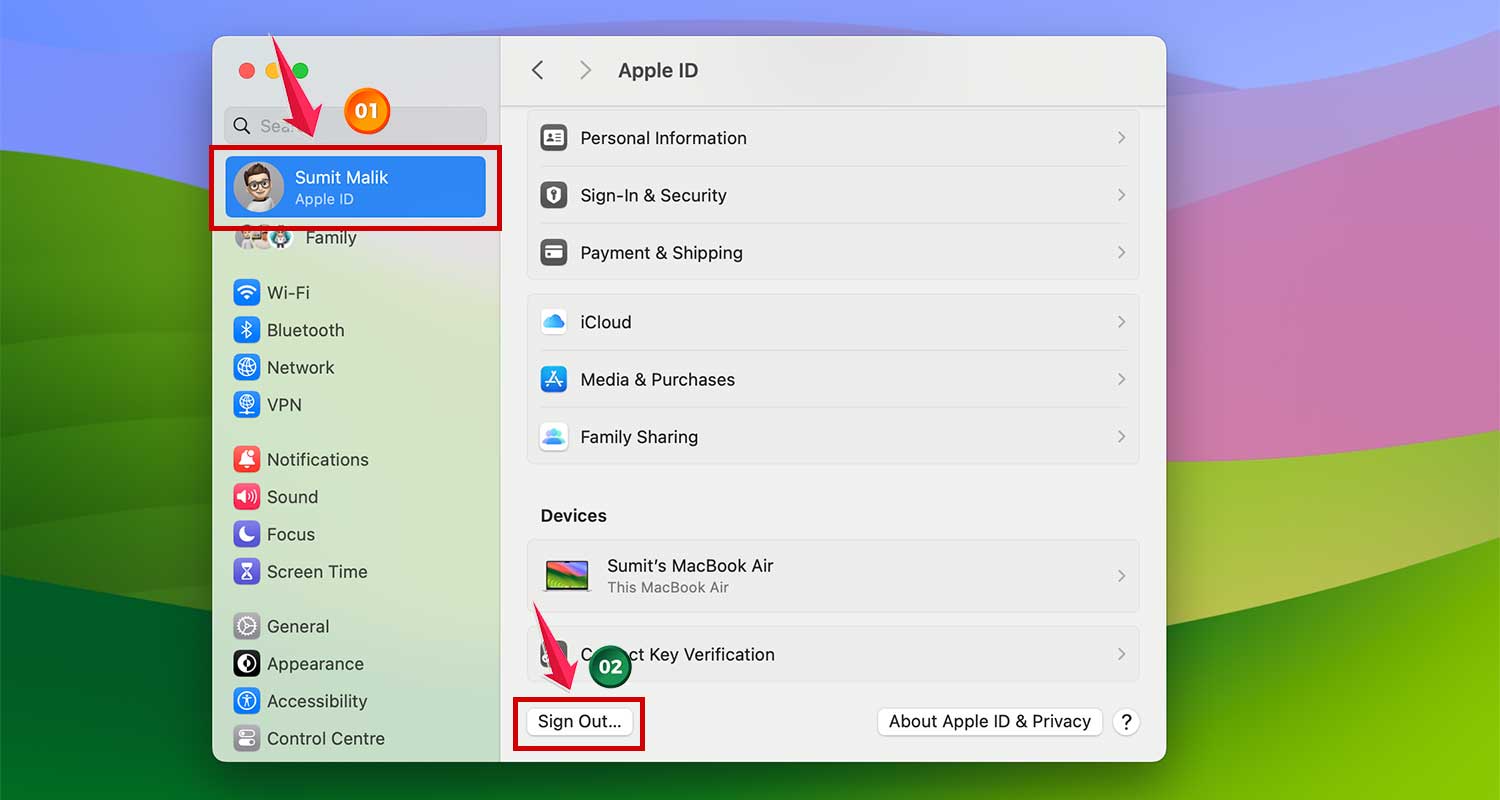
- Quit System Settings, then reopen it and sign back into your Apple ID.
This step, although slightly more disruptive, can often clear up lingering issues by re-establishing a fresh connection with Apple’s servers.
Wrapping Up
Now, you’ve got the tools to tackle most iCloud email issues. Remember, it’s often something simple like a weak internet connection or an outdated app.
Start with the basics and work your way through the steps we’ve covered. If you’re still stuck, don’t worry – Apple’s support team is there to help.
Keeping your software up-to-date and checking your settings now and then can prevent many problems. With these tips in your back pocket, you’re ready to keep your emails flowing smoothly.
Thanks for reading! I hope this guide helps you stay connected without any email hiccups. Keep an eye out for more helpful advice on getting the most out of your Apple devices. And if you’re curious about other Apple services, you might want to learn what Managed Apple IDs are and why you might need them.