
Ever felt like Microsoft Teams was more of a guest than a permanent resident on your Mac?
Whether it’s outlived its usefulness after a project or you’re simply aiming to declutter your digital space, we get it.
Microsoft Teams, with its blend of Slack’s chat and file-sharing with the video calling quality of Zoom and FaceTime, can be quite the package.
However, if it’s time for a friendly farewell, you’re in the right place!
This easy-to-follow guide will show you how to uninstall Microsoft Teams from your Mac, freeing up valuable space and making your device a bit lighter. Ready to clean up? Let’s get started!
What is Microsoft Teams & Why Uninstall Microsoft Teams?
Microsoft Teams is your go-to communication hub, available across Mac, PC, iOS, and Android devices.
It’s crafted to enhance teamwork through an array of features: messaging, audio and video calls, meetings, and screen sharing. All rolled into one seamless app.
While it’s a powerhouse for productivity, there are times when simplifying your digital landscape is beneficial.
Removing Teams from your Mac can free up much-needed disk space, boost your system’s performance by eliminating redundant files, and reduce the risk of conflicts with future app installations.
If your usage of Teams is sporadic, the web version serves as an excellent alternative, enabling access without the bulk of a full install.
How to Completely Delete Microsoft Teams from Your Mac?
Uninstalling Microsoft Teams from your Mac isn’t just about dragging the app to the Trash.
To fully eliminate the app and all its lingering files. This not only frees up storage but also prevents future conflicts. Here’s a step-by-step guide:
Start Simple: Open your Applications folder in Finder, find the Microsoft Teams, Right-click on it, and tap “Move to Bin“.
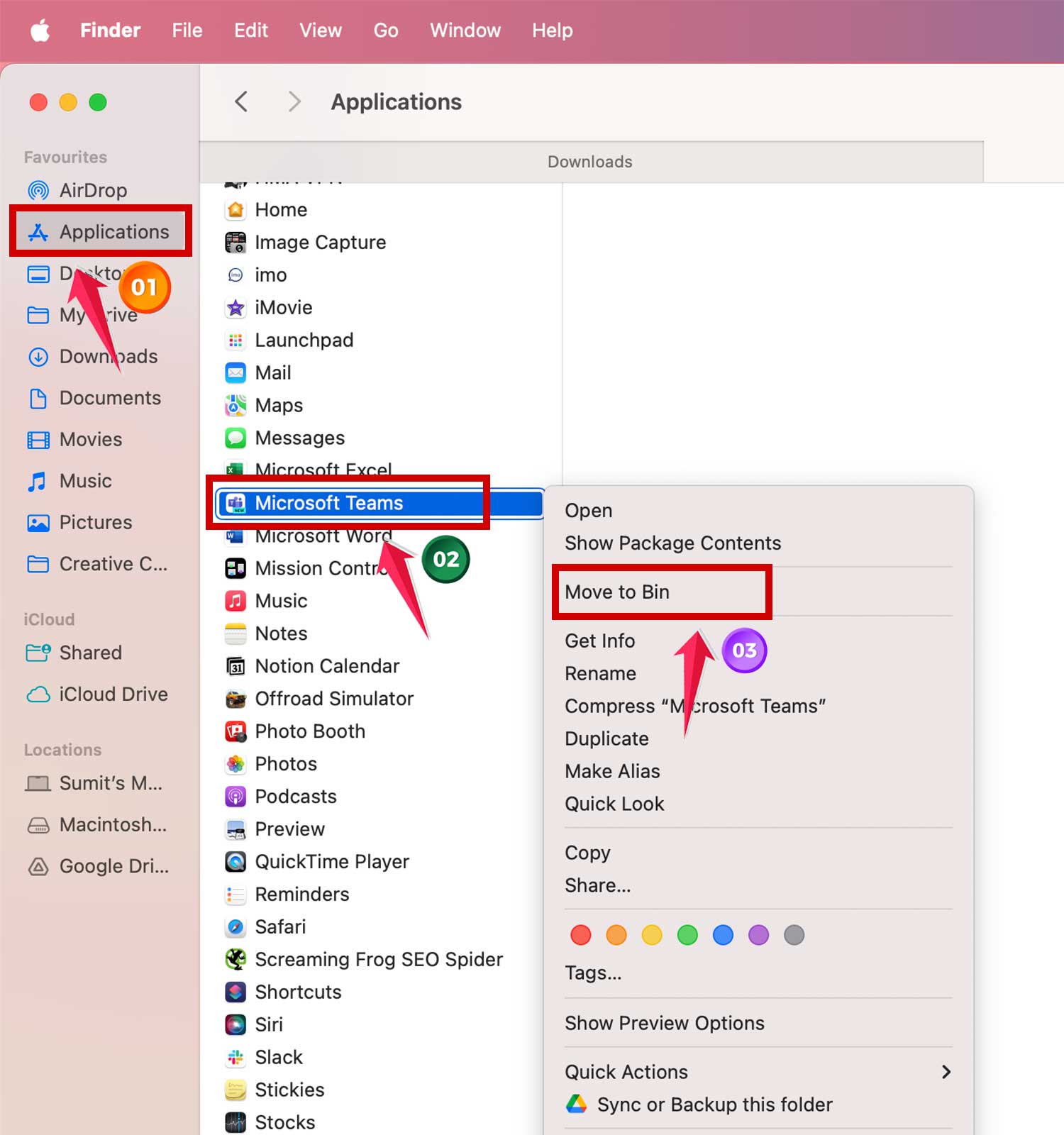
Now, here’s where things get interesting. Did you know that most apps leave behind residual files even after uninstallation?
This can clutter your system with unnecessary “junk” files. Why keep these leftovers when you don’t need the app anymore?
1. Deep Clean the Caches: Click on the Finder icon in your Dock, go to the Go menu at the top of your screen, and select “Go to Folder.”

2. Type ~/Library/Caches/ in the text box and press Enter. Here, search for and trash the following:
com.microsoft.teamscom.microsoft.teams.shipit
3. Remove Supporting Files: Next, using the same “Go to Folder” option in Finder, enter ~/Library/Application Support/Microsoft/. Find the Teams folder and Right Click on it, then tap “Move to bin”.
4. Final Sweep: To finish up, right-click on the “Bin” icon in your Dock and choose “Empty Bin.” This step permanently removes all Microsoft Teams files from your Mac, ensuring you reclaim that extra space and reduce clutter for a smoother running system.

By following these detailed steps, you not only uninstall Teams but also ensure that no stray files are left behind to clog your Mac’s performance.
In Conclusion To
Thinking about removing Microsoft Teams from your Mac to clear up some space or fix some glitches? You’ve got options!
If you’re up for a bit of a deep clean, follow the manual steps we talked about to get rid of the app and its leftovers.
This can really tidy up your system. Prefer something quicker and foolproof? Try a dedicated uninstaller tool that zaps everything for you without any hassle.
If it’s more about improving Teams’ performance rather than needing more space, simply resetting the app might do the trick. This way, you fix any issues without losing your settings.
Whatever method you pick, streamlining Teams can make your Mac run smoother and keep your digital space neat.
Which method worked best for you? Drop a comment below and share your experience!