Are you frantically searching for your Apple Watch or iPhone right now? Don’t panic. That sinking feeling when you can’t find your device is all too familiar, but there’s a simple solution at your fingertips.
Maybe your Apple Watch has slipped between the couch cushions, or your iPhone is hiding under a pile of papers. Whatever the case, you’re probably wasting valuable time turning your home or office upside down.
Apple has a built-in feature that lets you ping your lost device, making it easy to locate. If you have your iPhone, you can use it to find your Apple Watch. And if you’re wearing your Apple Watch, you can use it to find your iPhone.
In this guide, you’ll learn how to use this handy feature. We’ll walk you through the simple steps to ping your lost device, whether it’s your watch or your phone.
By the end of this article, you’ll be able to find your missing Apple device quickly and easily, saving you time and frustration.
How to make your Apple Watch ping from your iPhone
Can’t find your Apple Watch? No problem. Your iPhone can help you locate it quickly. Here’s what you need to do:
- Check the connection. Make sure your Apple Watch is connected to WiFi.
- Open the app. On your iPhone, launch the “Find My” app. If needed, sign in to your iCloud account.
- Select your watch. In the list of your Apple devices, tap on your Apple Watch.

- View the map. You’ll see a map showing your watch’s location. Tap the watch icon to select it.
- Activate the sound. Tap the “Play Sound” button. Your Apple Watch will start pinging.
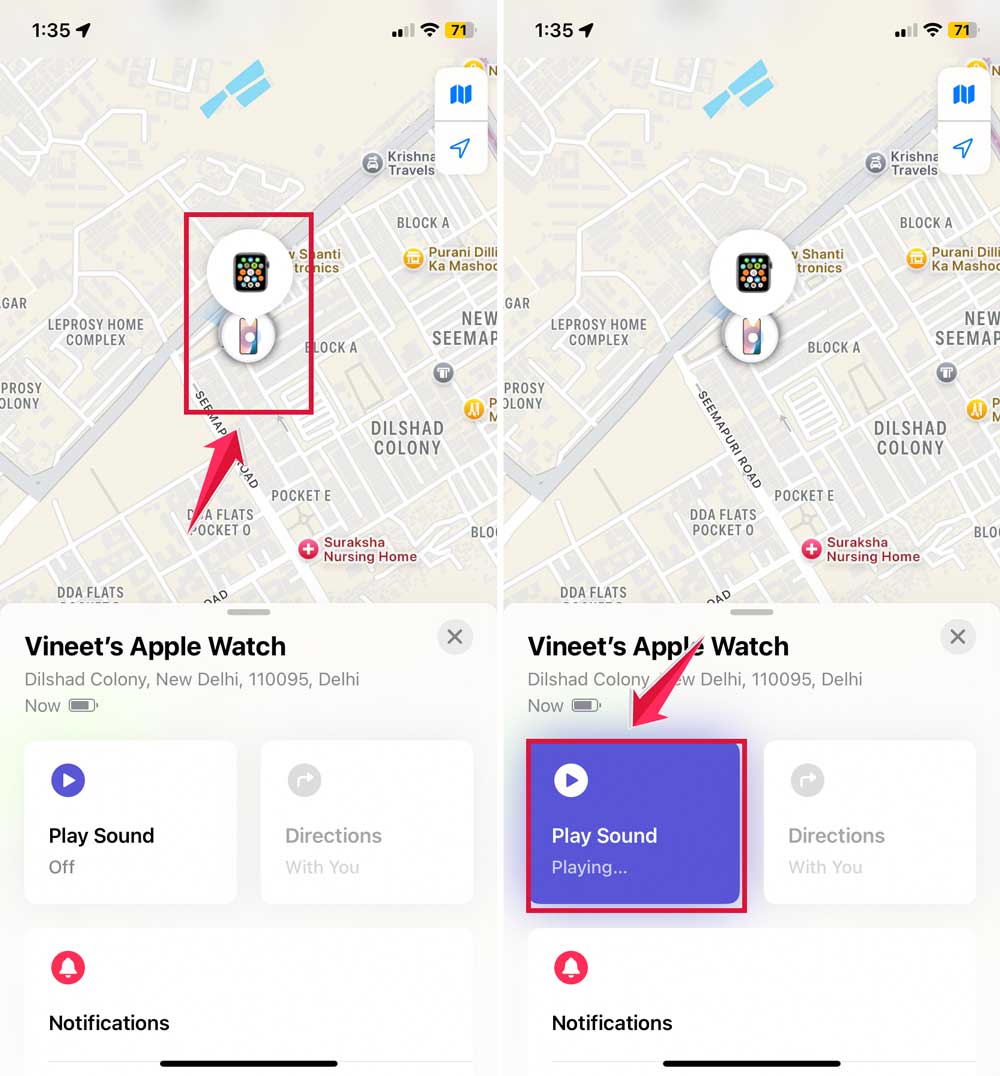
- Find your watch. Follow the sound to locate your Apple Watch.
- Stop the pinging. Once you’ve found it, tap “Dismiss” on your watch to stop the sound.
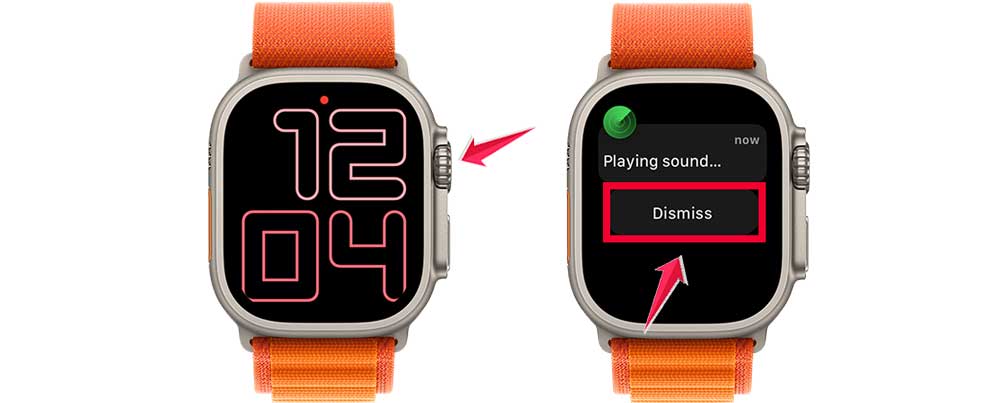
Remember, this feature works as long as your watch is connected to WiFi and within range.
It’s a handy tool that can save you time and frustration when your Apple Watch decides to play hide-and-seek.
How to find your iPhone using your Apple Watch
Ever misplaced your iPhone at home? Don’t worry. Your Apple Watch can help you locate it quickly. Here’s how you can make your iPhone ring using your watch:
- Wake up your watch. Raise your wrist or tap the screen to wake your Apple Watch.
- Open the Control Center. Press the side button on the Apple Watch to open the Control Center, where you’ll find various quick settings.
- Find the iPhone icon. Look for a button that looks like a small iPhone in the Control Center.
- Tap to ping. Tap the iPhone icon. Your iPhone will start ringing immediately.
- Follow the sound. Listen for the ring and follow it to find your iPhone.
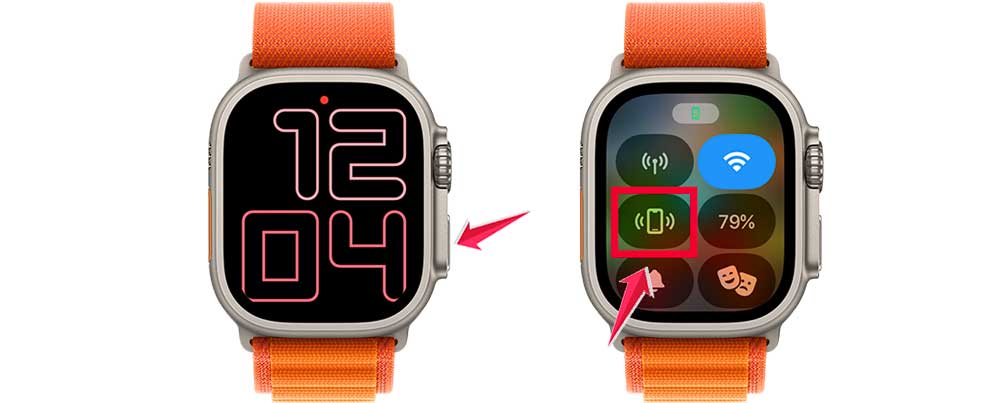
Remember, your iPhone needs to be within the “Bluetooth range” of your Apple Watch for this to work. This is usually about 30-60 feet, depending on your surroundings.
This feature is incredibly handy when your iPhone is hiding under a pillow or buried in a coat pocket. With just a tap on your wrist, you can make your phone reveal its location.
Next time you can’t find your iPhone, don’t stress. Your Apple Watch is there to help you track it down quickly and easily.
How to fix if you can’t ping your Apple Watch from your iPhone
Is your Apple Watch not responding when you try to ping it from your iPhone? Don’t worry. Here are some simple steps you can try to get the ping feature working again:
1. Update your devices
Outdated software can often cause connectivity issues. Here’s how to check for updates:
For your Apple Watch:
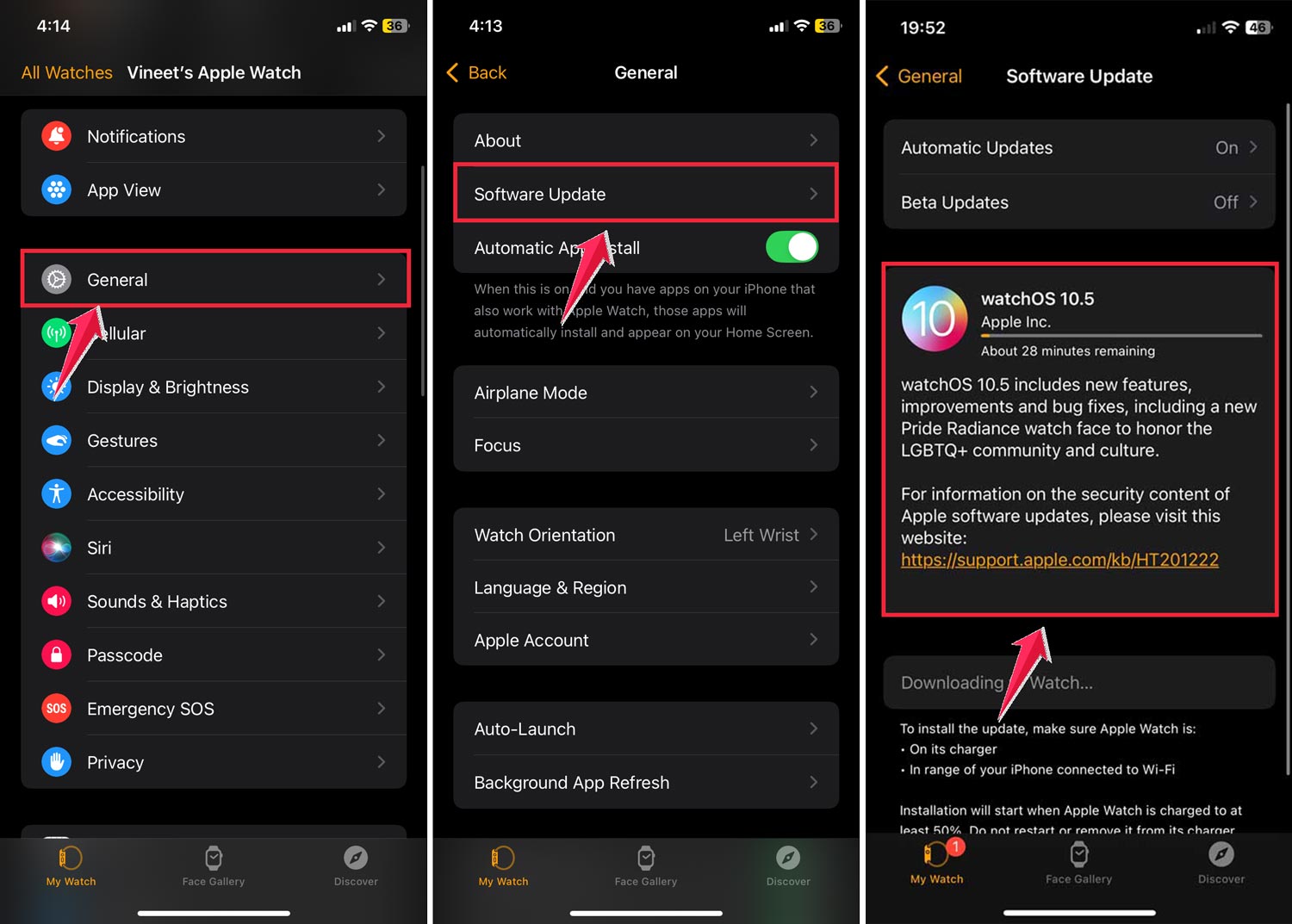
- Open the “Apple Watch” app on your iPhone.
- Tap “General“.
- Select “Software Update“.
- If an update is available, you’ll see “Download and Install“.
- Make sure your watch is connected to WiFi and charging before starting the update.
For your iPhone:
- Go to “Settings” on your iPhone.
- Tap “General“.
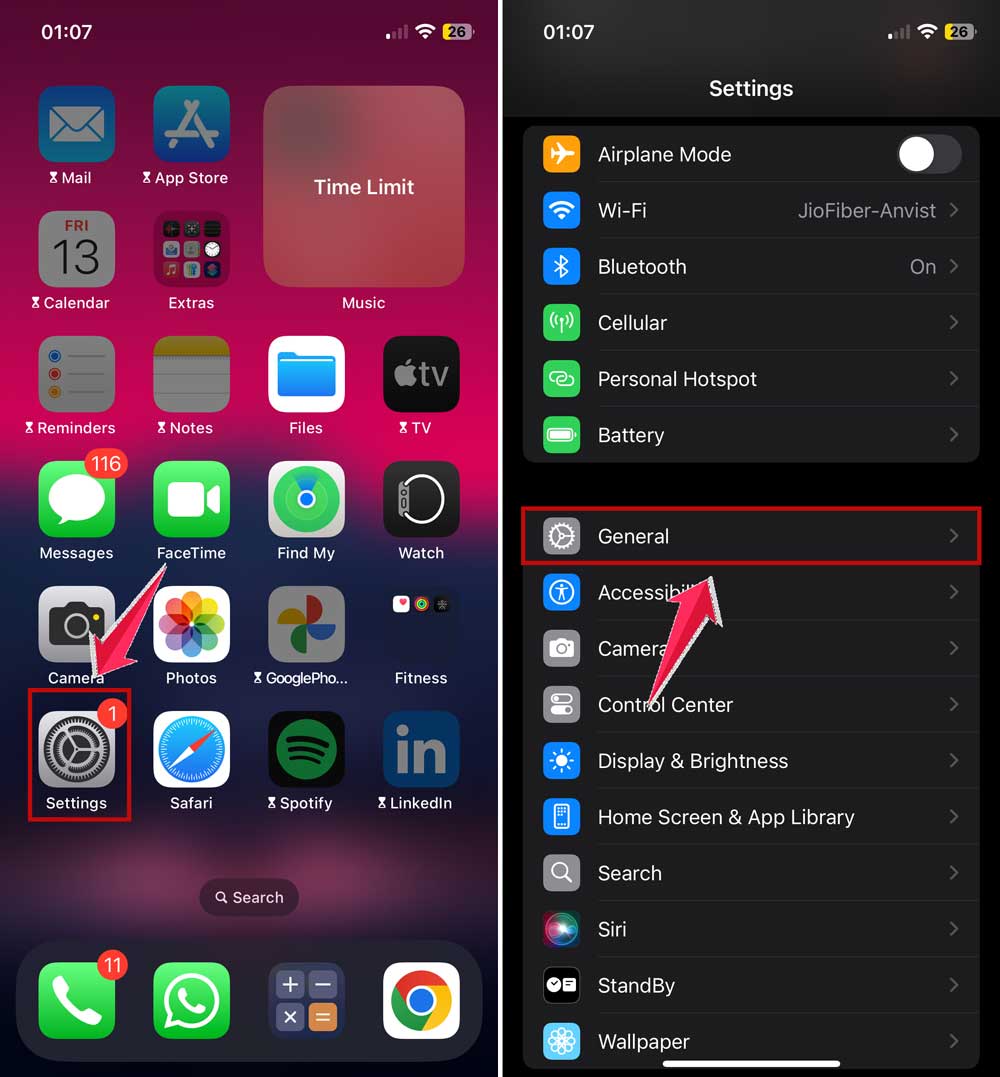
- Select “Software Update“.
- If an update is available, tap “Download and Install“.
- Ensure your iPhone is connected to WiFi and has sufficient battery before updating.

2. Restart your devices
If updates don’t help, a simple restart can often resolve minor glitches:
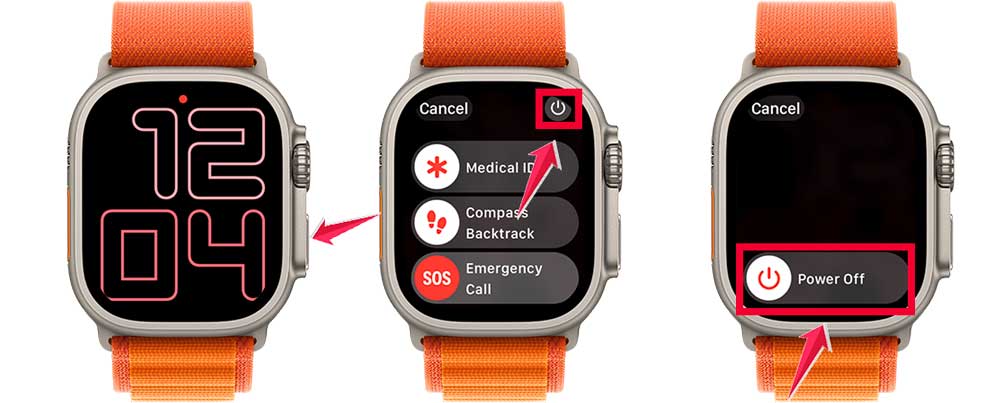
For your Apple Watch:
- Press and hold the side button (not the Digital Crown).
- When you see the “Power Off” slider, slide it to the right.
- After the watch turns off, press and hold the side button again until you see the Apple logo.
For your iPhone:
- Press and hold the power button (side button on newer models).
- When you see “slide to power off“, slide it to the right.
- After the iPhone turns off, press and hold the power button again until you see the Apple logo.

3. Check the Find My service
The ping feature relies on Apple’s Find My service. To check if it’s working:
- Visit Apple’s System Status page (https://www.apple.com/support/systemstatus/).
- Look for “Find My” in the list of services.
- If there’s a green dot next to it, the service is working fine.
- If you see a yellow or red dot, there might be an issue on Apple’s end.

4. Check your internet connection
A stable internet connection is crucial for the ping feature:
- Make sure your iPhone is connected to WiFi or has cellular data enabled.
- Try opening a website or using another app that requires the internet to confirm your connection is working.
- If you’re on WiFi, try switching to cellular data (or vice versa) to see if that resolves the issue.
If you’ve tried these steps and still can’t ping your Apple Watch, you might need to contact Apple Support for more help.
You can do this through the Apple Support website or app or by visiting an Apple Store if there’s one near you.
Remember, technology can be tricky sometimes, but there’s usually a solution! Don’t get discouraged if it takes a few tries to get things working again.
The takeaway
Losing your Apple Watch or iPhone can be frustrating, but there’s no need to panic. Apple has built-in features that make finding your devices a breeze.
You can use your iPhone to make your Apple Watch ping and vice versa. This means you can quickly locate a misplaced device by following the sound. Remember, these features work best when your devices are updated and connected to the internet.
If you’re having trouble with the ping feature, don’t worry. Simple steps like restarting your devices or checking your internet connection can often solve the problem. And if all else fails, Apple Support is always there to help.
The most important thing to remember is that your Apple devices are designed to work together. If one isn’t showing up, you can add Apple Watch or iPhone to Find My to keep them connected.
So next time you can’t find your iPhone or Apple Watch, take a deep breath and let technology do the work for you!
We’d love to hear about your experiences with finding lost Apple devices. Share your story in the comments below!