


Ever feel like your computer’s getting a bit crowded? Maybe you’ve noticed Google Drive taking up more space than you’d like. Whatever the reason, you might be wondering how to uninstall Google Drive from your Mac.
Now, don’t get me wrong – Google Drive is a great tool. It keeps our files safe in the cloud and lets us access them from anywhere. But sometimes, we need to make changes to keep our Macs running smoothly.
In this guide, we’ll walk through the process of removing Google Drive from your Mac, step by step.
Let’s dive in and learn how to remove Google Drive from your computer.
Why Would You Want To Say Goodbye To Google Drive?
So, you’re thinking about removing Google Drive from your Mac.
But why? Well, there could be a few reasons:
- Your Mac’s getting a bit full, and you need some extra space.
- Things seem to be running slower than usual on your computer.
- Maybe you prefer using Google Drive right in your web browser instead.
- Or perhaps you’re trying out a different cloud storage service.
Whatever your reason, it’s totally okay to want to remove Google Drive. And guess what?
It’s not as complicated as you might think. In this article, I’ll walk you through the steps to remove Google Drive from your Mac, nice and easy. Ready to get started? Let’s dive in!
How to remove the Google Drive folder from Mac manually?
Let’s chat about getting rid of Google Drive from your Mac. Maybe you’re running low on space, or you just prefer using the web version.
Whatever the reason, I’ll guide you through the process step by step.
Step 1: Disconnect Your Account
First things first, we need to stop your Mac from syncing with Google Drive. This way, we don’t accidentally delete anything from the cloud.
Here’s how:
- Look for the Google Drive icon at the top right of your screen.
- Click it, then click the gear icon and choose “Preferences.”
- Go to the Settings tab.
- Click “Disconnect account” and hit on “Done”.
Great job! Your account is now disconnected.
Step 2: Delete The Google Drive App
Now, let’s remove the app itself:
- Click the Google Drive icon again and select “Quit.” by tapping gear icon.
- Open your Applications folder.
- Move the Google Drive App to the Bin by right click on them.
- Now Empty the Bin.
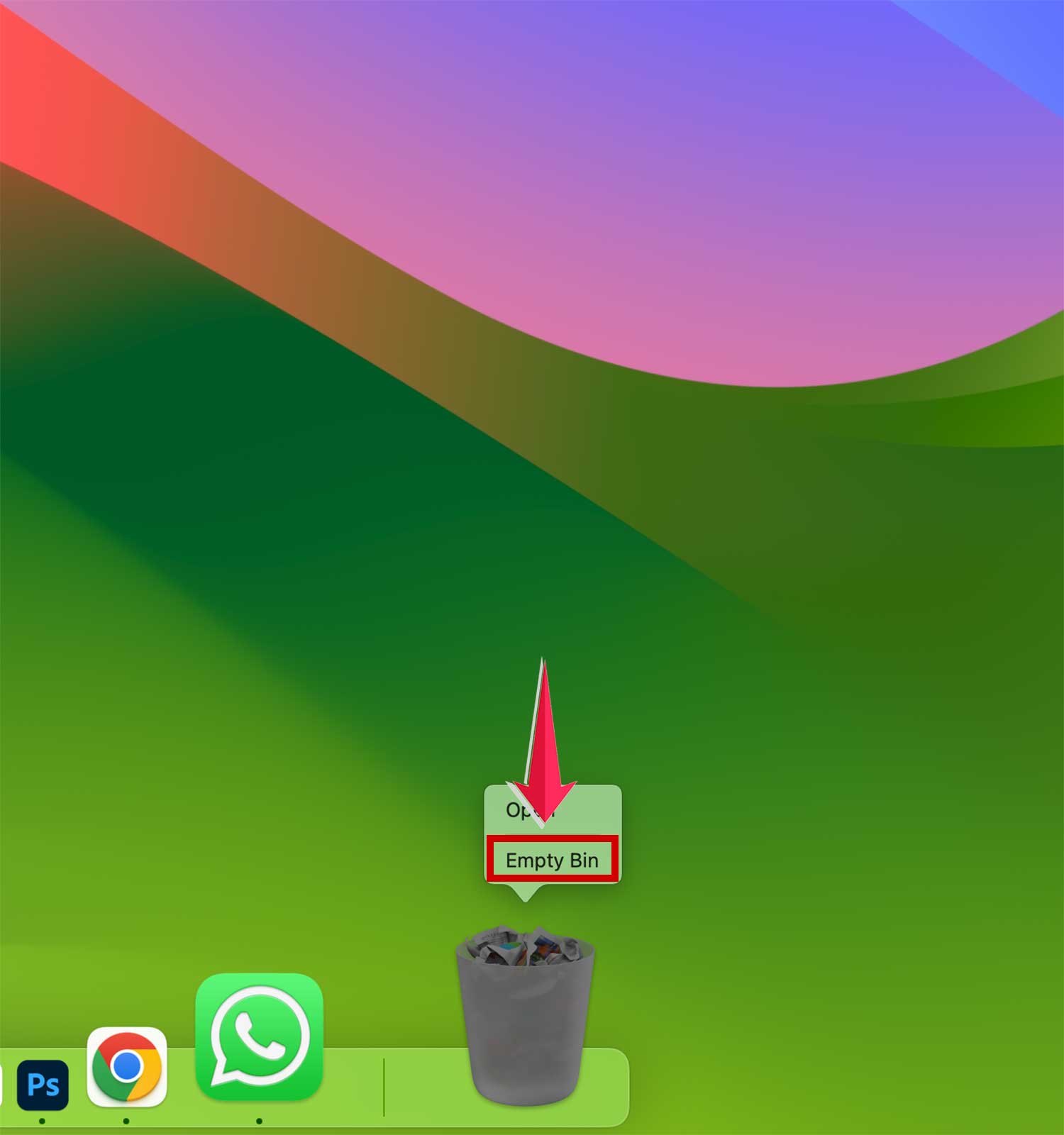
If you have trouble deleting it, try closing any related processes in Activity Monitor first.
Step 3: Clean Up The Leftovers
Last step! Let’s get rid of any remaining files:
- Press Command-Shift-G to open the “Go to Folder” box.
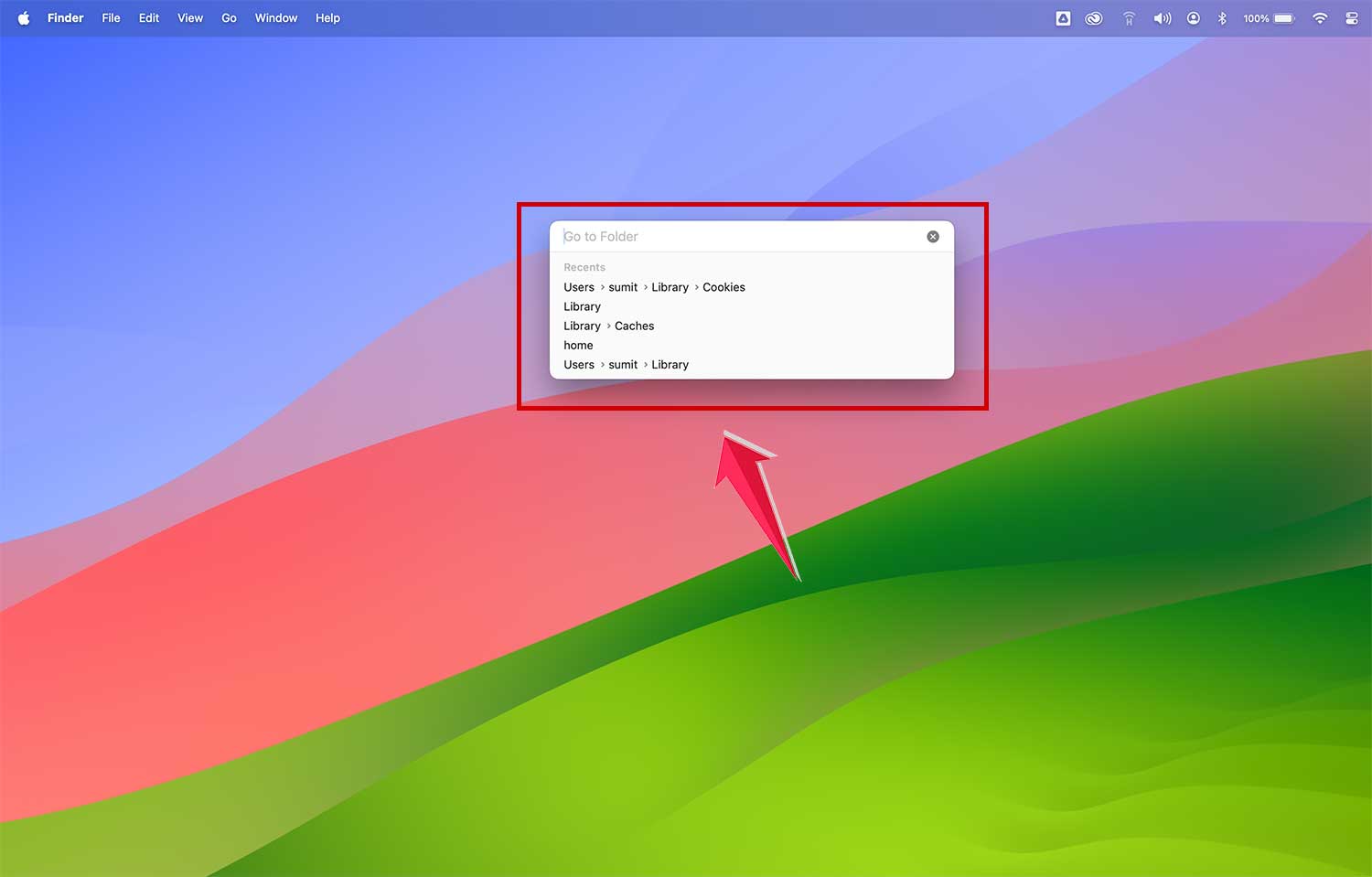
- Search for Google Drive files in these folders:
- ~/Library/Cookies/
- ~/Library/Preferences/
- ~/Library/Containers/
- ~/Library/Group Containers/
- ~/Library/Application Scripts/
- If you find any, move them to the Trash.

Be careful not to delete anything important!
While the manual method ensures a thorough cleanup, it can be a bit labor-intensive.
If you prefer a quicker solution, consider using a dedicated uninstallation tool that automates the process, identifying and removing all associated files with just a few clicks.
Wrapping Things Up
Well, there you have it! We’ve walked through removing Google Drive from your Mac together. Whether you wanted to free up some space, switch to a different service, or just tidy up your digital world, you’ve now got the know-how to do it.
Remember, your files are still safe in the cloud even after removing Google Drive from your computer. If you ever need them, you can always access them through your web browser.
I hope this guide was helpful and easy to follow. Did you give it a try? How did it go? I’d love to hear about your experience or any questions you might have. Drop a comment below and let me know!








