Typing the square root symbol doesn’t have to be a challenge.
It’s easy to insert the square root symbol (√) on your devices, including iPhone, Android, Windows, and even Mac.
In this guide, I will show you how to do it on iPhone, Android, Mac, and Windows PC. I’ll also share shortcuts and tricks to make it faster next time.
Ready to improve your typing? Let’s get started!
How to type the square root symbol on an iPhone?
The iOS default keyboard doesn’t include the square root symbol.
However, you can download a special keyboard for this task from the App Store.
If finding the right app on the App Store isn’t your thing, there are clever ways to handle this symbol shortage. Let me share some cool ideas:
1. Use text replacement on iPhone
If you use the square root symbol often, this trick will save you time:
- Go to Settings, then General, then Keyboard.

- Tap on Text Replacement.
- Tap the “+” icon in the top right corner.

- In the “Phrase” box, paste the √ symbol.
- In the “Shortcut” box, type something that you can easily remember, like “sqrt“.
- Tap Save.

Now, when you type “sqrt” on your iPhone will replace it with √. This works on all Apple devices signed in with the same Apple ID.
3. Using third-party keyboards on iPhone
If you want even more options while typing, you can try a different keyboard app, and you can download one from the App Store.
Let me share the steps for your help.
- Go to the App Store and download a keyboard like the Microsoft SwiftKey AI keyboard or Math Keyboard.

- Open your Settings app and go to General.
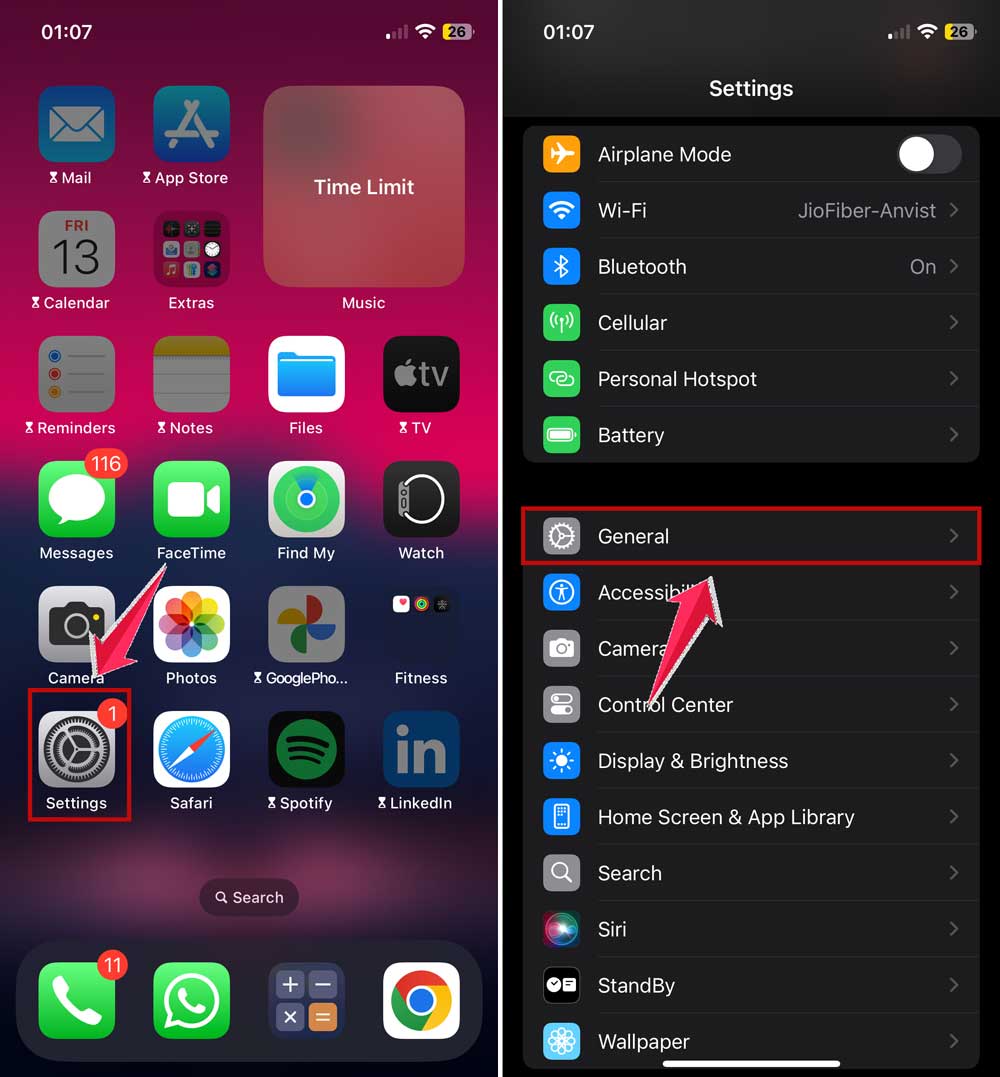
- Click on Keyboard, then tap on “Keyboards“.

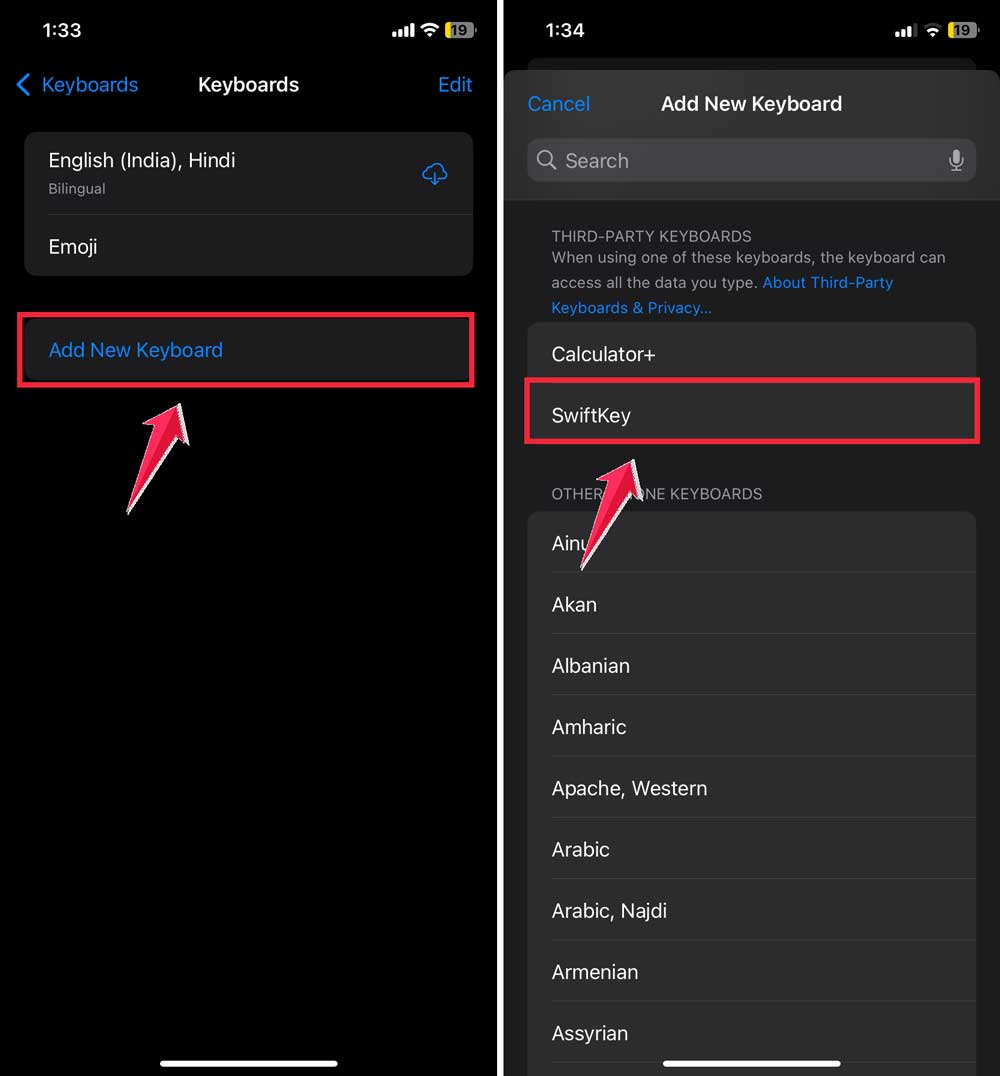
- Click on “Add New Keyboard“.
- Find and tap on the keyboard you just downloaded. Since, I showed the example of Microsoft SwiftKey AI keyboard, you can see I am seeing the SwiftKey option right in the screenshot.
Now, when you’re typing, tap the globe icon to switch to your new keyboard.
Look for a math or symbol section to find the √ symbol. That’s how easy it is.
How to type the square root symbol on Android?
You know, it is somewhat easier for Android users to type Square Root (√) than iPhone users.
Why? As we already know that Android is a bit more flexible in terms of control. Isn’t it? Now, let’s see what we can do to get Square Root (√) on Android phones.
1. Using Gboard on Android
Many Android phones come with Gboard, which makes typing the square root symbol easy:
- Open the app where you want to type the Square Root (√) symbol.
- Tap the “?123” button to see numbers and symbols.
- Now, you need to tap “=\<” button for even more symbols.

- Find and tap the √ symbol.

You can also download a keyboard like SwiftKey, Mathway Keyboard, or Math Keyboard, just like we did on iPhone.
Enable it in your device’s keyboard settings. Then switch to the new keyboard when typing.
These keyboards often have all the hard-to-find symbols. Just look for a math or symbol section.
2. You can use the Unicode method as well.
This one’s a bit geeky, but it’s super cool if you like shortcuts.
Some Android devices let you type Unicode characters directly. Just type a special code instead of searching or switching keyboards. It changes to the symbol you want.
Let me share the steps as well.
- First, check if your keyboard supports Unicode input. You might need to go into your keyboard settings to enable it.
- When you’re typing, enter this code: U+221A
- If your device supports it, it’ll magically change to this: √
This might not work on every Android phone or keyboard. Some models need specific settings, or they might not support it at all. But if it works for you, it’s a great trick to have. Try it out and you will see if your phone is Unicode-friendly!
How to Insert the Square Root Symbol on Mac
You won’t believe this, but inserting the Square Root Symbol on a Mac is the easiest of all.
Mac makes it easy with a keyboard shortcut and a character viewer.
1. Use Keyboard Shortcut
Yes, you can just press Option + V command anywhere you are typing. And instantly, you’ll see √.
It works everywhere. In Notes, Pages, Safari, and messaging apps. Anywhere and everywhere.
2. Use the Character Viewer
Another great and simplest way to type the Square Root Symbol is to just press this combination of keys, and you will see the pop-up.
- Press Control + Command + Space.
- This will open the Character Viewer.
- In the search bar, type “square root” or go to Math Symbols.
- Double-click √. Right away, it will be inserted wherever you were typing already.
You can also mark it as a favorite for next time. You know, I love working on the Mac.
How to Insert the Square Root Symbol on Windows
Now, let’s see how we can insert the square root symbol (√) on Windows.
Windows users also have several options, especially with a full keyboard.
1. Use the Alt Code (Fastest Method)
- Hold the Alt key on your keyboard.
- While holding Alt, type 251 on the numeric keypad (ensure Num Lock is on).
- Release Alt. You’ll see: √
It works in Notepad, Word, and even in Chrome. And you can use it almost anywhere you can.
2. Use Microsoft Word’s Equation Tool
Let me share another method. In case you need more math symbols in a document, you can use the most popular Microsoft Word’s Equation Tool. This has a lot of such rare symbols for you to use.
- Open Word.
- Go to Insert → Equation.
- Choose Insert New Equation.
- Select the square root symbol (√) from the math toolbar.
You can also add full math expressions.
3. Use the Symbol Menu in Word
If none of the methods worked on Windows and you have followed till here, chances are that this method will save you time now.
Just follow these steps.
- Go to Insert → Symbol → More Symbols.
- In the dialog, set Font to “Normal Text.”
- Choose Mathematical Operators.
- Find and click the √ symbol → Click Insert.
And all set. I hope I was able to help you.
The takeaway
Whether you’re on a Windows PC, Mac, iPhone, or Android, there’s a simple way to insert √ with just a few taps or keystrokes.
Now you know where to find it and how to create shortcuts. You can impress friends, help with homework, or just type math symbols easily.
No more copy-pasting from random websites or searching for odd Unicode codes. You have all the tools now.
Try it out and drop a √ in your next text. It’s kinda satisfying, right?