So, you just tried to open a file on your iPhone, and suddenly you’re hit with that annoying message: “File format not supported.” Ugh, right?
You were probably expecting to check out a document, video, or photo, and now you’re stuck. That little pop-up can be a real mood-killer.
Here’s the thing. Your iPhone isn’t broken. It just doesn’t recognize the file you’re trying to open. Maybe it’s a file type that iOS doesn’t support.
Or maybe the app you’re using isn’t updated enough to handle it. Either way, it’s not your fault—and it’s fixable.
But yeah, it’s a big deal when you can’t open something important. Whether it’s a work file, a photo from a friend, or a video you really need to watch, not being able to access it can throw off your whole day. You need quick answers, and that’s what I’m here for.
Let’s break it down. I’ll explain why this happens, and then I’ll walk you through the easy fixes. Stick with me—we’ll get that file open in no time.
Why does this happen on your iPhone
1. Your iPhone doesn’t understand the file type
Let’s start with the basics. Your iPhone can only open certain file types. If you’re trying to open something unusual—like a .rar or .mkv file—it might just not know what to do with it. iPhones are smart, but they aren’t mind readers.
Some files need specific apps or tools to open. If your file type isn’t one of the supported ones, your iPhone will just say “nope” and throw that error at you.
2. Your app might be outdated
Even if your iPhone supports the file type, the app you’re using might not. Apps need updates to keep up with changes. If you haven’t updated your file viewer, video player, or document app in a while, that could be the issue.
An outdated app might not recognize the new file format you’re trying to open. That’s why keeping your apps updated is so important.
3. A glitch or software bug is messing things up
Sometimes, it’s just a glitch. Maybe your iPhone is acting a little weird today. Bugs can sneak in and mess with normal tasks, like reading a file. It doesn’t mean your phone is broken. It just means it needs a little reset or update.
4. Your internet connection could be the problem
Believe it or not, a weak or unstable internet connection can also cause file errors. Especially if you’re downloading a file from the web or cloud storage. If the download didn’t complete properly, the file might be corrupted—and your iPhone won’t be able to open it.
So yeah, your Wi-Fi might be part of the problem too.
How to Fix When iOS Says File Format Not Supported?
Alright, now that we know what could be causing the issue, let’s fix it. I’ll walk you through everything step by step. You don’t need to be tech-savvy—just follow along.
#1 Convert the file to a format iPhone supports
This is often the easiest fix. If your iPhone doesn’t know the file type, just change it to something it does recognize.
Here’s what you can do:
- Find a trusted online file converter (like CloudConvert or Zamzar).
- Upload the file on your computer or iPhone.
- Choose a format your iPhone supports like .PDF, .JPEG, or .MP4.
- Download the converted file and try opening it again.
If the file opens after converting, then you’ve solved the problem. Easy win.
#2 Update the app you’re using
Sometimes the app is just old. It might not be updated to handle new file types.
Here’s how to update it:
- Open the App Store.
- Tap your profile icon in the top right corner.
- Scroll down to see apps with available updates.
- Tap Update next to the app you’re trying to use.

After updating, go back and try to open the file again. You might be surprised how often this works.
#3 Check if your iPhone needs a software update
Your iPhone itself might need an update. Updates often improve compatibility with different file types.
To check for updates:
- Go to Settings.
- Tap General.

- Then, Software Update.
- If there’s an update available, tap Update Now.

Give your phone a few minutes to update, then try opening the file again. It’s a small step that can fix a bunch of issues.
#4 Try using another app to open the file
If one app doesn’t work, another might. Not every app handles every file well, so switching apps can help.
Here’s what you can do:
- Long-press the file you’re trying to open.

- Tap Share or Open With.
- Choose another app that might support the file (like VLC for videos or Google Drive for docs).

Keep a few different apps on your phone that are good at handling files. That way, if one fails, you’ve got a backup.
#5 Reset your network settings if the file came from the internet
If the file came from a download, and it’s not opening, your Wi-Fi or data connection might have glitched during the download.
Try this:
- Go to Settings.
- Tap General.
- Scroll down and tap Transfer or Reset iPhone.

- Tap Reset, then choose Reset Network Settings.
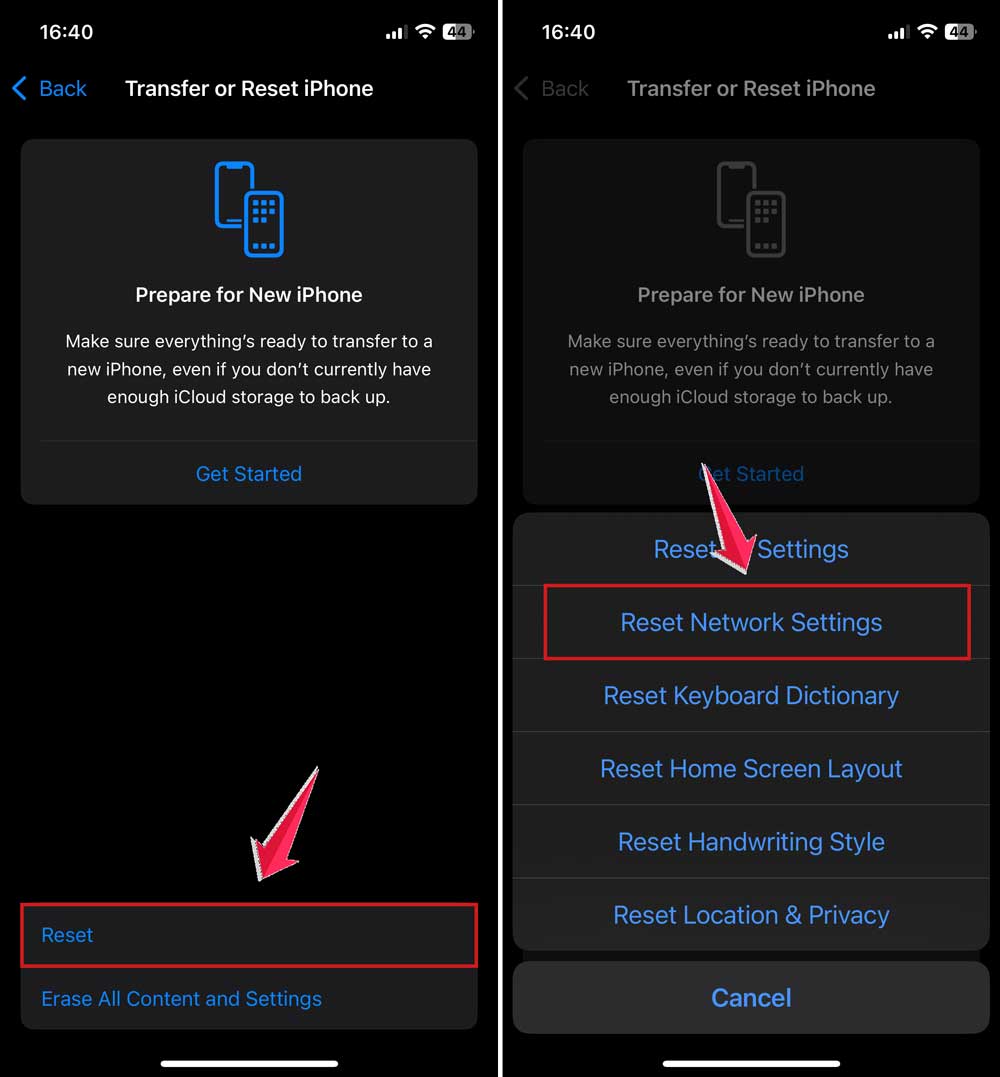
Heads up—this will remove your saved Wi-Fi passwords, so make sure you know them before doing this.
After resetting, reconnect to Wi-Fi and try downloading the file again. If the file was corrupted, re-downloading it with a stable connection can fix it.
Some Extra Tips to Keep Your iPhone Happy
1. Don’t skip those updates
I know, updates can be annoying. But they’re important. They fix bugs, improve performance, and help your phone handle new file types. So next time you see that little update notification, just tap “Install”.
2. Be careful where you get your files
Try to avoid downloading files from unknown sources. Weird or uncommon file types can cause trouble. Stick to safe websites or apps you trust.
3. Use good apps from trusted developers
Apps from well-known developers are more likely to support new files and less likely to crash. They’re also more likely to be updated regularly, which means fewer bugs for you.
4. Keep a file converter app handy
Sometimes a file just won’t open, no matter what. That’s when a conversion tool comes in handy. Having one ready means you can fix the file on the spot.
5. Clean out old files
Don’t let your iPhone get cluttered. Old or unused files can slow things down or cause errors. Take a few minutes every now and then to delete what you don’t need.
The Takeaway
Getting hit with a “File format not supported” message can be super frustrating. But the good news? It’s almost always something you can fix yourself.
Whether it’s converting the file, updating your app, or just trying a different one, these fixes are simple, and they work.
You’ve got a bunch of tools now to handle this. Keep your apps and iPhone updated. Be careful with where you get files from. And always have a backup app or converter ready to go.
Bottom line—don’t let a weird file stop you from getting things done. You’ve got this. And hey, if you’ve got any other tips or questions, feel free to drop a comment below. I’d love to hear what worked for you.