Hey there! Are you struggling with the pesky “An update is required to activate your iPhone” message? Well, you’re not alone.
This guide is all about helping you fix that issue in a simple, step-by-step way.
Your iPhone might throw this error for several reasons. But, guess what? The most common culprit is a recent update or reset of your iPhone. Sounds familiar?
If you nodded your head, saying, “Yes, that’s exactly what I did!” then you’re in the right place.
Especially if this problem popped up right after you updated to the newest iOS version or decided to give your iPhone a fresh start with a reset, I’ve got you covered.
Let’s jump right in and tackle this together!
What Does It Mean When iPhone Says Unable to Activate?
Experiencing an “Unable to Activate” error on your iPhone can be frustrating, but it’s often solvable! Here’s a breakdown of the common causes and how you can tackle them:
- Network Troubles: Just like a bad internet connection can ruin your Netflix binge, it can interfere with your iPhone’s activation process. If your Wi-Fi is unstable or you’re facing network issues, this might be the culprit.
- Busy iPhone Servers: Apple activation servers can get busy sometimes. If it’s a peak time, you may just need to wait a bit before trying again.
- Carrier Complications: Chosen a carrier that isn’t fully compatible with your iPhone? This mismatch could prevent your phone from activating properly.
- Previous User Lock: If your iPhone is pre-owned, it might still be linked to the former owner’s account. This loyalty to its previous owner can result in activation errors.
- Recognition Issues: Occasionally, your iPhone might not be recognized by the system. Making it feel like a stranger trying to get access. This can lead to activation challenges, similar to when you need to get your iPhone out of SOS mode.
- iTunes Verification Fail: Sometimes, if iTunes can’t verify your device, it’s akin to being stopped at a security checkpoint. Without verification, your activation process stalls.
How to Fix “Unable to Activate, an Update Is Required to Activate Your iPhone”?
1. Check Apple Status Page
Sometimes the solution is super simple. Just hop onto the Apple Status Page Here. Think of it as a health monitor for Apple’s servers. If they’re down or having a tough time, it’ll show up there.
All you need is a bit of patience. If Apple’s servers are indeed overwhelmed, just take a break and try again after a while. When the digital traffic jam clears up, the servers should be all set to handle your activation request smoothly.
2. Force Restart Your iPhone
If you suspect a software bug or crash is behind the activation issue, a force restart might just be your superhero.
For iPhone 7, iPhone 6s, and Older Models:
- Hold Down Two Buttons: Press and hold the Sleep/Wake button and the Home Button (or the volume down button for iPhone 7/7 Plus).
- Wait for the Apple Logo: Keep holding both buttons for about 10 to 15 seconds. When you see the Apple logo, it’s time to let go.
- Restart and Relax: Release the buttons and give your iPhone a moment to wake up normally.
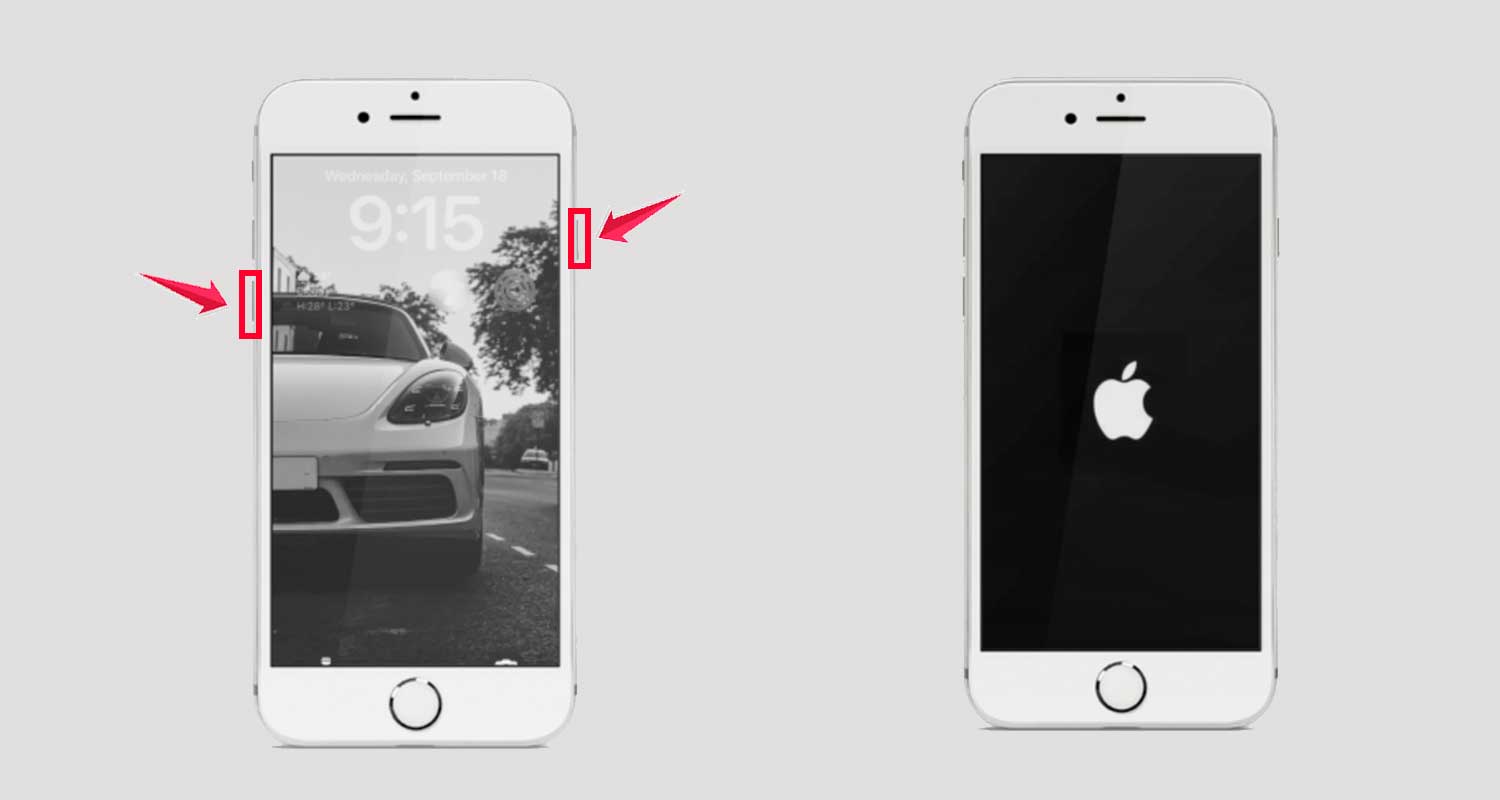
For iPhone 8 or Later Models:
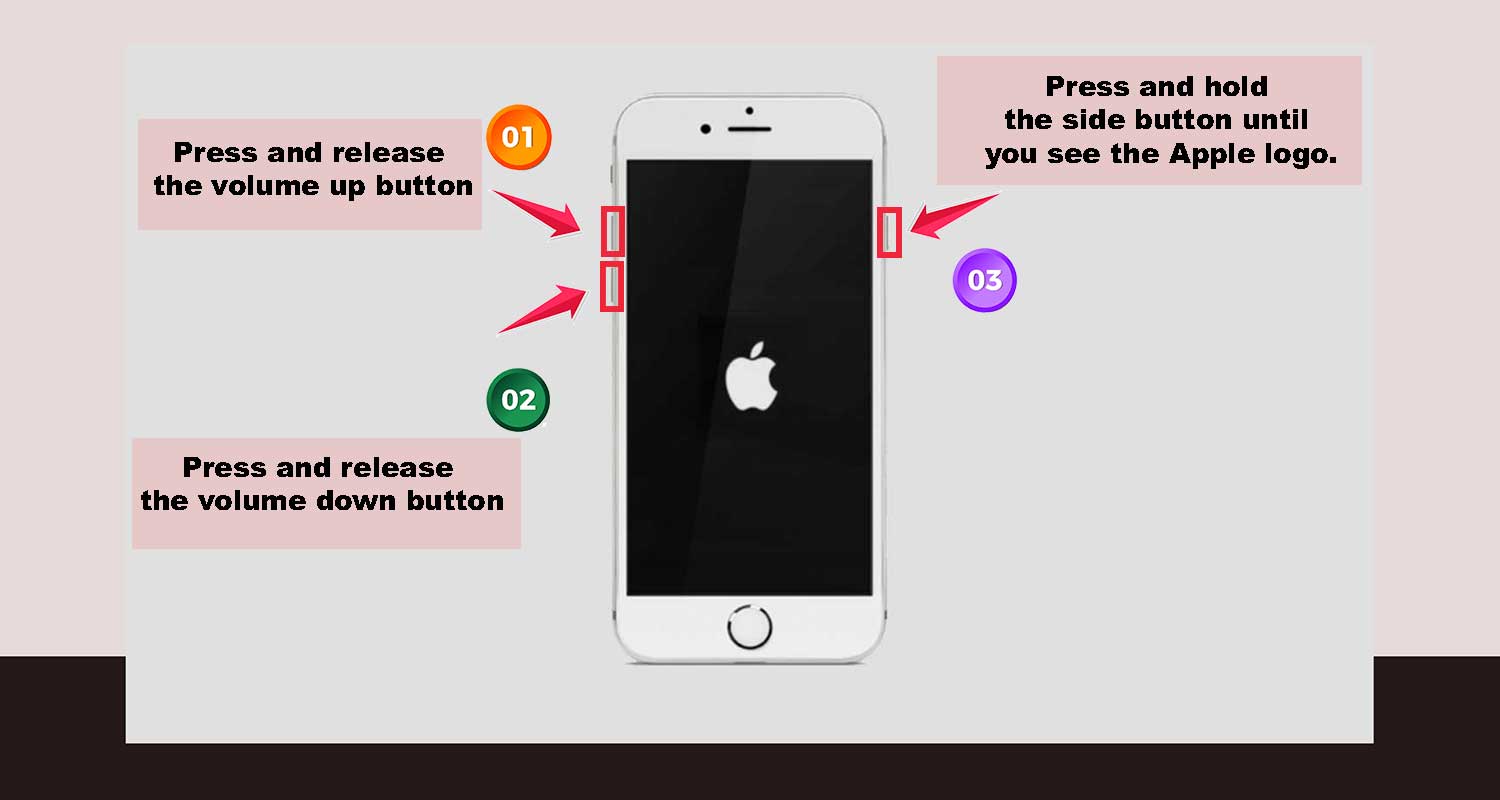
- Quick Volume Button Action: Press and quickly release the Volume Up button, then do the same with the Volume Down button.
- Hold the Side Button: Now, press and hold the Side/Wake button.
- Look for the Logo: Once the Apple logo pops up, release the Side/Wake button and let your iPhone restart.
3. Eject Your Sim and Reinsert
First, locate the SIM tray on the edges of your iPhone. Use a straightened paperclip or a SIM ejector tool and gently insert it into the small hole on the SIM tray. Press gently until the tray pops out.
Carefully take out the SIM card from the tray and give it a quick inspection. If it looks dirty, clean it gently.
Next, you have two options:
- Direct Reinsert: Simply place the SIM card back into the tray and slide it back into your iPhone.
- Turn Off and Reinsert: For a more thorough approach, remove the SIM card, turn off your iPhone, then reinsert the SIM card and turn your iPhone back on.

Finally, restart your iPhone. After reinserting the SIM card, your iPhone should start up without showing the error message. If problems persist, you may also want to fix SIM card related errors which sometimes cause activation troubles too.
4. Fix The Network Connection
Did you know that sometimes the “Unable to Activate” error is just your iPhone reacting to a network issue?
It might be having trouble with gs.apple.com, a crucial site for activation, because of blocked ports on your network.
- Switch Up Your Network: If you’re on Wi-Fi and encountering issues, try connecting to a different Wi-Fi network. If another Wi-Fi network isn’t available, switching to your cellular data might just do the trick.
- Ensure Network Stability: Whether you’re using Wi-Fi or cellular data, make sure the connection is strong and stable. A weak or unreliable network might cause the activation process to fail again.
- Attempt Activation Again: Once you’re connected to a reliable network, try activating your iPhone again. With a stable network connection, your iPhone should hopefully activate smoothly without any further issues.
5. Lock or Unlock Your SIM status
Encountering an “Unsupported SIM” message? This often happens when you’re trying to activate a new carrier on an iPhone that’s locked to a different carrier.
- Check Your Phone’s Lock Status: First, find out if your iPhone is locked. You can do this by checking in the settings or contacting your carrier.
- Contact Your Carrier: If your iPhone is indeed locked, the next step is to get in touch with your carrier. They can provide a direct unlock for both your iPhone and SIM card, making them compatible with each other.
- Activate Post-Unlock: Once your carrier confirms the unlock, try activating your iPhone again. With the lock issue resolved, your activation should go through without a hitch.
6. Use Finder or iTunes to Reactivate Your iPhone
Sometimes, activating through your computer using Finder or iTunes is the key to solving stubborn activation problems. Especially if you want to update your iPhone without Wi-Fi.
- Reboot Your iPhone: Start by giving your iPhone a fresh reboot.
- Connect to a Computer: Plug your iPhone into a computer. If you’re on a Mac, open Finder. Windows users, you’ll want to use iTunes.
- Select Your iPhone: In Finder or iTunes, look for your device in the list of connected devices.
- Find the Activation Option: In iTunes, you should see an “Activate your iPhone” option.
- Enter Your Apple Credentials: Type in your Apple ID and password when prompted.
- Activate and Wait: Click “Continue” to start the activation process. Your iPhone will need a moment to reboot and complete the activation.
7. Update/Restore Your iPhone Using Recovery Mode
Sometimes, to fix the “Unable to Activate” error, you’ll need to use recovery mode. This can help if your iPhone can’t check for updates normally. Here are the steps to Use Recovery Mode:
Enter Recovery Mode:
- iPhone 8 or later: Press and release the Volume Up button, then the Volume Down button. Hold the Side button until the recovery mode screen appears.
- iPhone 7 and 7 Plus: Press and hold the Volume Down and Sleep/Wake buttons together until the recovery mode screen shows up.
- iPhone 6s or earlier: Press and hold the Home and Sleep/Wake buttons together until you see the recovery mode screen.
Connect to Computer and Open iTunes: Connect your iPhone to a computer and open iTunes. iTunes will detect your iPhone in recovery mode.
Choose Between Restore or Update:
- Update: This option will reinstall iOS without deleting your data.
- Restore: This option will erase all data and install the latest iOS. Make sure to back up your data before choosing this option.
Follow On-Screen Instructions: Follow the instructions in iTunes to either update or restore your iPhone.
After the Process:
- If you restored: Set up your iPhone as new or restore it from a backup. You may also consider resetting your iPhone settings to ensure a smoother activation.
- If you updated: Your iPhone should restart and be ready to use without the error.
In Conclusion To
Congratulations! We’ve journeyed through various strategies to tackle the “Unable to Activate” error on your iPhone.
From simple steps like checking Apple’s server status to more technical solutions like using recovery mode, these methods cover a wide range of potential issues.
Your iPhone is an amazing piece of technology, and it’s understandable to feel frustrated when it doesn’t work as expected.
But with a little patience and the right troubleshooting steps, most activation issues can be resolved.
This way, you can get back to enjoying all the fantastic features your iPhone has to offer.
Ready to get your iPhone up and running? Let’s tackle those activation hurdles together!