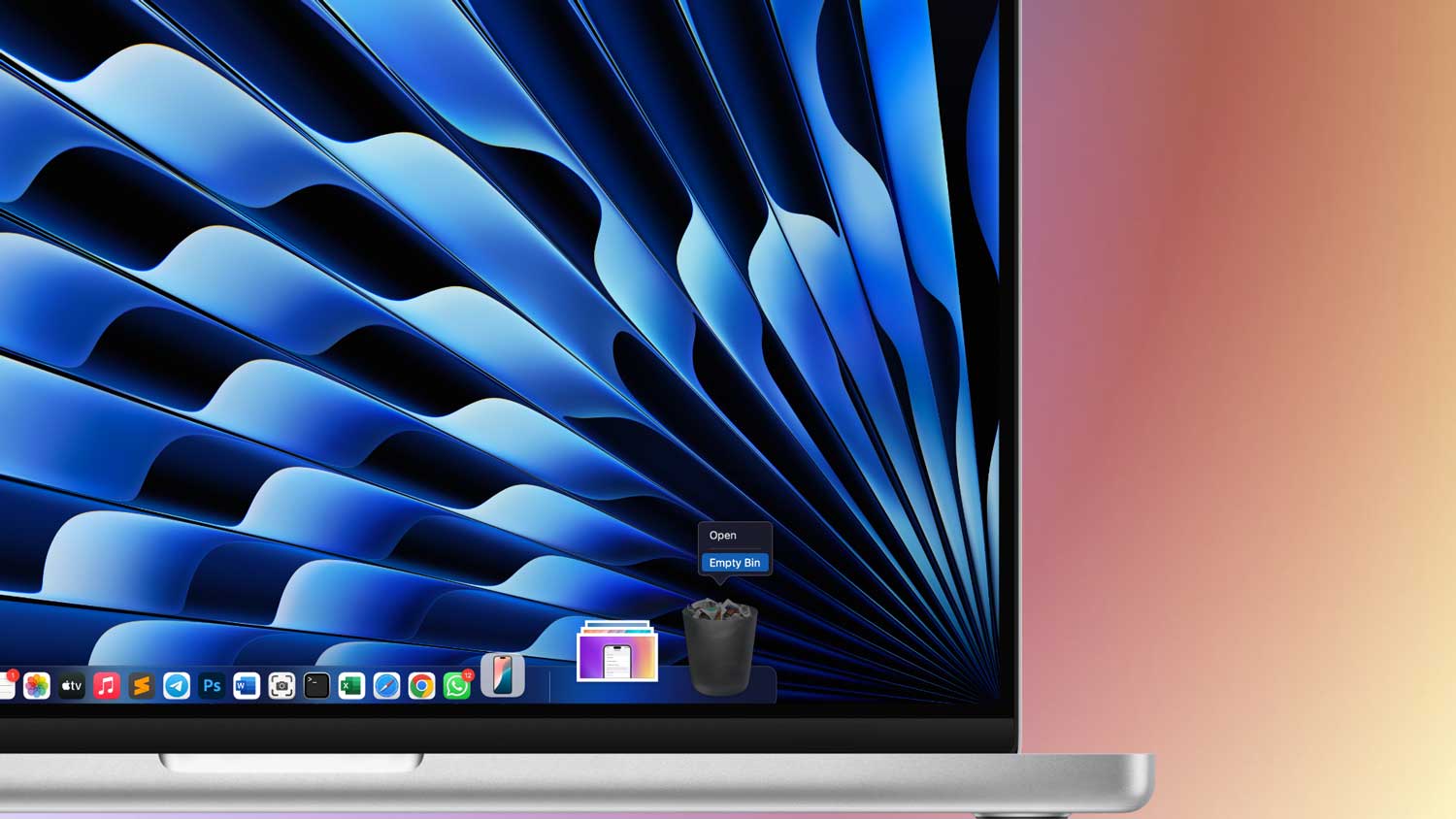
Having trouble with your Mac’s Trash? Sometimes, deleting files and clearing the Trash seems simple. You click on the Trash icon, select “Empty Trash,” and everything should disappear. But what if it doesn’t work as expected?
If you find that your Mac’s Trash won’t empty, don’t worry. This article will walk you through seven simple fixes to help you force-delete those stubborn files from your Trash. These easy-to-follow solutions will ensure you can get rid of unwanted files for good.
Where is Trash on Mac?
Trash is like a temporary holding spot for files you might want to delete permanently or recover later. It’s your Mac’s version of a recycling bin. Remember, removing files from your computer isn’t final until you empty the Trash.
Accessing Trash on a Mac is easy:
- Direct Access: Click the Trash icon on your Dock.

- Through Finder: Open a new Finder window, select “Go” > “Go to folder“, type “Trash,” and press “Return“.

Emptying the Trash is just as straightforward. With the Trash folder open, click “Empty“.
Now that you know where to find and how to empty the Trash, let’s explore how you can force-empty the Trash on your Mac for those stubborn files that just won’t go away.
How to Empty Trash on Mac
Before we dive into the tricks, let’s start with the basics. Make sure your macOS is up-to-date. Sometimes, an outdated operating system can prevent your Mac from running smoothly, including emptying the Trash.
If you’ve already got the latest macOS and you’re still having trouble, don’t worry. We’ve got some solutions for you.
Did you know that your Mac doesn’t just have one Trash folder?
Many apps create their own mini “trash bins” deep within system folders, which can take up a lot of disk space. Now, let’s look at some ways to tackle stubborn Trash:
#1 Restart Your Mac
Often, files in the Trash might still be in use by active processes, causing errors when you try to empty it. A simple restart can often solve this problem. Here’s how:
- Go to the Apple menu in the top bar.
- Click “Restart” to reboot your Mac.

After restarting, try emptying the Trash again. This action forces any apps that are still running to close, clearing the way for you to successfully empty the Trash.
#2 Use Safe Mode
Safe Mode is a handy diagnostic tool on your Mac. It limits the software loaded during startup, helping you identify if third-party applications or startup items are causing issues with the Trash. Here’s how to use it:
For an Intel-based Mac:
- Click the Apple icon in the top menu and select “Restart“.
- As your Mac reboots, hold down the Shift key.
- Release the key when you see the Apple logo and a progress bar. Look for “Safe Boot” in the upper-right corner of your screen.
For a Mac with Apple silicon:
- Shut down your Mac and wait for 10 seconds.
- Press and hold the power button until you see the startup options window.
- Select a startup disk.
- Press the Shift key and click “Continue in Safe Mode“.
- Release the Shift key.
Once in Safe Mode, your Mac won’t load any third-party applications or startup items. This is a great time to try emptying the Trash as you normally would. After clearing the Trash, restart your Mac to exit Safe Mode and return to normal operation.
#3 Force Empty Trash Using Terminal
If you’re comfortable with a more hands-on approach, using the Terminal can be a powerful way to tackle stubborn Trash bins. But be cautious—entering the wrong command might lead to unintended deletions. Here’s how to do it:
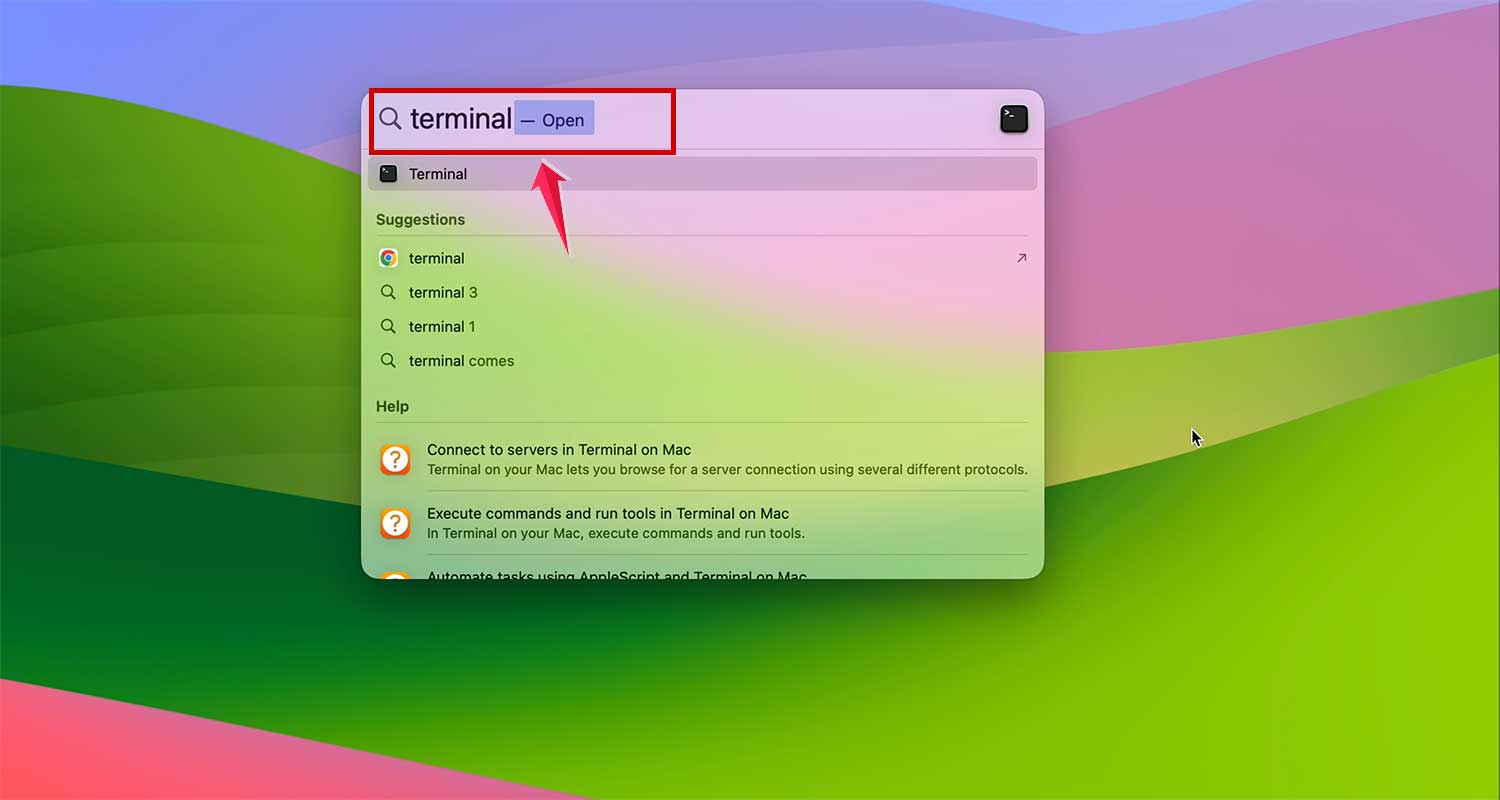
- You can find Terminal using Spotlight Search or navigate through “Utilities” > “Terminal“.
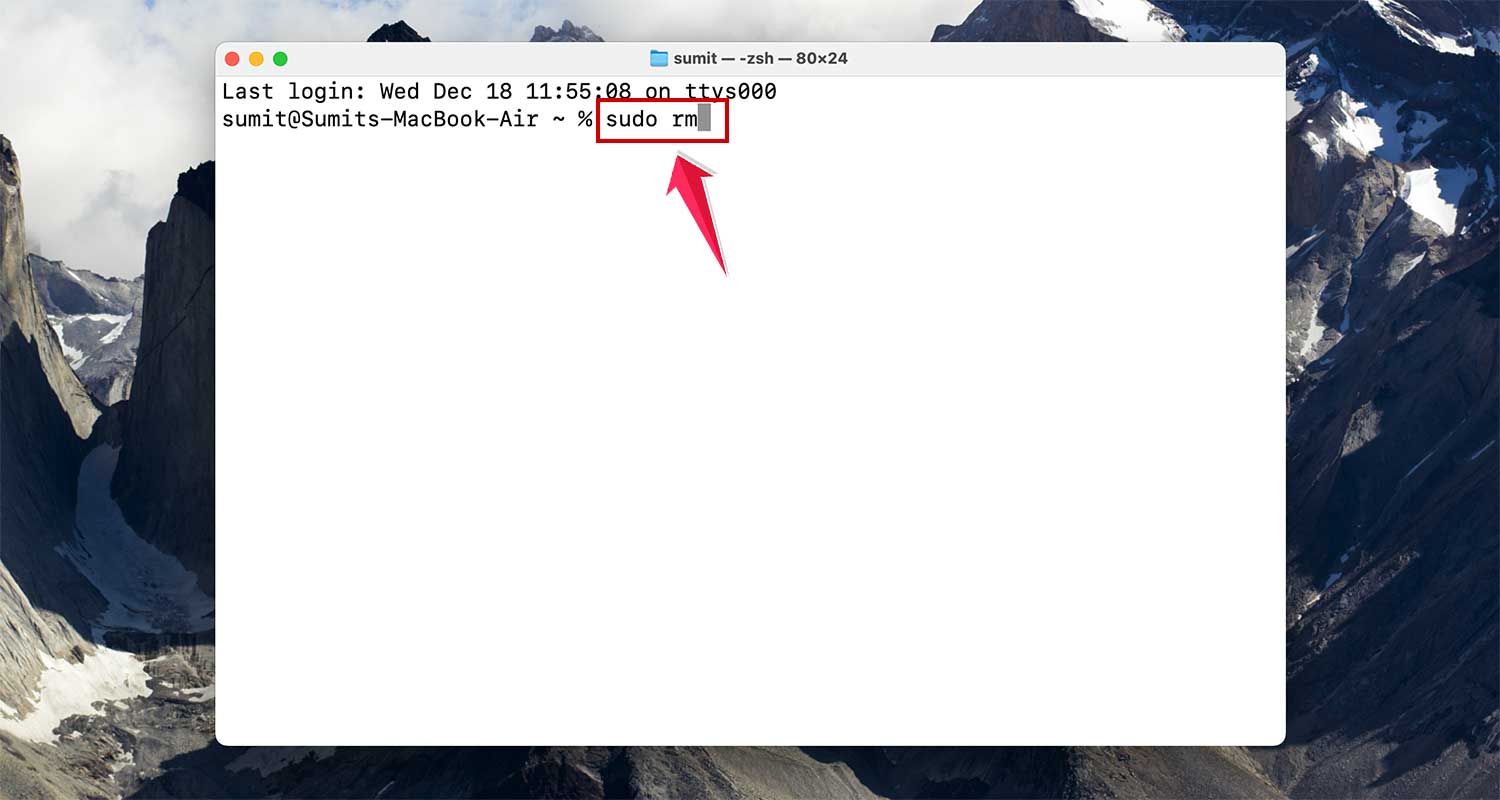
- In the Terminal window, type “sudo rm” followed by a space. Don’t press Return yet!
- Open the Trash from your Dock, then drag and drop the files you want to delete directly into the Terminal window.
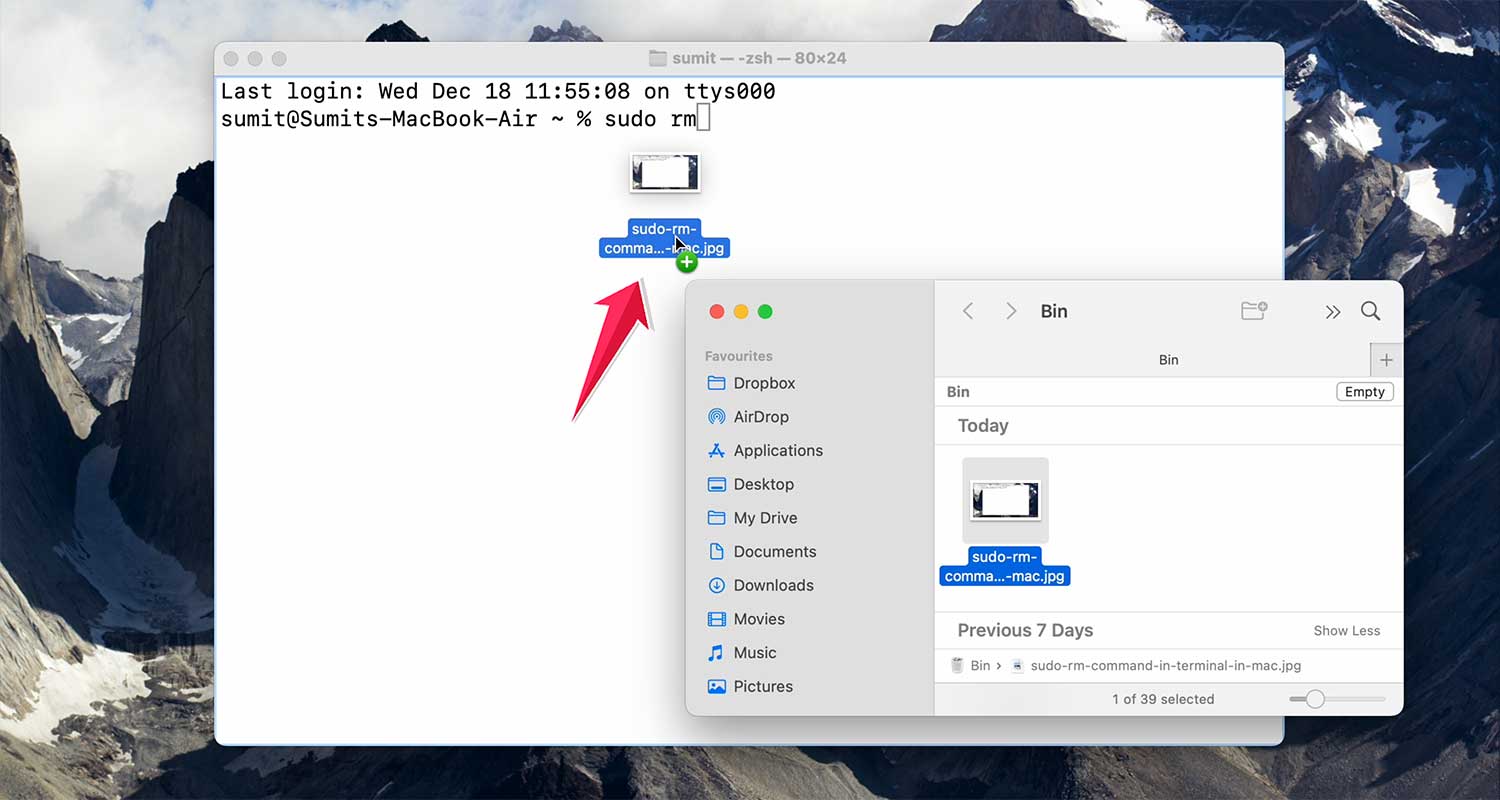
- This will add the specific path of each file to your command.
- Press Return on your keyboard.
- You’ll be prompted to enter your password. Type it in and press Return again to confirm the action.

Remember, once you hit Return after entering your password, the files will be permanently deleted from your Trash.
#4 Use the Option Key to Empty the Trash
If opening the Trash folder is proving difficult, you can still clear it directly from the Dock using a handy keyboard shortcut:
- Locate the Trash icon on your Dock.
- Hold the Option key (or Option-Shift for additional options) and right-click the Trash icon.
- Select “Empty Bin” from the menu.
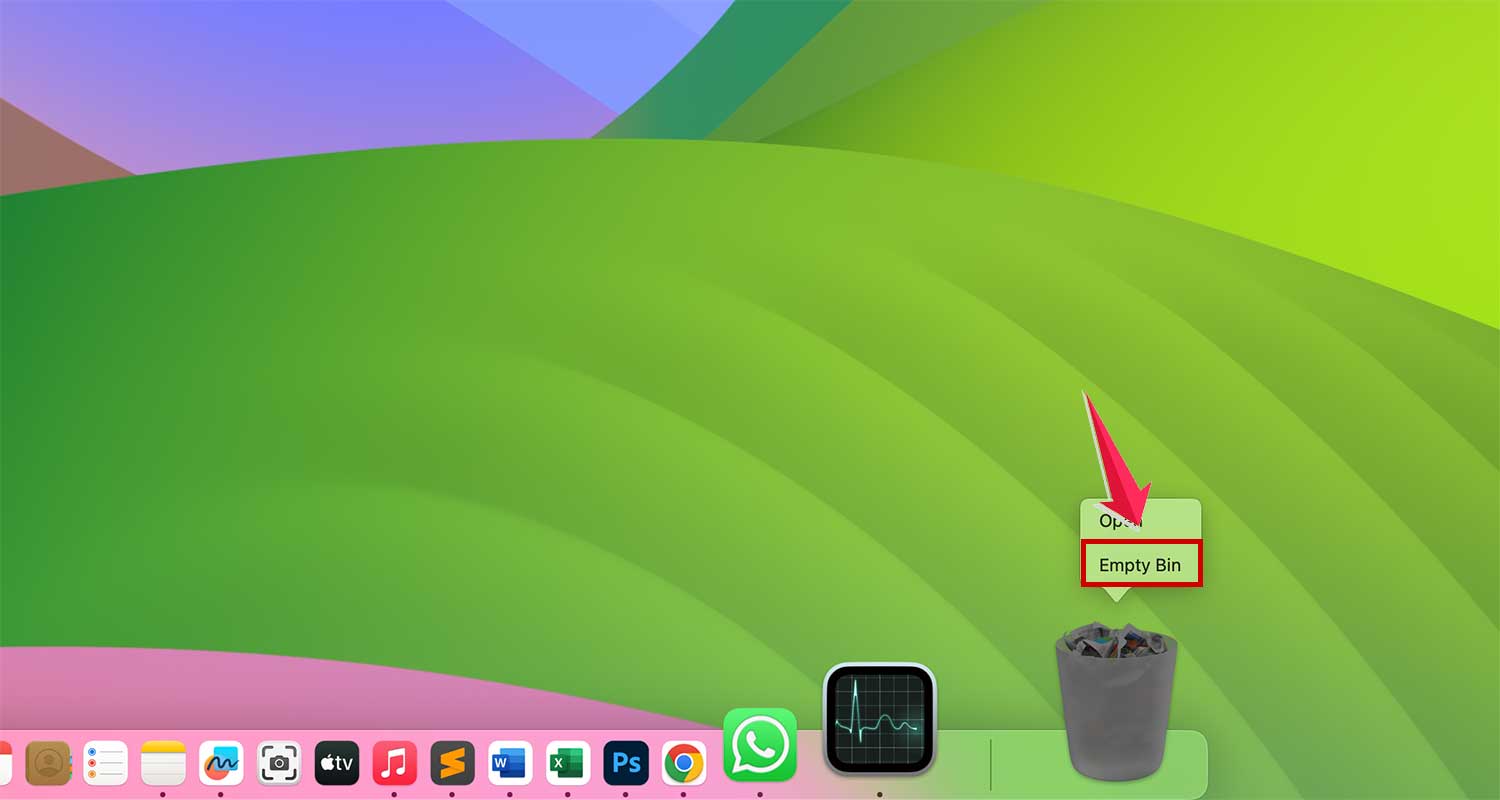
- Confirm the action when the pop-up window appears.

#5 Repair Disk Permissions
Sometimes, issues with emptying the Trash can stem from permission conflicts. Repairing disk permissions can often rectify these issues. This process checks and corrects any inconsistencies with file permissions on your Mac, ensuring everything runs smoothly.
#6 Use Shredder to Permanently Delete Files
For a more thorough cleanup, consider using the Shredder tool, which is completely free. Shredder allows you to permanently erase any file or folder from your Mac with ease:
- Simply drag and drop any item you want to delete onto the Shredder pane in the app.
- Confirm, and the file will be irretrievably erased.
#7 Remove Files Bypassing Trash
Sometimes, you might want to skip the Trash altogether when deleting files on your Mac. Here’s a quick shortcut that does just that:
Press Command + Option + Delete

Be careful with this one! There’s no going back. Use this combination only if you’re sure you want to completely remove a file. It won’t go to Trash, which means you won’t be able to restore it later.
If you’re still struggling to empty the Trash, it might be because some files are locked from deletion. Here’s how to unlock them:
- Open the Trash and locate the file that won’t delete.
- Control + Click on the file and choose “Get Info”.

- In the info window, deselect the ‘Locked‘ checkbox.
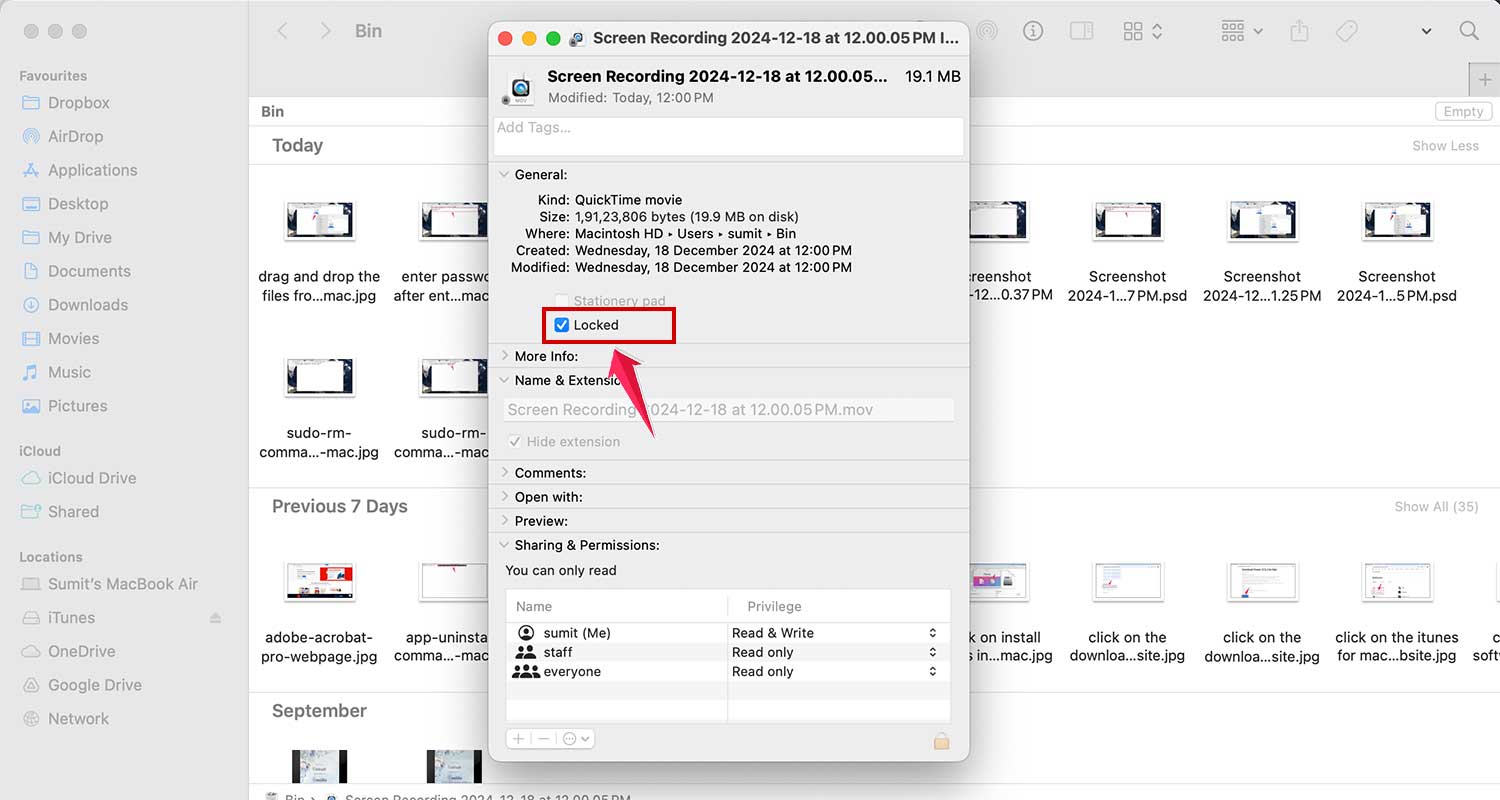
Now, try emptying the Trash again to see if that solves the problem.
Remember, if you’re ever unsure about deleting files, it’s always better to double-check before you empty the Trash.
With these tricks up your sleeve, you should be able to tackle even the most stubborn Trash issues on your Mac.
Conclusion
Managing Trash on your Mac doesn’t have to be a headache. With the tips we’ve discussed, you can easily take control of your digital clutter.
From simple keyboard shortcuts to more advanced Terminal commands, you now have a toolkit to handle even the most stubborn Trash issues.
It’s important to stay proactive about your Mac’s maintenance. By regularly managing your Trash and applying these techniques when needed, you’ll find your Mac runs smoother, faster, and more reliably.
Keep in mind that some methods, like using Command + Option + Delete, are irreversible. Always double-check before permanently deleting files.
By incorporating these practices into your routine, you’ll keep your Trash in check and your Mac in top form.
Don’t hesitate to revisit these tips whenever you encounter Trash issues. With a little know-how and the right approach, you can keep your Mac clean, efficient, and running at its best.