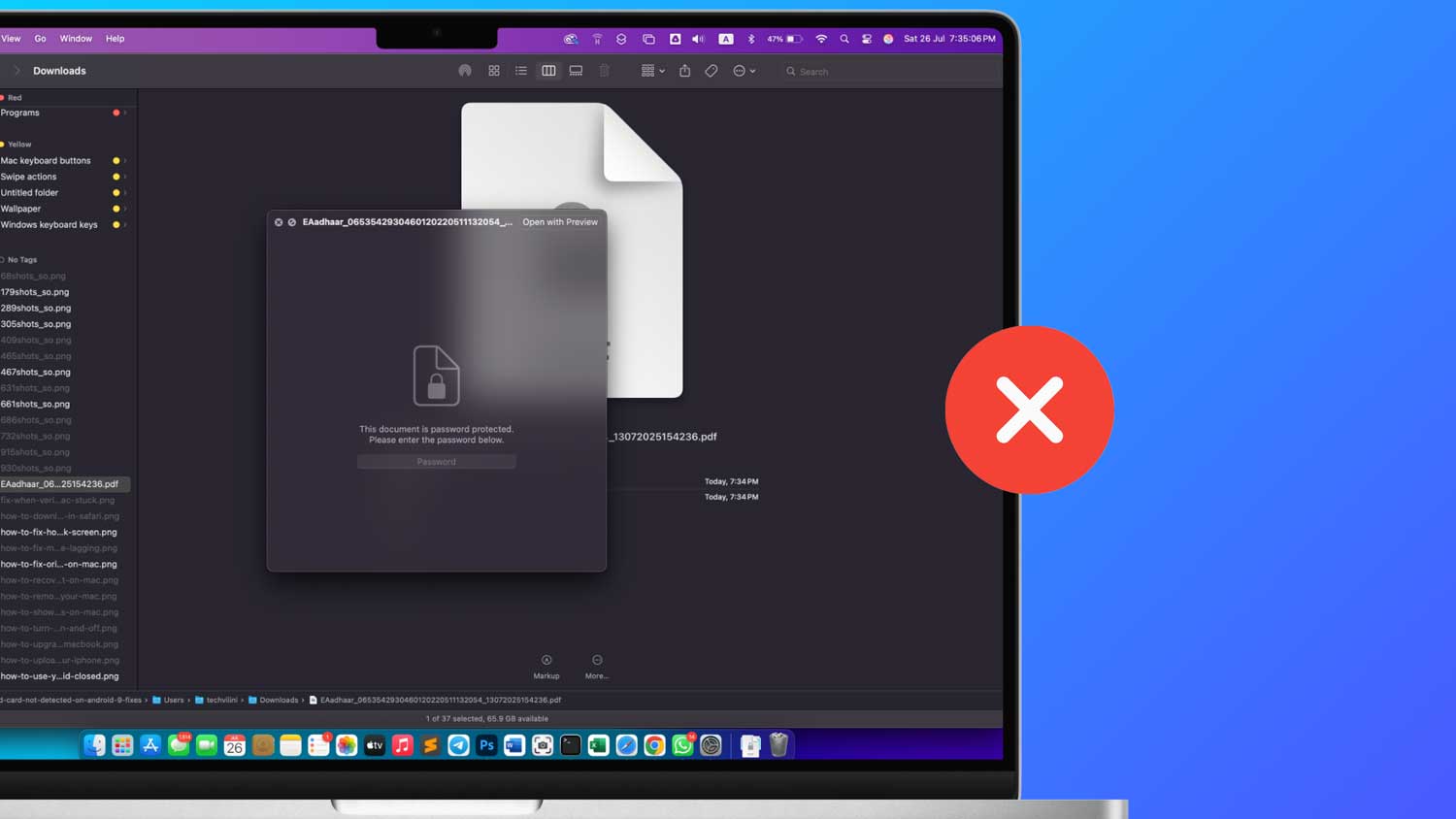
Ever wonder why PDFs are so popular? Well, it’s because they’re reliable. A PDF looks the same no matter what device you’re using or what fonts you have installed. This consistency is something other document types can’t always offer. And if you ever need to make your PDFs smaller, there are ways to compress them on your Mac too.
PDFs also come with some handy security features, like password protection. This lets you control what other people can do with your document. You can allow or block things like printing and editing.
But sometimes, you might need to remove a password from a PDF. Don’t worry – it’s not as tricky as it might sound. Let’s walk through how you can do this on your Mac.
Why remove a password from a PDF?
There are several practical reasons.
Maybe you want to update the password, make the document more accessible by removing the entry barrier, or need to edit content in a document created by someone who’s no longer with your organization but didn’t leave the password. Sometimes, you might even want to convert your PDF to a Word document for easier editing.
It’s important to note that ethical handling of password removal is key. The techniques we’ll discuss require you to already know the password; we won’t delve into illegal methods like cracking.
Interestingly, not all PDF readers adhere to password protection—something Adobe reminds users of every time a PDF is secured. This means there are legitimate ways to bypass the password issue without breaking any rules.
How To Remove A Password From A PDF?
#1 Remove Password Using Acrobat:
Removing a password from a PDF using Adobe Acrobat is straightforward, given Acrobat’s central role in the development and accessibility of PDFs.
To manage password settings in a PDF, you’ll need Acrobat’s professional version, which is subscription-based.
Here’s how to do it:
- Launch the program and open the PDF file.
- Press “Command-D” (on Mac) or use the menu to navigate to “File > Document Properties” to view security options.
- Enter the current password to unlock the document.
- In the security options, look for a dropdown menu related to the password setting and select “No Password“.
- Click “OK” to confirm the changes, and then click “OK” again.
- Make sure to save the document to apply the new settings.
Now, you can open, print, and edit the PDF freely without needing a password.
#2 Remove Password Using Preview
If you’re looking for a more budget-friendly way to remove a password from a PDF on your Mac, Preview can be a great alternative to the paid version of Adobe Acrobat. Preview is also great for other tasks, like cropping images.
Here’s how to remove a password using Preview:
- Just double-click the PDF file, and it should open in Preview by default.
- When prompted, type in the document’s password to access it.

- Go to the “File” menu and select “Export“.

- Enter a name for the file and choose a location to save it.
- Click “Save“.

The newly saved PDF will no longer require a password when opened, making it easier for you to access and share.
#3 Remove Password From PDF With Third-Party App
Using third-party applications like Nitro PDF is another effective way to manage PDF passwords, especially if you need to edit permissions or remove a password entirely. Nitro PDF is user-friendly and respects the security protocols set on PDF documents. Just remember, if you’re downloading new apps, you might need to allow apps from unidentified developers.
Here’s how to remove a password from a PDF using Nitro PDF:
- Launch the application and open the PDF file.
- Click on the inspector icon in the toolbar to view document properties.
- Click on the padlock icon to access security settings.
- Type in the password required to make changes to the document.
- You can now alter the password or change the document’s permissions as needed.
- Don’t forget to click “Save” to apply any modifications you’ve made.
This method allows you to easily adjust or remove password protection, enabling you to modify the PDF as required.
#4 Remove Password From PDF Using Web Browser
Removing a password from a PDF using a web browser is a handy trick, especially if you’re trying to work quickly and don’t have specialized software installed. This method uses the print-to-PDF feature available in most modern browsers.
Here’s how to do it:
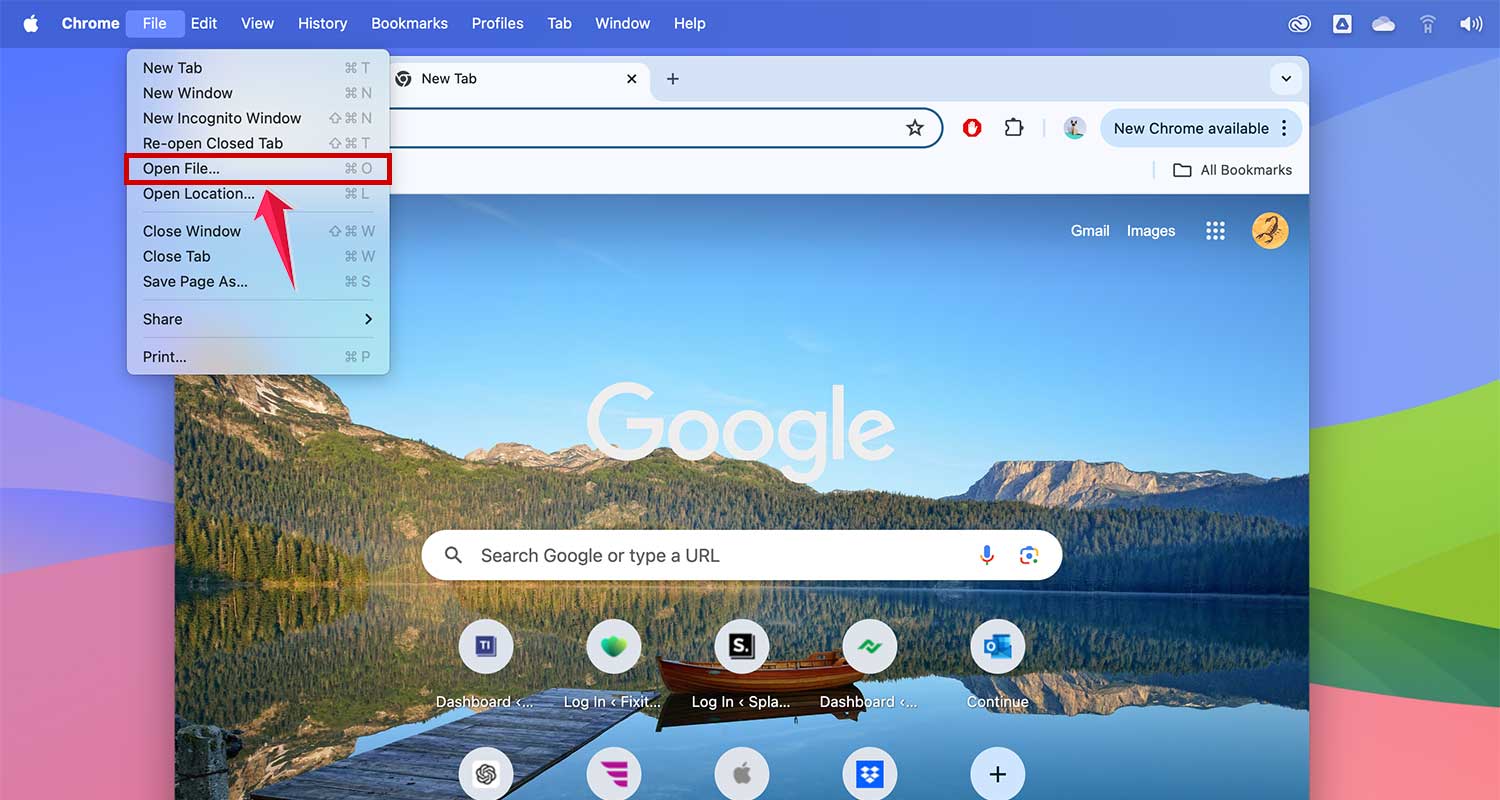
- You can drag and drop the PDF file into an open browser window, or use “File > Open File” to navigate to your PDF.
- Once the PDF is open, go to “File > Print” or press “Command-P” (on Mac) or “Ctrl-P” (on Windows) to open the print dialog.

- In the print dialog, look for a dropdown menu or a button labeled “PDF” at the top-left corner. From there, select “Save as PDF“.
- Enter a name for the new PDF file and choose a location to save it.
- Click “Save“.

The resulting file will be a new PDF without the original password protection. This method is great for removing a password when you need quick access to the document for legitimate purposes, such as viewing or printing.
Just remember, always handle sensitive documents responsibly and ethically.
In Conclusion To
So there you have it! You’ve now got several ways to remove a password from a PDF on your Mac. Whether you choose Adobe Acrobat, Preview, a third-party app like Nitro PDF, or even your web browser, each method has its own perks.
Remember, the key is to use these tools responsibly. Make sure you have the right to modify the document before removing any passwords. By doing so, you’ll keep your information flowing smoothly and securely. And while you’re at it, why not give your Mac a good clean-up to keep everything running smoothly?
Have you tried any of these methods before? Or do you have any questions about removing passwords from PDFs? Feel free to share your thoughts or experiences in the comments below.