Let’s be real for a second. You love your family. But that doesn’t mean you want them to see every single thing you buy online. Maybe it’s a surprise gift.
Maybe it’s just something a little personal. Either way, it’s normal to want some privacy. Even in a shared digital space.
Family Sharing on Apple devices is great. You get to share subscriptions, apps, and storage. But here’s the catch: it can also let others in your family peek into your purchase history.
And that’s where things get a little… awkward. You might not even realize what’s being shared until someone asks, “Hey, what’s this app you downloaded?”
It’s not your fault. Apple makes sharing super easy. But not always clear. The default settings tend to be pretty open. And unless you go hunting through the settings, your personal stuff might be more visible than you thought.
But don’t worry. You don’t have to give up Family Sharing to keep your purchases private.
I’ll walk you through how to use it without oversharing. Let’s make sure your digital life stays just as private as you want it to be. Ready? Let’s fix this together.
Why You Might Be Sharing More Than You Think
1. Mixing Personal and Family Purchases Can Be Messy
When you use Family Sharing, all your purchases are shared. Apps, music, and movies can be shared with the group.
That sounds good in theory, right? But here’s the thing: you might buy something just for yourself, and boom. It’s visible to your whole family. You didn’t mean to share it. It just happened.
So yeah, that fun little app or guilty pleasure movie? Everyone can see it unless you take steps to hide it.
2. Apple’s Settings Can Be a Bit Confusing
Let’s be honest. Apple doesn’t always make things crystal clear. You might think something is private, but it’s not.
You could be sharing purchases and not even know it. The settings are buried deep, and if you don’t know where to look, you might miss them completely.
That’s why it’s so important to take a few minutes to explore your settings. A couple of taps can make a big difference.
3. Default Settings Share More Than You Expect
Out of the box, Apple sets Family Sharing to be pretty open. That means your purchases are visible by default.
It’s convenient, sure. But not ideal for keeping things private. If you don’t change anything, your family could see your recent downloads without you even realizing it.
4. Features Can Be Misleading if You’re Not Careful
On the surface, Family Sharing looks simple. But under the hood, it’s doing a lot more.
And unless you take control, your digital footprint might be showing more than you’d like. That’s why it’s important to understand exactly what’s being shared. And how to stop it.
How to Use Family Sharing Without Exposing Purchases
Alright, now let’s get into the good stuff. You can still use Family Sharing and keep your purchases private.
I’ll show you how. These tips are simple, and you don’t need to be a tech expert to follow them.
#1: Hide Individual Purchases
Let’s say you downloaded a movie or an app that’s just for you. You can hide it from the family view. Super easy.
Here’s how to do it:
- Open the App Store.
- Tap on your profile icon at the top right.

- Tap Apps > My Apps.

- Find the item you want to hide.
- Swipe left on it and tap Hide.

And that’s it! Now that item won’t show up in your family’s purchase list. It’s still yours, but just for your eyes only.
#2: Set Up a Separate Apple ID for Private Purchases
If you’ve got a lot of personal stuff you’d rather not mix in, it might be worth creating a separate Apple ID just for private purchases.
Why do this? Because anything you buy with this second ID won’t be linked to your Family Sharing account.
Here’s what you can do:
- Create a new Apple ID.
- Use this ID for personal purchases. Apps, movies, subscriptions, whatever.
- Keep your main Apple ID connected to Family Sharing for shared content.
This way, you get the best of both worlds. Shared access where it makes sense, and privacy where it matters.
#3: Turn Off Purchase Sharing
Don’t want to share anything at all? You can totally turn off purchase sharing. Once that’s off, no one in your family can see what you buy.
Here’s how to do it:
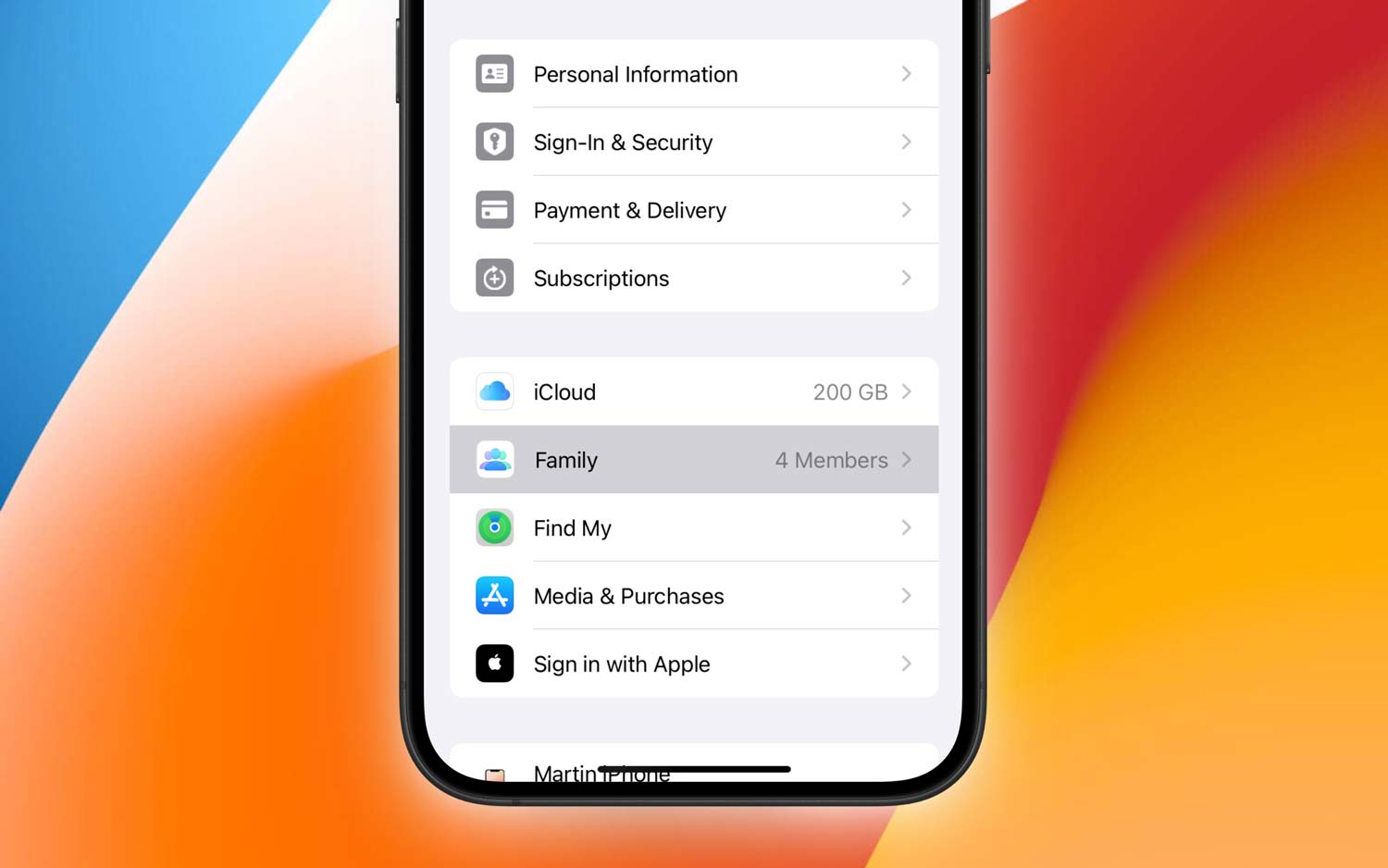
- Go to Settings on your iPhone.
- Tap your name at the top.

- Select Family Sharing.
- Tap your name again inside Family Sharing.

- Tap on Purchases.
- Turn off Share My Purchases.
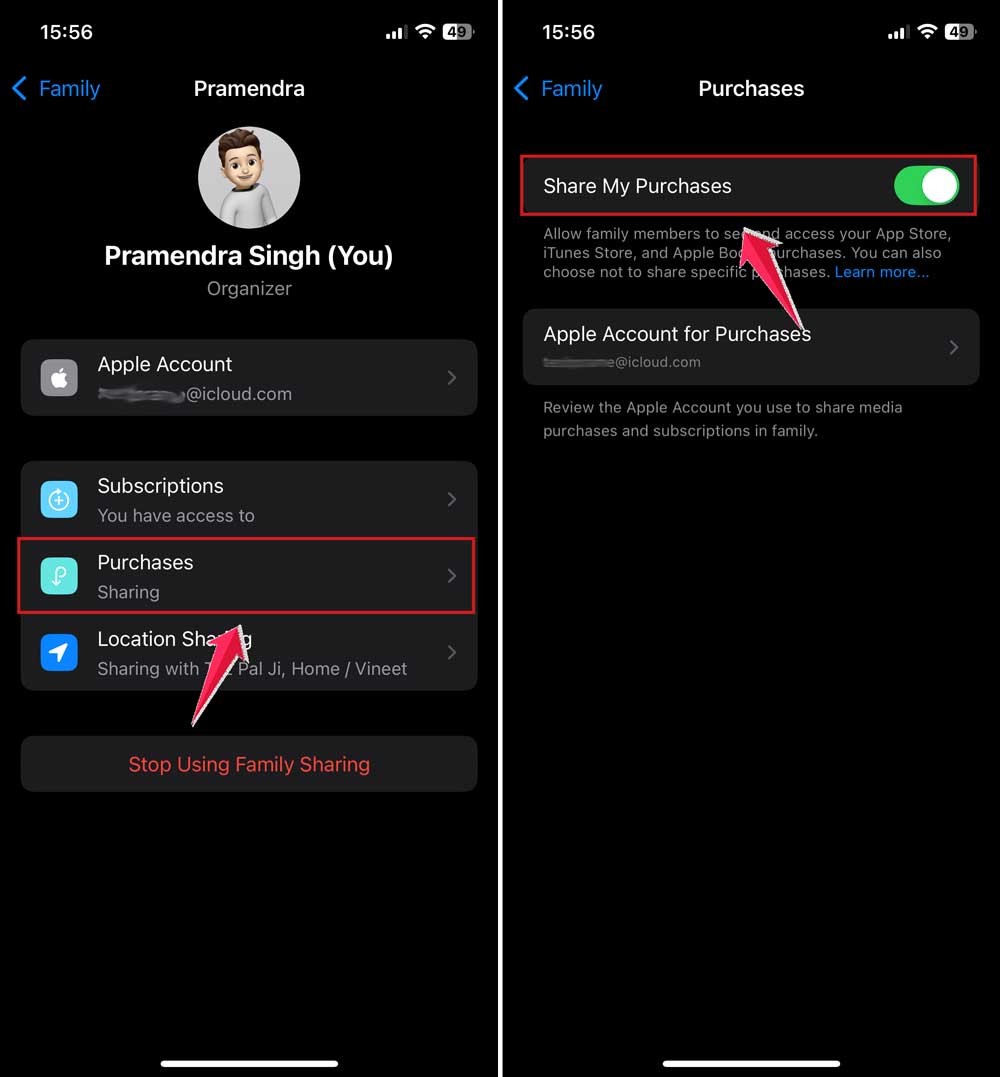
Now, your future purchases stay private. You’re still part of the Family Sharing group. You just don’t have to share everything.
#4: Use Gift Cards or Store Credit
Here’s a little trick that works really well. Instead of using your normal payment method, use an Apple gift card or store credit.
Why? Because purchases made with store credit don’t show up on the shared billing account.
Here’s what to do:
- Buy an Apple gift card in-store or online.
- Redeem it in the App Store or Apple ID settings.
- Use the store credit to buy your apps, movies, or subscriptions.
That way, your purchases are covered privately. And your family won’t see them pop up on the shared payment method.
#5: Keep Your App Updates in Check
Apps change all the time. Sometimes, they add new features that might affect privacy. So, make it a habit to check the update notes before you hit that “Update” button.
Look for anything that mentions sharing, syncing, or account access. If something seems off, you can skip the update or change the app’s settings after it updates.
#6: Understand Apple’s Notifications
Apple loves to send notifications. Especially about purchases and subscriptions. But those alerts can reveal a bit more than you’d like.
Take a few minutes to go into your notification settings. You can control when and how those alerts show up. That way, your surprise gift or late-night movie rental doesn’t become a family headline.
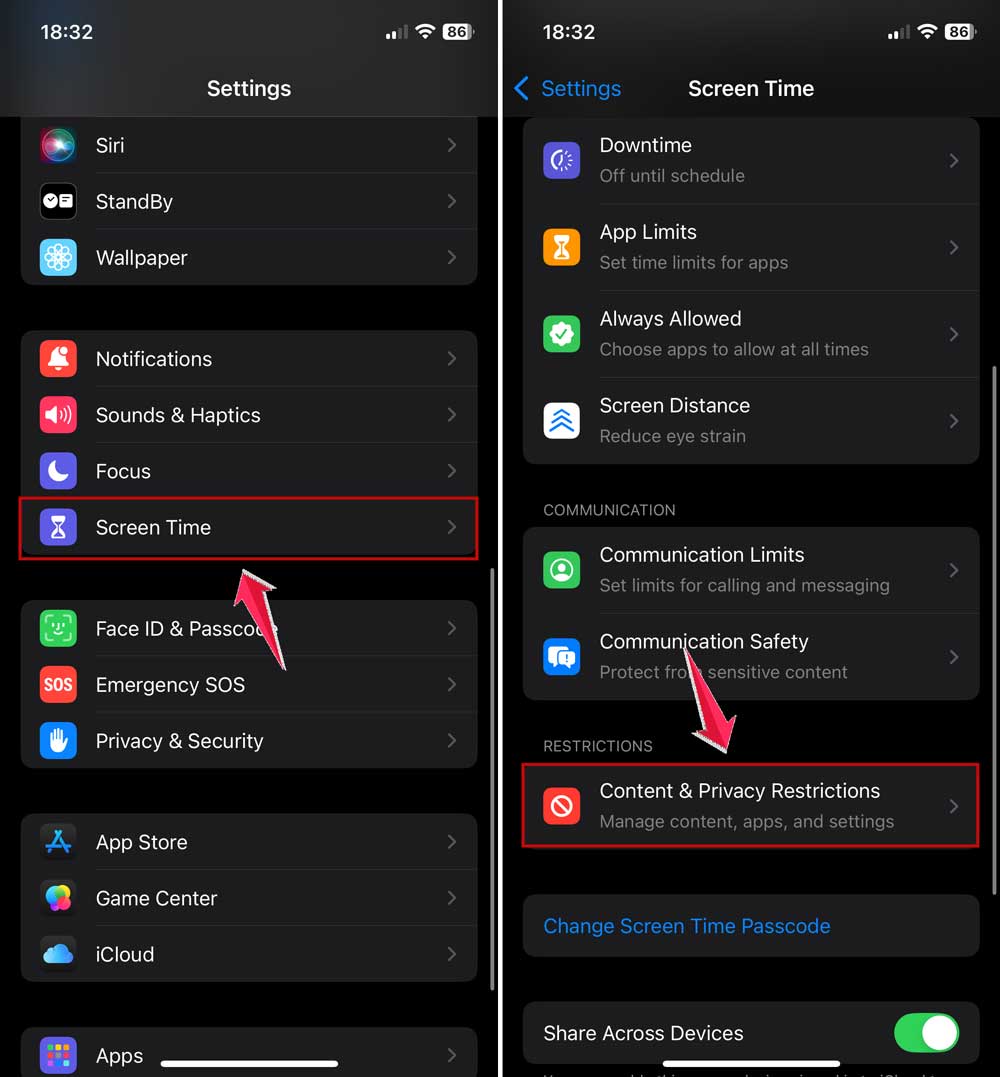
#7: Explore Screen Time Settings for Privacy
Screen Time isn’t just for limiting screen use. It also lets you control what’s visible and what’s not.
In your Screen Time settings, go to Content & Privacy Restrictions. From there, you can fine-tune what gets shared and what stays hidden. It’s a great way to keep your digital space just the way you want it.
#8: Update Your Apple ID Password Regularly
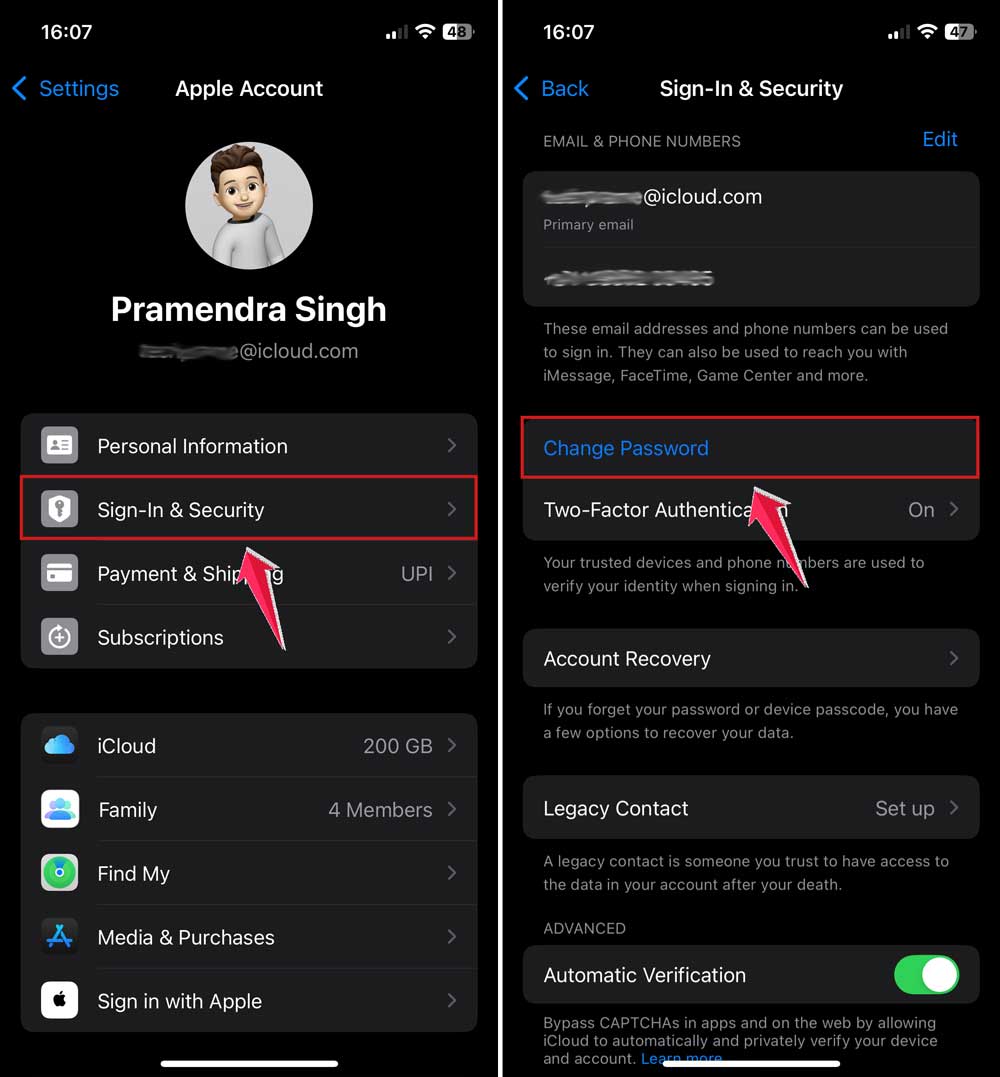
Changing your password now and then is just smart. It keeps your account secure and helps protect your privacy.
Just go to Settings > Your Name > Sign-In & Security, and tap Change Password. Easy and effective.
#9: Review Your Family Sharing Settings Often
Apple updates its features a lot. That means your Family Sharing settings might change too.
Make it a habit to check them every once in a while. Scroll through and see what’s being shared, what’s connected, and what’s not. It only takes a minute, but it can save you from future surprises.
The Takeaway
So, yeah. Family Sharing is awesome. But it doesn’t always keep things private by default. That’s why it’s important to take control of your settings.
You’ve now got everything you need to keep your purchases to yourself. Whether it’s hiding a single app or turning off purchase sharing completely, it’s all doable.
You don’t have to give up the benefits of Family Sharing. You just need to fine-tune it to fit your life.
And remember, privacy isn’t about hiding something bad. It’s about keeping your digital space comfortable and yours. So go ahead, take a few minutes, check your settings, and make sure everything looks right.
Got a question or a tip of your own? Drop it in the comments. I’d love to hear how you’re keeping your Family Sharing under control.