Have you ever wished you could use your Mac when you’re not in front of it? Well, you can! It’s called remote access, and it’s a game-changer for how you work.
Imagine being able to grab an important file from your work Mac while you’re at home, or helping a coworker fix a computer problem without leaving your desk. That’s what remote access lets you do.
In this article, we’ll show you how to set up and use remote access for your Mac. We’ll cover tools that come with your Mac and some other options you can try.
Ready to learn this useful skill? Let’s get started!
8 Great Tools to Access Your Mac from Anywhere
Want to use your Mac when you’re not in front of it? You’ve got plenty of options. Let’s look at eight popular tools that can help you do this:
1. Apple Remote Desktop
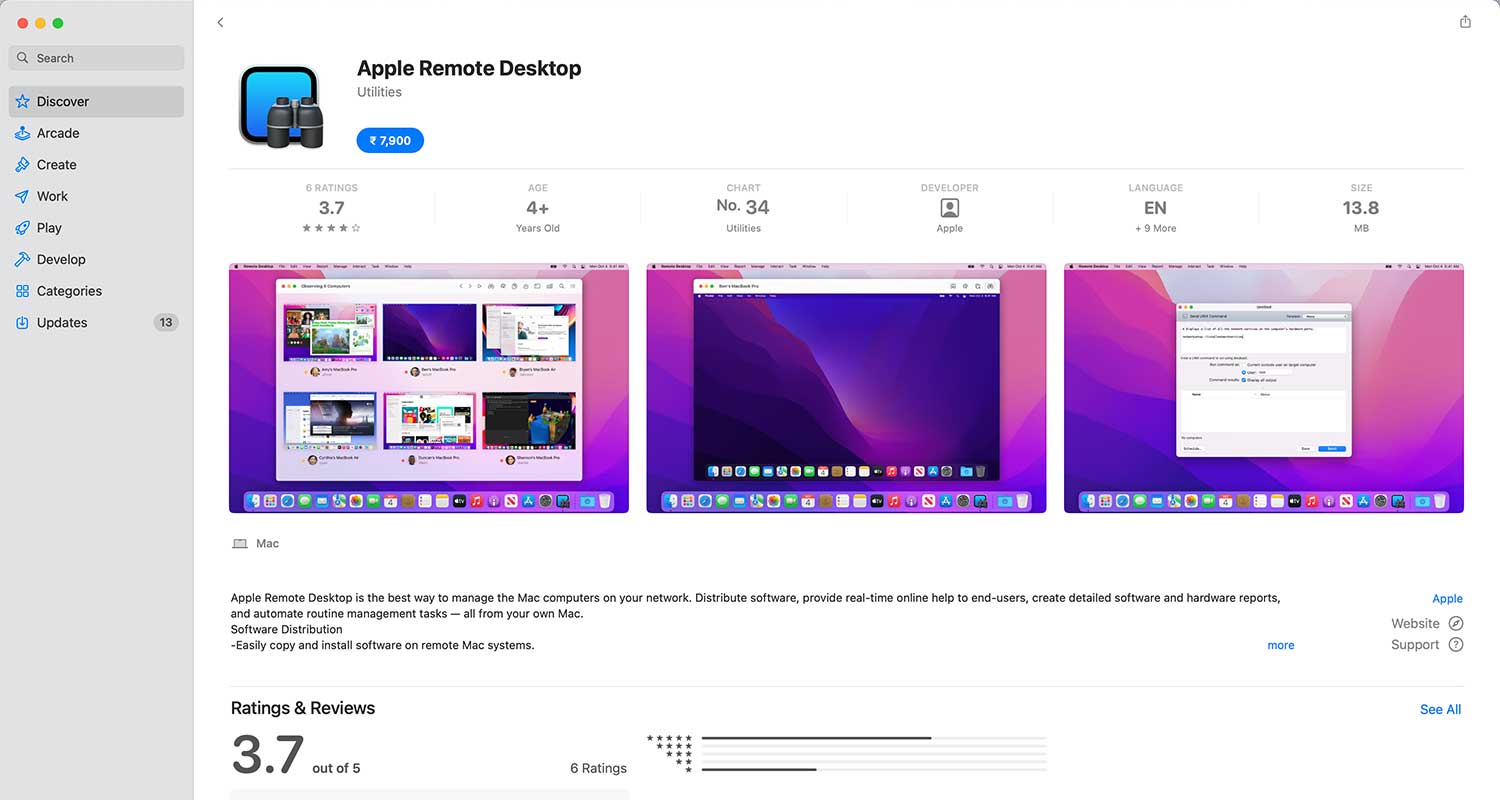
This tool comes straight from Apple, so it works really well with your Mac. You can set it up quickly from the App Store.
The best part? You don’t need someone at the other Mac to use it. It’s perfect if you need to manage lots of Macs in different places.
2. TeamViewer

TeamViewer is a favorite for many people because it works on both Macs and Windows computers.
You only need to pay for it on the computer you’re using to connect, not the one you’re connecting to.
It also has a web portal feature, which is handy if you need to help someone else with their computer.
3. Device Management Software

If you’re already using something like Jamf or Kandji to manage your devices, check if they have remote access features. These tools can do more than just update software – they can let you control another computer from afar.
4. macOS Screen Sharing

This one’s built right into your Mac. It’s great for connecting to another Mac on the same network. Just type in the name or IP address of the Mac you want to connect to. It’s easy to use but works best when both Macs are in the same place.
5. LogMeIn

LogMeIn is a powerful tool that can be customized for different jobs. Whether you need extra security for health information or special features for accounting, LogMeIn has you covered. It works on both Macs and Windows computers.
6. Google Chrome Remote Desktop

If you like using Google Chrome, you might like this tool. It works through your web browser, so it’s easy to use on different types of computers. It’s great for sharing your screen with someone else.
7. Splashtop

Splashtop works on lots of different devices – not just Macs and Windows computers, but also phones and tablets.
It has different versions for different needs, like accessing your work computer from home or helping someone fix their computer problems.
8. macOS Remote Login
This is another feature that comes with your Mac. You can turn it on in your Mac’s settings. It’s good for using your work computer from home, but it might not be as secure as some other options.
Remote access tools have become really important for using computers these days.
Whether you need to use your work computer from home or help someone fix their computer problems, these tools can make your life a lot easier.
Wrapping Up
So, there you have it! We’ve looked at several ways to use your Mac from afar. Whether you’re working from home, helping a coworker, or just need to grab a file you left on your work computer, these tools can be a real lifesaver.
From Apple’s own tools like Remote Desktop and Screen Sharing to other options like TeamViewer and Splashtop, you’ve got plenty of choices. Each one has its own strengths, so you can pick the one that works best for you.
As more and more of us work from different places, being able to use our computers from anywhere is becoming really important. It’s not just handy – it’s a must-have for many businesses.
So, why not give remote access a try? It might just make your work life a whole lot easier. And remember, no matter where you are, your Mac can be right there with you, ready to help you get things done.