Ever found yourself repeatedly dragging files around or manually saving every single picture you need? Well, there’s a much faster way to handle things on your MacBook.
Whether you’re working with text from a webpage or shuffling files and folders around, mastering the art of copying and pasting can be a real game-changer.
If you’re new to Mac or haven’t used keyboard shortcuts much, you might wonder how to efficiently copy and paste pictures or other items.
Let’s dive into some simple methods using your keyboard, mouse, or trackpad that will make your digital life a bit easier.
How to Copy And Paste Pictures On a Mac?
Copying and pasting might seem straightforward, but there’s a bit more to it on a Mac, especially if you’re aiming for efficiency.
Let’s break it down into simple steps and explore some pro tips along the way. Ready? Let’s get started!
1. Using Keyboard Shortcuts
First off, keyboard shortcuts are your best friend when it comes to efficiency.
Here’s how to leverage them:
- Selecting Content: To copy text or an image, start by selecting it. If it’s text, you can hold down the Shift key and use the arrow keys to select. For images or text, using your mouse to click and drag over the content also works.
- Copying: Once selected, press Command (⌘) + C. This shortcut sends your selected content to the clipboard, ready to be pasted anywhere you need it.
Remember: The clipboard on your Mac temporarily holds only the last thing you copied, so if you copy something new, it replaces the old content.
- Pasting: Open up the app where you want to paste the content. Press Command (⌘) + V, and voilà, your content is pasted there.
2. Using a Mouse
If you’re more visually oriented or prefer using a mouse, here’s how to copy and paste:
- Copy: Right-click (or Ctrl-click if you don’t have a right mouse button) on the selected text or image and choose ‘Copy’ from the contextual menu that pops up.
- Paste: Navigate to where you want to place the content, right-click again, and select ‘Paste’ from the menu.
This method integrates well with visual tasks, like arranging images or organizing content in a layout-driven app.
3. Using Trackpad
For those who use the trackpad, it’s all about gestures:
- Copying: Select your content by pressing and dragging on the trackpad. Then, with two fingers, tap to open the contextual menu and choose ‘Copy.’
- Pasting: In the destination application, a two-finger tap brings up the menu again. Just hit ‘Paste.’
This method is perfect for users who prefer a touch-based interface, offering a more tactile experience.
How to Cut and Paste Using Keyboard Shortcuts
If you need to move text and images around on your Mac without leaving a trail behind? That’s where cutting (instead of copying) comes into play.
Unlike copying, which duplicates your selected content, cutting actually moves it. Removing it from the original location. Let’s dive into how this works on your Mac, and I’ll toss in a few extra tips too.
Cutting Content:
- Select the text or image you want to move. It’s as simple as clicking and dragging over what you need.
- Cut it out: Press Command + X. This shortcut lifts the content right off your screen and onto your clipboard, ready to be pasted elsewhere.
Alternatively, if you’re more comfortable with the mouse, right-click on the highlighted content and select ‘Cut’ from the contextual menu. This option is also tucked away in most applications under the ‘Edit’ menu.
Pasting Content:
- Paste: Hit Command + V wherever you want your content to go. This pastes the content from your clipboard to the new location.
Special Paste: Want to paste text without bringing along its previous formatting (like size, font, or color)? Use Command + Shift + Option + V. This nifty shortcut pastes the text, adapting it to match the style of the destination document. You can also find this as ‘Paste and Match Style’ in the contextual menu.
How to Cut and Paste Files and Folders
While you might be familiar with the basic copy and paste commands (Command + C and Command + V), using them for files and folders creates duplicates.
But what if you just want to move them, not clone them?
That’s where the cut-and-paste technique comes in handy, though it works a bit differently on Macs compared to other systems.
1. Copying to Clipboard:
- Select the File: First, click on the file or folder you want to move. Just a simple click to highlight it.
- Copy: Press Command + C. This action copies the file to your clipboard, kind of like lifting it with a digital crane, but it’s still sitting in the original location for now.
2. Pasting to a New Location:
- Navigate: Head over to where you want to place the file. This could be a different folder or even an external drive.
- Move by Pasting: Press Command + Option + V. This isn’t your everyday paste command; it moves the file to the new location, effectively cutting it out from the original spot. Think of it as setting it down where it needs to be.
Using Finder’s Edit Menu:
Sometimes, keyboard shortcuts are not everyone’s cup of tea, or maybe you’re just feeling click-happy with your mouse. You can achieve the same result through Finder’s menu:
- Open Finder and go to the ‘Edit’ menu.
- Hold down the Option key, and you’ll notice that the ‘Paste Item’ changes to ‘Move Item Here’. This is your ticket to moving files around without leaving duplicates behind.
Understanding these commands can significantly streamline how you manage files on your Mac. It’s not just about keeping your digital space tidy; it’s about being efficient in your navigation and file management.
Using the Command + Option + V shortcut lets you move files seamlessly, which is perfect when you’re organizing large amounts of data or cleaning up your desktop.
How To Manage Copied Items On Mac
Copy-pasting is pretty much second nature when we’re zipping around on our computers, right? But have you ever paused to wonder where all those copied items actually go, or how you can manage them? Let’s dive into some neat tricks to keep your clipboard organized!
#1 Find Clipboard in Finder
When you copy something, it doesn’t just vanish into the ether. It heads to a special spot called the clipboard. Curious about what’s lurking there?
Here’s how to peek at your clipboard contents:
- Open the Finder by clicking the happy face icon on your dock.
- Navigate to the top and click on “Edit.”
- Select “Show Clipboard.”

A window will pop up displaying everything you’ve copied. You can easily drag and drop any item from this window to wherever you need it. Neat, huh?
#2 Clear Copied Items
Feeling cluttered with all those copied items? Let’s clean up.
Follow these steps to tidy your clipboard:
- Again, start with the Finder.
- Click on “Edit” at the top.
- Choose “Show Clipboard” to see what you’ve copied.
- Find something you no longer need. Right-click on it and select “Move to Bin” from the drop-down menu.
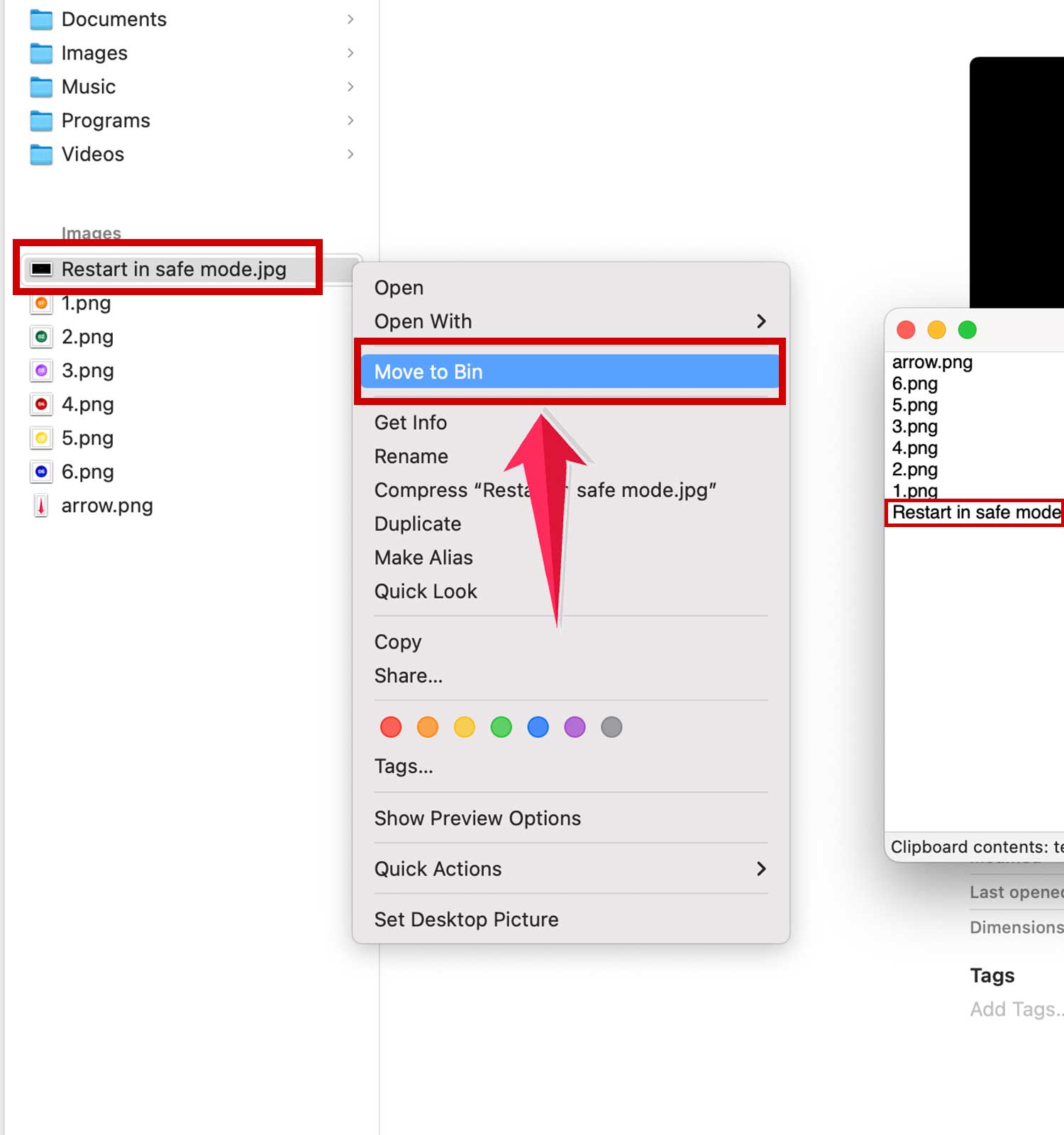
Just remember, “Move to Bin” the item sends it to the Trash. If you want to clear it out completely, make sure to empty the Trash on your MacBook.
How To Transfer Images And Text Between Apple Devices
Managing multiple Apple devices like a MacBook, iPhone, and iPad might seem like a chore, but Apple has streamlined the process with some pretty neat features.
Let’s explore how you can effortlessly move that stunning photo or document from one device to another!
#1 Using Universal Clipboard
Picture this: you copy something on your MacBook and then, like magic, paste it directly onto your iPhone. That’s the power of Universal Clipboard. It’s a feature that feels almost like teleportation!
- Sync Up: Ensure all your devices are logged into iCloud with the same Apple ID.
- Enable Connections: Activate Wi-Fi, Bluetooth, and Handoff on each device. These settings need to be on for the devices to communicate effectively.
- Copy and Paste: Simply use Command-C to copy on your Mac. Then, on your iPhone or iPad, navigate to where you want the image, press and hold until the ‘Paste’ option appears, and tap it. Just like that, your image appears right where you want it.
#2 Using Handoff
Handoff works a bit like a digital relay race. It lets you start a task on one device and pick it up on another without missing a beat.
- Open Your Content: Start by opening the picture or file you want to transfer on your Mac.
- Switch Devices: On your iPhone or iPad, swipe up to bring up the App Switcher. You should see an icon representing the app you were using on your Mac, typically located at the bottom of the display.
- Complete the Handoff: Tap on the app icon. The app will open and display the file right where you left off on your Mac.
In Conclusion To
Alright, that wraps up our guide on moving files and folders around on your Mac like a pro.
Remember, while it might seem a bit complex at first, mastering these shortcuts and menu options will make your digital life much easier and more organized.
It’s all about making the technology work for you, so you can spend less time managing files and more time enjoying what your Mac can do.
Feel free to play around with these commands and see how they can fit into your workflow. The more you practice, the more intuitive it will become.
Whether you’re a seasoned Mac user or just getting started, these skills are invaluable in making the most out of your device. So go ahead, give it a try and see how streamlined and efficient your file management can be!
If you have any questions or need further explanations on any step, just drop a comment or reach out. Happy to help you get the hang of it!