Have you seen the message “Your account doesn’t allow editing on a Mac” when trying to use Microsoft Office 365? Don’t worry, you’re not alone.
This error can be really frustrating, especially when you’re expecting your subscription to work smoothly. But here’s some good news: we’ve got some easy steps to help you get back to work quickly.
Let’s walk through how to solve this problem together. Whether you’re writing a report, creating a presentation, or crunching numbers in a spreadsheet, we’ll help you get back to editing your documents in no time.
What Causes The “Your Account Doesn’t Allow Editing On A Mac” Message?
You might be wondering what’s causing this frustrating message. Well, there are a couple of main reasons:
- Sometimes, Microsoft gets a bit confused and doesn’t recognize that you have a valid Office 365 license. It’s like your subscription is there, but the software can’t see it.
- Your Mac might have some files in its Library folder that are causing problems. Think of these as little roadblocks getting in the way of your work.
Here’s some good news, though. Microsoft has found three specific files that are often behind this issue.
Don’t worry if that sounds complicated – we’ll walk you through how to deal with these files step by step.
How To Fix “Your Account Doesn’t Allow Editing On A Mac”?
Let’s walk through some simple steps to get you back to editing:
Step 1: Try Logging Out And Back In
Sometimes, this easy trick can solve the problem:
- Open any Office app and click your name in the top left
- Choose “Sign Out” and Close the app.
- Then open it again.
- Click “Sign In” in the top left to log back in
Step 2: Check Your Office 365 License
If that didn’t work, let’s make sure your license is okay:
- Go to portal.office.com in your web browser
- Click your name in the top right corner and tap on “My Microsoft Account”
- Look at the “Subscriptions” section. If “Microsoft 365” or “Microsoft 365 Family” is there, your license is fine. If not, you might be logged into the wrong account.
Step 3: Remove Some Troublesome Files
If you’re still having trouble, we need to delete some files:
1. Log out of all Office apps on your Mac
2. In Finder, go to the “Go” menu, then “Go to Folder”
3. Type ~/Library and press Return
4. Find the “Group Containers” folder
5. Look for these three files and move them to the Bin:
UBF8T346G9.msUBF8T346G9.OfficeUBF8T346G9.OfficeOsfWebHost
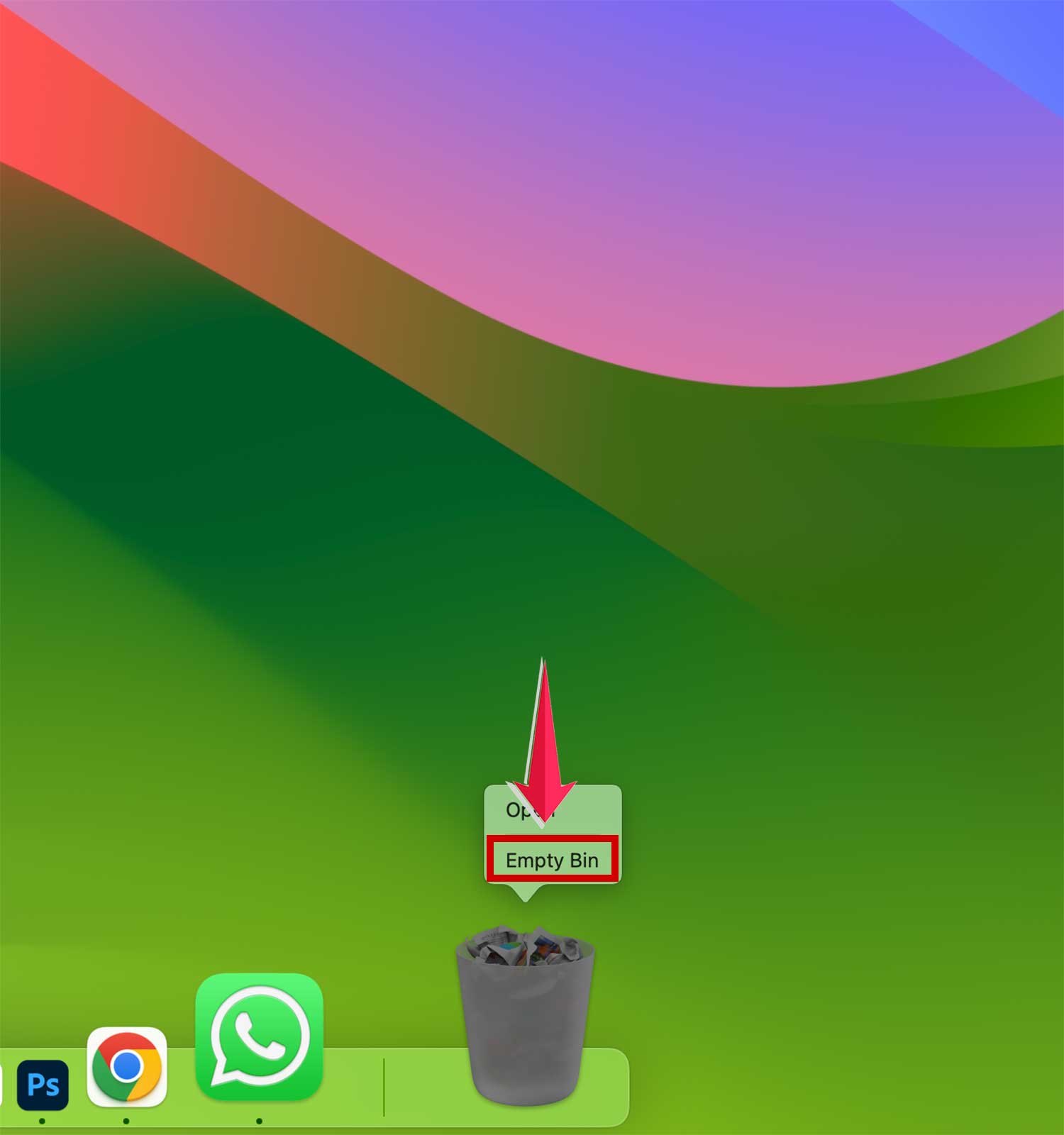
6. Empty the Bin and restart an Office app to see if it’s fixed.
Step 4: Remove Office License Files
If you’re still stuck, try removing the license files:
- Find out which version of Office you have
- Download the “License Removal Tool” from Microsoft’s website
- Install it and follow the steps to remove the license files
- Restart your Mac and open an Office app to log in again
Step 5: Update Your Office Apps
Outdated software can lead to unexpected errors. Here’s how to ensure your Office apps are up-to-date:
1. If you got Office from the App Store, go to “App Store > Updates”
2. If you downloaded it from Microsoft, open an Office app, go to “Help > Check for Updates”
Step 6: Start Fresh
If nothing else works, you might need to reinstall Office. This will reset everything to how it was when you first installed it.
Remember, if you’re still having trouble after trying these steps, don’t hesitate to reach out to Microsoft support. They’re there to help you!
Conclusion
We’ve covered a lot of ground today! Dealing with the “Your account doesn’t allow editing on a Mac” error can be frustrating, but now you have some simple tools to fix it.
Remember, sometimes the easiest solution works best – like logging out and back in. Other times, you might need to update your apps or remove some files. Whatever the case, you’re now ready to tackle this problem.
If you’ve tried everything we’ve talked about and you’re still stuck, don’t worry. Microsoft’s support team is there to help you out. They can look at your specific situation and give you more detailed advice.
The most important thing is not to let this error stop you from getting your work done. You’ve got this!
Now, I’d love to hear from you. Have you run into this problem before? Did these steps help you solve it? Or do you have any other tips that worked for you?
Drop a comment below and let’s help each other out. Your experience could be just what another reader needs to hear!