Are your AirPods charging but still not showing up in Find My? That’s seriously annoying, right? You’re not alone, and I’ve got your back.
When your AirPods charge but don’t pop up in Find My, it can feel like they’re lost forever.
And honestly, that’s super frustrating because we all rely on Find My to track our stuff. Knowing where your AirPods are is kinda the whole point, isn’t it?
The good news? You’ve got some simple ways to fix this. Stick with me, and we’ll go through it step-by-step.
No complicated tech talk, just easy fixes you can try right now. By the end of this, you’ll have your AirPods back on the radar, promise!
Why your AirPods might not show up in Find My
Hey, friend! So, let’s talk about why your AirPods might be playing hide and seek in Find My. It’s gonna be okay, we’ll figure this out together.
1. Bluetooth Isn’t Cooperating
First off, your device might have a mind of its own. Yep, sometimes Bluetooth just decides not to play nice.
If Bluetooth isn’t working properly, your AirPods won’t connect well enough to show up in Find My.
Make sure it’s switched on. If it is, try toggling it off and on again. That simple move can get things working again.
2. Location Services Are Sleeping
If your Location Services are off, then Find My can’t do its job. Your AirPods need location info to be tracked.
It’s like trying to find someone in a crowd without a GPS. Head into your settings and make sure this is turned on for Find My. It’s super important!
3. AirPods Need a Software Update
Sometimes, it’s just old software causing the drama. AirPods can be a little slow without the latest updates, just like us before coffee!
Make sure they have the latest firmware. Keeping them close to your phone while connected usually triggers an update automatically.
4. Your Apple ID’s Off Track
Let’s make sure your Apple ID is singing the same tune across your devices. If the IDs on your iPhone and AirPods aren’t aligned, Find My won’t know where to look.
Check your settings and make sure you’re signed in with the correct Apple ID on both devices.
5. Battery Blues
Last but not least, check the battery. Oddly enough, if the AirPods are charging but not turning on properly, there might be a glitch.
Make sure the case and AirPods are actually holding a charge. Check the light indicator—it’ll tell you what’s going on.
If any of these sound like your problem, don’t worry. You’re not alone, and with a few quick fixes, you’ll be back on track!
How to Fix AirPods Charging But Not Showing in Find My
Alright, let’s dive into fixing your problem. It can be a bit annoying when your AirPods go rogue, but don’t worry, we’ll tackle this together.
Here’s what you need to do:
#1 Bluetooth Needs a Nudge
You know how tech can be sometimes—like it’s got a mind of its own. Let’s start with the basics.
- Open Settings on your iPhone.
- Tap Bluetooth and check if it’s turned on.
- If it’s already on, turn it off and then turn it back on.

- If that doesn’t help, forget your AirPods and reconnect them.
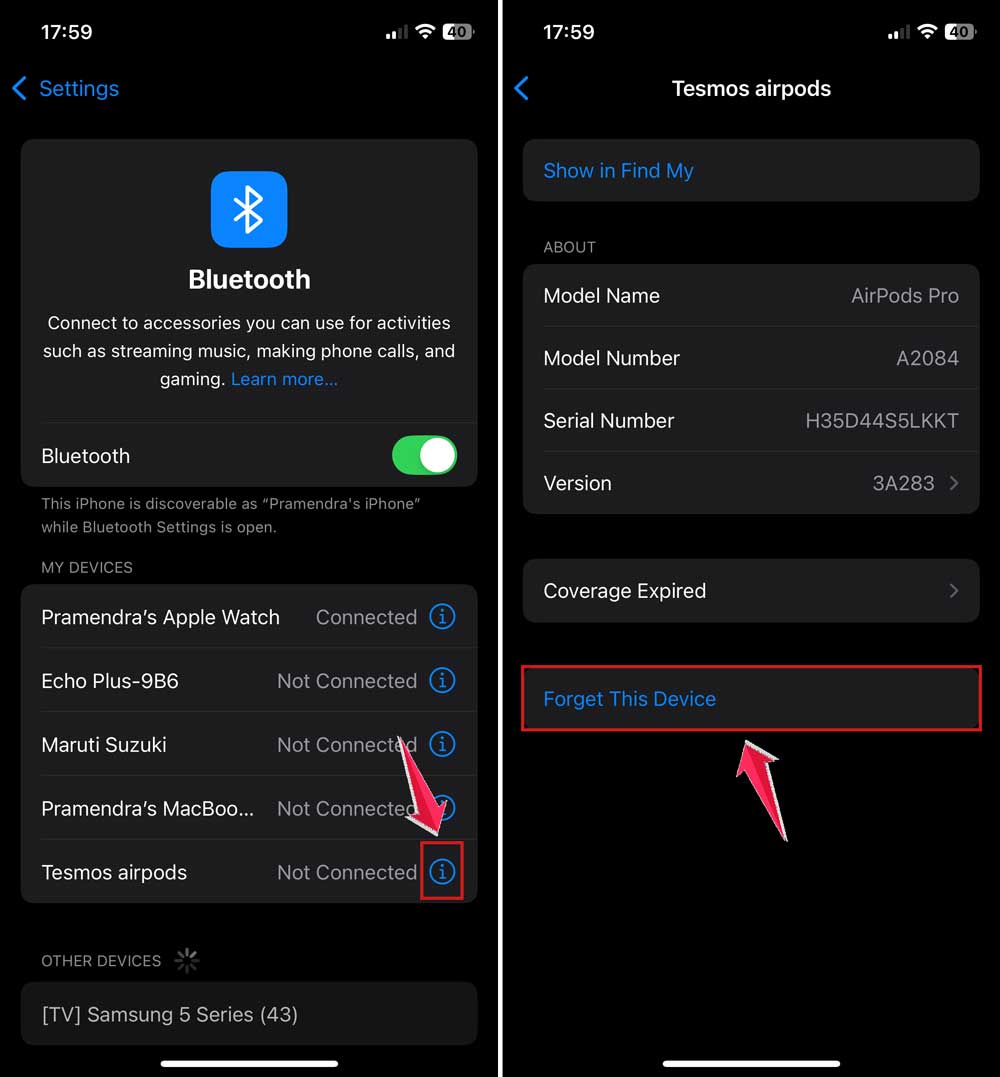
Sometimes a fresh connection is all you need to get things working right again.
#2 Turn on Location Services
Imagine trying to find a friend without a map. That’s what happens when Location Services are off.
- Go to Settings on your iPhone.
- Tap Privacy & Security.

- Make sure Location Services are turned on.

- Also, check that Find My has permission to use your location.

Giving your phone access to your location is key to finding your AirPods.
#3 Update Your AirPods Software
Old software can be a real pain. Let’s make sure your AirPods are up-to-date.
- Place your AirPods in the charging case.
- Keep them close to your iPhone and connected to Wi-Fi.
- Updates usually install automatically after some time.
- You can check firmware version under Settings > Bluetooth > AirPods info.
It’s a small step but can solve major problems!
#4 Ensure the Right Apple ID
Are we in sync? If not, Find My might not find your AirPods properly.
- Open Settings on your iPhone.
- Tap your name at the top.
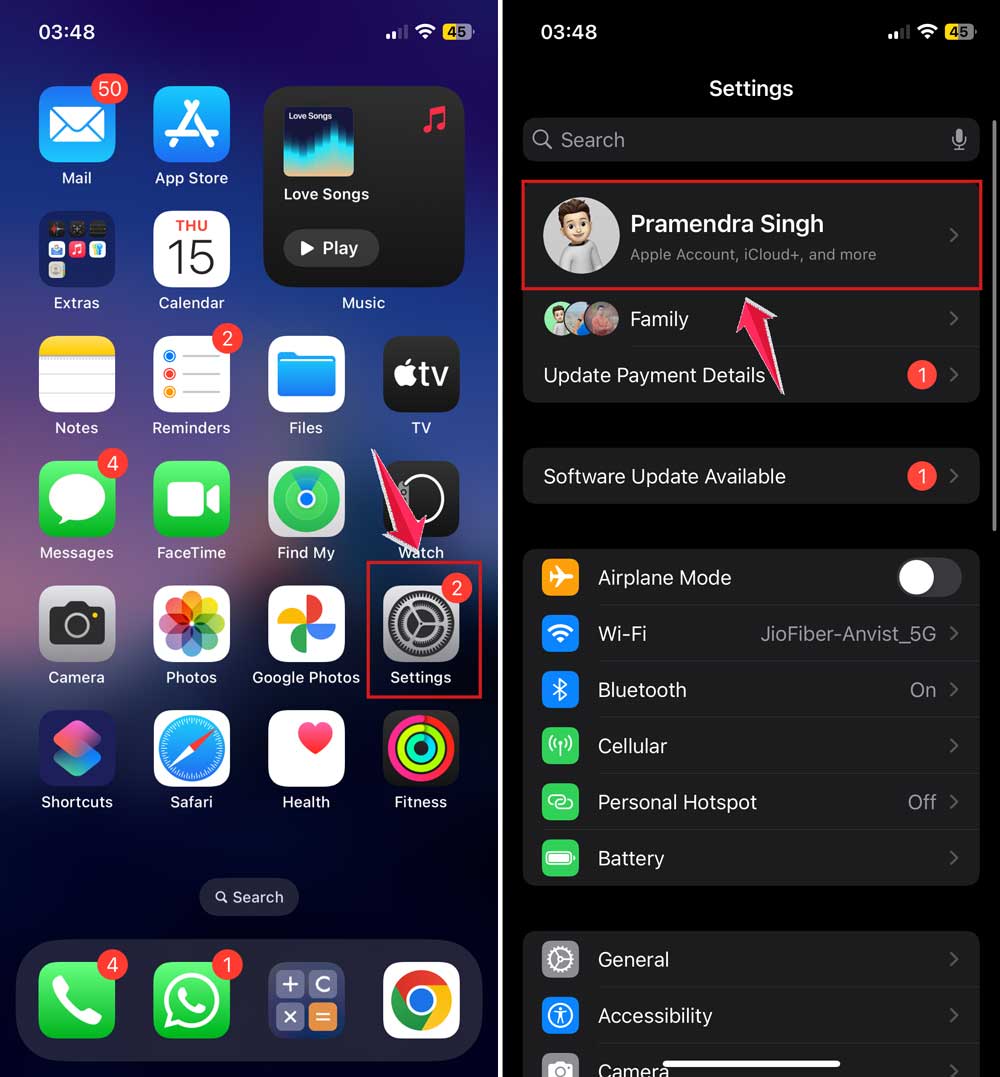
- Check that you’re signed in with the same Apple ID you used to set up your AirPods.
Mismatch in Apple IDs can make tracking impossible, so double-check it!
#5 Check the Battery Levels
Sometimes, it’s just a battery issue. Let’s make sure they are actually charged.
- Put your AirPods into the charging case.
- Connect the case to a charger.
- Wait a few minutes and then check the status light.
- If the light is green, you’re good. If it’s amber or off, keep charging.
A low battery might be the only thing keeping your AirPods from showing up!
Some Extra Tips for a Smoother Experience
Alright, these are bonus steps to keep your AirPods and iPhone working harmoniously. Think of them as extra tools in your toolbox!
1. Close and Reopen the Find My App
Sometimes, the app itself needs a little pick-me-up. Try closing the Find My app completely and then reopening it. It’s like giving it a quick refresh. This might just do the trick in showing your AirPods again.
2. Check iOS Software Updates
Your iPhone or iPad needs to be up-to-date too. Head to Settings and look for any pending iOS updates. New software can often fix bugs that cause these sneaky problems.
3. Keep Your Devices Nearby
Double-check your AirPods and iPhone aren’t too far apart. Proximity matters. If they’re within a good range, they can communicate way better, and this might help with visibility in Find My.
4. Perform a Network Reset
Feeling a little adventurous? Try resetting your network settings. It’s a bit more advanced but can fix stubborn connection issues. Just remember, it’s going to wipe out saved Wi-Fi passwords, so maybe jot those down first.
5. Disable and Enable Handoff
This is a neat iOS feature. Go to Settings > General > AirPlay & Handoff and toggle Handoff off and then back on.
It freshens up how your devices communicate and might help your AirPods pop back up.
Give these a shot! You’re doing great, and soon, your AirPods should stop playing hide and seek.
If things still feel off, Apple Support is just a call away. Good luck!
The Takeaway
So, those sneaky AirPods can charge but still stay hidden from Find My. Annoying, right?
But now you know what to check, like your Bluetooth and Location Services. Even a simple restart can sometimes work wonders, even if it sounds too easy to be true.
Now that you’ve got these simple tricks up your sleeve, go ahead and try them out.
Most of the time, it’s just a small glitch that’s easy to fix. If none of these work, don’t stress—Apple Support is there to help.
Have any questions or your own tips? Drop a comment below. I’d love to hear how it goes for you!