I get it. That little message saying “iCloud storage is full” keeps popping up, and it’s driving you nuts.
You’ve checked your photos, your apps, your files. But nothing looks big enough to be causing the problem. So what gives?
It’s frustrating, I know. It feels like iCloud is hiding stuff from you. You scroll through your phone thinking, “Where is all this space going?”
And still, you can’t find anything worth deleting. But iCloud keeps bugging you about it.
This actually matters more than it seems. If your iCloud is full, your backups stop working.
That means your photos, notes, messages, and other important stuff might not be safe.
And if your phone isn’t backed up, well, one small issue and you could lose things you care about.
But don’t worry. You don’t have to delete everything or buy more storage just yet.
I’ll walk you through what’s really going on and show you how to clean things up the smart way. Let’s fix this together, step by step.
Why Is iCloud Full When It Looks Like Nothing’s There?
#1 Hidden data that you don’t even see
Sometimes, iCloud saves things in the background that you’re not even aware of. Like old app backups from apps you deleted months ago.
Or random documents from apps you don’t use anymore. These files are small on their own, but they add up fast.
You won’t see them in your Photos or Files app. That’s what makes them tricky. But they’re there, quietly taking up space.
#2 Your device is backing up more than you think
By default, your iPhone or iPad is set to back up everything. That includes apps you don’t use, old messages, and settings.
It even saves backups from devices you don’t use anymore. All of that gets stored in iCloud. Unless you tell it not to.
So even if it looks like you have nothing to delete, those backups might be the real reason your storage is full.
#3 Shared family storage might be eating up your space
If you’re using Family Sharing on iCloud, it means your storage is shared with others.
That’s great in theory, but if someone else is saving a ton of photos or videos, it could be using up your part of the space. You might be cleaning up your phone, but someone else could be filling it right back up.
Knowing these things helps. Now, let’s go fix it.
What to Do When iCloud Is Full But You Can’t Find Anything to Delete
Alright, now that you know what’s likely causing the issue, let’s go through the solutions one by one. These are simple, and you can do them right now.
#1 Check your backup sizes and delete old ones
Backups are often the biggest culprits. Let’s take a look:
- Open your Settings.
- Tap your name at the top, then tap iCloud.
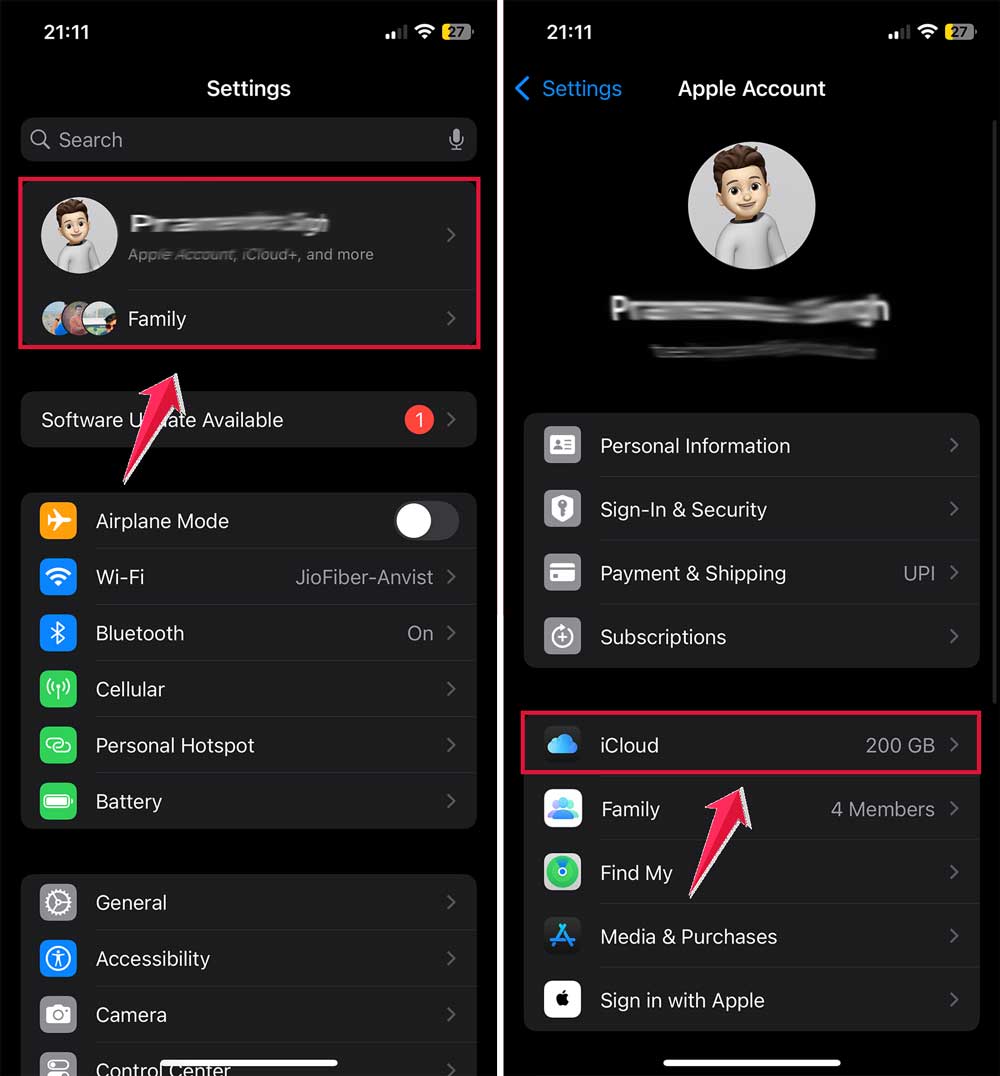
- Select Storage.
- Tap Backups.

Now, you’ll see a list of devices that are being backed up. If you find backups from old phones or iPads you don’t use anymore, you can delete them here. It’s safe to do if you no longer need the data.
#2 Empty your recently deleted photos
Even when you delete photos, they stay in a “Recently Deleted” album for 30 days. You need to clear that out.
- Open the Photos app.
- Scroll down and open Recently Deleted.
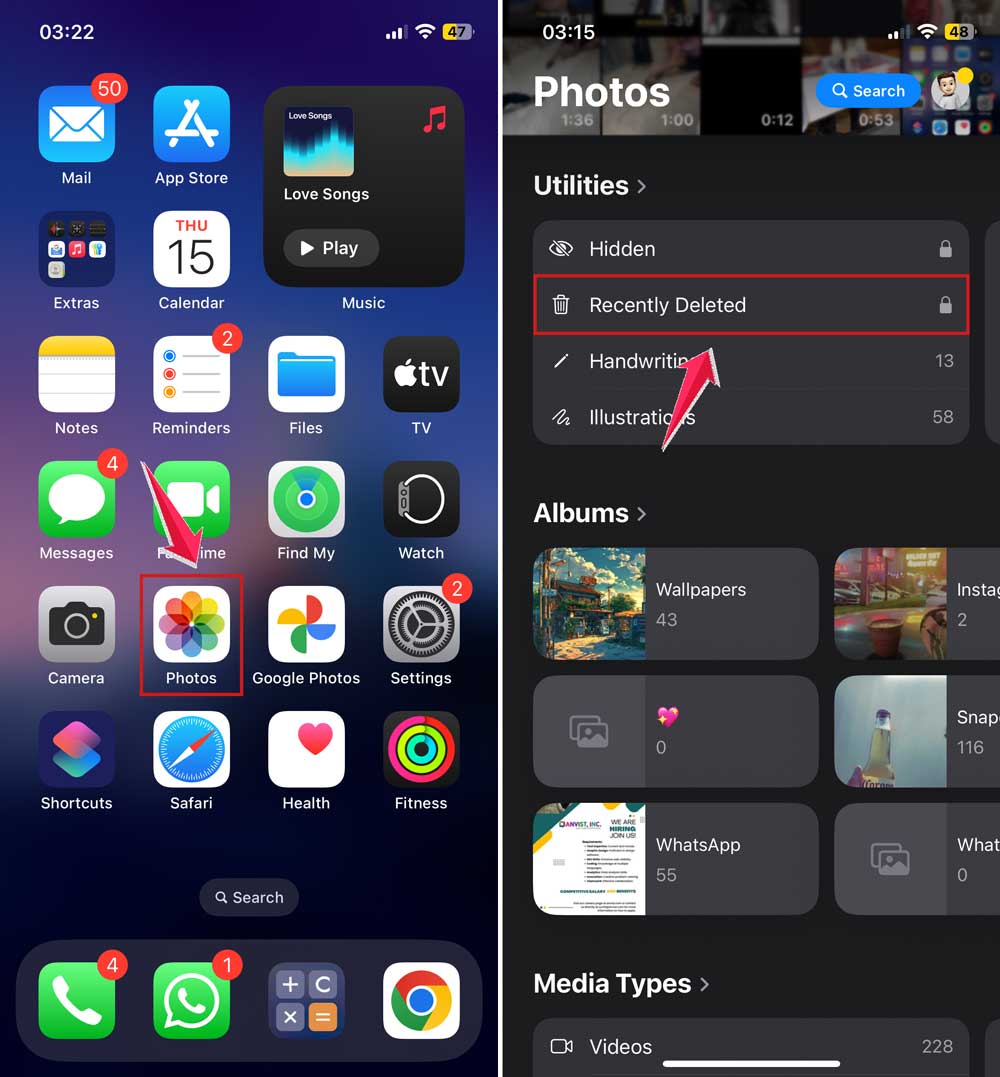
- Tap Select again.
- Tap the More button.
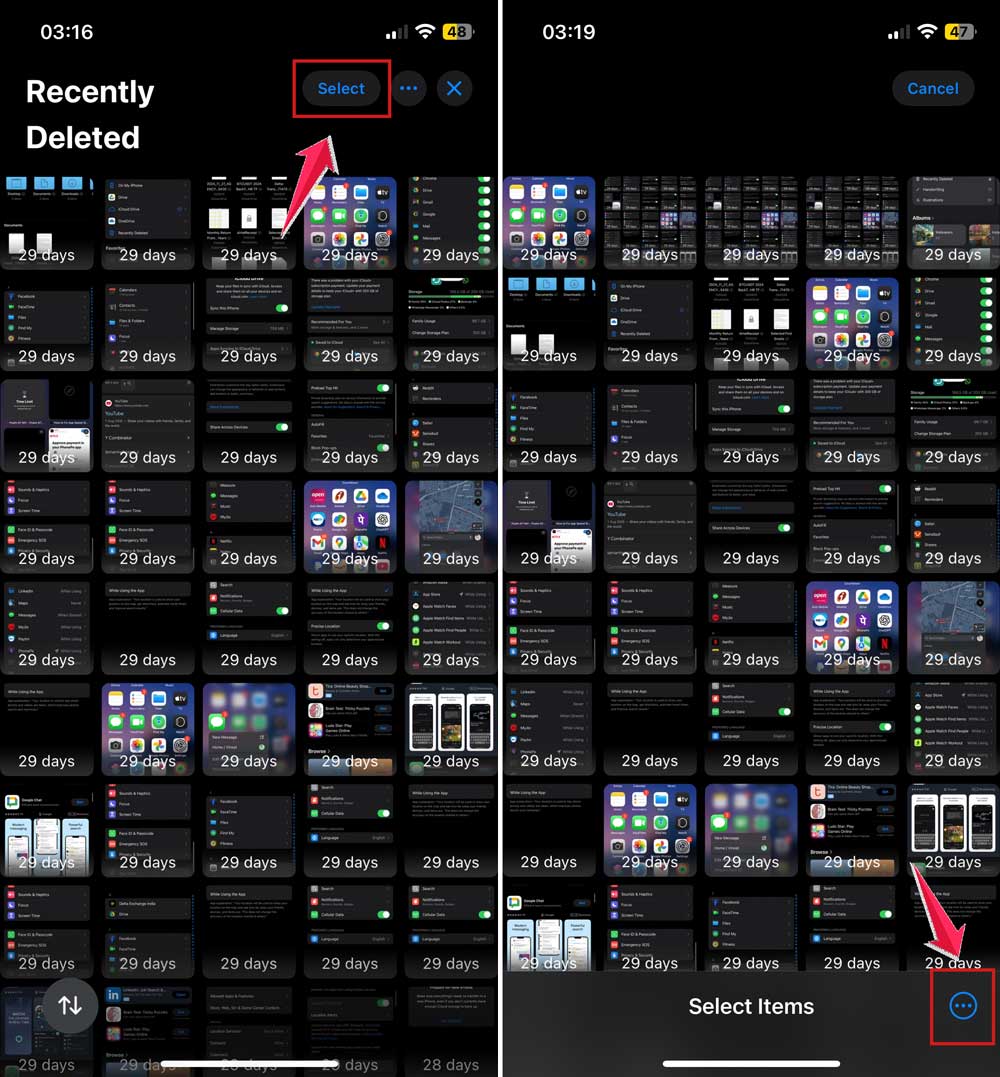
- Then choose Delete or Delete All.
- Confirm by tapping Delete from All Devices.

That should free up some space quickly.
#3 Turn off iCloud for apps that don’t need it
Some apps automatically save data to iCloud. Even if you don’t want them to.
- Go to Settings.
- Tap iCloud.
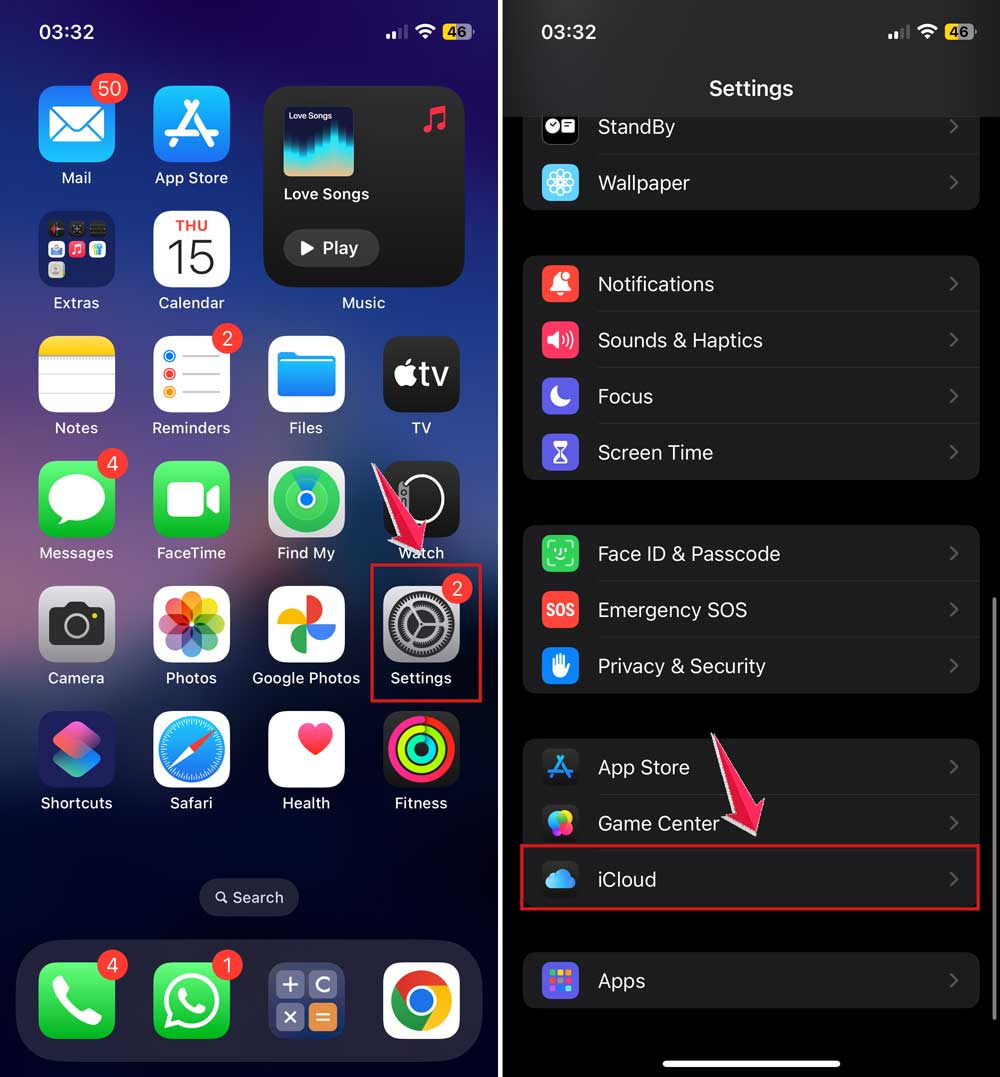
- Tap on Storage.
- Look through the list of apps using iCloud.
- Turn off the ones you don’t need syncing.
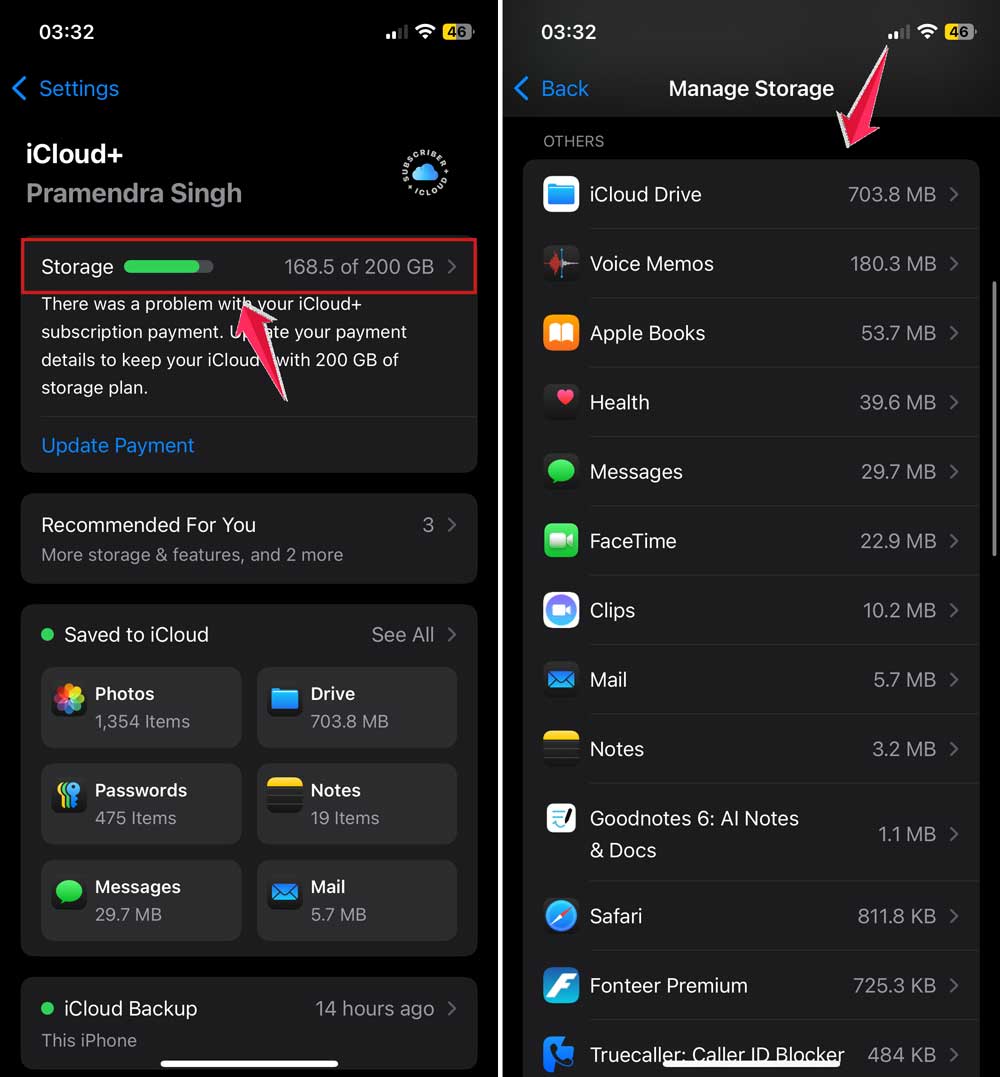
This stops those apps from using up more space in the future.
#4 Move large files to another service
You don’t have to keep everything in iCloud. If you’ve got documents or videos you want to keep, try moving them to:
- Google Drive
- Dropbox
- OneDrive
Or just copy them to a USB drive or external hard disk. That way, you keep your files, but iCloud gets some breathing room.
Extra Tips to Keep Your iCloud Storage Clean
#1 Turn on “Optimize iPhone Storage” for photos
This setting keeps smaller versions of your photos on your phone and stores the full versions in iCloud. It saves a lot of space.
- Go to Settings > Apps.
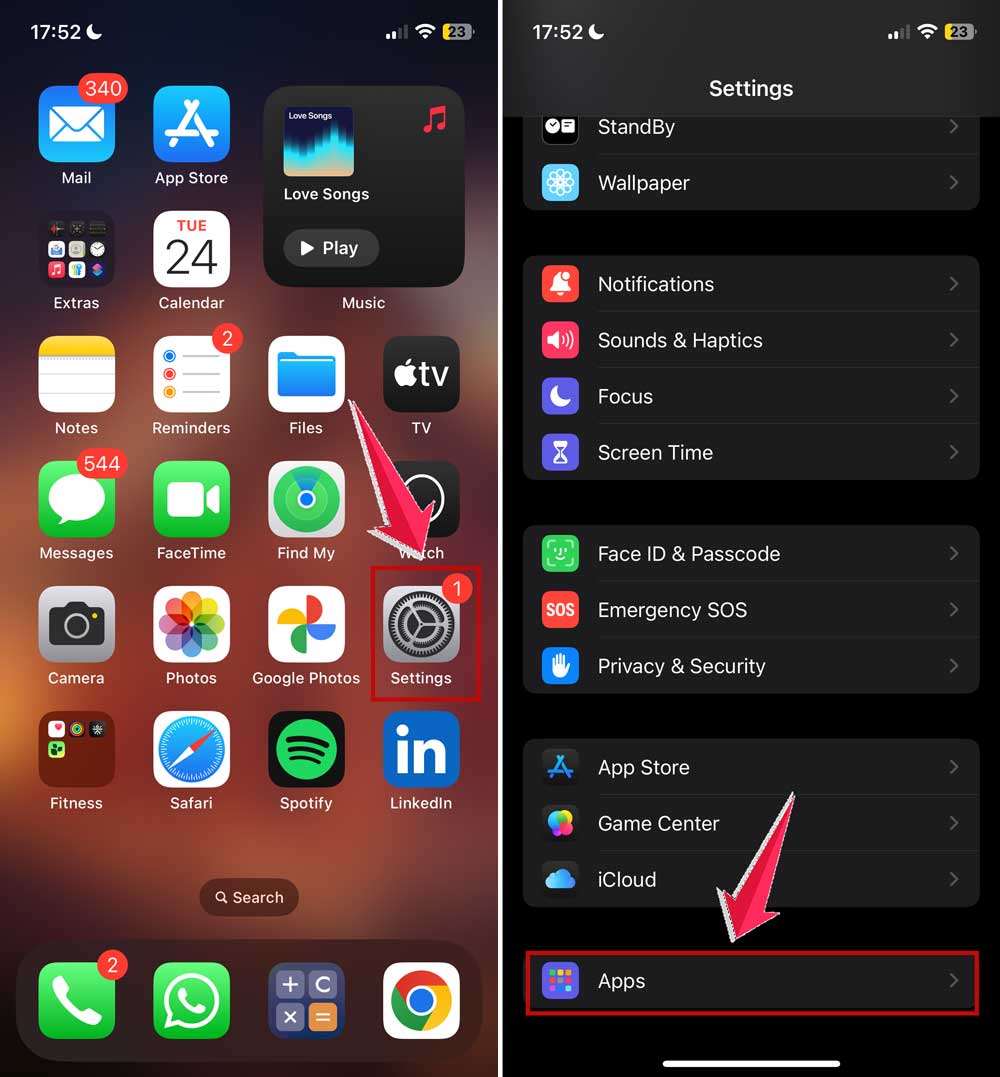
- Tap on Photos.
- Turn on Optimize iPhone Storage.

#2 Clean up your email storage
Old emails with big attachments can quietly pile up. Open your Mail app and delete emails you don’t need. Especially ones with photos, PDFs, or videos.
#3 Talk to your family about storage
If you’re sharing iCloud with others, have a quick chat. Ask them to manage their backups and clean up their space, too. It’s a team effort!
#4 Keep your files organized
Instead of dumping everything into iCloud, sort it out. Keep what matters. Move the rest to a hard drive or another cloud service.
It’ll help you stay on top of things long term.
#5 Clear Safari data
Even your browser can take up iCloud space. Here’s how to clean it:
- Open Settings.
- Tap on Apps.
- Tap Safari.
- Select Clear History and Website Data.

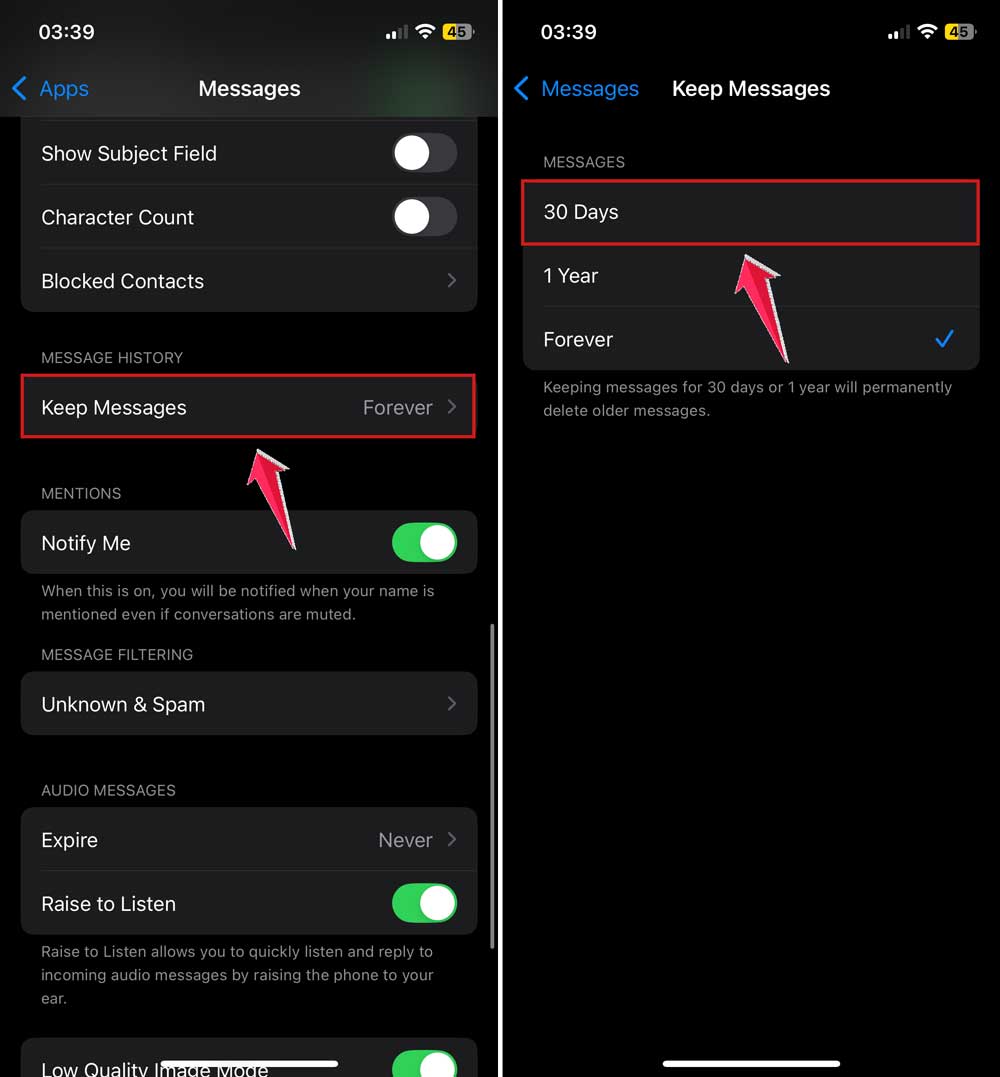
#6 Delete old message attachments
Photos and videos in Messages use iCloud too. You can limit how long messages are stored:
- Go to Settings > Apps.
- Tap on Messages.

- Tap Keep Messages and choose 30 Days.
#7 Turn off sync for unused apps
Some apps sync by default but don’t need to. Go into iCloud settings and turn off sync for apps you rarely use. It’s a small change that adds up.
#8 Use Google Photos or another app for media
You can back up your photos and videos to Google Photos instead of iCloud. It’s free up to a certain limit and helps keep iCloud clear.
The Takeaway
So, yeah. That “iCloud storage full” message? Not so scary anymore, right?
You’ve now got the tools to handle it. Start by removing old backups. Then, clean out recently deleted photos.
Don’t forget to turn off iCloud for apps that don’t need it. And hey, moving files to another cloud or a USB drive? Super smart.
Lots of people think they have to delete important stuff to fix this. But you don’t.
You just need to understand where the space is going and take back control. A few small changes here and there, and boom. You’ve got space again.
Give these tips a try and tell me how it goes. Got a question or a trick of your own? Leave a comment!