Did you know that the average person juggles around 100 passwords for various online accounts? That’s a lot to remember!
It’s no wonder we often find ourselves stuck at login screens, frantically trying to recall which password we used.
If you’re an iPhone user, you’re in luck. Your device has a built-in tool called iCloud Keychain that can help you manage all those passwords.
It’s like having a secure digital notebook that remembers your passwords for you.
But what happens when you need to find a specific password? Maybe you’re setting up a new device or trying to log in on a different computer. That’s where things can get tricky if you don’t know where to look.
In this guide, we’ll walk you through how to find your saved app passwords on your iPhone.
You’ll also learn how to update autofill credit card information for seamless online shopping. Ready to become a password pro? Let’s get started!
How to find saved passwords in the passwords app on iPhone
Remember when you had to dig through your iPhone’s Settings app to find your saved passwords?
Well, those days are over! Apple has made a smart move by introducing a dedicated app for managing all your passwords. It’s like they’ve given your passwords their own cozy home on your iPhone.
This change is a real game-changer for anyone who’s ever struggled to remember a password (and let’s face it, that’s pretty much all of us). Instead of tapping through multiple menus in Settings, you now have a one-stop shop for all your password needs.
So, what’s this new app all about? It’s simply called “Passwords“, and it’s designed to make your life easier.
Whether you’re setting up a new device, logging into an old account, or just need to check a password you haven’t used in a while, this app has got you covered.
Ready to see how it works? Let’s walk through the process together. It’s easier than you might think!
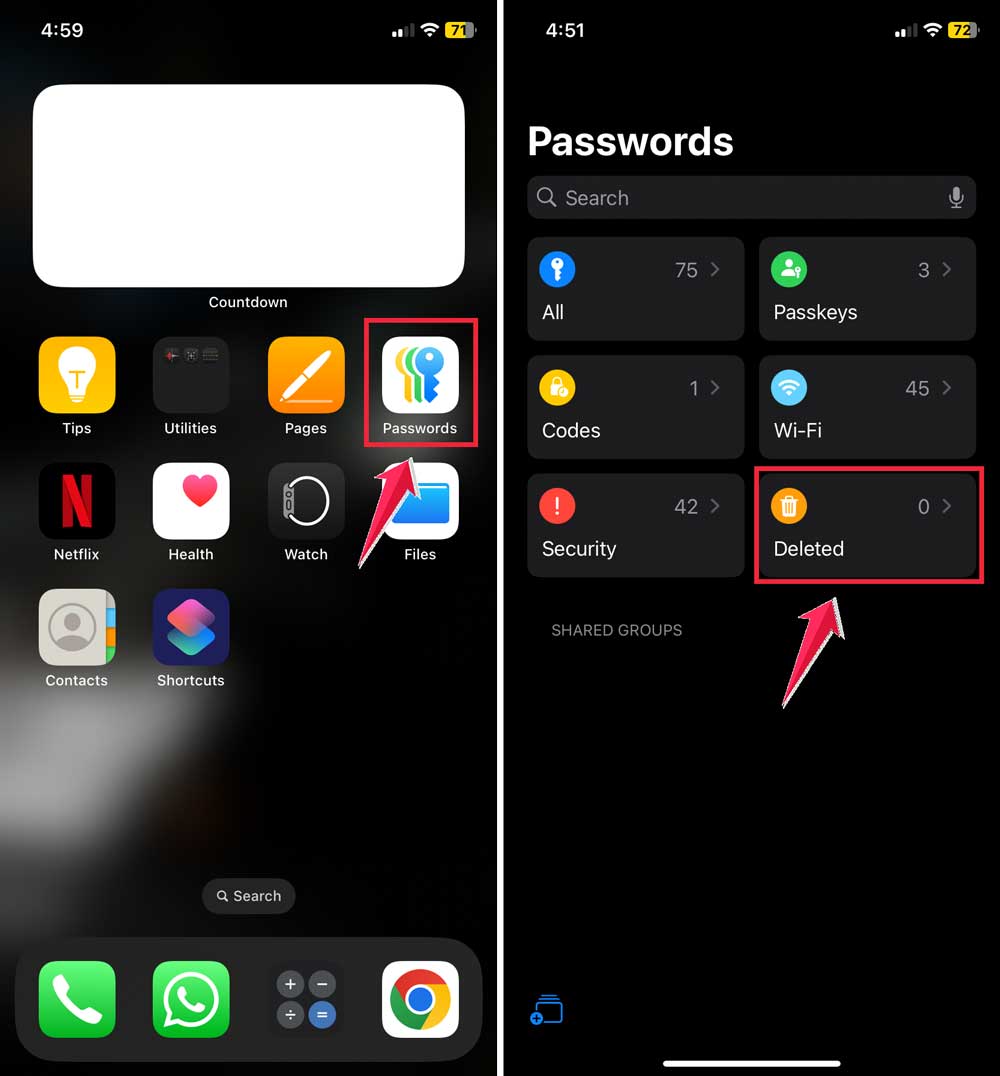
- First, look for the “Passwords” app on your iPhone’s home screen. It has an icon that looks like a key with different colored sections. Pretty snazzy, right?
- Once you spot it, go ahead and tap on the Passwords app to open it.
- Now, your iPhone wants to make sure it’s really you. It’ll ask you to verify your identity. You can use Face ID, Touch ID, or enter your passcode. Security first!

- Great job! You’re in. You’ll see a list of all your saved passwords neatly organized by category. It’s like a filing cabinet for your digital life.
- Need to find a specific password? No problem! You’ve got options:
- Scroll through the list if you’re in a browsing mood.
- Use the search bar at the top for a quick find.
- Tap on a category like “All“, “Passkeys“, or “Wi-Fi” to narrow things down.
- Found what you’re looking for? Tap on any entry to view all its details, including the website, username, and password.

Remember, all this information is kept secure on your iPhone. It’s like having a personal vault that only you can access.
How to manage passwords in the Passwords app on your iPhone
Your iPhone’s password manager is a powerful tool that helps you keep your digital life organized and secure. Here’s how you can make the most of it:
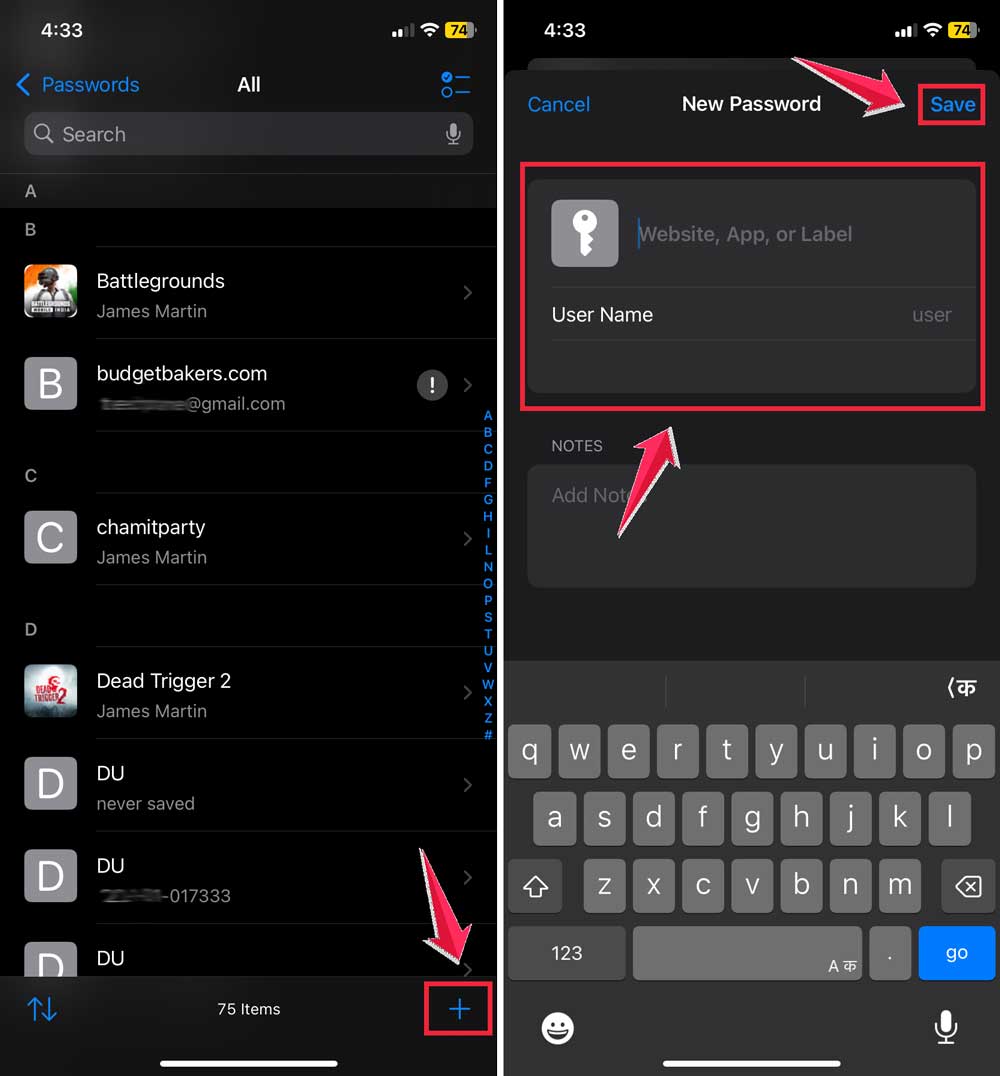
1. Adding a new password
When you need to save a new login, your iPhone makes it simple:
- Open the Passwords app.
- Click on “All” passwords.
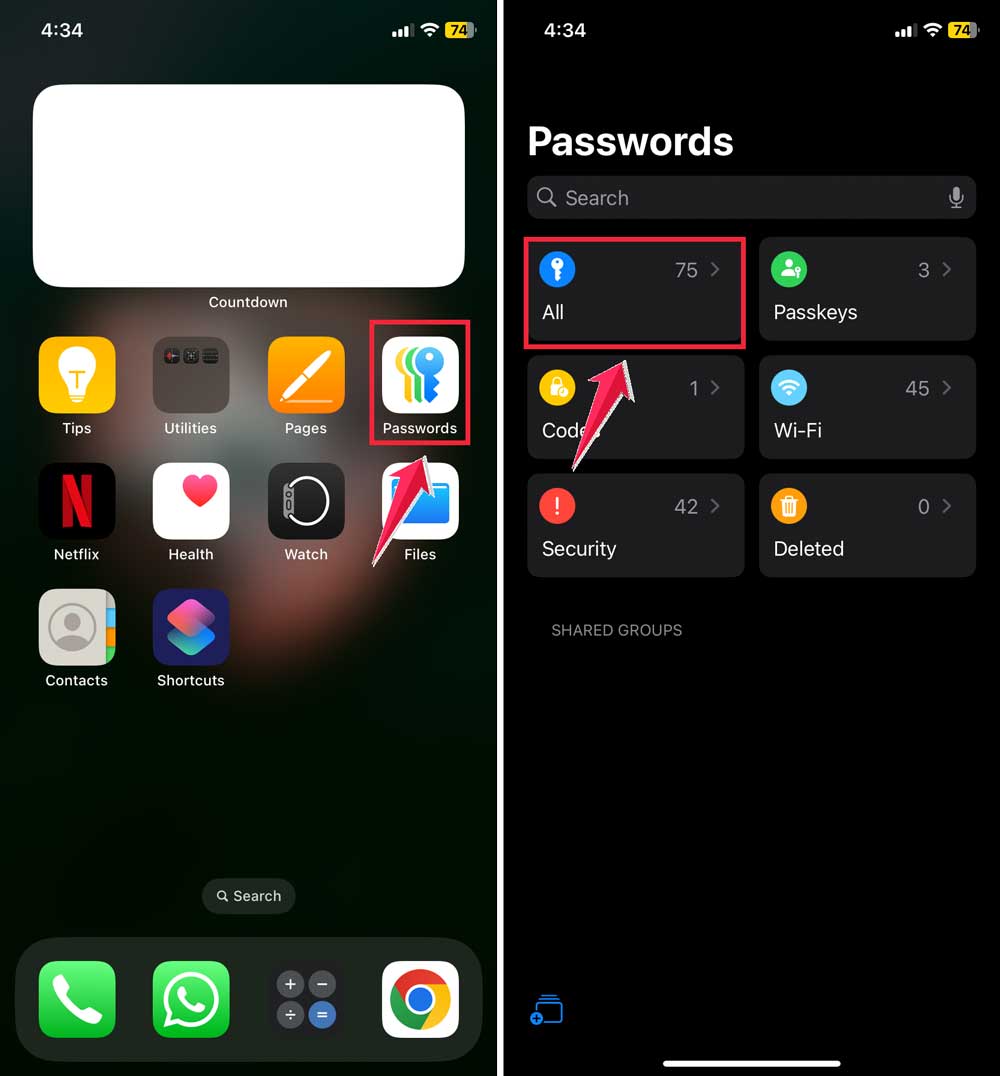
- Tap the “+” icon in the bottom right corner.
- Enter the website or app name, your username, and password.
- Click on “Save”.
2. Editing an existing password
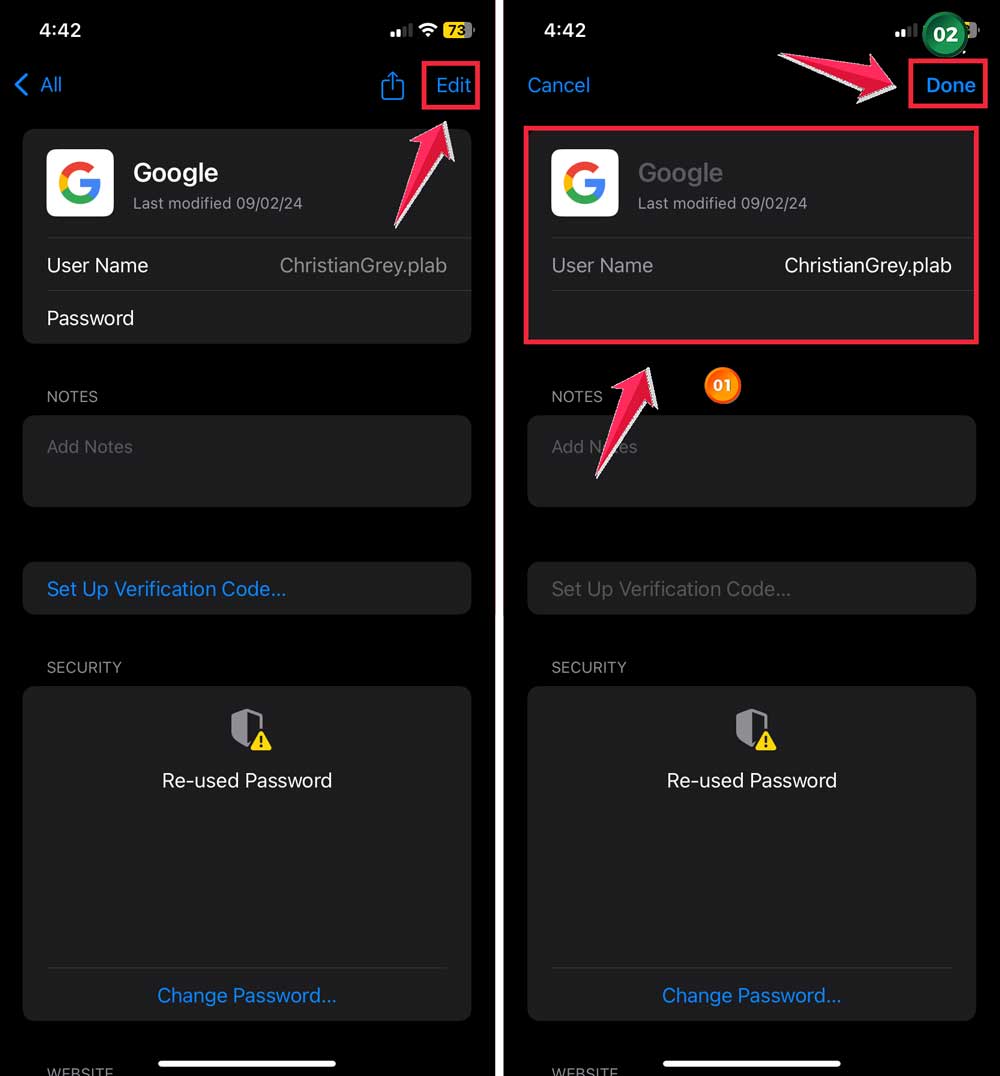
Need to update your login info? Here’s how:
- Find the password you want to change in the list.
- Tap on it to view details.
- Select “Edit” in the top right.
- Make your changes and tap “Done”.
3. Sharing a password safely
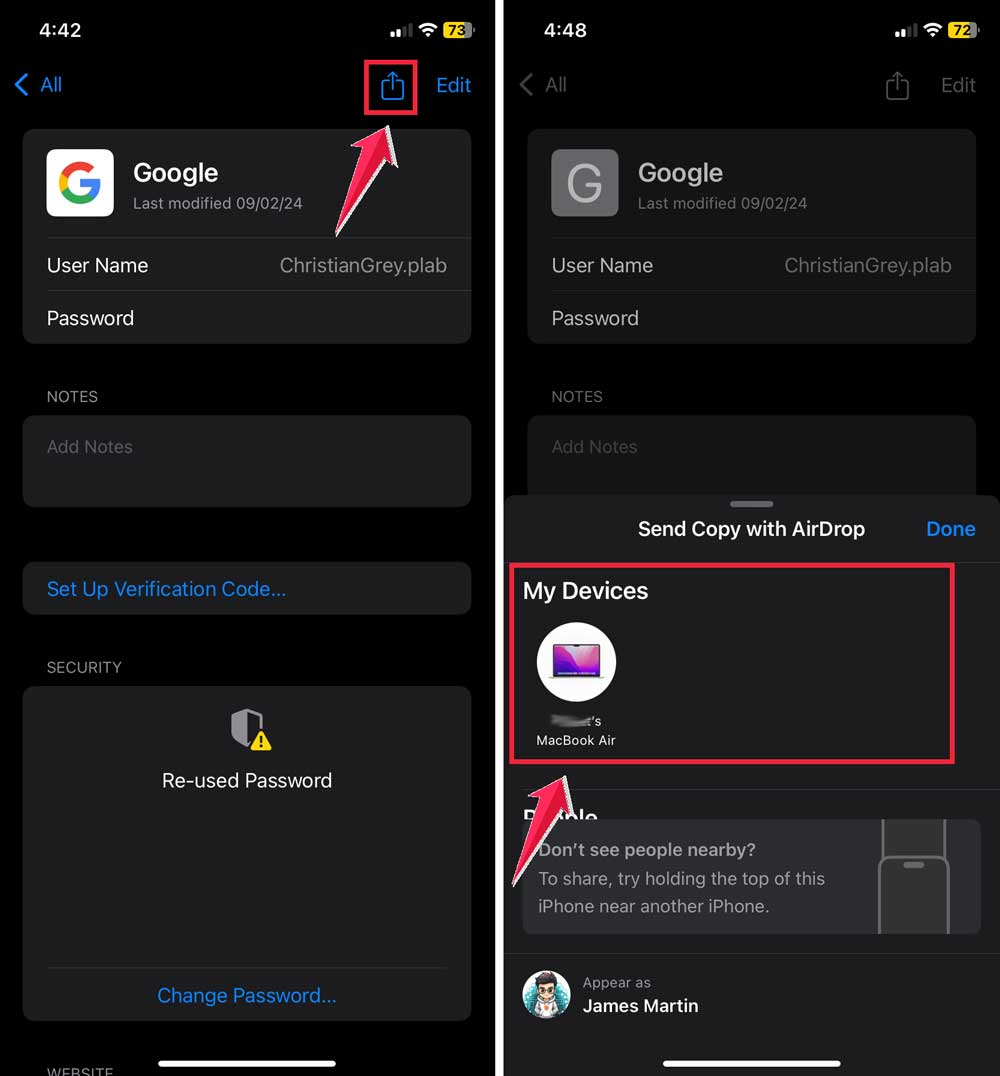
Sometimes, you need to share a password with someone you trust. Your iPhone lets you do this securely:
- Select the password you want to share.
- Tap the “Share” button.
- Choose how you want to send it (like AirDrop or Messages).
- The recipient will get a secure, one-time use link.
Wondering how to unsync your iPad from your iPhone? That’s handy if you want to separate accounts while managing your passwords.
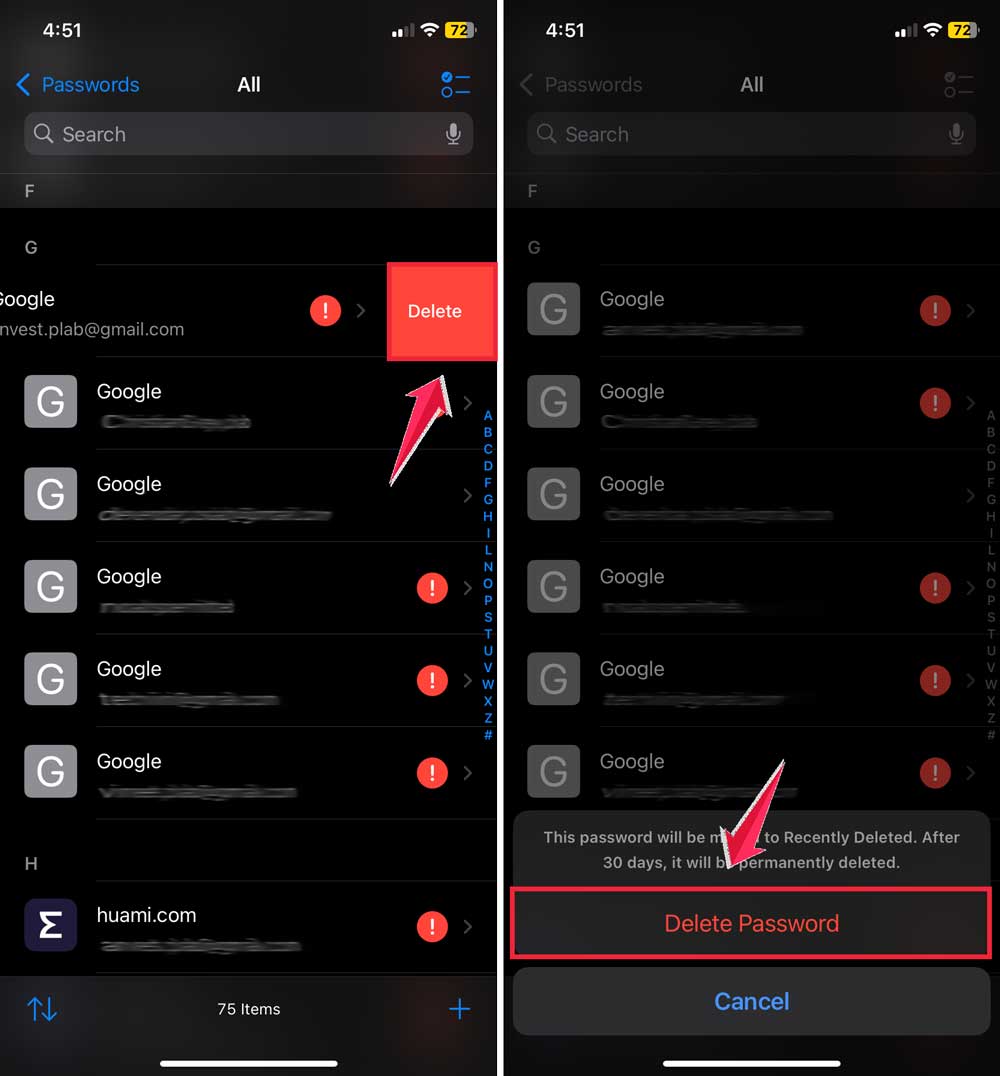
4. Deleting a password you no longer need
Keeping your password list tidy is important. To remove an old password:
- Tap on All passwords.
- Find the password in your list.
- Swipe left on it.
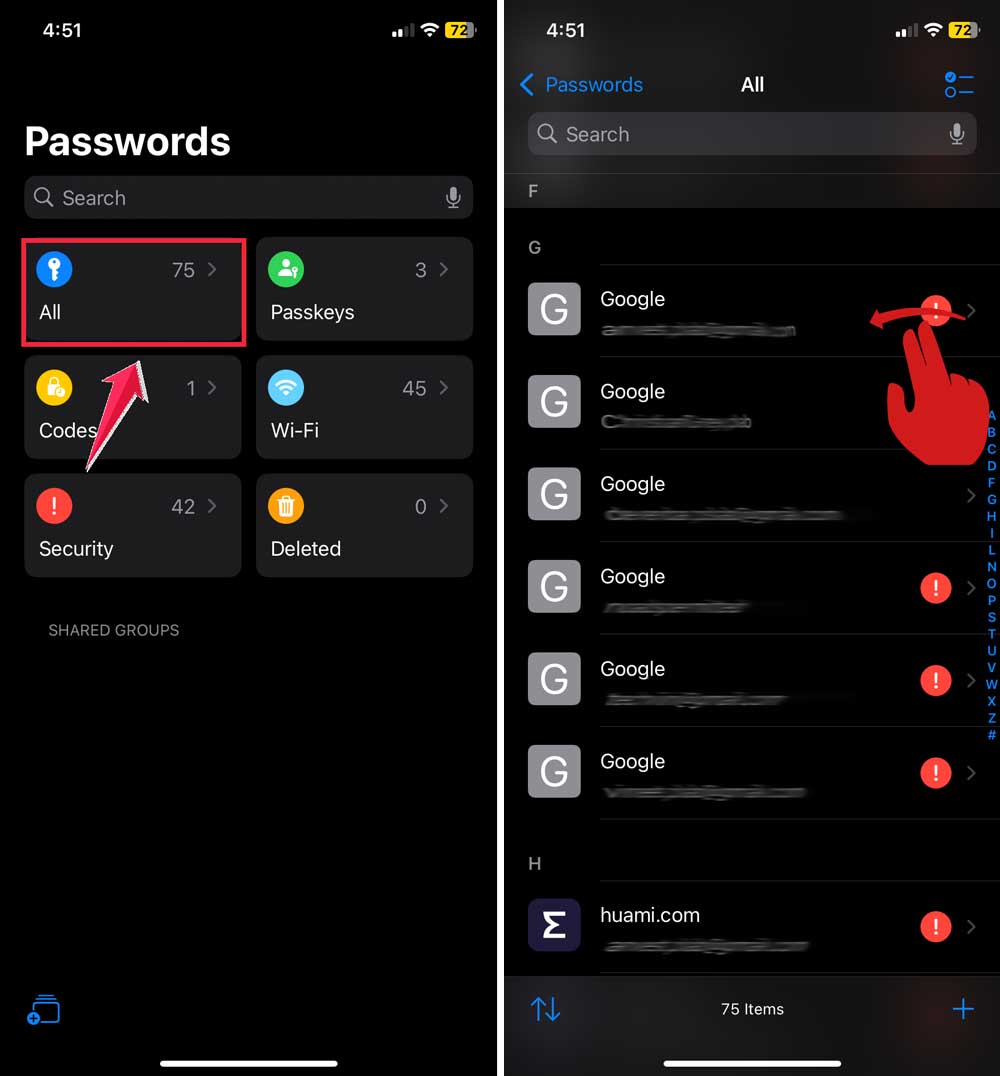
- Tap “Delete”.
- Confirm your choice.
5. Recovering a deleted password
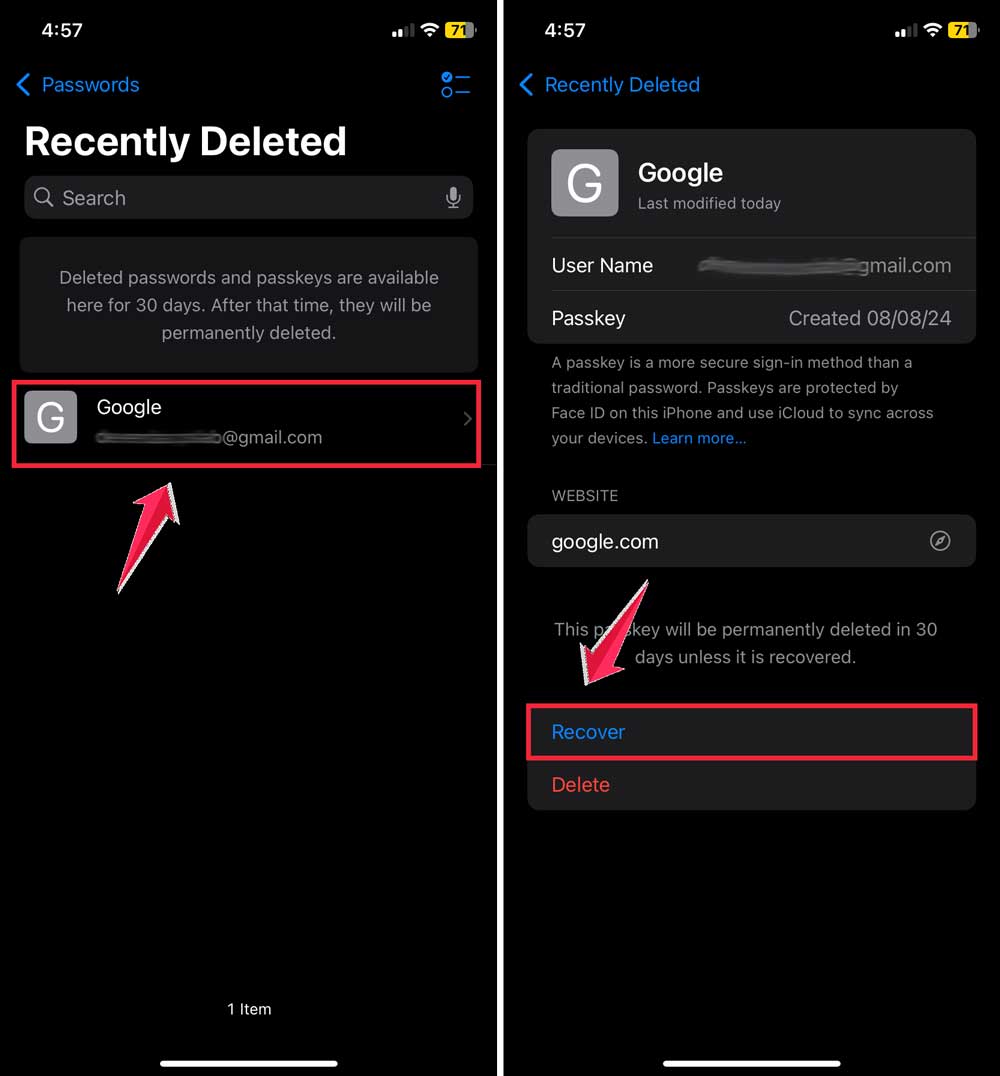
Did you make a mistake? Don’t worry, you can usually get that password back:
- Open the Passwords app.
- Click on the “Deleted”.
- Find the password you want to recover.
- Tap “Recover” next to it.
6. Using auto-fill for easy logins
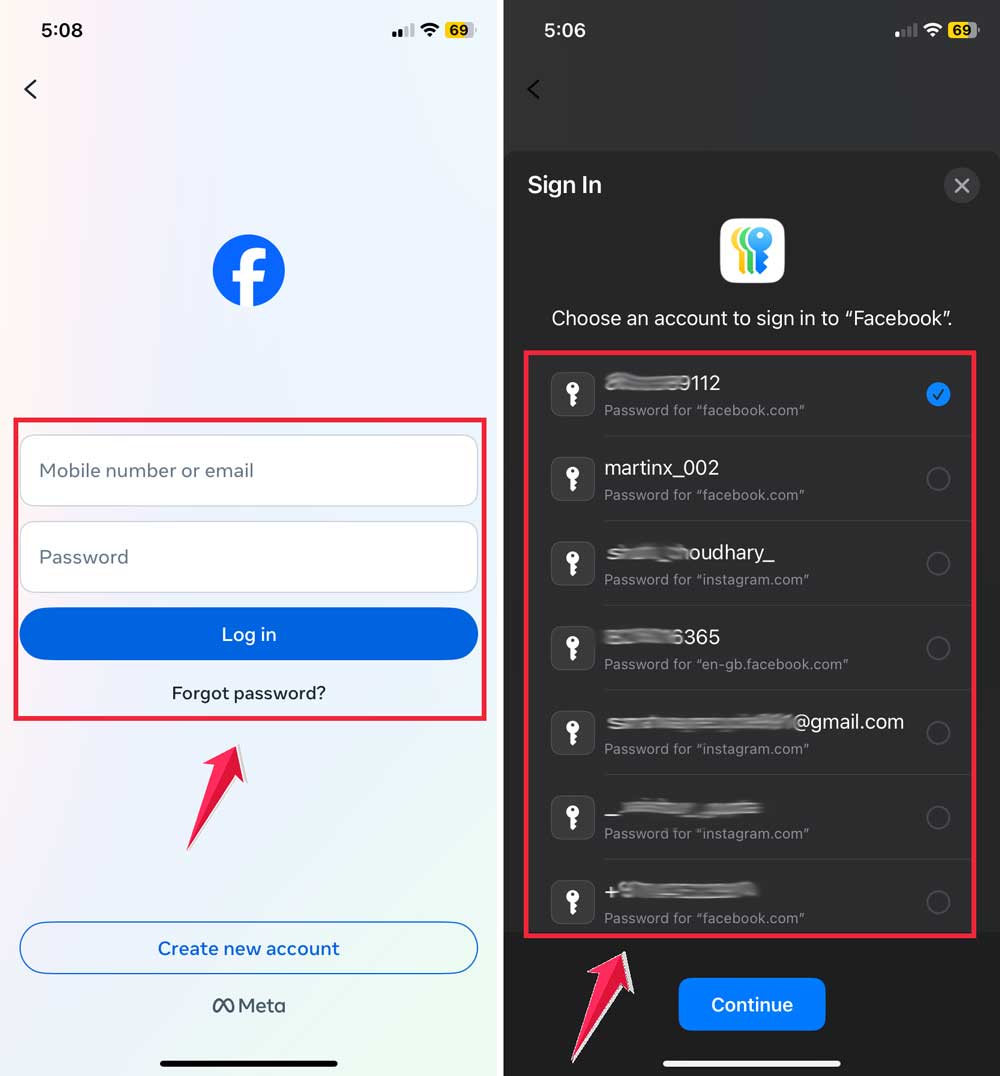
Let your iPhone do the work for you:
- When you’re logging into an app or website, tap the password field.
- Your iPhone will suggest the saved password.
- Tap to auto-fill and you’re in!
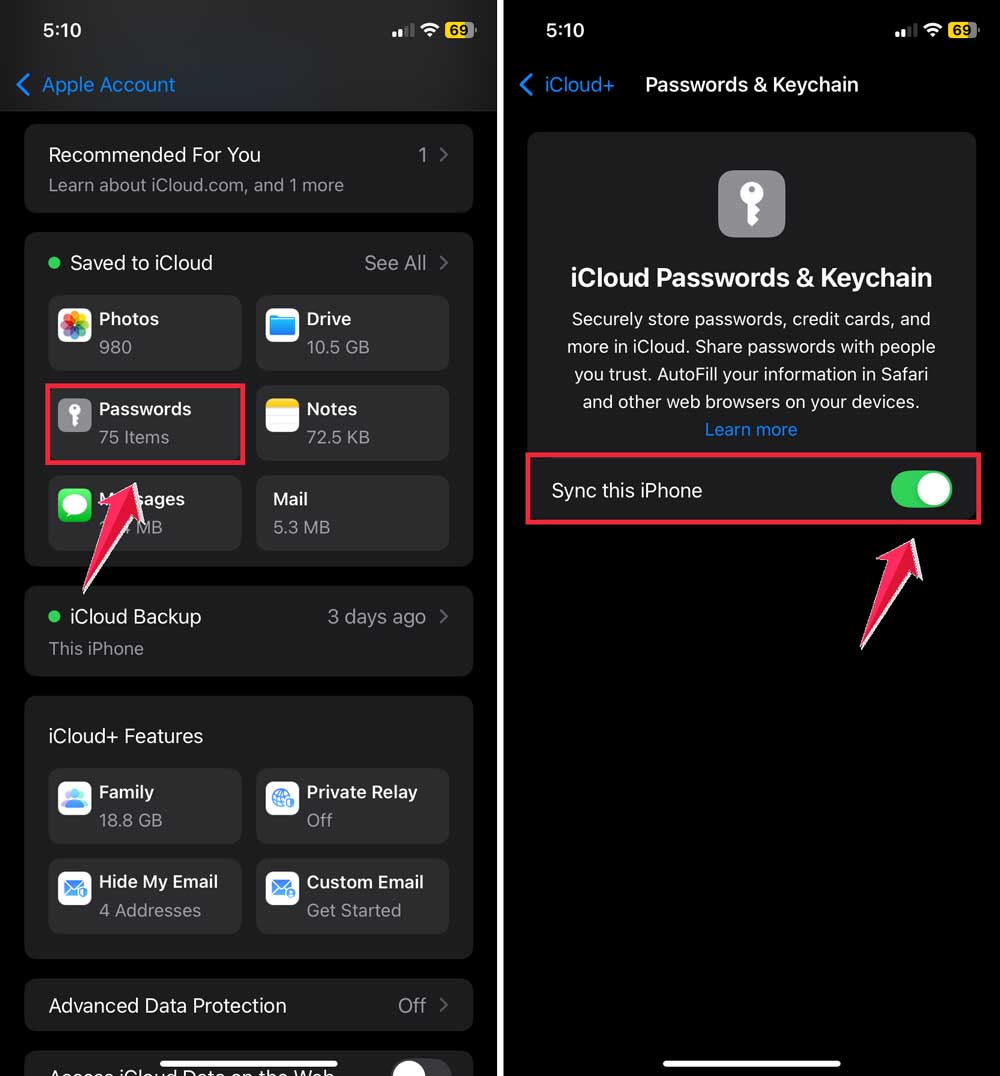
7. Syncing passwords across your devices
Keep your passwords up-to-date everywhere:
- Go to Settings > [Your Name] > iCloud.

- Make sure “Passwords & Keychain” is turned on.
- Your passwords will now sync to all your Apple devices.
Also, if you ever want to access clipboard content on your iPhone, there’s a simple way to do that too. Just as easily as your saved passwords.
Managing your passwords doesn’t have to be a chore. With these simple steps, you can keep your accounts secure and easily accessible right from your iPhone.
Remember, a well-organized password manager is your best friend in the digital world!
The takeaway
Managing passwords on your iPhone doesn’t have to be complicated. Apple has made it easier than ever to keep your online accounts secure and accessible.
With the Passwords app, you can add, edit, share, and delete passwords with just a few taps. The auto-fill feature saves you time by automatically entering your login information. And if you make a mistake, you can usually recover deleted passwords.
Many people think managing passwords is too much hassle, but it’s actually quite simple with these built-in tools.
Plus, keeping your passwords organized and up-to-date is crucial for protecting your personal information online.
Remember, your iPhone is designed to help you stay secure. By using these password management features, you’re taking an important step in safeguarding your digital life.
Why not take a moment now to organize your passwords and set up auto-fill? Your future self will thank you for making online life smoother and safer.
What do you think about these password management tips? Share your thoughts in a comment below!